User State Virtualization

What the hell is USV?  It’s simple; it’s using technologies to unbind user data from the PC.  You’re talking about features like roaming profiles, redirected folders and offline files.

Believe it or not, most companies I encounter have not done this.  For them, a PC repair is the timely process.  A PC upgrade is a potentially nasty piece of work to use USMT to capture a user state and restore it.

That’s why MS has released a Planning and Designing Guide for Windows User State Virtualization (USV).  Reading this, you can enjoy the tech that the rest of us have been using since the mid 1990’s.  Some of us stated using redirected folders and offline files back with W2003 and XP.  Admittedly, I disabled Offline Files when managing XP because it was a royal PITA (not a good thing).  Vista/Windows 7 appear to have solved that.

Getting the user state off of the PC is invaluable:

  • Windows upgrades are simple and quick.
  • PC repair which might take more than 10 minutes can be replaced by PC rebuild.
  • User data is centralized and easier to back up.
  • Those worried about regulators can do archiving.

Notable Changes in SP1 Beta for Win7 and W2008 R2

There are a number of notable changes in the Service Pack 1 beta for Windows 7 and Windows Server 2008 R2.  You might not have heard it, but they do go beyond Hyper-V.  There is a document you can read with all the details.  Here’s the highlights for the server OS:

  • Hyper-V Dynamic Memory
  • RemoteFX
  • A new IP address enforcement feature that is not in the beta release.
  • Enhancements to scalability and high availability when using DirectAccess
  • Support for Managed Service Accounts (MSAs) in perimeter networks
  • Support for increased volume of authentication traffic on domain controllers connected to high-latency networks
  • Enhancements to Failover Clustering with Storage

Here are the improvements for the desktop OS:

  • Additional support for communication with third-party federation services
  • Improved HDMI audio device performance
  • Corrected behaviour when printing mixed-orientation XPS documents

Both desktop and server:

  • Change to behaviour of “Restore previous folders at logon” functionality
  • Enhanced support for additional identities in RRAS and IPsec
  • Support for Advanced Vector Extensions (AVX)

Volume Activation

Thanks to being in the hosting business for the past 3 years and doing short term contracting before that, I’ve never had to deal with the nightmare that is Microsoft volume activation.  My new role requires I understand it, and it crops up plenty in an exam I’m preparing for.  KMS, MAK, MAK with VAMT are three activation methods that spring to mind.  KMS is what you’ll try to use in a large environment with more than 25 clients.  KMS clients must be on the network to reactivate every 180 days.  MAK with VAMT is recommended for up to 50 clients…. there’s a grey cross over area there!  MAK is recommended for smaller environments.

You can’t install KMS on W2008, but you can with a patch, but you have to activate Windows 7 with a W2008 R2 key, and you can’t activate Office 2010 with it, but you can with a W2003/W2008R2/Windows 7 KMS … you see where I’m going with all this?

Maybe volume activation needs a rethink?  Maybe it should be engineered to be as simple as Terminals Services (RDS) Licensing is.

You can read the Volume Activation Deployment Guide Windows 7 to get some help.  And remember that Office 2010 also requires activation.

MDT 2010 Update 1 Released

This came in the mail overnight:

Deploy Windows 7 and Office 2010 quickly and reliably—while boosting user satisfaction

Microsoft® Deployment Toolkit (MDT) 2010 Update 1 is now available! Download MDT 2010 Update 1 at: http://go.microsoft.com/fwlink/?LinkId=159061

As you prepare to deploy Windows® 7, Office 2010, and Windows Server® 2008 R2, get a jump start with MDT 2010 Update 1. Use this Solution Accelerator to achieve efficient, cost-effective deployment of Windows 7, Office 2010, and Windows Server 2008 R2.

This latest release offers something for everyone. Benefits include:

For System Center Configuration Manager 2007 customers:

New “User Driven Installation” deployment method. An easy-to-use UDI Wizard allows users to initiate and customize operating system and application deployments to their PCs that are tailored to their individual needs.

Support for Configuration Manager R3 “Prestaged Media.” For those deploying Windows 7 and Office 2010 along with new PCs, a custom operating system image can easily be preloaded and then customized once deployed.

For Lite Touch Installation:

Support for Office 2010. Easily configure Office 2010 installation and deployment settings through the Deployment Workbench and integration with the Office Customization Tool.

Improved driver import process. All drivers are inspected during the import process to accurately determine what platforms they really support, avoiding common inaccuracies that can cause deployment issues.

For all existing customers:

A smooth and simple upgrade process. Installing MDT 2010 Update 1 will preserve your existing MDT configuration, with simple wizards to upgrade existing deployment shares and Configuration Manager installations.

Many small enhancements and bug fixes. Made in direct response to feedback received from customers and partners all around the world, MDT 2010 Update 1 is an indispensible upgrade for those currently using MDT (as well as a great starting point for those just starting).

Continued support for older products. MDT 2010 Update 1 still supports deployment of Windows XP, Windows Server 2003, Windows Vista®, Windows Server 2008, and Office 2007, for those customers who need to be able to support these products during the deployment of Windows 7 and Office 2010.

Next steps:

Download Microsoft Deployment Toolkit 2010: http://go.microsoft.com/fwlink/?LinkId=159061.

Learn more by visiting the MDT site on Microsoft TechNet: www.microsoft.com/mdt.

Get the latest news by visiting the Microsoft Deployment Toolkit Team blog: http://blogs.technet.com/msdeployment/default.aspx.

Provide us with feedback at satfdbk@microsoft.com.

If you have used a Solution Accelerator within your organization, please share your experience with us by completing this short survey: http://go.microsoft.com/fwlink/?LinkID=132579.

Sincerely,

Microsoft Deployment Toolkit Team”

W2008 R2 SP1 Beta By End of July

Due to another engagement, I couldn’t watch the Muglia keynote from TechEd today.  I missed the expected announcement regarding the beta release of Windows 2008 R2 and Windows 7 Service Pack 1.  We should expect it by the end of July.  For you Hyper-V heads, that’s when we get the first official public glimpse at Dynamic Memory.  For you remote desktop services heads, RemoteFX is in there too.

To be honest, I was hoping the release would be tonight.  But it isn’t 🙁

Bought a Netbook – Samsung N150

I’m doing a lot of presentations lately that are just PowerPoint.  There’s no need to carry a laptop for demonstrations all of the time.  For example, I’m squeezing in a tonne of information into 3 hours at PubForum 2010 and I’m speaking at Epicenter in Dublin in a few weeks.  I also sometimes think that a smaller computer would be a great replacement for my Epson image tank – it’s a device photographers use in the field to store photos on when the requirements for memory cards are too much.  My Epson’s battery only lasts a very short while and additional ones cost a staggering and unjustifiable €90 or so.

My requirements for a netbook were simple:  VGA port, USB slots, decent sized hard drive and longer battery life than I’ll get from a laptop.  Check, check, check and 9 hours.  OK, it’s listed as 9 hours but I reckon it’ll give me 6.5.  There were machines that claim 12 hours life but they cost another €100 to €150.

Last night I ventured out and purchased a Samsung N150.  No, it’s not the latest, doesn’t do touch screen, doesn’t start with an “i”, and isn’t going to make nerds go “ooooooh!”.  But, it won’t overheat on a warm day, can run flash, and can run the OS I want: Windows 7.  That’ll make it great to replicate content from my laptop and PC via Mesh.

It came with an OEM build of Windows 7 Starter.  That wasn’t ever going to last too long on there but I decided to let it configure so I could see what was on there.  An hour later and the Samsung configurations were still running.  I quickly prepared a USB stick with a Windows 7 installer and wiped the netbook.  20 minutes later I was installing software and patching the OS.  I’ve no idea what Samsung were thinking but that was a great way to make their customer think they’d made a bad purchase.

As usual, the machine came with 1GB RAM.  I really don’t get that.  It’s got one slot but it’ll take up to 2GB so an upgrade will be done at some point.  All the usual good stuff will go on there: Office (I still have to use 2007 to use my publisher’s Word extensions), Live Essentials, MS Security Essentials, Faststone Image Viewer, etc.

Microsoft Intune

You’ve probably seen bits hear and there about a new Microsoft cloud light version of Configuration Manager.  Details of the newly launched Windows Intune service just appeared.

It gives some auditing, policy management and malware/update management.  You can what this is like below.

windowsintune_5F00_screenshot_5F00_0834B422[1]

Here is what it does:

  • Manage PCs through web-based console: Windows Intune provides a web-based console for IT to administrate their PCs. Administrators can manage PCs from anywhere.
  • Manage updates: Administrators can centrally manage the deployment of Microsoft updates and service packs to all PCs.
  • Protection from malware: Windows Intune helps protect PCs from the latest threats with malware protection built on the Microsoft Malware Protection Engine that you can manage through the Web-based console.
  • Proactively monitor PCs: Receive alerts on updates and threats so that you can proactively identify and resolve problems with your PCs—before it impacts end users and your business.
  • Provide remote assistance: Resolve PC issues, regardless of where you or your users are located, with remote assistance.
  • Track hardware and software inventory: Track hardware and software assets used in your business to efficiently manage your assets, licenses, and compliance.
  • Set security policies: Centrally manage update, firewall, and malware protection policies, even on remote machines outside the corporate network

The service is being released to 1,000 customers and MS partners today in the USA, Canada, Mexico and Puerto Rico.  Customers of this Intune service will be elligible to upgrade to Windows 7 (and future versions) Enterprise (useful for the last above bullet point if you can manage BitLocker and BitLocker-to-go).

The target customers are “businesses that need a cost-effective, simple way to manage and secure their PCs. For businesses with a highly mobile and distributed workforce, the Windows Intune cloud service can help you manage and secure PCs in the office or on the road—so end users can remain productive and better protected”.

Technorati Tags:

My Current Hyper-V & Writing Lab

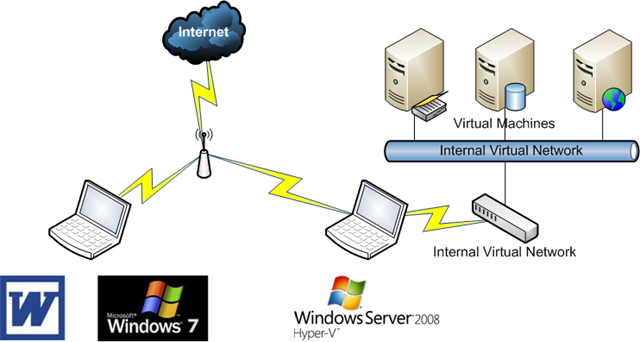
I’m working on a couple of writing projects after work at the moment and I thought I’d talk a little bit about how I’m doing my lab work.  I’ve previously talked about how I’m using Hyper-V on my Dell E6500 laptop.  With a few projects going, you can imagine how far I’m pushing it!

image

At the moment, I’m using two laptop.  My old Sony Vaio is running Windows 7 and Microsoft Office 2007.  Why not 2010?  I’m using a customised ribbon that is version specific.  That allows me to use all the formatting that the publisher requires.

My Dell E6500 (Dual Core CPU, 8GB RAM) is running Windows Server 2008 R2 Datacenter edition from an 7200 RPM 250GB eSATA hard disk.  Normally it boots from Windows 7 using the internal hard disk.  But I’ve set up the BIOS to boot from eSATA first if it is found.  On there, I’ve enabled the Hyper-V role, configured the machine as a domain controller and installed VMM 2008 R2.  None of that is good production practice!  DNS is also enabled on the parent partition and uses forwarders for Internet name resolution.

The laptops are on my wifi network at home.  Hyper-V does not support wifi for virtual machine networking.  However, there’s a well known way to create an internal virtual network and bridge it with the wifi NIC in the parent partition.

I started out keeping my VM’s in a folder on the C: drive.  However, 250GB runs out pretty quick.  Compressing the VMM library did help a bit here.  I ended up using a USB 2.0 external drive for additional space.  Sure the performance sucks, but I’m doing lab work, not production server hosting!

The laptop has 8GB of RAM.  I want to make the very most of every MB of RAM.  So I enable RDP on my VM’s. That way I don’t even have to log into the Hyper-V laptop once things are up and running.

This allows me to work away on the documentation on my Vaio.  I can RDP from there onto my VM’s which are on the same network (with static IP’s).  I’m using a tool called MWSnap to capture screenshots to TIF files.  They auto save to a shared folder on the parent partition, which I copy over to the VAIO every now and then.

As much as I can squeeze out of this, I’m realistically looking at deploying more hardware.  I’m still going back and forth on pulling the trigger on that purchase.

Big Virtualisation Announcements By Microsoft

A press release was issued today by Microsoft.  It has a whole bunch of new statements on the MS front, including licensing, new features, and requirements changes.  The big ones are:

  • Hyper-V Dynamic Memory will be added in W2008 R2 SP1.
  • A new smoother VDI experience for VDI customers in W2008 R2 SP1.
  • VDI licensing for SA customers won’t require and additional license for PC clients.
  • XP Mode will no longer require CPU assisted virtualisation.

That last one was a pain in the butt when it came to Virtual PC for Windows 7.  You had to dig deep to find out if your Dell, HP, etc, machine had a supported CPU.  And manufacturers like Sony produced machines quite recently that hid the functionality if it was there.  This change by Microsoft removes the guess work.

No schedules were announced.  Check out the press release to see all of the announcement.

Credit to Mark Wilson (MVP) for making me aware of this.

Microsoft “Desktop Virtualisation Hour”

Microsoft is holding an event on March 18th at 9am PST (-8 GMT) focusing on desktop virtualisation.  You can find more details and mark it in our calendar by visiting the official site.  As Jeff Wettlaufer put it:

“Looking at desktop virtualization including VDI? Thinking about migrating to Windows 7? Want savings, but unsure of the tradeoffs? Have more questions than answers on the topic?”.

Hopefully this session will answer those questions for you.

Technorati Tags: ,