Planning Network Security For Your Mission-Critical Workloads With Virtual Networks

Speakers: Anitha Adusumilli and Mario Lopez

Networking ensure that data remains in your private space in the cloud. So it’s not just a VM thing.

Understanding Cloud Challenges

  • Dynamic, scalable workloads – no fixed network perimeter
  • Attack vectors based on application access patterns
  • Risk of data exposure to exploits, with a mix of IaaS, PaaS, and SaaS services

Cloud network security is evolving as the apps change!

Planning Network Security in Azure

  • Similar controls as on-premises.
  • Pick your network security offerings
  • Layer and scale
  • More flexible than on-premises – faster to deploy/tear down
  • Azure offers managed services

You can build a vNet and add subnets as security boundaries. You can add peered vNets locally and in other regions.  And you might have external connections via VPN/ExpressRoute.

There are a mixture of Azure-native and third-party security offerings.

Application access Patterns

Use these to decide what network security solution to pick. Probably will be a mixture of the below.

  • Service endpoints
  • NSGs
  • ASGs
  • User-defined routes
  • DDoS Protection
  • WAF
  • Azure Firewall
  • NVAs

Security with Azure Services

VMs don’t need public IPs. However, when you use Azure services, they have public IPs, e.g. Azure SQL. This might require you to allow outbound connections that you might not have done before. Anyone with rights for default deployments can access from anywhere. But if you add services to the VNet, via service endpoints, and apply services firewalls, e.g. Azure SQL, then you can restrict access to these platform services.

Two patterns:

  • Add services to a VNet where the VNet is all that can access the service
  • Add services to a VNet to allow private access, but public access is also possible.

Pattern 1: Deploy services into VNet

WIN_20180926_14_29_30_Pro

Example, App Services Environment (ASE) is deployed into a subnet.

Security:

  • NSGs
  • NVAs
  • User-defined routing can control direction of traffic, e.g.a private deployment can only route via a gateway (forced tunnelling)
  • Services in Azure might require outbound access from your VNet. Use Service Tags to limit outbound traffic to local service.

New service tags:

WIN_20180926_14_35_13_Pro

Azure Webapps will be getting preview support soon – an alternative to P2S VPN.

Pattern 2: Service Endpoints

  • Extend VNet identity to the service
  • Secure your critical Azure resources to only your VNet
  • Traffic remains on the Microsoft backbone

WIN_20180926_14_38_42_Pro

How to Secure Your Resources Using Service Endpoints

Normal flow in new setup:

  1. Set endpoint on your endpoint
  2. Lock your service resource to your subnet

One-Time Migration:

  1. Step 1: Add VNet rule without endpoint
  2. Set endpoint on subnet
  3. Remove the public IP setting

All scenarios: Remove “Allow All Azure Services” or “Allow All” settings.

Service Endpoint: Scaling Security

  • Resource locked to a VNet: No access to other VNets or Internet or on-premises.
  • Permit more VNets: Turn on service endpoints on VNets and add under “virtual Networks” on resource
  • Permit on-premises: Add the on-prem NAT IPs under “firewall” on resource.

Careful – locking network access down can prevent Azure services, such as backup. There are docs for these workarounds – ask Anitha Adusumilli.

Stitching Services Together

  • Secure Azure resources to managed service subnets with endpoints
  • More

Securing VNet traffic: Services Tags in NSGs

  • Restrict network access to just the azure services your use.
  • Maintenance of IP addresses for each tag provided by Azure (Service Tags)
  • Support for global and regional tags (varies by service)

Service endpoints: Data-Exfiltration Risk

  • NSG service tags not enough to prevent data exfiltration from VNet
  • Access to unauthorized accounts possible

Option 1: filtering with Azure Firewall or NVAs

  • Service endpoints bypass NVAs for service traffic, if set on originating subnet
  • Optionally, continue using NVAs for auditing/filtering service traffic
  • More

Service Endpoint Policies

  • Prevent unauthorized access to storage accounts
  • Restrict vnet access to specific azure storage accounts
  • Granular access control over service endpoints
  • West Central US and West US2 today

Demo: Service Endpoint Policies

She has a VNet with a subnet. Service endpoints is turned on for Storage (all) in the subnet. She only wants to allow access to a single storage account. Adds that storage account to the subnet’s service endpoint. Logs into VM in the subnet and runs Storage Explorer. Can access files in the configured storage account. Another storage account can also be accessed. Goes to Service Endpoint Policies – a top level resource like NSGs. Adds a new policy, adds it to resource group and names it. Sets a scope – all storage accounts, all accounts in resource group, or specific storage account – picks the allowed storage account. Associates the policy with the subnet – like NSG. Now in the VM, only the authorized storage account can be accessed in Storage Explorer.

Switch to Mario for part 2.

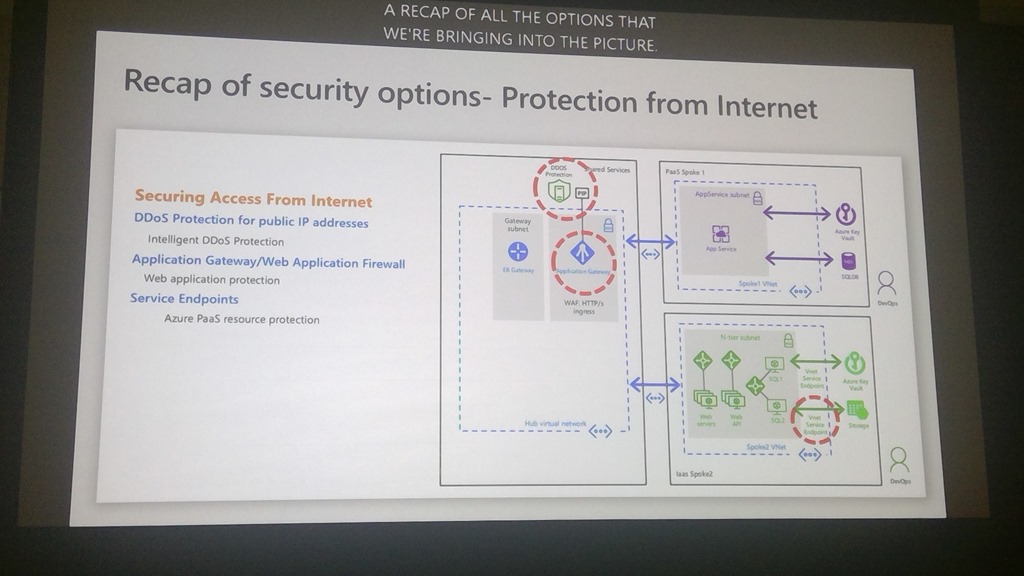
Securing Access From Internet

  • DDoS attacks
  • Web Application Vulnerabilities

New in DDoS Standard

  • Attack analysis
  • Rapid Response – Specialized rapid response team support during active attacks (via support ticket). Custom mitigation policy configuration.
  • Azure Security Center Integration – intelligent DDoS protection virtual network recommendation

New in WAF

WIN_20180926_15_07_06_Pro

WIN_20180926_15_08_26_Pro

WIN_20180926_15_08_26_Pro

WIN_20180926_15_15_40_Pro

WIN_20180926_15_17_22_Pro

WIN_20180926_15_19_01_Pro

They’re flattening the number of subnets using ASGs – tiers of app in one subnet but rules based on on ASGs instead of subnets. Subnets then deployed for Edge/DMZ and app. Using ASGs for micro-segmentation.

WIN_20180926_15_21_36_Pro

WIN_20180926_15_23_09_Pro

Putting it All Together

WIN_20180926_15_29_01_Pro

Microsoft Ignite 2018–Microsoft Information Protection

Speakers:

Questions to Microsoft

  • My data is scattered. I might not even know where it is.
  • I cannoit create unified policies for my data security
  • How do I protect PII for GDPR, etc.

Microsoft Information Protection is a suite of solutions, designed from the ground up, to protect data no matter where it is.

750 regulatory bodies around the world making up to 200 new data security decisions every month.

2025 – 165 zetabytes of data to manage and secure.

Microsoft Information Protection

  • Discover
  • Classicy
  • Protect
  • Monitor

Across:

  • Devices
  • Apps
  • Cloud services
  • On-premises

MS Solution

  • Unified solution to discover, classify and label
  • Automatically apply policy-based actions
  • Proactive monitoring to identify risks
  • Broad coverage across locations

The Way The MS Solution Was

Point solutions in market today:

  • O365 information protection
  • Windows information protection
  • Azure information protection

An incomplete solution because they are point solutions.

MIP unifies these solutions. A new unified UI.

Specialised Workspaces

  • Microsoft 365 Security Center: security.microsoft.com
  • Microsoft 365 Compliance Center compliance.microsoft.com

Clients

Obvious support on Windows Office. Now on Office/Mac and coming to Office/Mobile. Should be GA on all clients by the end of the year.

SharePoint Online will be showing labels, etc when creating sites/groups. Can apply retention labels in SharePoint Online too – auto-classification will determine if a retention policy should be applied.

Beyond Office 365

Windows Information Protection is a Win10 feature. Difference between company and personal data. Can apply rules to company data. Data (since 1809) will understand MIP labels applied to a file. If you try to copy/paste info from a protected file to Twitter, for example, Windows 10 will prevent that. Or if you try to attach the file in Outlook personal, or Gmail, etc. It will also prevent a copy to USB – no more superglue!

Compatibility for Existing AIP Customers

  • New M365 E3 customer can configure labels using the SCC portal. Can try out MIP-enabled AIP add in on Windows. Support coming to Mac and Mobile.
  • M365 or existing AIP customer can use AIP portal.

Customers will be transitioned over time.

Azure Information Protection Scanner

Scan:

  • File server shares
  • SharePoint Server 2010, 2013, 2016

Can discover data and force labelling/protection of documents.

I got bored here – “demos” that were just screenshots on PowerPoint. Weak!

Cloud Mechanix – “Starting Azure Infrastructure” Training Coming To Frankfurt, Germany

I have great news. Today I got confirmation that our venue for the next Cloud Mechanix class has been confirmed. So on December 3-4, I will be teaching my Cloud Mechanix “Starting Azure Infrastructure” class in Frankfurt, Germany. Registration Link.

Buy Ticket

About The Event

This HANDS-ON theory + practical course is intended for IT professionals and developers that wish to start working with or improve their knowledge of Azure virtual machines. The course starts at the very beginning, explaining what Azure is (and isn’t), administrative concepts, and then works through the fundamentals of virtual machines before looking at more advanced topics such as security, high availability, storage engineering, backup, disaster recovery, management/alerting, and automation.

Aidan has been teaching and assisting Microsoft partners in Ireland about Microsoft Azure since 2014. Over this time he has learned what customers are doing in Azure, and how they best get results. Combined with his own learning, and membership of the Microsoft Valuable Professional (MVP) program for Microsoft Azure, Aidan has a great deal of knowledge to share.

We deliberately keep the class small (maximum of 20) to allow for a more intimate environment where attendees can feel free to interact and ask questions.

Agenda

This course spans two days, running on December 3-4, 2018. The agenda is below.

Day 1 (09:30 – 17:00):

  • Introducing Azure
  • Tenants & subscriptions
  • Azure administration
  • Admin tools
  • Intro to IaaS
  • Storage
  • Networking basics

Day 2 (09:30 – 17:00):

  • Virtual machines
  • Advanced networking
  • Backup
  • Disaster recovery
  • JSON
  • Diagnostics
  • Monitoring & alerting
  • Security Center

The Venue

The location is the Novotel Frankfurt City. This hotel:

  • Has very fast Wi-Fi – an essential requirement for hands-on cloud training!
  • Reasonably priced accommodation.
  • Has car parking – which we are paying for.
  • Is near the Messe (conference centre) and is beside the Kuhwaldstraße tram station and the Frankfurt Main West train station and S-Bahn.
  • Is just a 25 minute walk or 5 minutes taxi from the Hauptbahnhof (central train station).
  • It was only 15-20 minutes by taxi to/from Frankfurt Airport when we visited the hotel to scout the location.

image

Costs

The regular cost for this course is €999 per person. If you are registering more than one person, then the regular price will be €849 per person. A limited number of early bird ticks are on sale for €659 each.

You can pay for for the course by credit card (handled securely by Stripe) or PayPal on the official event site. You can also pay by invoice/bank transfer by emailing contact@cloudmechanix.com. Payment must be received within 21 days of registration – please allow 14 days for an international (to Ireland) bank transfer. We require the following information for invoice & bank transfer payment:

  • The name and contact details (email and phone) for the person attending the course.
  • Name & address of the company paying the course fee.
  • A purchase Order (PO) number, if your company require this for services & purchases.

The cost includes tea/coffee and lunch. Please inform us in advance if you have any dietary requirements.

Note: Cloud Mechanix is a registered education-only company in the Republic of Ireland and does not charge for or pay for VAT/sales tax.

See the event page for Terms and Conditions.

Buy Ticket

Azure Management Groups

Microsoft has created a new administrative model for organisations that have many Azure subscriptions called Management Groups. With this feature, you can delegate permissions and deploy Azure Policy (governance) to lots of subscriptions at once.

The contents of this post are currently in preview and will definitely change at some point. Think of this post as a means of understanding the concepts rather than being a dummy’s guide to mouse clicking. Also, there are problems with the preview release at the time of writing – please read Microsoft’s original article before trying this out.

Note: Microsoft partners working with lots of customers, each in their own tenant, won’t find this feature useful. But larger organisations with many subscriptions will.

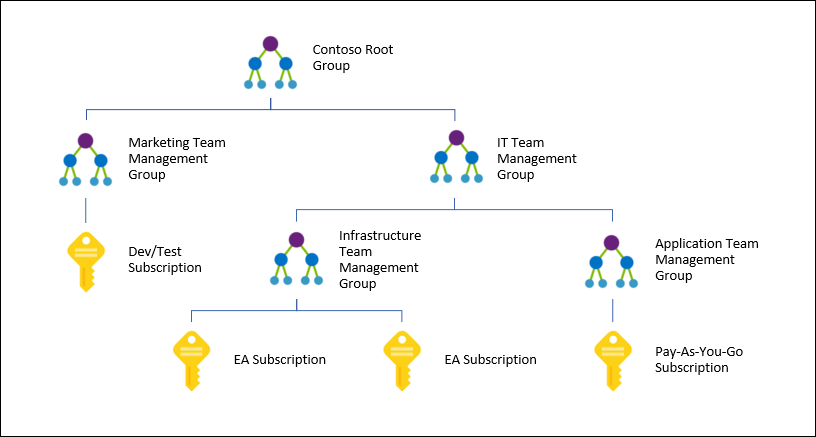
The idea is that you can create a management/policy hierarchy for subscriptions, as shown in this diagram from Microsoft:

tree

The hierarchy:

  • Can contain up to 10,000 subscriptions in a single tenant.
  • It can span EA, CSP, MOSP, etc, as long as the subscriptions are attached to a single tenant.
  • There can be up to 6 levels of groups, not including the root (tenant) and the subscription.
  • A management group can have a single parent, but a parent can have many children.

Permissions

The tenant has a default root management group, under which all other management groups will be placed. Tenant = Azure AD so we see a cross-over from Azure to Azure AD administration here. By default, the Directory Administrator needs to elevate themselves to manage the default group. You can do this by opening the Azure Portal, browsing to Azure Active Directory > Properties, and setting Global Admin Can Manage Azure Subscriptions And Management Groups to Yes:

image

Now you have what it takes to configure management groups.

Administration

Allegedly today we can use Azure CLI or PowerShell to create/configure management groups, but I have not been able to from my PC (updated today) or from Azure Cloud Shell. However, the Azure Portal can be used. You’ll find Management Groups under All Services.

Creating a management group is easy; simply click New Management Group and give the new group a unique ID and name.

image

Here I have created a pair of management groups underneath the root:

image

To create a child management group, open the parent and click New Management Group:

image

I can repeat this as required to build up a hierarchy that matches my/your required administration delegation/policy model. How I’ve done it here isn’t probably how you’d do it.

image

This is what the contents of the Lab management group look like:

image

Delegating Permissions

In the old model, before management groups, permissions to subscriptions were created at the subscription level, leading to lots of repetitive work for large organisations with lots of subscriptions.

With management groups we can do this work once in the management group hierarchy, and then add subscriptions to the correct locations to pick up the delegations.

The “how” of managing the settings, memberships and permissions of a management group is not obvious. The buttons for managing a management group are hidden behind a “Details” link – not a button! See below:

image

Once you click Details, the controls for configuring the settings and subscription memberships of a management group are revealed in a new, otherwise hidden, blade:

image

Universal permissions should be assigned at the top level management group(s). For example, if I click Access Control (IAM) in the settings of the root management group, I can grant permissions to the root management group and, thanks to inheritance, I have implicitly granted permissions to all Azure subscriptions in my hierarchy. So a central Azure admin team would be granted rights at the default root management group, a division admin might be granted rights on a mid-level management group, and a dev might be given rights at a bottom-level management group.

Once you are in Details (settings) for a management group, click on Access Control (IAM) and you can grant permissions here. The users/groups are pulled from your Azure AD (tenant). As usual, users should be added to groups, and permissions should be assigned to well-named groups – I like the format of <management group name>-<role> for the group names.

image

Azure Policy

You can create a new Azure Policy and save it to a management group. Microsoft recommends that custom policy definitions are saved at a level higher than what you intend to assign it. The safe approach might be to save your custom policy definitions and initiative definitions at the root management group, and then assign them wherever they are required. Note that, just like permissions, any assigned initiative (recommended for easier ownership) or policy (not recommended due to ownership scaling issues) will be inherited. So if my organization requires Security Center to be enabled and OMS agents to be deployed for every VM, I can create a single initiative, stored at the root management group, and assign it to the root management group, and every VM in every subscription in the management group hierarchy will pick up this set of policies.

Here’s an example of where you can select a management group, subscription, or resource group as the target of an initiative definition assignment in Azure Policy:

image

Adding Subscriptions

Right now, we have a hierarchy but it’s useless because it does not contain any subscriptions. THE SUBSCRIPTIONS MUST COME FROM THE CURRENT TENANT.

Be careful before you do this! The delegated permissions and policies of the hierarchy will be applied to your subscriptions, and this might break existing deployments, administrative models, or governance policies. Be sure to build this stuff up in the management group hierarchy first.

To add a subscription, browse to & open the management group that the subscription will be a part of – a subscription can only be in a single management group, but it will inherit from parent management groups.

Click Add Existing to add a subscription as a member of this management group. This is also how you can convert an existing management group into a child of this management group. A pop-up blade appears. You can select the member object type (subscription or another management group). In this case, I selected a subscription.

image

The subscription will be registered in the management group hierarchy.

image

Wrap-Up

And that’s management groups. Don’t waste your time with them if:

  • You’re a Microsoft partner looking for a delegation model with customer’s tenants/subscriptions because it just cannot be done.
  • You have only a single subscription – just do your work at the subscription level unless you want to scale to lots of subscriptions later.

If you have a complex organisation with lots of subscriptions in a single tenant, then management groups will be of huge value for setting up your RBAC model and Azure Policy governance at the organisational and subscription levels.

Did you Find This Post Useful?

If you found this information useful, then imagine what 2 days of training might mean to you. I’m delivering a 2-day course in London on July 5-6, teaching newbies and experienced Azure admins about Azure Infrastructure. There’ll be lots of in-depth information, covering the foundations, best practices, troubleshooting, and advanced configurations. You can learn more here.

Azure-to-Azure Site Recovery Fails – Connection Cannot Be Established

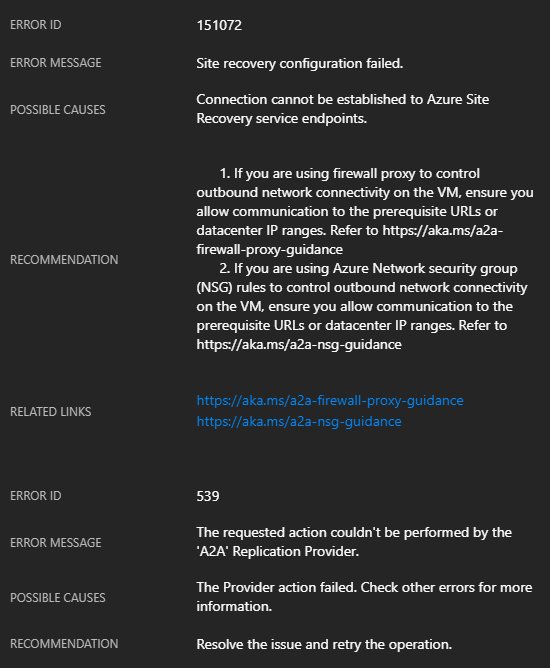
In this post, I’ll explain how to fix the following errors when you attempt to replicate an Azure virtual machine from one Azure Region to another:

Error 151072: Connection cannot be established to Azure Site Recovery service endpoints.

And:

Error 539: The requested action couldn’t be performed by the ‘A2A’ Replication Provider.

The Cause

A2ASR (the abbreviation of the ASR service for Azure VMs) uses an extension (guest OS agent) called the Mobility Service to migrate disk contents from a source virtual machine to a target (secondary) region (or DR site). The Mobility Service is using the networking of the virtual machine to talk the ASR endpoints in the secondary region. That traffic is therefore going over the NIC and virtual network of the VM, and then to the target region via the Azure backbone.

if you have restricted outbound traffic for your virtual machines, then you might have blocked this traffic:

  • Third party firewall appliances
  • Using Network Security Groups (NSGs), as I documented here

The Fix

Woops! Don’t worry, you’ve already created exceptions to allow your virtual machine to boot up. You can create more exceptions to allow the virtual machines to talk to the ASR endpoints (see the below screenshot). Let’s imagine that I am replicating from North Europe to West Europe.


image

I’ll need at least one set of rules, enabling outbound traffic from my VNet/NICs in the source region, North Europe, to the two IP addresses of the target region, West Europe.

I will also have to enable inbound traffic from my target region, West Europe, to my destination region, North Europe. Why? Isn’t all my traffic going from North Europe to West Europe? That’s true – now. But if you failover to West Europe, you will need to reverse replication afterwards, so you might as well get things right now.

A Script

It all looks messy at first. It probably isn’t too bad. But if you’d like to deploy a canned script to update NSGs, you can. Microsoft has shared a script that you can run. You will need a few pieces of information:

  • NSG name
  • NSG resource group name
  • Subscription ID
  • Source region
  • Target region

Run the script (it will prompt you to log in) from source to target, and then reverse the details, treating the target as the source, and vice versa with the NSG(s) in the DR site.

Where’s the Service Tags?

Storage accounts and Azure SQL all have service accounts, but ASR does not. I believe that ASR should have service tags to avoid all of this IP messiness. If you agree, vote here, or forever stay quiet on the subject.

Was This Kind of Information Useful?

If you found this information useful, then imagine what 2 days of training might mean to you. I’m delivering a 2-day course in Amsterdam on April 19-20, teaching newbies and experienced Azure admins about Azure Infrastructure. There’ll be lots of in-depth information, covering the foundations, best practices, troubleshooting, and advanced configurations. You can learn more here.

Azure VMs–Block Outbound Traffic to the Internet (Updated)

In theory, it was possible to deny all outbound traffic to the Internet from an Azure VM. In theory, I can also place a loaded gun to my head, but my doctor disapproves of that.

Here’s what would happen:

  • You created an outbound rule to Deny all traffic to a service tag (location) called Internet.
  • The VM worked fine … for a while.
  • The VM was rebooted, maybe for a guest OS patch cycle.
  • The VM would not reboot.
  • Your boss screamed at you, if you were lucky.

The problem is that Azure included all Azure services under the service tag of “Internet”. And Azure VMs need to talk to Azure to boot up – to be specific, they need to talk to Azure Storage if the IaaSDiagnostics (Azure Performance Diagnostics) extension is configured. If a VM can’t talk to that storage account, the VM will fail to boot. There was a scripted workaround, but it was far from pretty.

Recently Microsoft made a Network Security Group service tags generally available. Service tags take those old locations and expand them to more than just Virtual Network, Load Balancer (probe), and Internet. Now you can specify Azure storage (storage account) and Azure SQL services, globally and locally (a specific region).

image

So for example, I can let a VM connect (Azure) Storage globally, in West Europe, or to connect to Azure SQL in North Europe. Now we can block outbound access to the Internet, but still allow access to Azure storage in the same region for diagnostics & metrics.

image

I’ve tested, and yes, my VM rebooted Smile

Was This Post Useful?

If you found this information useful, then imagine what 2 days of training might mean to you. I’m delivering a 2-day course in Amsterdam on April 19-20, teaching newbies and experienced Azure admins about Azure Infrastructure. There’ll be lots of in-depth information, covering the foundations, best practices, troubleshooting, and advanced configurations. You can learn more here.

Microsoft Azure Started Patching Reboots Yesterday

Contrary to a previous email that I received, Microsoft started rebooting Azure VMs yesterday, instead of the 9th. Microsoft also confirmed that this is because of the Intel CPU security flaw. The following email was sent out to customers:

Dear Azure customer,

An industry-wide, hardware-based security vulnerability was disclosed today. Keeping customers secure is always our top priority and we are taking active steps to ensure that no Azure customer is exposed to these vulnerabilities.

The majority of Azure infrastructure has already been updated to address this vulnerability. Some aspects of Azure are still being updated and require a reboot of some customer VMs for the security update to take effect.

You previously received a notification about Azure planned maintenance. With the public disclosure of the security vulnerability today, we have accelerated the planned maintenance timing and began automatically rebooting the remaining impacted VMs starting at PST on January 3, 2018. The self-service maintenance window that was available for some customers has now ended, in order to begin this accelerated update.

You can see the status of your VMs, and if the update completed, within the Azure Service Health Planned Maintenance Section in the Azure Portal.

During this update, we will maintain our SLA commitments of Availability Sets, VM Scale Sets, and Cloud Services. This reduces impact availability and only reboots a subset of your VMs at any given time. This ensures that any solution that follows Azure’s high availability guidance remains available to your customers and users. Operating system and data disks on your VM will be retained during this maintenance.

You should not experience noticeable performance impact with this update. We’ve worked to optimize the CPU and disk I/O path and are not seeing noticeable performance impact after the fix has been applied. A small set of customers may experience some networking performance impact. This can be addressed by turning on Azure Accelerated Networking (Windows, Linux), which is a free capability available to all Azure customers.

This Azure infrastructure update addresses the disclosed vulnerability at the hypervisor level and does not require an update to your Windows or Linux VM images. However, as always, you should continue to apply security best practices for your VM images.

For more information, please see the Azure blog post.

That email reads like Microsoft has done quite a bit of research on the bug, the fix, and the effects of bypassing the flawed CPU performance feature. It also sounds like the only customers that might notice a problem are those with large machines with very heavy network usage.

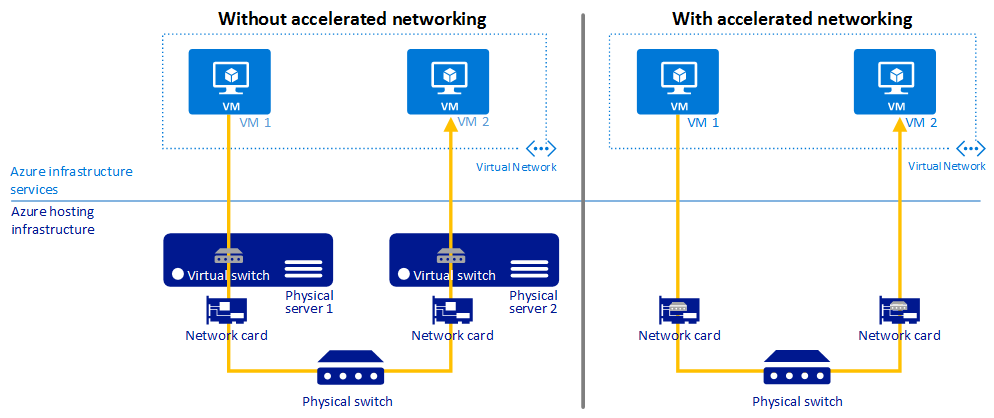
Accelerated networking is Azure’s implementation of Hyper-V’s SR-IOV. The virtual switch (in user mode in the host parent partition) is bypassed, and the NIC of the VM (in kernel mode) connects directly to a physical function (PF) on the host’s NIC via a virtual function (VF) or physical NIC driver in the VM’s guest OS. There are fewer context switches because there is no loop from the the NIC, via the VM bus, to the virtual switch, and then back to the host’s NIC drivers. Instead, with SR-IOV/Accelerated Networking, everything stays in kernel mode.

Image result for azure accelerated networking

If you find that your networking performance is impacted, and you want to enable Accelerated Networking, then there are a few things to note:

Thanks to Neil Bailie of P2V for spotting that I’d forgotten something in the below, stricken out, points:

Was This Post Useful?

If you found this information useful, then imagine what 2 days of training might mean to you. I’m delivering a 2-day course in Amsterdam on April 19-20, teaching newbies and experienced Azure admins about Azure Infrastructure. There’ll be lots of in-depth information, covering the foundations, best practices, troubleshooting, and advanced configurations. You can learn more here.

Intel CPU Security Bug

Gossip started to twirl in the last few days about what was driving both Azure and AWS to push out updates at relatively short notice. And news leaked over the last day that Intel has discovered a significant security flaw in the code of nearly all (or all) Intel processors manufactured in the last decade.

Intel has issued an embargo to partners on sharing the news while fixes are being produced, but the news has leaked, and it affects everything using Intel’s processors: Windows, MacOS, Linux, AWS, Azure, and probably VMware too. It sounds like the error is a hardware error that cannot be fixed using a microcode update by Intel. This means that the hypervisors and operating systems on top of the processors must bypass the flaw in the processor. And here’s where the bad news is.

We can expect Microsoft to issue a security fix very quickly. According to Gizmodo, a redacted form of the fix appeared in the Linux kernel recently. But the fix will bypass the flaw which resides in a performance feature of the processor. My limited understanding is that the feature helps make the switch between user mode and kernel mode less disruptive by tweaking the handling of secure kernel memory. The flaw makes it possible for processes in user mode to scan kernel memory. To bypass this feature, the performance enhancement has to be bypassed, and this could cause anywhere between a “5 and 30 percent” performance hit, according to several news sites, but I don’t know how reliable that number is.

Typical end users won’t notice this. But heavily loaded systems will notice. So if your CPU is heavily used, you can expect that the security fix will cause you problems.

The timing of this flaw/fix and the timing of Azure’s and AWS’s updates cannot be a coincidence.

I Am Running My “Starting Azure Infrastructure” Course in London on Feb 22/23

I am delighted to announce the dates of the first delivery of my own bespoke Azure training in London, UK, on February 21st and 22nd. All the details can be found here.

In my day job, I have been teaching Irish Microsoft partners about Azure for the past three years, using training materials that I developed for my employer. I’m not usually one to brag, but we’ve been getting awesome reviews on that training and it has been critical to us developing a fast growing Azure market. I’ve tweeted about those training activities and many of my followers have asked about the possibility of bringing this training abroad.

So a new venture has started, with brand new training, called Cloud Mechanix. With this business, I am bringing brand-new Azure training to the UK and Europe.  This isn’t Microsoft official training – this is my real world, how-to, get-it-done training, written and presented by me. We are keeping the classes small – I have learned that this makes for a better environment for the attendees. And best of all – the cost is low. This isn’t £2,000 training. This isn’t even £1,000 training.

The first course is booked and will be running in London (quite central) on Feb 22-23. It’s a 2-day “Starting Azure Infrastructure” course that will get noobies to Azure ready to deploy solutions using Azure VMs. And experience has shown that my training also teaches a lot to those that think they already know Azure VMs. You can learn all about this course, the venue, dates, costs, and more here.

I’m excited by this because this is my business (with my wife as partner). I’ve had friends, such as Mark Minasi, telling me to do this for years. And today, I’m thrilled to make this happen. Hopefully some of you will be too and register for this training Smile