Microsoft Assessment and Planning (MAP) Toolkit 6.5 Available

In The Great Big Hyper-V Survey of 2011, we found that just 42% of those who had deployed Hyper-V had done an assessment.  My own experiences reveal an interesting trend: those who have architectural, support, or performance issues with their deployment have not done an assessment.  They stuck a wet finger in the air, guessed at an infrastructure sizing and design, and their customer/employer paid the price.

By the way, the best VMware consultants will kick of the project using some assessment.

The tool for a Hyper-V assessment is MAP, and Microsoft recently launched version 6.5 of it.  This new release adds:

  • Discover Oracle instances on Itanium-based servers for migration to SQL Server: useful for SQL Server migration projects when you tire of the price and virtualisation support of Oracle.
  • Assess your software usage and evaluate your licensing needs with the Software Usage Tracking feature, now updated with the Forefront Endpoint Protection (FEP) scenario: get your licensing right before and auditor does.
  • Accelerate planning for the private cloud with Microsoft Private Cloud Fast Track Onboarding: FAST is the Microsoft private cloud architecture for their big international partners.
  • Identify migration opportunities with enhanced heterogeneous server environment inventory: this stuff supports MySQL, Linux and VMware scanning.
  • Accelerate planning and migration with the new UI and usability updates in MAP 6.5: All new UI to lay out stuff more logically.

What’s nice about MAP is that you can assess even a large environment with just a small amount of effort.  You have empirical data that can scientifically calculate your environment.  From a Hyper-V perspective, this sizing is difficult to do without an assessment.  In fact, it would be a complete guess without something like the free MAP.  If you do the assessment then at least you and your customer (internal or external) can be sure that you did a scientific calculation that has some sort of backing instead of just assuming.

Technorati Tags: ,,

Microsoft BitLocker Administration and Monitoring (MBAM)

To be honest, I hadn’t heard of this MBAM toolset until this morning; it’s tucked away in MDOP (Microsoft Desktop Optimization Pack).  In Microsoft’s words:

“Microsoft BitLocker Administration and Monitoring (MBAM) provides a simplified administrative interface to BitLocker drive encryption (a feature included in Windows 7 Enterprise/Ultimate). MBAM lets you select BitLocker encryption policy options appropriate to your enterprise so that you can monitor client compliance with those policies and report on the encryption status of the enterprise in addition to individual computers. Also, you can access recovery key information when a user forgets their PIN or password, or when their BIOS or boot record changes”.

It includes:

  • Administration & monitoring server: here you have the admin console and a portal, apparently with self-service support for recovery.
  • Compliance and audit database: stores compliance data for managed clients.
  • Recovery & hardware database: stores recovery data for managed clients.
  • Compliance & audit reports: Use SQL Reporting Services to generate reports from the databases.
  • Group policy template: Configure managed clients using AD GPO.
  • Microsoft BitLocker Administration and Monitoring client agent: Used to manage and configure machines for BitLocker, and return data to the above administration components.

Documentation for MBAM can be downloaded from here.

Technorati Tags: ,,

Some Interesting KB Articles, Including Hyper-V KB Articles

It’s been a while since I last looked at my various sources outside of Twitter so I’m doing a bit of catch up:

On the Hyper-V front I’ve found:

Hyper-V settings hang after installing RemoteFX on Windows 2008 R2 Service pack 1

On a Windows Server 2008 R2-based computer that has Service Pack 1 (SP1) installed and has RemoteFX, Hyper-V VM settings will hang if following conditions are true:

  • When Domain Controller is installed on the same physical server as the RemoteFX server.
  • When the following Group Policy setting is enabled:
    Computer Configuration/Windows Settings/Security Settings/Local Policies/Security Options/Interactive Logon: Message text for users who are trying to log on.

You may also receive following error when you refresh the host on SCVMM console:

Error (2927)
A Hardware Management error has occurred trying to contact server <FQDN Server Name>.
(Unknown error (0x80338029))
The Hyper-V host status in SCVMM may show as "Not Responding".

An update that enables the Windows Developer Preview or Windows Server Developer Preview to be hosted in a Hyper-V virtual machine on Windows Server 2008 R2

Consider the following scenario:

  • You install the Hyper-V server role on a computer that is running Windows Server 2008 R2.
  • You create a virtual machine on the Windows Server 2008 R2-based computer that is running the Windows Developer Preview or Windows Server Developer Preview, codenamed "Windows 8."

In this scenario, you may experience one or more of the following issues:

  • The Windows Developer Preview or Windows Server Developer Preview virtual machine stops responding.
  • The Windows Server 2008 R2 host computer displays a stop error message and restarts automatically. This behavior brings down all other running virtual machines together with the host computer.

Virtual machines stop responding (hang) during startup and the Vmms.exe process crashes on a Windows Server 2008 R2 computer that has the Hyper-V role installed

Consider the following scenario:

  • You are running some virtual machines on a Windows Server 2008 R2 computer that has the Hyper-V role installed.
  • These virtual machines are configured to start automatically when the management operating system (host operating system) starts.

In this scenario, some of the virtual machines stop responding (hang) when the management operating system (host operating system) is starting. These virtual machines remain in the "Starting" state and never complete starting. Additionally, the Vmms.exe process crashes, and the following event is logged in the Application log:

Log Name: Application
Source: Application Error
Date: Date_Time
Event ID: 1000
Task Category: (100)
Level: Error
Keywords: Classic
User: N/A
Computer: ComputerName
Description:
Faulting application name: vmms.exe, version: 6.1.7600.16385, time stamp: 0x4a5bc7c6
Faulting module name: ntdll.dll, version: 6.1.7600.16385, time stamp: 0x4a5be02b
Exception code: 0xc000000d
Fault offset: 0x00000000000d2d83
Faulting process id: 0x670
Faulting application start time: 0x01ca16803aef0602
Faulting application path: C:Windowssystem32vmms.exe
Faulting module path: C:WindowsSYSTEM32ntdll.dll

Note Date_Time is a placeholder for the date and time of the event occurrence, and ComputerName is a placeholder for the name of the computer.

You receive a "Stop 0x0000007E" error on the first restart after you enable Hyper-V on a Windows Server 2008 R2-based computer

Assume that you enable the Hyper-V role on a computer that is running Windows Server 2008 R2. You restart the computer after you enable the Hyper-V role. However, you receive the following Stop error message during the restart operation:

Stop 0x0000007E (ffffffffc0000096, parameter2, parameter3, parameter4)
SYSTEM_THREAD_EXCEPTION_NOT_HANDLED

Notes

  • The parameters in these Stop error messages may vary, depending on the actual configuration.
  • The symptoms of a Stop error may vary, depending on your computer’s system failure options. For example, the computer may restart when a Stop error occurs.

The network connection of a running Hyper-V virtual machine is lost under heavy outgoing network traffic on a Windows Server 2008 R2-based computer

Consider the following scenario:

  • You install the Hyper-V role on a computer that is running Windows Server 2008 R2.
  • You run a virtual machine on the computer.
  • You use a network adapter on the virtual machine to access a network.
  • You establish many concurrent network connections, or there is heavy outgoing network traffic.

In this scenario, the network connection on the virtual machine may be lost sporadically. Additionally, the network adapter is disabled.
Note You have to restart the virtual machine to recover from this issue.
This issue can also occur on a computer that is running Windows Server 2008 R2 Service Pack 1. To resolve the issue, apply the hotfix that is described in one of the following Microsoft Knowledge Base articles:

2263829 (http://support.microsoft.com/kb/2263829/ ) The network connection of a running Hyper-V virtual machine may be lost under heavy outgoing network traffic on a computer that is running Windows Server 2008 R2 SP1

Hyper-V Host Reports a Virtual Storage Device Error With Pass-through Disk

Consider the following scenario:
You are hosting a Virtual Machine configured with a SCSI attached Pass-through disk from a Windows Server 2008 R2 Hyper-V Host.
You attempt to monitor the performance of the Pass-through disk from the host OS using the following Performance Monitor Counter:
Hyper-V Virtual Storage DeviceError Count
You observe that the Error Count increases when the guest is booted or the guest is running.

MS10-010: Vulnerability in Windows Server 2008 Hyper-V could allow denial of service

Microsoft has released security bulletin MS10-010.

Hyper-V Time Synchronization Doesn’t Correct the System Clock in the Virtual Machine if it is more than 5 Seconds ahead of the Host Clock

The Hyper-V Time Synchronization Service will not correct the system clock in the virtual machine (VM), if the system clock in the VM is running more than 5 seconds ahead of the system clock on the host machine

You cannot import a virtual machine by using Hyper-v Manager or System Center Virtual Machine Manager (SCVMM) on a Hyper-V server

When you try to import a virtual machine that has been exported by using Hyper-V Manager, you cannot import the virtual machine by using Hyper-V Manager on a different Hyper-V server. Additionally, you receive an error message that resembles the following:

A Server error occurred while attempting to import the virtual machine. Failed to import the virtual machine from import directory <Directory Path>. Error: One or more arguments are invalid (0x80070057).

When you try to use System Center Virtual Machine Manager (SCVMM) to import a virtual machine that was exported by using Hyper-V Manager, you receive the following error message:

Error (12700) VMM cannot complete the Hyper-V operation on the <server FQDN> server because of the error: Failed to import the virtual machine from import directory <Directory Path>. Error: One or more arguments are invalid (0x80070057) (Unknown error (0x8005))

Adding the Hyper-V role in Windows Server 2008 R2 may cause a Stop 0x5C on reboot if x2APIC is enabled

Consider the following scenario:

  • You are running Windows Server 2008 R2.
  • You have Intel’s® x2APIC mode enabled in the BIOS or the operating system.
  • In Windows you enable the Hyper-V role and reboot the machine.

In this scenario, you may encounter a Stop error during boot that resembles the following:

STOP: 0x0000005C (0x0000000000007002, 0x0000000000000001, 0x0000000000000001, 0x0000000000000000)

CD-ROM device is no longer accessible after installing the Hyper-V Linux Integration Services in a Red Hat or CentOS virtual machine

Consider the following scenario:
· Red Hat or CentOS is installed in a Hyper-V virtual machine.
· The Linux Integration Services are installed in the virtual machine.
· After the Linux Integration Services are installed, the CD-ROM (/dev/cdrom) is no longer accessible in the virtual machine.
· If the Linux Integration Services are uninstalled, the CD-ROM is accessible in the virtual machine.

Hyper-V Export function consumes all available memory in Windows Server 2008 or in Windows Server 2008 R2

Consider the following scenario:

  • You install the Hyper-V role on a computer that is running Windows Server 2008 or Windows Server 2008 R2.
  • You use the Export function to export some virtual machines (VMs) to a destination location.
  • The disk I/O transfer rate of the source disk is faster than the disk I/O transfer rate of the destination disk.

In this scenario, the available memory on the computer keeps decreasing. Additionally, the computer stops responding when the available memory is exhausted.

Hyper-V Integration Components on Windows Server 2003 Guests Do Not Function Properly

After performing a Physical to Virtual machine migration on Windows 2003, you may experience the following problem when attempting to install the Hyper-V Integration Components:

  • The Integration Component installer reports that everything installed correctly
  • In Device Manager, the Hyper-V devices ‘Data Exchange’, ‘Guest Shutdown’, ‘Heartbeat’, ‘Time Synchronization’, and ‘Volume Shadow Copy’ do not appear under System Devices
  • In Device Manager, the ‘Virtual Machine Bus’ and/or ‘Microsoft Emulated S3 Device Cap’ devices appear with a yellow exclamation point, and their properties show error code 37.
  • Integration services like the mouse, NIC, and graphics do not function properly
  • When the guest boots, you see a warning that one or more services did not start correctly

Hyper-V Live Migration fails on Windows Server 2008 R2 with Event ID 12080

When you perform a live migration of a Hyper-V virtual machine on Windows Server 2008 R2, the live migration may fail and the virtual machine will have a status of Migration attempt failed.
On the destination node, the following events will be logged in the Microsoft-Windows-Hyper-V-Worker/Admin event log:
Log Name: Microsoft-Windows-Hyper-V-Worker-Admin
Source: Microsoft-Windows-Hyper-V-Worker
Event ID: 12080
Level: Error
Description: ‘VMName’ Microsoft Synthetic Ethernet Port (Instance ID {BA8A5B0D-5A37-467B-8A5E-DD9262F52C9A}): Failed to restore with Error ‘The system cannot find the path specified.’ (0x80070003). (Virtual machine ID 6A205AEF-D566-4AC2-92E0-08431A711034)

Hyper-V virtual machines may not start, and you receive an error: “‘General access denied error’ (0x80070005)”

A Hyper-V virtual machine may fail to start and you receive an error that resembles the following:

An error occurred while attempting to start the selected virtual machine(s).
‘VMName’ failed to start.
Microsoft Emulated IDE Controller (Instance ID
{83F8638B-8DCA-4152-9EDA-2CA8B33039B4}): Failed to Power on with Error ‘General
access denied error’
IDE/ATAPI Account does not have sufficient privilege to open attachment
‘E:VMsVMNameDisk0.vhd. Error: ‘General access denied error’
Account does not have sufficient privilege to open attachment
‘E:VMsVMNameDisk0.vhd. Error: ‘General access denied error’

If you click See details, the following error is listed:

‘VMName’ failed to start. (Virtual machine ID
5FC5C385-BD98-451F-B3F3-1E50E06EE663)
‘VMName’ Microsoft Emulated IDE Controller (Instance ID
{83F8638B-8DCA-4152-9EDA-2CA8B33039B4}): Failed to Power on with Error ‘General
access denied error’ (0x80070005). (Virtual machine ID
5FC5C385-BD98-451F-B3F3-1E50E06EE663)
‘VMName’: IDE/ATAPI Account does not have sufficient privilege to open attachment
‘E:VMsVMNameDisk0.vhd. Error: ‘General access denied error’ (0x80070005). (Virtual
Machine ID 5FC5C385-BD98-451F-B3F3-1E50E06EE663)
‘VMName’: Account does not have sufficient privilege to open attachment
‘E:VMsVMNameDisk0.vhd. Error: ‘General access denied error’ (0x80070005). (Virtual
Machine ID 5FC5C385-BD98-451F-B3F3-1E50E06EE663)

Notes

  • This error message references either the Microsoft Emulated IDE Controller or the Microsoft Synthetic SCSI Controller.
  • This error message references either a virtual hard disk (.vhd) file or a snapshot file (.avhd).
  • The Virtual Machine ID is unique to each virtual machine.

And there are lots more like this on MS Support, but I’m tired now and I want to sleep Smile

Windows 7 Overtakes Windows XP

There’s a story on pingdom that says, based on web analysis:

“Windows 7 launched in October of 2009, then…

  • Within three months, it overtook Mac OS X.
  • Within 10 months, it overtook Windows Vista.
  • Now, two years after its launch, it’s finally overtaken Windows XP”.

They’ve got more info and some nice graphs that tell us Windows 7 is 40.39% of web traffic (XP is 38.34% and Vista is 11.3%).

Technorati Tags:

Cannot Install Office 2010 to Windows 7 Using SCE 2010

Microsoft released KB2607070 to resolve a software deployment issue with SCE 2010 managed Windows 7 SP1 PCs.  I first noticed this with Office 2010, and it appears to have affected the distribution of other software packages.

An update has been released to resolve issues where System Center Essentials updating Windows 7 SP1-based computers with locally published content may fail with error 0x80070570.

When you locally publish updates through System Center Essentials and then attempt to download and install those updates to a Windows 7 SP1-based computer, those updates may fail with error code 0x80070570.

Software Benefits as a Microsoft Partner

Another common question that is popping up in my day job so I reckon it’s another subject that I need to blog about.

Microsoft partners are consumers of the technology too.  They face all the same challenges as their customers: money is tight and software can be expensive.  Good news: you can get it either cheap or even free.  What you get, and how much you get all depends on what type of partner you are and what grade and type of competency you have as a Microsoft partner company.

Piracy

A lot of Microsoft partners are using Microsoft software illegally.  That is a fact, and I suspect that it is quite common in the smaller/medium sized partner companies.  They can get a certain allocation of software, but often it is not enough. 

What is it that they are doing to be illegal?  They get their MSDN or TechNet subscription for a handful of users and start using it to deploy production desktops, applications, and servers all over the shop.  MSDN and TechNet have explicit usage rights, and they do not include widespread production usage, e.g your domain controller, file server, everyone’s PC/Office, etc.  The directors may not know this is happening, they may turn a blind eye to it (sticking fingers in ears and repeatedly shouting LAH-LAH-LAH-LAH when the sys-admin tells them the truth – been there), or they may even instruct it to happen (been there too, many years ago).

So how can you, as a Microsoft partner company, get a chunk of software legally for next to nothing?

Microsoft Partner Action Pack

This is an excellent bundle for small companies that are even at the most basic level in the Microsoft Partner Network: a registered partner.  In fact, you cannot have a silver or gold competency and subscribe to this pack!  The eligibility requirements are online.  The Irish rate (per year) is €289 and that includes a big list of software, really for that partner with up to 10 users.  Highlights include:

  • Office Professional Plus (10) + Project (5) + Visio Professional (10)
  • Exchange Standard: 1 servers + 10 CALs
  • SQL Enterprise: 1 server + 10 CALs
  • Window Server: Enterprise (1), CALs (10), Storage Server Essentials (1), SBS Standard (1), SBS CALs (10)
  • Windows 7: Pro (10), Ultimate (1)

A handful of Office on OVS will cost more than all that!

Silver and Gold Competency Holders

These folks tend to be bigger companies and are not suitable for the Partner Action Pack, nor are the elligible.  But don’t worry if you’re here, you get a much bigger allocation of software.  If you qualify for a competency, then you get an allocation of software that you are free to download and use.  What you get will depend on:

  • The competency: developers will get more relevant stuff for them, and systems management people will get more relevant stuff for them.
  • The grade: The gold competency rewards you more software than the silver one.

Microsoft could have published a nasty matrix.  Instead there, is a simple graphical calculator that allows you to punch in the competencies that your company has, as well as the grades, and it tells you what you are eligible to download and use.

For example, a company with Silver Systems Management and Silver Virtualisation competencies gets stuff including:

  • 2 Exchange Enterprise + 25 CALs + 25 ForeFront for Exchange (and SharePoint)
  • 25 Windows 7 Enterprise + 25 AD RMS + 25 Office Professional Plus
  • 2 Windows Server Datacenter + 4 Windows Server Standard/Enterprise
  • 15 Visio Professional + 5 Project Professional
  • All the System Center stuff
  • And LOTS more

Go Gold with those competencies and you get 100 copies of Office Pro Plus and Windows 7 Enterprise.  There is work to become a partner but you can see there is money to be saved.

Technorati Tags: ,

70-681 (Windows 7/Office 2010 Deployment) Exam Preparation

I’ve been asked several times during the last week about how to prepare for 70-681, the exam on deploying Windows 7 and Office 2010, so I thought it was worthy of a blog post.  The issue is that there is no guidance from Microsoft on how to prepare for it in terms of materials.  And that is because it pulls in information from all over the place.  Think about it; Windows 7 deployment can include:

  • MAP
  • ACT
  • WAIK/ImageX
  • WDS
  • MDT
  • ConfigMgr OSD/Zero Touch

That’s 6 different products.  By the way, we cover all that in Mastering Windows 7 Deployment.  And that’s just Windows.  This exam also covers Office 2010.  They typically go hand in hand, which is why the exam includes both topics.  And this certification will be mandatory from May 2012 for the Microsoft partner Desktop competency (new and renewing partners).

If you want blogs/websites to read for preparation then check out:

From time to time, Microsoft is known to run classes for partners on training.  Your registered partner contacts in your company should be getting email announcements from the local MSFT partner team with any such information.  These courses are usually anywhere from free to very economic.  This is just a starting point to get the attendees on the ladder.  A course cannot be a complete exam prep.  And folks like Rhonda Layfield (USA) and Johan Arwidmark (in Europe but also USA) are known to run their own deployment training classes which can be attended by the public (for a fee).

In the end, most of the OS deployment stuff centres on a few things like WinPE, WSIM, SysPrep, and drivers.  I did the Vista/O2007 exam and Office deployment questions asked about evaluation/migration stuff.  To be honest, nothing prepares you for this exam like doing a lot of work in a lab.  That’s where your MSDN/TechNet licensing and a virtualisation host come in really handy.  You can get a little prep work done also in the TechNet Labs for Windows 7.

My HP Microserver & Windows Home Server 2011

I have a lot of digital media scattered all over at home.  I’ve got documents (whitepapers and books), music, videos, and about 700 GB of photos (RAW, PSD, and JPEG), all of which are either on a laptop or a USB disk.  I have tried to backup but it’s a painful, time consuming process.  I have Live Mesh and volume shadow copy up an running but that’s no solution.

Last week I bought a HP Microserver with the intention of running it as a home server.  It’s a low end machine, with a dual core AMD processor, and 1 GB (max 8 GB) RAM, with a 256 GB SATA drive.  I upgraded it with 2 * 2.5 TB Seagate “green” (low power) disks (removing the default 256 GB drive), and bumped up the memory by 4 GB.  It must be said that the chassis build is not great.  Getting the top cover off/on was a nightmare.  The board where the DIMMS sit can be seen in the following picture.  It’s at the bottom.  The sides do not come off, so you have to disconnect all those visible cables, undo 2 thumb screws, and wiggle the board out on the built-in slides.

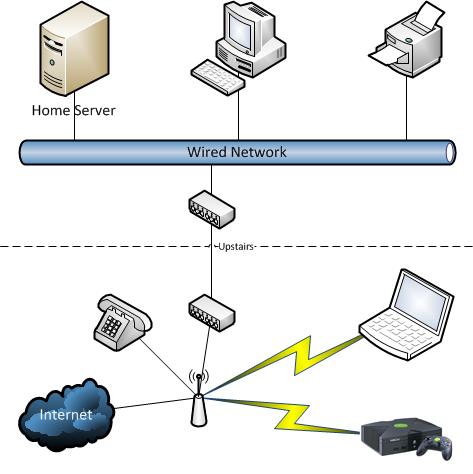
The machine has a built in wired NIC.  My home network is wireless N.  I probably could have gotten a wifi NIC for the machine (2 * PCIe slots) but I decided to span my network using a Devolo 200 MB power over ethernet kit:

image

This allows my Xbox and laptop/netbook/iDevices to sit free on the wifi network.  Upstairs in my office (a box room) is where the Devolo breaks out 3 wired connections and that’s where the HP Microserver, a PC, and printers (photo and general purpose) can be found.  The entire wifi and wired network runs on the same subnet.

I decided to try out Windows Home Server 2011 as the operating system.  It’s intended to do what I need:

  • Centralised storage
  • Automated backup of the storage and of PCs
  • Media streaming (to xBox, PCs, or to remote connections)

My first install was just a test.  The server’s storage controller was set by default to not have RAID enabled.  The result was that WHS 2011 was installed on disk 1 with a 60 GB C: drive, a 2 TB D: drive, and the remnants were unused.  This is where I realise that it backs up using Windows Server Backup to VHD.  The 2 TB volume limit is a result of the limit of a VHD.  Doh!  The disk is not RAIDed, so Disk 2 was partitioned up as well.  Not so useful.

So yesterday afternoon I had time to revisit.  I configured the server with RAID1 (wiping the contents of the disks) and reinstalled.  Or I tried to.  The install failed with the message being something like “the installation has failed.  Please see the log for details”.  The log told me the setup was starting and then it stopped.  Useless!  I Googled, re-RAIDed, I recreated the USB installer, and no joy.  Based on where the failure was (configuring Windows before the first reboot), it appears like the setup routine was trying to configure the boot environment and failing.

Eventually I tried installing on the 256 GB drive.  It worked.  OK – so the problem is RAID and/or the 2.5 TB drives.  I tried the following:

  • Preconfigure software based RAID1 array prior to installing WHS 2011 using DISKPART.  No joy because the WHS2011 installer wipes everything.
  • Install on 512 GB RAID1 drive set.  Worked fine.
  • Pop out a 512 GB drive and try repair with the 2nd drive being a 2.5 TB drive.  No joy because the RAID tool wouldn’t even give me the option.
  • Try to restore a backup from the first install to a 2.5 TB RAID 1 array.  No joy because the restore tool couldn’t see the WHS backup on the USB drive.

This left me with 2 choices:

  • Keep the 512 GB RAID1 array for the OS (and video), using 2 slots, and use the remaining 2 disk slots for a 2.5 TB RAID1 array.
  • Not use any RAID.  No way!

The end result is that I have a 512 RAID 1 drive with the OS on it, and a share for videos.  The 2.5TB drive is used for PC backup, docs/photos, and documents.  The volume is converted to GPT … and being 2.5 TB means that WHS2011 backup won’t back it up.  I’m looking at an alternative solution now.

Everything is in the same Windows 7 homegroup on the network.  I copied a bunch of video and music onto the machine last night.  I was streaming video from it to my netbook via Windows Media Player last night and that worked well.  I configured the remote access, and first thing thing this morning at work I was able to start watching “The King’s Speech” from home on my PC at work.  There is a minor loss in quality for bandwidth reasons but that’d be acceptable for most people I think.  That will come in handy whenever I’m staying in a hotel and the TV inevitably sucks.  As I write this post, I am listening to music streaming from home.  I can even log onto a home PC from work via the remote access feature – it’s kind of like using RDS Gateway – but much easier to configure.

RemoteApp for Hyper-V

I’ve either completely forgotten this application compatibility solution or it escaped by my attention.  RemoteApp for Hyper-V is a VDI solution that allows you to publish apps from the following VDI VM guest operating systems to end users via RDP:

  • Windows XP SP3: Professional
  • Windows Vista SP1 and above: Enterprise and Ultimate
  • Windows 7: Enterprise and Ultimate

You can set it up in a “standalone” format where you manually create VMs, RDP files, and configure end user machines.  Alternatively you can create a full RDS VDI farm, using the RD Connection Broker. 

This product isn’t as manageable as a normal RDSH (session host) RemoteApp solution but it sure seems like a better (manageable) way to do appcompat than XP Mode (which is cheaper), thanks to the centralisation of VMs that can be easily deployed via SCVMM/SCE/or Hyper-V import/copy.

Dual Booting Windows 7 with Hyper-V

I’ve started in my new job and I’m in “personal” hardware heaven.  I’ve a snazzy HP Eltitebook 8740w with an i7 processor, on the way, and have a 256 GB SSD, 512 HB hybrid (SSD cache) drive (in a DVD slot caddy), and additional 8 GB RAM (to bring the laptop to half it’s 32 GB RAM potential), and a 12 cell battery.  It’s going to be a mutha for demos.

I also have a desktop machine.  That’ll allow me to double up my virtual load at peak usage, but it is intended mainly as the office machine while I work in the laptop lab.  The good news is that it’s an i5 CPU PC, with 12 GB RAM.

So that means I need to start Hyper-V building.  The plan is to dual boot with Windows 7 on both machines.  I could go with external disks but that means carrying stuff.  I’ll have enough internal storage so the plan is to boot from VHD.  This means the server OS will be installed in a VHD. 

Now I could go installing an OS in a VHD.  Yawn!  Time consuming.  Alternatively I could use WIM2VHD.  Note that you must install WAIK for Windows 7 to provide the prerequisite tools for this utility to work.  I’ve taken the install.wim file from the Windows Server 2008 R2 media, and run it:

CSCRIPT WIM2VHD.WSF /WIM:C:install.wim /SKU:SERVERENTERPRISE /VHD:C:W2008R2Ent.vhd

That will create a VHD file with an “installed” operating system.  This works because the Windows installer consumes files from a WIM file in the ISO/DVD that is a file based image, making it easy to read, consume, and manipulate.  I could have customise the install using an unattend file:

/UNATTEND:C:unattend.xml

Now I can configure my PC to boot from this VHD.  First step: attach the VHD.  You can do this from an elevated command prompt.

diskpart
select vdisk file=c:W2008R2Ent.vhd
attach vdisk
list volume
select volume <volume_number_of_attached_VHD>
assign letter=v
exit

This attaches the VHD file that you have created from the install.wim file using WIM2VHD.  It then assigns the drive letter V (or whatever is free for you) to that VHD.  You can see this in Disk Manager.

The following commands will now configure your PC to add an additional boot option to allow your machine to dual boot with Windows 7 on the C: drive (default) and Windows Server from the VHD (just added):

cd v:windowssystem32

bcdboot v:windows

Now your PC can dual boot.  All that remains is to configure the server with Hyper-V, etc.

image

When you reboot a boot menu appears.  By default, the new Windows VHD will be the default, but you can change it as above in Advanced System Settings.

The VHD will boot up, and commence the mini-setup wizard.  The OS is customised, boots up, and you can log into it, install drivers, enable Hyper-V, and so on.  I’ve got this working on my PC.  Next up will be the laptop.

I think this is a great way to get a Hyper-V host up and running.

Oh and it doesn’t end there …

You may have heard that SCVMM 2012 can deploy Hyper-V hosts.  It does this by deploying a VHD and configuring the host hardware to boot from that VHD.  Where does that VHD come from? Maybe (I haven’t tried it yet because I don’t have the required hardware) it could come from WIM2VHD and an install.wim? 

Comments on a post card …