Adding Azure Monitor Performance Alerts Using PowerShell

Below is a sample script for adding Azure Metrics alerts using Azure Monitor. It is possible to create alerts using the Azure Portal, but that doesn’t scale well because each alert is specific to one VM. For example, if you have 4 alerts per VM, and 10 VMs, then you have to create 40 alerts! One could say: Use Log Analytics, but there’s a cost to that, and I find the OMS Workspace to be immature. Instead, one can continue to use Resource/Azure Monitor metrics, but script the creation of the metrics alerts.

Once could use JSON, but again, there’s a scale-out issue there unless you build this into every deployment. But the advantage with PowerShell is that you can automatically vary thresholds based on the VM’s spec, as you will see below – some metric thresholds vary depending on the spec of a machine, e.g. the number of cores.

The magic cmdlet for doing this work is Add-AzureRmMetricAlertRule. And the key to making that cmdlet work is to know the name of the metric. Microsoft’s docs state that you can query for available metrics using Get-AzureRmMetricDefinition, but I found that with VMs, it only returned back the Host metrics and not the Guest metrics. I had to do some experimenting, but I found that the names of the guest metrics are predictable; they’re exactly what you see in the Azure Portal, e.g. \System\Processor Queue Length.

The below script is made up of a start and 2 functions:

  1. The start is where I specify some variables to define the VM, resource group name, and query for the location of the VM. The start can then call a series of functions, one for each metric type. In this example, I call ProcessorQLength.
  2. The ProcessorQLength function takes the VM, queries for it’s size, and then gets the number of cores assigned to that VM. We need that because the alert should be triggers if the average queue length per core is over 4, e.g. 12 for a 4 core VM. The AddMetric function is called with a configuration for the \System\Processor Queue Length alert.
  3. The AddMetric function is a generic function capable of creating any Azure metrics alert. It is configured by the parameters that are fed into it, in this case by the ProcessorQLength function.

Here’s my example:

#A generic function to create an Azure Metrics alert
function AddMetric ($FunMetricName, $FuncMetric, $FuncCondition, $FuncThreshold, $FuncWindowSize, $FuncTimeOperator, $FuncDescription)
{
    $VMID = (Get-AzureRmVM -ResourceGroupName $RGName -Name $VMName).Id
    Add-AzureRmMetricAlertRule -Name $FunMetricName -Location $VMLocation -ResourceGroup $RGName -TargetResourceId $VMID -MetricName $FuncMetric -Operator $FuncCondition -Threshold $FuncThreshold -WindowSize $FuncWindowSize -TimeAggregationOperator $FuncTimeOperator -Description $FuncDescription
}

#Create an alert for Processor Queue Length being 4x the number of cores in a VM
function ProcessorQLength ()
{
    $VMSize = (Get-AzureRMVM -ResourceGroupName $RGName -Name $VMName).HardwareProfile.VmSize
    $Cores = (Get-AzureRMVMSize -Location $VMLocation | Where-Object {$_.Name -eq $VMSize}).NumberOfCores
    $QThreshold = $Cores * 4
    AddMetric "$VMname - CPU Q Length" "\System\Processor Queue Length" "GreaterThan" $QThreshold "00:05:00" "Average" "Created using PowerShell"
}

#The script starts here
#Specify a VM name/resource group
$VMName = "vm-test-01"
$RGName = "test"
$VMLocation = (Get-AzureRMVM -ResourceGroupName $RGName -Name $VMName).Location

#Start running functions to create alerts
ProcessorQLength

Was This Post Useful?

If you found this information useful, then imagine what 2 days of training might mean to you. I’m delivering a 2-day course in Amsterdam on April 19-20, teaching newbies and experienced Azure admins about Azure Infrastructure. There’ll be lots of in-depth information, covering the foundations, best practices, troubleshooting, and advanced configurations. You can learn more here.

Azure Schedules Maintenance & Downtime For January 9th

Microsoft are currently distributing the following email template:

Performance, security, and quality are always top priorities for us. I am reaching out to give you an advanced notice about an upcoming planned maintenance of the Azure host OS. The vast majority of updates are performed without impacting VMs running on Azure, but for this specific update, a clean reboot of your VMs may be necessary. The VMs associated with your Azure subscription may be scheduled to be rebooted as part of the next Azure host maintenance event starting January 9th, 2018. The best way to receive notifications of the time your VM will undergo maintenance is to setup Scheduled Events <https://docs.microsoft.com/en-us/azure/virtual-machines/windows/scheduled-events> .

If your VMs are maintained, they will experience a clean reboot and will be unavailable while the updates are applied to the underlying host. This is usually completed within a few minutes. For any VM in an availability set or a VM scale set, Azure will update the VMs one update domain at a time to limit the impact to your environments. Additionally, operating system and data disks as well as the temporary disk on your VM will be retained (Aidan: the VM stays on the host) during this maintenance.

Between January 2nd and 9th 2018, you will be able to proactively initiate the maintenance to control the exact time of impact on some of your VMs. Choosing this option will result in the loss of your temporary disk (Aidan: The VM redeploys to another host and gets a new temporary disk). You may not be able to proactively initiate maintenance on some VMs, but they could still be subject to scheduled maintenance from January 9th 2018. The best way to receive notifications of the time your VM will undergo maintenance is to setup Scheduled Events <https://docs.microsoft.com/en-us/azure/virtual-machines/windows/scheduled-events> .

I have put together a list of resources that should be useful to you.

* Planned maintenance how-to guide and FAQs for Windows <https://docs.microsoft.com/en-us/azure/virtual-machines/windows/maintenance-notifications> or Linux <https://docs.microsoft.com/en-us/azure/virtual-machines/linux/maintenance-notifications> VMs.

* Information about types of maintenance <https://docs.microsoft.com/en-us/azure/virtual-machines/windows/maintenance-and-updates> performed on VMs.

* Discussion topics for maintenance on the Azure Virtual Machines forums.

I am committed to helping you through this process, please do reach out if I can be of any assistance.

Regards

<Insert signature>

In short, a deployment will start on Jan 9th that will introduce some downtime to services that are not in valid availability sets. If you are running VMs that might be affected, you can use the new Planned Maintenance feature between Jan 2-9 to move your VMs to previously updated hosts at a time of your choosing. There will be downtime for the Redploy action, but it happens at a time of your choosing, and not Microsoft’s.

For you cloud noobs that want to know “what time on Jan 9th the updates will happen?”, imagine this. You have a server farm that has north of 1,000,000 physical hosts. Do you think you’ll patch them all at 3am? Instead, Microsoft will be starting the deployment, one update domain (group of hosts in a compute cluster) at a time, from Jan 9th.

And what about the promise that In-Place Migration would keep downtime to approx 30 seconds. Back when the “warm reboot” feature was announced, Microsoft said that some updates would require more downtime. I guess the Jan 9th update is one of the exceptions.

My advice: follow the advice in the mail template, and do planned maintenance when you can.

Want to Learn About In-Place Migration, Availability Sets, Update & Fault Domains?

If you found this information useful, then imagine what 2 days of training might offer you. I’m delivering a 2-day course in Amsterdam on April 19-20, teaching newbies and experienced Azure admins about Azure Infrastructure. There’ll be lots of in-depth information, covering the foundations, best practices, troubleshooting, and advanced configurations. You can learn more here.
Video – Understanding the Azure VM Series

This short video will show you how to quickly understand the Azure virtual machine (VM) series, how to pick one for a deployment, and how to select the right size. I show my technique for remembering what each SKU name means, so when you read it, you know exactly what that machine can do, and what the host offers.

Was This Video Useful?

If you found this information useful, then imagine what 2 days of training might mean to you. I’m delivering a 2-day course in Amsterdam on April 19-20, teaching newbies and experienced Azure admins about Azure Infrastructure. There’ll be lots of in-depth information, covering the foundations, best practices, troubleshooting, and advanced configurations. You can learn more here.

New Virtual Machines Series in Azure Dublin / North Europe

I was helping troubleshoot something for a customer today when I noticed that some of the newer VM series have finally arrived in Azure’s Dublin / North Europe region:

  • D_v3: The successor to the D_v2 machines (including the “S” Premium Storage variants) that are designed for disk/database workloads. The machine is 28% cheaper than the RRP of the D_v2, but that’s because it offers VMs on hosts with Hyperthreading … which reduces CPU performance by 28%. Common workloads care more about affordable core counts than GHz, which is what the D_v3 offers.
  • E_v3: The memory-optimized versions (more memory) of the D_v2 are also here, with the same 28% price/GHz reduction.
  • NV: These are machines with direct (not virtualized) access to NVIDIA M60 chipsets on their hosts, specialized for desktop virtualization.
  • NC: You can run virtual machines that are designed for computational workloads (simulations, etc) with these machines, using non-virtualized access to NVIDIA Tesla K80 GPUs.

I’ve just upgraded this server (shutdown – resize  – restart) from a DS2_v2 to a DS2_v3.

FYI, if you are still using the D_v2 promo offer in North Europe, you had better start planning for upgrading to the D_v3 soon if you want to keep that low price. It’s just a matter of time now until Microsoft announces the end of the pre-D_v3 promotion on D_v2 machines, and the price of the D_v2 returns back to normal (28% higher than the promo).

Was This Post Useful?

If you found this information useful, then imagine what 2 days of training might mean to you. I’m delivering a 2-day course in Amsterdam on April 19-20, teaching newbies and experienced Azure admins about Azure Infrastructure. There’ll be lots of in-depth information, covering the foundations, best practices, troubleshooting, and advanced configurations. You can learn more here.
I Am Running My “Starting Azure Infrastructure” Course in London on Feb 22/23

I am delighted to announce the dates of the first delivery of my own bespoke Azure training in London, UK, on February 21st and 22nd. All the details can be found here.

In my day job, I have been teaching Irish Microsoft partners about Azure for the past three years, using training materials that I developed for my employer. I’m not usually one to brag, but we’ve been getting awesome reviews on that training and it has been critical to us developing a fast growing Azure market. I’ve tweeted about those training activities and many of my followers have asked about the possibility of bringing this training abroad.

So a new venture has started, with brand new training, called Cloud Mechanix. With this business, I am bringing brand-new Azure training to the UK and Europe.  This isn’t Microsoft official training – this is my real world, how-to, get-it-done training, written and presented by me. We are keeping the classes small – I have learned that this makes for a better environment for the attendees. And best of all – the cost is low. This isn’t £2,000 training. This isn’t even £1,000 training.

The first course is booked and will be running in London (quite central) on Feb 22-23. It’s a 2-day “Starting Azure Infrastructure” course that will get noobies to Azure ready to deploy solutions using Azure VMs. And experience has shown that my training also teaches a lot to those that think they already know Azure VMs. You can learn all about this course, the venue, dates, costs, and more here.

I’m excited by this because this is my business (with my wife as partner). I’ve had friends, such as Mark Minasi, telling me to do this for years. And today, I’m thrilled to make this happen. Hopefully some of you will be too and register for this training Smile

Azure IaaS Design & Performance Considerations–Best Practices & Learnings From The Field

Speaker: Daniel Neumann, TSP – Azure Infrastructure, Microsoft (ex-MVP).

Selecting the Best VM Size

Performance of each Azure VM vCPU/core is rated using ACU, based on 100 for the Standard A-Series. E.g. D_v2 offers 210-250 per vCPU. H offers 290-300. Note that the D_v3 has lower speeds than D_v2 because it uses hyprethreading on the host – MS matched this by reducing costs accordingly. Probably not a big deal – DB workloads which are common on the D-family care more about thread count than GHz.

Network Performance

Documentation has been improved to show actual Gbps instead of low/medium/high. Higher-end machines can be created with Accelerated Networking (SR-IOV) which can offer very high speeds. Announced this week: the M128s the VM can hit 30 Gbps.

RSS

Is not always enabled by default for Windows VMs. It is on larger VMs, and it is for all Linux machines. Can greatly improve inbound data transfer performance for multi-core VMs.

Storage Throughput

Listed in the VM sizes. This varies between series, and increases as you go up through the sizes. Watch out when using Premium Storage – lower end machines might not be able to offer the potential of larger disks or storage pools of disks, so you might need a larger VM size to achieve the performance potential of the disks/pool.

Daniel uses a tool called PerfInsights from MS Downloads to demo storage throughput.

Why Use Managed Disks

Storage accounts are limited to 50,0000 IOPS since 20/9/2017. That limits the number of disks that you can have in a single storage account. If you put too many disks in a single storage account, you cannot get the performance potential of each disk.

Lots of reasons to use managed disks. In short:

  • No more storage accounts
  • Lots more management features
  • FYI: no support yet for Azure-to-Azure Site Recovery (replication to other regions)

If you use un-managed disks with availability sets, it can happen that all 3 copies of storage accounts are in the same fault domain. With managed disks, availability set alignment is mirrored by disk placement.

Storage Spaces

Do not use disk mirroring. Use simple virtual disks/LUNs.

Ensure that the column count = the number of disks for performance.

Daniel says to format the volume with 64KB allocation unit size. True, for almost everything except SQL Server. For normal transactional databases, stick with 64KB allocation unit size. For SQL Server data warehouess, go with 256KB allocation unit size – from the SQL Tiger team this week.

Networking

Daniel doesn’t appear to be a fan of micro-segmentation of a subnet using an NVA. Maybe the preview DPDK feature for NVA performance might change that.

He shows the NSG Security Group View in Network Watcher. It allows you to understand how L4 firewall rules are being applied by NSGs. In a VM you also have: effective routes and effective security rules.

Encryption Best Practices

Azure Disk Encryption requires that your key vault and VMs reside in the same Azure region and subscription.

Use the latest version of Azure PowerShell to configure Azure Disk Encryption.

You need an Azure AD Service Principal – the VM cannot talk directly to the key vault, so it goes via the service principal. Best practice is to have 1 service principal for each key vault.

Storage Service Encryption (managed disks) is easier. There is no BYOK at the moment so there’s no key vault function. The keys are managed by Azure and not visible to the customer.

The Test Tools Used In This Session

29-09-2017 09-33 Office Lens (1)

Comparing Performance with Encryption

There’s lots of charts in this section so best to watch the video on Channel 9/Ignite?YouTube.

In short, ADE encryption causes some throughput performance hits, depending on disk tier, size, and block size of data – CPU 3% utilization, no IOPS performance hit. SSE has no performance impact.

Azure Backup Best Practices

You need a recovery services vault in the same region/subscription as the VM you want to backup.

VMs using ADE encryption must have a Key Encryption Key (KEK).

Best case performance of Azure Backup backups:

  • Initial backup: 20 Mbps.
  • Incremental backup: 80 Mbps.

Best practices:

  • Do not schedule more than 40 VMs to backup at the same time.
  • Make sure you have Python 2.7 in Linux VMs that you are backing up.

Protect Your Data With Microsoft Azure Backup

Speakers:

  • Vijay Tandra Sistla, Principal PM Manager
  • Aruna Somendra, Senior Program Manager

Aruna is first to speak. It’s a demo-packed session. There was another session on AB during the week – that’s probably worth watching as well.

All the attendees are from diverse backgrounds, and we have one common denominator: data. We need to protect that data.

Impact of Data Loss

  • The impact can be direct, e.g. WannaCry hammering the UK’s NHS and patients.
  • It can impact a brand
  • It can impact your career

Azure Backup was built to:

  • Make backups simple
  • Keep data safe
  • Reduce costs

Single Solution

Azure Backup covers on-premises and Azure. It is one solution, with 1 pricing system no matter what you protect: instance size + storage consumed.

Protecting Azure Resources

A demo will show this in action, plus new features coming this year. They’ve built a website with some content on Azure Web Apps – images in Azure FIles and data in SQL in an IaaS VM. Vijay refreshes the site and the icons are ransomwared.

Azure Backup can support:

  • Azure IaaS VMs – the entire VM, disks, or file level recovery
  • Azure Files via Storage account snapshots (NEW)
  • SQL in an Azure IaaS VM (NEW)

Discovery of databases is easy. An agent in the guest OS is queried, and all SQL VMs are discovered. Then all databases are shown, and you back them up based on full / incremental / transaction log backups, using typical AB retention.

For Azure File Share, pick the storage account, select the file share, and then choose the backup/retention policy. It keeps up to 120 days in the preview, but longer term retention will be possible at GA.

When you create a new VM, the Enable Backup option is in the Settings blade. So you can enable backup during VM creation instead of trying to remember to do it later – no longer an afterthought.

Conventional Backup Approaches

What happens behind the scenes in AB. Instead of using on-prem SQL, file servers, you’re starting to use Azure Files and SQL in VMs. Instead of hacking backups into Azure storage (doesn’t scale, and messy) you enable Azure Backup which offers centralized management, In Azure, it is infrastructure-free. SQL is backed up using a backup extension, VM’s are backed up using a backup extension.

28-09-2017 14-34 Office Lens

Azure File Sync is supported too:

In preview, there is short-term retention using snpashots in the source storage account. After GA they will increase retention and enable backups to be storage in the RSV.

28-09-2017 14-38 Office Lens

Linux

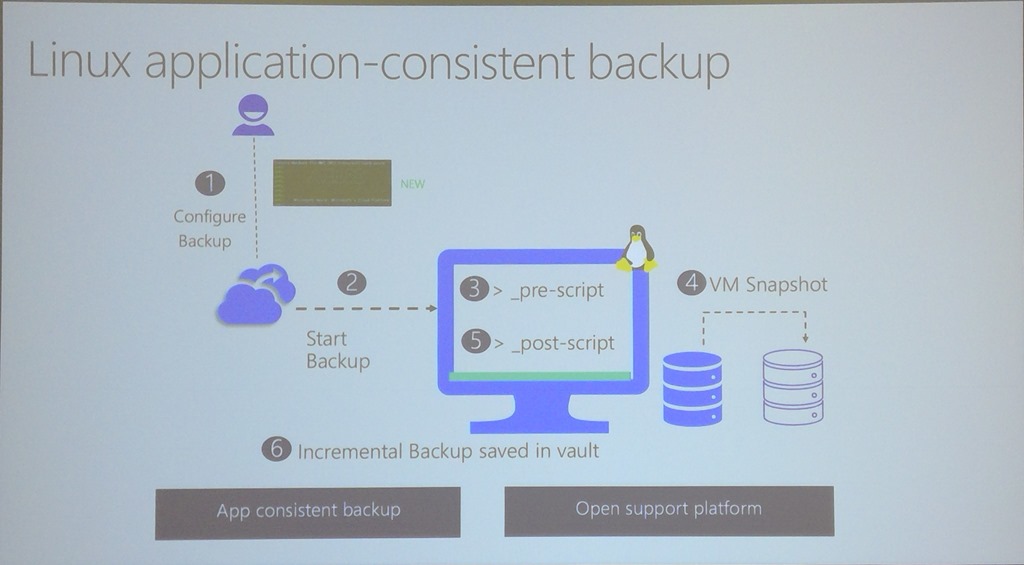
When you backup a Linux VM, you can run a pre-script, do the backup, and then run a post-script. This can enable application-consistent backups in Linux VMs in Azure. Aruna logs into a Linux VM via SSH. There are Linux CLI commands in the guest OS, e.g. az backup. There is a JSON file that describes the pre-and post scripts. There’s some scripts by a company by a company called capside for MySQL. The pre-script creates database dumps and stops the databases.

28-09-2017 14-49 Office Lens

az backup recoverypoint list and some flags can be used to list the recovery points for the currently logged in VM. The results show if they are app or file consistent.

az backup restore files and some parameters can be used to mount the recovery point – you then copy files from the recovery point, and unmount the recovery point when done.

28-09-2017 14-45 Office Lens

Restore as a Service

28-09-2017 14-50 Office Lens

On-Premises

2/3 of customers keeping on-premises data.

Two solutions in AB for hybrid backup:

  • Microsoft Azure Backup Server (MABS) / DPM: Backup Hyper-V, VMware, SQL, SharePoint, Exchange, File Server & System State to local storage (short-term retention)  and to the cloud (long term retention)
  • MARS Agent: Files & Folders, and System State backed up directly to the cloud.

System State

Protects Active Directory, IIS metadata, file server metadata. registry, COM+ Cert Services, Cluster services info, AD, IIS metabase.

Went live in MARS agent last month.

In a demo, Vijay deletes users from AD. He restores system state files using MARS. Then you reboot the DC in AD restore mode. And then use the wbadmin tool to restore the system state. wbadmin start systemstaterecovery. You reboot again, and the users are restored.

Vijay shows MARS deployment, and shows the Project Honolulu implementation.

Next he talks about the ability to do an offline backup instead of an online full backup. This leverages the Azure storage import service, which can leverage the new Azure Data Box – a tamper proof storage solution of up to 100 TB.

Security

Using cloud isolates backup data from the production data. AB includes free multi-approval process to protect destructive operations to hybrid backups. All backup data is encrypted. RBAC offers governance and control over Azure Backup.

There are email alerts (if enabled) for destructive operations.

If data is deleted, it is retained for 14 days so you can still restore your data, just in case.

Hybrid Backup Encryption

Data is encrypted before it leaves the customer site.

Customers want:

  • To be able to change keys
  • Keep the key secret from MS

A passphrase is used to create they key. This is a key encryption key process. And MS never has your KEK.

Azure VM Disk Encryption

You still need to be able to backup your VMs. If a disk is encrypted using a KEK/BEK combination in the Key Vault, then Azure Backup includes the keys in the backup so you can restore from any point in time in your retention policy.

Isolation and Access Control

Two levels of authorization:

  • You can control access/roles to individual vaults for users.
  • There are permissions or roles within a vault that you can assign to users.

Monitoring & Reporting

Typical questions:

  • How much storage am I using?
  • Are my backups healthy?
  • Can I see the trends in my system?

Vijay does a tour of information in the RSV. Next he shows the new integration with OMS Log Analytics. This shows information from many RSVs in a single tenant. You can create alerts from events in Log Analytics – emails, webhooks, runbooks, or trigger an ITSM action. The OMS data model, for queries, is shared on docs.microsoft.com.

For longer term reporting, you can export your tenant’s data to an AB Content Pack in PowerBI – note that this is 1 tenant per content pack import, so a CSP reseller will need 100 imports of the content pack for 100 customers. Vijay shows a custom graphical report showing the trends of data sources over 3 months – it shows growth for all sources, except one which has gone down.

Power BI is free up to 1 GB of data, and then it’s a per-user monthly fee after that.

Roadmap

  • Backup of SQL in IaaS – preview
  • Backup of Azure file – preview
  • Azure CLI
  • Backup of encrypted VMs without KEK
  • Backup of VMs with storage ACLs
  • Backup of large disk VMs
  • Upgrade of classic Backup Vault to ARM RSV
  • Resource move across RG and subscription
  • Removal of vault limits
  • System State Backup

Application-Aware Disaster Recovery For VMware, Hyper-V, and Azure IaaS VMs with Azure Site Recovery

Speaker: Abhishek Hemrajani, Principal Lead Program Manger, Azure Site Recovery, Microsoft

There’s a session title!

The Impact of an Outage

The aviation industry has suffered massive outages over the last couple of years costing millions to billions. Big sites like GitHub have gone down. Only 18% of DR investors feel prepared (Forrester July 2017 The State of Business Technology Resiliency. Much of this is due to immature core planning and very limited testing.

Causes of Significant Disasters

  • Forrester says 56% of declared disasters are caused by h/w or s/w.
  • 38% are because of power failures.
  • Only 31% are caused by natural disasters.
  • 19% are because of cyber attacks.

Sourced from the above Forrester research.

Challenges to Business Continuity

  • Cost
  • Complexity
  • Compliance

How Can Azure Help?

The hyper-scale of Azure can help.

  • Reduced cost – OpEx utility computing and benefits of hyper-scale cloud.
  • Reduced complexity: Service-based solution that has weight of MS development behind it to simplify it.
  • Increased compliance: More certifications than anyone.

DR for Azure VMs

Something that AWS doesn’t have. Some mistakenly think that you don’t need DR in Azure. A region can go offline. People can still make mistakes. MS does not replicate your VMs unless you enable/pay for ASR for selected VMs. Is highly certified for compliance including PCI, EU Data Protection, ISO 27001, and many, many more.

  • Ensure compliance: No-impact DR testing. Test every quarter or, at least, every 6 months.
  • Meet RPO and RTO goals: Backup cannot do this.
  • Centralized monitoring and alerting

Cost effective:

  • “Infrastructure-less” DR sites.
  • Pay for what you consume.

Simple:

  • One-click replication
  • One-click application recovery (multiple VMs)

Demo: Typical SharePoint Application in Azure

3 tiers in availability sets:

  • SQL cluster – replicated to a SQL VM in a target region or DR site (async)
  • App – replicated by ASR – nothing running in DR site
  • Web – replicated by ASR – nothing running in DR site
  • Availability sets – built for you by ASR
  • Load balancers – built for you by ASR
  • Public IP & DNS – abstract DNS using Traffic Manager

One-Click Replication is new and announced this week. Disaster Recovery (Preview) is an option in the VM settings. All the pre-requisites of the VM are presented in a GUI. You click Enable Replication and all the bits are build and the VM is replicated. You can pick any region in a “geo-cluster”, rather than being restricted to the paired region.

For more than one VM, you might enable replication in the recovery services vault (RSV) and multi-select the VMs for configuration. The replication policy includes recovery point retention and app-consistent snapshots.

New: Multi-VM consistent groups. In preview now, up to 8 VMs. 16 at GA. VMs in a group do their application consistent snapshots at the same time. No other public cloud offers this.

Recovery Plans

Orchestrate failover. VMs can be grouped, and groups are failed over in order. You can also demand manual tasks to be done, and execute Azure Automation runbooks to do other things like creating load balancer NAT rules, re-configuring DNS abstraction in Traffic Manager, etc. You run the recovery plan to failover …. and to do test failovers.

DR for Hyper-V

You install the Microsoft Azure Recovery Services (MARS) agent on each host. That connects you to the Azure RSV and you can replicate any VM to that host. No on-prem infrastructure required. No connection broker required.

DR for VMware

You must deploy the ASR management appliance in the data centre. MS learned that the setup experience for this is complex. They had a lot of pre-reqs and configurations to install this in a Windows VM. MS will deliver this appliance as an OVF template from now on – familiar format for VMware admins, and the appliance is configured from the Azure Portal. Replicate Linux and Windows VMs to Azure, as with Hyper-V from then on.

Demo: OVF-Based ASR Management Appliance for VMware

A web portal is used to onboard the downloaded appliance:

  1. Verify the connection to Azure.
  2. Select a NIC for outbound replication.
  3. Choose a recovery services vault from your subscription.
  4. Install any required third-party software, e.g. PowerCLI or MySQL.
  5. Validate the configuration.
  6. Configure vCenter/ESXi credentials – this is never sent to Azure, it stays local. The name of the credential that you choose might appear in the Azure portal.
  7. Then you enter credentials for your Windows/Linux guest OS. This is required to install a mobility service in each VMware VM. This is because VMware doesn’t use VHD/X, it uses VMDK. Again, not sent to MS, but the name of the credential will appear in the Azure Portal when enabling VM replication so you can select the right credentials.
  8. Finalize configuration.

This will start rolling out next month in all regions.

Comprehensive DR for VMware

Hyper-V can support all Linux distros supported by Azure. On VMware they’re close to all. They’ve added Windows Server 2016, Ubuntu 14.04 and 16.04 , Debian 7/8, managed disks, 4 TB disk support.

Achieve Near-Zero Application Data Loss

Tips:

  • Periodic DR testing of recovery plans – leverage Azure Automation.
  • Invoke BCP before disasters if you know it’s coming, e.g. hurricane.
  • Take the app offline before the event if it’s a planned failover – minimize risks.
  • Failover to Azure.
  • Resume the app and validate.

Achieve 5x Improvement in Downtime

Minimize downtime: https://aka.ms/asr_RTO

He shows a slide. One VM took 11 minutes to failover. Others took around/less than 2 minutes using the above guidance.

Demo: Broad OS Coverage, Azure Features, UEFI Support

He shows Ubunu, CentOS, Windows Server, and Debian replicating from VMware to Azure. You can failover from VMware to Azure with UEFI VMs now – but you CANNOT failback. The process converts the VM to BIOS in Azure (Generation 1 VMs). OK if there’s no intention to failback, e.g. migration to Azure.

Customer Success Story – Accenture

They deployed ASR. Increased availability. 53% reduction in infrastructure cost. 3x improvement in RPO. Savings in work and personal time. Simpler solution and they developed new cloud skills.

They get a lot of alerts at the weekend when there’s any network glitches. Could be 500 email alerts.

Demo: New Dashboard & Comprehensive Monitoring

Brand new RSV experience for ASR. Lots more graphical info:

  • Replication health
  • Failover test success
  • Configuration issues
  • Recovery plans
  • Error summary
  • Graphical view of the infrastructure: Azure, VMware, Hyper-V. This shows the various pieces of the solution, and a line goes red when a connection has a failure.
  • Jobs summary

All of this is on one screen.

He clicks on an error and sees the hosts that are affected. He clicks on “Needs Attention” in one of the errors. A blade opens with much more information.

We can see replication charts for a VM and disk – useful to see if VM change is too much for the bandwidth or the target storage (standard VS premium). The disk level view might help you ID churn-heavy storage like a page file that can be excluded from replication.

A message digest will be sent out at the end of the day. This data can be fed into OMS.

Some guest speakers come up from Rackspace and CDW. I won’t be blogging this.

Questions

  • When are things out: News on the ASR blog in October
  • The Hyper-V Planner is out this week, and new cost planners for Hyper-V and VMware are out this week.
  • Failback of managed disks is there for VMware and will be out by end of year for Hyper-V.

Running Tier 1 Worklaods on SQL Server on Microsoft Azure Virtual Machines

Speaker: Ajay Jagannathan, Principal PM Manager, Microsoft Data Platform Group. He leads the @mssqltiger team.

I think that this is the first every SQL Server that I’ve attended in person at a TechEd/Ignite. I was going to a PaaS session instead, but I’ve got so many customers running SQL Server on Azure VMs, that I thought that this was important for me to see. I also thought it might be useful for a lot of readers.

Microsoft Data Platform

Starting with SQL 2016, the goal was to make the platform consistent on-premises, with Azure VMs, or in Azure SQL. With Azure, scaling is possible using VM features such as scale sets. You can offload database loads, so analytics can be on a different tier:

  • On-premises: SQL Server and SQL Server (DW) Reference architecture
  • IaaS: SQL Server in Azure VM with SQL Server (DW) in Azure VM.
  • PaaS: Azure SQL database with Azure SQL data warehouse

Common T-SQL surface area. Simple cloud migration. Single vendor for support. Develop once and deploy anywhere.

Azure VM

  • Azure load balancer routes traffic to the VM NIC.
  • The compute and storage are separate from the storage.
  • The virtual machine issues operations to the storage.

SQL Server in Azure VM – Deployment Options

  • Microsoft gallery images: SQL Server 2008 R2 – 2017, SQL Web, Std, Ent, Dev, Express. Windows Server 2008 R2 – WS2016. RHEL and Ubuntu.
  • SQL Licensing: PAYG based on number of cores and SQL edition. Pay per minute.
  • Bring your own license: Software Assurance required to move/license SQL to the cloud if not doing PAYG.
  • Creates in ~10 miuntes.
  • Connect via RDP, ADO, .NET, OLEDB, JBDC, PHO …
  • Manage via Portal, SSMS, owerShell, CLI, System Center …

It’s a VM so nothing really changes from on-premises VM in terms of management.

Everytime there’s a critical update or service pack, they update the gallery images.

VM Sizes

The recommend DS__V2- or FS-Series with Premium Storage. For larger loads, they recommend the GS- and LS-Series.

For other options, there’s the ES_v2 series (memory optimized DS_v3), and the M-Series for huge RAM amounts.

VM Availability

Availability sets distribute VMs across fault and update domains in a single cluster/data centre. You get a 99.95% SLA on the service for valid configurations. Use this for SQL clusters.

Managed disks offer easier IOPS management, particularly with Premium Disks (storage account has a limit of 20,000 IOPS). Disks are distributed to different storage stamps when the VM is in an availability set – better isolation for SQL HA or AlwaysOn.

High Availability

Provision a domain controller replica in a different availability set to your SQL VMs. This can be in the same domain as your on-prem domain (ExpressRoute or site-to-site VPN).

Use (Get-Cluster).SameSubnetThreshold = 20 to relax Windows Cluster failure detection for transient network failure.

Configure the cluster to ignore storage. They recommend AlwaysOn. There is no shared storage in Azure. New-Cluster –Name $ClusterName –NoStorage –Node $LocalMachineName

Configure Azure load balancer and backend pool. Register the IP address of listener.

There are step-by-step instructions on MS documentation.

SQL Server Disaster Recovery

Store database backups in geo-replicated readable storage. Restore backups in a remote region (~30 min).

Availability group options:

  • Configure Azure as remote region for on-premise
  • Configure On-prem as DR for Azure
  • Replicate in Azure Remote region – failover to remove in ~30s. Offload remote reads.

Automated Configuration

Some of these are provided by MS in the portal wizard:

  • Optimization to a target workload: OLTP/DW
  • Automated patching and shutdown – latter is very new, and to reduce costs for new dev/test workloads to reduce costs at the end of the workday.
  • Automated backup to a storage account, including user and system databases. Useful for a few databases, but there’s another option coming for larger collections.

Storage Options

The recommend LRS only to keep write performance to a maximum. GRS storage is slower, and could lead to database file being written/replicated before log storage.

Premium Storage: high IOPS and low latency. Use Storage Spaces to increase capacity and performance. Enable host-based read caching in data disks for better IOPS/latency.

Backup to Premium Storage is 6x faster. Restore is 30x faster.

Azure VM Connectivity

  • Over the Internet.
  • Over site-site tunnel: VPN or ExpressRoute
  • Apps can connect transparently via a listener, e.g. Load Balancer.

Demo: Deployment

The speaker shows a PowerShell script. Not much point in blogging this. I refer JSON anyway.

http://aka.ms/tigertoolbox is the script/tools/demos repository.

Security

  • Physical security of the datacenter
  • Infrastructure security: virtual network isolation, and storage encryption including bring-your-own-key self-service encryption with Key Vault. Best practices and monitoring by Security Center.
  • Many certifications
  • SQL Security: auto-patching, database/backup encryption, and more.

VM Configuration for SQL Server

  • Use D-Series or higher.
  • Use Storage Spaces for performance of disks. Use Simple disks: the number of columns should equal the number of disks. For OLTP use 64KB interleave and use 256KB for data warehouse.
  • Do not use the system drive.
  • Put TempDB, logs, and databases on different volumes because of their different write patterns.
  • 64K allocation unit size.
  • Enable read caching on disks for data files and TempDB.
  • Do not use GRS storage.

SQL Configuration

  • Enable instant file initialization
  • Enabled locked ages
  • Enable data page compression
  • Disable auto-shrink for your databases
  • Backup to URL with compressed backups – useful for a few VMs/databases. SQL 2016 does this very quickly.
  • Move all databases to data disks, including system databases (separate data and log). Use read caching.
  • Move SQL Server error log and trace file directories to data disks

Demo: Workload Performance of Standard Versus Premium Storage

A scripted demo. 2 scripts doing the same thing – one targeting a DB on Standard disk (up to 500 IOPS) and the second targets a DB on a Premium P30 (4,500 IOPS) disk. There’s table creation, 10,000 rows, inserts, more tables, etc. The scripts track the time required.

It takes a while – he has some stats from previous runs. There’s only a 25% difference in the test. Honestly – that’s no indicative of the differences. He needs a better demo.

An IFI test shows that the bigger the database file is, the bigger the difference is in terms of performance – this makes sense considering the performance nature of flash storage.

Seamless Database Migration

There is a migration guide, and tools/services. http://datamigration.microsoft.com. One-stop shop for database migrations. Guidance to get from source to target. Recommended partners and case studies.

Tools:

  • Data Migration Assistant: An analysis tool to produce a report.
  • Azure Database Migration Service (free service that runs in a VM): Works with Oracle, MySQL, and SQL Server to SQL Server, Azure SQL, Azure SQL Managed Instance. It works by backing up the DB on the source, moving the backup to the cloud, and restoring the backup.

Azure Backup

Today, SQL Server can backup from the SQL VM (Azure or on-prem) to a storage account in Azure. It’s all managed from SQL Server. Very distributed, no centralized reporting, difficult/no long-term retention.  Very cheap.

Azure Backup will offer centralized management of SQL Backup in an Azure VM. In preview today. Managed from the Recovery Services Vault. You select the type of backup, and a discovery will detect all SQL instances in Azure VMs, and their databases. A service account is required for this and is included in the gallery images. You must add this service for custom VMs. You then configure a backup policy for selected DBs. You can define a full backup policy, incremental, and transactional backup policy with SQL backup compression option. The retention options are the familiar ones from Azure Backup (up to 99 years by the looks of it). The backup is scheduled and you can do ad-hoc/manual backups as usual with Azure Backup.

You can restore databases too – there’s a nice GUI for selecting a restore date/time. It looks like quite a bit of work went into this. This will be the recommended solution for centralized backup of lots of databases, and for those wanting long term retention.

Backup Verification is not in this solution yet.

Azure Compute: New Features & Roadmap

Speaker: Corey Sanders, Director of Compute, Azure, Microsoft

Lots of stuff that hasn’t been talked about yet.

Compute Through The Ages

Some old PCs, aa rack, a video of Monkey Boy doing developers developers developers, tablets, the cloud, and an alien (Quantum Computing).

Digital Transformation

Drink!

  • Engage customers
  • Transform products
  • Empower employees
  • Optimize operations

What’s Important to You?

  • Security
  • Availability
  • Cost savings
  • Automation
  • Infrastructure – sounds like a dev audience based on the boos.
  • Application PaaS
  • Management

VM – Compute

  • ND (new) and NCv2 (next few weeks) have launched with P100 and P40 GPUs.
  • Partial Core Alternatives for SQL/Oracle. You can reduce the number of cores that you can see/use in large VMs to get the other features of that VM, e.g. lots of RAM.
  • B-Series burstable VMs with a baseline low CPU capacity. Earn credits by using under the baseline, and burn those credits by getting more CPU capacity.
  • SAP system has 20 TB of RAM, 960 CPUs, 60 TB multi-node, bare-metal performance because these are bare metal machines.

VM Scale Sets

Up to 1000 VMs in a single manageable unit. Adding auto-OS update by the end of the year. IPv6 load balancer support. Zone redundant VMSS (availability zone automation).

Managed Disks

Abstract away the underlying storage. Data always encrypted at rest. Coming:

  • Incremental snapshots
  • Larger disk sizes
  • Cross-subscription/region sharing
  • Private repository

Security

  • Unified visibility and control
  • Adaptive threat detection
  • Intelligent threat detection and response
  • Investigation into security risks

Announcements:

Missed all this because of speaker speed.

Demo:

An alert of a suspicious process being executed. We can run a playbook from a list. They’re logic apps under the covers. The playbook designer looks like Office Flow. Example shows message being posted in Teams and a ticket being posted in ServiceNow in the event of a high priority alert. He shows that he could post a message in Slack.

Accouncements

Confidential computing which uses Intel silicon to run bits of processes with secure data. This is built on WS2016 Hyper-V technology. This should be small bits of code because you cannot debug it because it’s … secure.

Governance and Management

Lock down who/what/when.

New policy management is announced this week. JSON policy is a lot easier now. CloudDyn is free in Azure.

  • Azure Policy Center
  • Management groups
  • Managed Apps GA
  • Update and Configuration Management
  • Azure Policy Center

Policy Center is in the Azure Portal. under Policy – Compliance. You can do things like “Deny Hybrid Use Benefit” or control VM extensions, control managed disk usage, restrict image creation, etc.

Sample JSON policies are shard in GitHub.

Management Groups

Organizational alignment for Azure subscriptions. Targeted resource policy, access control and budgets. Compliance, security, and reporting by team.

Update, Configuration, And Change Tracking

Windows and Linux, Azure and non-Azure.

Collect and search inventory. Track changes to each system. Autocorrect configuration.

Schedule patching and check compliance.

Application Service Catalog GA

Turnkey for managed workloads. Sealed for simplified usage. Managed by central IT.

Availability

Different tiers: single VM, availability sets, availability zones, and DR.

Availability Zones

PowerShell in the Cloud Shell

Azure Automation with Python.

Availability Zones

Physically separated unlike fault domains. Still in a single region. A zone is one or more data centres. Redundant power, network, and cooling. Reduce single points of failure in the platform. At GA, will offer 99.99% SLA over the 99.95% SLA with availability sets, or 99.9% SLA on single VMs with Premium-only storage.

And then there is DR, to give you replication of VMs using Azure Site Recovery to another region.

Cosmos DB, MySQL/SQL/PostGres, Blob storage, and VMs all have inter-region DR solutions.

Backup and DR

Backup in a single click with VMs. DR with Azure-to-Azure Site Recovery. Recovery Plans, with Automation, offer single-click orchestrated failover.

Maintenance

Currently it typically takes under 30 seconds to do maintenance on hosts in Azure – warm reboot of Hyper-V called in-place migration. They actually replace the entire host OS during patching!

On-demand maintenance. 2-4 week notice window. You can do the reboot on your own schedule. Full reboot updates only. Demo.

A notice appears (also email) to say a VM will be rebooted for host maintenance. You can click Start Maintenance, to move (reboot) the VM to a host that is already updated. It’s in preview in West Central US.

Cost Savings

  • Track usage and cost trends (CloudDyn)
  • Detect spending anomalies
  • Allocate usage to business units
  • Reduce cost of services

Batch:

  • Reserved instances on the way.
  • B-Series VMs
  • Batch VMs – all sizes in all regions, and mixe low and high priority VMs
  • Pre-emptible VMs with up to 80% fixed – for non-critical VMs where MS can take resources back from you.

Future: Serial Console

This is experimental at the moment. A Serial Console is connected to a VM (RHEL). This is an interactive console, not just the screenshot of Diagnostics today. He is logged into RHEL in the VM. He then runs a reboot and watches the entire process, which we wouldn’t have seen via SSH.

This is Linux focused, but they’re working with Windows to find a solution.

Containers & Microservices

Azure Container Instances (ACI) are on the same level as VMs in Azure. Service Fabric and Kubernetes sit above them in management layer. Containers with Kubernetes are “managed containers”.

Announcing: ACI on Windows and ACI on Service Fabric.

40% of Service Fabric customers today are also deploying on-prem, and containers are the perfect compatible solution.

He does a demo to deploy IIS on Nano Server in an ACI (normal Windows container) with a public IP address.

Now a demo of ACI in service fabric. There’s a JSON that specifies the container spec. He’s using a tool called Service Fabric Explorer. He deploys a Linux container in the Service Fabric.

Service Fabric Ga for Linux

You can deploy Linux service plans. You can orchestrate on Linux or Windows. Run a million containers on a single cluster.

Azure Container Service for Kubernetes

You can provision Kubernetes very quickly and easily on Windows and Linux.

Some investments on tooling – an acquisition of a company that sounds like Deus.

Lots of partner solutions from the likes of Dicker Enterprise to manage on-prem and in the cloud with one experience. RedHat OpenShift to manage Kubernetes & RHEL ACI hosts. Pivotal is designed to lift and shift Java applications to containers – Azure, on-prem, and other clouds.

App Services and Serverless

This is a layer above Service Fabric and Kubernetes. We can do this cluster-less (App Services) and server-less (Functions) or Logic Apps.

Web Apps and Linux Containers are GA. You can integrate with Docker Hub and VSTS, and SSH into them.

Azure Event Grid

Treat events as first class objects. Things like Logic Apps and Functions start because of events. Many platforms don’t treat events as first class. As first-class, the events can go anywhere, e.g. from Azure Storage to AWS Lambda. Your apps can listen for events, e.g. WebHooks, Azure Automation, Logic Apps, Functions.

When an event happens, it goes into Event Grid. Then it can be directed to one of the above 4 services in Azure.  From Logic Apps, you can integrate into lots of things like Twitter, Slack, SalesForce, etc, via Logic Apps’ ability to do workflows.

This is “event-driven computing”.

More Announcements

  • Cosmos DB Trigger
  • Microsoft Graph Bindings
  • MacOS and Linus Local Development
  • App Insights GA