System Center 2012 Visio Management Pack Designer for System Center Operations Manager

Want to design your own simple management packs for SCOM (OpsMgr) from scratch but, like me, found the authoring kit to be like a mythical Greek maze filled with monsters?  Well I have great news … the Visio Management Pack Designer (VMPD) is finally here!!!!

I blogged about this tool at MMS earlier this year.  You drag and drop what you want done, and it’ll do all the hard work for you.  It’ll be a great addition to any OpsMgr admin/consultant toolkit.

The System Center 2012 Visio MP Designer—VMPD—is an add-in for Visio 2010 Premium that allows you to visually design a System Center Operations Manager Core Monitoring Management Pack. VMPD generates a Management Pack that is compliant to the MP Authoring Best Practices by simply dragging and dropping Visio shapes to describe your application architecture and configuring them through the Shape Properties.

– Visually describe your application architecture which generates classes and discoveries.

– Visually add monitoring to create monitors and rules.

– Start quickly from our pre-canned single server and multi-server patterns.

What Impresses Me Most About the Veeam nworks Management Pack for System Center …

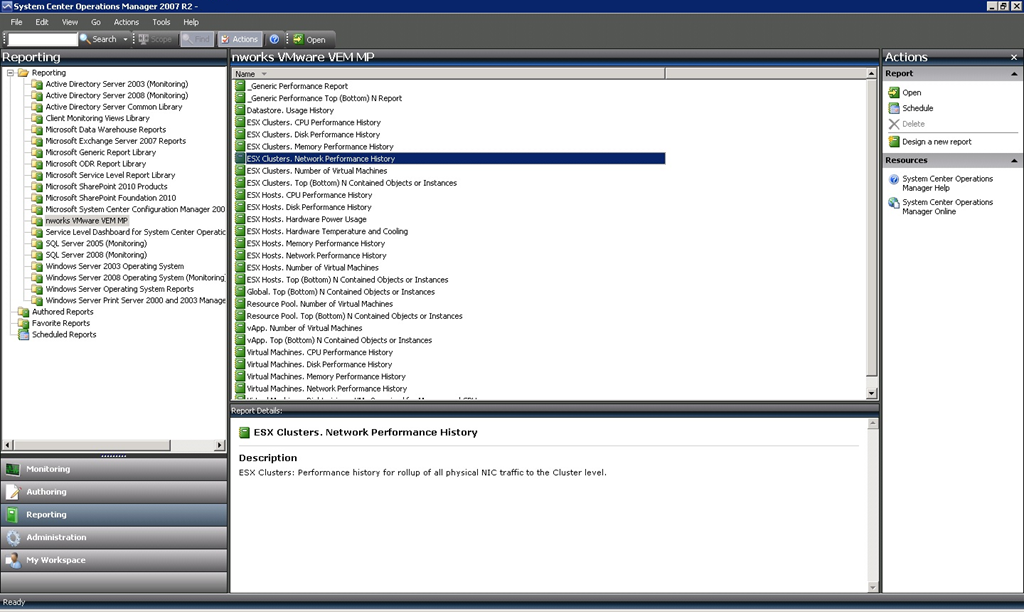
… is the sheer amount of information that it provides.  I previously talked about the monitoring.  That’s great for the reactive side of things.  When I managed infrastructures, I like to take some some to see who things were trending so I could plan.  That’s where reports come in handy, and there’s no shortage of those in this management pack:

image

On my client’s site, we had an alert about latency on a HBA in one of the hosts.  I wanted to give the client some useful information to plan VM placement using affinity rules to avoid this from happening again.  One of the cool reports allows you to create a top-bottom chart of VMs based on a specific performance metric.  The below report was created with with the VMGUEST IOPS metric and shows the top 25 disk activity VMs.

image

As usual with OpsMgr, the report could be scheduled for a time period, and/or saved as a web archive, PDF, word file, etc.  I like this management pack.  Sure, it is pricey (I was told over EUR400/host socket being monitored), but it’s good.  BTW, Veeam did release a 10 socket (enough for 5 hosts with 2 CPUs each) management pack for free, which is available to you under two conditions:

  1. Be a new customer to Veeam AND
    2. Be a SCOM 2012 customer (not SCOM 2007)

Yesterday’s Fun In OpsMgr: Failed to store data in the Data Warehouse

Actually, the full error in the alert in this System Center Operations Manager 2007 R2 install was:

Failed to store data in the Data Warehouse.Failed to store data in the Data Warehouse. Cannot resolve the collation conflict between "SQL_Latin1_General_CP1_CI_AS" and "Latin1_General_CI_AS" in the equal to operation.

A bit of quick checking and I found that the SQL server instance had the default and incorrect collation of Latin1_General_CI_AS while the OpsMgr databases had the correct collation of SQL_Latin1_General_CP1_CI_AS (check the properties of SQL Server and the databases in SQL Management Studio to verify).

And this pretty much explained why reports from new management packs weren’t appearing in OpsMgr.  The odd thing is that this problem went unnoticed for over 6 months and many management packs functioned perfectly well.

I knew what was ahead of me: a SQL rebuild.  So that’s what I did, with some guidance from a blog post by Marnix Wolf, MVP.  I veered a little from the guidance he gave.  I opted to start with a new SQL Reporting DB because it was easier to do this and I had no customisations to rescue.  So I didn’t restore it, I didn’t run ResetSRS, and I just needed to reinstall OpsMgr Reporting and supply the details.

Interestingly, the OpsMgr Reporting installed froze about half way through.  There were no visible issues, no performance bottlenecks, no clues, nothing to explain the setup hang … except for the Application Log in Event Viewer.  There McAfee reported that it was preventing lots of .Net stuff.  Uh oh!  I temporarily disabled the McAfee protection and the installer wrapped up almost immediately.

Once everything was back I verified that monitoring worked, that the datawarehouse was still OK, and that reports were repopulating and working.  But then a flood of alerts came in:

Microsoft.EnterpriseManagement.Common.UnknownServiceException: The service threw an unknown exception. See inner exception for details. —> System.ServiceModel.FaultException`1[System.ServiceModel.ExceptionDetail]: Execution of user code in the .NET Framework is disabled. Enable "clr enabled" configuration option. (Fault Detail is equal to An ExceptionDetail, likely created by IncludeExceptionDetailInFaults=true, whose value is: …

That looked nasty but the fix was easy enough.  As Alexy Zhuravlev said, run this on the SQL server against the OperationsManager database:

sp_configure @configname=clr_enabled, @configvalue=1
GO
RECONFIGURE
GO

After that, everything was okey dokely and the SQL 2008 R2 DB was updated to get it OpsMgr 2012 ready Smile

Deployed Veeam nworks Management Pack For vSphere

I deployed the Veeam management pack for System Center Operations Manager with a client on their site site yesterday to monitor VMware vSphere.  It was my first production deployment of the solution.  It was pretty simple:

  • Deploy collectors
  • Discover vCenter servers/hosts
  • Monitor
  • Run reports

Oh and the reports!  There’s so many of them with lots of information.  It’s a very nice management pack.  And it accomplishes what the client wanted: they have visibility into VMware from System Center.

Does it work?  Yeap; it detected read latency on a HBA, an oversubscribed VMFS volume (based on potential growth of thin VMDKs), and a full VMFS.

MMS2012 – System Center 2012 Monitoring and Operations Tips and Advice

Speaker: Gordon McKenna and Sean Roberts, Inframon

I’m live blogging this session so hit refresh to see more.

Private Cloud MOC and Certification

New exams and certifications.  70-246 Monitoring and Operating a Private Cloud.  70-247 Configuring and Deploying a Private Cloud.

  • MCSA + 70-246 + 70-247 = MCSE: Private Cloud
  • 70-640 + 70-642 + 70-646 = MCSA

The two training courses are available now.

10750 – Module 4: Monitoring Private Cloud Services

To do J2EE APM you download an opensource Java bean.  OpsMgr network monitoring is network monitoring for server guys. Existing solutions for network guys won’t be replaced.  OpsMgr network monitoring gives the server guys the tools to find a troublesome link/device and enable them to tell the n/w guys.  Port stitching figures out what ports your monitored servers are talking to and shows that to you.

MP Templates are a good starting point.  Check out the new Visio tool and the MP Authoring tool (latter requires significant time investment). 

Distributed Application Monitoring

A new distributed application monitoring tool.  3 types of line:

  • Reference relationship: no impact … dotted line
  • Hosted relationship, e.g. database hosted by database instance.  Health will roll up.
  • Containment: Group of servers.  With aggregate rollup monitor, server goes red, group goes red.

Note that default management pack is no longer there!  Forces you to save your authoring in a suitable MP.  Yay!

Health rolls up to 1 of 4 things:

  • Availability
  • Performance
  • Configuration
  • Security

We can configure the rollup to go up to a level of our choice, e.g. don’t roll up or roll up to top level of distributed application.

  • Presentation Tier – anything user sees
  • Business Tier: back or middle tiers.

Creates a service level dashboard for the new MP based on the distributed app model.  Add the OpsMgr dashboard viewer and adds the webpart into SharePoint.  Grab the URL of the dashboard link in OpsMgr and edit the web part properties to paste the Dashboard link.  Now the SLA dashboard appears in SharePoint.

Tips

  • Always build out service models in the DAD (distributed application developer).  Good eye candy wins prizes!  I concur – have personal experience of that.
  • Use three tier service models that match your business functions
  • Use MP templates for true pro-active monitoring
  • Use APM to stop developer VS IT Pro arguments
  • Create a dedicate SharePoint portal for dashboard and reports

10750 – Automating Incident Creation, Remediation, and Change Requests

Orchestrator components:

  • Orchestration console on IIS (Silverlight)
  • Runbook server(s): usually local to servers
  • Management server running Runbook designed and deployment manager
  • SQL DB

Download integration pack, register it with management server, deploy IP to runbook servers, open Runbook Designer to use it.

Install OpsMgr R2 integration pack  Define a connection to the OpsMgr server.  You then have the actions available to use.  Do the same for Service Manager.

Demo with web service crashing and auto remediation.  OpsMgr detects event.  Orchestrator waits for that event.  It tries to restart the event.  Creates ticket to auto restart IIS.  If that fails, it lodges a ticket in Service Manager for manual OK to reboot the server.

Opens up Runbook designer.  Browses into Runbooks and we see the book in question.  Runs the runbook tester, toggles break point, and runs it.  Now he stops the website.  The runbook kicks off, and they step through the actions.  We get into Service Manager where there’s a change request for a reboot.  That’s approved and the web server is rebooted.

Note: there is a maximum of 50 running runbooks on a Runbook Server.

When configuring a runbook

  • Handle failure and warning links
  • Replace the default strings
  • Change link colours
  • Limit the number of activities for each Runbook
  • Enable runbook logs to an external file

10750 – Module 7: Problem Management In The Private Cloud

Incident = one time occurrence that can be handled by an operator.  Problem is more complex, e.g. engineering issue that requires escalation.

Information stored in Problem Log in Service Manager.  Another demo of automated problem record creation.  An alert will come in in OpsMgr for a DB that goes offline.  The alert auto pipes in as an incident in Service Manager.  Many instances of it in the demo.  It’s a problem.  A problem record is manually created from these incidents.  He fills in information in the New Problem form. 

Now he kills the DB again. 

There’s a runbook that is looking for occurrences of that incident.  It’ll get the service details and the incidents for this service, output data to text file, count lines, if there’s more than X occurrences then it will create a problem based on the data in the file.  This workflow replaces the above manual task for this particular incident.

Hints and tips

  • Target object and classes and use groups to override
  • Be aware of the inheritance for each class
  • Limit the size and activity of a runbook
  • Download and use the Cloud Processes Pack.  Create request driven processes for many cloud services functions such as project, capacity pools, and virtual machines.  Can introduce the concept of charge back billing.  Supplies cloud service runbooks.  Project = collection of capacity pools.
 

MMS2012 – I’ve Deployed OpsMgr 2012 Application Performance Monitoring (APM); Now What?

Speaker: Pete Zerger and a Dude Who Was WIth Avicode

APM was Avicode, and allows .NET and J2EE application monitoring from the inside.  Help IT isolate the issue.  Provide the app team with the info they need to fix the app.

Teams you might have involved in app troubleshooting:

  • Operations: Runs the infrastructure n a day-day basis
  • Support and development: writes it and fixes bug
  • QA/Testing: tests it
  • DevOps: owns the production code

Processes

  • Troubleshooting
  • Daily/weekly app health analysis
  • Fixing top issues
  • Next application release scope
  • Improve monitoring configuration

Reports

Start with Top reports

Figure out how often to send reports, who to send them to, and what apps to include.

Problems distribution analysis is a good high level report of all apps.  Application status gives you a week-week report on app performance/health.  Run it weekly and send to an active/involved supervisor.  Application CPU utilization should be run weekly/monthly.

Make a note of http://dinnernow.codeplex.com/ for testing/demo.

Rules

Filter out noise, e.g. non-actionable alerts .. maybe fixed in next release, etc.  Use rules everyday.  Start with top level problems, create rules for exception events.

Using REGE Sensitive Data Filters

You can use expressions to find and mask sensitive data that you don’t want out in the wild, e.g. social security number, credit card number, etc.


There’s a lot more demo after this.  Best you watch the video when it’s made available in a few days.

Visio Management Pack Designer (VMPD)

Speakers: Brian Wren and Baelson Duque, MSFT.

This is a new way to author management packs for System Center 2012 Operations Manager. 

Challenges

  • Creating MPs takes too long
  • Difficult to maintain best practices
  • Difficult to create a model to manage an app

The old R2 Authoring Console was a dog IMO.

Features

  • Create custom monitoring with minimal effort
  • Solution for offline management pack creation
  • Visual design tool

What the VMPD is Not For

  • Editing existing management packs
  • Deeply advance customer scenarios

VMPD Shape Types

  • MP Modelling: Represent components of your app
  • MP Rollup: Connect components and monitors
  • MP Monitoring: Monitors and rules

Patterns:

  • MP modelling a single server patterns: application components with a single type of server
  • MP modelling distributed patterns: Multiple types of server

Demo

Prereq: It requires Visio 2012 Premium edition. 

You start off with a blank diagram with a management pack shape.  A shape data sheet gives you properties of the shape – visible when you click on the shape.  Here we can specify what versions of Windows the MP will support.  This is a discovery.

In MP modelling we have things like server component (e.g. SQL Server Reporting Services) shape.  It’s data sheet allows us to do discovery using “how to find”: registry key, vale, Windows Server Role, and WMI query.  The Affect Computer Health setting allows you to roll the health of this server component up to the computer, e.g. the server role is red therefore the computer is red.  RunOn allows you to optionally schedule when the discovery runs. 

Under a server role, you place a server component(s).  You can use lines/arrows to dictate health roll up, e.g. “worst of this component”. 

A Windows Performance Counter Monitor is added.  You specify the object and counter as well as the instances of that counter.  You can alert or you can alert and collect data.  You can create a performance view for the console.  You can optionally save your data to the data warehouse.  And you can create a linked report!  This is nice. Me want now.  Can even set the monitor to only run on a schedule, e.g. why monitor LOB app performance during down hours.  Can copy/paste the monitors to quickly expand the MP.

An event monitor is created for an event ID and source.  You can set it to trigger after X occurrences in Y seconds. 

You can use patterns to create a composite shape.. a set of shapes that you are frequently reusing.  You can add your own ones via a stencil 

You can then generate an MP and that does all the XML in the backgrouond for you.

Schedule

CTP very soon.

Operations Manager 2012: Network Monitoring

Speaker: Vishnu Nath, PM for Network Monitoring feature in OpsMgr 2012.

Discovery, monitoring, visualisation and reporting.  Key takeaway; OpsMgr will help IT Operations gain visibility into the network layer of service to reduce meantime to resolution.  All the required MPs, dashboards, and reports are built in-box.  Server to network dependency discovery with support for over 80 vendors and 2000+ devices certified.  It supports SNMP V1, v2c and V3.  There is support for IPv4 and IPv6 endpoints. 

Supported devices:

  • Bridges
  • Firewalls
  • Load balancers
  • Switches
  • Routers

Discovery

Process of identifying network devices to be monitored.  Designed to be simple, without the need to call in network admins.

Demo

You can run the normal discovery wizard to discover network devices.  There is also a Discovery Rule that you can configure n Administration/Network Management.  This can run on a regular schedule.  You can pick a management or gateway server to run the rule, and you set the server resource pool for the monitoring.  Note that the design guide prefers that you have a dedicated network monitoring resource pool (min 2 Mgmt servers) if doing this at scale.

There are two discovery types, which are like the types of customer MSFT has encountered.  You list the IPs of devices and do explicit discovery.  Alternately, you can do a recursive discovery which crawls the network via router ARP and IP tables.  That’s useful if you don’t know the network architecture.

You’ll need runas accounts for he community strings … read only passwords to MIBS and SNMP tables in the network devices.  It does not need read-write private strings.  Using a runas account secures the password/community string.  You can have a number of them for complex environments. 

You can import a text file of device IP addresses for an explicit discovery.  You can use ICMP and/or SNMP access mode to monitor the device.  ICMP gives you ping up/down probe monitoring.  SNMP gives you more depth.  An ISP won’t give you SNMP access.  A secure environment might not allow ICMP into a DMZ.  You can set the SNMP version, and the runas account for each device.  During discovery, OpsMgr will try each community string you’ve entered.  It will remember which one works.  In some environments, devices can send trap alerts if they have failed logins and that can create a storm of alerts … SO BEWARE.  You can avoid this by selecting the right runas account per device.

There are retry attempts, ICMP timeout, SNMP timeout.  You also can set a max device number discovery cap.  This is to avoid discovering more than you need to in a corporate environment.

You can limit the discovery to Name, OID, or IP range.  And you can exclude devices.

You can also do the discovery on a regular basis using a schedule.  Not important in static environment.  Maybe do it once a week in larger or more fluid environments.  You can run the discovery rule manually.  When you save the rule, you have the choice to run the rule right then.

What’s Discovered

  • Connectivity of devices and dependencies, servers to network and network to network
  • VLAN membership
  • HSRP for Cisco
  • Stitching of switch ports to server NICs
  • Key components of devices: ports/interfaces/processor/ and memory I think

The process:

Probing (if not supported, it’s popped in pending management for you to look at. If OpsMgr knows it then they have built in MIBS to deal with it) –> Processing –> Post Processing (what VLANs, what devices are connected, NIC stitching mapping).

  • Works only on Gateway/management server
  • Single rule per gateway/management server
  • Discovery runs on a scheduled basis or on demand
  • Limited discoveries can be triggered by device traps – enabled on some devices. Some devices detect a NIC swap, and the device traps, and OpsMgr knows that it needs to rediscover this device.  Seamless and clever.

Port/Interface Monitoring

  • Up/down
  • Volumes of inbound/outbound traffic
  • % utilization
  • Discards, drops, Errors

Processor % utilization

Memory counters (Cisco) and free memory

Connection Health  on both ends of the connection

VLAN health based on state of switches (rollup) in the VLAN

HSRP Group Health is a rollup as well

Network Monitoring

  • Supports resource pools for HA monitoring
  • Only certain ports monitored by default: ports connecting two network devices together or ports that the management server is connected to
  • User can override and monitor other ports if required

Visualisation

4 dashboards:

  • Network summary: This is the high level view, i.e. top 10 nodes list
  • Network node: Take any device and drill down into it.
  • Network interface: Drill into a specific interface to see traffic activity
  • Vicinity: neighbours view and connection health.

Reporting

5 reports:

  • Memory utilisation
  • CPU utilisation
  • Port traffic volume
  • Port error analysis
  • Port packet analysis

Demo

Behind the scenes they normalise data, e.g. memory free from vendor A and memory used from vendor B, so you have one consistent view.  You can run a task to enable port monitoring for (by default) un-monitored discovered ports (see above).  

End

You can author custom management packs with your own SNMP rules.  They used 2 industry standard MIBS and it’s worked on 90-95% of devices that they’ve encountered so far.  Means there’s a good chance it will work on future devices.

System Center 2012 Technical Documentation Downloads

Smell that?  We’re getting close to release!  Microsoft has released a bunch of technical documentation downloads for System Center 2012:

And there’s a lot of related downloads available too:

  • Microsoft Security Compliance Manager: Take advantage of the experience of Microsoft security professionals, and reduce the time and money required to harden your environment. This end-to-end Solution Accelerator will help you plan, deploy, operate, and manage your security baselines for Windows client and server operating systems, and Microsoft applications. Access the complete database of Microsoft recommended security settings, customize your baselines, and then choose from multiple formats—including XLS, Group Policy objects (GPOs), Desired Configuration Management (DCM) packs, or Security Content Automation Protocol (SCAP)—to export the baselines to your environment to automate the security baseline deployment and compliance verification process. Use the Security Compliance Manager to achieve a secure, reliable, and centralized IT environment that will help you better balance your organization’s needs for security and functionality.
  • System Center 2012 – Service Manager Component Add-ons and Extensions: Download and install add-ons and extensions for the System Center 2012 – Service Manager component.
  • System Center 2012 – Orchestrator Component Add-ons and Extensions: Download and install add-ons and extensions for the System Center 2012 – Orchestrator component.

And there are some new management packs too!  Check the catalog, read the documentation, prep, download, import, and configure as specified in that documentation you made sure to read first, rather than lazily importing the management packs via the import GUI and hoping for the best Smile

System Center Operations Manager Saves The Day … Even In A vSphere Site

Way-back-when, I deployed Microsoft Operations Manager 2005 just after it had RTMd.  My boss, the IT infrastructure manager, decided that we should do our initial agent deployment in our DR site.  We had Windows and HP ProLiant management packs imported.  The DR site in question was rarely visited: pretty much whenever we needed to install something new or when we had a test invocation scheduled.

Within minutes, the agents started reporting degraded hardware: memory DIMMs, RAM, and PSUs.  That won my boss over.  Once the network team were happy, we started deploying agents 17 worldwide sites.

This week I’ve been involved with a proof-of-concept deployment of OpsMgr 2007 R2 CU5 in a VMware environment.  The customer wanted to see how it would handle monitoring of a critical service that had received significant investment and attention from the business.  The management group was built, and agents were deployed to the application servers (any consultant who deploys agents to hundreds machines at once is being negligent because the customer will reject the un-tuned full of noisy alerts monitoring solution).  A handful of management packs were imported, including Windows and SQL Server.  And within minutes we had detected an issue.  The SQL log file for the application was not able to expand and the critical LOB app was about to fail.  Nice timing Smile (I swear I didn’t cause it!).  The customer’s IT staff were on it and the problem was avoided.  Then a day later, once the data warehouse was populated with some info, I ran some performance reports and identified a vCPU bottleneck in the SQL server VM and a recommendation was made there.

To quote Charlie Sheen: WINNING!

It would be easy to think that SysCtr is irrelevant to VMware.  Sure, in my opinion System Center + Hyper-V exceeds the alternative.  But, elements of SysCtr + vSphere easily exceeds vSphere by itself or with some overpriced point solution with a “v” badge stuck on it.

We know the business values applications (or services).  They couldn’t care less about vSphere VS Hyper-VS any other virtualisation.  Now this customer has SLA monitoring/reporting on this particular LOB application and thanks to the early warning from OpsMgr, it’s sitting nicely at 100%, and the IT department’s customer is a happy camper.