You’ll find much more detailed posts on the topic of creating a continuously available, scalable, transparent failover application file server cluster by Tamer Sherif Mahmoud and Jose Bareto, both of Microsoft. But I thought I’d do something rough to give you an oversight of what’s going on.
Networking
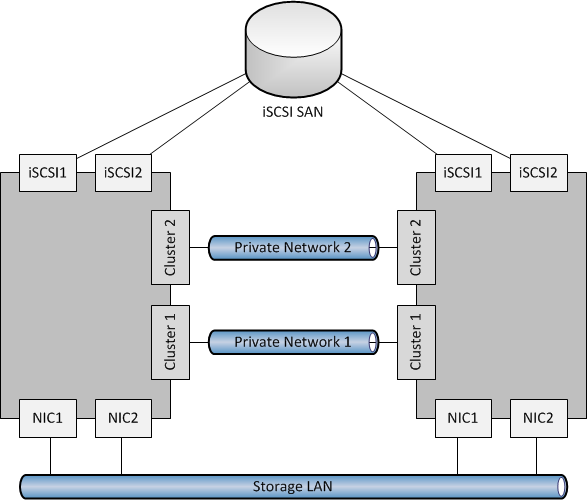
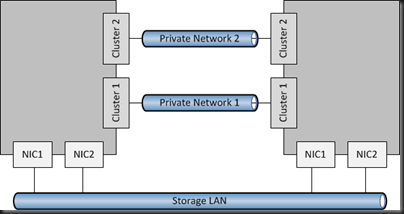
First, let’s deal with the host network configuration. The below has 2 nodes in the SOFS cluster, and this could scale up to 8 nodes (think 8 SAN controllers!). There are 4 NICs:
- 2 for the LAN, to allow SMB 3.0 clients (Hyper-V or SQL Server) to access the SOFS shares. Having 2 NICs enables multichannel over both NICs. It is best that both NICs are teamed for quicker failover.
- 2 cluster heartbeat NICs. Having 2 give fault tolerance, and also enables SMB Multichannel for CSV redirected I/O.
Storage
A WS2012 cluster supports the following storage:
- SAS
- iSCSI
- Fibre Channel
- JBOD with SAS Expander/PCI RAID
If you had SAS, iSCSI or Fibre Channel SANs then I’d ask why you’re bothering to create a SOFS for production; you’d only be adding another layer and more management. Just connect the Hyper-V hosts or SQL servers directly to the SAN using the appropriate HBAs.
However, you might be like me and want to learn this stuff or demo it, and all you have is iSCSI (either a software iSCSI like the WS2012 iSCSI target or a HP VSA like mine at work). In that case, I have a pair of NICs in each my file server cluster nodes, connected to the iSCSI network, and using MPIO.

If you do deploy SOFS in the future, I’m guessing (because we don’t know yet because SOFS is so new) that’ll you’ll mostly likely do it with a CiB (cluster in a box) solution with everything pre-hard-wired in a chassis, using (probably) a wizard to create mirrored storage spaces from the JBOD and configure the cluster/SOFS role/shares.
Note that in my 2 server example, I create three LUNs in the SAN and zone them for the 2 nodes in the SOFS cluster:
- Witness disk for quorum (512 MB)
- Disk for CSV1
- Disk for CSV2
Some have tried to be clever, creating lots of little LUNs on iSCSI to try simulate JBOD and Storage Spaces. This is not supported.
Create The Cluster
Prereqs:
- Windows Server 2012 is installed on both nodes. Both machines named and joined to the AD domain.
- In Network Connections, rename the networks according to role (as in the diagrams). This makes things easier to track and troubleshoot.
- All IP addresses are assigned.
- NIC1 and NIC2 are top of the NIC binding order. Any iSCSI NICs are bottom of the binding order.
- Format the disks, ensuring that you label them correctly as CSV1, CSV2, and Witness (matching the labels in your SAN if you are using one).
Create the cluster:
- Enable Failover Clustering in Server Manager
- Also add the File Server role service in Server Manager (under File And Storage Services – File Services)
- Validate the configuration using the wizard. Repeat until you remove all issues that fail the test. Try to resolve any warnings.
- Create the cluster using the wizard – do not add the disks at this stage. Call the cluster something that refers to the cluster, not the SOFS. The cluster is not the SOFS; the cluster will host the SOFS role.
- Rename the cluster networks, using the NIC names (which should have already been renamed according to roles).
- Add the disk (in storage in FCM) for the witness disk. Remember to edit the properties of the disk and rename if from the anonymous default name to Witness in FCM Storage.
- Reconfigure the cluster to use the Witness disk for quorum if you have an even number of nodes in the SOFS cluster.
- Add CSV1 to the cluster. In FCM Storage, convert it into a CSV and rename it to CSV1.
- Repeat step 7 for CSV2.
Note: Hyper-V does not support SMB 3.0 loopback. In other words, the Hyper-V hosts cannot be a file server for their own VMs.
Create the SOFS
- In FCM, add a new clustered role. Choose File Server.
- Then choose File Server For Scale-Out Application Data; the other option in the traditional active/passive clustered file server.
- You will now create a Client Access Point or CAP. It requires only a name. This is the name of your “file server”. Note that the SOFS uses the IPs of the cluster nodes for SMB 3.0 traffic rather than CAP virtual IP addresses.
That’s it. You now have an SOFS. A clone of the SOFS is created across all of the nodes in the cluster, mastered by the owner of the SOFS role in the cluster. You just need some file shares to store VMs or SQL databases.
Create File Shares
Your file shares will be stored on CSVs, making them active/active across all nodes in the SOFS cluster. We don’t have best practices yet, but I’m leaning towards 1 share per CSV. But that might change if I have lots of clusters/servers storing VMs/databases on a single SOFS. Each share will need permissions appropriate for their clients (the servers storing/using data on the SOFS).
Note: place any Hyper-V hosts into security groups. For example, if I had a Hyper-V cluster storing VMs on the SOFS, I’d place all nodes in a single security group, e.g. HV-ClusterGroup1. That’ll make share/folder permissions stuff easier/quicker to manage.
- Right-click on the SOFS role and click Add Shared Folder
- Choose SMB Share – Server Applications as the share profile
- Place the first share on CSV1
- Name the first share as CSV1
- Permit the appropriate servers/administrators to have full control if this share will be used for Hyper-V. If you’re using it for storing SQL files, then give the SQL service account(s) full control.
- Complete the wizard, and repeat for CSV2.
You can view/manage the shares via Server Manager under File Server. If my SOFS CAP was called Demo-SOFS1 then I could browse to \Demo-SOFSCSV1 and \Demo-SOFSCSV2 in Windows Explorer. If my permissions are correct, then I can start storing VM files there instead of using a SAN, or I could store SQL database/log files there.
As I said, it’s a rough guide, but it’s enough to give you an oversight. Have a read of the above linked posts to see much more detail. Also check out my notes from the Continuously Available File Server – Under The Hood TechEd session to learn how a SOFS works.