What The Hell Is WS2012 ReFS?

You’ve probably heard of Windows Server 2012 ReFS on podcasts, read about it in articles, and wondered: what the hell is ReFS!?!?

NTFS is ancient by IT terms, dating back to the days when NT was originally written in the early 1990s.  You might remember back in the build up to “Longhorn” (Vista/Server 2008) the talk of a new file system based on SQL Server.  I shat myself every time I thought of it; what a dreadful idea … a file system that would require maybe 16 GB of RAM!

Windows Server 2012 does contain a next generation file system called Resilient File System.  ReFS (pronounced re – fuss) is next generation … at least to me … because CSV doesn’t support it … yet.  I guess that’ll come in vNext (here we are in RTM Week and I’m talking vNext!).

Microsoft posted a document called Application Compatibility and API Support for SMB 3.0, CSVFS, and ReFS.  The following are extracts from this document:

Introduction

Resilient File System (ReFS) is a new local file system introduced in Windows Server “8”, immediately addressing critical server customer needs, and providing the foundation for future platform evolution, for all Windows customers.

Capabilities

  • Integrity: ReFS stores data in a way that it is protected from many of the common errors that can cause data loss. File system metadata is always protected. Optionally, user data can be protected on a per-volume, per-directory, or per-file basis. If corruption occurs, ReFS can detect and, when configured with Storage Spaces, automatically correct the corruption.
  • Availability: ReFS is designed to prioritize the availability of data. With ReFS, if corruption occurs, and it cannot be repaired automatically, the online salvage process is localized to the area of corruption, requiring no volume down-time.
  • Scalability: ReFS is designed for data sets sizes of today and the data set sizes of tomorrow, optimized for high scalability.
  • Application Compatibility: ReFS supports a subset of NTFS features and Win32 APIs that are widely adopted.
  • Proactive Error Identification: A data integrity scanner (commonly known as a “scrubber”) periodically scans the volume, attempting to identify latent corruption and then proactively triggers a repair of that corrupt data.
  • Architectural Evolution: A new architecture allows ReFS to evolve in conjunction with new storage devices, new data types, and new access patterns, providing a file system platform for the future.

Some Other Notes I Made

  • The document is intended for developers so it goes on to talk lots about APIs and stuff. 
  • ReFS is only in Windows Server 2012 and not in Windows 8.
  • ReFS can be configured only as a data volume; you cannot install an operating system on a ReFS volume or use it as a boot volume.
Technorati Tags: ,

More “RTM” Documentation For Windows Server 2012 Appeared Overnight

You know that an RTM is coming when the trickle of final documentation becomes a stream out of Microsoft.  We had a few guides appear last week; 3 appeared overnight:

  • Microsoft Multipath I/O (MPIO) Users Guide for Windows Server 2012: This document details changes in MPIO in Windows Server 2012, as well as providing configuration guidance via the GUI, or via our new MPIO module for Windows PowerShell, which is new for Windows Server 2012.
  • Combined Active Directory Schema Classes and Attributes for Windows Server: his download contains the classes and attributes in the Active Directory schema for Windows Server. It contains the classes and attributes for both Active Directory Domain Services (AD DS) and Active Directory Lightweight Directory Services (AD LDS). There are individual text files in LDIF format, which are also bundled into an archive file for single download, if desired. Each file contains the classes or attributes, as appropriate, for the entire Active Directory schema, although system-generated (or instance-specific) properties have been removed to simplify machine parsing. The file names indicate the following: whether a file is for AD DS or AD LDS, whether it contains classes or attributes, and the version of Windows Server for which the file is intended.
  • Application Compatibility and API Support for SMB 3.0, CSVFS, and ReFS: The Application Compatibility with Resilient File System document provides an introduction to Resilient File System (ReFS) and an overview of changes that are relevant to developers interested in ensuring application compatibility with ReFS. The File Directory Volume Support spreadsheet provides documentation for APIs support for SMB 3.0, CSVFS, and ReFS that fall into the following categories: file management functions, directory management functions, volume management functions, security functions, file and directory support codes, volume control code, and memory mapped files.

Won’t be long now Smile

Why Windows Server 2012 Hyper-V VHDX 4K Alignment Is So Important

Back in 2009, ZDNet asked if we were ready for 4K sector drives.  That was because the storage industry is shifting from 512 byte sector drives to 4K sector drives.  And that is going to cause a problem for operating systems and virtualisation that are not ready for 4K sector disks.

To smooth the shift, the storage industry is giving us Advanced Format 512e disks that are physically 4096 byte (4K) sector aligned but emulate 512 byte disks in their firmware.  This wiki page describes how this emulation works.  Note that the read process should not cause performance issues (but might) but the emulated read-modify-write (RMW – 4K is read in, 512 bytes are modified in the 4K, disk is spun, and old 4K is overwritten) process could actually have a significant performance price (Microsoft say 30% to 80%).

4K Physical Sector is shown with 8 chunks of 512 each. Step 1: Read 4K Sector into Cache from Media. Arrow. Step 2: Update 512-byte Logical Sector in Cache (one of 512 blocks highlighted). Step 3: Overwrite previous 4 K Physical Sector on Media.

The following OS’s support 512e drives:

  • Windows 8
  • Windows Server 2012
  • Windows 7 w/ MS KB 982018
  • Windows 7 SP1
  • Windows Server 2008 R2 w/ MS KB 982018
  • Windows Server 2008 R2 SP1
  • Windows Vista w/ MS KB 2553708
  • Windows Server 2008 w/ MS KB 2553708

Eventually we’ll start to see native 4K disks with no emulation.  Microsoft says:

The current VHD driver assumes a physical sector size of 512 bytes and issues 512-byte I/Os, which makes it incompatible with these disks. As a result, the current VHD driver cannot open VHD files on physical 4 KB sector disks. Hyper-V makes it possible to store VHDs on 4 KB disks by implementing a software RMW algorithm in the VHD layer to convert the 512-byte access and update request to the VHD file to corresponding 4 KB accesses and updates.

RMW is bad, mmm-kay!  If you’re on 4K disks (either native or 512e) then you’re going to want 4K aligned virtualised storage to maintain performance.

Only Windows Server 2012 and Windows 8 support native 4K disks (with no 512 emulation) with no emulation.  They also offer us the 4K aligned VHDX file.  That means if you’re using 4K disks (native or 512e) and you want performance, then you should use VHDX files.

Note that vSphere 5.0 does not support 4K disks yet.

Rough Guide To Setting Up A Scale-Out File Server

You’ll find much more detailed posts on the topic of creating a continuously available, scalable, transparent failover application file server cluster by Tamer Sherif Mahmoud and Jose Bareto, both of Microsoft.  But I thought I’d do something rough to give you an oversight of what’s going on.

Networking

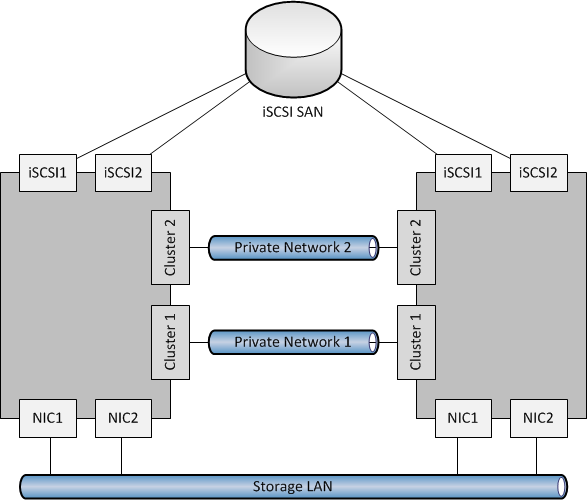
First, let’s deal with the host network configuration.  The below has 2 nodes in the SOFS cluster, and this could scale up to 8 nodes (think 8 SAN controllers!).  There are 4 NICs:

  • 2 for the LAN, to allow SMB 3.0 clients (Hyper-V or SQL Server) to access the SOFS shares.  Having 2 NICs enables multichannel over both NICs.  It is best that both NICs are teamed for quicker failover.
  • 2 cluster heartbeat NICs.  Having 2 give fault tolerance, and also enables SMB Multichannel for CSV redirected I/O.

image

Storage

A WS2012 cluster supports the following storage:

  • SAS
  • iSCSI
  • Fibre Channel
  • JBOD with SAS Expander/PCI RAID

If you had SAS, iSCSI or Fibre Channel SANs then I’d ask why you’re bothering to create a SOFS for production; you’d only be adding another layer and more management.  Just connect the Hyper-V hosts or SQL servers directly to the SAN using the appropriate HBAs.

However, you might be like me and want to learn this stuff or demo it, and all you have is iSCSI (either a software iSCSI like the WS2012 iSCSI target or a HP VSA like mine at work).  In that case, I have a pair of NICs in each my file server cluster nodes, connected to the iSCSI network, and using MPIO.

image

If you do deploy SOFS in the future, I’m guessing (because we don’t know yet because SOFS is so new) that’ll you’ll mostly likely do it with a CiB (cluster in a box) solution with everything pre-hard-wired in a chassis, using (probably) a wizard to create mirrored storage spaces from the JBOD and configure the cluster/SOFS role/shares.

Note that in my 2 server example, I create three LUNs in the SAN and zone them for the 2 nodes in the SOFS cluster:

  1. Witness disk for quorum (512 MB)
  2. Disk for CSV1
  3. Disk for CSV2

Some have tried to be clever, creating lots of little LUNs on iSCSI to try simulate JBOD and Storage Spaces.  This is not supported.

Create The Cluster

Prereqs:

  • Windows Server 2012 is installed on both nodes.  Both machines named and joined to the AD domain.
  • In Network Connections, rename the networks according to role (as in the diagrams).  This makes things easier to track and troubleshoot.
  • All IP addresses are assigned.
  • NIC1 and NIC2 are top of the NIC binding order.  Any iSCSI NICs are bottom of the binding order.
  • Format the disks, ensuring that you label them correctly as CSV1, CSV2, and Witness (matching the labels in your SAN if you are using one).

Create the cluster:

  1. Enable Failover Clustering in Server Manager
  2. Also add the File Server role service in Server Manager (under File And Storage Services – File Services)
  3. Validate the configuration using the wizard.  Repeat until you remove all issues that fail the test.  Try to resolve any warnings.
  4. Create the cluster using the wizard – do not add the disks at this stage.  Call the cluster something that refers to the cluster, not the SOFS. The cluster is not the SOFS; the cluster will host the SOFS role.
  5. Rename the cluster networks, using the NIC names (which should have already been renamed according to roles).
  6. Add the disk (in storage in FCM) for the witness disk.  Remember to edit the properties of the disk and rename if from the anonymous default name to Witness in FCM Storage.
  7. Reconfigure the cluster to use the Witness disk for quorum if you have an even number of nodes in the SOFS cluster.
  8. Add CSV1 to the cluster.  In FCM Storage, convert it into a CSV and rename it to CSV1.
  9. Repeat step 7 for CSV2.

Note: Hyper-V does not support SMB 3.0 loopback.  In other words, the Hyper-V hosts cannot be a file server for their own VMs.

Create the SOFS

  1. In FCM, add a new clustered role.  Choose File Server.
  2. Then choose File Server For Scale-Out Application Data; the other option in the traditional active/passive clustered file server.
  3. You will now create a Client Access Point or CAP.  It requires only a name.  This is the name of your “file server”.  Note that the SOFS uses the IPs of the cluster nodes for SMB 3.0 traffic rather than CAP virtual IP addresses.

That’s it.  You now have an SOFS.  A clone of the SOFS is created across all of the nodes in the cluster, mastered by the owner of the SOFS role in the cluster.  You just need some file shares to store VMs or SQL databases.

Create File Shares

Your file shares will be stored on CSVs, making them active/active across all nodes in the SOFS cluster.  We don’t have best practices yet, but I’m leaning towards 1 share per CSV.  But that might change if I have lots of clusters/servers storing VMs/databases on a single SOFS.  Each share will need permissions appropriate for their clients (the servers storing/using data on the SOFS).

Note: place any Hyper-V hosts into security groups.  For example, if I had a Hyper-V cluster storing VMs on the SOFS, I’d place all nodes in a single security group, e.g. HV-ClusterGroup1.  That’ll make share/folder permissions stuff easier/quicker to manage.

  1. Right-click on the SOFS role and click Add Shared Folder
  2. Choose SMB Share – Server Applications as the share profile
  3. Place the first share on CSV1
  4. Name the first share as CSV1
  5. Permit the appropriate servers/administrators to have full control if this share will be used for Hyper-V.  If you’re using it for storing SQL files, then give the SQL service account(s) full control.
  6. Complete the wizard, and repeat for CSV2.

You can view/manage the shares via Server Manager under File Server.  If my SOFS CAP was called Demo-SOFS1 then I could browse to \Demo-SOFSCSV1 and \Demo-SOFSCSV2 in Windows Explorer.  If my permissions are correct, then I can start storing VM files there instead of using a SAN, or I could store SQL database/log files there.

As I said, it’s a rough guide, but it’s enough to give you an oversight.  Have a read of the above linked posts to see much more detail.  Also check out my notes from the Continuously Available File Server – Under The Hood TechEd session to learn how a SOFS works.

Notes: Continuously Available File Server – Under The Hood

Here are my notes from TechEd NA session WSV410, by Claus Joergensen.  A really good deep session – the sort I love to watch (very slowly, replaying bits over).  It took me 2 hours to watch the first 50 or so minutes 🙂

image

For Server Applications

The Scale-Out File Server (SOFS) is not for direct sharing of user data.  MSFT intend it for:

  • Hyper-V: store the VMs via SMB 3.0
  • SQL Server database and log files
  • IIS content and configuration files

Required a lot of work by MSFT: change old things, create new things.

Benefits of SOFS

  • Share management instead of LUNs and Zoning (software rather than hardware)
  • Flexibility: Dynamically reallocate server in the data centre without reconfiguring network/storage fabrics (SAN fabric, DAS cables, etc)
  • Leverage existing investments: you can reuse what you have
  • Lower CapEx and OpEx than traditional storage

Key Capabilities Unique to SOFS

  • Dynamic scale with active/active file servers
  • Fast failure recovery
  • Cluster Shared Volume cache
  • CHKDSK with zero downtime
  • Simpler management

Requirements

Client and server must be WS2012:

  • SMB 3.0
  • It is application workload, not user workload.

Setup

I’ve done this a few times.  It’s easy enough:

  1. Install the File Server and Failover Clustering features on all nodes in the new SOFS
  2. Create the cluster
  3. Create the CSV(s)
  4. Create the File Server role – clustered role that has it’s own CAP (including associated computer object in AD) and IP address.
  5. Create file shares in Failover Clustering Management.  You can manage them in Server Manager.

Simple!

Personally speaking: I like the idea of having just 1 share per CSV.  Keeps the logistics much simpler.  Not a hard rule from MSFT AFAIK.

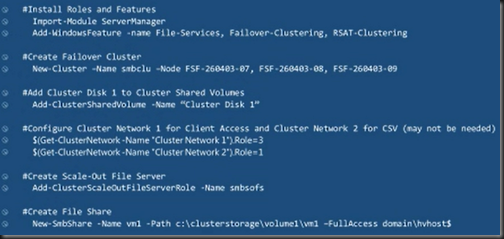
And here’s the PowerShell for it:
image

CSV

  • Fundamental and required.  It’s a cluster file system that is active/active.
  • Supports most of the NTFS features.
  • Direct I/O support for file data access: whatever node you come in via, then Node 2 has direct access to the back end storage.
  • Caching of CSVFS file data (controlled by oplocks)
  • Leverages SMB 3.0 Direct and Multichannel for internode communication

Redirected IO:

  • Metadata operations – hence not for end user data direct access
  • For data operations whena  file is being accessed simultaneously by multiple CSVFS instances.

CSV Caching

  • Windows Cache Manager integration: Buffered read/write I/O is cached the same way as NTFS
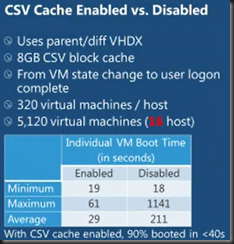
  • CSV Block Caching – read only cache using RAM from nodes.  Turned on per CSV.  Distributed cache guaranteed to be consistent across the cluster.  Huge boost for polled VDI deployments – esp. during boot storm.

CHDKDSK

Seamless with CSV.  Scanning is online and separated from repair.  CSV repair is online.

  • Cluster checks once/minute to see if chkdsk spotfix is required
  • Cluster enumerates NTFS $corrupt (contains listing of fixes required) to identify affected files
  • Cluster pauses the affected CSVFS to pend I/O
  • Underlying NTFS is dismounted
  • CHKDSK spotfix is run against the affected files for a maximum of 15 seconds (usually much quicker)  to ensure the application is not affected
  • The underlying NTFS volume is mounted and the CSV namespace is unpaused

The only time an application is affected is if it had a corrupted file.

If it could not complete the spotfix of all the $corrupt records in one go:

  • Cluster will wait 3 minutes before continuing
  • Enables a large set of corrupt files to be processed over time with no app downtime – assuming the apps’ files aren’t corrupted – where obviously the would have had downtime anyway

Distributed Network Name

  • A CAP (client access point) is created for an SOFS.  It’s a DNS name for the SOFS on the network.
  • Security: creates and manages AD computer object for the SOFS.  Registers credentials with LSA on each node

The actual nodes of the cluster nodes are used in SOFS for client access.  All of them are registered with the CAP.

DNN & DNS:

  • DNN registers node UP for all notes.  A virtual IP is not used for the SOFS (previous)
  • DNN updates DNS when: resource comes online and every 24 hours.  A node added/removed to/from cluster.  A cluster network is enabled/disabled as a client network.  IP address changes of nodes.  Use Dynamic DNS … a lot of manual work if you do static DNS.
  • DNS will round robin DNS lookups: The response is a list of sorted addresses for the SOFS CAP with IPv6 first and IPv4 done second.  Each iteration rotates the addresses within the IPv6 and IPv4 blocks, but IPv6 is always before IPv4.  Crude load balancing.
  • If a client looks up, gets the list of addresses.  Client will try each address in turn until one responds.
  • A client will connect to just one cluster node per SOFS.  Can connect to multiple cluster nodes if there are multiple SOFS roles on the cluster.

SOFS

Responsible for:

  • Online shares on each node
  • Listen to share creations, deletions and changes
  • Replicate changes to other nodes
  • Ensure consistency across all nodes for the SOFS

It can take the cluster a couple of seconds to converge changes across the cluster.

SOFS implemented using cluster clone resources:

  • All nodes run an SOFS clone
  • The clones are started and stopped by the SOFS leader – why am I picturing Homer Simpson in a hammock while Homer Simpson mows the lawn?!?!?
  • The SOFS leader runs on the node where the SOFS resources is actually online – this is just the orchestrator.  All nodes run independently – moving or crash doesn’t affect the shares availability.

Admin can constrain what nodes the SOFS role is on – possible owners for the DNN and SOFS resource.  Maybe you want to reserve other nodes for other roles – e.g. asymmetric Hyper-V cluster.

Client Redirection

SMB clients are distributed at connect time by DNS round robin.  No dynamic redistribution.

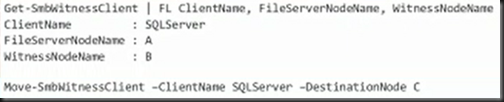
SMB clients can be redirected manually to use a different cluster node:
image

Cluster Network Planning

  • Client Access: clients use the cluster nodes client access enable public networks

CSV traffic IO Redirection:

  • Metadata updates – infrequent
  • CSV is built using mirrored storage spaces
  • A host loses direct storage connectivity

Redirected IO:

  • Prefers cluster networks not enabled for client access
  • Leverages SMB Multichannel and SMB Direct
  • iSCSI Networks should automatically be disabled for cluster use – ensure this is so to reduce latency.

Performance and Scalability
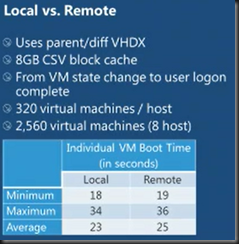
image

image

SMB Transparent Failover

Zero downtime with small IO delay.  Supports planned and unplanned failovers.  Resilient for both file and directory operations.  Requires WS2012 on client and server with SMB 3.0.
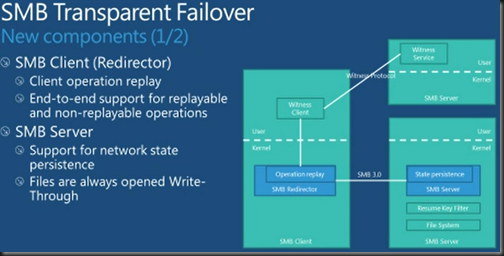
image

Client operation replay – If a failover occurs, the SMB client reissues those operations.  Done with certain operations.  Others like a delete are not replayed because they are not safe.  The server maintains persistence of file handles.  All write-throughs happen straight away – doesn’t effect Hyper-V.
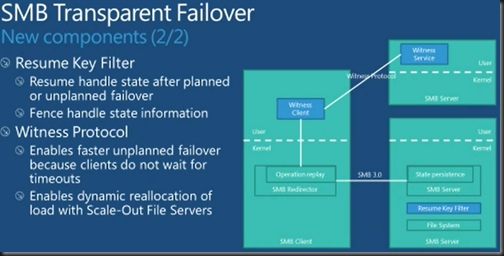
image

The Resume Key Filter fences off file handles state after failover to prevent other clients grabbing files when the original clients expect to have access when they are failed over by the witness process.  Protects against namespace inconsistency – file rename in flight.  Basically deals with handles for activity that might be lost/replayed during failover.

Interesting: when a CSV comes online initially or after failover, the Resume Key Filter locks the volume for a few seconds (less than 3 seconds) for a database (state info store in system volume folder) to be loaded from a store.  Namespace protection then blocks all rename and create operations for up to 60 seconds to allow for local file hands to be established.  Create is blocked for up to 60 seconds as well to allow remote handles to be resumed.  After all this (up to total of 60 seconds) all unclaimed handles are released.  Typically, the entire process is around 3-4 seconds.  The 60 seconds is a per volume configurable timeout.

Witness Protocol (do not confuse with Failover Cluster File Share Witness):

  • Faster client failover.  Normal SMB time out could be 40-45 seconds (TCP-based).  That’s a long timeout without IO.  The cluster informs the client to redirect when the cluster detects a failure.
  • Witness does redirection at client end.  For example – dynamic reallocation of load with SOFS.

Client SMB Witness Registration

  1. Client SMB connects to share on Node A
  2. Witness on client obtains list of cluster members from Witness on Node A
  3. Witness client removes Node A as the witness and selects Node B as the witness
  4. Witness registers with Node B for notification of events for the share that it connected to
  5. The Node B Witness registers with the cluster for event notifications for the share

Notification:

  1. Normal operation … client connects to Node A
  2. Unplanned failure on Node A
  3. Cluster informs Witness on Node B (thanks to registration) that there is a problem with the share
  4. The Witness on Node B notifies the client Witness that Node A went offline (no SMB timeout)
  5. Witness on client informs SMB client to redirect
  6. SMB on client drops the connection to Node A and starts connecting to another node in the SOFS, e.g. Node B
  7. Witness starts all over again to select a new Witness in the SOFS. Will keep trying every minute to get one in case Node A was the only possibility

Event Logs

All under Application and Services – Microsoft – Windows:

  • SMBClient
  • SMBServer
  • ResumeKeyFilter
  • SMBWitnessClient
  • SMBWitnessService

Application Compatibility and API Support for SMB 3.0, CSVFS, and ReFS

Microsoft just published this document with details on compatibility for SMB 3.0, CSVFS (cluster shared volume for Hyper-V and SOFS), and the new server file system ReFS.

The Application Compatibility with Resilient File System document provides an introduction to Resilient File System (ReFS) and an overview of changes that are relevant to developers interested in ensuring application compatibility with ReFS. The File Directory Volume Support spreadsheet provides documentation for APIs support for SMB 3.0, CSVFS, and ReFS that fall into the following categories: file management functions, directory management functions, volume management functions, security functions, file and directory support codes, volume control code, and memory mapped files.

It is very much aimed towards developers.  There is a little bit of decipherable text in there to describe what ReFS is, something MSFT is not talking about much, not even at TechEd.  My take so far: it’s a file system for the future that will eventually supplant NTFS.

Sections 1.1-1.3 are interesting to us IT Pros, then jump ahead to section 1.11.

Technorati Tags: ,

How To Move Highly Available VMs to a WS2012 Hyper-V Cluster

I’ve been asked over and over and over how to upgrade from a Windows Server 2008 R2 Hyper-V cluster to a Windows Server 2012 Hyper-V cluster.  You cannot do an in-place upgrade of a cluster.  What I’ve said in the past, and it still holds true, is that you can:

  1. Buy new host hardware, if your old hardware is out of support, build a new cluster, and migrate VMs across (note that W2008 R2 does not support Shared-Nothing Live Migration), maybe using export/import or VMM.
  2. Drain a host in your W2008R2 cluster of VMs, rebuild it with WS2012, and start a new cluster.  Again, you have to migrate VMs over.

The clustering folks have another way of completing the migration in a structured way.  I have not talked about it yet because I didn’t see MSFT talk about it publicly, but that changes as of this morning.  The Clustering blog has details on how you can use the Cluster Migration Wizard to migrate VMs from one cluster to another

There is still some downtime to this migration.  But that is limited by migrating the LUNs instead of the VHDs using unmask/mask – in other words, there is no time consuming data copy.

Features of the Cluster Migration Wizard include:

  • A pre-migration report
  • The ability to pre-stage the migration and cut-over during a maintenance window to minimize risk/impact of downtime.  The disk and VM configurations are imported in an off state on the new cluster
  • A post-migration report
  • Power down the VMs on the old cluster
  • You de-zone the CSV from the old cluster – to prevent data corruption by the LUN/VM storage being accessed by 2 clusters at once
  • Then you zone the CSV for the new cluster
  • You power up the VMs on the new cluster

Read the post by the clustering group (lots more detail and screenshots), and then check out a step-by-step guide.

Things might change when we migrate from Windows Server 2012 Hyper-V to Windows Server vNext Hyper-V, thanks to Shared-Nothing Live Migration Smile

EDIT#1:

Fellow Virtual Machine MVP, Didier Van Hoye, beat me to the punch by 1 minute on this post Smile  He also has a series of posts on the topic of cluster migration.

Altaro Blog Post – Hyper-V Guest Design: Fixed vs. Dynamic VHD

I still encounter people who are confused by the disk options in Hyper-V.  Altaro have updated their blog with a post, discussing the merits of passthrough (raw) disk, fixed VHD, and dynamic VHD and it’s worth a read.  Being a storage company, it’s worth paying attention to their observations.

Further to their notes I’d add:

  • Windows Server 2012 adds a new VHDX format that is 4K aligned and expands out to 64 TB (VHD max is 2040 GB and VMDK is 2 TB).
  • Storage level backup cannot be done using passthrough disks so you have to revert to traditional backup processes.
  • Passthrough disks lock your VM into a physical location and you lose flexibility.
  • Advanced features like snapshots and Hyper-V Replica cannot be implemented with passthrough disks.
  • In production I always favour Fixed VHD over Dynamic.  However, I can understand if you choose Dynamic VHD for your OS VHDs (with no data at all) and place these onto a dedicated CSV (with no data VHDs on it) – assuming that data VHDs are fixed and placed on different CSVs.

Have a read of the Altaro post and make up your own mind.

Windows Server 2012 High-Performance, Highly-Available Storage Using SMB

Notes from TechEd NA 2012 session WSV303:

image

One of the traits of the Scale-Out File Server is Transparent Failover for server-server apps such as SQL Server or Hyper-V.  During a host power/crash/network failure, the IO is paused briefly and flipped over to an alternative node in the SOFS.

image

Transparent Failover

The Witness Service and state persistence enable Transparent Failover in SMB 3.0 SOFS.  The Witness plays a role in unplanned failover.  Instead of a TCP timeout (40 seconds and causing application issues), speeds up the process.  It tells the client that the server that they were connected to has failed and should switch to a different server in the SOFS.

image

NTFS Online Scan and Repair

  • CHKDSK can take hours/days on large volumes.
  • Scan done online
  • Repair is only done when the volume is offline
  • Zero downtime with CSV with transparent repair

Clustered Hardware RAID

Designed for when using JBOD, probably with Storage Spaces.

image

Resilient File System (ReFS)

A new file system as an alternative to NTFS (which is very old now).  CHKDSK is not needed at all.  This will become the standard file system for Windows over the course of the next few releases.

image

Comparing the Performance of SMB 3.0

Wow! SMB 3.0 over 1 Gbps network connection achieved 98% of DAS performance using SQL in transactional processing.

image

If there are multiple 1 Gbps NICs then you can use SMB Multichannel which gives aggregated bandwidth and LBFO.  And go extreme with SMB Direct (RDMA) to save CPU.

VSS and SMB 3.0 File Shares

You need a way to support remote VSS snapshots for SMB 3.0 file shares if supporting Hyper-V.  We can do app consistent snapshots of VMs stored on a WS2012 file server.  Backup just works as normal – backing up VMs on the host.

image

  1. Backup talks to backup agent on host. 
  2. Hyper-V VSS Writer reaches into all the VMs and ensures everything is consistent. 
  3. VSS engine is then asked to do the snapshot.  In this case, the request is relayed to the file server where the VSS snapshot is done. 
  4. The path to the snapshot is returned to the Hyper-V host and that path is handed back to the backup server. 
  5. The backup server can then choose to either grab the snapshot from the share or from the Hyper-V host.

Data Deduplication

Dedup is built into Windows Server 2012.  It is turned on per-volume.  You can exclude folders/file types.  By default files not modified in 5 days are deduped – SO IT DOES NOT APPLY TO RUNNING VMs.  It identifies redundant data, compresses the chunks, and stores them.  Files are deduped automatically and reconstituted on the fly.

image

REPEAT: Deduplication is not intended for running virtual machines.

Unified Storage

The iSCSI target is now built into WS2012 and can provide block storage for Hyper-V before WS2012. ?!?!?!  I’m confused.  Can be used to boot Hyper-V hosts – probably requiring iSCSI NICs with boot functionality.

image

Windows Server 2012 Cluster-In-A-Box, RDMA, And More

Notes taken from TechEd NA 2012 session WSV310:

image

Volume Platform for Availability

Huge amount of requests/feedback from customers.  MSFT spent a year focusing on customer research (US, Germany, and Japan) with many customers of different sizes.  Came up with Continuous Availability with zero data loss transparent failover to succeed High Availability.

Targeted Scenarios

  • Business in a box Hyper-V appliance
  • Branch in a box Hyper-V appliance
  • Cloud/Datacenter high performance storage server

What’s Inside A Cluster In A Box?

It will be somewhat flexible.  MSFT giving guidance on the essential components so expect variations.  MSFT noticed people getting cluster networking wrong so this is hardwired in the box.  Expansion for additional JBOD trays will be included.  Office level power and acoustics will expand this solution into the SME/retail/etc.

image

Lots of partners can be announced and some cannot yet:

  • HP
  • Fujitsu
  • Intel
  • LSI
  • Xio
  • And more

More announcements to come in this “wave”.

Demo Equipment

They show some sample equipment from two Original Device Manufacturers (they design and sell into OEMs for rebranding).  One with SSD and Infiniband is shown.  A more modest one is shown too:

image

That bottom unit is a 3U cluster in a box with 2 servers and 24 SFF SAS drives.  It appears to have additional PCI expansion slots in a compute blade.  We see it in a demo later and it appears to have JBOD (mirrored Storage Spaces) and 3 cluster networks.

RDMA aka SMB Direct

Been around for quite a while but mostly restricted to the HPC space.  WS2012 will bring it into wider usage in data centres.  I wouldn’t expect to see RDMA outside of the data centre too much in the coming year or two.

RDMA enabled NICs also known as R-NICs.  RDMA offloads SMB CPU processing in large bandwidth transfers to dedicated functions in the NIC.  That minimises CPU utilisation for huge transfers.  Reduces the “cost per byte” of data transfer through the networking stack in a server by bypassing most layers of software and communicating directly with the hardware.  Requires R-NICs:

  • iWARP: TCP/IP based.  Works with any 10 GbE switch.  RDMA traffic routable.  Currently (WS2012 RC) limited to 10 Gbps per NIC port.
  • RoCE (RDMA over Converged Ethernet): Works with high-end 10/40 GbE switches.  Offers up to 40 Gbps per NIC port (WS2012 RC).  RDMA not routable via existing IP infrastructure.  Requires DCB switch with Priority Flow Control (PFC).
  • InfiniBand: Offers up to 54 Gbps per NIC port (WS2012 RC). Switches typically less expensive per port than 10 GbE.  Switches offer 10/40 GbE uplinks. Not Ethernet based.  Not routable currently.  Requires InfiniBand switches.  Requires a subnet manager on the switch or on the host.

RDMA can also be combined with SMB Multichannel for LBFO.

image

Applications (Hyper-V or SQL Server) do not need to change to use RDMA and make the decision to use SMB Direct at run time.

Partners & RDMA NICs

  • Mellanox ConectX-3 Dual Port Adapter with VPI InfiniBand
  • Intel 10 GbE iWARP Adapter For Server Clusters NE020
  • Chelsio T3 line of 10 GbE Adapters (iWARP), have 2 and 4 port solutions

We then see a live demo of 10 Gigabytes (not Gigabits) per second over Mellanox InfiniBand.  They pull 1 of the 2 cables and throughput drops to 6,000 Gigabytes per second.  Pop the cable back in and flow returns to normal.  CPU utilisation stays below 5%.

Configurations and Building Blocks

  • Start with single Cluster in a Box, and scale up with more JBODs and maybe add RDMA to add throughput and reduce CPU utilisation.
  • Scale horizontally by adding more storage clusters.  Live Migrate workloads, spread workloads between clusters (e.g. fault tolerant VMs are physically isolated for top-bottom fault tolerance).
  • DR is possible via Hyper-V Replica because it is storage independent.
  • Cluster-in-a-box could also be the Hyper-V cluster.

This is a flexible solution.  Manufacturers will offer new refined and varied options.  You might find a simple low cost SME solution and a more expensive high end solution for data centres.

Hyper-V Appliance

This is a cluster in a box that is both Scale-Out-File Server and Hyper-V cluster.  The previous 2 node Quanta solution is set up this way.  It’s a value solution using Storage Spaces on the 24 SFF SAS drives.  The space are mirrored for fault tolerance.  This is DAS for the 2 servers in the chassis.

What Does All This Mean?

SAN is no longer your only choice, whether you are SME or in the data centre space.  SMB Direct (RDMA) enables massive throughput.  Cluster-in-a-Box enables Hyper-V appliances and Scale-Out File Servers in ready made kits, that are continuously available and scalable (up and out).