The Big Changes In WS2012 Cluster Shared Volume (CSV)

Microsoft made lots of changes with CSV 2.0 in Windows Server 2012.  But it seems like that message has not gotten through to people.  I’ve responded to quite a few comments here on the blog and I’m seeing stuff on forums.  What’s really annoying is that when you tell people that X has changed, they don’t listen.

I would strongly recommend that people take some time (I don’t care about excuses) to watch the TechEd presentation, Cluster Shared Volumes Reborn in Windows Server 2012: Deep Dive, by Rob Hindman and  Amitabh Tamhane (Microsoft).  There are lots of changes.  But I want to focus on the big ones that people repeatedly question.

OK, what are the major changes?

There IS NO Redirected IO in WS2012 CSV Backup

Let me restate that in another way: Windows Server 2012 does not use Redirected IO to backup CSVs.

This has been made possible thanks to substantial changes in how VSS places VMs that are stored on CSV into a quiescent state.  The backup agent (VSS Requestor) kicks off a backup request with a list of virtual machines.  The Hyper-V Writer identifies the storage location(s) of the VMs’ files.  A new component, the CSV Writer, is responsible for coordinating the Hyper-V nodes in the cluster … meaning all VMs on a CSV that is being backed up to be placed into a quiescent state at the same time.  This allows for a single distributed VSS snapshot of each CSV.  That allows the provider (hardware, software or system) to go to work and get the snapshot.
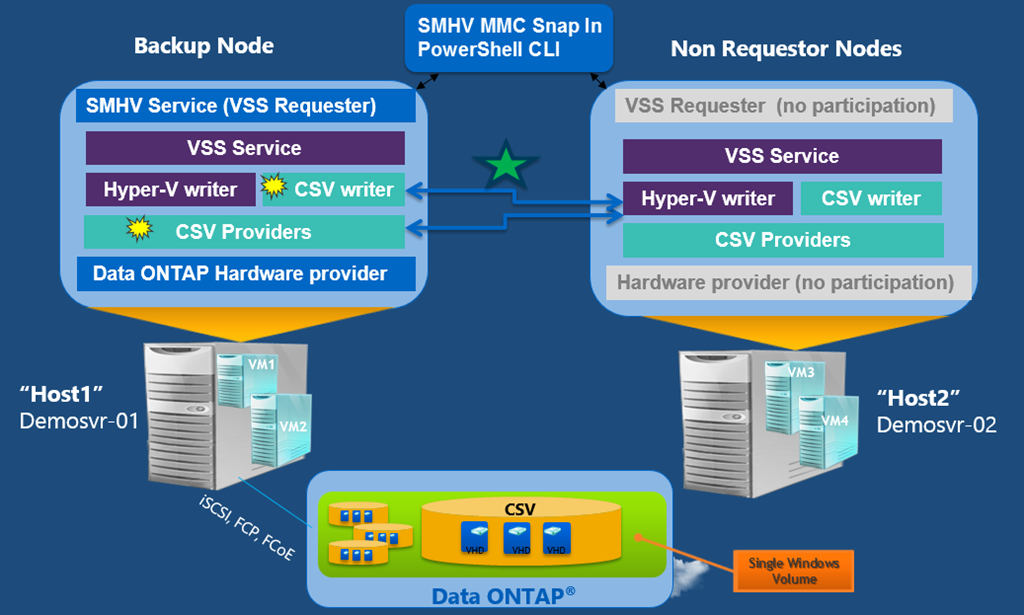
image

This is much simpler than what CSV did in Windows Server 2008 R2.  [The following does not happen in WS2012] There was no CSV Writer.    There was no coordination, so Redirected IO was required.  The node performing a snapshot needed exclusive access to the volume so all IO went through it for the time being.  A lot of people knew that bit up to there.  The bit that most people didn’t know was that each node (hosting VMs that were being backed up) took snapshots of each CSV that was being backed up.  And that could cause problems.

I’ve heard several times now from people who’ve experienced issues with volumes going offline during backup.  There were two causes that I’ve seen, and both were related to a third party hardware VSS provider:

  • Using a hardware VSS provider that did not support CSV
  • The rapidly rotating and repeated snapshot process caused chaos in the SAN with the hardware snapshots

But, all that is G-O-N-E when backing up CSV on Windows Server 2012:

  • There is no redirected IO
  • There is a single VSS snapshot performed

SCSI3 Reservation Starvation Should Go Away

Every node in a Hyper-V cluster used SCSI3 persistent reservations and SCSI3 reservations to connected to CSVs.  Every SAN has a finite number of those persistent reservations and reservations.  The SCSI3 persistent reservations was a bottleneck.  No manufacturer shares that number, and it’s a hell of a lot smaller than you’d expect – we typically find out about it during a support call.  To compound this, each host required a number of SCSI3 persistent reservations, and that multiplied based on:

  • Number of hosts in the cluster
  • Number of CSVs
  • Number of storage channels per host (possibly even a multiple of the number of physical HBAs/NICs, depending on the SAN)

What happens when you deploy too many nodes, CSVs, or storage channels?  CSVs go offline.  Yup.  The SAN is starved of resources to connect the hosts to the LUNs.  I saw this with small deployments with an entry level SAN, 3 hosts, and 5 CSVs.  And it aint pretty.

Imagine a cluster with 64 nodes!?!?!  With Windows Server 2012, each node gets a static key instead of using the legacy persistent reservation multiplication.  That means your SAN can support more CSVs and more hosts running Windows Server 2012 than it would have with Windows Server 2008 R2.  Note that the static key is assigned when the node is added to the cluster.

You can find the static keys in the registry of your cluster nodes in HKEY_LOCAL_MACHINEClusterNodes<Node Number>ReserveID (REG_QWORD).  You can identify which node number is which host by the NodeName (REG_SZ) value.  You can see an example of this below.

image

This new system, which replaces persistent reservations, gives you better cluster infrastructure scalability, but it doesn’t eliminate the scalability limits of your SAN.

KB2777646 – SMB Multichannel Skips Non-Routable IP Addresses Of NIC If Routable IP Addresses Also Configured

Jose Barreto tweeted earlier today about a new support article for SMB 3.0 Multichannel on Windows Server 2012 (WS2012).  The scenario is that SMB Multichannel skips non-routable IP addresses of a network interface if routable IP addresses are also configured.

On a Windows Server 2012-based computer or a Windows 8-based computer that connects to a server message block (SMB) 3.0 file share, SMB Multichannel ignores non-routable IP addresses if the network interface has both routable and non-routable IP addresses configured. This behavior occurs even though SMB Multichannel typically tries to connect with additional interfaces if multiple network interfaces exist, and tries to establish multiple TCP/IP connections for a Receive-Side Scaling (RSS) capable network interface.

This is a complicated one and takes a couple of reads.  There is no hotfix.  It’s a configuration issue.

A WS2012 Hyper-V Converged Fabric Design With Host And Guest iSCSI Connections

A friend recently asked me a question. He had recently deployed a Windows Server 2012 cluster with converged fabrics. He had limited amounts of NICs that he could install and limited number of switch ports that he could use.  His Hyper-V host cluster is using a 10 GbE connected iSCSI SAN.  He also wants to run guest clusters that are also connected to this storage.  In the past, I would have said: “you need another pair of NICs on the iSCSI SAN and use a virtual network on each to connect the virtual machines. But now … we have options!

Here’s what I have come up with:

image

iSCSI storage typically has these two requirements:

  • Two NICs to connect to the SAN switches, each on a different subnet.
  • Each NIC is on a different subnet

In the diagram focus on the iSCSI piece.  That’s the NIC team on the left.

The Physical NICs and Switches

As usual with an iSCSI SAN, there are two dedicated switches for the storage connections.  That’s a normal (not always) support requirement by SAN manufacturers.  This is why we don’t have complete convergence to a single NIC team, like you see in most examples. 

The host will have 2 iSCSI NICs (10 GbE).  The connected switch ports are trunked, and both of the SAN VLANs (subnets) are available via the trunk.

The NIC Team and Virtual Switch

A NIC team is created.  The team is configured with Hyper-V Port load distribution (load balancing), meaning that a single virtual NIC cannot exceed the bandwidth of a single physical NIC in the team.  I prefer LACP (teaming mode) teams because they are dynamic (and require minimal physical switch configuration).  This type of switch dependent mode requires switch stacking.  If that’s not your configuration then you should use Switch Independent (requires no switch configuration) instead of LACP.

The resulting team interface will appear in Network Connections (Control Panel).  Use this interface to connect a new external virtual switch that will be dedicated to iSCSI traffic.  Don’t create the virtual switch until you decide how you will implement QoS.

The Management OS (Host)

The host does not have 2 NICs dedicated to it’s own iSCSI needs. Instead, it will share the bandwidth of the NIC team with guests (VMs) running on the host.  That sharing will be controlled using Quality of Service (QoS) minimum bandwidth rules (later in the post).

The host will need two NICs of some kind, each one on a different iSCSI subnet.  To do this:

  1. Create 2 management OS virtual NICs
  2. Connect them to the iSCSI virtual switch
  3. Bind each management OS virtual NIC to a different iSCSI SAN VLAN ID
  4. Apply the appropriate IPv4/v6 configurations to the iSCSI virtual NICs in the management OS Control Panel
  5. Configure iSCSI/MPIO/DSM as usual in the management OS, using the virtual NICs

Do not configure/use the physical iSCSI NICs!  Your iSCSI traffic will source in the management OS virtual NICs, flow through the virtual switch, then the team, and then the physical NICs, and then back again.

The Virtual Machines

Create a pair of virtual NICs in each virtual machine that requires iSCSI connected storage.

Note: Remember that you lose virtualisation features with this type of storage, such as snapshots (yuk anyway!), VSS backup from the host (a very big loss), and Hyper-V Replica.  Consider using virtual storage that you can replicate using Hyper-V Replica.

The process for the virtual NICs in the guest OS of the virtual machine will be identical to the management OS process.  Connect each iSCSI virtual NIC in the VM to the iSCSI virtual switch (see the diagram).  Configure a VLAN ID for each virtual NIC, connecting 1 to each iSCSI VLAN (subnet) – this is done in Hyper-V Manager and is controlled by the virtualisation administrators.  In the guest OS:

  • Configure the IP stack of the virtual NICs, appropriate to their VLANs
  • Configure iSCSI/MPIO/DSM as required by the SAN manufacturer

Now you can present LUNs to the VMs.

Quality of Service (QoS)

QoS will preserve minimum amounts of bandwidth on the iSCSI NICs for connections.  You’re using a virtual switch so you will implement QoS in the virtual switch.  Guarantee a certain amount for each of the management OS (host) virtual NICs.  This has to be enough for all the storage requirements of the host (the virtual machines running on that host).  You can choose one of two approaches for the VMs:

  • Create an explicit policy for each virtual NIC in each virtual machine – more engineering and maintenance required
  • Create a single default bucket policy on the virtual switch that applies to all connected virtual NICs that don’t have an explicit QoS policy

This virtual switch policy give the host administrator control, regardless of what a guest OS admin does.  Note that you can also apply classification and tagging policies in the guest OS to be applied by the physical network.  There’s no point applying rules in the OS Packet Scheduler because the only traffic on these two NICs should be iSCSI.

Note: remember to change the NIC binding order in the host management OS and guest OSs so the iSCSI NICs are bottom of the order.

Support?

I checked with the Microsoft PMs because this configuration is nothing like any of the presented or shared designs.  This design appears to be OK with Microsoft

For those of you that are concerned about NIC teaming and MPIO: In this design, MPIO has no visibility of the NIC team that resides underneath of the virtual switch so there is not a support issue.

Please remember:

  • Use the latest stable drivers and firmwares
  • Apply any shared hotfixes (not just Automatic Updates via WSUS, etc) if they are published
  • Do your own pre-production tests
  • Do a pilot test
  • Your SAN manufacturer will have the last say on support for this design

EDIT1:

If you wanted, you could use a single iSCSI virtual NIC in the management OS and in the guest OS without MPIO.  You have the path fault tolerance that MPIO provides via NIC teaming. Cluster validation would give you a warning (not a fail), and the SAN manufacturer might get their knickers in a twist over the lack of dual subnets and MPIO.

And … check with your SAN manufacturer for the guidance on the subnets because not all have the same requirements.

Enabling SMB Multichannel On Scale-Out File Server Cluster Nodes

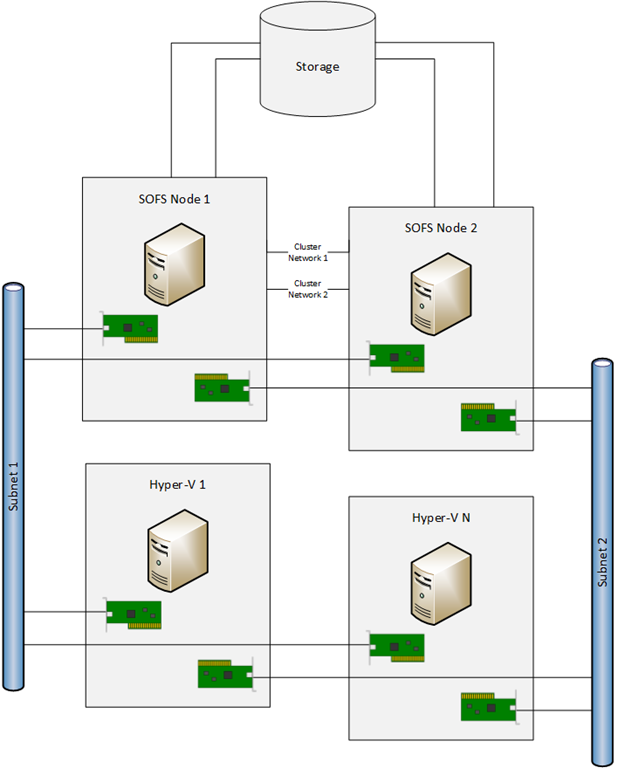
Ten days ago I highlighted a blog post by Microsoft’s Jose Baretto that SMB Multichannel across multiple NICs in a clustered node required that both NICs be in different subnets.  That means:

  • You have 2 NICs in each node in the Scale-Out File Server cluster
  • Both NICs must be in different subnets
  • You must enable both NICs for client access
  • There will be 2 NICs in each of the hosts that are also on these subnets, probably dedicated to SMB 3.0 comms, depending on if/how you do converged fabrics

image

You can figure out cabling and IP addressing for yourself – if not, you need to not be doing this work!

The question is, what else must you do?  Well, SMB Multichannel doesn’t need any configuration to work.  Pop the NICs into the Hyper-V hosts and away you go.  On the SOFS cluster, there’s a little bit more work.

After you create the SOFS cluster, you need to make sure that client communications is enabled on both of the NICs on subnet 1 and subnet 2 (as above).  This is to allow the Hyper-V hosts to talk to the SOFS across both NICs (the green NICs in the diagram) in the SOFS cluster nodes.  You can see this setting below.  In my demo lab, my second subnet is not routed and it wasn’t available to configure when I created the SOFS cluster.

image

You’ll get a warning that you need to enable a Client Access Point (with an IP address) for the cluster to accept communications on this network.  Damned if I’ve found a way to do that.  I don’t think it’s necessary to do that additional step in the case of an SOFS, as you’ll see in a moment.  I’ll try to confirm that with MSFT.  Ignore the warning and continue.  My cluster (uses iSCSI because I don’t have a JBOD) looks like:

image

You can see ManagementOS1 and ManagementOS2 (on different subnets) are Enabled, meaning that I’ve allowed clients to connect through both networks.  ManagementOS1 has the default CAP (configured when the cluster was created).

Next I created the file server for application data role (aka the SOFS).  Over in AD we find a computer object for the SOFS and we should see that 4 IP addresses have been registered in DNS.  Note how the SOFS role uses the IP addresses of the SOFS cluster nodes (demo-fs1 and demo-fs2).  You can also need the DNS records for my 2 hosts (on 2 subnets) here.

image

If you don’t see 2 IP address for each SOFS node registered with the SOFS name (as above – 2 addresses * 2 nodes = 4) then double check that you have enabled client communications across both cluster networks for the NICs on the SOFS cluster nodes (as previous).

Now we should be all ready to rock and role.

In my newly modified demo lab, I run this with the hosts clustered (to show new cluster Live Migration features) and not clustered (to show Live Migration with SMB storage).  The eagle-eyed will notice that my demo Hyper-V hosts don’t have dedicated NICs for SMB comms.  In the real world, I’d probably have dedicated NICs for SMB 3.0 comms on the Hyper-V hosts.  They’d be on the 2 subnets that have been referred to in this post.

Very Important Note on Multichannel & Failover Clusters

SMB Multichannel is when SMB 3.0 can automatically (no configuration required) use:

  • Multiple channels over a single NIC (as well as multiple cores on a CPU, instead of just core 0)
  • Multiple NICs between the “client” (an application server such as IIS 8.0, SQL Server, or Hyper-V) and the file server (including a Scale-Out File Server).

SMB Multichannel enables a client and server to make full use of available bandwidth, e.g. you can fill a 10 GbE NIC with SMB traffic, while SMB Direct (RDMA) enables you to do this without the CPU being a bottleneck – by offloading the traffic from Windows.

Jose Barreto (Microsoft) has been writing a series of blog posts on using SMB 3.0 file shares.  The latest post has a very important note in there:

… when using a clustered file server, you must configure a separate subnet for every NIC for SMB Multichannel to use the multiple paths simultaneously. This is because Failover Clustering will only use one IP address per subnet, even if you have multiple NICs on that subnet. This is true for both classic file server clusters and the new Scale-Out file server clusters.

That means that your client access networks on the Scale-Out File Server cluster nodes (and the corresponding “clients”) must be on different subnets, or SMB Multichannel will not make use of them.  Remember: the SOFS role uses the IP addresses of the cluster nodes.

Make sure to check Jose’s latest post and his blog to learn more.

KB2652137 – Communications Fail When You Use W2008 R2 Provider Package With WS2012 iSCSI Target

Another hotfix last night, this time for a scenario when communications fail when you try to use the Windows Server 2008 R2 provider package to communicate with a Windows Server 2012 iSCSI target.

You have a Windows Server 2008 or a Windows Server 2008 R2 server that runs applications such as Microsoft SQL Server. You have a Windows Server 2012 server that is configured for the iSCSI Software Target. When you try to use the Windows Server 2008 or the Windows Server 2008 R2 provider package to communicate with the iSCSI target, communications fail.

This problem occurs because the DCOM Remote Protocol is no longer used for the iSCSI Software Target in Windows Server 2012. The WMI interfaces are now used in the provider to communicate with the iSCSI target.

The resolution is to:

To resolve this problem, install a Windows Server 2012-aware provider package on the iSCSI initiator. The new provider package implements the iSCSI Software Target WMI Provider to communicate with the iSCSI target service.

The update, “iSCSI Target Storage Providers (VDS/VSS) for downlevel application servers”, supports installation on Windows Server 2008 Service Pack 2 (SP2) or Windows Server 2008 R2 Service Pack 1 (SP1).

EDIT#1:

If you are installing the WS2012-aware provider package on down level operating systems then you really should read this blog post by Jane Yan, paying particular attention to the credential configuration step.  Credit: Andreas Erson.

Migrating iSCSI Target 3.3 Settings Before Upgrading W2008 R2 to WS2012

Considering how many people have downloaded my guide on how to build a Hyper-V cluster using the Microsoft iSCSI v3.3 target, I thought you might want to know about this new KB article from Microsoft: “Migrating iSCSI Target 3.3 settings before upgrading Windows Server 2008 R2 to Windows Server 2012”.

Consider the following scenario:

  • You have a computer that is running Windows Server 2008 R2 or Windows Server 2008 R2 Service Pack 1 (SP1)
  • You have configured Microsoft iSCSI Software Target 3.3
  • You start the upgrade of the operating system to Windows Server 2012.
  • When you proceed through the Upgrade wizard, the compatibility report shows the following message: Installing Windows will affect the following features:
    Setup has detected that Microsoft iSCSI Software Target or Microsoft iSCSI VDS/VSS providers are installed on this computer. They will no longer function after the upgrade and configuration settings will be lost You must follow the instructions at <Link> prior to the upgrade to ensure they can continue to work after successful upgrade.

In this scenario, setup gives you a warning that, Microsoft iSCSI Software Target 3.3 or Microsoft iSCSI VDS/VSS providers may not be functional after the upgrade. It is best to uninstall the feature, then enable the feature after upgrade the server to Server 2012.

Cause: In Windows Server 2012, the Microsoft iSCSI Software Target and Microsoft iSCSI VDS/VSS providers are available as a built-in sub feature of the File and Storage Services Role.

Check out the original article for the solution.

Technorati Tags: ,

Fujitsu – (Hyper-V) Cluster-in-a-Box

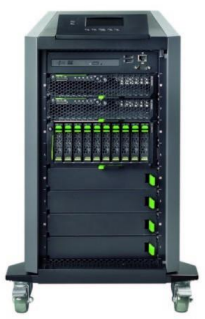
I’ve been digging around looking for Cluster-in-a-Box (CiB) solutions.  I found concepts, but nothing that was actually for sale … until one of my colleagues sent me a link this morning.  Meet the Fujitsu CiB:

image

When I first looked at the picture, I thought:

  1. That’s just a quarter height rack!
  2. That’s no CiB, it’s just DAS and some 2U servers!

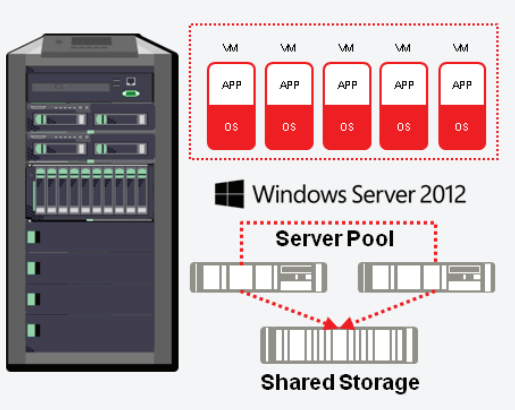
I was wrong.  What you’re looking at is a blade chassis, turned on it’s end, and tidied up to make it into a self-contained appliance, fit for the small/medium business.  And looking at the stats, this could be a SMB 3.0 scale-out file server (SOFS) SAN alternative, but the included memory and processor make it a real Hyper-V CiB solution where the entire Hyper-V cluster is on those 4 wheels.

image

  • There is 10 GbE networking for converged fabrics and fast throughput
  • The storage blade takes 10 * 900 GB SAS drives
  • There are 2 BX920 blade server nodes in the cluster, each with 2 * E5 Xeon CPUs, 48 GB RAM, dual 10 GbE, 2 * 300 GbE, and Windows Server 2012.

Interestingly, the BX920 S3 blade takes up to 384 GB of RAM.  If this is the same blade, then this could be quite a 2 node Hyper-V cluster!

Fujtisu says that this:

… complete Microsoft Hyper-V virtualized server environment …

… will require:

… a few minutes with our self adopted configuration wizard and you are ready-to-work.

Nice!  They say it is for mid-market (larger small businesses and smaller medium businesses that have or would like a Hyper-V cluster.

I like this package.  For the consulting companies in this space, this is a low risk solution for their customers, unlike the usual recipe of parts that must be purchased/assembled separately.  Instead, they order a single SKU, and rapidly configure it for the customer (on- or off-site), and then focus on the other value-adds.

One problem, though.  The RRP of the Fujitsu CiB excluding sales tax is:

image

I can buy a lot of servers, lower end (more scalable) storage, and power it for a lot less than €59K ($76,866 or £47,452 using this morning’s rates) .  Seriously, that has to be a typo, because if it is not, then I expect that Fujitsu will sell very, very few CiB solutions, in what is a very big market.

Other solutions I have found, that aren’t available AFAIK, are:

  • Quanta MESOS CB220
  • Something LSI are allegedly pitching to OEMs
  • EDIT: Andreas Erson pointed out the HP X5000 G2 series that start at €30K for a LFF SATA storage model.  You will need 10 GbE to set up the networks for converged fabrics.

I’m not expecting bigger OEM names to jump into this space (try binging and googling to see the tumbleweeds roll through your search results) with solutions that are competitive in the SME space because CiB solutions have the potential to decimate traditional storage revenues; storage is very high margin for OEMs, unlike servers, because it is a lock-in solution – try adding an IBM disk tray to your EMC SAN.

Videos on WS2012 Failover Clustering and Storage Improvements

I was asked to produce a couple of short (10-15 minutes) videos on the improvements to Failover Clustering and Storage in Windows Server 2012.  At first I thought “Cool, I can do some demos in there too!”.  But then, as I assembled the information I realised that I barely had time for the briefing, let alone any demos.  The focus was on sharing Level 100 information, so that’s what I did.

Windows Server 2012 Storage Improvements

Windows Server 2012 Failover Clustering Improvements


WS2012 Hyper-V – Advanced Storage & Networking Performance I/O Balancer Controls

The Performance Tuning Guidelines for Windows Server 2012 document is available and I’m reviewing and commenting on notable text in it.

These are very advanced controls and should not be touched without reasonable consideration, planning, and understanding.  Don’t go assuming anything, or playing with this stuff in a production environment.  Don’t blame the settings if it all goes wrong, go look in a mirror instead.  Ok, that’s the formalities out of the way.

Microsoft says that:

The virtualization stack balances storage I/O streams from different virtual machines so that each virtual machine has similar I/O response times when the system’s I/O bandwidth is saturated

When they talk about “bandwidth” they are talking about the ability to throughput data, e.g. networking or storage.

We can manipulate the balance of that throughput in congestion scenarios, giving contending virtual machines a better shot at getting their network or storage throughput through the stack.  In other words, some VMs are hogging network/storage IO and you want to give everyone a slice so they can work too.

The registry controls for storage can be found at HKLMSystemCurrentControlSetServicesStorVsp.  The registry controls for networking can be found at HKLMSystemCurrentControlSetServicesVMSwitch.

There are three REG_DWORD registry values to control I/O balancing:

  • IOBalance_Enabled: Is the balancer enabled/disabled.  Enabled = 1 or any non-zero value.  Disabled = 0.  It is enabled by default for storage IO balancing.  It is disabled by default for network IO balancing because there is a significant CPU overhead for the network function.
  • IOBalance_KeepHwBusyLatencyTarget_Microseconds:  This setting is a latency value.  The default is 83 ms for storage and 2 ms for networking.  If VMs hit this level of latency then the balancer kicks in to give all VMs a better slice or quantum.  If 83 ms for storage or 2 ms for networking is too high a latency value for you to start balancing, then you can reduce the settings. Be careful; some storage is deigned to be latent but give massive throughput.  And reducing the value too much can reduce throughput while increasing balance between VMs: putting through fewer large blocks is faster than swapping between lots of small blocks.
  • IOBalance_AllowedPercentOverheadDueToFlowSwitching:
  • This controls how much work the balancer issues from a virtual machine before switching to another virtual machine. This setting is primarily for storage where finely interleaving I/Os from different virtual machines can increase the number of disk seeks. The default is 8 percent for both storage and networking.

Like I said, these are advanced controls.  Don’t go screwing around unless you have identified that your channels are congested and need better balancing.  Don’t go assuming anything – and certainly don’t come a calling on me if you have cos I will tell you “I told you so”.  And if you are using them, tune them like a racing car: understand, tweak 1, test & monitor, repeat until improved, and then move on to setting 2.