How Much RAM & CPU Does Window Server Deduplication Optimization Require?

I’ve been asked about resource requirements for the dedupe optimization job before but I did not have the answer before now.

Processor

The CPU side is … not clear.  The dedupe subsystem will schedule one single-threaded job per volume. That means a machine with 8 logical processors is only 1/8th utilized if there is a single data volume. Microsoft says:

To achieve optimal throughput, consider configuring multiple deduplication volumes, up to the number of CPU cores on the file server.

That seems pretty dumb to me. “Go ahead and complicate volume management to optimize the dedupe processing”. Uhhhhh, no thanks.

Memory

Microsoft tells us that 1-2 GB RAM is used per 1 TB of data per volume.  They clarify this with an example:

Volume Volume size Memory used
Volume 1 1 TB 1-2 GB
Volume 2 1 TB 1-2 GB
Volume 3 2 TB 2-4 GB
Total for all volumes 1+1+2 * 1GB up to 2GB 4 – 8 GB RAM

By default a server will limit the RAM used by the optimization job to 50% of total RAM in the server.  So if the above server had just 4 GB RAM, then only 2 GB would be available for the optimization job.  You can manually override this:

Start-Dedupjob <volume> -Type Optmization  -Memory <50 to 80>

There is an additional note from Microsoft:

Machines where very large amount of data change between optimization job is expected may require even up to 3 GB of RAM per 1 TB of diskspace.

So you might see RAM become a bottleneck or increase pressure (in a VM with Dynamic Memory) if the optimization job hasn’t run in a while or if lots of data is dumped into a deduped volume.  Example: you have deployed lots of new personal (dedicated) VMs for new users on a deduped volume.

How Many SSDs Do I Need For Tiered Storage Spaces?

This is a good question.  The guidance I had been given was between 4-8 SSDs per JBOD tray.  I’ve just found guidance that is a bit more precise.  This is what Microsoft says:

When purchasing storage for a tiered deployment, we recommend the following number of SSDs in a completely full disk enclosure of different bay capacities in order to achieve optimal performance for a diverse set of workloads:

Disk enclosure slot count Simple space 2-way mirror space 3-way mirror space
12 bay 2 4 6
24 bay 2 4 6
60 bay 4 8 12
70 bay 4 8 12

Minimum number of SSDs Recommended for Different Resiliency Settings

KB2908415 – CSVs Go Offline Or Cluster Service Stops During VM Backup On WS2012 Hyper-V

Another hotfix from Microsoft, this one for when clustered shared volumes go offline or the Cluster service stops during VM backup on a Windows Server 2012 Hyper-V host server.

Symptoms

Consider the following scenario:

  • You have a Windows Server 2012 Hyper-V host server.
  • You have the server in a cluster environment, and you use cluster shared volumes.
  • You try to back up a virtual machine (VM).

In this scenario, you may find that the cluster shared volumes go offline, and resource failover occurs on the other cluster nodes. Then, other VMs also go offline, or the Cluster service stops.

Cause

This problem occurs when there are many snapshots in the VM. This causes the Plug and Play (PnP) functionality on the host to be overwhelmed, and other critical cluster activity cannot finish.

A supported hotfix is available from Microsoft Support.

Migrating Two Non-Clustered Hyper-V Hosts To A Failover Cluster (With DataOn & Storage Spaces)

At work we have a small number of VMs to operate the business.  For our headcount, we actually would have lots of VMs, but distribution requires lots of systems for lots of vendors.  I generally have very little to do with our internal IT, but I’ll get involved with some engineering stuff from time to time.

2 non-clustered hosts (HP DL380 G6) were setup before I joined the company.  I upgraded/migrated those hosts to WS2012 earlier this year (networking = 4 * 1 GbE NIC team with virtualized converged networking for management OS and Live Migration). 

We decided to migrate the non-clustered hosts to create a Hyper-V cluster.  This was made feasibly affordable thanks to Storage Spaces, running on a shared JBOD.  We distribute DataOn, so we went with a single DNS-1640, to attached to both servers using the LSI 9207-8e dual port SAS card.

Yes, we’re doing the small biz option where two Hyper-V hosts are directly connected to a JBOD where Storage Spaces is running.  If we had more than 2 hosts, we would have used the SMB 3.0 architecture of Scale-Out File Server (SOFS).  Here is the process we have followed so far (all going perfectly up to now):

Step 1 – Upgrade RAM

Each host had enough RAM for it’s solo workload.  In a cluster, a single node must be capable of handling all VMs after a failover.  In our case, we doubled the RAM in each of the two servers.

Step 2 – Drain VMs from Host1

Using Shared-Nothing Live Migration, we moved VMs from Host1 to Host2.  This allows us to operate on a host for an extended period without affecting production VMs.

Note that this only worked because we had already upgraded the RAM (step 1) and we had sufficient free disk space in Host2.

Step 3 – Connect Host1

We added an LSI card into Host1.  We racked the JBOD.  And then we connected Host1 to the JBOD, one SAS cable going to port1/module1 in the JBOD, and the other SAS cable going to port1/module2 in the JBOD (for HA).

Host1 was booted up.  I downloaded the drivers, firmware, and BIOS from LSI for the adapter (never, ever use the drivers for anything that come on the Windows media if there is an OEM driver) and installed them.

Step 4 – Create Cluster

I installed two Windows features on Host1:

  • Failover Clustering
  • MPIO

I added SAS in MPIO, requiring a reboot.

Additional vNIC was added to the Management OS called Cluster2.  I then renamed the Live Migration network to Cluster 1.  QoS was configured so that the VMSwitch has 25% in the default bucket, and each of the 3 vNICs in the ManagementOS has 25% each.

SMB Multichannel constraints was configured for Cluster1 and Cluster2 for all servers.  That’s to control which NICs are used by SMB Multichannel (used by Redirected IO).

I then created a single node cluster and configured it.  Then it was time for more patching from Windows Update.

Step 5 – Hotfixes

I downloaded the recommended updates for WS2012 Hyper-V and Failover Clustering (not found on Windows Update) using a handy PowerShell script.  Then I installed them on & rebooted Host1.

Step 6 – Storage Spaces

In Failover Cluster manager I configured a new storage pool.  We’re still on WS2012 so a single hot spare disk was assigned.  Note that I strongly recommend WS2012 R2 and not assigning a hot spare; parallelized restore is a much faster and better option.

3 virtual disks (LUNs) were created:

  • Witness for the cluster
  • CSV1
  • CSV2

Rule of thumb: create 1 CSV per node in the cluster that is connected by SAS to the Storage Pool.

Step 7 – Configure Cluster Disks

The cluster is still single-node, so configuring a witness disk for quorum will cause alerts.  You can do it, but be aware of the alerts.

Each of the CSV virtual disks were converted to CSV and renamed to CSV1 and CSV2, including the mount points.

Step 8 – Test

Using Shared-Nothing Live Migration, a VM was moved to the cluster and placed on a CSV. 

This is where we are now, and we’re observing the performance/health of the new infrastructure.

Step 9 – Shared-Nothing Live Migration From Host2

All of the VMs will be moved from the D: of Host2 to the cluster and spread evenly across the two CSVs in the cluster, running on Host1.  This will leave Host1 drained.

Remember to reconfigure backups to backup VMs from the cluster!

Step 10 – Finish The Job

We will:

  1. Reconfigure the networking of Host2 as above (I’ve saved the PowerShell)
  2. Insert the LSI card in Host2 and connect it to the JBOD
  3. Install all the LSI drivers & updates on Host2 as we did on Host1
  4. Add the Failover Cluster and MPIO roles to Host2
  5. Add Host2 as a node in the cluster
  6. Patch up Host2
  7. Test Live Migration
  8. Plan out VM failover prioritization
  9. Configure Cluster Aware Updating self-updating for lunch time on the second Monday of every month – that’s a full month after Patch Tuesday, giving MSFT plenty of time to fix any broken updates (I’m thinking of Cumulative Updates/Update Rollups).

And that should be that!

KB2898774 – Data Loss Occurs On SCSI Disk That Turns Off In WS2012-Based Failover Cluster

Microsoft has released a KB article to avoid data loss occurring when a SCSI disk turns off in a Windows Server 2012-based failover cluster.

Symptoms

Consider the following scenario:

  • You deploy a Windows Server 2012-based failover cluster. The cluster contains two nodes (node A and node B).
  • A SCSI disk is used for the failover cluster. The disk is a shared disk and is accessible by both node A and node B.
  • Node A restarts or crashes. Then, the cluster fails over to node B.
  • Node A comes back online.
  • Node B is shut down and the cluster fails over to node A.
  • You write some data to the disk.
  • The disk turns off unexpectedly. For example, the device losses power.

In this scenario, the data that you write to the disk is lost.
Notes

  • This issue also occurs when the cluster contains more than two nodes.
  • This issue does not occur if the SCSI disk supports the SCSI Primary Commands – 4 (SPC-4) standard.

To resolve this issue, install update rollup 2903938.  It’s an update rollup, so update rollup rules apply – either test like nuts in a lab or wait a month before you approve/deploy it.

Flow Of Storage Traffic In Hyper-V Over SMB 3.0 to WS2012 R2 SOFS

I thought I’d write a post on how traffic connects and flows in a Windows Server 2012 R2 implementation of Hyper-V with the storage being Hyper-V over SMB 3.0 on a WS2012 R2 Scale-Out File Server (SOFS).  There are a number of pieces involved.  Understanding what is going on will help you in your design, implementation, and potential troubleshooting.

The Architecture

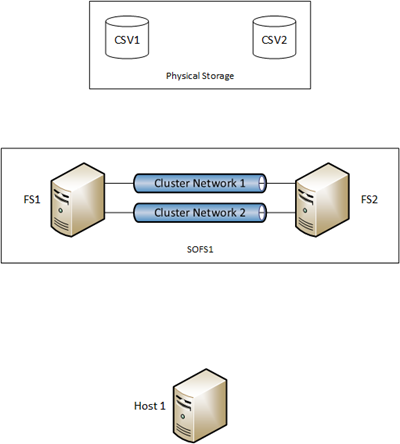
I’ve illustrated a high-level implementation below.  Mirrored Storage Spaces are being used as the back-end storage.  Two LUNs are created on this storage.  A cluster is built from FS1 and FS2, and connected to the shared storage and the 2 LUNs.  Each LUN is added to the cluster and converted to Cluster Shared Volume (CSV).  Thanks to a new feature in WS2012 R2, CSV ownership (the CSV coordinator automatically created and managed role) is automatically load balanced across FS1 and FS2.  Let’s assume, for simplicity, that CSV1 is owned by FS1 and CSV2 is owned by FS2.

The File Server for Application Data role (SOFS) is added to the cluster and named as SOFS1.  A share is added to CSV1 called CSV1-Share, and a share called CSV2-Share is added to CSV2.
image

Any number of Hyper-V hosts/clusters can be permitted to use both or either share.  For simplicity, I have illustrated just Host1.

Name Resolution

Host1 wants to start up a VM called VM1.  The metadata of VM1 says that it is stored on \SOFS1CSV1-Share.  Host1 will do a DNS lookup for SOFS1 when it performs an initial connection.  This query will return back all of the IP addresses of the nodes FS1 and FS2.

Tip: Make sure that the storage/cluster networks of the SOFS nodes are enabled for client connectivity in Failover Cluster Manager.  You’ll know that this is done because the NICs’ IP addresses will be registered in DNS with additional A records for the SOFS CAP/name.

Typically in this scenario, Host1 will have been given 4-6 addresses for the SOFS role.  It will perform a kind of client based round robin, randomly picking one of the IP addresses for the initial connection.  If that fails, another one will be picked.  This process continues until a connection is made or the process times out.

Now SMB 3.0 kicks in.  The SMB client (host) and the SMB server (SOFS node) will negotiate capabilities such as SMB Multichannel and SMB Direct.

Tip: Configure SMB Multichannel Constraints to control which networks will be used for storage connectivity.

Initial Connection

There are two scenarios now.  Host1 wants to use CSV1-Share so the best possible path is to connect to FS1, the owner of the CSV that the share is stored on.  However, the random name resolution process could connect Host1 to FS2.

Let’s assume that Host1 connects to FS2.  They negotiate SMB Direct and SMB Mulitchannel and Host1 connects to the storage of the VM and starts to work.  The data flow will be as illustrated below.

Mirrored Storage Spaces offer the best performance.  Parity Storage Spaces should not be used for Hyper-V.  Repeat: Parity Storage Spaces SHOULD NOT BE USED for Hyper-V.  However, Mirrored Storage Spaces in a cluster, such as a SOFS, are in permanent redirected IO mode.

What does this mean?  Host1 has connected to SOFS1 to access CSV1-Share via FS2.  CSV1-Share is on CSV1.  CSV1 is owned by FS1.  This means that Host1 will connect to FS2, and FS2 will redirect the IO destined to CSV1 (where the share lives) via FS1 (the owner of CSV1).

image

Don’t worry; this is just the initial connection to the share.  This redirected IO will be dealt with in the next step.  And it won’t happen again to Host1 for this share once the next step is done.

Note: if Host1 had randomly connected to FS1 then we would have direct IO and nothing more would need to be done.

You can see why the cluster networks between the SOFS nodes needs to be at least as fast as the storage networks that connect the hosts to the SOFS nodes.  In reality, we’re probably using the same networks, converged to perform both roles, making the most of the investment in 10 GbE, or faster and possibly RDMA.

SMB Client Redirection

There is another WS2012 R2 feature that works along-side CSV balancing.  The SMB server, running on each SOFS node, will redirect SMB client (Host1) connections to the owner of the CSV being accessed.  This is only done if the SMB client has connected to a non-owner of a CSV.

After a few moments, the SMB server on FS2 will instruct Host1 that for all traffic to CSV1, Host1 should connect to FS1.  Host1 seamlessly redirects and now the traffic will be direct, ending the redirected IO mode.

image

TIP: Have 1 CSV per node in the SOFS.

What About CSV2-Share?

What if Host1 wants to start up VM2 stored on \SOFS1CSV2-Share?  This share is stored on CSV2 and that CSV is owned by Host1.  Host1 will again connect to the SOFS for this share, and will be redirected to FS2 for all traffic related to that share.  Now Host1 is talking to FS1 for CSV1-Share and to FS2 for CSV2-Share.

TIP: Balance the placement of VMs across your CSVs in the SOFS.  VMM should be doing this for you anyway if you use it.  This will roughly balance connectivity across your SOFS nodes.

And that is how SOFS, SMB 3.0, CSV balancing, and SMB redirection give you the best performance with clustered mirrored Storage Spaces.

Videos From TechNet Conference (Berlin) 2013

I was recently a part of a group of 20+ MVPs that presented at the excellently run TechNet Conference 2013 in Berlin, spanning Windows Server 2012 R2, System Center 2012 R2, Cloud OS, hybrid cloud, Office 365, and more.  It was a pleasure to participate in the event.

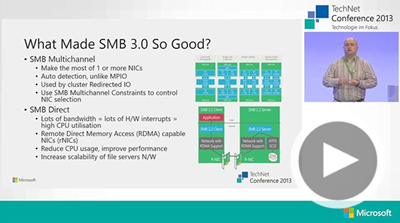
All of the sessions were recorded and professionally produced (better than TechEd IMO!!!) and have just been shared.  Most of the sessions are in German, but you’ll find some by myself (from day 1) and Damian Flynn (day 2) that are in English.

Cool New Hyper-V Features in Windows Server 2012 R2

image

Windows Server 2012 R2 – What’s New in Networking

image

Every time I watch myself back, all I can think is “My God, I am a nerd!” 🙂

KB2894032 – Clustered VM Cannot Access Fiber Channel LUN After Performing Live Migration on WS2012 Hyper-V

FYI, Windows Server 2012 R2 allows VMs to have virtual fiber channel adapters that use the bandwidth of the hosts’ physical HBAs.  This means that VMs can have their own WWN (actually 2 WWNs per virtual HBA) and connect to zoned LUNs on an FC SAN.  This supports both Live Migration of those VMs, and the ability to use the FC LUNs as the shared storage of a guest cluster.

The first phase of Live Migration (that first 3% of the progress bar) is when Hyper-V attempts to build up a VM’s spec & dependencies on a destination host.  This includes connecting to any FC LUNs using the alternative WWN (hence 2 WWNs per virtual HBA).

Microsoft released a hotfix to deal with an issue on WS2012 Hyper-V where one of those FC enabled VMs loses connectivity to an FC LUN.

Symptoms

Consider the following scenarios:

  • You have two Windows Server 2012-based computers that have the Hyper-V role installed.
  • You install a virtual machine on one of the Windows Server 2012 Hyper-V hosts.
  • You set up a guest failover cluster, and then you make the virtual machine a cluster node.
  • The virtual machine is configured to access logical unit numbers (LUNs) over a Synthetic Fibre Channel.
  • You try to perform live migration to move the virtual machine to another Hyper-V host.

In this situation, the virtual machine on the target Hyper-V host cannot access the LUNs over the Synthetic Fibre Channel. 

Cause

This issue occurs because the target Hyper-V host cannot restore the Synthetic Fibre Channel LUN on behalf of the virtual machine during live migration.

More Information

You might receive the following error event and warning event when this issue occurs:

  • On the target Hyper-V host:

    Error event:
    Hyper-V SynthFC-Admin ID 32214 with description like
    Failed to reserve LUN with Instance Path ‘\?SCSI#VMLUN&Ven_HP&Prod_HSV360#5&17efa605&0&070002#{6f416619-9f29-42a5-b20b-37e219ca02b0}’ to virtual machine ‘WS2012-1’ with error: The data is invalid. (0x8007000D). (Virtual machine ID C799C113-B153-4E49-B0C5-F9E24774EB9A)
    Hyper-V SynthFC-Admin ID 32216 with description like
    Failed to register LUN with Instance Path ‘\?SCSI#VMLUN&Ven_DGC&Prod_RAID_5#5&378d83c&0&080200#{6f416619-9f29-42a5-b20b-37e219ca02b0}’ to virtual machine ‘SERVER2012R2-STD-64-1’ with error: The data is invalid. (0x8007000D). (Virtual machine ID 86FA60B1-8B40-45C5-A88F-1F024BECA8F0)

  • On the virtual machine:

    Warning Event:
    Microsoft-Windows-Ntfs ID 140
    The system failed to flush data to the transaction log. Corruption may occur in VolumeId: F:, DeviceName: DeviceHarddiskVolume82.
    (A device which does not exist was specified.)
    Event ID:50
    {Delaled Write Failed} Windows was unable to save all the data for the file. The data has been lost. This erorr may be caused by a failure of your computer hardware or network connection. Please try to save this file elsewhere.

A hotfix has been released to fix this problem.

My TechCamp 2013 Presentation – Windows Server 2012 R2

Below you will find the slides from my presentation on “what’s new in WS2012 R2” that I did at the TechCamp 2013 community launch last week.  I focused on the OS rather than the big picture; Dave Northey (Microsoft) did the “cloud OS, etc” keynote before my session, and Damian Flynn (System Center MVP) did the “hybrid cloud & System Center” presentation later in the day.

Topics I covered:

  • Highlights of the Server perspective of the Microsoft BYOD solution
  • Networking
  • Storage
  • Virtualization
  • Cloud

TechCamp 2013 Wrap Up

Yesterday we ran TechCamp 2013, the Irish community launch of Windows 8.1, Windows Server 2012 R2, System Center 2012 R2, and Windows Intune.  All the feedback I have heard has been positive – thankfully!  🙂

We kicked off with Dave Northey (Microsoft CAT Program Manager).  Dave was the IT Pro DPE in Ireland for quite some time and has spoken at every launch event since Windows NT.  It would have been wrong not to have Dave in to do the keynote.

 WP_20131128_09_55_43_Pro

After that we broke into two tracks.  I did the WS2012 R2 session and next door, Damian Flynn (MVP) did the Windows 8.1 in the enterprise session.  I wanted to attend Damian’s session – I hear it was excellent, covering the BYOD and mobile worker scenarios.

WP_20131128_13_57_10_Pro

In the desktop track, some speakers from Microsoft introduced the new generation of devices that the various OEMs are bringing to market for Windows 8.1 and Windows RT 8.1, and what Windows Intune now offers for distributed end users, mobile workers, and BYOD device/app management.

Back in the server & cloud track, Paul Keely (MVP) did a session on service automation.

 WP_20131128_12_11_47_Pro

Damian was back on stage in the server & cloud track talking about using SCVMM 2012 R2 and Windows Azure Pack to build a hybrid cloud on Azure and Windows Server 2012 R2.  Kevin Greene (MVP) wrapped up the track explaining how System Center can be used to manage service availability and quality.

WP_20131128_15_29_55_Pro

Niall Brady (MVP), an Irish man living and working in Sweden, wrapped up the desktop & devices track by talking about System Center Configuration Manager 2012 R2.

WP_20131128_15_27_17_Pro

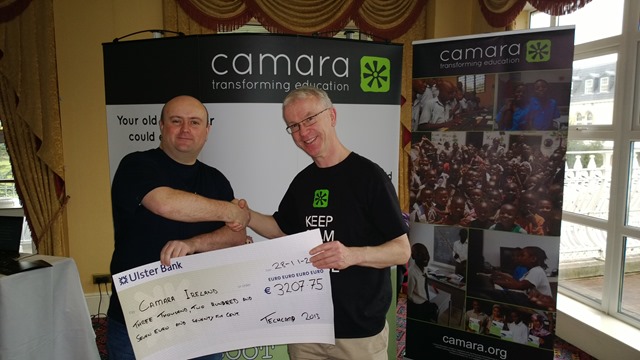
We asked for a small registration fee to encourage legitimate registrations and to get a higher turn-up rate.  That fee went to a good cause, an NGO called Camara.  We had Mark Fox in from Camara.  This gave Mark a chance to tell the audience (after the keynote) about the good work that Camara does.  They take unwanted PCs from businesses, securely wipe the PCs, track them, and reuse those machines to provide a digital education to needy kids.  Education is the best weapon against poverty and war, and Camara is on the frontline. Mark also staffed a stand in the exhibition room, and hopefully businesses found a way to get rid of machines in their drive to rid themselves of Windows XP, and make a difference in the world while doing it.

 WP_20131128_09_42_44_Pro

We have a whole bunch of sponsors to thank:

  • MicroWarehouse: My employers were the primary sponsor.  This event would not have happened without the huge effort by John Moran.  I would have been happy with a projector in a shed (with VPN access to my lab) but John made this a professional event.
  • Microsoft: Thanks for the support from Ciaran Keohane, the help from Michael Meagher.
  • Ergo: One of the leading Microsoft partners in Ireland, regularly winning Server partner of the year.
  • DataOn Storage: One of the manufacturers of certified Storage Spaces hardware
  • Savision: Creating dashboards for System Center that aid IT operations.
  • Toshiba: who had some devices on hand (including their new 8” Windows 8.1 tablet), most of which aren’t even on sale yet!

A big thank you goes out to each speaker who prepared 75 minute sessions (two of them in the case of Damian).  In case you don’t know, that’s probably a couple of days work in preparing slides, demos, and rehearsing, sometimes into the wee hours of the morning.

And finally, thanks to everyone who helped us communicate the event, and of course, came to the event to hear about these new solutions.  I hope the day proved valuable.

We had a number of people ask if we’ll run more events like this next year.  I believe that this is something that we will strongly consider.  There won’t be any launch stuff for us to cover for a while, so maybe we’d look at doing more “here’s how” content.  We’ll have to review and consider our options before we make any decisions.