Surface RT Office & Blurring The Licensing Lines

As usual, don’t bother emailing or commenting with licensing questions. They will be deleted and ignored, no exceptions, and this includes you with your special situation.  Please ask you reseller – that’s why they exist.

As you may be aware, Windows RT (the OS installed on the Surface RT and a few other Windows tablets) comes with a copy of what is effectively (features, license-wise, and rights-wise) Office Home & Student 2013.

Office 2013 has a peculiar limitation because of its relatively low price: you cannot use it in the workplace.  To use Office Home & Student at work, it needs to be “upgraded” to a business version via a license purchase.  This isn’t actually a feature limitation – the versions of Word, Outlook (Windows 8.1 RT has Outlook), etc, all will connect to Exchange, Sharepoint, etc just fine without any upgrades.  What you need is an additional license … something you record that you’ve purchased for that device in a spread sheet (like we need more of those!).

Is there a way to mark a Windows RT device as licensed?  Nope.  I was about to write “Use a custom GPO to add a registry value” but I remembered that Windows RT cannot join a domain.  Is there a way to detect unlicensed machines?  Nope.  Can you stop end users connecting to services with their Windows RT … only if you put in networking measures (NAP, NAQ, etc) to actually prevent BYOD.

Ooooooookay then.  I guess Microsoft are pretty clear on this?  Ehhhhhh actually it’s quite the opposite.  When talking heads go on podcasts they’re saying things like “Surface RT is great in the office because you don’t need to buy additional expensive software like Office”.  That line isn’t uncommon from MSFT out in the world.

This reinforces or reminds a few things:

  • Never EVER listen to a Microsoft person when it comes to licensing Microsoft software.  If that person is allowed to talk to the public then they clearly do not work hands-on with Microsoft licensing policies (read the PUR to understand what I mean).  Taking that person’s word as policy will get you audited, stung, penalised, and fired.
  • Windows RT has no place in business.  It’s a consumer device.  In the long run it’ll be cheaper to buy an Atom tablet (yes, it’s not as powerful as a laptop, but it you want a laptop, buy a laptop instead of a tablet) + Office for business (that can also run other programs) than Surface RT + Office for business + other “paper"-based” licensing controls.
  • Microsoft licensing is a mess.  While things like Server and System Center are pretty easy (if you can’t count then may I suggest a career in drooling?) the new licensing that was added for Windows 8 is a complete and utter cluster-f**k – and yes, that is the official licensing term.

As usual, don’t bother emailing or commenting with licensing questions. They will be deleted and ignored, no exceptions, and this includes you with your special situation.  Please ask you reseller – that’s why they exist.
KB981618 – WS2008 R2 Host Hangs OR Restarts During Live Migration

A hotfix has been released for Windows Server 2008 R2 Hyper-V for when computers that use AMD central processing units hang or restart during the Live Migration process.

This issue is caused by caused by AMD erratum 383. For detailed information, see the “Symptoms,” “Cause,” and “Resolution” sections of this article.

The article explains that:

Symptoms

When you run Windows Server 2008 R2 Hyper-V on a computer that uses AMD Family 10h central processing units (CPUs), the host computer may restart or stop responding unexpectedly. When this issue occurs, you receive no error messages.

This issue may occur when the Live Migration feature is used to move a virtual machine (VM) from one Windows Server 2008 R2 Hyper-V-based node to another node. This problem usually affects the source node that is the original location of the VM and usually does not affect the target node that is the new location where the VM will be moved.

Note This issue may occur in other scenarios and does not occur only in Live Migration scenarios.

Cause

This issue occurs because of erratum 383 in AMD Family 10h processors. This erratum generates a machine check exception. This machine check exception causes the hardware to restart or to stop responding.

A hotfix has been released to fix this issue.

Adding A DVD Drive To A Generation 2 Virtual Machine

By default, Gen2 VMs do not have a DVD drive so you cannot manually install an OS from an ISO file.  It is envisaged that you’re going to either use PXE (which is supported by a Gen2 synthetic NIC) or use a generalized VHDX file.

You can add a DVD drive by:

  1. Editing the settings of the Gen2 VM
  2. Browse to the SCSI controller
  3. Select DVD Drive from the options on the right
  4. Click Add

image

Now you have a DVD drive that can mount an ISO file.

Creating A Virtual WS2012R2 SOFS with Shared VHDX & Storage Spaces

In this post, I’ll show you how I created a Windows Server 2012 R2 SMB 3.0 Scale-Out File Server that uses Shared VHDX to create a simulated JBOD for clustered Storage Spaces.  This is completely unsupported for production, but is nice for the lab to demo, teach and learn.

Shared VHDX allows us to build a guest cluster without complicating storage (SAN, SMB 3.0, iSCSI, etc).  Yesterday I blogged about how I was creating a demo Scale-Out File Server using a VMM 2012 R2 Service Template.  That template used an iSCSI target VM.  Why did I do it that way?  Shared VHDX requires that:

  • Your hosts are clustered – net necessarily in the same cluster
  • The shared VHDX file is placed on SMB 3.0 or CSV – note that an SMB 3.0 file share can be used by multiple host clusters

In my lab, my virtual SOFS is placed onto a single storage box that is running Hyper-V.  At TechEd, Jose Barreto mentioned a solution for labs that is unsupported but works.  Using this I can use my single non-clustered host to run VMs that access a shared VHDX.  I can then cluster those VMs to create a guest cluster, e.g. a virtual SOFS.

The steps:

  1. Run (PowerShell) Install-WindowsFeature Failover-Clustering on the host.  There is no need to create a cluster from this host.
  2. Identify the volume that will store the shared VHDX files, e.g. D: drive.
  3. Run FLTMC.EXE attach svhdxflt D: where D: is the drive letter that you just identified.

Now you’re ready to create a shared VHDX.  My VMs are in D:Virtual Machines.  I’m creating a guest cluster called Demo-FSC1.  The shared VHDX files will be stored in D:Shared VHDXDemo-SOFS1.  I created Demo-FSC1 Witness Disk.VHDX (1 GB in size) and Demo-FSC1 Disk1.VHDX (100 GB in size) and stored it in that folder (D:Shared VHDXDemo-SOFS1).

Now for the VMs:

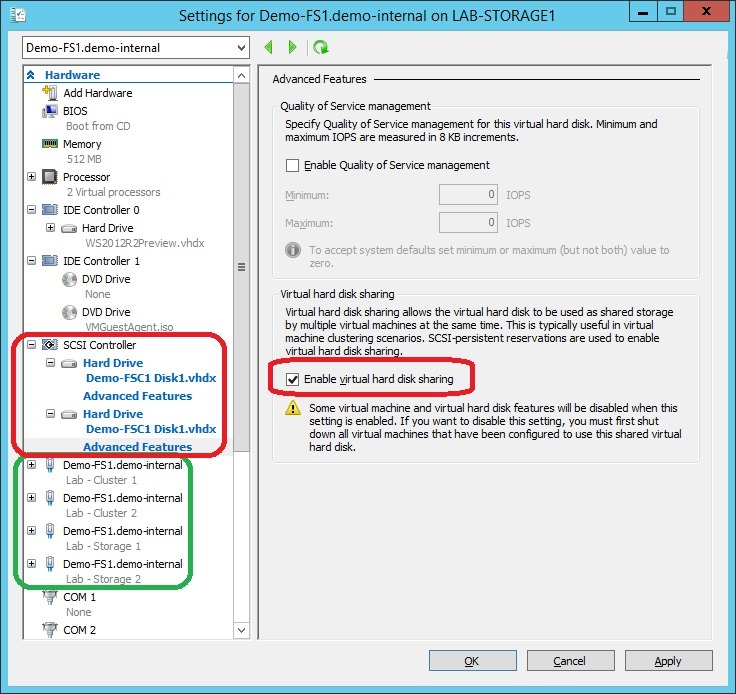
  1. I created 2 VMs for my virtual SOFS, Demo-FS1 and Demo-FS2, giving them all enough network connections for my design (see below screenshot, highlighted in green [requires guest OS QoS]).
  2. I added the shared VHDX files to the first SCSI controller on both virtual machines.  Don’t overthink this – there is no replication so please don’t ask.  I couldn’t possibly make this clearer.  Each individual VHDX (a total of 2) is connected to each of the 2 VMs (see below).
  3. I make sure to open up the advanced settings of the shared VHDX on both VMs and check the box Enable Virtual Hard Disk Sharing.
  4. I went on to create and add Demo-FSC1 Disk2.VHDX and Demo-FSC1 Disk3.VHDX, both 100 GB in size.

EnableSharedVHDX

At this point, I do all the usual storage, networking and clustering stuff in the guest OS of the 2 VMs.  In the cluster, I made sure both storage networks had client access enabled (with an IP address).  When creating the guest cluster, I did not add storage.  Instead, I did something else that is unsupported.

I took the 3 shared VHDX data disks, and created a new storage space.

StoragePool

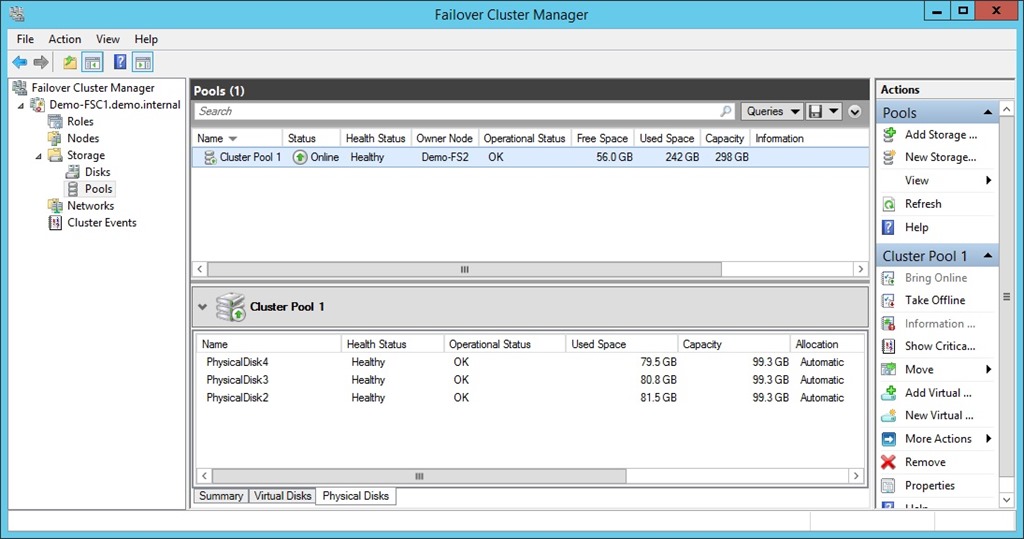
From this, I created 2 virtual disks, one with NTFS and one with ReFS, and converted bot volumes into CSV.  Now I have what I need to finish off the creation of the SOFS role on the file server cluster.

Finsihed Storage

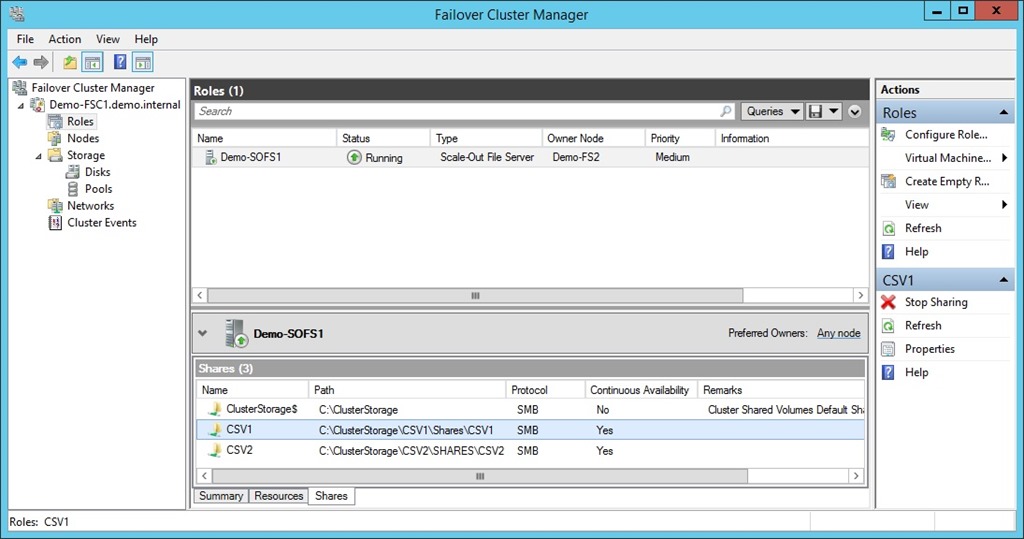
Now I add the SOFS role (File Server for Application Data) to the cluster, wait a while for the CAP to come online (remember to delegate permissions to the cluster’s OU to the cluster object so the cluster can create the SOFS computer object), and then create the file shares.

SOFS with Shares

What I haven’t done or shown:

  • QOS for the storage NICs.
  • SMB Constraints

Now I have my storage.  It’s time to prep VMM 2012 R2 to do some bare metal host deployment and get a Hyper-V cluster up and running.

Altaro Launches Hyper-V Backup v4

Congratulations to the really nice folks at Altaro (that’s been my experience and that of some of my customers) on the release of Altaro Hyper-V Backup v4.  Here are some of the features:

image

Altaro, like a few others, are really quick to keep up with Microsoft.  I wouldn’t be surprised if they quickly celebrated the release while installing WS2012 R2 Hyper-V to get working on it … while certain big names in backup still don’t support WS2012.

image

Hyper-V Backup is available as a nice free solution for the very small business and a fairly priced solution for larger businesses.

Building A WS2012R2 Preview Test/Demo/Learning Lab

I’m in the midst of deploying a new lab for learning, demo-ing, and delivering training on Windows Server 2012 R2 and System Center 2012 R2 (WSSC 2012 R2).  I’ve flattened the WS2012 lab and am starting from scratch … by using the MSFT vision.  The first thing up was a management host running Hyper-V.  Second: a DC.  Third: VMM 2012 R2.

My plan is to use VMM to build everything else.  My "management" host is actually a storage box.  It runs my System Center VMs, but it’s also where I run my virtual storage machines, including iSCSI target, and SMB 3.0 Scale-Out File Server VMs.  I want my storage to be up before my demo hosts/cluster, and I also want to be able to re-deploy my storage quickly.

Hmm, that sounds like I need a Service Template.  So I created a generalized VHDX for WS2012 R2, created a bunch of VM templates with the roles/features I need, and created a 2-tier service template:

  1. A VM running the iSCSI Target: My shared storage for the SOFS – no I can’t use Shared VHDX because that must live on shared storage … and the iSCSI Target/SOFS will be my lab’s shared storage … in this iteration anyway.
  2. 2 VMs with clustering and file services: My SOFS nodes.

The demo SOFS is deploying right now as I type:

DeployingVirtualSOFS

Once the storage is running, I will turn my attention to Hyper-V.  The plan is to build up server profiles, logical switch, etc, and do bare metal host deployment.  It should be fun Smile #Nerd

Enabling Remote Desktop Connection To WS2012R2 Virtual Machines

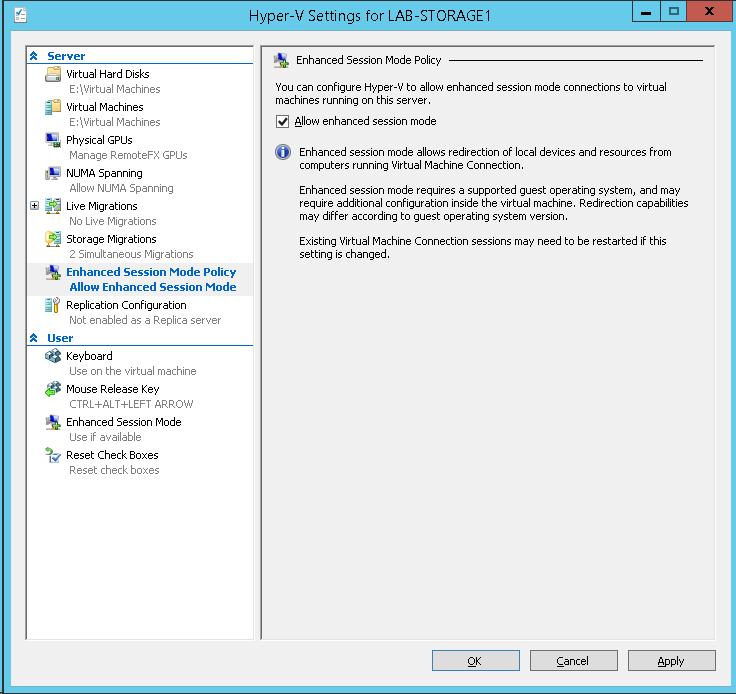
By default on Windows Server 2012 R2, the new way of connecting to virtual machines (Enhanced Session Mode) is disabled.  This is a per-host setting.  To enable the new Remote Desktop mode:

  1. Open Hyper-V Manager
  2. Click Hyper-V Settings
  3. Browse to Enhanced Session Mode Policy
  4. Check Allow Enhanced Session Mode

image

Doing An Online Update From Windows 8 Pro to Windows 8.1 Preview

PLEASE NOTE: Not all machines are supported by Windows 8.1 Preview at this time.  Via Paul Thurrott.

I started an update of the office demo Surface Pro to Windows 8.1 Preview using the online update process.  I started by browsing to http://preview.microsoft.com, and clicking Get It Now.

Note: you can also download the ISOs (x86 and x64) from the site (tomorrow) and from MSDN and TechNet.

image

This downloads and runs an update installer.  This is a small update to Windows.  In the case of the Surface Pro, it spent ages at “Configuring Windows features 100% …” after the reboot.

I then logged into Windows 8 again.  A banner appeared, offering me the Windows 8.1 Preview.  I clicked on Go To The Store in the banner.

Windows 8.1 Pro Preview was there for me to install.  Nice.  I clicked Download to get the 2.44GB installer.  I forgot to change the power plan of the Surface Pro and it went to sleep.  I went back in, changed the plan, and the download picked right up after a few moments.

After about 1 hour 20 minutes, the progress was at around 40% on my 8 Mbps ADSL (considered fast in Ireland Sad smile).

10 minutes later it jumped to around 66%.  This acceleration might have been due to the Build keynote stream that was aborted by Microsoft that I had been watching.

And then after 1 hour and 40 minutes I was prompted to reboot the Surface Pro.  Oooh exciting!  It then rebooted into a Setting Up <XX>% screen.  Less than 3 minutes later that was done and a another reboot.

Now the Surface was Getting Devices Ready.  That was quick, just 30 or so seconds.  Then Getting Ready appeared, and then Applying PC Settings.  That flew up to 100%.  And another reboot.

It then was Setting Up A Few More Things with another % count.  We were done within a minute.  Then it was Getting Ready.  Ooof!  Are we there yet?  Are we there yet?  Are we there yet?

Wait …. License terms Confused smile  I wonder what happens if you don’t accept the license terms!  Now it wants my password and dual factor phone number.  A security code is instantly texted to me and I verify the machine.

Next up: Skydrive.  I choose to use Skydrive.  There’s nothing more than that apparently.

Now it’s the “Hi, we’re setting up things for you”.  Damn you!  You’ve already set up lots of things for me Open-mouthed smile  It’s been 10 minutes since the machine “finished” installing.  A minute later and the Start Screen appears with my previously installed apps.  And we’re done!

Edit1:

We’re not done.  There’s up to 71 MB of updates to install.  Now we’re done.

Technorati Tags: ,

Build 2013 Keynote

Steve Ballmer

An estimated 60,000 watching via webcast.  They’re going to show lots of Windows 8.1, Windows Phone, and Windows Azure.

Windows 8.1 Preview is out now on http://preview.windows.com.  You can do an online update or you can download the ISOs.  I just saw that MSDN has the ISO downloads and one for .NET 4.5.1 Preview.

Steve Ballmer shows some Windows Phone handsets.  They are going to show small tablets.  MSBuild attendees are getting the Acer 8” tablet.  More are on the way.  Ballmer “wouldn’t call them PCs”. 

He admits that most PCs last XMas didn’t have the touch that was emphasised in Windows 8.  Since then, touch has become the norm.  True enough, for mobile devices, for most brands.  Some Asian brands have still been slow to catch up.  Hmm, Windows 8 customers on touch devices are “happier than Windows 8 customers on non touch devices” and “even happier than Windows 7 customers”.

He talks up the hybrid device.  That’s what I use … great for work and play.

He then talks about apps.  To be honest, apps are improving.  The quality of games is up too.  Facebook are bringing out a Windows 8x app.  The NFL is bringing out a fantasy app for Windows 8.  That’s a huge international market.  Tesco (UK version of Wallmart) have an app too. 

Microsoft “pushed boldy in Windows 8” and desktop application users told Microsoft to “refine the blend” (in his coffee terms). 

He reminds us that the Start Button (not menu) is back.  You can choose to boot to desktop.  You can quickly get to your apps.  There are more multitasking options with how apps share screen space.

Bing is built into Windows rather than being an app.  It’s there for devs to build on, just like Google is in Android (for the DoJ and EU Commission Smile).

Julie Larson Green

Here comes the worst presenter in the Microsoft executive level, in my opinion.  She starts the demo on an Acer.  First up … Nook … Ouch, Barnes and Noble.  Twitter looks decent in portrait mode … Oh, it was designed for this form factor apparently.  Oh nice feature, swiping on the space bar seems to autocomplete or something.  Now we can slide up on the top qwerty row to enter numbers.  Very nice – others will copy this. 

The Mail app now includes social features, e.g. Facebook updates.  It appears (it is a demo) that you can easily delete a common selection of junk mail with a swipe. 

Search can bring results from everywhere using Bing.  No need to explicitly select a Bing app.  In the demo, finds a restaurant, maps it, selects it, and can book a table.  A search of a band finds loads of info, and can quickly start playing music via a completely redesigned XBox music.  Redesigned for playing instead of the previous searching emphasis.  Goes to a regular music webpage.  Lists all the bands of a festival.  Shares via charms to the Music app.  The Music apps creates a playlist from the band list on the site.  Very impressive example of app contracts.

The Start Screen is more customizable.  You can now get to All Programs by swiping up in the Start Screen.  You can sort the apps, e.g. by date installed.

I looked away, I think I saw JLG swipe a screen without touching.  The Start Screen tiles smoothly appear on your desktop wallpaper, reinforcing the Start Menu “plus” functionality.

We get a demo of 50/50 snapping of apps.  The split can be any size you want by sliding the splitter.  You can right-click on a link to open a new window … now it’s 3 apps on screen!  Apps on more than one screen at once.  Was surprised this wasn’t on Windows 8 tbh.

A preview version of PowerPoint running on Windows RT.  Browses Skydrive to get a file (default location).  Smooth transitions and video on Windows RT.  This is a PowerPoint app

“Windows 8.1 is Windows 8 refined” appears to be the mantra.

Antoine Leblond.

Boring developer stuff.  Am going into hibernation for a while.

The Windows Store is updated to make it easier for people to find and download/buy apps.  Apps are now updated automatically.  Thank God!  The spotlight rotates.  Lots more apps are on the main screen via better use of space.  Your app history/ratings are used to prepare “Apps for you”.  The screenshots are bigger.  Related apps are shown in the description info.  You can change categories, etc by swiping from the top.

Hmm, the app bar seems to allow much more controls now.

Each monitor can have it’s own scaling factor to make the most of the space.  This is done by Windows and has no app requirement.

Tiled resources is a programmable page table for graphics acceleration.  In other words, be able to render huge objects that don’t fit into the memory of your GPU.  Games can run with unprecedented level of detail.  They show a video of an object with 9 GB of data on a retail DX11 GPU.  They zoom in, and you can see the rivet detail of a glider in flight.  This feature is also in Xbox One apparently.

A 3D printer is appearing in MSFT stores soon.  Another one coming to Staples for under $1300.  Out comes a Lego Mindstorms robot.  He uses a Windows tablet to communicate with a tablet in the robot.  The on-robot tablet controls the robot by USB interface. 

The crazy 3200 * 1800 Samsung something something something ultrabook with Haswell processor is shown.  It gets 12 hours from a single charge allegedly.  The Lenovo Helix convertible is next.  Acer Aspire P3 (1.74 lbs) with Core i5 CPU with a detachable protective cover keyboard.  A sub $400 touch Acer laptop with dual core AMD CPU. 

JLG Comes Out With Surface Pro

And there’s the 2nd giveaway … Surface Pro with Windows 8.1 Preview and Visual Studio Preview.

And the webcast fails because it “has not yet started”.

And that is that. 

Book: Microsoft System Center Data Protection Manager 2012

A number of MVPs have contributed to a new book on DPM 2012 called Microsoft System Center Data Protection Manager 2012.

    • Practical guidance that will help you get the most out of Microsoft System Center Data Protection Manager 2012
    • Gain insight into deploying, monitoring, and administering System Center Data Protection Manager 2012 from a team of Microsoft MVPs
    • Learn the various methods and best practices for administrating and using Microsoft System Center Data Protection Manager 2012

You can find this book on:

Technorati Tags: ,