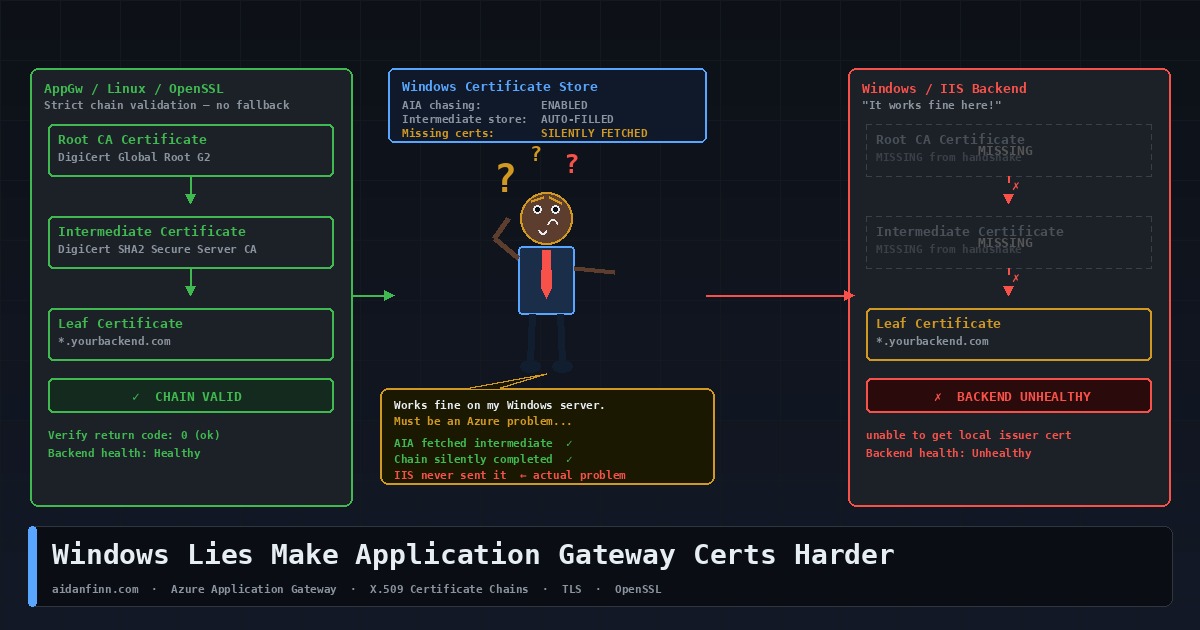
You’ve got a valid certificate. It works in the browser. IIS is happy. Everything looks fine on the Windows server. You put Azure Application Gateway in front of the backend, enable end-to-end TLS, and the backend health probe goes red. The gateway won’t talk to your server.
Nothing changed. That’s the problem. Windows was lying to you the whole time.
Windows Is Too Helpful
When Windows validates a TLS certificate, it doesn’t just look at what the server presented in the handshake. If it can’t build a complete trust chain from what it received, it checks the local machine certificate store. If intermediate certificates are installed there — and on any reasonably maintained Windows server, they usually are — Windows silently completes the chain and returns a clean result.
It goes further than that. x.509 certificates include an extension called Authority Information Access. The AIA field contains a URL pointing to the issuing CA’s certificate. If Windows still can’t build the chain, it quietly downloads the missing intermediate from that URL in the background, without telling anyone. Chain built. Handshake succeeds. No errors, no warnings, nothing to indicate the server was never presenting a complete chain in the first place.
This is why you can run a Windows server with an incomplete certificate for years … and never know. Every Windows client fills in the gaps for you. The problem only surfaces when something that isn’t Windows tries to connect.
Linux and Appliances Don’t Fill In the Gaps
OpenSSL doesn’t do AIA chasing by default. It doesn’t consult a well-stocked machine certificate store. It validates exactly what the server presented in the TLS handshake, and if the chain is broken, the handshake fails. No fallback. No retry. No silent download from the CA’s website.
That’s correct behaviour. A TLS handshake should succeed or fail based on what the server presents, not what the client can patch together from external sources. Relying on AIA chasing means your certificate validity depends on a runtime HTTP request to a CA endpoint, which may not be reachable in private networks, zero-trust environments, or anything running behind a restrictive firewall policy.
Application Gateway Is a Reverse Proxy
This is where the Application Gateway problem comes in, and it helps to be clear on the architecture.
AppGw is a Layer 7 reverse proxy. The client TLS connection terminates at the gateway. Your browser — or your API consumer — is talking to Application Gateway, not to your backend server. AppGw then makes its own separate outbound connection to the backend pool. That second leg is a fresh TLS handshake if end-to-end TLS is configured … Application Gateway is the client.
In that handshake, AppGw behaves like OpenSSL, not like Windows. It validates what the backend presents. When HTTPS is selected in the backend settings, Application Gateway performs a full TLS handshake validation, including verifying that the certificate chain is trusted. It has no access to a Windows certificate store. It doesn’t go off to fetch missing intermediates from AIA URLs. It checks the chain against what it received, and if the chain is broken, the backend is marked unhealthy.
The Microsoft documentation is explicit: the chain must start with the leaf certificate, then the intermediate certificates, and finally the root CA. Microsoft recommends installing the complete chain on the backend server including the root CA certificate.
Spotting the Problem
The first sign is a red backend pool in the portal. Go to your Application Gateway, open Backend Health, and look at the Details column. You’ll see messages like “The backend server certificate isn’t signed by a well-known Certificate Authority” or errors about the intermediate certificate not being signed by any uploaded root certificate. Microsoft has a full list of backend health error messages and their causes.
Before touching anything in the gateway, run this from Azure Cloud Shell or any Linux machine:
openssl s_client -connect yourbackend.yourdomain.com:443
That’s what Application Gateway sees. If OpenSSL reports a chain verification failure, the server configuration is wrong. Fix the server first. The gateway problem is a symptom, not the cause.
Fixing It
Two scenarios, two different approaches.
Certificate from a public CA — DigiCert, Sectigo, Let’s Encrypt, and so on
In the backend HTTP settings, tick “Use Well Known CA Certificate”. Application Gateway maintains its own trust store of well-known root CAs and if your backend cert chains to one of them, you don’t need to upload anything. What you do need is the backend server presenting a complete chain — leaf plus all intermediates.
On IIS, the intermediate certificate goes into the Intermediate Certification Authorities store under the local computer account. IIS builds the chain it presents to clients from the local computer context, so if the intermediate isn’t there, it won’t be sent in the handshake.
On Nginx, concatenate the leaf and intermediate into a single bundle file:
cat your_domain.crt DigiCertCA.crt >> bundle.crt
DigiCert’s Nginx installation guide covers this in full. Point your openssl s_client directive at the bundle. Restart Nginx and verify with openssl s_client before touching the gateway.
Certificate from a private CA or self-signed
You’ll need to upload the root CA certificate to the Application Gateway backend settings. The format is Base-64 encoded X.509, exported as a .cer file. Export the public key from the backend certificate, then export the root CA certificate from that in base64 format.
Uploading the root is only part of it. The backend server still needs to present the full chain, including all intermediates. The gateway matches the root you uploaded against the chain the backend presents — if the chain has a gap, the handshake still fails.
Before You Go to Production
Self-signed certificates are for lab use. Don’t take them to production and upload them to the gateway backend settings as a workaround. You’re trading a configuration problem for a certificate management headache that will bite you at renewal time.
When you renew certificates, check whether the intermediate has changed. CA intermediates do rotate, and a backend that was presenting a complete chain can silently break at renewal if the new intermediate isn’t installed on the server at the same time.
Check the CN. Application Gateway uses the hostname you configure in the backend HTTP settings as the SNI indicator in its connection to the backend. If the CN on the backend certificate doesn’t match, the handshake fails regardless of how clean the chain is. Make sure what you put in the backend settings matches the certificate. The end-to-end TLS configuration guide walks through all of this in detail.
Verify with SSL Labs or openssl s_client before going live, every time. If OpenSSL can validate the chain without needing any additional CA file flags, the backend is presenting correctly. If it can’t, fix the server — not the gateway.
The Short Version
Windows has been hiding incomplete certificate chains from you for years by filling in the gaps from local stores and downloading missing intermediates on the fly. Application Gateway doesn’t do either. It validates what it receives, and if what it receives is incomplete, the backend goes unhealthy.
The fix isn’t in Azure. It’s on your server. Present the full chain.