Strike Up Another Reason For Using System Center Configuration Manager In Your Cloud

It is rare that Microsoft releases a bad update through Windows Updates, but one appeared this week, as Hans Vredevoort posted.  How do you avoid the problem of automatically pushing out “bad” updates straight after they are released?

Well, here’s the “solution” I often encounter when I talk to consultants and administrators:

We approve patches manually

Ah!  My response to this usually goes along the lines of:

  1. I grimace
  2. and respond with:

When you approve patches manually then you don’t patch at all!

One such company hadn’t deployed a Windows update since Windows XP SP2 – and I suspect that the media they used came with SP2 slipstreamed.  It was no doubt that Conficker ate them up.  And it’s no doubt that Conficker still is in the top 10 of malware in domain-joined (i.e. administrator controlled) PCs.  Meanwhile, PCs that are managed by users (workgroup members) are not seeing Conficker in the top 10.  By the way, Microsoft released a hotfix to prevent Conficker 1 month before the malware was first detected, and that was around the time of Windows 7’s GA launch.

The fact is that manual patch testing and approval do not happen.  There might be a process, but that doesn’t mean that it’s used.  I bet if you surveyed 1000 companies with this process then you’d find the majority of them don’t do it, and are probably woefully unprotected.  Queue the moronic comments that’ll try to excuse behaviour … I know they’re coming and they only show guilt.

What you need is automation.  But doesn’t automated patch approval mean that patches are approved and deployed immediately, bugs and all?  Not necessarily.

When I started working with ConfigMgr 2012, I read the guides by Irish (in Sweden) MVP, Niall Brady.  I liked his approach to dealing with updates:

  1. Check for new catalog updates every hour (my preference)
  2. Allow already approved updates to be superseded automatically
  3. Delay approval of updates by 7-14 days
  4. Set a deadline of 7 days

With this approach, updates are approved automatically, but they aren’t made available for 7-14 days.  And updates won’t be mandatory for another 7 days beyond that. That means updates don’t get forced onto machines for 14-21.

For server updates, I’d set a maintenance window on the collection(s) of servers, so that updates can only happen during those time windows (and not impact SLA).

With this approach, you get the best of both worlds:

  • You delay the updates, giving other people the “opportunity” to test the updates for you, and you deploy the 2nd release of “bad” updates (bad updates are superseded by new versions)
  • The process is automated, so your updates are pushed out without any human intervention.  You can always disable the automatic approval rule if the brown smelly stuff looks like it wants to hit the fan.

Remember, you can deploy updates from anywhere using ConfigMgr (see System Center Updates Pulisher).  And this is just one of many reasons why I like ConfigMgr in the cloud.
Technorati Tags: ,,

KB2750149 Causes Failover Cluster Manager To Crash On Windows Server 2012

Hans Vredevoort has posted a very important note for you to read.  Please go over to Hyper-v.nu to read why you should not install this update on WS2012 clusters nodes/members.

EDIT#1:

Microsoft has released (via Windows Update) KB2803748 to repair this issue.


Windows Server 2012 NIC Teaming Part 3 – Switch Connection Modes

Windows Server 2012 NIC Teaming Part 1 – Back To Basics

Windows Server 2012 NIC Teaming Part 2 – What’s What?

There are 4 possible basic configurations of a NIC team, depending on your physical switches and how you want to distribute or load balance traffic across the team members of the NIC team.  In this post, I want to focus on the switch connection modes.

This configuration of the switch connection mode is determined in one of two ways:

  1. You decide how you want traffic to flow, that determines your switch architecture, and you design the team appropriately.
  2. You already have a physical switch architecture, and you have to configure the team appropriately.

There are two switch connection modes in a WS2012 NIC team.  My tip: focus on the use of independent and dependent when trying to remember which is which.

Switch Independent

This type of NIC team has no dependency on functionality in the connected physical switch(es) to make the NIC team work.  It is appropriate to use this type of NIC team in two scenarios:

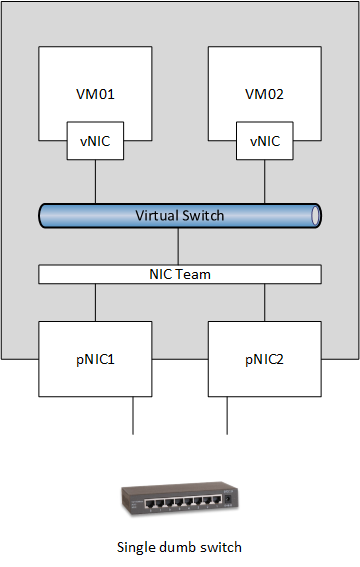
1) A single dumb switch, like the sort you might get in a store for a lab

image

The switch does switching and that’s it.  There’s no management port or console, and no settings you can configure. The team works independently of any non-existing functionality in the switch.

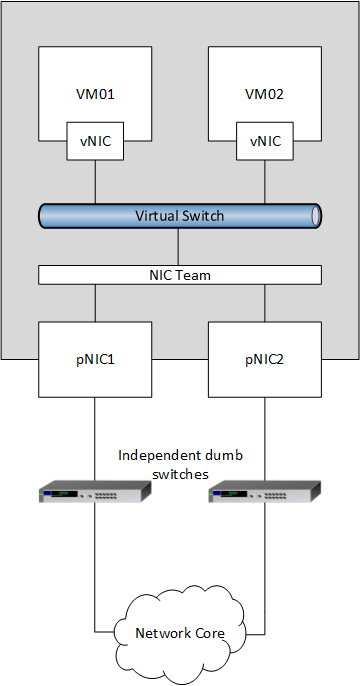
Alternatively, the team members are plugged into multiple independent switches.  In this case, the switches might or might not have some clever management.  The key piece here is that each access switch is functioning completely independent of the other – there is no switch stacking going on.

image

A nice feature of switch independent teams is that you can configure a hot-standby team member in the NIC team.  This is only possible in a switch independent team.

Switch Dependent

The name says it all; the NIC team relies on some functionality in the switch(es) that the NIC team members are connected to.  This could be a single managed switch.  It could also be a single logical switch, such as a switch stack.

image

There are two ways to set up a switch dependent NIC team.  Both options require you to configure the switch(es) in some way (consult your network documentation):

  1. Static teaming
  2. LACP

Static teaming is when the switch ports are configured to be in the same team.  Using the above example, the switch ports for pNIC1 and pNIC2 would have to be configured to be in the same team.  This is pretty inflexible: try reconfiguring the team or moving the cables to different switch ports and you’ll break the team without doing some switch reconfiguration to match the changes.

Link Aggregation Control Protocol (LACP) is similar to static teaming because it requires switch configuration. However, once the switch is enabled for LACP, the team dynamically configures the switch whenever it comes online or is reconfigured.  This means that you do not need to constantly log calls for the network admins when you are doing physical server operations.

That’s enough for today.  Next up will be load distribution.

This information has been brought to you by Windows Server 2012 Hyper-V Installation and Configuration Guide (available on pre-order on Amazon) where you’ll find lots of PowerShell like in this script:

image


Windows Server 2012 NIC Teaming Part 4 – Load Distribution

Windows Server 2012 NIC Teaming Part 5 – Configuration Matrix

Technorati Tags: Windows Server 2012,Hyper-V,Networking

Red Hat Enterprice Linux 5.9 Has Built-In Support For Hyper-V

Yesterday, Red Hat announced general availability of RHEL 5.9.  I’m no penguin-hugger, but RHEL seems to me to be the favoured Linux in the enterprise (with cousin CentOS being the leader in the public cloud, at least in my experience). 

Me, a Microsoft-phile, blogging about Linux releases?  Yeah, I know, but this is a big one.  That’s because RHEL 5.9 has built-in support for Hyper-V.  According to Red Hat:

The following para-virtualized use cases have been tested by both Red Hat and Microsoft for joint support:

  • All fresh installations of Red Hat Enterprise Linux 5.9
  • Upgrades from Red Hat Enterprise Linux 5.8 guests with Microsoft provided LIS version 3.4 to Red Hat Enterprise Linux 5.9 guests with built-in para-virtualized drivers

The following use cases are not supported by both Red Hat and Microsoft:

  • Upgrades from fully virtualized (no LIS drivers) Red Hat Enterprise Linux 5.8 guests to Red Hat Enterprise Linux 5.9 guests with built-in para-virtualized drivers

Microsoft does occasionally release updates to the Linux Integration Services for Hyper-V (aka Hyper-V integration components for Linux).  And in my experience, Linux admins don’t upgrade their Linux installations to newer versions too often.  So there is a note from Red Hat:

Customers can continue to install and utilize the LIS drivers provided and supported by Microsoft.

That means you can upgrade the built-in Linux Integration Services to a newer version with more functionality.  Based on what we saw recently, Dynamic Memory support appears to be coming to Linux in the near future.

Red Hat does call out Hyper-V in their press release:

New Virtualization Capabilities and Flexibility in Multi-vendor Environments. Red Hat Enterprise Linux 5.9 enhances the operating system’s usability in multi-vendor environments by introducing Microsoft Hyper-V drivers for improved performance. This enhances the usability of Red Hat Enterprise Linux 5 for guests in heterogenous, multi-vendor virtualized environments and provides improved flexibility and interoperability for enterprises.

This is pretty great news.  For Hyper-V newbies, this means that you don’t have to install “VMware Tools”-like add-ons to get a RHEL guest OS working intelligently and with best performance on Hyper-V.  Those add-ons are built into the OS.

What I’d like to figure out now is if we can deploy newer versions of the Linux Integration Services using the Linux support in System Center Configuration Manager 2012 SP1 Smile

Technorati Tags: ,,

Update Rollup 1 for System Center 2012 Service Pack 1

Microsoft has released UR1 for SysCtr 2012 SP1.  Here is my advice: do not deploy any agents, do not take control of any fabrics or storage, until you have deployed UR1.  UR1 fixes a number of issues (details are on the site) and the update process requires already deployed agents to be updated from their management consoles.

My Review Of The HTC 8x Handset

I’ve blogged it before (to some interesting out-of-band feedback) that work updated me from a HTC HD7 (Windows Phone 7.x) handset to a HTC 8x (Windows Phone 8).  I’ve talked about Windows Phone 8.  What about the hardware?

I actually like the hardware quite a bit.  When you take it out of the box the first things you notice are:

  • It is not huge – why do phones have to be huge and movies have to be 3 hours long?  Really!?!?!
  • It’s slim
  • The back is curved nicely to sit in your hand
  • The material on the back is really pleasing in the hand.  There’s a texture to it
  • While the HD7 felt cheap (and it wasn’t cheap by price), the 8x feels well made and solid

I power it up and:

  • The screen is nice and bright.  I think the Nokia Lumia wins (but I don’t have one to hand) but you’ll pay another €150-€300 to Nokia for that privilege, based on the pricing I’ve seen
  • The phone is responsive.  Something that greatly annoyed me on the HD7 was how using the buttons (such as the camera one) was a matter of repeated pushing and fudging to get what you wanted from it.
  • I like the capacitive button approach that is used.  The subtle vibrating feedback is satisfying.

The camera is pretty good, as phones go.  You’ll never see me raving too much about camera phones.  The sensor is tiny, the lens has to be pretty cheap, and they’ll never compare to a DSLR (my tool of choice for photography).  You get from the tools what you pay for, and once you reach DSLR levels, your skill becomes the difference maker (people who shoot in Auto with a DSLR should have saved their money and bought a compact or a smartphone). 

I took a few indoors images without the flash, using only indoor lighting, with the 8x.  On the computer screen, I could see some handshake in the first shot.  There is no image stabilisation that I could see.  The second shot was OK in terms of focus and sharpness.  The noise was acceptable considering that this is a phone camera.  I’d expect lots more from a DSLR with a full sized (35 mm) or crop sensor and a €1000 lens Smile

The phone “has” Beats Audio.  Hmm Smile  Let’s face it, the speaker is tiny so you’ll only ever get so much from it.  I can’t complain about the sound.

Like many new phones, it has a unibody.  This approach is what makes the phone feel solid and of a higher quality (like a monocoque convertible car) That means the back doesn’t come off.  The battery cannot be taken out (without voiding the guarantee).  Battery life is what you’d expect on a modern smartphone.  I’m a light phone user (using data more than anything) and I’m getting 2 days from it.

The wifi NIC beats what I’ve seen from the iPhone 4 and the HD7.  I can connect to and use wifi with the 8x that the others cannot even see.  That’s very good.

The only port is for the microSIM.  There is no expandable storage, so the onboard 16 GB is your limit.  It uses the same micro USB port as the HD7 (no cable replacing) and as the Kindle reader.  I like that because it keeps the cable count in my laptop bag down.

When I think HTC I think cheap build quality, especially after the HD7.  The 8x has changed that.  Purely as a piece of hardware, I really like the HTC 8x.

Windows Server 2012 NIC Teaming Part 2 – What’s What?

Windows Server 2012 NIC Teaming Part 1 – Back To Basics

Terminology

There is some terminology for a WS2012 NIC team.  The below diagram depicts this terminology:

  • Team members or network adapters: These are the physical NICs in your server or host that make up the NIC team.  I tend to use the term team member.
  • Team or NIC team: this is the aggregation of team members to give us an LBFO team.
  • Team Interfaces, Team NICs, or tNICs: This are the possible terms for the connections that are created for the NIC team.  I tend to use the term team interface.  A team has at least one team interface, and this is where the IP stack is configured

image

Team Members

A WS2012 NIC team can be comprised of up to 32 team members.  I can’t imagine ever seeing such a team in production, but you can do it.  These team members don’t have to be the same model or same manufacturer.

An interesting design is to deliberately use team members from different manufacturers for failover in the same team. Some networking issues I’ve seen have been related to 3rd party NIC drivers or firmware.  If you have an Intel NIC and a Broadcom NIC in the same team, and the Broadcom NIC has an issue, then the Intel NIC can stay online and keep the virtual machines on the network … assuming the driver failure doesn’t cause a BSOD Smile In the era of dual and quad port NICs, this would be an expensive design, but it might be valuable for true mission critical deployments (where people might die, and not honest ).
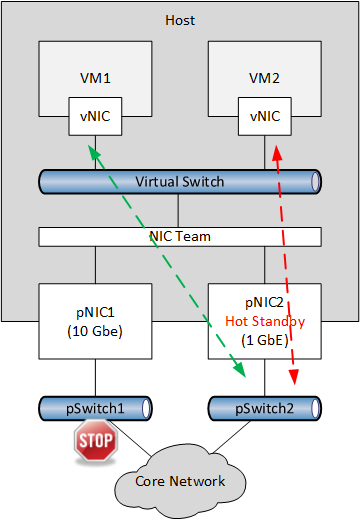
Note that it is possible to designate a team member as a hot standby NIC in the team.  This means that it remains offline until another NIC fails.  I used to struggle to figure out why you would do this.  Hans Vredeveoort (MVP) suggested one good reason to me: troubleshooting the team without breaking it.  Convert a NIC in a 2 team member team to a hot standby.  That forces traffic through the other team member and thus through one path in the physical network.

Can you mix NICs of different speeds? Yes you can BUT to be supported, the active team members in the team must be running at the same speed.

I’ve since come up with a second reason to use the hot standby option. Once again, you have a team with two team members.  You want 10 GbE networking but have limited budget for switch ports.  So you put in one 10 GbE NIC as the active NIC and one 1 GbE NIC as the hot standby.  If the 10 GbE team member goes offline then the team remains operational, although it is now crippled because it has 10% of the bandwidth that it had before the failure.  It’s an option, even if it is a pretty horrible one.

image

Team Interfaces

When you create a team, there will be one team interface.  This is kind of a network interface that appears in Control Panel (Networking), as you can see below:

image

The team interface has a device name of Microsoft Network Adapter Multiplexor Driver.  This is the device that you:

  • Configure TCP/IP on
  • Connect a Hyper-V virtual switch to

A team can have many team interfaces, BUT the team must have only 1 team interface if you are going to use the team to connect and external virtual switch.  The NIC team must be dedicated to the external virtual switch – no exceptions; Microsoft and the NIC team don’t care what your budget or bosses demands are.

You can create multiple team interfaces, e.g. a NIC team on a web server. The below example shows a scenario where the first team interface is in default mode.  This is … well … the default mode of the first team interface of any NIC team.  This interface will accept all traffic sent into a team.  A second team interface has been created.  Only one team interface can be in default mode.  Every other team interface must be in VLAN mode.  This binds a team interface to a single VLAN, so the IP stack of that team interface should be configured appropriately for that VLAN.

image

You can configure all team interfaces to be on a specific VLAN (i.e. in VLAN mode).  Any traffic that is not routed to a team interface, i.e. not on a valid VLAN, is sent to a black hole (the trash).

image

Remember, if a NIC team is to be used to connect an external virtual switch to the LAN, then that NIC team must have a single team interface.  And that NIC team must be in default mode.  No exceptions.

Don’t Get “Clever”

It is not supported to:

  • Try mix elements of 3rd party NIC teaming with WS2012 NIC teaming
  • Make teams of teams

Just keep it simple.  You also need to use team members that are on the WS2012 Hardware Compatibility List (HCL), i.e. they have been successfully logo tested for Windows Server 2012.

This information has been brought to you by Windows Server 2012 Hyper-V Installation and Configuration Guide (available on pre-order on Amazon) where you’ll find lots of PowerShell like in this script:

image

Windows Server 2012 NIC Teaming Part 4 – Load Distribution

Windows Server 2012 NIC Teaming Part 5 – Configuration Matrix

Don’t Install WMF 3.0 On VMM Managed W2008 R2 Hyper-V Hosts

Microsoft has published a KB article (KB2795043) that explains the following scenarios:

On System Center Virtual Machine Manager, you may experience one of the following symptoms:

  • A Windows Server 2008 R2 SP1 Hyper-V host has a status of Needs Attention in the VMM Console.
  • or

  • Adding a Hyper-V host or cluster fails.

The fix is … to uninstall the WMF 3.0 update (KB2506143).  There’s a bit more to it than that. You also need to reboot the host and then run:

winrm qc

… and then do another reboot of the host.

I know; it’s far from an ideal situation.  But there’s the workaround for you.

Windows Server 2012 NIC Teaming Part 1 – Back To Basics

Last year I did a series of posts on converged fabrics.  At the time, it was still early days and we had very little information from Microsoft in the public domain.  A key piece of the puzzle is the NIC team.  It’s clear that NIC teaming is confusing people.  I’m seeing loads of questions about bandwidth not being used, concerns about architectures and so on.  I thought I’d write a new series of posts on NIC teaming, dealing with one chunk of information in each post.

If you want, you can read the official documentation on NIC teaming from Microsoft.  This paper was published during the beta but it’s still valid.  It is heavy reading, but it’s pretty complete.

OK, let’s get started:

NIC Teaming in Windows Server 2012

Microsoft has never supported 3rd party NIC teaming, such as the sort you get from HP, Dell, Intel or Broadcom:

Since Network Adapter Teaming is only provided by Hardware Vendors, Microsoft does not provide any support for this technology thru Microsoft Product Support Services. As a result, Microsoft may ask that you temporarily disable or remove Network Adapter Teaming software when troubleshooting issues where the teaming software is suspect.

If the problem is resolved by the removal of Network Adapter Teaming software, then further assistance must be obtained thru the Hardware Vendor.

From my perspective, the 3rd party NIC teaming solutions ripped out the guts of Microsoft networking, threw in a few parts of their own, shoved it all back in, and hoped that this Franken-networking would stay running.  As a result, lots of the problems I heard about were caused by NIC teaming.  I even heard of a problem were a badly configured (not according to the vendor’s guidance) NIC team could cause a network security issue that was not otherwise possible with Hyper-V.

We Hyper-V users begged for Microsoft to write their own NIC teaming for Windows Server.  Windows Server 2012 delivered, and gives us NIC teaming that is built into the OS and is fully supported, including Hyper-V and Failover Clustering.  In fact, we can use it to create some very nice network designs that abstract the fabrics of the data centre (converged fabrics), that result in simpler, cheaper, and more fault tolerant networking.

Load Balancing and Failover (LBFO)

NIC teaming has 2 basic reasons to exist:

Reason 1: Load Balancing

Load balancing will spread the total traffic of a server or host across a number of NICs.  This is an aggregation of bandwidth.  You can see a crude example of this in the below diagram, where VM1’s traffic passes through pNIC1 and VM2’s traffic passes through pNIC2.

image

Bandwidth aggregation is one of the most commonly misunderstood aspects of NIC teaming.  Teaming four 1 GbE NICs does not necessarily give you a single 4 GbE pipe.  It gives you four 1 GbE NICs that the NIC team can load balance traffic across.  The design of the NIC team will dictate how the load balancing is done.  In the above example, the virtual network adapter in VM1 is constrained to pNIC1 and the virtual network adapter in VM2 is limited to pNIC2.

Note: You can see that the virtual NICs are connected to a virtual switch as usual.  They have no visibility of the NIC team underneath.

Reason 2: Failover

In my experience, the most troublesome part of a computer room or data centre is the network.  Switches, no matter how expensive they are, fail, and they tend to choose the most inappropriate times.  In this case, we can design the NIC team with path fault tolerance.  A basic example below shows how each NIC in the NIC team is connected to a different access switch.  If one access switch fails, then the other NIC(s) in the team pick up the load.  This failover happens automatically.  The team will also automatically rebalance the workloads when the storage path comes back online.  This solution will work in all scenarios where the team member (pNIC1) detects a connection failure, i.e. pNIC1 goes offline.

image

A computer room or data centre that is designed for fault tolerance will always put in NICs in pairs, access switches in pairs, core switches in pairs, load balancers in pairs, firewalls in pairs, and so on.  Of course, “pairs” might be swapped for “teams” in huge environments.  And those switches could be standalone or stacked.  That’s a question for your network admins or architects.

A fairly new concept in the data centre is where fail tolerance is built into the application or service that is running in the servers or VMs.  In this case, the hosts are designed to fail, because the application always has fault tolerant copies elsewhere.  This allows you to dispense with teaming, switch teaming/stacking, and all the additional costs of putting in 2 instead of 1.

There will be more posts on NIC teaming over the coming weeks.

This information has been brought to you by Windows Server 2012 Hyper-V Installation and Configuration Guide (available on pre-order on Amazon) where you’ll find lots of PowerShell like in this script:

image


Windows Server 2012 NIC Teaming Part 2 – What’s What?

Windows Server 2012 NIC Teaming Part 3 – Switch Connection Modes

Windows Server 2012 NIC Teaming Part 4 – Load Distribution

Windows Server 2012 NIC Teaming Part 5 – Configuration Matrix

Hyper-V Manager Windows Store App

I was checking my feeds and saw a story on Sandy Berkouwer’s blog called “Embracing the new Windows 8 Interface with these Three Free IT Pro Apps”.  The second app was a Hyper-V Manager, available in the Windows Store, and designed to run in the new Windows UI, on Windows 8 and Windows RT (including Surface et al). 

The app is not published by Microsoft.  It is by CompuGeek Software.  The app is free and is in the Windows Store.  It gives you basic functionality:

  • Start, pause, and save virtual machines
  • View screenshots of virtual machines
  • View server status and amount of memory free
  • Support for multiple servers
  • Support for Active Directory domains

image


There is no connect window for KVM access to the VM.  It is a very basic management/monitoring app.  The app requires that you install a service on the Hyper-V Manager.