KB2804678–Cannot Exceed 256 Dynamic MAC Addresses By Default On Hyper-V Host

This is not a scenario I’ve encountered … not too many of us will ever have more than 256 virtual NICs on a single host.  Microsoft has posted a support article on this scenario:

Windows Hyper-V server has a default limit of 256 dynamic MAC addresses.  You have a Windows Server 2012 (WS2012) host which is configured with the Hyper-V role. The Hyper-V server is configured to provide dynamic MAC addresses to the guest machines:

When you start a guest virtual machine, you may encounter the following error message:

The application encountered an error while attempting to change the state of ‘<Virtual machine name>’

Synthetic Ethernet Port (Instance ID CCE417C5-BDD9-4216-85CA-248620EE75C6): Failed to power on with Error ‘Attempt to access invalid address’.

On a Windows Server 2008 or Windows Server 2008 R2 Hyper-V host, an Event ID 12565 from source “Microsoft-Windows-Hyper-V-Worker” is logged.

Here’s how this issue is caused.  Each host has a default dynamic pool of MAC addresses.  This pool is generated as follows:

  1. The first three octets of the MAC address pool are 00:15:5D.  This is unique to all Microsoft “devices”, complying with IEEE standards.
  2. The next two octets (4 and 5) in the MAC address pool are derived from the IP address of the host (the last 2 octets of the IP address to be precise).  This gives the pool some uniqueness in your server farm.  We now have 5 of the 6 required octets for a MAC address.
  3. Finally, the last octet in the MAC address pool is the range 0x0-0xFF.  Each instance of this range is used once per virtual NIC (assuming that it’s using a dynamic MAC) on this host

Octets 1 to 3 are unique to Microsoft “devices”.  Octets 4 and 5 are for giving the MAC address pool uniqueness for the pool range.  And octet number 6 is used to make each dynamic MAC address unique on the network.

If you want to break out a scientific calculator or if you know your computer science, the clue to the cause is in that last piece of the puzzle.  We only have octet 6 for each dynamic MAC address instance that can be allocated.  An octet is 8 bits, from 00000000 to 11111111.  That is 00 to FF in hex.  Which is 0 to 255, or 256 numbers.  And that means each host can have 256 MAC addresses, by default.

There are workarounds to this, if you are in the very rare situation where you need more than 256 MAC addresses on a single host.

Use Static MAC Addresses

Turn off (shut down) the VM and assign static MAC addresses.  System Center VMM makes this easy with centrally human managed pool of MAC addresses, something like with DHCP.

Manually Modify The Per-Host Dynamic MAC Address Pool

Be very careful with this!  You don’t want to create overlapping pools of MAC addresses to confuse ARP on your network.  The MAC address range is defined by two registry values in HKLMSoftwareMicrosoftWindows NTCurrentVersionVirtualization:

  • MinimumMacAddress
  • MaximumMacAddress

image

In my example (above), you can see the range runs from 00:15:5d:01:86:ff.  00:15:5d is the manufacturer unique 3 octets for Microsoft “devices”.  01:86 is unique to the range on this host.  And 00 to ff is the default range that limits us to 256 MAC addresses.

An interesting thought that came to me after posting this: you might want to be careful if using DHCP for your hosts – seriously, you should not do this!  I can imagine how two hosts could end up accidentally with the same default range if HostA has Address1 when it is initialised, and then Address1 is allocated to HostB when it is initialised.

Microsoft says that you can modify this range … but as I warned before: be careful not to overlap over ranges or devices on your network!  You can do this by modifying the fifth and or sixth octet of the default calculated dynamic MAC address range.  Changing the fifth octet is the risky one … remember that the 4th and 5th octets are unique per host.

If you don’t have this massive environment then don’t touch these dynamic MAC address ranges unless you have to.  If you do have to, then (in my opinion) you should be using System Center.  A SQL whiz might be able to run a query in ConfigMgr to report on existing MAC addresses from physical devices.  PowerShell will come in handy if you want to get the details exiting MAC ranges on your Hyper-V hosts.  Stack Overflow has a script example to query lots of servers that you could tweak.  4sysops has another script example.  I haven’t tested them, but you can play to your heart’s content Smile

Hold Onto Your Knickers, I’m About To Compliment Windows Phone On Something!

As a listener to TWiT’s Windows Weekly, I’ve heard Paul Thurrott and Leo Laporte talk about Xbox Music Pass.  Also called Xbox Music, it is a leasing agreement, where for a few dollars a month, you can stream, download/play (on up to 5 devices) unlimited music.

Because of how Microsoft has typically put arbitrary regional restrictions on apps and contents over the years, I assumed (Arrgh! and regulars know how I hate assumptions) that a sweet deal like this would not be available outside of the USA, or maybe the usual 7 countries.  This morning, one of my colleagues came over and asked if I’d tried Xbox Music because he was loving it.  I was … surprised.

I just checked Andrew Birch’s amazing feature availability matrix on Andrew Tech Help, and lo and behold, XBox Music is available in more (not all, not even most) countries than I expected.

My colleague has Xbox Music set up on his Windows Phone.  It’s nice and seamless.  The leasing agreement (you keep the music as long as your subscription is active) allows you to download to and play music on up to 5 devices (just like with Windows Store Apps).  We went over to his PC so I could explore.  OK, I expect to find mainstream stuff like Radiohead, David Bowie, or X-Craptor, but what about the stuff I listen to?  It’s the stuff you don’t find on music shelves (actually there are none of those anymore), but would Microsoft have bothered to add my quirky music in addition to the usual Crappy Lee Jepson or James Farter?  Yup, the albums were there.  I’m impressed.

So, in Ireland, for €99 per year, you can have unlimited music listening, legally.  New stuff and old (the stuff I searched for was released in late 80’s and mid 90’s).  You can listen on your Windows Phone or via the (XBox) Music app in Windows 8.  Searching is a fantastic experience in Windows 8 (for everything: settings, files, app content) so finding the music you want to listen to or try is superb.

There is a free 30 day trial.  I’m told it restricts the number of hours you can listen until you start to pay.  It looks like, if you start the trial it will automatically convert into a paid subscription unless you cancel.

Albums seem to be a thing of the past for most people.  You can try a new artist or style of music with no financial commitment (better than laying down €22 for a CD in a “store”), pick and choose songs you like, download them to your Windows Phone to listen to on a plane (with no Internet connection), and create playlists.  And it’s all legal.  And €100 is a paltry annual amount.

Right now Xbox Music is available on Windows Phone 8, Xbox 360 (stream only and requires Xbox Live Gold), Windows 8 and Windows RT.  Windows 7 and Windows Phone 7 are not included, and XP is well out of mainstream support so it’ll never be included.  Other services such as Spotify have great cross-platform support.  They’ll have that advantage while Xbox Music doesn’t support Android and iOS.  Allegedly, Microsoft will bring support to those two mobile device OSs sometime this year.  Back in November, Brad Chacos on PCworld.com reported:

Android and iOS support will come "within 12 months

It’s good to see some of the “3 screens and a cloud” stuff appearing in the consumer space on Windows 8/RT, Xbox, and Windows Phone 8.

The People hub in WP8 is superb if the phone is your personal device (I still hate that it opts in social network contacts lists by default on my work device), and live tiles are better than dead icons.  Those are innovations by Microsoft (sure, MSFT are being sued over Live Tiles so there is some question there [covering my a$$]) that we should be thankful for, and that might be contributing to the aging of iOS. 

Handset hardware quality is infinitely better than it was in the last generation.  The few of us in the office that have the HTC 8x love the hardware. 

I still cannot forgive the arbitrary regional fencing of features.  There is no licensing issue for podcasts.  They are put out on the net via RSS feeds and shared via loads of catalogs.  If Microsoft can share podcasts via the Marketplace in some countries then there is absolutely no reason not to do it in all countries.  That sort of bollo% is what led me to assume (arrgh!) that Xbox Music (actual licensed content) wouldn’t be available here.

Technorati Tags:

The Big Changes In WS2012 Cluster Shared Volume (CSV)

Microsoft made lots of changes with CSV 2.0 in Windows Server 2012.  But it seems like that message has not gotten through to people.  I’ve responded to quite a few comments here on the blog and I’m seeing stuff on forums.  What’s really annoying is that when you tell people that X has changed, they don’t listen.

I would strongly recommend that people take some time (I don’t care about excuses) to watch the TechEd presentation, Cluster Shared Volumes Reborn in Windows Server 2012: Deep Dive, by Rob Hindman and  Amitabh Tamhane (Microsoft).  There are lots of changes.  But I want to focus on the big ones that people repeatedly question.

OK, what are the major changes?

There IS NO Redirected IO in WS2012 CSV Backup

Let me restate that in another way: Windows Server 2012 does not use Redirected IO to backup CSVs.

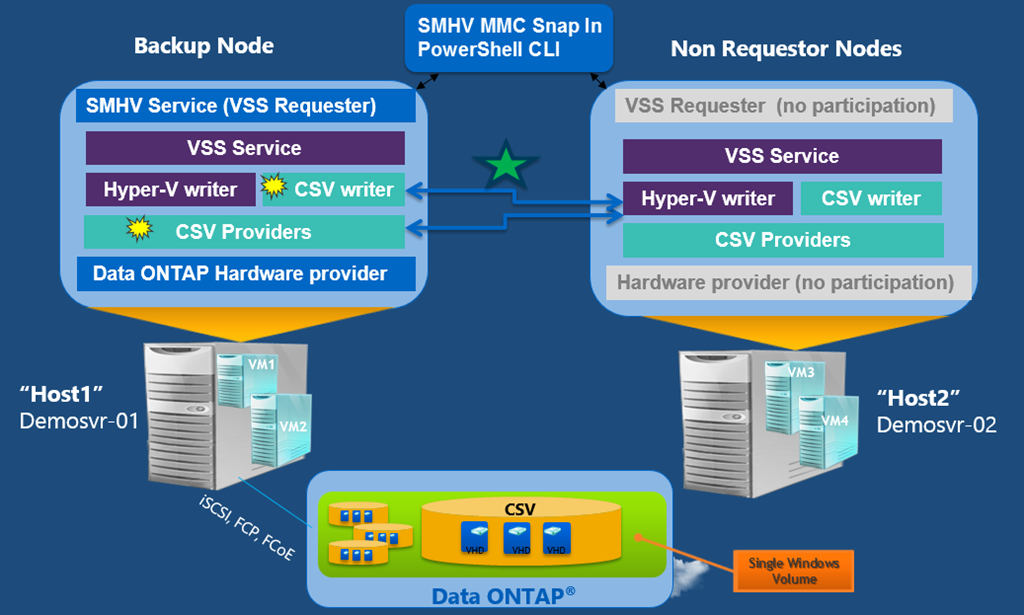
This has been made possible thanks to substantial changes in how VSS places VMs that are stored on CSV into a quiescent state.  The backup agent (VSS Requestor) kicks off a backup request with a list of virtual machines.  The Hyper-V Writer identifies the storage location(s) of the VMs’ files.  A new component, the CSV Writer, is responsible for coordinating the Hyper-V nodes in the cluster … meaning all VMs on a CSV that is being backed up to be placed into a quiescent state at the same time.  This allows for a single distributed VSS snapshot of each CSV.  That allows the provider (hardware, software or system) to go to work and get the snapshot.

image

This is much simpler than what CSV did in Windows Server 2008 R2.  [The following does not happen in WS2012] There was no CSV Writer.    There was no coordination, so Redirected IO was required.  The node performing a snapshot needed exclusive access to the volume so all IO went through it for the time being.  A lot of people knew that bit up to there.  The bit that most people didn’t know was that each node (hosting VMs that were being backed up) took snapshots of each CSV that was being backed up.  And that could cause problems.

I’ve heard several times now from people who’ve experienced issues with volumes going offline during backup.  There were two causes that I’ve seen, and both were related to a third party hardware VSS provider:

  • Using a hardware VSS provider that did not support CSV
  • The rapidly rotating and repeated snapshot process caused chaos in the SAN with the hardware snapshots

But, all that is G-O-N-E when backing up CSV on Windows Server 2012:

  • There is no redirected IO
  • There is a single VSS snapshot performed

SCSI3 Reservation Starvation Should Go Away

Every node in a Hyper-V cluster used SCSI3 persistent reservations and SCSI3 reservations to connected to CSVs.  Every SAN has a finite number of those persistent reservations and reservations.  The SCSI3 persistent reservations was a bottleneck.  No manufacturer shares that number, and it’s a hell of a lot smaller than you’d expect – we typically find out about it during a support call.  To compound this, each host required a number of SCSI3 persistent reservations, and that multiplied based on:

  • Number of hosts in the cluster
  • Number of CSVs
  • Number of storage channels per host (possibly even a multiple of the number of physical HBAs/NICs, depending on the SAN)

What happens when you deploy too many nodes, CSVs, or storage channels?  CSVs go offline.  Yup.  The SAN is starved of resources to connect the hosts to the LUNs.  I saw this with small deployments with an entry level SAN, 3 hosts, and 5 CSVs.  And it aint pretty.

Imagine a cluster with 64 nodes!?!?!  With Windows Server 2012, each node gets a static key instead of using the legacy persistent reservation multiplication.  That means your SAN can support more CSVs and more hosts running Windows Server 2012 than it would have with Windows Server 2008 R2.  Note that the static key is assigned when the node is added to the cluster.

You can find the static keys in the registry of your cluster nodes in HKEY_LOCAL_MACHINEClusterNodes<Node Number>ReserveID (REG_QWORD).  You can identify which node number is which host by the NodeName (REG_SZ) value.  You can see an example of this below.

image

This new system, which replaces persistent reservations, gives you better cluster infrastructure scalability, but it doesn’t eliminate the scalability limits of your SAN.

System Center Global Service Monitor Availability

Global Service Monitor for System Center 2012 SP1 Operations Manager is now available.  However, it’s not quite as simple as your normal feature in OpsMgr, because there is a cloud service involved.

Version 1.0.1800.0 of the System Center Global Service Monitor Management Packs can be downloaded and installed freely.  Then you are going to need an account for Global Service Monitor.  On this, Microsoft says:

You can sign up for a free trial account and use Global Service Monitor for free for up to 90 days. Beyond the 90-day free trial period, System Center Global Service Monitor is only available to customers with active Microsoft Software Assurance coverage for their System Center 2012 server management licenses.

This Software Assurance benefit will be available in March 2013 in supporting countries.  At the moment, these are Australia, Austria, Brazil, Canada, France, Germany, Ireland, Italy, Japan, Mexico, Netherlands, Singapore, Spain, Switzerland, United Kingdom, and the United States.

So, if you want to use GSM long term, you will need to be (a) in one of the participating countries, and (b) have current Software Assurance on your System Center licensing.  Beyond that, there is no additional cost that I can see.

Technorati Tags: ,,

KB2779768–Experiencing Issues When Using NLB In VMs On WS2012 NIC Teaming

The cumulative update, KB2779768 (released through Windows Update), fixes stability issues when you use Windows Server Network Load Balancing in virtual machines, that connect to the network using a Windows Server 2012 NIC Team.  This issue range from disconnections to sad faces of death (aka blue screen of death [BSOD]).

The observant of you will notice there is no documentation on the referenced page, and the referenced KB articles do not exist, at least publicly.  However, it has been confirmed that this update does include the fix for the above issue.

Memory Leak Issues Being Reported With KB2799728

I mentioned a new KB article/hotfix yesterday that resolves an issue with backup of CSV on WS2012 Hyper-V clustered nodes.

Tim Boothby and Rich Lilly commented on the post that people are reporting memory leak issues after installing this hotfix.  My advice: don’t install the update unless:

  • You really need it OR
  • It appears that the issue is resolved

System Center Hyper-V Monitoring Pack For Windows Server 2012

You can find the documentation on TechNet for the System Center Operations Manager management pack for monitoring WS2012 Hyper-V.  This management pack supports Operations Manager 2012.

The management pack will monitor:

  • The host
  • Virtual machines
  • RemoteFX
  • Hyper-V Replica

You can download this System Center management pack from here.

Office 365 vNext Training For Registered MicroWarehouse Cloud Customers

My employers, MicroWarehouse are running technical training on the next wave of Office365 at the end of this month.  Spaces are limited – and they are restricted strictly to employees of Microsoft partners that have completed the process of registering MicroWarehouse as their cloud distributor.  Such training is one of the benefits of this registration.

Anyone with questions on registration or becoming a Cloud Essentials partner can contact their MWH account manager for assistance.

Now for the training details.  We’re lucky to have Office 365 MVP Kerstin Rachfahl coming over from Germany to deliver this training.  Kerstin, and her husband Carsten (a fellow Virtual Machine MVP), work in the SME space just like the majority of Microsoft partners, and the training will be focused on this market, making the training very relevant to Irish partners.  I will be sitting in too – cos I want to learn from an expert.

The details of the training are:

image

As I said, this event is exclusively for technical employees of Microsoft partners that have completed the process of registering MicroWarehouse as their cloud distributor.  Those folks may register for this event here.

Technorati Tags: ,

Windows Server 2012 NIC Teaming Part 6 – Support Policies

Windows Server 2012 NIC Teaming Part 1 – Back To Basics

Windows Server 2012 NIC Teaming Part 2 – What’s What?

Windows Server 2012 NIC Teaming Part 3 – Switch Connection Modes

Windows Server 2012 NIC Teaming Part 4 – Load Distribution

Windows Server 2012 NIC Teaming Part 5 – Configuration Matrix

Windows Server 2012 NIC Teaming Part 6 – NIC Teaming In The Virtual Machine

This post is going to focus on support policies.  I expect most mistakes in NIC teaming will be where people try to do things that are not supported.  I want to summarise the support policies here.  This content, once again, is taken from Microsoft’s document on NIC teaming.

Feature Support

There are lots of networking features in Windows Server 2012.  Some support NIC teaming, some work great with NIC teaming, some (like SR-IOV) ignore NIC teaming in the host but are fine with NIC teaming in the guest OS, and some flat out do not support NIC teaming.

Feature

Comments

Datacenter Bridging (DCB)

Works below NIC Teaming in the NIC so is supported if the team members support it.

IPsec Task Offload (IPsecTO)

Supported if all team members support it.

Large Send Offload (LSO)

Supported if all team members support it.

Receive side coalescing (RSC)

Supported in hosts if any of the team members support it. Not supported through Hyper-V switches.

Receive side scaling (RSS)

NIC teaming supports RSS in the host. The Windows Server 2012 TCP/IP stack programs the RSS information directly to the Team members.

Receive-side Checksum offloads (IPv4, IPv6, TCP)

Supported if any of the team members support it.

Remote Direct Memory Access (RDMA)

NIC team members cannot support RDMA because the protocol bypasses the networking stack.

Single root I/O virtualization (SR-IOV)

You cannot do NIC teaming with SR-IOV enabled NICs.  Do the teaming in the guest OS with 2 Hyper-V external switches.

TCP Chimney Offload

Not supported through a Windows Server 2012 team.

Transmit-side Checksum offloads (IPv4, IPv6, TCP)

Supported if all team members support it.

Virtual Machine Queues (VMQ)

Supported when teaming is installed under the Hyper-V switch.

QoS in host/native OSs

Supported, but use of minimum bandwidth policies will degrade throughput through a team.

Virtual Machine QoS (VM-QoS)

VM-QoS is affected by the load distribution algorithm used by NIC Teaming. For best results use HyperVPorts load distribution mode.

802.1X authentication

Not compatible with many switches. Should not be used with NIC Teaming.

Team Members

Between 1 and 32 team members (2 in a guest OS NIC team) on the Windows Server 2012 hardware compatibility list (WHQL or logo’d).  The NICs can be of mixed model and manufacturer. 

The active team members can be of different speed, but must be operating at the same speed.  A hot-spare NIC (in a 2-team-member team) maybe run at a different speed than the active team members.

You cannot use NICs other than Ethernet in your team – no Wi-Fi, Bluetooth, etc.

Guest OS NIC Teams

See my previous post on Guest OS NIC teaming.

The preferred (that is, not the only way, just the preferred way) to support multiple VLANs in a single VM is to:

  1. Create multiple vNICs in the VM, one per required VLAN
  2. Enable trunking on the physical switch(es)
  3. Configure a VLAN ID for each virtual NIC, one per required VLAN
  4. Rename the virtual NICs (the VLAN ID as part of the name) using Rename-NetAdapter

Teaming

You cannot create a team made up of other teams.  You cannot use the team interface of another NIC teaming technology as a WS2012 team member or vice versa.

Microsoft says:

… it is STRONGLY RECOMMENDED that no system administrator ever run two teaming solutions at the same time on the same server.

In other words, don’t use HP/Dell/Intel/Broadcom NIC teaming on a machine where you intend to use WS2012 NIC teaming.  And remember – Microsoft does not support any 3rd party NIC teaming and never has.

You cannot create a NIC team that is made up of management OS NIC teams. MPIO is not NIC teaming and we can use MPIO for multiple management OS virtual NICs for iSCSI. 

MAC Address and Switch Independent/Address Hash Teams

This is an odd one.  Remember that this type of team receives inbound traffic on a single IP team member?  That’s because it uses a single MAC address to register the IP address.  Removing the primary team member from the team, and reusing it for something else on the network can cause a MAC address conflict with unpredictable results.  To prevent/resolve this, disable and re-enable the team interface – that causes the team to pick a new MAC address to register on the network.

VLANs

To support VLANs on the NIC team or in guests:

  • Set the team members physical switch ports to trunk mode
  • Do not filter VLANs on the team members

Virtual Switch

When using a NIC team for a virtual switch, there should be just a single team interface.  This team interface is used just for the virtual switch.  There should be no VLAN filtering in the team or the team interface.  All VLAN filtering should be done by the switch (properties of virtual NIC), or within the guest OS.

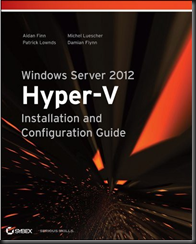
This is the last planned post in this series, but I might revisit with more if I think of something.  I am not doing any technical posts on how to create/configure/use teams – you can read all about that in Windows Server 2012 Hyper-V Installation and Configuration Guide (available on pre-order on Amazon, and due in Feb/March) where you’ll find in-depth discussion of NIC teaming, as well as all the other pieces of networking that will make your WS2012 Hyper-V hosts sing.  The chapter I wrote on Hyper-V networking is a monster, taking you from the very basics, through virtual switches, extensibility, VLANs, NIC teams, hardware offloads/optimisations, QoS, and converged fabrics … with lots of examples and PowerShell:

image

And no, there are no preview/beta copies of the book.

Dell Releases vOPS Server Explorer 6.3 For Hyper-V and VMware – And There Is A Free Version

Last week, I (and a few others) was lucky to be offered a demonstration of vOPS Server Explorer 6.3, a product of vKernel (now a part of Dell).  This product, launched today, adds to the management functionality of System Center or vCenter.  vOPS Server Explorer also supports Red Hat Enterprise Virtualization.

What I saw was a very interesting intelligence system.  It gathered data from your management system, combined it, analysed it, and gave you a better view of how your infrastructure is operating, resources, are being used, and virtual machines are performing.  You’ll also find very nice features such as Zombie VMs (to control VM sprawl – maybe relocate them to the VMM Library and delete at a later point), and Rightsizing Savings (over allocating resources to VMs is costly in resources and can actually reduce overall host performance).

There is a free version which will alert you to issues.  If you “upgrade” it to a trial of the paid-for version then you can use vOPS Server Explorer to fix the issues.  You get a time-limited trial, which you can pay for to complete the upgrade or downgrade again to the free product.

One of the features which I think larger or change-controlled organisations will like was the change log (Change Explorer).  Configuration changes are tracked and associated with the person responsible.  And there’s an undo option!

image

You can learn more about the release here and download it here.  The release information site includes a bunch of youtube videos with demonstrations of vOPS Server Explorer in action.  The installation and configuration guide is here.

Installation is easy: vOPS Server Explorer is delivered as a virtual machine, and the guide will walk you through getting it running.

Note that the Hyper-V requirements are:

  • Systems Center Operations Manager 2007 R2 and Systems Center Virtual Machine Manager 2008 R2
    Or
    Systems Center Operations Manager 2012 and Systems Center Virtual Machine Manager
    2012

Java 1.6 or higher is required.

Technorati Tags: ,,