How Will Windows 8 Enter The Business?

Quite honestly, IT departments hate change. So you can imagine how administrators are reacting to a reimagined Windows 8! There’s lots of things to consider:

Resistance is Futile

Administrators are going to resist change; I’ve no doubt. But you know what, it might be like with Windows XP. I think it was Mark Minasi (I might be wrong) who might have coined the phrase “Windows FP” (Fischer Price). Experienced admins and power users hated the way Windows in the workplace was moving stuff around and hiding complexity. Windows 9X users hated this bigger OS that appeared to be more complex.

My first end user experience with an XP deployment was an overnight install. I went in the following morning, trying to ready myself for the worst … and the users loved Windows XP.

Guess what … no BS … that’s been my experience with Windows 8.  The folks in our office who have tried it have like it.  After a recent briefing, half the attendees volunteered to be upgraded from Windows 7 to Windows 8.  Edit: they’ve been all over the new Windows 8 devices that have arrived in our office this week.  I lost track of the Toshiba u920t as it passed from desk to desk.

I’ve been using Windows 8 on a classic Windows 7 PC with non-touch since it was on TechNet. (a) The OS is faster. Using it was faster. (b) I’m almost always in the desktop, and I’ve pinned my usual tools on the task bar like I did with Windows 7.  (c) When I do anything to get a Start Menu, the Start Screen comes up and short cuts for my installed programs or Windows Store apps are there. (d) Search in Windows 8 is the best search experience I’ve had. Ever.

Since then, I have been given a design-for-Windows 7 touch (2 points) monitor, and I upgraded to Office 2013 yesterday. I very rarely touch the monitor … so touch isn’t required.  And there’s little things in Office 2013 that I love, such as calendar peek, and the speed of it.

I think employees will not resist Windows 8. They’ve been using alternative OSs for the last 5 years (Android and IOS). My number one rule is that users are stupid, but I think Windows 8 will be a popular option if they get to try it.

XP End Of Life

Since 2001, Windows XP gone on to become the biggest competitor to Vista, Windows 7, and now Windows 8.  XP still has around 50% of the market.  But XPs day’s are numbered; it is in extended support now (no bug fixes, no new software from Microsoft, only security fixes) and that ends in April 2014. There is zero chance of an extension like what happened with Windows NT.  Back then, NT was vNow – 2, with very little adoption of Windows 2000 Workstation.  XP is vNow – 3, with Windows 7 making a nice dent in the enterprise in the last 2 years.  The EOL of XP should be no surprise; MSFT has been talking to partners and enterprises about this since extended support started.

That’s the market that partners will target. While those who have started introducing Windows 7 will continue down that road, there are a large percentage of customers who have made no move.  Windows 8 offers everything that Windows 7 did, but more.

Windows 8 Enterprise

There are certain things in Windows 8 Enterprise that may be appealing.  The biggest draw in Enterprise in the past was BitLocker, but that’s now in the Pro edition too.  DirectAccess was a nice concept but too messy.  Not the alternative to VPN is 3-clicks away in Windows Server 2012 and it doesn’t require Forefront UAG to do IPv6 to IPv4 conversion.  Windows 8 Direct Access also runs a lot better and can connect with the closest responding of multiple administrator assigned DA gateways.  There’s other stuff in there too that can improve security and administration.  And don’t forget the massively improved VDI experience too that Windows 8 offers (with touch support for your tablet clients!) – Windows 8 Enterprise clients do not need additional VDA licensing.

Tablets

You can’t deny it; the iPad has appeared in the business. I speak mainly to SMEs in Ireland, and lots of iPads are used by people in the audience to stay connected or to take notes. We’ve seen stories of thousands of iPads being bought by corporations.  Whether they’re being brought in and being used by users (BYOD), either approved or not, or they’re being supplied by IT, the tablet is here. It might be a companion device for the most part, but the iPad is here.

Windows 8 (x86/x64) and Windows RT (ARM – Windows Store apps only – will be possible to side load via Windows Intune) is Microsoft’s response. MinWin made it possible for these devices to work really well with Windows 8.  If you want the iPad alternative then maybe you get a Windows RT device such as the Surface or similar.  If you want a machine you can deploy a Windows 8 image to, make a domain member, and install Outlook on, then you go for one or the PC/Pro models that run Windows 8 Pro, such as the Samsung ATIV Smart PC or similar.  You can get them with cover keyboards, no keyboards, detachable laptop style keyboards with batteries, or even permanently attached keyboards (Lenovo Yoga).  You can get them with TPM chips for managed BitLocker storage encryption.  You can get them with USB slots to enable BYOD devices to boot up with a company supplied Windows 8 Enterprise on a supported USB 3.0 storage device.

To put it simply, you can buy the classic consumer tablet with Windows RT, or you can buy/enable a pro style device that is business ready without making huge changes/additions to your PC management systems.

Software Developers

Quite honestly, I think these are the guys who will make the biggest impact on Windows 8 being adopted by mid/large businesses. If I have Windows XP/7 PCs and IOS tablets, then I need an LOB client app to be developed and tested 2 times for the 2 very different platforms. But if I have Windows 8 PCs and Windows 8/RT tablets I can go 2 ways:

  • Develop a Windows Store App (side load via Windows Intune to keep it private) for all devices including Windows 8 devices and Windows RT tablets
  • Develop a classic program for all Windows 8 Pro/Enterprise PCs and tablets

I’m no phone dev, but I’m told that porting a Windows Store app to Windows Phone 8 is not that big a deal. On the other hand, I’m told that developing for IOS is nasty.

I’ve seen LOB app devs drive SharePoint, SQL Server, and Office sales.  1 critical app to a business can drive a change to the common desktop platform, no matter what IT thinks of it.  That’s my bet right now – a new app to work on all platforms can be the way to drive Windows 8 deployment.

See what Gartner thinks.  Business Insider has more on the topic.


Technorati Tags:

Survey On SQL Usage For System Center

I know … Surveys! … Me and some others are running The Great Big Hyper-V Survey of 2012 (still open) and now there’s another one:

System Center MVP, Paul Keely, (one of the authors of Mastering System Center 2012 Operations Manager) is running a survey on how people are using SQL Server in their System Center implementations. The purpose is to gather data to enable him to write a white paper on the subject – Paul is a very smart guy on the subject of System Center in the enterprise.

Take a couple of minutes, grab a tea/coffee/whatever, and answer a few questions in the survey.

Technorati Tags: ,

Microsoft Assessment And Planning Toolkit (MAP) 8.0 Beta

Don’t go sleeping on what be the hardest working team in Microsoft. They’ve just launched the beta for MAP 8.0.

he Microsoft Assessment and Planning (MAP) Toolkit’s new capabilities help you assess the readiness of your environment for deploying Windows 8 and Windows Server 2012. Included in the latest version of the toolkit are hardware and infrastructure readiness assessments to plan your deployment of Windows 8 and Windows Server 2012, prepare your migration to Windows Azure Virtual Machines, ready your environment for Office 2013, and track your Lync users.

  • Determine readiness for Windows Server 2012: MAP 8.0 Beta assesses the readiness of your IT infrastructure for a Windows Server 2012 deployment. This feature includes detailed and actionable recommendations indicating which machines meet Windows Server 2012 system requirements and which may need hardware updates. A comprehensive inventory of servers, operating systems, workloads, devices, and server roles is included to help in your planning efforts.
  • Determine your readiness for Windows 8: MAP 8.0 Beta assesses the readiness of your IT environment for a Windows 8 deployment. This feature evaluates your existing hardware against the recommended system requirements for Windows 8. It provides recommendations detailing which machines meet the requirements and which may need hardware upgrades.
  • Assess environment for Office 2013: MAP 8.0 Beta assesses readiness for Office 2013 and provides an in-depth assessment of client desktops for upgrading or migration. This feature also offers support for Office 365 features such as web apps, Exchange Online, SharePoint Online, or full Office 365 client support.
  • Plan migration to Windows Azure Virtual Machines: MAP 8.0 Beta performs a comprehensive assessment of Windows Server and Linux machines to determine if a migration to Windows Azure Virtual Machines is possible. The toolkit then offers suggested changes to prepare the machines for migration. Key features help you reduce the operating costs of hosting on-premise servers as well as estimating the required size and monthly network and storage usage required to migrate on-premise Windows and Linux servers to Windows Azure Virtual Machines using the data from the environment.
  • Track Lync Enterprise/Plus users: MAP 8.0 Beta’s Lync Enterprise and Usage Tracking feature counts the number of Lync Enterprise/Plus users as well as device activities for determining the number of required client access licenses (CAL). For Lync 2010, MAP provides a server inventory and software usage by device and user for Lync Standard features. MAP’s updated Software Usage Tracking feature provides consistent software usage reports for key Microsoft products including Windows Server, SQL Server, System Center, Forefront Endpoint Protection (FEP), and Lync.

Regular readers know that I strongly demand encourage people to perform an assessment before any virtualization project. In the case of Hyper-V, MAP is your free starting point.

Evaluate Hyper-V, Windows Server 2012, and System Center 2012 For Free

Have you ever wished that you could get access to Microsoft server software without making a financial commitment first? Maybe you want to learn how to install or manage the software for a professional certification. Maybe you want to do a proof-of-concept with a customer. Maybe you want to upgrade your hypervisor.

You can download:

Windows Server 2012

Get your hands on a 180 days’ time limited trial of Microsoft’s latest server operating system, Windows Server 2012, that is “built from the cloud up”. See how Hyper-V gives more flexibility and agility than any other hypervisor, test the performance and new architectures of networking, put the de-duplication, scalability and continuous availability of storage to the test, and try out the improved remote connectivity of Direct Access and Remote Desktop Services.

When you’re satisfied (and you will be!) then you can convert the evaluation copy of Windows Server 2012 to a volume license.

System Center 2012

There is quite a lot to see, try, and learn in System Center 2012. You can deploy and manage the compute cluster and fabrics of a private cloud, monitor SLA health from networks through to client perspective, provide security, backup data, give end users IT controlled self-service application deployment, automate tedious manual tasks, and change how IT service delivery is provided to the business.

Hyper-V Server 2012

Microsoft’s machine virtualisation solution, Hyper-V, is free if you license your Windows Server virtual machines correctly. In fact, you probably own Hyper-V if you are using another virtualisation product. But what if you want to:

  • Upgrade Hyper-V to the new feature leading 2012 release without upgrading all of your virtual machines
  • Try out Hyper-V for free
  • Deploy a VDI solution
  • Run one of the many supported Linux distributions in your virtual machines

Then you can use the free to download Hyper-V Server 2012. It has all of the Hyper-V and Failover Clustering the features & scalability of Windows Server 2012 Hyper-V without the Windows Server virtualisation rights for virtual machines. For service providers, this might be a way to enable your customers to become ready for a new DR-as-a-Service business based on Windows Server 2012 Hyper-V Replica.

Even The Company That Allegedly Killed Metro Has Poor Selection Of Windows 8 Stock

I blogged just over a week ago about my disappointing experience in Irish retailers on the opening day for Windows 8. In summary, the manufacturers did not supply stock and missed a huge opportunity. And Surface is available in the UK (and some other countries too), but only to those who pay from UK addresses.  So there was no Windows 8 tablet for me!

I was speaking at E2EVC in Hamburg, Germany, and a few of us nerdy types decided to go over to Saturn, a very large electronics chain, that is similar to Currys in the UK. Oh, Saturn is a part of the Metro family. the brand that some allege is responsible for the death of the Metro brand in Windows 8 and Windows phone.

The basement was where all the computers were.  Dozens and dozens of laptops, apparently in any old random order.  Most of them running Windows 7.  A few ran Windows 8 but none had touch that we could find.  A few (not many) had gesture pads.  And then we found a helpful sales assistant who showed us an Asus Vivo RT tablet.  We had a go.  To me, it seemed thinner than lighter than the old-new iPad (v3).  The price? 729 Euros including the battery/keyboard.  That’s $1,000 USD.  They only had a few in stock.  In fact, a delegate to E2EVC bought their last one.  This is it in my hands:

image

The keyboard was much nicer than I expected, similar to the Toshiba or Samsung ultrabooks, and much better than the Asus UX31 keyboard.  Note that Misco.ie (and UK) and Alternate.nl appeared to have stock of this tablet (not sure about keyboard SKU) when last I looked.

Myself: I ordered the Samsung ATIV Smart PC.  When it came down to it I had to have a transformer type as above where the tablet detaches.  I decided that Windows RT is not for me.  I watch a lot of video while travelling and the inability to install Silverlight or codecs would kill it for me.  When names like NFL Gamepass and VLC join Netflix then maybe … but not for a few years because my Samsung should arrive in the office on the 16th.

For work, we needed a tablet to demo.  None of the manufacturers that we distribute have produced a Windows 8 tablet of any kind.  An Asus was out of the option.  So were Samsung (and too late for an event we’re going).  Microsoft Surface would be inoffensive because no one distributes them.  But where to get one?

Thomas Maurer (MVP) to the rescue.  He lives in Switzerland and ordered one from MSFT Germany’s store.  In fact, it was delivered today, 7 days after ordering it.  We checked at the office and we ordered one this morning.  Two things:

  • German keyboards are different to UK/IE (I think Dutch is similar to ours) ones.  They swap their Y and Z and therefore are QWERTZ instead of QWERTY.
  • You allegedly can change the language of Windows 8 and Windows RT.  In fact I think you’re asked what language you want when you run the mini-setup wizard on the first boot up or reset.

We won’t care too much about the keyboard.  This is a demo machine.

So that’s the story.  You can get a Windows 8 tablet but it’s not as easy as it should be.  And the company that allegedly killed Metro has sweet FA Windows 8 stock on their messy shelves.  That same company sells iPads via vending machines in airports too (559 Euros for the new-old 16GB Retina model).

IMG_0706

Technorati Tags: ,

Live Migration Security Failures, Kerberos Live Migration Authentication & Constrained Delegation

In the past 3 weeks I’ve delivered my 75 minutes long Live Migration session at 2 events in Barcelona (Spain) and Hamburg (Germany). The big topic in WS2012 Live Migration is being able to do Live Migration in new ways:

  • Inside a cluster with traditional storage
  • Inside a cluster with shared SMB 3.0 storage
  • Between non-clustered hosts with shared SMB 3.0 storage
  • Between non-clustered hosts with no shared storage (Shared-Nothing Live Migration)
  • Between clustered hosts in different clusters with no shared storage (Shared-Nothing Live Migration) – requires you to disable HA for the VM before migration and re-enable it after migration (no downtime required)
  • Between clustered hosts and non-clustered hosts with no shared storage (Shared-Nothing Live Migration) – requires you to disable HA for the VM before migration (no downtime required)
  • Between non-clustered hosts and clustered hosts with no shared storage (Shared-Nothing Live Migration) – you should to enable HA for the VM after migration (no downtime required)

Let’s talk security for a moment, to figure out why Kerberos Constrained Delegation is required.  Say you are only going to do LM inside a cluster. You do not have to enable LM in the host settings.  If you do want LM between hosts that are not in a common cluster, then you need to enable LM.  Then you see there are 2 authentication types.

If you want quick and dirty, you pick CredSSP authentication when you enable LM. It allows you to push a VM from the host you are logged into. It’s find for demo, but useless in the real world, e.g. running Hyper-V Manager from your PC or using a centralized management system.  You will get security issues if trying to LM a VM and you are not logged into the host if you use CredSSP.

The alternative is Kerberos authentication. This allows an authorized Hyper-V administrator to run LM from any domain member machine, therefore not requiring you to log into a host to push a VM. You might remember that mounting an ISO over a file share requires CIFS delegation. We have to do something similar to that for LM to work with Kerberos authentication.

The process of enabling Kerberos Constrained Delegation via GUI is:

  1. Enable the advanced view in ADUC
  2. Edit the properties of the host’s computer account
  3. Edit the Delegation tab
  4. Add the required computer accounts
  5. Add the required service types to delegate
  6. And the bit no one in MSFT talks/blogs about: reboot the host that you just modified the computer object of, e.g. reboot Host2 if you edited the Host2 computer account

So what computer accounts and service types you add, and where? There are 2 scenarios that I’ll talk about:

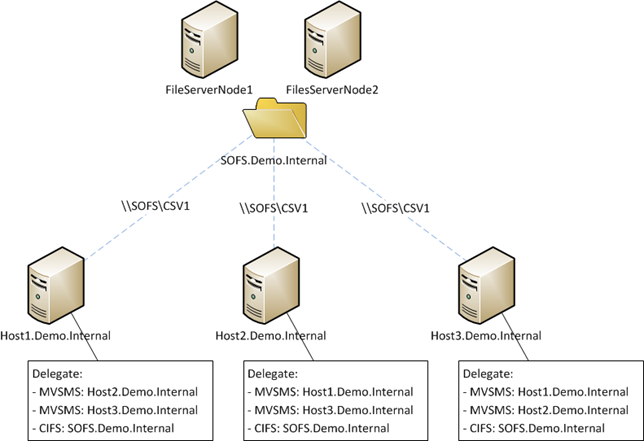
1) Shared SMB 3.0 Storage and Non-Clustered Hosts

You need to edit each host that can be involved in LM:

  • Delegate Microsoft Virtual System Migration Service for every  other possible LM host
  • Delegate CIFS for every possible file share that LM VMs will be stored on. Use the computer account of the Scale-Out File Server (SOFS) if using SOFS, and not the node members.

image

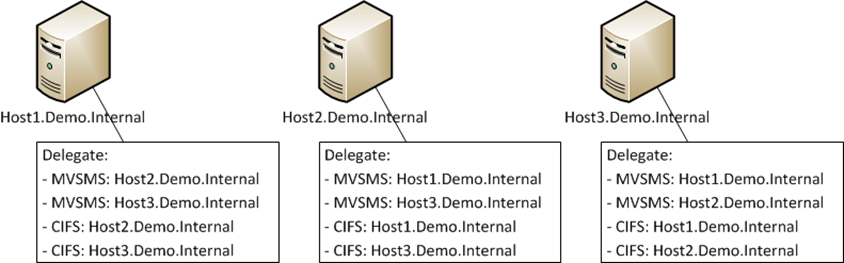
2) Shared-Nothing Live Migration

This one requires more work. For every host that can be involved in LM, you need to delegate:

  • Microsoft Virtual Machine Migration Service for every other possible LM host
  • CIFS for every other possible LM host

image

There’s a lot of clicking involved in all that. This is why PowerShell is so … powerful. Save some time. Reduce the mistakes. Script it:

$HostName = "host1"
$HostFQDN = "$HostName.demo.internal"
Get-ADComputer host2| Set-ADObject -Add @{"msDS-AllowedToDelegateTo"="Microsoft Virtual System Migration Service/$HostFQDN", "Microsoft Virtual System Migration Service/$HostName", "cifs/$HostFQDN", "cifs/$HostName"}

That Set-ADObject cmdlet took me a while to figure out. I actually set the settings I required in the GUI, ran Get-ADObject and copied/pasted the value of msDS-AllowedToDelegateTo Smile

You could go create a function for the last line of the script, and just pass the name of the Host you’re editing and the name of the host you want to delegate to. I’m not going to do everything for you … I’ve got to hold something back for the book.

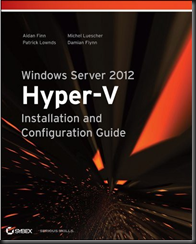
Speaking of which … this is just a teeny tiny snippet of Windows Server 2012 Hyper-V Installation and Configuration Guide (available on pre-order on Amazon). I just submitted my VM management chapter to the editors. It was 78 pages of text. And I’ve since realised that I need to add more stuff to that chapter!

image

Technorati Tags: ,

You Pause A Clustered Hyper-V Host And Low Priority VMs are QUICK MIGRATED!

Wh-at!?!?!? Isn’t Quick Migration dead?  Nope. Here’s why and here’s how to change this default behaviour:

Live Migration uses a LM network to copy/synchronize a running VM’s changing memory from a source host to a destination host. We have simultaneous LMs and we can do lots of those over 10 GbE, RoCE, or Infiniband to vacate a host for maintenance.

  • What if you have to get VMs off of a host really quickly?  You could find your bandwidth becomes a limit.
  • What if you have converged fabrics? Transferring VMs over that could hammer the network.

But you want to get the host offline as quickly as possible.  What to do?  We have the ability in WS2012 Hyper-V to prioritise VMs for failover ordering:

  • High: first
  • Medium: second
  • Low: last

Microsoft heard from some people that they wanted to treat low priority VMs differently when they pause a host (and only when they pause a host). They wanted to move the low priority VMs without the network/system interrupts of LM. They wanted to use Quick Migration.  So here is what happens (by default) if you pause a clustered host with high, medium, and low priority VMs):

  1. High priority VMs will LM first
  2. Medium priority VMs will LM second
  3. Low priority VMs will move using Quick Migration – and this happens in parallel with the others

Quick Migration will:

  • Put a VM into saved state. Make sure the Virtual Machines folder of the VM has sufficient space. It needs to match the currently allocated amount of RAM (Dynamic Memory changes this)
  • Transfers ownership of the VM files to the destination host
  • Starts the VM from the saved state
  • The VM is offline for X seconds, depending on storage bandwidth, storage speed, and the amount of RAM assigned to the VM

The load of Quick Migration is placed on the storage rather than on the LM network. But it implies that Low priority means that the VM has a lesser SLA, and it can be brought offline to move it when you put a host in maintenance mode (such as Cluster Aware Updating, or unplanned h/w maintenance).

I personally think this is not how most people will understand Low priority. Most of us consider Low Priority as an ordered mechanism in Failover Cluster VM failover, not as an SLA bracket.  I’ll be quite honest; I did not know about this default behaviour until Carsten Rachfahl (MVP) talked about it in a cluster presentation at TEC2012. We fired up my lab at work and proved it.  I asked MSFT if you could change this default behaviour.  We can.

Run this PowerShell to see why Quick Migration is used:

PS C:Usersadministrator.DEMO> Get-ClusterResourceType “Virtual Machine” | Get-ClusterParameter | fl *

….

ClusterObject : Virtual Machine
Name          : MoveTypeThreshold
IsReadOnly    : False
ParameterType : UInt32

Value         : 2000

Priority is a numeric value that that is assigned to VMs.  Low = 2000.  Changing the value of this VM attribute is not supported.  Note the highlighted results above.  The threshold for using QuickMigration is 2000.  OK!  While we cannot (for support reasons) customize the priority numeric value of the VM, we can change the threshold for doing Quick Migration:

Get-ClusterResourceType “Virtual Machine” | Set-ClusterParameter MoveTypeThreshold 1000

Now when you pause a host, a Low Priority VM (2000) will not cross the threshold for Quick Migration (1000) and it will be live migrated just like the high and medium priority VMs. Problem solved.

Note: If there is contention across the cluster after host failures, low priority VMs will be powered down to make room for higher priority VMs.

Windows Server 2012: Help us defluff Microsoft’s ‘cloud’ OS–With The Register

I have been asked to participate in a live chat hosted by The Register (November 5th, 2PM GMT/9am Eastern) to talk about Windows Server 2012’s role as a cloud operating system. Expect lots of Hyper-V, storage, and networking chat.
Say “cloud”, and you think Amazon, Google, VMware – but Microsoft?
Yet Windows Server 2012 brings changes in scalability, management and flexibility that are helping turn the tide on one member of that triumvirate – VMware. This is because customers are starting to switch to Hyper-V, the Windows hypervisor-based virtualisation system which comes bundled in with Windows Server 2012, rather than paying extra for VMware.

Join All-About-Microsoft’s Mary Jo-Foley; Reg regular and ITwriting author Tim Anderson; MVP and co-author of the Great Big Hyper-V Survey Aidan Finn, representing Microsoft; and fellow Reg readers in a Live Chat to talk about what’s in Windows Server 2012 and why exactly it’s starting to turn the tide on market-leader VMware.

We’ll be looking at why enterprises are likely to upgrade now rather than later and working out where Windows Server 2012 fits into a Redmond cloud story that also contains Windows Azure.
Is this a “software data centre”, a “cloud OS” or server marketing BS?
Speak your Brains on at 2pm GMT, 9am Eastern, 6am Pacific, on 5 November. Ahead of that, register in the Live Chat window below.
It should be fun. Hopefully I’ll see you there

Expanded Supported Guest Operating Systems on WS2012 Hyper-V

The support for Windows Server 2012 guest OSs has been expanded by Microsoft.  On the server OS side the changes are mostly on the Linux side; OpenSuse and Ubuntu are now listed as supported. Previously they were not supported but they worked.

Guest operating system (server)

Maximum number of virtual processors

Notes

Windows Server 2012

64

Integration services do not require a separate installation because they are built-in.

Windows Server 2008 R2 with Service Pack 1 (SP 1)

64

Datacenter, Enterprise, Standard and Web editions. Install the integration services after you set up the operating system in the virtual machine.

Windows Server 2008 R2

64

Datacenter, Enterprise, Standard and Web editions. Upgrade the integration services after you set up the operating system in the virtual machine.

Windows Server 2008 with Service Pack 2 (SP 2)

8

Datacenter, Enterprise, Standard and Web editions (32-bit and 64-bit). Install the integration services after you set up the operating system in the virtual machine.

Windows Home Server 2011

4

Edition information is not applicable. Install the integration services after you set up the operating system in the virtual machine.

Windows Small Business Server 2011

Essentials edition – 2

Standard edition – 4

Essentials and Standard editions. Install the integration services after you set up the operating system in the virtual machine.

Windows Server 2003 R2 with Service Pack 2 (SP2)

2

Standard, Web, Enterprise, and Datacenter editions (32-bit and 64-bit). Install the integration services after you set up the operating system in the virtual machine.

Windows Server 2003 with Service Pack 2

2

Standard, Web, Enterprise, and Datacenter editions (32-bit and 64-bit). Install the integration services after you set up the operating system in the virtual machine.

CentOS 5.7 and 5.8

64

Download and install Linux Integration Services Version 3.4 for Hyper-V.

CentOS 6.0 – 6.3

64

Download and install Linux Integration Services Version 3.4 for Hyper-V.

Red Hat Enterprise Linux 5.7 and 5.8

64

Download and install Linux Integration Services Version 3.4 for Hyper-V.

Red Hat Enterprise Linux 6.0 – 6.3

64

Download and install Linux Integration Services Version 3.4 for Hyper-V.

SUSE Linux Enterprise Server 11 SP2

64

Integration services do not require a separate installation because they are built-in.

Open SUSE 12.1

64

Integration services are built-in and do not require a separate download and installation.

Ubuntu 12.04

64

Integration services are built-in and do not require a separate download and installation.

Note that Linux (physical or virtual) requires numa=off in the grub file if you have more than 7 CPUs or 30 GB RAM in the (virtual) machine. That’s a Linux thing, not a Hyper-V or virtualisation thing.

The client OS list now is:

Guest operating system (client)

Maximum number of virtual processors

Notes

Windows 8

32

Integration services do not require a separate installation because they are built-in.

Windows 7 with Service Pack 1 (SP 1)

4

Ultimate, Enterprise, and Professional editions (32-bit and 64-bit). Upgrade the integration services after you set up the operating system in the virtual machine.

Windows 7

4

Ultimate, Enterprise, and Professional editions (32-bit and 64-bit). Upgrade the integration services after you set up the operating system in the virtual machine.

Windows Vista with Service Pack 2 (SP2)

2

Business, Enterprise, and Ultimate, including N and KN editions. Install the integration services after you set up the operating system in the virtual machine.

Windows XP with Service Pack 3 (SP3)

2

Professional. Install the integration services after you set up the operating system in the virtual machine.

Windows XP x64 Edition with Service Pack 2 (SP 2)

2

Professional. Install the integration services after you set up the operating system in the virtual machine.

You can see the supported list of guest OSs for the legacy versions of Hyper-V (2008, 2008 R2) here.