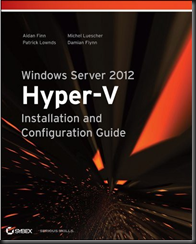
Phew! Just Finished Writing The Final Chapter Of The New Windows Server 2012 Hyper-V Book

I have just uploaded the draft of the final chapter (it’s actually Chapter 1) of the Windows Server 2012 Hyper-V Installation and Configuration Guide book. Not long now! But between now and then, lots of lots of edit reviews. My weekend is already booked up with them.

image

After this, no more book writing for a looooong time Smile

Altaro Giving Away 50 Free PC Backup Licenses To All Hyper-V Administrators!

I’ve gotten some very exciting news from Altaro, makers of Altaro Hyper-V Backup (that supports Windows Server 2008 R2 Hyper-V and Windows Server 2012 Hyper-V).  Altaro wants to give away for free 50 copies of their desktop backup product, Oops!Backup, to each Hyper-V administrator that can prove that they run Hyper-V.  Here’s the press release:

Altaro Software, a fast-growing developer of backup solutions for Microsoft Hyper-V, today announced that it is giving every Microsoft Hyper-V administrator 50 free licenses of Oops!Backup, their desktop backup solution.

“Following the success of our Hyper-V Backup solution this year, we wanted to give something back to the Hyper-V community during the holiday season” commented David Vella, CEO of Altaro. “Hyper-V admins can give out these licenses to their colleagues, friends and family, for use at work or at home.”

Oops!Backup is a popular desktop backup solution that allows users to preview & restore versions of their files from different points in time.

Any network administrator who uses Microsoft Hyper-V is eligible for the free license keys, they simply need to visit the Altaro website, send in a screenshot of their Hyper-V Manager and expect an email with their respective keys.

To claim the 50 free licenses go here. Thanks Altaro!

Note: Giveaway expires on Monday December 24th. Licenses are Not-For-Resale (NFR) keys.

Change the Office 2013 Colour Theme

First time I saw Office 2013 I thought “damn that’s very white”. It’s actually painfully white. As a picture, it lacks contrast (dark colours being closer to black, and light colours being closer to white) and a tonal range (because it’s almost all white by default).

I googled for a solution and nothing official from Microsoft appeared but I did find instructions in a forum.

  1. Open up an Office 2013 program
  2. Click on File –> Office Account or File –> Account, depending on the program you’ve launched
  3. Change Office Theme from White to one of the two other options.

Here’s how the default setting looks in Office Account:

image

That appears like this:

image

Changing the Office Theme to Light Grey has this effect:

image

That’s subtle. If you want more contrast/tone then go with Dark Grey:

image

Technorati Tags:

What Gartner Says Of Windows Server 2012 Hyper-V Versus vSphere 5.1

I previously did a comparison of Windows Server 2012 Hyper-V versus vSphere 5.1 and the response I got from VMware made me laugh out loud so much that my colleagues thought I’d gone crazy. I was told by a well informed person that VMware formed a team to attack me Smile Seriously guys!?!? Little ol’ me, a blogger?
So what will VMware do to attack Gartner?  This is what Gartner vice-president and distinguished analyst Carl Claunch said, according to Computer Weekly:

If you are beginning to move to the cloud then Hyper-V is worth a serious look

That’s because we know that VMware’s management is inferior and is integrated if you consider a rename and change of icon as integration, like CA did with their Unicenter TNG framework back in the 1990s.  VMware has nothing that comes any way close to touching System Center, and Windows Server 2012 Hyper-V is “built from the cloud up”.

Windows Server 2012 is more advanced than VMware

Woops! Smile We know that a big reason that people use virtualization is flexibility. How do they compare here in Gartner’s opinion?

Hyper-V is much more flexible

That’s gotta hurt if you once touted vMotion as the best thing since sliced bread. But vMotion is inferior to Live Migration now.

Hyper-V is a viable alternative to VMware. Microsoft has improved the product’s position

Hey Tad, are you and your minions going to attack Gartner in your blog and on Twitter now?

KB281662 – How To Use Windows Server Cluster Nodes As Domain Controllers

Microsoft has just posted a Knowledge Base or support article, covering Windows Server 2003, Windows Server 2008, Windows Server 2008 R2, and Windows Server 2012 Failover Clustering, that describes how to enable Active Directory and use Failover Cluster nodes as domain controllers.

Doing this should be a last resort. It falls into my “don’t do it because you can” rule. For example, I can jump off of a cliff but I choose not to do so because I like breathing and the results that gives me.

There are some notes in the article:

  • Doing this is not supported on Exchange nodes
  • This is not supported for SQL Server nodes
  • Hyper-V recommends not to run roles other than Hyper-V in the Management OS (the article mistakenly calls it the parent partition)
  • And the list goes on and on and on …

The fact that this list of notes is so long should indicate to you that implementing this configuration is bad.  I personally think Microsoft shouldn’t support it because there are too many morons out there who will do it, break it, and screw up their employers/customers.  If you’ve read this, ignored my advice, and call me for help, I will laugh in your face or down the phone at you.

Save this configuration for the lab only.  That’s not the official line from Microsoft, but that’s my line.  Actually, read the list of notes in the article and you’ll see:

It is not supported to combine the Active Directory Domain Services role and the Failover Cluster feature on Windows Server 2012.

If you want to save money and not have additional physical domain controllers, then use Windows Server 2012 Hyper-V to take advantage of cluster bootstrapping. This will allow you to run virtual DCs. I’d consider running at least 2 virtual DCs, 1 being HA, and the other not. 

Windows Server 2012 Hyper-V Cookbook by Leandro Carvalho (MVP)

Congratulations to fellow Virtual Machine MVP Leandro Carvalho on the publication of his WS2012 Hyper-V book, Windows Server 2012 Hyper-V Cookbook.

"Windows Server 2012 Hyper-V Cookbook" is a practical cookbook packed with recipes showing and explaining all the features and components of Hyper-V. You’ll learn from best practices, tips and tricks and examples of how to automate daily and common tasks.

Windows 8 Being Blamed For “Weak” Windows 8 Sales – And Why That’s A Crock Of You-Know-What

There’s been a story floating about since Paul Thurrott reported that Microsoft are unhappy with the sales of Windows 8.  Paul does goes on to offer some possible explanations which I found to be quite reasonable.  In the story that’s been floating about since on several sites, the facts have been twisted somewhat.  Tom’s Hardware’s headline goes like:

Windows 8 Criticized for its Part in Ailing PC Growth

They quote an “expert”:

In a research note from analyst Chris Whitmore, the first reason Deutsche Bank attributed for decreasing its PC estimates this quarter was a "lackluster initial uptake of Windows 8."

Real Reason #1 – Supply

Consumers want tablets.  PC and laptop sales have dropped.  All that people want is tablets, tablets, tablets.  If Windows 8 is to succeed in the consumer market then there needs to be tablets to sell.  I was in stores on the day of the launch and there were plenty of people there …. at 09:00 on a Friday!  They wanted tablets … they circled the tablet desks … and some asked sales about Windows 8 devices.

Maybe Chris Whitmore should go to a shop and try to buy a new touch device, like a tablet, running Windows 8.  How many tablets has he seen on shelves running Windows 8 or Windows RT?  The largest chain in the UK/Ireland has no Windows 8 tablets.  Talking with a fellow MVP this week who had travelled to several of that chains stores in the last few weeks, he didn’t even see any touch laptops.  Personally, all I’ve seen are the expensive AiOs (Lenovo), the AiOs that look like they’re 1950’s TVs, a Sonly T13 touch ultrabook, and an Asus ultrabook clone with a PENTIUM processor … welcome to the 1990s folks!  Can’t blame a distributor for this chain, because this chain is their own distributor, and they often sign exclusive deals for models.  They are big and almost unopposed in retail; if they can’t get them, then how can any other retailer?

It’s not much different worldwide.  In Germany’s second largest chain (in the largest retail family), they had a small number of Asus Windows RT tablets on a Saturday a few weekends ago – and they sold out of those by midday.

I work in the channel (although I have almost nothing to do with retail supply).  I know what supplies of touch Windows 8 devices are like.  There is almost nothing around.  There were plenty of announcements by the hardware manufacturers but no few or no devices made it to the channel.  Our supply has been minimal so we’ve little to sell to retailers.  And retailers want Windows 8 touch devices.  I overhear “Surface” on a regular basis from the sales folks on the floor when they’re talking to our customers.

I wanted a tablet and searched high and low.  I pre-ordered from an online retailer, paid 41% more than the USA retail price, and had to wait nearly 2 weeks.  That online outlets supply is obviously very small.  So far, they’re the only place I’ve found in the UK/Ireland (60-70 million people) markets.

Everything I hear says that manufacturers won’t start to have a stable supply until Q1 2013.

Real Reason #2 – Selling

I’ve toured several of the big 2 in Ireland, and the biggest store of the second largest chain in Germany.  They haven’t a clue how to sell to people.  Windows has always had lots of device options.  Windows 8 makes the selection options almost mind boggling; people who I respect in this business are confused by the options.

Microsoft gets some blame here: they’ve fragmented and confused the market with Windows RT.  A desktop with Office RT (that requires purchase of an Office Pro license for commercial use) but doesn’t allow you to install/run traditional programs (because of ARM) is going to confuse customers.  I wonder how many Surface RT customers knew that?  I wonder how many sales people who do have 2rd party Windows RT devices know that?

Take some time at the weekend.  Go into a large store selling computers and tablets.  Walk over to the Apple section.  There you’ll find clean wood tables, that are clearly signed, lit up using Apple signage, with iPads in one place, MacBooks in another, and Macs in another.  All clean, well laid out, logically placed, and no confusion.  Apple understands retail.  And here’s the thing: if you want to sell Apple (with the tiny tiny margins that they allow you) you must comply with their display rules.

Now take a wander over to the section where you’ll find Windows devices.  I bet it’s like every place I’ve been to: a great big mess of machines scattered all over the place.  The stores that didn’t plan have mixed Windows 7 and Windows 8 machines together … ultrabooks, 17” laptops, convertibles, hybrids, maybe some Win7 slate PCs (almost a tablet but not quite), some with touch (maybe), some with gesture pads, some with no touch at all.  all mixed in a confusing collage of computing.  The sales person here doesn’t know anything about the hardware.  And imagine the poor customer, walking into this and trying to figure out what’s what.  Buying an Apple would be easier …

So why isn’t that all nice and clean like the Apple stuff?  I split the blame on this one.  The retailers are told what the rules are by Apple to be allowed to sell Apple gear.  However, anyone can “sell” Windows because there’s a bazillion of Windows device manufacturers.  Instead of being told how to display/sell, the retailers do as they please.  Want a retailer to display your Windows device a certain way?  You have to pay them to do it.  Yeah – the store owners expect the manufacturer to pay them so that the store owners can make a profit on display product that they will make a profit on if they sell it.  Madness!  Personally, I think Microsoft should start to enforce rules on the manufacturers that forces them to put rules on display at the point of sale.  A universal rule on the most sold category of product will force the retailers to cop on and sort their act out.

Summary

You can’t sell something you don’t have.  Blaming Windows 8 for poor sales is stupid because the devices aren’t there to be sold.  And when they are, they need to be sold in a way that doesn’t confuse the customer.

That’s my personal opinion anyway.

Technorati Tags: ,

Enabling SMB Multichannel On Scale-Out File Server Cluster Nodes

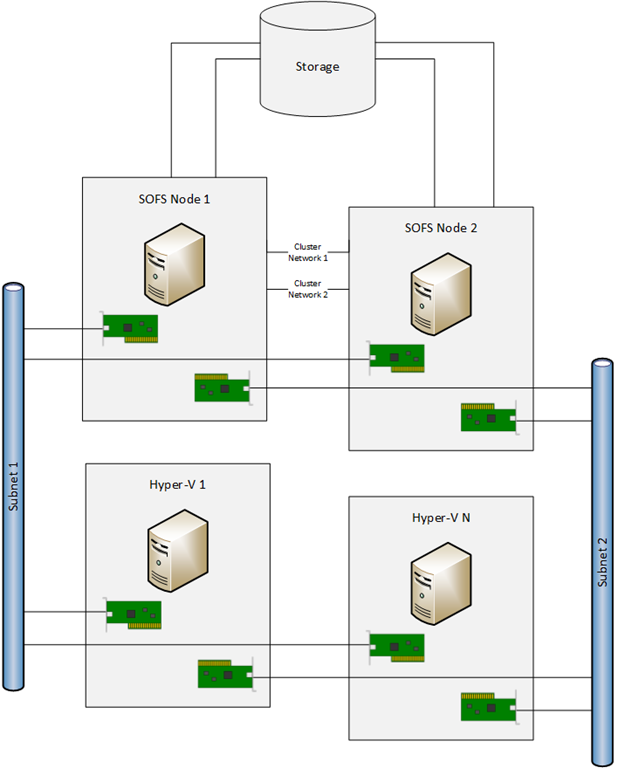
Ten days ago I highlighted a blog post by Microsoft’s Jose Baretto that SMB Multichannel across multiple NICs in a clustered node required that both NICs be in different subnets.  That means:

  • You have 2 NICs in each node in the Scale-Out File Server cluster
  • Both NICs must be in different subnets
  • You must enable both NICs for client access
  • There will be 2 NICs in each of the hosts that are also on these subnets, probably dedicated to SMB 3.0 comms, depending on if/how you do converged fabrics

image

You can figure out cabling and IP addressing for yourself – if not, you need to not be doing this work!

The question is, what else must you do?  Well, SMB Multichannel doesn’t need any configuration to work.  Pop the NICs into the Hyper-V hosts and away you go.  On the SOFS cluster, there’s a little bit more work.

After you create the SOFS cluster, you need to make sure that client communications is enabled on both of the NICs on subnet 1 and subnet 2 (as above).  This is to allow the Hyper-V hosts to talk to the SOFS across both NICs (the green NICs in the diagram) in the SOFS cluster nodes.  You can see this setting below.  In my demo lab, my second subnet is not routed and it wasn’t available to configure when I created the SOFS cluster.

image

You’ll get a warning that you need to enable a Client Access Point (with an IP address) for the cluster to accept communications on this network.  Damned if I’ve found a way to do that.  I don’t think it’s necessary to do that additional step in the case of an SOFS, as you’ll see in a moment.  I’ll try to confirm that with MSFT.  Ignore the warning and continue.  My cluster (uses iSCSI because I don’t have a JBOD) looks like:

image

You can see ManagementOS1 and ManagementOS2 (on different subnets) are Enabled, meaning that I’ve allowed clients to connect through both networks.  ManagementOS1 has the default CAP (configured when the cluster was created).

Next I created the file server for application data role (aka the SOFS).  Over in AD we find a computer object for the SOFS and we should see that 4 IP addresses have been registered in DNS.  Note how the SOFS role uses the IP addresses of the SOFS cluster nodes (demo-fs1 and demo-fs2).  You can also need the DNS records for my 2 hosts (on 2 subnets) here.

image

If you don’t see 2 IP address for each SOFS node registered with the SOFS name (as above – 2 addresses * 2 nodes = 4) then double check that you have enabled client communications across both cluster networks for the NICs on the SOFS cluster nodes (as previous).

Now we should be all ready to rock and role.

In my newly modified demo lab, I run this with the hosts clustered (to show new cluster Live Migration features) and not clustered (to show Live Migration with SMB storage).  The eagle-eyed will notice that my demo Hyper-V hosts don’t have dedicated NICs for SMB comms.  In the real world, I’d probably have dedicated NICs for SMB 3.0 comms on the Hyper-V hosts.  They’d be on the 2 subnets that have been referred to in this post.

Build a Windows Server 2012 Hyper-V Cluster Using PowerShell

I’ve previously posted a short and basic script that would build a Hyper-V Failover Cluster, but I’ve updated that script since for use in demos.  You can find my new script below.

What does it do?

  1. A new cluster is built with no attached storage.  My latest incarnation of my demos uses a Scale-Out File Server for the storage.
  2. It renames the cluster networks. Note that I’ve used converged fabrics via a virtual switch.
  3. Runs a function called Add-VMsToCluster which will scan all the cluster nodes for VMs to make them highly available
  4. Add-VMsToCluster will run a workflow which will in turn add VMs to the cluster in parallel (up to 5 at a time – a POSH subsystem restriction that Jeff Wouters helped me identify) rather than one at a time (which would be slower)

Things missing from the script:

  • There’s no error checking
  • Damned if I can find out how to set the Live Migration network for a cluster.  Don’t bother sending me your POSH cmdlets for configuring Live Migration networks for non-clustered hosts; that has no effect on clustered hosts.

Here’s the script:

####

# Written by Aidan Finn, @joe_elway, https://aidanfinn.com
# Author of Windows Server 2012 Hyper-V Installation And Configuration Guide
#
# Copyright
###########
# You may use and modify this script free of charge and without permission.
# You may not reproduce or share this script. Please forward people to this
# this page instead.
#
# Waiver
########
# You are solely responsible for testing and using this script and any
# results/problems. There is no support for this script.

Workflow Invoke-AddVMToCluster
{
Param (
[parameter(Mandatory=$true)][String[]] $VMList,
[parameter(Mandatory=$true)][String[]] $ClusterName
)

[string]$TheCluster = $ClusterName

ForEach -Parallel ($VM in $VMList)
    {
    Add-ClusterVirtualMachineRole -VMName $VM -Cluster $TheCluster
    }
# End of workflow
}

Function Add-VMsToCluster ($ClusterName)
{
$ClusterNodes = Get-ClusterNode -Cluster $ClusterName

ForEach ($AddNode in $ClusterNodes)
    {
    $VMList = Get-VM -Name * -ComputerName $AddNode
    If ($VMList -ne $null)
        {
        Invoke-AddVMToCluster -VMList $VMList.Name $ClusterName
        }
    }
# End of function
}

# The script starts here
CLS
Write-Host "Creating the cluster"
New-Cluster -Name demo-hvc1 -StaticAddress 192.168.1.61 -Node demo-host1, demo-host2 -NoStorage

Write-Host "Waiting 10 seconds for the cluster to initialise"
Start-Sleep -s 10

# This cluster is using storage provided by a Scale-Out File Server instead of traditional SAN
Write-Host "Configuring quorum to use file share witness"
Set-ClusterQuorum -NodeAndFileShareMajority \demo-sofs1HVC1-Witness

Write-Host "Renaming the cluster networks"
(Get-ClusterNetwork | where-object {$_.Address -eq "172.16.1.0"}).Name = "vEthernet (Host-Cluster)"
(Get-ClusterNetwork | where-object {$_.Address -eq "172.16.2.0"}).Name = "vEthernet (Host-LiveMigration)"
(Get-ClusterNetwork | where-object {$_.Address -eq "192.168.1.0"}).Name = "vEthernet (Host-Parent)"

Write-Host "Adding any existing VMs to the cluster"
Add-VMsToCluster "demo-hvc1"

####

This information has been brought to you by Windows Server 2012 Hyper-V Installation and Configuration Guide (available on pre-order on Amazon) where you’ll find lots of PowerShell like in this script:

image

Adding an SD Card To Windows 8 Tablet

Windows 8 tablets typically have a MicroSD card expansion port, allowing you to easily add more storage.  Some have an SD card.  I splashed out on a 64 GB MicroSD card with an SD adapter that arrived this morning.  I added it to my tablet.  The plan was to move my libraries to there so I can use the on-board 64 GB for programs and apps, and use the expansion for SkyDrive sync (my documents), photos, videos, and music.

Problem: you cannot move libraries to removable storage.  Solution: mount the MicroSD card in a folder in the C: drive, as Paul Thurrott has a guide for.  I removed the old folders from the libraries, relying totally on the MicroSD.  Now I need to make sure that I don’t remove or lose the MicroSD card (it’s in a covered port).  And my content is synced to SkyDrive and on my other machines anyway.

I’ve installed the SkyDrive program which is in Live Essentials.  And I’m now syncing my content.

To speed things along, I’ve plugged the USB/RJ45 network adapter dongle from my Asus UX31 ultrabook into the tablet.

So what’s going on here that iPad can’t do?

  • I can plug in USB devices – up to 3 with my tablet docked in the keyboard.  So I can reuse existing investments without relying on specialist dongles.
  • I can add additional storage. I can envision a day when 128 GB MicroSD is around and affordable.  Some of the “pro” tablets have 2 MicroSD ports!
  • I am using Windows 8 Pro so I can install the SkyDrive program (as well as the Windows Store app) and sync my content locally.
  • I’m using the familiar Windows storage system, not some locked down & inflexible in-app storage that can’t be shared between apps.
  • I’m using my free SkyDrive allocation to sync between my tablet, PCs, and laptop, with all programs able to use all data.
  • Any apps I use to create/use data on my Windows 8 Pro tablet are also available on laptops/PCs

In other words, my tablet is allowing me to work & play the way that I work & play, rather than me having to bend to the will of some h/w designer.

Technorati Tags: