Why Windows Server 2012 Hyper-V VHDX 4K Alignment Is So Important

Back in 2009, ZDNet asked if we were ready for 4K sector drives.  That was because the storage industry is shifting from 512 byte sector drives to 4K sector drives.  And that is going to cause a problem for operating systems and virtualisation that are not ready for 4K sector disks.

To smooth the shift, the storage industry is giving us Advanced Format 512e disks that are physically 4096 byte (4K) sector aligned but emulate 512 byte disks in their firmware.  This wiki page describes how this emulation works.  Note that the read process should not cause performance issues (but might) but the emulated read-modify-write (RMW – 4K is read in, 512 bytes are modified in the 4K, disk is spun, and old 4K is overwritten) process could actually have a significant performance price (Microsoft say 30% to 80%).

4K Physical Sector is shown with 8 chunks of 512 each. Step 1: Read 4K Sector into Cache from Media. Arrow. Step 2: Update 512-byte Logical Sector in Cache (one of 512 blocks highlighted). Step 3: Overwrite previous 4 K Physical Sector on Media.

The following OS’s support 512e drives:

  • Windows 8
  • Windows Server 2012
  • Windows 7 w/ MS KB 982018
  • Windows 7 SP1
  • Windows Server 2008 R2 w/ MS KB 982018
  • Windows Server 2008 R2 SP1
  • Windows Vista w/ MS KB 2553708
  • Windows Server 2008 w/ MS KB 2553708

Eventually we’ll start to see native 4K disks with no emulation.  Microsoft says:

The current VHD driver assumes a physical sector size of 512 bytes and issues 512-byte I/Os, which makes it incompatible with these disks. As a result, the current VHD driver cannot open VHD files on physical 4 KB sector disks. Hyper-V makes it possible to store VHDs on 4 KB disks by implementing a software RMW algorithm in the VHD layer to convert the 512-byte access and update request to the VHD file to corresponding 4 KB accesses and updates.

RMW is bad, mmm-kay!  If you’re on 4K disks (either native or 512e) then you’re going to want 4K aligned virtualised storage to maintain performance.

Only Windows Server 2012 and Windows 8 support native 4K disks (with no 512 emulation) with no emulation.  They also offer us the 4K aligned VHDX file.  That means if you’re using 4K disks (native or 512e) and you want performance, then you should use VHDX files.

Note that vSphere 5.0 does not support 4K disks yet.

Partner Webcast – Introducing Lync Server 2013 & Lync Online

These are notes from an online webcast by the Microsoft Partner Network.  I’m am far from a Lync guy so please bear with me Smile  The recording should be on MPN within 48 hours.

Note that the preview bits are out for evaluation/testing.  GA will probably be quite different.

Every Day Apps We Use

  • Lots of Office pieces
  • Lync tries to unify these for communications.  Single client for easy use and single server for easy administration.

What’s New?

image

Note the federation between Lync 2013 (online and on-premises) and Skype.  No news on 2010 federation yet.

On the DR side, they are “improving” metro-site resiliency (between data centres).  Check the docs – calling it Easy Site Recovery.  Less requirements than 2010 and more functionality offered.

VDI support: There will be some 3rd party support statements.  MSFT has worked on VDI scenarios to provide high quality experience with a small plugin on the client.  It should be much improved over 2012, e.g. not using an IP phone. 

IPv6 is supported in this version of Lync.

Lync 2010 app is forward compatible with 2013 but with 2012 features only.

Multiparty HD Video Gallery

See up t 5 live video streams.  Non-active speakers are thumbnailed below, and are promoted to video as they speak.

image

H.264 SVC should make it easier to integrate other video systems into Lync, apparently.  SVC can use codecs for different quality/resolutions for different device types.

The Presenter Is In Control

image

The presenter can tune the view to suit the content/meeting as the set up the meeting.

Devices

There is an immersive optimised Windows 8 Lync app:

image

Mobile are getting VOIP and video in the Lync app.  Mobile phones will not have full meeting content in this release.  Desktop/app sharing being added to iPad (full set of meeting content).

The Web app is being enhanced for Windows & Mac.  They are getting VOIP and Video – no need for a 50 MB download for the once-off partner/customer/supplier attendee.  IE, Safari, and FireFox offered on PC and Mac.  There is a control to default to the webapp for Mac users.

Video will not be available on Exchange OWA. 

Mobile Apps will GA some months after the server bits.  The Windows 8 app will GA the same time as the server bits.

Communicate Directly From Office

The people cards are Lync powered.  You can contact anyone from throughout Office apparently.  See what they’ve been saying recently on Social Networks, etc. 

image

OneNote Sharing

OneNote and Lync meetings are integrated.  You can associate a note with a meeting invite.  You can share OneNote as additional in-meeting content.  OneNote updates automatically with the meeting attendees (meeting minutes – see their invite acceptance status).  The notes can be shared from many places: SkyDrive, SharePoint, your PC.

Skype

Federated.  Communicate with hundreds of millions of people with presence, IM, and voice.  E.g. talk to family at home when you’re on the road or in the office.  Talk with other companies that are on Skype.  Provide support to customers on Skype.

Video is not added in this first release of the federation.  To be in a “future”, “very quick” release.  It is a “high priority”.  It won’t take 3 years.

Enterprise Benefits

image

Archiving of IM being added in the online product.  Split domain being added so you can split between on-premises and online – Lync Hybrid.

Today, UK and USA users can add PSTN to their Lync online through a Telefonica subsidiary.  The SIP trunks are to the MSFT data centre (alien speak to me – I’m allergic to phones). 

In this release, you can link your PBX into Lync Online – Lync Hybrid.  You can still use you existing contracts, PBX, etc.  More details to come from MSFT later or in preview documentation.

Persistent Chat not in online product.  Response Groups not in this release of Lync Online. 

Windows 8 Lync App Is Not Public Yet

Metro App, including Windows RT:

image

image

Note that the Lync app also uses the Windows 8 charms.

Designed for side-by-side, only possible on Windows 8:

image

image


Technorati Tags: ,,

Is Windows Server 2012 RTM Closer Than We Think?

Oh you just know when RTM is nearby. Documents that don’t talk about beta or release candidate start to trickle out. Overnight I saw a Windows Server 2012/Windows 8 Branch Cache Deployment guide. And just now, Jose Barreto tweeted about a new version of the Performance Tuning Guidelines for Windows Server 2012 document. Can you smell it? The flavour of RTM is in the air, and it’s good!

BTW, MSFT did say first week of August, and that is next week.  But Mary Jo Foley did warn us to watch out for under-promise and over-deliver, i.e. an early RTM.  Let’s hope there are know showstopper bugs logged.

Interesting Article On Perpetual Versus Subscription Microsoft Licensing

It’s not often that you come across a Microsoft licensing article that is written in plain English where non-constitutional lawyers can understand complete sentences of the text.  But this one (admittedly a guest post by Amy Konary of IDC) does a very nice job of explaining the differences between Microsoft licenses that you can buy outright and licenses that you can lease.

I didn’t like the idea of the lease model when I first heard about it back in 2002 or thereabouts.  I wondered why you’d want to do it.  But I’ve seen it in the real world, why it’s important, and how it can offer very valuable benefits to customers.

SPLA is a lease model for hosting companies.  Customers have a 1 month commitment to the license, paying for what they use, when they use it.  It’s perfect for the very fluid hosting model, and enables upgrades when new SKUs are available.  SPLA is very specialised licensing and even has it’s own dedicated product usage rights document.

I see a lot of SMEs and service providers to that market who love the Open Value Subscription (OVS) scheme.  There is a low entry cost, enabling the SME to keep cash for business operations.  It’s flexible, enabling the business to true-up or true-down to reflect headcounts.  It builds in Software Assurance giving the customer all the benefits such as Windows Enterprise for the client, free upgrades, and so forth.  And it gives the business peace of mind that they’re probably compliant. 

An example: a company has 100 employees this year and licenses Windows 7 and Office 2010 for them under OVS.  They are entitled to use Windows 7 Enterprise with BitLocker for disk encryption and DirectAccess for a VPN alternative.  In a few weeks when MSVL is updated, they’ll have rights to upgrade to Windows 8 Enterprise, with a simpler/better DirectAccess and Windows-To-Go to enable employees to work from home with company Windows builds booting from a USB 3.0 stick.  Give it another couple of months and they can upgrade to Office 2013 with all it’s new information consumption and touch features.  In the meantime, the company grows to 150 employees and doesn’t have to buy new licensing until their annual report when they true up.  Maybe in a year they hit hard times and shrink to 80 staff.  At the next annual report, they true-down to 80 seats instead of being stuck with 150 perpetual licenses on the books where 70 of them are wasted.  They also have SA so they’re entitled to support calls, MUI, Office roaming rights, TechNet for trial/lab, training vouchers, etc.

For the MSFT partner or service provider, it also means that there’s a reason to talk to the customer on an annual basis, and the customer already has a lot of licensing that can solve problems with some consulting days/hours.

I try to steer clear of the education side of licensing because it is complex.  But there is an OVS in that space which is very cool.  Microsoft licensing in education is already highly discounted.  However, schools under this scheme only have to license full time equivalent employees for the licensing and this covers all the students too.  Imagine a school of 1,000 students with 50 teachers and 20 admin staff (not including cleaners, etc that don’t use PCs).  That school, under this scheme, could license all 1,070 users based on the 70 employees that are full time equivalents and use PCs.  That’s a pretty nice deal! 

Technorati Tags: ,

Rough Guide To Setting Up A Scale-Out File Server

You’ll find much more detailed posts on the topic of creating a continuously available, scalable, transparent failover application file server cluster by Tamer Sherif Mahmoud and Jose Bareto, both of Microsoft.  But I thought I’d do something rough to give you an oversight of what’s going on.

Networking

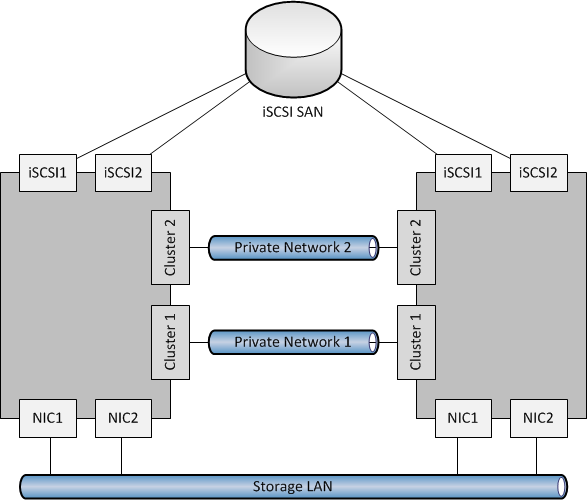
First, let’s deal with the host network configuration.  The below has 2 nodes in the SOFS cluster, and this could scale up to 8 nodes (think 8 SAN controllers!).  There are 4 NICs:

  • 2 for the LAN, to allow SMB 3.0 clients (Hyper-V or SQL Server) to access the SOFS shares.  Having 2 NICs enables multichannel over both NICs.  It is best that both NICs are teamed for quicker failover.
  • 2 cluster heartbeat NICs.  Having 2 give fault tolerance, and also enables SMB Multichannel for CSV redirected I/O.

image

Storage

A WS2012 cluster supports the following storage:

  • SAS
  • iSCSI
  • Fibre Channel
  • JBOD with SAS Expander/PCI RAID

If you had SAS, iSCSI or Fibre Channel SANs then I’d ask why you’re bothering to create a SOFS for production; you’d only be adding another layer and more management.  Just connect the Hyper-V hosts or SQL servers directly to the SAN using the appropriate HBAs.

However, you might be like me and want to learn this stuff or demo it, and all you have is iSCSI (either a software iSCSI like the WS2012 iSCSI target or a HP VSA like mine at work).  In that case, I have a pair of NICs in each my file server cluster nodes, connected to the iSCSI network, and using MPIO.

image

If you do deploy SOFS in the future, I’m guessing (because we don’t know yet because SOFS is so new) that’ll you’ll mostly likely do it with a CiB (cluster in a box) solution with everything pre-hard-wired in a chassis, using (probably) a wizard to create mirrored storage spaces from the JBOD and configure the cluster/SOFS role/shares.

Note that in my 2 server example, I create three LUNs in the SAN and zone them for the 2 nodes in the SOFS cluster:

  1. Witness disk for quorum (512 MB)
  2. Disk for CSV1
  3. Disk for CSV2

Some have tried to be clever, creating lots of little LUNs on iSCSI to try simulate JBOD and Storage Spaces.  This is not supported.

Create The Cluster

Prereqs:

  • Windows Server 2012 is installed on both nodes.  Both machines named and joined to the AD domain.
  • In Network Connections, rename the networks according to role (as in the diagrams).  This makes things easier to track and troubleshoot.
  • All IP addresses are assigned.
  • NIC1 and NIC2 are top of the NIC binding order.  Any iSCSI NICs are bottom of the binding order.
  • Format the disks, ensuring that you label them correctly as CSV1, CSV2, and Witness (matching the labels in your SAN if you are using one).

Create the cluster:

  1. Enable Failover Clustering in Server Manager
  2. Also add the File Server role service in Server Manager (under File And Storage Services – File Services)
  3. Validate the configuration using the wizard.  Repeat until you remove all issues that fail the test.  Try to resolve any warnings.
  4. Create the cluster using the wizard – do not add the disks at this stage.  Call the cluster something that refers to the cluster, not the SOFS. The cluster is not the SOFS; the cluster will host the SOFS role.
  5. Rename the cluster networks, using the NIC names (which should have already been renamed according to roles).
  6. Add the disk (in storage in FCM) for the witness disk.  Remember to edit the properties of the disk and rename if from the anonymous default name to Witness in FCM Storage.
  7. Reconfigure the cluster to use the Witness disk for quorum if you have an even number of nodes in the SOFS cluster.
  8. Add CSV1 to the cluster.  In FCM Storage, convert it into a CSV and rename it to CSV1.
  9. Repeat step 7 for CSV2.

Note: Hyper-V does not support SMB 3.0 loopback.  In other words, the Hyper-V hosts cannot be a file server for their own VMs.

Create the SOFS

  1. In FCM, add a new clustered role.  Choose File Server.
  2. Then choose File Server For Scale-Out Application Data; the other option in the traditional active/passive clustered file server.
  3. You will now create a Client Access Point or CAP.  It requires only a name.  This is the name of your “file server”.  Note that the SOFS uses the IPs of the cluster nodes for SMB 3.0 traffic rather than CAP virtual IP addresses.

That’s it.  You now have an SOFS.  A clone of the SOFS is created across all of the nodes in the cluster, mastered by the owner of the SOFS role in the cluster.  You just need some file shares to store VMs or SQL databases.

Create File Shares

Your file shares will be stored on CSVs, making them active/active across all nodes in the SOFS cluster.  We don’t have best practices yet, but I’m leaning towards 1 share per CSV.  But that might change if I have lots of clusters/servers storing VMs/databases on a single SOFS.  Each share will need permissions appropriate for their clients (the servers storing/using data on the SOFS).

Note: place any Hyper-V hosts into security groups.  For example, if I had a Hyper-V cluster storing VMs on the SOFS, I’d place all nodes in a single security group, e.g. HV-ClusterGroup1.  That’ll make share/folder permissions stuff easier/quicker to manage.

  1. Right-click on the SOFS role and click Add Shared Folder
  2. Choose SMB Share – Server Applications as the share profile
  3. Place the first share on CSV1
  4. Name the first share as CSV1
  5. Permit the appropriate servers/administrators to have full control if this share will be used for Hyper-V.  If you’re using it for storing SQL files, then give the SQL service account(s) full control.
  6. Complete the wizard, and repeat for CSV2.

You can view/manage the shares via Server Manager under File Server.  If my SOFS CAP was called Demo-SOFS1 then I could browse to \Demo-SOFSCSV1 and \Demo-SOFSCSV2 in Windows Explorer.  If my permissions are correct, then I can start storing VM files there instead of using a SAN, or I could store SQL database/log files there.

As I said, it’s a rough guide, but it’s enough to give you an oversight.  Have a read of the above linked posts to see much more detail.  Also check out my notes from the Continuously Available File Server – Under The Hood TechEd session to learn how a SOFS works.

Virtual Domain Controllers and Windows Server 2012 Improvements

There have been a number of concerns when it comes to virtualising domain controllers.  The biggest of these is KB888794, which is an updated version of an article that I first encountered years previously, maybe in 2004.

USN Rollback

Basically, we had to treat any virtual domain controller like it was a physical installation.  That meant:

  • No snapshots
  • No recovering the DC from VM (host/storage level) backups
  • Don’t do anything to manipulate the virtual DC’s VM storage, such as copy/clone/etc

This was because the VM would “time travel”, effectively screwing up the USNs that are used to track AD object replication and possible cause the reuse of RID pools – in other words, completely frakking your AD and making you wish that you had paid up for that Microsoft Premier support contract.

Physical DC Required

One of the frustrating things, especially for small medium enterprises (SMEs) or smaller branch offices was that they need a local physical domain controller to enable a Hyper-V cluster.  This company might only need to hosts, but had to add another physical machine (small as it was) to enable the cluster to function.

That was the scenario up to now.  Enter Windows Server 2012.

Bootstrapping

Windows Server 2012 Failover Clusters have a new feature called bootstrapping.  It’s been mentioned in public but I’ve not seen any documentation on it yet.  In short, this allows a failover cluster to power up and start working without the presence of a physical domain controller.  The premise is that you instead run virtual domain controllers, hosted on the Hyper-V cluster itself.

That means that you don’t need the physical domain controller.  That’s a major saver for the SME or the branch office.

Virtual DCs are OK

If we’re OK with the idea of virtual domain controllers, then how do we deal with them?  How do we back them up easily?  In a true cloud where there might be a one-size-fits-all backup policy, how do admins (with zero knowledge of VM contents/roles) safely backup virtual domain controllers that might be created legitimate by the cloud’s tenants?

VM-GenerationID and Safe DC Virtualisation

Microsoft has come up with a new mechanism called VM-GenerationID (also seen documented on TechNet and blogged as Generation ID, VM Generation ID, VM-Generation ID and GenID).  It is an attribute called msDS-GenerationID of the DC’s computer object in AD.  This is normally kept in sync with the directory information tree (DIT) if everything is OK with the replication of the DC.

If something happens to the DC VM like a snapshot is applied or a backup of the VM is restored, then the VM effectively travels back in time, potentially causing a USN rollback and enabling RID reuse.  But, the DC compares the VM-GenerationID and the DIT version number.  If they are different then the DC is aware there is a problem.  The RID pool is discarded, a new one created, and a USN rollback is prevented.

Windows Server 2012 Hyper-V is the only hypervisor at this time to support this feature, and the virtual DCs must be running Windows Server 2012.

But There’s More – Rapid Deployment of DCs

Wouldn’t it be nice if you could clone domain controllers?  Normally you cannot.  But this new VM-GenerationID feature, combined with some other work done by Microsoft in WS2012, enabled you to export/import virtual DCs to clone new DCs with very little effort.

The process is simple enough:

  1. Have a PDC Emulator that is running WS2012.  This DC will not be cloned.
  2. Create a new virtual DC running WS2012. 
  3. Add the new template DC to a domain security group called Cloneable Domain Controllers.  This allows domain admins to restrict which (if any) DCs can be cloned.
  4. On the template DC Run Get-ADDCCloningExcludedApplicationList to see if any installed programs/services on the DC can be cloned (check with vendors).  Uninstall any that cannot support cloning.
  5. Run Get-ADDCCloningExcludedApplicationList –GenerateXml on the template DC
  6. Back on the template DC, run New-ADDCCloneConfigFile to create an XML answer file to configure name, IP, etc, for the new DC VM that you are about to create.#
  7. The last step creates a file called DCCloneConfig.xml.  Place this in either the directory where the DIT resides, %windir%NTDS, or the root of a removable media drive (maybe a SCSI attached blank VHD?)
  8. Stop and export the template VM.
  9. Import the VM to crate a new DC VM.
  10. Start the new VM, and you should now have a new DC.

I haven’t had a chance to try this out yet.  I’ll try to update this if I find the MSFT TechNet page is lacking.

Summary

What all this means is that with Windows Server 2012 and a hypervisor that is VM-GenerationID aware (WS2012 Hyper-V) then you can safely virtualise your domain controllers, and treat them just like any other VM, something that is of great importance in a true cloud.


Three Quarters of Datacenter Managers Admit To Failing On Performance

There is an alarming story on TechCentral.ie this morning where that majority of IT managers are admitting that they do not adequately manage the quality of service that their data centres (or clouds) are delivering.

A survey of over 400 European data centre managers found that while 93% of them acknowledged the criticality of optimising application performance across their data centres and networks, the large majority said they were failing to do so

Sounds like they need to start using System Center Operations Manager to monitor network, storage, hardware (servers/blades/chassis/etc), operating systems, applications, code, services, and service level agreement from a component and a service perspective.

Embracing automation (System Center Orchestrator) and self-service (System Center Service Manager and the entire suite) frees up engineer/operator time in the cloud where data centres are filled with centralised, broadly available, and measured/controlled/secured infrastructure and services.  It is the responsibility of the data centre, as the “hosting company” of this cloud, to guarantee SLAs.  SLAs cannot be measured or met without adequate systems management.

So here’s my advice if you are setting company strategy for the cloud:

  • If you’re implementing private cloud then ask your tech staff, IT Manager, CIO (or whatever) what complete and deeply integrated/automated systems management solution they are using.  Nagios is not the correct answer because it meets none of the criteria (complete, deep, integration, automation, etc).  Make sure you’re going to see quarterly/annual reports appearing automatically in your inbox or on a SharePoint site for you to review.
  • If you’re about to place your services in a public cloud, ask the same question.  And make sure you have visibility of the monitoring for yourself.
Technorati Tags: ,

Microsoft In Trouble With EU Over Browser Chooser – And Why It’s Irrelevant

You might have heard that the EU is upset with Microsoft because the Browser Chooser that MSFT agreed would be included in Windows 7 for European Union customers was not active in Windows 7 SP1.  Strangely enough, I (a Chrome browser user) noticed this in my last few builds.

The EU forced Microsoft into introducing the Browser Chooser in Windows 7 for local markets.  This would prevent Microsoft from abusing a then monopoly position and enable other browsers to enter the market.  Fair enough I thought, and it worked well.  When you logged into a new PC, you could pick your default browser.  Some joked that IE was the browser you used to download your preferred browser. 

Then the news broke this week that the EU is investigating an issue where this browser chooser was not working in Windows 7 SP1.  And further, the EU could fine Microsoft up to 10% of their earnings over the 18 or so months period: $7 or $8 billion!

Interesting, because although IE still leads worldwide, I’d been hearing over the months that IE had lost the top position in Europe.  What do the stats say?

According to StatCounter, IE is #3 in Europe:

image

According to GetClicky. IE has continued to decline globally, despite the lack of the browser chooser:

image

According to W3Counter, IE also continues to decline globally, despite the lack of a browser chooser:

image

In other words, with a browser chooser or not, IE continues to lose market share even if Microsoft owns some 95% of the “PC” market.  We could question Microsoft’s monopoly position (IDC reckon they’ll sell 350 million PCs in 2012) too: Apple have 4% or so of the “PC” market, are set to sell 116 million iPhones ad 54 million iPads, almost exclusively using Safari.

Do we really need a Browser Chooser on Windows?  People have figured out what browser they want and IE is sliding.

And where is the EU mandated chooser for IOS devices?

It will be interesting to see what happens with Windows RT where IE and Office run on the desktop and no other programs can be installed there.  I wonder if the decision to include the limited desktop at all in Windows RT will backfire?  But that’s a whole other story and the lawyers/Eurocrats will decide that one (I’m not saying that this is good at all).

Technorati Tags: ,

Wait A Few Months Before Switching To Tablets – Irish Parliament Doesn’t Want To

A lot of organisations are interested in introducing tablets as information consuming devices or as laptop alternatives.  That’s understandable.  But if you know that Windows 8, an application platform that spans PC, tablet (pro and consumer), and phone, is on the way, why would you rush through an introduction now?

19/4/2012 Fiscal Stability Treatys Campaigns

Maybe we should ask the gombeen on the left (above) that question.  He’s Enda Kenny, Taoiseach (prime minister) of Ireland.  The Oireachtas (Irish parliament) has reportedly launched a tender to acquire tablets for every TD (member of parliament) to play work with.

Huh!  OK, I understand using tablets.  But why now.  Why not wait until September when the options will double with new Windows 8 devices.  Application development costs would be reduced with only 1 platform needing to be supported.  But that’s not how Irish politicians and civil service decision makers think.  No wonder Irish tax payers are being screwed over by the political and banking classes.

Windows 8 Generally Available (Retail) October 26th

Steven Sinofsky announced yesterday at the MSFT MGX conference (for MSFT employees who are sales people) that Windows 8 will be available via retail channels and generally available on October 26th. 

That means you’ll be able to walk into Harvey Normans, PC World, Best Buy and so on, to buy a new Windows 8 PC, laptop, or ARM tablet (if the manufacturers do their part), or get Windows 8 upgrades (going for $14 or $40 depending on when you last bought Windows).

And remember that volume license customers will get their hands on the ISOs sometime soon after the RTM which was previously announced as being in the first week of August, just 2 weeks away.

Watch out for news of local launch events in a few months time.

Meanwhile, the Microsoft Store where you can download and buy Metro apps for Windows 8 will “go live” when RTM rolls around.  There’s some interesting stuff (free and limited trial) on there already and it appears that there is more that will be available at RTM time.

Technorati Tags: