Refresh or Reset Windows 8

Stuff happens.  Sometimes you install a dodgy piece of software.  Sometimes the cumulative effect of lots of installs messes up the PC.  Sometimes you’re running a pre-beta developer preview release of an operating system and it breaks.  And that’s when some new features in Windows 8 come in handy.

In Control Panel, under General, you can find two useful features:

Refresh Your PC

This will allow you to undo changes to your PC back to the Windows defaults without affecting your data or files.  I did this yesterday on my Microsoft Build Samsung slate PC when the gyroscope functionality broke.  It took around 5 minutes, and I got a “new” operating system that remembered who I was and retained my limited amount of data (in My Pictures). 

A application report is posted on the desktop.  This details the applications that were uninstalled, and in my experience, it gave me URLs to download the software again.

Reset Your PC

You might want to sell your Windows 8 PC on Ebay.  You can reset the operating system without any media by hitting this option.  It will restore the entire OS to factory defaults, wiping all of your data (allegedly). 

EDIT:

I did a reset a few minutes ago to see how it would work.  It worked as advertised; the PC was reset to the original installation and all my data and settings were gone.  It took around 5 minutes to reset, and maybe another 5 to do the mini-setup wizard.

Technorati Tags:

Windows Server 8 Hyper-V Day 1 Look Back

I’ve just been woken up from my first decent sleep (jetlag) by my first ever earthquake (3.5) and I got to thinking … yesterday (Hyper-V/Private Cloud day) was incredible.  Normally when I live blog I can find time to record what’s “in between the lines” and some of the spoken word of the presenter.  Yesterday, I struggled to take down the bullet points from the slides; there was just so much change being introduced.  There wasn’t any great detail on any topic, simply because there just wasn’t time.  One of the cloud sessions ran over the allotted time and they had to skip slides.

I think some things are easy to visualise and comprehend because they are “tangible”.  Hyper-V Replica is a killer headline feature.  The increase host/cluster scalability gives us some “Top Gear” stats: just how many people really have a need for a 1,000 BHP car?  And not many of us really need 63 host clusters with 4,000 VMs.  But I guess Microsoft had an opportunity to test and push the headline ahead of the competition, and rightly took it.

Speaking of Top Gear metrics, one interesting thing was that the vCPU:pCPU ratiio of 8:1 was eliminated with barely a mention.  Hyper-V now supports as many vCPUs as you can fit on a host without compromising VM and service performance.  That is excellent.  I once had a quite low end single 4 core CPU host that was full (memory, before Dynamic Memory) but CPU only averaged 25%.  I could have reliably squeezed on way more VMs, easily exceeding the ratio.  The elimination of this limit by Hyper-V will further reduce the cost of virtualisation.  Note that you still need to respect the vCPU:pCPU ratio support statements of applications that you virtualise, e.g. Exchange and SharePoint, because an application needs what it needs.  Assessment, sizing, and monitoring are critical for squeezing in as much as possible without compromising on performance.

The lack of native NIC Teaming was something that caused many concerns.  Those who needed it used the 3rd party applications.  That caused stability issues, new security issues (check using HP NCU and VLANing for VM isolation), and I also know that some Microsoft partners saw it as enough of an issue to not recommend Hyper-V.  The cries for native NIC teaming started years ago.  Next year, you’ll get it in Windows 8 Server.

One of the most interesting sets features is how network virtualisation has changed.  I don’t have the time or equipment here in Anaheim to look at the Server OS yet, so I don’t have the techie details.  But this is my understanding of how we can do network isolation.

image

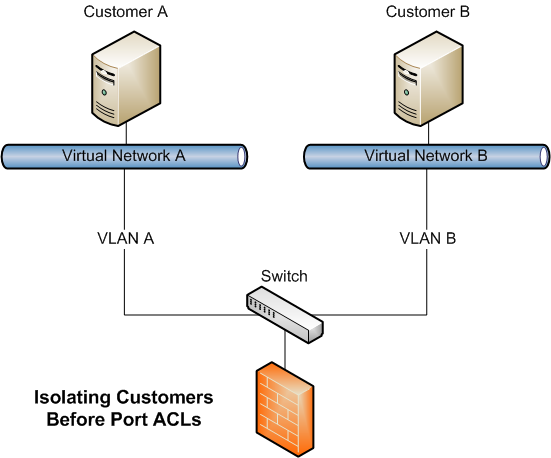
Firstly, we are getting Port ACLs (access control lists).  Right now, we have to deploy at least 1 VLAN per customer or application to isolate them.  N-tier applications require multiple VLANs.  My personal experience was that I could deploy customer VMs reliably in very little time.  But I had to wait quite a while for one or more VLANs to be engineered and tested.  It stressed me (customer pressure) and it stressed the network engineers (complexity).  Network troubleshooting (Windows Server 8 is bringing in virtual network packet tracing!) was a nightmare, and let’s not imagine replacing firewalls or switches.

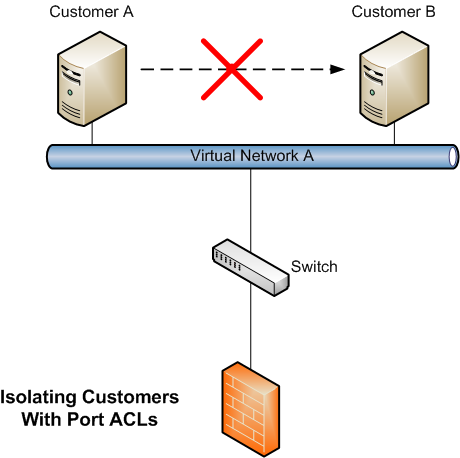
Port VLANs will allow us to say what a VM can or cannot talk to.  Imagine being able to build a flat VLAN with hundreds or thousands of IP addresses.  You don’t have to subnet it for different applications or customers.  Instead, you could (in theory) place all the VMs in that one VLAN and use Port ACLs to dictate what they can talk to.  I haven’t seen a demo of it, and I haven’t tried it, so I can’t say more than that.  You’ll still need an edge firewall, but it appears that Port ACLs will isolate VMs behind the firewall.

image

Port ACLs have the potential to greatly simplify physical network design with fewer VLANs.  Equipment replacement will be easier.  Troubleshooting will be easier.  And now we have greatly reduced the involvement of the network admins; their role will be to customise edge firewall rules.

Secondly we have the incredibly hard to visualise network or IP virtualisation.  The concept is that a VM or VMs are running on network A, and you want to be able to move them to a different network B, but they want to do it without changing IP address or downtime.  The scenarios include:

  • A company’s network is being redesigned as a new network with new equipment.
  • One company is merging with another, and they want to consolidate the virtualisation infrastructures.
  • A customer is migrating a virtual machine to a hoster’s network.
  • A private cloud or public cloud administrator wants to be able to move virtual machines around various different networks (power consolidation, equipment replacement, etc) without causing downtime.

image

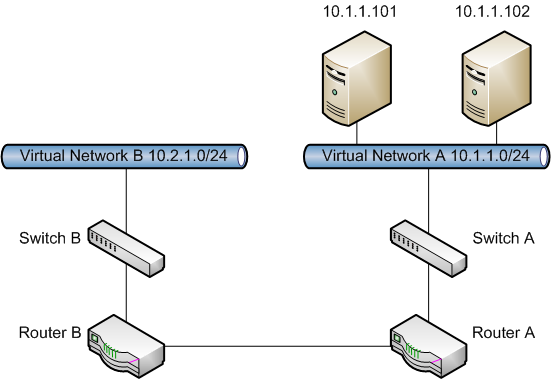
Any of these would normally involve an IP address change.  You can see above that the VMs (10.1.1.101 and 10.1.1.102) are on Network A with IPs in the 10.1.1.0/24 network.  That network has it’s own switches and routers.  The admins want to move the 10.1.1.101 VM to the 10.2.1.0/24 network which has different switches and routers.

Internet DNS records, applications (that shouldn’t, but have) hard coded IP addresses, other integrated services, all depend on that static IP address.  Changing that on one VM would cause mayhem with accusatory questions from the customer/users/managers/developers that make you out to be either a moron or a saboteur.  Oh yeah; it would also cause business operations downtime.  Changing an IP address like that is a problem. In this scenario, 10.1.1.102 would lose contact with 10.1.1.101 and the service they host would break.

Today, you make the move and you have a lot of heartache and engineering to do.  Next year …

image

Network virtualisation abstracts the virtual network from the physical network.  IP address virtualisation does similar.  The VM that was moved still believes it is on 10.1.1.101.  10.1.1.102 can still communicate with the other VM.  However, the moved VM is actually on the 10.2.1.0/24 network as 10.2.1.101.  The IP address is virtualised.  Mission accomplished.  In theory, there’s nothing to stop you from moving the VM to 10.3.1.0/24 or 10.4.1.0/24 with the same successful results.

How important is this?  I worked in the hosting industry and there was a nightmare scenario that I was more than happy to avoid.  Hosting customers pay a lot of money for near 100% uptime.  They have no interest in, and often don’t understand, the intricacies of the infrastructure.  They pay not to care about it.  The host hardware, servers and network, had 3 years of support from the manufacturer.  After that, replacement parts would be hard to find and would be expensive.  Eventually we would have to migrate to a new network and servers.  How do you tell customers, who have applications sometimes written by the worst of developers, that they could have some downtime and then that there is a risk that their application would break because of a change of IP.  I can tell you the response: they see this as being caused by the hosting company and any work the customers need to pay for to repair the issues will be paid by the hosting company.  And there’s the issue.  IP address virtualisation with expanded Live Migration takes care of that issue.

For you public or private cloud operators, you are getting metrics that record the infrastructure utilisation of individual virtual machines.  Those metrics will travel with the virtual machine.  I guess they are stored in a file or files, and that is another thing you’ll need to plan (and bill) for when it comes to storage and storage sizing (it’ll probably be a tiny space consumer).  These metrics can be extracted by a third party tool so you can analyse them and cross charge (internal or external) customers.

We know that the majority of Hyper-V installations are smaller, with the average cluster size being 4.78 hosts.  In my experience, many of these have a Dell Equalogic or HP MSA array.  Yes, these are the low end of hardware SANs.  But they are a huge investment for customers.  Some decide to go with software iSCSI solutions which also add cost.  Now it appears like those lower end clusters can use file shares to store virtual machines with support from Microsoft.  NIC teaming with RDMA gives massive data transport capabilities and gives us a serious budget solution for VM storage.  The days of the SAN aren’t over: they still offer functionality that we can’t get from file shares.

I’ve got more cloud and Hyper-V sessions to attend today, including a design one to kick off the morning.  More to come!

A Deep Dive Into Hyper-V Networking

See-Mong Tan and Pankaj Garg are the speakers.

Apparently Windows Server 8 is the most cloud optimised operating system yet. I did not know that.

Customers want availability despite faults, and predictiability of performance, when dealing with networking. Admins want scalability and density VS customer wanting performance. Customers want specialisation with lots of choice, fore firewalls, monitoring, and physical fabric integration.

Windows Server 8 gives us:
– Reliability
– Security
– Predicatabiltiy
– Scalability
– Extensibility
– … all with managability

Reliability:
Windows Server 8 gives us NIC teaming to protect against NIC or network path failure. Personal experience is that the latter is much more common, e.g. switch failure.

LBFO provider sits on top of the bound physical NICs (using IM MUX and virtual miniport). The Hyper-V Extensible Switch sits on top of that. You use the LBFO Admin Gui (via LBFO Configuration DLL) to configure the team.

– Multiple modes: Switch dependent and Switch independent
– Hasing modes: port and 4-tuple
– Active/Active and Active/Passive

Windows Server 8 provides security features to host multi tenant workloads in a hybrid cloud. You run multiple virtual networks on a physical network,. Each virtual network has the illusion that it is running as a physical fabric, the only physical network … just like a VM thinks it is the entire piece of physical hardware – that’s the analogy that MSFT is using. You decouple the virtual or tenant networks from the physical network. This is where the IP address virtualisation appears to live too. Other features:

– Port ACLs: allow you to do ACLs on IP range or MAC address … like firewall rules. And can do metering with them.
– PVLAN: Bind VMs to one uplink
– DHCP Guard: Ban VMs from being DHCP servers – very useful in cloud where users have local admin rights … users are stupid and destructive.

QoS provides predictable performance in a multi-tenant environment. You can do maximum and minumim and/or absolute vs weight.

Demo of QoS maximum bandwidth:
He runs a PSH script to implement a bandwidth rate limiting cap on some badly behaving VMs to limit their impact on the physical network. Set-VMNeworkAdapter -VMname VM1 -MaximumBandwidth 1250000.

Scalability:
Performance features mean more efficient cloud operations. Also get reduced power usage.

SR-IOV
Single Route I/O Virtualisation is a PCI group hardware technology. A NIC has features that can be assigned to a VM. WIthout it, vthe virtual swithc does routing, VLAN filtering, and data copy of incoming data to the VM, which then has to process the packet. Lots of CPU. SR-IOV bypasses the Hyper-V switch and sends the packet direct to the VM Virtual Function. This requires a SR-IOV NIC. You can Live Migrate a VM from a host with SR-IOV to a host withou SR-IOV. Apparently, VMware cannot do this. SR-IOV is a property of the virtual switch, and a property of the VM vNIC (tick boxes). The VM actually uses the driver of the SR-IOV NIC. We are shown a demo of a Live Migration to a non SR-IOV non-clustered host, with no missed pings.

D-VMQ is Dynamic Virtual Machine Queue
If the CPU is processing VM network traffic then you can use this to dynamically span processing VM n/w traffic across more than one CPU. It will automatically scale up and scale down the CPU utilisation based on demand. Static VMQ is limiting in high tide. No VMQ is limited to single CPU.

Receive Side Coalescing (RSC) allows a VM to receive live packets. IPsec Task Offload means a VM performs really well when running IPsec (CPU eater). There’s a call to action for NIC and Server vendors to support thiese features.

Extensibility:
The idea here is that partners can develop those specialised features that MSFT cannot do.

Partners can extend the Hyper-V extensible switch with their own features. There’s a set of APIs for them to use. Switch vendors should extend to provide unified management of physical and virtual switches.

Managability:
Features without management is useless. Windows Server 8 designed to manage large clouds. Metering allows chargeback, e.g. on network usage. Metrics are stored with the VM and are persistent after a VM move or migration.

PowerShell for Hyper-V. Unified tracing for network troubleshooting: trace packets from VM, to switch, though the vendor and onto the network. Port Mirroring: standard switch feature redirect switch traffic to analyse.

And this is where I need to wrap up … the session is about to end anyway.

Using Windows Server 8 for Building Private and Public IaaS Clouds

Speakers: Jeff Woolsey and Yigal Edery of Microsoft.

Was the cloud optimization of Windows Server 8 mentioned yet? Probably not, but it’s mentioned now.

– Enable multi tenant clouds: isolation and security
– High scale and low cost data centres
– Managable and extensible: they are pushing PowerShell here

Windows Server 8 should make building a IaaS much easier.

Evolution of the data centre (going from least to most scalable):

1) Dedicated servers, no virtualisation, and benefit of hardware isolation
2) Server virtalisation, with benefits of server consolidation, some scale out, and heterogeneous hardware
3) Cloud with Windows 8: Shared compute, storage, network. Multi-tenancy, converged network and hybrid clouds. Benefits of infrastructure utilization increase, automatic deployment and migration of apps, VMs, and services. Scaling of network/storage.

Enable Multi-Tenant Cloud
What is added?
– Secure isolation between tenants: Hyper-V extensible swich (routing, etc), Isolation policies (can define what a VM can see in layer 2 networking), PVLANs
– Dynamic Placement of Services: Hyper-V network virtualisation, complete VM mobility, cross-premise connectivity (when you move something to the cloud, it should still appear on the network as internal for minimal service disruption)
– Virtual Machine Metering: Virtual Machine QoS policies, resource meters (measure activity of VM over time, and those metric stay with a VM when it is moved), performance counters

Requirements:
– Tenant wants to easily move VMs to and from the cloud
– Hoster wants to place VMs anywhere in the data center
– Both want: easy onboarding, flexibility and isolation

The Hyper-V extensible switch has pVLAN functionality. But managing VLANs is not necessarily the way you want to go. 4095 maximum VLANs. And absolute nightmare to maintain, upgrade, or replace. IP address management is usually controlled by the hoster.

Network virtualisation aims to solve these issues. VM has two IPs: one it thinks it is using, and one that it really is using. “Each virtual network has illusiion it is running as a physical fabric”. The abstraction of IP address make the VM more mobile. Virtualisation unbinds server and app from physical hardware. Network virtualisation unbinds server and app from physical network.

Mobility Design
Rule 1: no new features that preclude Live Migration
Rule 2: maximise VM mobility with security

Number 1: recommendation is Live Migration with High Availability
Number 2: SMB Live Migration
Number 3: Live Storage Migration

Live Storage Migration enables:
– Storage load balancing
– No owntime servicing
– Leverages Hyper-V Offloaded Data Transfer (ODX): pass a secure token to a storage array to get it to move large amounts of data for you. Possibly up to 90% faster.

You can Live Migrate a VM with just a 1 Gbps connection and nothing else. VHDX makes deployment easier. Get more than 2040 GB in a vDisk without the need to do passthrough disk which requires more manual and exceptional effort. Add in the virtual fibre channel HBA with MPIO and you reduce the need for physical servers for customer clusters in fibre channel deployments.

Bandwitdh management is an option in the virtual network adapter. You can restrict bandwidth for customers with this. IPsec offload can be enabled to reduced CPU utilisation.

Upto 63 nodes in a cluster, with up to 4,000 VMs. That’s one monster cluster.

QoS and Resource Metering
Network: monitor incoming andoutgoing traffic per IP address
Sotrage: high water mark disk allocation
Memory: high and low water mark memory, and average

We get a demo of resource meters being used to rught size VMs.

Dynamic Memory gets a new setting: Minimum RAM. Startup RAM could give a VM 1024MB, but the VM could reduce to Minimum RAM of 512MB if there is insufficient pressure.

High scale and low cost data centres:
– The vCPU:pCPU ratio limit has been removed from Hyper-V support… just squeeze in what you can without impacting VM performance
– Up to 160 logical processors
– Up to 2 TB RAM

Networking:
– Dynamic VMQ
– Single root I/O virtualiation (SR-IOV): dedicate a pNIC to a VM
– Receive side scalling (RSS)
– Receive side coalescing (RSC)
– IPsec task offload

Storage
– ODX
– RDMA
– SMB 2.2
– 4K native disk support

HA and Data Protection
– Windows NIC teaming across different vendors of NIC!
– Hyper-V Replica for DR to scondary site – either one I own or a cloud provider
– BitLocker: Physically safeguard customers’ data. Even if you lose the disk the data is protected by encryption. You can now encrypt cluster volumes. TPMs can be leveraged for the first time with Hyper-V cluster shared disks. Cluster Names Obkect (CNO) used to lock and unlock disks.

Managable and Extensible
– PowerShell for Hyper-V by MSFT for the first time. Can use WMI too, as before.
– Workflows across many servers.
– Hyper-V Extensible switch to get visibility into the network
– WMIv2/CIM, OData, Data Center TCP

go.microsoft.com/fwlink/p/?LinkID=228511 is where a whitepaper will appear in the next week on this topic.
Build Windows: Windows Server 8

This is an IT pro session featuring Bill Laing (Corporate Vice President Server & Cloud Division) and Mike Neil (General Manager Windows Server) are the speakers.  This will be jam packed with demos.

“Windows Server 8 is cloud optimized for all business” – Bill Laing.  For single servers and large clusters.  The 4 themes of this server release:

  • beyond virtualisation
  • The power of many servers, the simplicity of one
  • Every app, any cloud
  • Modern work style enabled

Hyper-V headline features:

  • network virtualisation
  • Live storage migration
  • multi-tenancy
  • NIC teaming
  • 160 logical processors
  • 32 virtual processors
  • virtual fiber channel
  • Offloaded data transfer (between VMs on the same storage)
  • Hyper-V replicat
  • Cross-premise connectivity
  • IP address mobility
  • Cloud backup

Did they mention cloud yet?  I think not: apparently this release is cloud optimized.

A VM can have up to 32 vCPUs.  RAM can be up to 512 GB.  VHDX supports up to 16 TB of storage per vDisk.  Guest NUMA is where VMs are now NUMA aware … having 32 vCPUs makes this an issue.  A VM can optimize threads of execution VS memory allocation on the host.  A guest can now direct connect to a fibre channel SAN via a virtual fibre channel adapter/HBA – now the high end customers can do in-VM clustering just like iSCSI customers.  You can do MPIO with this as well, and it works with existing supported guest OSs.  No packet filtering is done in the guest.

Live Migration.  You can now do concurrent Live Migrations.  Your limit is the networking hardware.  You can LM a VM from one host to another with “no limits”.  In other words, a 1 Gbps connection with no clustering and no shared storage is enough for a VM live migration now.  You use the Move wizard, and can choose pieces of the VM or the full VM.  Live Storage Migration sits under the hood.  It is using snapshots similar to what was done with Quick Storage Migration in VMM 2008 R2. 

On to Hyper-V networking.  What was slowing down cloud adoption?  Customers want hybrid computing.  Customers also don’t like hosting enforced IP addressing.  The customer can migrate their VM to a hosting company, and keep their IP address.  A dull demo because it is so transparent.  This is IP Address Mobility.  The VM is exported.  Some PowerShell is involved in the hosting company.  Windows Server 8 Remote Access IPsec Secure Tunnel is used to create a secure tunnel from the client to the hosting company.  This extends the client cloud to create a hybrid cloud.  The moved VM keeps its original IP address and stays online.  Hosted customers can have common IP addresses.  Thanks to IP virtualisation, the VMs internal IP is abstracted.  The client assigned in-VM address is used for client site communications.  In the hosting infrastructure, the VM has a different IP address.

VLANs have been used by hosting companies for this in the past.  It was slow to deploy and complicates networking.  It also means that network cannot be changed – EVER … been there, bought the t-shirt. 

Cross-network VM live migration can be done thanks to IP virtualisation.  The VM can change it’s hosted IP address, but the in-VM address does not change.  Makes the hosting company more flexible, e.g. consolidate during quiet/maintenance periods, network upgrades, etc.  There is no service disruption, so the customer has no downtime, and the hosting company can move VMs via Live Migration as and when required.  This works just as well in the private cloud.  Private cloud = hosting company with internal customers.

More:

  • Extensible virtual switch
  • Disaster recovery services with Hyper-V replicat to the cloud
  • Hybrid cloud with Hyper-V network virtualisation
  • Multi-tenant aware network gateway
  • Highly available storage appliances

And more:

  • SMB transparent failover
  • Automated cluster patching
  • Online file system repairs
  • Auto load balancing
  • Storage spaces
  • Thin provisioning
  • Data de-duplication
  • Multi-protocol support
  • 23000 PowerShell cmdlets
  • Remote server admin
  • Knowledge sharing
  • Multi-machine management

Server Manager is very different.  Very pretty compared to the old MMC style UI.  It has Metro Live Tiles that are alive.  Task/Actions pane is gone.  Selecting a server shows events, services, best practices analyser, performance alerts, etc.  You can select one, or event select a number of VMs at once.  A new grid control allows you to sort, filter, filter based on attribute, group, etc.  Makes cross-server troubleshooting much easier.  You can select a role, and you’ll see just the servers with that role.

Once again …”starting with Windows 8 the preferred install is Server Core”.  We’ll be the judge of that Winking smile  We ruled against MSFT on Server 2008 and Server 2008 R2 on that subject.  New add/remove roles wizard.  You can install a role to a live server or to a VHD!  This is offline installation of roles for pre-provisioning native VHD or VM VHD images.  You can even choose to export the settings to an XML file instead of deploying.  That allows you to run a PowerShell cmdlet to use the XML to install the role(s).  PowerShell now has workflows.  It converts a PSH function into a workflow that can work across multiple machines.  For example, deploy IIS (using install-windowsfeature & the XML file), deploy content, test content (invoke-webrequest), across many machines in parallel – big time saver instead of doing 1 machine at a time.  Great for big deployments, but I really see s/w testers really loving this.

Data Deduplication allows you to store huge amounts of data on a fraction of the disk space by only storing unique data.  We see a demo of terabytes of data on 4% of the traditionally required space.  This is single instance storage on steroids.  Only unique blocks are written by the looks of it. 

Native NIC teaming has come to Windows Server.  No more third party software required for this, increasing stability and security, while reducing support complexity.  In a  demo, we see a file share stored SQL VM with perfmon monitoring storage performance.  The host has 2 teamed NICs.  One is busy and one is idle.  The active NIC is disabled.  The idle NIC takes over automatically, as expected.  There is a tiny blip in storage performance … maybe 1-2 seconds.  The VM stays running with no interruption. 

Now we see a  high availability failover of a VM using a file share for the shared storage. 

On to applications:

  • Symmetry between clouds
  • Common management
  • Common developer tools
  • Distributed caching
  • Pub/Sub messaging
  • Multi-tenant app container
  • Multi-tenant web sites
  • Sandboxing and QoS
  • NUMA aware scaling for IIS
  • Open Source support
  • Support for HTML5

Note: I can’t wait to do a road show on this stuff back in Ireland. 

  • Greater density with IIS8
  • Scalable apps for public/private clouds
  • Extension of programming tools
  • Websocket extensions

Work style improvements:

  • Remote sessions, VDI or apps.
  • USB devices support
  • Simplified VDI management: badly needed
  • RemoteFX for WAN!
  • User VHDs
  • RDP 3D graphics and sound
  • Claims based file access
  • And more

Controlling access to data, discretionary access controls (DACLs) that we use up to now are difficult.  Dynamic Access Control allows you to specify AD attributes that dictate what objects can access a resource: e.g. AD object with “Accounts” in a department attribute gets access to the Accounts file share.  Done in Classification tab for the folder.  Who populates to attributes?  Doesn’t a user have a lot of control over their own object?  Good thing: it is very flexible compared to DACLs.

When a user is denied access to content, they can click on Request Access but to ask an admin for access.  No need for helpdesk contact. 

Automatic classification can search content of data to classify the data in case it is accidentally move to a wrong location.  It removes the human factor from content security.

Next up: RDP.  Metro UI with touch is possible with 10 touch points, rather than 30.  Lovely new web portal has the Metro UI appearance.  RemoteApp is still with us.  Favourite RDP sessions are visible in Remote Desktop.  Locally cached credentials are used for single sign-on.  3D graphics are possible: we see a 3D model being manipulated with touch.  We see a Surface fish pond app with audio via RDP and 10 touch points.  Seriously IMPRESSIVE!  You can switch between RDP sessions like IE10 tabs in Metro.  You can flip between them and local desktop using Back, and use live Side-by-Side to see both active at the same time. 

Build Windows 2011 Windows Server 8 Keynote

OK, yesterday was about aesthetics; today is meat and potatoes.  This is where we learn the back room stuff for Windows 8: the server.

Satya Nadella is the keynote speaker, president of Server and Tools (System Center, etc).  The subjects will be:

  • Windows Server 8
  • Azure
  • Visual Studio

Connected devices & continuous services describes the completion of yesterday’s subject.  PCs are consumers, servers/cloud are providers.  Design points:

  • elastic resources – cloud (public and/or private)
  • composable services – Cloud, e.g. VMM 2012 service templates
  • data as a namespace – to be honest, I guess it’s a SQL or BizTalk thing
  • identity & access – Forefront Identity Manager
  • continuous delivery – triage applications, e.g. OpsMgr 2012 Avicode

We are going to see a series of demos building of a Metro UI app, which then interacts with a cloud service running on Windows Server 8.

Jason Zander comes out to demo a Metro UI turn-based game that interacts via a cloud-based service.  I gotta say, the game looks pretty good for a demo.  Two competing users (one on phone and one on PC) are trying to shoot each other.  It was developed using VS 2010 with some new Azure SDK.  VS 11 is shown.  Looks the same to me, an IT pro Smile but apparently includes Azure SDK.  There is a pretty cool demo of a 3D model viewing/editing.  It’s the sort of thing you expect to see in a Pixar documentary, and we see how a 3D display of layered objects can be debugged from the pixel.
Satya comes back out.    The app platform (backend) is talked about now: .Net 4.5.  I won’t blog much of this dev stuff. 

Now we move onto Windows Server 8:

Application Platform

Symmetry between server and Azure.  IIS is more scalable and multi-tenant, with quality of service guarantees.  Virtualisation and cloud get a boost with a major revamp.  This is moving multi-tenant and cloud, with high availability and scalability getting a reboot.  Mission critical resource hungry services can be virtualised now.  Control by admins has been worked on.

Bryon Surace comes out:

  • Native NIC teaming
  • VHDX extends VHDs to beyond 2040 GB
  • Hyper-V Replica to provide asynchronous replication of running VMs in a consistent manner

New alternative called Storage Spaces in Windows to manage external storage.  There is a new & improved Server Manager (very Metro).  The demo shows a JBOD DASd to the server with 16 SSDs.  A LUN is shown, and a few SMB 2.2 file shares are on that LUN.

File shares have improved performance.  This enables VMs to run on file shares in a supported manner, unlike 2008/R2.  SMB 2.2 multi-channel and RDMA can team NICs for throughput and fault tolerance.    You can get huge network throughput doing this, with almost zero CPU utilisation.  RDMA uses little CPU and provides low latency. 

Hyper-V next.  Live Migration is supported between non-clustered hosts – it’s not HA; that still requires Failover Clustering.  We also get Live Storage Migration to move a VM’s files from one place (host, drive, share) to another. 

Data Platform

Here we go into Azure.  We’re in dev architecture space again.  Identity is the focus this time.  It’s an old subject, still without a complete global solution.  Odds are, if you’re a Windows 8 user, that ID will be Live ID.

There is a new Service Bus in September.  Storage geo-replication between data centres will be possible.  Bing data feeds will be available.

Hybrid Cloud

We get a demo on how to cloud enable your car using “Viper SmartStart” to do remote tracking and debugging of your car.  There is a smartphone app.  We see a live view of presenters daughter in Belleview WA, speeding (allegedly) and gas mileage all over the shop: sports driving maybe Smile  For the coolness factor, the owner of West Coast Customs (custom cars) comes out.  Microsoft are getting him to build an eCar with the latest in tech for the TV show.  They’re tweaking a 2012 Mustang with a 1967 body  Niiiiiiice.  It’ll be on Discovery USA in December.

Holy Crap!

Steve Ballmer surprises us by coming out.  “We have a long way to go still with Windows 8”.  This is good to hear. 500,000 downloads of it last night.  Ireland’s Silicon Republic is quoted.  Feedback in last 24 hours is overwhelmingly positive.  Microsoft’s aims with Windows 8:

  • New hardware form factors: tablet and slate PC
  • Cloud services: old news, but “we’re still early” in cloud services.  Still to evolve and be embraced.
  • New application scenarios
  • New developer opportunities

Windows centred focus on the business:

  • Windows 8 and Windows Live
  • Windows Server and Windows Azure
  • Windows Phone
  • Windows Reimagined

Steve seems delighted with the feedback, even on Server today.

Windows Phone:

  • 30,000 apps and 50,000 registered developers
  • 7.5 Mango just gone live with phones shopping with 500+ new features
  • New phones from variety of makers, including Nokia
  • My note: still a very minor player in units being sold.  I wonder if Mango + Windows 8 can change that?  It has potential.

Hardware:

“It will be Intel plus ARM” to clear up some misinformation.  One will be as important as the other. 

Note: I think Steve gets a pass for 2011 Winking smile

Windows, Windows Phone and XBox are the 3 device categories on platforms: Azure, Office, Bing and Dynamics (I guess there is pressure to sell Dynamics cos of this breakout/callout). 

Developer Opportunity:

  • 350+ million Windows devices this year.  Dwarves iPad and Apple.  What post-PC era?
  • 500 million installed Windows 7 PCs
  • 70%+ servers/Azure rising: I laugh at your fluffy penguin.
  • New commercial opportunities with Azure Marketplace and Windows Store
  • Choice with language, public/private/hybrid cloud: you choose the right one for you or your customer
  • Build apps for phone, cloud, Server: one experience from many devices.
  • Apps, content, servers, sites: choose your product
  • Sell to everyone from individual to the enterprise: cloud (Live to Azure) and apps for home or for LOB.

</Steve></keynotes>

Some Quick Build Pre-Keynote 2 Reading

Expect a lot of virtualisation talk today.  And before you read anymore Build Day 2 stuff, please have a look at some responses in the Great Big Hyper-V Survey of 2011.  Just 3 questions for now to give you something to think about:

  • Question 7: What Sort Of Licensing Did You Get For Your Hyper-V Hosts?
  • Question 23: Do You Replicate Virtual Machines To A Disaster Recovery Site?
  • Question 78: Will the below currently announced Windows Server "8" features be of interest to your organisation?

If you’re a Microsoft virtualisation partner, my advice: get ready now.  You will be busy next year.

Technorati Tags: ,

Create a Shutdown Tile in Windows 8 Metro UI Start Screen

A bit of an annoyance in the Windows 8 Developer Preview release is the lack of a quick shutdown tile.  Yes, you can go to command prompt and run the shutdown command but that’s not exactly user friendly.

So here’s my tested fix to add a Shutdown tile to the Metro UI.

  • Create a shortcut called Shutdown that runs the command C:windowssystem32shutdown /s /t 0
  • Move this shortcut into C:ProgramDataMicrosoftWindowsStart MenuPrograms (the location of the start menu).  Anything in here can be pinned to the Start Screen.
  • Go to the Start Screen, and into the Search charm.
  • Don’t search; browse through the tiles and find your Shutdown shortcut, now visible as a tile.
  • Select it (you tug it down slightly), and select pin from the bar in the bottom.

Now you have a working Shutdown tile that will shut down your Windows 8 machine with no delays or requests for confirmation.  Any problems with your shortcut will probably open Windows Explorer and bring you to the folder that the shortcut is in.

I haven’t tested it yet, but you probably can do the same for a Restart tile by using a shortcut to C:windowssystem32shutdown /r /t 0.

If you do want the official way to shutdown/restart/Sleep, then bring up the Charms bar, hit Settings, and touch Power.

Technorati Tags:

First Impressions of the Windows 8 Slate … with Hyper-V

I have powered up the Build Windows slate PC that is running Windows 8.  It features a 64 GB SSD, 4 GB of RAM, and an Intel i5-2467m dual core CPU (with Hyperthreading enabled).

It does boot up near instantly thanks to the new Windows 8 fast boot and UEFI hardware.  The setup was pretty simple.  Navigation takes a couple of minutes to get a grip of (the dark bits of the screen are where you swipe for Charms or to go back).

DSCN8176

The pen at the side gives you a sense of the size of the machine.  It is around 10 mm thick.

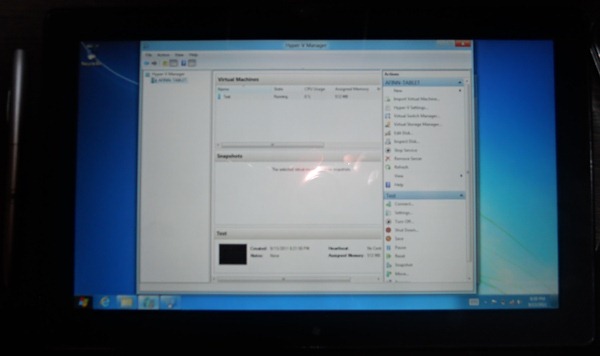
A pressing question: can you enable Hyper-V on this hardware?  Yes.  A picture paints a thousand words:

DSCN8177

Here I have a single VM running on an external virtual network that is natively connected to the wifi NIC.  No more manually mucking around with bridging, or proxies!  Dynamic Memory is also enabled.  The SSD only gives you 54 GB of usable storage, with 36 GB free, so there won’t be too many VMs installed on this machine.  I don’t see a way to open the case so I guess I won’t be upgrading the SSD anytime soon either.  But … it’s a pretty nice machine that might put my iPad to rest for a while.  We shall see in the coming weeks and months!

Technorati Tags: ,

Why So Angry?

I was reading some tweets and Facebook posts, and then I saw this tweet by Paul Thurrott:

Haters come crawling out of the woodwork when they feel threatened. I find it both funny and sad.

There are a lot of Apple fans out there who really want Windows 8 to fail.  They are taking every opportunity to criticise something they’ve only seen on a webcast, or maybe only seen screenshots of.  I’m too jetlagged to bother much with them.

I’m a big Windows nerd.  But I’m not even 100% convinced that it’s right – yet.  I’ll find out in about 1 hour when I try the developer preview build for the first time

The way I see it, Microsoft are making the right moves.  A touch first GUI has been needed for a year.  Windows 8 does what the iPad does, but it does more.  And if the last 12 months has taught us anything, Office is uber important.  It sells sells sells.  And business are buying it because of features that are being used.  Windows 8, “Office 15”, and “SharePoint 15” all share a dev platform in Javascript and HTML5.  I know that business software developers will love that.  They sure liked it in the auditorium.  Having a common platform like that just makes business app integration so much easier.

Anyway, we haven’t even seen the business side of Windows 8 yet, and we have yet to see the Server stuff.  I’ll be focusing on Hyper-V and private cloud sessions.  There’s so much IT Pro content, I reckon I’ll be watching some on video on the flight home.

Technorati Tags: