When To Use And When NOT To Use A Scale-Out File Server

The new transparent failover, scalable, and continuously available active-active file server cluster, better known as Scale-Out File Server (SOFS) sounds really cool.  Big, cheap disk, that can be bundled into a file server cluster that has higher uptime than everything that came before.  It sure sounds like a cool way to provision file shares for end users.

And there’s the problem.  As announced at Build in 2011, that is not what the Scale-Out File Server For Applicaion Data (to give it it’s full name) is intended for.  Let’s figure out why; I always say if you understand how something works then you understand why/how to use something, and how/why not to use it.

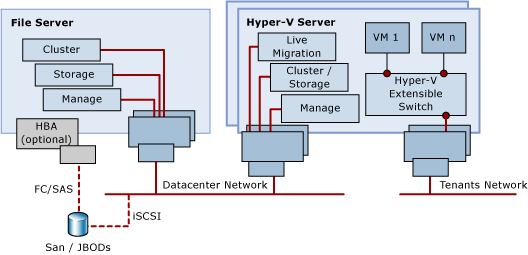
The traditional active/passive clustered file server uses a shared-nothing disk that takes a few seconds to fail over from host to host. And it is active/passive.  The SOFS is active-active.  That means the file share, or the cluster resource, must be accessible on all nodes in the SOFS cluster.  We need a disk that is clustered and available on all nodes at the same time.  Does that sound familiar?  It should if you read this blog: because that’s the same demand Hyper-V has.  And in W2008 R2 we got Clustered Shared Volume (CSV), a clustered file system where one of the nodes orchestrates the files, folders, and access.

In CSV the CSV Coordinator, automatically handled by the cluster and made fault tolerant, handles all orchestration.  Example of that orchestration are:

  • Creating files
  • Checking user permissions

To do this, nodes in the cluster go into redirected mode for the duration of that activity for the relevant CSV.  In Hyper-V, we notice this during VSS backups in W2008 R2 (no longer present in WS2012 for VSS backup).  IO is redirected from the SAS/iSCSI/FC connections to the storage, an sent over a cluster network via the CSV coordinator, which then proxies the IO to the SAN.  This gives the CSV coordinator exclusive access to the volume to complete the action, e.g. create a new file, check file permissions.

This is a tiny deal for something like Hyper-V.  We’re dealing with relatively few files, that are big.  Changes include new VHD/VM deployments, and expansion of dynamic VHDs for VMs running non-coordinator nodes.  SQL is getting support to store it’s files on SOFS, and it also has few, big files, just like Hyper-V.  So no issue there.

Now think about your end user file shares.  Lots and lots of teeny tiny little files, constantly being browsed in Windows Explorer, being opened, modified, and having permissions checks.  Lots and lots of metadata activity.  If these file shares were on an SOFS then it would probably be in near permanent SMB redirected IO mode (as opposed to block level redirected IO mode which was added in WS2012 for data stream redirection, e.g. caused by storage path failure).

We are told that continuously available file shares on a SOFS are:

  • Good for file services with few, big files, with little metadata activity
  • Bad for file services with many, small files, with lots of metadata activity

The official statement from Microsoft for the usage of SOFS can be found on TechNet:

image

In other words, DO NOT use the Scale-Out File Server solution for end user file shares.  Do, and you will be burned.

[EDIT]

It’s been quite a while since I wrote this post, but people still are INCORRECTLY using SOFS as a file server for end users. They end up with problems, such as slow performance and this one. If you want to “use” a SOFS for file shares, then deploy a VM as a file server, and store that VM on the SOFS. Or deploy non-continuously available (legacy highly available) disks and shares on the SOFS for end users, but I prefer the virtual file server approach because it draws a line between fabric and services.

Mark Your Calendar: Windows 8/Server 2012 RC In The First Week of June

Jeffrey Snover of Microsoft has confirmed yesterday’s news (which was heavily retweeted) that Windows 8 Release Preview and Windows Server 2012 Release Candidate will be released to the public in the first week of June 2012.

I’ve been saying for a while that the Windows 8 schedule looks very like the one for Windows 7.  It’s a little  different (one month behind) but not that different.  My gut is saying it’s an August RTM (on MSVL, MSDN, and TechNet soon after) and an October launch/GA (LAR/distributor pricelist for new volume license purchases, OEM machines, on the shelves).

It won’t be long after that when we have SP1 for System Center with support for Windows Server 2012 and Windows 8.

It’s Official: Windows Server 2012

I am one to say I told you so.  Microsoft released a press release:

Anderson provided a preview of how Microsoft’s private cloud will become even more powerful with Windows Server “8” and announced that the operating system will officially be named Windows Server 2012. The new “cloud-optimized OS” is due out later this year.

Strangely the release was issued before he actually announced this at the keynote; I’m about 10 rows from Anderson now.

Technorati Tags:

Windows 8 GA in October 2012

Bloomberg is reporting that Windows 8 will be generally available in October of this year.  That’s not so different to the Windows 7 schedule:

Windows 7 was released to manufacturing on July 22, 2009, and reached general retail availability worldwide on October 22, 2009.

Therefore I won’t be surprised to see Windows 8 (client and server) RTM in July or August.

Technorati Tags: ,

Windows Server 8 Beta Downloads and Documentation

Microsoft released a lot of documentation/downloads to go with the Windows Server 8 beta release of last week.  Here’s your chance to start learning and playing:

  • Understand and Troubleshoot Virtualized Domain Controller (VDC) in Windows Server "8" Beta: Windows Server "8" Beta introduces the first specific virtualization capabilities to Active Directory Domain Services. Virtualized Domain Controller (VDC) takes lessons learned from twelve years of virtualizing Active Directory and makes a more supportable, more flexible, more intuitive administrative experience for architects and administrators.
  • Test Lab Guide: Demonstrate Virtualized Domain Controller (VDC) in Windows Server "8" Beta: This document contains instructions for setting up the Virtualized Domain Controller test lab through: • Deploying a virtualized domain controller through cloning • Safely restoring a domain controller snapshot
  • Test Lab Guide: Base Test Lab Guide for Windows Server "8" Beta: This Microsoft Test Lab Guide (TLG) provides you with step-by-step instructions to create the Windows Base Configuration test lab, using computers running Windows 8 Consumer Preview or Windows Server “8” Beta. With the resulting test lab environment, you can build test labs based on other Windows Server "8" Beta-based TLGs from Microsoft, TLG extensions in the TechNet Wiki, or a test lab of your own design that can include Microsoft or non-Microsoft products. For a test lab based on physical computers, you can image the drives for future test labs. For a test lab based on virtual machines, you can create snapshots of the base configuration virtual machines. This enables you to easily return to the base configuration test lab, where most of the routine infrastructure and networking services have already been configured, so that you can focus on building a test lab for the product, technology, or solution of interest.
  • Creating Continuously Available File Shares with Windows Server “8” Beta: Windows Server “8” Beta contains a set of continuously available storage solutions that provide a cost effective alternative to an expensive storage area network (SAN) without sacrificing availability and performance. These solutions are targeted towards both traditional information worker workloads and application workloads, and they span the scalability and price point needs for different market segments, with systems going from entry-level sub-$10k solutions to scale-out solutions with up to 400 drives. These solutions are based on software developed by several teams at Microsoft, hardware that is already in the market and hardware that is being developed in cooperation with industry partners. This white paper introduces the reader to these new and enhanced features of Windows Server “8” Beta.
  • Understand and Troubleshoot Scale-out File Servers in Windows Server "8" Beta: This Understanding and Troubleshooting Guide (UTG) enables you to learn technical concepts, functionality, and troubleshooting methods for Scale-Out File Servers in Windows Server “8” Beta. This UTG provides you with: • A technical overview and functional description of this feature. • Technical concepts to help you successfully install, configure, and manage this feature. • User Interface options and settings for configuration and management. • Relevant architecture of this feature, with dependencies, and technical implementation. • Primary troubleshooting tools and methods for this feature.
  • Understand and Troubleshoot Storage Spaces in Windows Server "8" Beta: This Understanding and Troubleshooting Guide (UTG) enables you to learn technical concepts, functionality, and troubleshooting methods for Storage Spaces in Windows Server “8” Beta. This UTG provides you with: • A technical overview and functional description of this feature. • Technical concepts to help you successfully install, configure, and manage this feature. • User Interface options and settings for configuration and management. • Relevant architecture of this feature, with dependencies, and technical implementation. • Primary troubleshooting tools and methods for this feature.
  • Understand and Troubleshoot Microsoft Online Backup Service in Windows Server "8" Beta (!?!?!?!?): This Understand and Troubleshoot Guide (UTG) enables you to learn technical concepts, functionality, and troubleshooting methods for Microsoft Online Backup Service in Windows Server “8” Beta. This UTG provides you with: • A technical overview and functional description of this feature. • Technical concepts to help you successfully install, configure, and manage this feature. • User Interface options and settings for configuration and management. • Relevant architecture of this feature, with dependencies, and technical implementation. • Primary troubleshooting tools and methods for this feature.
  • Test Lab Guide: Demonstrate DNS Security Extensions (DNSSEC) in Windows Server "8" Beta: DNS Security Extensions (DNSSEC) is a suite of extensions that add security to the DNS protocol. RFCs 4033, 4034, 4035, and 5155 specify the core DNSSEC extensions and add origin authority, data integrity, and authenticated denial of existence to DNS. In addition to several new concepts and operations for both the DNS server and the DNS client, DNSSEC introduces new resource records (DNSKEY, RRSIG, NSEC, NSEC3, and DS) to DNS.
  • Test Lab Guide: Demonstrate IP Address Management (IPAM) in Windows Server "8" Beta: Internet Protocol Address Management (IPAM) is a framework for discovering, monitoring, auditing, and managing the Internet Protocol (IP) address space used in a network. IPAM in Windows Server "8" Beta provides components for IP address space management, audit of configuration changes, monitoring and management of DHCP and DNS services, and IP address usage tracking.
  • Understand and Troubleshoot DHCP Failover in Windows Server "8" Beta: This Understand and Troubleshoot Guide (UTG) enables you to learn technical concepts, functionality, and troubleshooting methods for DHCP Failover in Windows Server “8” Beta. This UTG provides you with: • A technical overview and functional description of this feature. • Technical concepts to help you successfully install, configure, and manage this feature. • User Interface options and settings for configuration and management. • Relevant architecture of this feature, with dependencies, and technical implementation. • Primary troubleshooting tools and methods for this feature.
  • Test Lab Guide: Demonstrating DHCP Failover in Windows Server "8" Beta: Dynamic Host Configuration Protocol (DHCP) failover in Windows Server "8" Beta provides the ability for administrators to deploy a highly resilient DHCP service to support a large enterprise. The main goals of the feature are the following. • Provide DHCP service availability at all times on the enterprise network • If a DHCP server is no longer reachable, the DHCP client is able to extend the lease on its current IP address by contacting another DHCP server on the enterprise network.
  • Understand and Troubleshoot Printing in Windows Server "8" Beta: This Understand and Troubleshoot Guide (UTG) enables you to learn technical concepts, functionality, and troubleshooting methods for Printing in Windows Server “8” Beta. This UTG provides you with: • A technical overview and functional description of this feature. • Technical concepts to help you successfully install, configure, and manage this feature. • User Interface options and settings for configuration and management. • Relevant architecture of this feature, with dependencies, and technical implementation. • Primary troubleshooting tools and methods for this feature.
  • Test Lab Guide: Demonstrate Windows Server "8" Beta Print and Document Services:

    This paper contains an introduction to Windows Server "8" Beta Printing and step-by-step instructions for extending the Test Lab Guide Base Configuration to demonstrate Printing Services in Windows Server "8" Beta.

  • Understand and Troubleshoot High Availability Printing in Windows Server "8" Beta: This Understand and Troubleshoot Guide (UTG) enables you to learn technical concepts, functionality, and troubleshooting methods for High Availability Printing in Windows Server “8” Beta. This UTG provides you with: • A technical overview and functional description of this feature. • Technical concepts to help you successfully install, configure, and manage this feature. • User Interface options and settings for configuration and management. • Relevant architecture of this feature, with dependencies, and technical implementation. • Primary troubleshooting tools and methods for this feature.
  • Understand and Troubleshoot Activation Technologies in Windows Server "8" Beta: This Understand and Troubleshoot Guide (UTG) enables you to learn technical concepts, functionality, and troubleshooting methods for Activation Technologies in Windows Server “8” Beta. This UTG provides you with: • A technical overview and functional description of this feature. • Technical concepts to help you successfully install, configure, and manage this feature. • User Interface options and settings for configuration and management. • Relevant architecture of this feature, with dependencies, and technical implementation. • Primary troubleshooting tools and methods for this feature.
  • Understand and Troubleshoot AD DS Simplified Administration in Windows Server "8" Beta: This Understand and Troubleshoot Guide (UTG) enables you to learn technical concepts, functionality, and troubleshooting methods for AD DS Simplified Administration in Windows Server “8” Beta. This UTG provides you with: • A technical overview and functional description of this feature. • Technical concepts to help you successfully install, configure, and manage this feature. • User Interface options and settings for configuration and management. • Relevant architecture of this feature, with dependencies, and technical implementation. • Primary troubleshooting tools and methods for this feature.
  • Test Lab Guide: Demonstrate ADDS Simplified Administration in Windows Server "8" Beta: This document contains instructions for setting up the AD DS Simplified Administration test lab through: • Graphically upgrading an existing Active Directory forest by adding the first Windows Server "8" Beta GUI domain controller • Adding an additional Windows Server "8" Beta Core domain controller using Windows PowerShell • Adding an additional Windows Server "8" Beta Core domain controller using Windows RSAT from a Windows 8 Consumer Preview computer • Decommissioning the original legacy domain controller • Using new AD DS graphical and Windows PowerShell features for further configuration and administration
  • Understand and Troubleshoot Dynamic Access Control in Windows Server "8" Beta: This Understand and Troubleshoot Guide (UTG) enables you to learn technical concepts, functionality, and troubleshooting methods for Dynamic Access Control in Windows Server “8” Beta. This UTG provides you with: • A technical overview and functional description of this feature. • Technical concepts to help you successfully install, configure, and manage this feature. • User Interface options and settings for configuration and management. • Relevant architecture of this feature, with dependencies, and technical implementation. • Primary troubleshooting tools and methods for this feature.
  • Understand and Troubleshoot Cluster-Aware Updating (CAU) in Windows Server "8" Beta: This Understanding and Troubleshooting Guide (UTG) enables you to learn technical concepts, functionality, and troubleshooting methods for Cluster-Aware Updating in Windows Server “8” Beta. This UTG provides you with: • A technical overview and functional description of this feature. • Technical concepts to help you successfully install, configure, and manage this feature. • User Interface options and settings for configuration and management. • Relevant architecture of this feature, with dependencies, and technical implementation. • Primary troubleshooting tools and methods for this feature.
  • Understand and Troubleshoot Hyper-V Replica in Windows Server "8" Beta: This Understanding and Troubleshooting Guide (UTG) enables you to learn technical concepts, functionality, and troubleshooting methods for Hyper-V Replica in Windows Server “8” Beta. This UTG provides you with: • A technical overview and functional description of this feature. • Technical concepts to help you successfully install, configure, and manage this feature. • User Interface options and settings for configuration and management. • Relevant architecture of this feature, with dependencies, and technical implementation. • Primary troubleshooting tools and methods for this feature.
  • Understand and Troubleshoot Remote Desktop Services Desktop Virtualization in Windows Server "8" Beta: This Understand and Troubleshoot Guide (UTG) enables you to learn technical concepts, functionality, and troubleshooting methods for Desktop Virtualization in Windows Server “8” Beta. This UTG provides you with: • A technical overview and functional description of this feature. • Technical concepts to help you successfully install, configure, and manage this feature. • User Interface options and settings for configuration and management. • Relevant architecture of this feature, with dependencies, and technical implementation. • Primary troubleshooting tools and methods for this feature.
  • Understand and Troubleshoot DNS Security Extensions (DNSSEC) in Windows Server "8" Beta: This Understand and Troubleshoot Guide (UTG) enables you to learn technical concepts, functionality, and troubleshooting methods for DNS Security Extensions (DNSSEC) in Windows Server “8” Beta. This UTG provides you with: • A technical overview and functional description of this feature. • Technical concepts to help you successfully install, configure, and manage this feature. • User Interface options and settings for configuration and management. • Relevant architecture of this feature, with dependencies, and technical implementation. • Primary troubleshooting tools and methods for this feature.
  • Understand and Troubleshoot IP Address Management (IPAM) in Windows Server "8" Beta: This Understand and Troubleshoot Guide (UTG) enables you to learn technical concepts, functionality, and troubleshooting methods for IP Address Management (IPAM) in Windows Server “8” Beta. This UTG provides you with: • A technical overview and functional description of this feature. • Technical concepts to help you successfully install, configure, and manage this feature. • User Interface options and settings for configuration and management. • Relevant architecture of this feature, with dependencies, and technical implementation. • Primary troubleshooting tools and methods for this feature.
  • Understand and Troubleshoot Remote Access in Windows Server "8" Beta: This Understand and Troubleshoot Guide (UTG) enables you to learn technical concepts, functionality, and troubleshooting methods for Remote Access in Windows Server "8" Beta. This UTG provides you with: • A technical overview and functional description of this feature. • Technical concepts to help you successfully install, configure, and manage this feature. • User Interface options and settings for configuration and management. • Relevant architecture of this feature, with dependencies, and technical implementation. • Primary troubleshooting tools and methods for this feature.
  • Test Lab Guide: Demonstrate DirectAccess Single Server Setup with Mixed IPv4 and IPv6 in Windows Server "8" Beta: DirectAccess provides users with the experience of being seamlessly connected to their intranet any time they have Internet access. When DirectAccess is enabled, requests for intranet resources (such as email servers, shared folders, or intranet websites) are securely directed to the intranet, without the need for users to connect to a VPN. DirectAccess enables increased productivity for a mobile workforce by offering the same connectivity experience both inside and outside of the office. The Windows Routing and Remote Access Server (RRAS) provides traditional VPN connectivity for legacy clients and non-domain members. RRAS also provides site-to-site connections between servers. RRAS in Windows Server 2008 R2 cannot coexist on the same edge server with DirectAccess, and must be deployed and managed separately from DirectAccess. Windows Server "8" Beta combines the DirectAccess feature and the RRAS role service into a new unified server role. This new Remote Access server role allows for centralized administration, configuration, and monitoring of both DirectAccess and VPN-based remote access services. Additionally, Windows Server "8" Beta DirectAccess provides multiple updates and improvements to address deployment blockers and provide simplified management. This guide provides step-by-step instructions for configuring DirectAccess in a single server deployment with mixed IPv4 and IPv6 resources in a test lab to demonstrate functionality of the deployment experience. You will set up and deploy DirectAccess based on the Windows Server "8" Beta Base Configuration using five server computers and two client computers. The resulting test lab simulates an intranet, the Internet, and a home network, and demonstrates DirectAccess in different Internet connection scenarios.
  • Test Lab Guide: Demonstrate High Availability Printing in Windows Server "8" Beta: This paper contains instructions for setting up a test lab based on the Test Lab Guide Base Configuration and deploying a highly available Windows Server "8" Beta Print Server using three server computers and one client computer. The resulting High Availability Printing test lab demonstrates Windows Server "8" Beta Print Server functionality.
  • Understand and Troubleshoot BitLocker in Windows Server "8" Beta: This Understand and Troubleshoot Guide (UTG) enables you to learn technical concepts, functionality, and troubleshooting methods for BitLocker in Windows Server “8” Beta. This UTG provides you with: • A technical overview and functional description of this feature. • Technical concepts to help you successfully install, configure, and manage this feature. • User Interface options and settings for configuration and management. • Relevant architecture of this feature, with dependencies, and technical implementation. • Primary troubleshooting tools and methods for this feature.
  • Understand and Troubleshoot Servicing in Windows Server "8" Beta: This Understand and Troubleshoot Guide (UTG) enables you to learn technical concepts, functionality, and troubleshooting methods for Servicing in Windows Server “8” Beta. This UTG provides you with: • A technical overview and functional description of this feature. • Technical concepts to help you successfully install, configure, and manage this feature. • User Interface options and settings for configuration and management. • Relevant architecture of this feature, with dependencies, and technical implementation. • Primary troubleshooting tools and methods for this feature.
  • Test Lab Guide: Demonstrate Remote Desktop Services Desktop Virtualization in Windows Server "8" Beta: This paper contains instructions for setting up a test lab based on the Test Lab Guide Base Configuration and deploying Remote Desktop Services Desktop Virtualization using four server computers and one client computer. The resulting Remote Desktop Services Desktop Virtualization test lab demonstrates Desktop Virtualization functionality.
  • Understand and Troubleshoot Remote Desktop Services in Windows Server "8" Beta: This Understand and Troubleshoot Guide (UTG) enables you to learn technical concepts, functionality, and troubleshooting methods for Remote Desktop Services in Windows Server “8” Beta. This UTG provides you with: • A technical overview and functional description of this feature. • Technical concepts to help you successfully install, configure, and manage this feature. • User Interface options and settings for configuration and management. • Relevant architecture of this feature, with dependencies, and technical implementation. • Primary troubleshooting tools and methods for this feature.
  • Test Lab Guide: Demonstrate Remote Desktop Services in Windows Server "8" Beta: Remote Desktop Services (RDS) in Windows Server "8" Beta provides the ideal platform for companies to implement a centralized desktop strategy, helping organizations improve flexibility and compliance while improving data security and IT’s ability to manage desktops and applications. RDS is a centralized desktop and application platform solution that uses Desktop Virtualization and VDI technologies, offering powerful opportunities for IT to deliver and manage corporate desktops and to respond to users’ needs in a flexible way. Remote Desktop Services is the new name for Terminal Services, and reflects the expanded role in Windows Server "8" Beta so that you can run the desktop or applications in the datacenter while your users can be anywhere. This paper contains instructions for setting up a test lab based on the Test Lab Guide Base Configuration and deploying Remote Desktop Services Desktop Virtualization using four server computers and one client computer. The resulting Remote Desktop Services Desktop Virtualization test lab demonstrates Desktop Virtualization functionality.
  • Test Lab Guide-Deploying RD Licensing: Use this test lab guide to install Remote Desktop Services client access licenses (RDS CALs) for Windows Server “8” Beta. This test lab guide uses the VDI standard deployment test lab as a starting place. Complete the steps in Test Lab Guide: Virtual Desktop Infrastructure standard deployment before you proceed with the remainder of the steps in this guide.

Windows Server 8: Microsoft Online Backup Service

What?  You’re kidding, right?  Nope: Microsoft is adding online backup to Windows Server 8.  From the guide:

Microsoft Online Backup Service is an installable service for Windows Server “8” Beta, which allows for file and folder backups to the cloud service

It’s basically an offsite backup solution to the cloud using a Microsoft Online Backup Service Agent.  It provides:

… file and folder backup capabilities for Windows Server “8” Beta computers

It cannot backup system state.  That’s OK.  I’ve worked in in online backup and when people backup everything and see the first invoice for space consumed, well, they quickly decide that business data backup/recovery will be enough.

Access to Microsoft Online Backup Service is limited at first to successful applicants.  The installation:

… is a two-part process, which requires the creation of an online Microsoft Online Services account (not required for BETA since ids are pre-provisioned) and installation of the client components (agent) for the Microsoft Online Backup Service feature. The Microsoft Online Backup Service Agent installer download is located on the Microsoft Connect Site

The backup can be configured via Computer Management or via PowerShell cmdlets:

image

Data is encrypted using a passphrase of your choosing or auto generated (minimum of 16 characters). I love that: passphrase.  MSFT has no record of the passphrase and therefore cannot restore your data for you if you lose the passphrase.

The following table lists the supported list of file and folder attributes/types and the expected behavior of the Microsoft Online Backup Service when it encounters these types:

Attribute/type Supported Expected Behavior
Encrypted Yes Changes in file cause full file transfer
Compressed Yes Change in file cause delta transfer
Sparse Yes Changes in file cause delta transfer
Hard Links No Skipped
Reparse Point No Skipped
Encrypted + Compressed No Skipped
Encrypted + Sparse No Skipped
Compressed + Sparse Yes Backed up as sparse file
Compressed Stream No Saved as uncompressed stream
Sparse Stream No Discarded stream

You pick and choose files/folders just as you would with a normal backup.  You can have X backups per day (3 during beta) and set a retention period for your data (longer = more space = higher cost).

You can restore data using a familiar interface to the original server or another one from a backup of your choosing from within the retention window.  This will require credentials to access and the passphrase to decrypt.

Notes: I don’t see anything about data de-duplication or compression before backup, but that does not mean they are not there, just that this document doesn’t mention them.  I do not see anything for seeding large backups using an out of band device, such as I used when managing an Iron Mountain based service.  There is no mention of backing up Hyper-V VMs.  I think this would price this solution out but it might be an option for some.  I’ll try too find out more.

Windows Server 8 IIS 8 Improvements

I once worked in a hosting environment where we had many thousands of websites per physical web server host.  I was witness to much of the fun with that sort of scale on IIS.

Windows Server 8 brings a lot of improvements to IIS 8, particularly for spinning up websites and SSL scalability (SSL doesn’t require dedicated IPv4 per site) and manageability (SSL certs on the file system and import via copy).

You can find out more at:

Technorati Tags: ,

Do You Have A Production Need for SMI-S In The Microsoft iSCSI Target?

The Microsoft iSCSI target enables you to turn Windows into an iSCSI storage platform.  This can provide economic storage, or give you an iSCSI gateway into a different type of storage.  It’s a free download right now, and will be built into Windows Server 8.

Now for the question:

If you could have it, would you use SMI-S in the Microsoft iSCSI target in a production scenario?  I am not talking about labs, or demos, or proof of concept for VMM 2012.  I am talking about production use of SMI-S and the Microsoft iSCSI target.

If you do have a case then please let me know.  I’ll need specifics – customer, case, how it’ll be used, etc.  Who knows …

Windows 8 Beta And Consumer Preview Are Live – Get The Bits

Now we move into interesting times.  After some announcement in Barcelona (I was asleep near Redmond getting my first decent sleep since Friday night – jetlag) Microsoft has launched the following two releases:

  1. Windows Consumer Preview : This is the desktop OS with a marketing label for the beta.  I think there is also a VHD download but I’ve linked the ISO.  .
  2. Windows Server 8 Beta: What it says on the tin.

If you go for the VHD route, then check out Hans Vredevoort’s post on how to do a boot from VHD for this release.

Additional content is also available:

Expect the information dump to start from Microsoft, and expect your local Microsoft office to start communicating over the next week.

I’ve kicked off my server downloads at the Hyatt in Bellevue at the MVP summit.  It appears that the other residents (mostly MVPs) have also done this …. so my download will complete in 3 or so days.  Ah well, I’m sure the guest wifi network on campus can handle 1000+ of us doing a download Smile with tongue out

I cannot wait for the last bits of the lab at work to get delivered so I can get building.