More “RTM” Documentation For Windows Server 2012 Appeared Overnight

You know that an RTM is coming when the trickle of final documentation becomes a stream out of Microsoft.  We had a few guides appear last week; 3 appeared overnight:

  • Microsoft Multipath I/O (MPIO) Users Guide for Windows Server 2012: This document details changes in MPIO in Windows Server 2012, as well as providing configuration guidance via the GUI, or via our new MPIO module for Windows PowerShell, which is new for Windows Server 2012.
  • Combined Active Directory Schema Classes and Attributes for Windows Server: his download contains the classes and attributes in the Active Directory schema for Windows Server. It contains the classes and attributes for both Active Directory Domain Services (AD DS) and Active Directory Lightweight Directory Services (AD LDS). There are individual text files in LDIF format, which are also bundled into an archive file for single download, if desired. Each file contains the classes or attributes, as appropriate, for the entire Active Directory schema, although system-generated (or instance-specific) properties have been removed to simplify machine parsing. The file names indicate the following: whether a file is for AD DS or AD LDS, whether it contains classes or attributes, and the version of Windows Server for which the file is intended.
  • Application Compatibility and API Support for SMB 3.0, CSVFS, and ReFS: The Application Compatibility with Resilient File System document provides an introduction to Resilient File System (ReFS) and an overview of changes that are relevant to developers interested in ensuring application compatibility with ReFS. The File Directory Volume Support spreadsheet provides documentation for APIs support for SMB 3.0, CSVFS, and ReFS that fall into the following categories: file management functions, directory management functions, volume management functions, security functions, file and directory support codes, volume control code, and memory mapped files.

Won’t be long now Smile

RTM Week! Much Better Than Shark Week If You Ask Me

Although I would have expected the marketing people to wait for 8/8 to RTM Windows 8, they did previously announce RTM would be in the first week of August so that gives them from today (the 1st) until the 7th. And as I tweeted yesterday, Windows 8 product keys have appeared in the Microsoft Volume Licensing Service Center.

Watch for blog posts or news releases from Microsoft at 8am PST and 10am PST. I seem to remember Windows RTM meetings are usually early in the morning, but this Sinofskian release might be quite different to the past.

RTM does not mean that Windows 8/Server 2012 will appear on MSVL/MSDN/TechNet straight away. I think Vista took an age to spread out via the various networks. And I think Windows 7 was instantly available.  Developers will be critical to the success of Windows 8, so surely MSFT will give them access to RTM code on MSDN as quickly as possible?


KB2738482 – W2008 R2 Cluster Validation Indicates Unsigned ACOIPMI Driver

A new KB article for Windows Server 2008 R2 Failover Cluster validation was posted overnight. 

When you run the Failover Cluster Validation Wizard, the report indicates that one or more nodes contain an unsigned acpipmi.sys driver. However, the actual driver is a signed driver. The validation warning message may resemble the following:

The node ‘node1.contoso.com’ has unsigned drivers.

Microsoft ACPI-Compliant Power Meter Device SYSTEM 6.1.7601.17514 6/21/2006 12:00:00 AM Microsoft acpipmi.inf ACPIACPI000DPMI Microsoft ACPI-Compliant Power Meter Device

This issue occurs when the acpipmi.inf file is missing from the C:WindowsInf folder. The reason why the acpipmi.inf file is missing has not been determined.

To resolve this issue, follow these steps:

  1. On a server that is running the same version of Windows Server 2008 R2, has the same architecture, and the same version of Windows Server 2008 R2 service pack installed, locate the acpipmi.inf file in the following folder:

    C:WindowsInf

  2. Copy the acpipmi.inf to a flash drive or to a network share.
  3. On the server that is experiencing this issue, copy the acpipmi.inf file into the following folder: C:WindowsInf

Is Windows Server 2012 RTM Closer Than We Think?

Oh you just know when RTM is nearby. Documents that don’t talk about beta or release candidate start to trickle out. Overnight I saw a Windows Server 2012/Windows 8 Branch Cache Deployment guide. And just now, Jose Barreto tweeted about a new version of the Performance Tuning Guidelines for Windows Server 2012 document. Can you smell it? The flavour of RTM is in the air, and it’s good!

BTW, MSFT did say first week of August, and that is next week.  But Mary Jo Foley did warn us to watch out for under-promise and over-deliver, i.e. an early RTM.  Let’s hope there are know showstopper bugs logged.

Rough Guide To Setting Up A Scale-Out File Server

You’ll find much more detailed posts on the topic of creating a continuously available, scalable, transparent failover application file server cluster by Tamer Sherif Mahmoud and Jose Bareto, both of Microsoft.  But I thought I’d do something rough to give you an oversight of what’s going on.

Networking

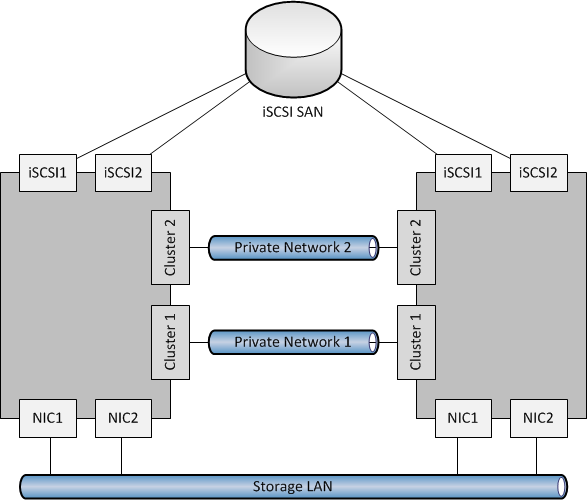
First, let’s deal with the host network configuration.  The below has 2 nodes in the SOFS cluster, and this could scale up to 8 nodes (think 8 SAN controllers!).  There are 4 NICs:

  • 2 for the LAN, to allow SMB 3.0 clients (Hyper-V or SQL Server) to access the SOFS shares.  Having 2 NICs enables multichannel over both NICs.  It is best that both NICs are teamed for quicker failover.
  • 2 cluster heartbeat NICs.  Having 2 give fault tolerance, and also enables SMB Multichannel for CSV redirected I/O.

image

Storage

A WS2012 cluster supports the following storage:

  • SAS
  • iSCSI
  • Fibre Channel
  • JBOD with SAS Expander/PCI RAID

If you had SAS, iSCSI or Fibre Channel SANs then I’d ask why you’re bothering to create a SOFS for production; you’d only be adding another layer and more management.  Just connect the Hyper-V hosts or SQL servers directly to the SAN using the appropriate HBAs.

However, you might be like me and want to learn this stuff or demo it, and all you have is iSCSI (either a software iSCSI like the WS2012 iSCSI target or a HP VSA like mine at work).  In that case, I have a pair of NICs in each my file server cluster nodes, connected to the iSCSI network, and using MPIO.

image

If you do deploy SOFS in the future, I’m guessing (because we don’t know yet because SOFS is so new) that’ll you’ll mostly likely do it with a CiB (cluster in a box) solution with everything pre-hard-wired in a chassis, using (probably) a wizard to create mirrored storage spaces from the JBOD and configure the cluster/SOFS role/shares.

Note that in my 2 server example, I create three LUNs in the SAN and zone them for the 2 nodes in the SOFS cluster:

  1. Witness disk for quorum (512 MB)
  2. Disk for CSV1
  3. Disk for CSV2

Some have tried to be clever, creating lots of little LUNs on iSCSI to try simulate JBOD and Storage Spaces.  This is not supported.

Create The Cluster

Prereqs:

  • Windows Server 2012 is installed on both nodes.  Both machines named and joined to the AD domain.
  • In Network Connections, rename the networks according to role (as in the diagrams).  This makes things easier to track and troubleshoot.
  • All IP addresses are assigned.
  • NIC1 and NIC2 are top of the NIC binding order.  Any iSCSI NICs are bottom of the binding order.
  • Format the disks, ensuring that you label them correctly as CSV1, CSV2, and Witness (matching the labels in your SAN if you are using one).

Create the cluster:

  1. Enable Failover Clustering in Server Manager
  2. Also add the File Server role service in Server Manager (under File And Storage Services – File Services)
  3. Validate the configuration using the wizard.  Repeat until you remove all issues that fail the test.  Try to resolve any warnings.
  4. Create the cluster using the wizard – do not add the disks at this stage.  Call the cluster something that refers to the cluster, not the SOFS. The cluster is not the SOFS; the cluster will host the SOFS role.
  5. Rename the cluster networks, using the NIC names (which should have already been renamed according to roles).
  6. Add the disk (in storage in FCM) for the witness disk.  Remember to edit the properties of the disk and rename if from the anonymous default name to Witness in FCM Storage.
  7. Reconfigure the cluster to use the Witness disk for quorum if you have an even number of nodes in the SOFS cluster.
  8. Add CSV1 to the cluster.  In FCM Storage, convert it into a CSV and rename it to CSV1.
  9. Repeat step 7 for CSV2.

Note: Hyper-V does not support SMB 3.0 loopback.  In other words, the Hyper-V hosts cannot be a file server for their own VMs.

Create the SOFS

  1. In FCM, add a new clustered role.  Choose File Server.
  2. Then choose File Server For Scale-Out Application Data; the other option in the traditional active/passive clustered file server.
  3. You will now create a Client Access Point or CAP.  It requires only a name.  This is the name of your “file server”.  Note that the SOFS uses the IPs of the cluster nodes for SMB 3.0 traffic rather than CAP virtual IP addresses.

That’s it.  You now have an SOFS.  A clone of the SOFS is created across all of the nodes in the cluster, mastered by the owner of the SOFS role in the cluster.  You just need some file shares to store VMs or SQL databases.

Create File Shares

Your file shares will be stored on CSVs, making them active/active across all nodes in the SOFS cluster.  We don’t have best practices yet, but I’m leaning towards 1 share per CSV.  But that might change if I have lots of clusters/servers storing VMs/databases on a single SOFS.  Each share will need permissions appropriate for their clients (the servers storing/using data on the SOFS).

Note: place any Hyper-V hosts into security groups.  For example, if I had a Hyper-V cluster storing VMs on the SOFS, I’d place all nodes in a single security group, e.g. HV-ClusterGroup1.  That’ll make share/folder permissions stuff easier/quicker to manage.

  1. Right-click on the SOFS role and click Add Shared Folder
  2. Choose SMB Share – Server Applications as the share profile
  3. Place the first share on CSV1
  4. Name the first share as CSV1
  5. Permit the appropriate servers/administrators to have full control if this share will be used for Hyper-V.  If you’re using it for storing SQL files, then give the SQL service account(s) full control.
  6. Complete the wizard, and repeat for CSV2.

You can view/manage the shares via Server Manager under File Server.  If my SOFS CAP was called Demo-SOFS1 then I could browse to \Demo-SOFSCSV1 and \Demo-SOFSCSV2 in Windows Explorer.  If my permissions are correct, then I can start storing VM files there instead of using a SAN, or I could store SQL database/log files there.

As I said, it’s a rough guide, but it’s enough to give you an oversight.  Have a read of the above linked posts to see much more detail.  Also check out my notes from the Continuously Available File Server – Under The Hood TechEd session to learn how a SOFS works.

Microsoft Assessment & Planning Toolkit 7.0 Goes Live – Supports Windows 8 and Server 2012

I just received an email informing me that MAP 7.0 is live, and it now supports assessment to help you plan the deployment of Windows 8, Windows Server 2012, and Windows Server 2012 Hyper-V.  You can start planning now, with the products coming down the pipe soon.

The new version which you can download now allows you to:

  • Understand your readiness to deploy Windows Server 2012 in your environment
  • Determine Windows 8 readiness
  • Investigate how Windows Server and System Center can manage your heterogeneous environment through VMware migration and Linux server virtualization assessments
  • Size your desktop virtualization needs for both Virtual Desktop Infrastructure (VDI) and session-based virtualization using Remote Desktop Services
  • Ready your information platform for the cloud with the SQL Server 2012 discovery and migration assessment
  • Evaluate your licensing needs with usage tracking for Lync 2010, active users and devices, SQL Server 2012, and Windows Server 2012

You should know that I believe that assessment is a critical early step in a virtualisation project, be it XenServer, VMware, or Hyper-V.  Without it, you’re shooting blind, and you’ll end up being an anecdote in a presentation on how to do a crap project.

Windows 8 and Server 2012 RTM/GA Dates Announced

I was actually under a rock, busy delivering some training, so I missed the WPC keynotes and the announcements today. 

  • Windows 8 is on track to RTM on the first week of August, assuming that there are no showstoppers between now and then.
  • Customers with Software Assurance will have access to the downloads via the Volume Licensing Service Center (VLSC) by the end of August.
  • The Windows 8 Store will go live (in other words, go commercial) at RTM time.
  • GA will be by the end of October.  That’s when you’ll see designed-for-Windows 8 machines for the first time in the stores.

Windows Server 2012 will RTM in August and be “available to customers worldwide through multiple channels in September”.  Yes, Windows Server 2012 will be GA before the desktop.  That’ makes sense actually, because the OEMs will need more time with the desktop OS than they will with the server OS.

Windows Server 2012 Licensing In Detail

New, Simpler, Better Value Licensing Announced For WS2012 and Some SBS Changes

Note: I saw the announcement when it first came out and have been waiting & digesting.  More information came out since then so I thought a single post would be best. Make sure you follow this post by reading my post on licensing for virtualisation of Windows Server 2012.  I will not be answering any further questions on this post. Please ask your reseller, distributor, or LAR your scenario specific questions; that’s why you pay them.

In case you don’t know, I happen to work for a distributor of Microsoft licensing. My job is to work with our sales people, supporting Microsoft partners who resell product to end customers. My focus is on System Center (and that brings in Hyper-V) and Forefront, but anything that is anyway technical tends to find its way to my desk. And you know what? I’ve been amazed at the complexity that is involved. Some questions are part licensing/legal and part technical. And these issues confuse the hell out of people. And trust me; I’ve let well known executives in Microsoft know what I thought of the complexity.

The recent changes to System Center 2012 licensing simplified our conversations quite a bit. To use a Henry Ford analogy, System Center SMLs come in 2 sizes and in black:

  • SML Standard: 2 CPUs in the physical server, all of System Center, licensing 2 physical CPUs in the server + 2 VMs running Windows Server on the licensed host
  • SML Datacenter: 2 CPUs in the physical server, all of System Center, licensing 2 physical CPUs in the server + unlimited VMs running Windows Server on the licensed host

There is nothing to restrict you from creating hundreds of VMs on WinServ Std. The VOSE rights restrict your rights to install Windows Server. Make sure you follow this post by reading my post on licensing for virtualisation of Windows Server 2012.

    Windows Server 2008 R2 SKUs

    Currently on the Windows Server front it’s more like 2005 General Motors than early Ford. We have the following SKUs in Windows Server:

    1. Windows Server 2008 R2 Datacenter
    2. Windows Server 2008 R2 Enterprise
    3. Windows Server 2008 R2 Standard
    4. Windows Web Server 2008 R2
    5. Windows HPC Server 2008 R2 Suite
    6. Windows Server 2008 R2 HPS Edition
    7. Microsoft HPC Pack 2008 R2 Enterprise
    8. Windows Server 2008 R2 for Itanium-Based Systems
    9. Windows Small Business Server 2011 Premium
    10. Windows Small Business Server 2011 Standard
    11. Windows Small Business Server 2011 Essentials
    12. Windows Server 2008 R2 Foundation
    13. Windows Storage Server 2008 R2
    14. Windows Home Server 2011

    Phew! No wonder people get confused.

    Windows Server 2012 SKUs

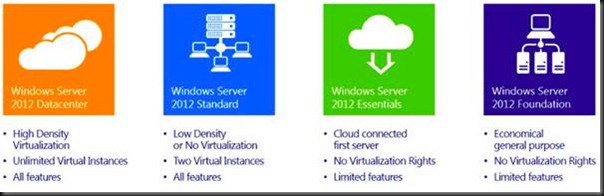
    This evening Microsoft released the details of Windows Server 2012 licensing. There is also a datasheet and a FAQ with more details.  There will be 4 (count ‘em … four) 5 (count ‘em again … five) SKUs:
    clip_image002

    See EDIT#2 below … Windows Storage Server will also be released.

    Please, do not panic if you are a HPC customer or an Enterprise customer. Here’s why:

    • HPC will be a free download/add-on for Standard/Datacenter customers
    • Standard will have the same scalability and features as the Datacenter edition … yes, you can build clusters with Windows Server 2012 Standard … and at a fraction of the cost that you did it with Enterprise edition (as you’ll see next)!

    You see, IT Pros, not all change is bad J [Did I just say that?]

    Pricing & Changes

    I want to focus on the 2 computer room/data centre products for a while: Datacenter and Standard. What were the shelf prices before with 2008 R2?  Bear in mind that the shown prices are the from the Open NL price list, the most expensive of the volume license types.  They are shown to give an indication of past and present.  What you will pay your reseller/LAR/distributor will probably be less:

    clip_image004

    So, Datacenter cost $4,809 (for 2 copies – you’ll see why in a sec) and came with unlimited virtualisation rights on the host … or in simple language you could install as many VMs on that licensed host as your hardware would allow, and then install Windows Server 2008 R2 or lower, any edition, into those VMs at no extra cost. The funny thing with Datacenter was that it was per processor, with a minimum of 2 processors … hence I’ve shown $4,809 per host with 2 procs.

    Enterprise came with all the same features and scalability, with a limit of technical limit of 8 CPUs in the physical server. Licensing-wise, it allowed 4 VMs on the licensed host to run Windows for free. You could double the licensing for the host to get 8 VMs for free … but do the math and you might as well buy Datacenter edition then. However, Enterprise was $2,358 per server with no processor counting required.

    Standard Edition had limited scalability and features, e.g. 32 GB RAM even for Hyper-V. At $726 you licensed a server, and it came with 1 free license for a VM on that host.

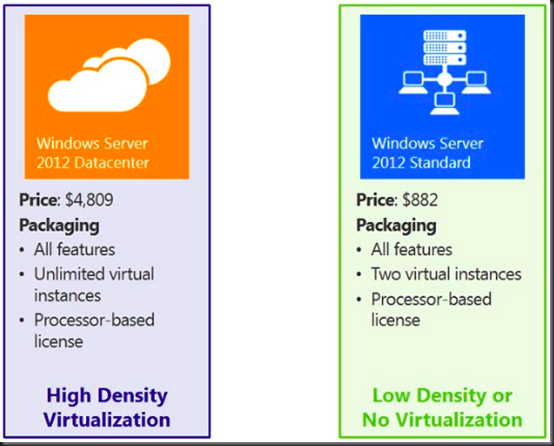
    Enter Windows Server 2012 and we have:
    clip_image005

    For Datacenter there is 1 change: You buy 1 copy of Datacenter and it includes 2 processors. The whole minimum-of-2-procs-per-host thing confused people. So Microsoft consolidated the 2 licenses into 1 and left the price at $4,809. We continue to have the unlimited virtualisation licensing. That means if you buy 1 copy of Datacenter for a 2 CPU host (any virtualisation) and you get unlimited installations of Windows Server 2012 or lower (any edition) for unlimited VMs on that host … no changes there!

    clip_image007

    Let’s move on to Standard before we cover the gap that was Enterprise. Standard is going from $726/server to $882 for 2 physical CPUs in a server. For that, you’re getting:

    • A huge leap in capabilities and scalability in the Standard edition
    • Rights to an additional copy of Windows for a second VM running on the physical box that is licensed using Windows Server 2012 Standard.

    The other change for Standard is that it will match the Datacenter model. The Standard license will cover you for 2 CPUs in a server. If you want 4 CPUs, then you need 2 copies of Standard. I do not envision that being a problem because I’ve never seen Standard installed on anything more than 2 CPUs.

    If you’re about to complain because you have a bunch of Standard edition physical servers, the price is going up, and you don’t need the additional features/scalability, then I will respond with: you’ve been throwing money away for years and your boss should be asking you some questions like “Why didn’t we virtualise those servers 3 years ago?”  If you virtualise those Standard Edition servers now then you can merge them into Datacenter per host licensing and save on electricity, support, and lots of other costs over your 3 year cycles.

    Windows Server 2012 Foundation is OEM only and therefore there is no Open NL pricing.  Foundation is also for single CPU servers, such as a micro-server.  More on Essentials later.

    Replacing the Enterprise Edition

    OK Enterprise owners, just like the old Star Trek storyline, it is g-o-n-e. Here is your replacement strategy:

    • If you use to buy Enterprise for clustering, then use Standard instead. You just saved $1,476 per node!
    • If you bought Enterprise to have virtualisation rights for 4 VMs on a host, then buy 2 Standards for that host … hey! 2008 R2 Enterprise cost $2,358 and 2 copies of WS2012 Standard costs $1,764. You just saved $594 per host!

    Where Is Small Business Server (SBS)?

    The answer to that question was posted on the SBS blog.  SBS has been replaced by Windows Server 2012 Essentials.   Windows Server 2012 Essentials will support up to 25 users and 50 devices.  Essentials is for 1 or 2 CPU servers and cost $425 on Open NL.  The idea behind Essentials is that it will be the successor to SBS.  Quoting the blog, that also features a Windows Server 2012 Essentials FAQ:

    Windows Server 2012 Essentials has been designed to give you the flexibility to choose which applications and services run on-premises and which run in the cloud. In contrast to Windows SBS Standard, Essentials offers lower up-front acquisition and deployment costs. It allows you to take advantage of cloud-based messaging offerings while enjoying an integrated management experience by subscribing to Office 365 or a hosted Exchange service. If you prefer a fully on-premises solution, you have the option of running Exchange Server on a second server (either as a physical or virtual machine) alongside Essentials with the same integrated management experience.

    Windows Server 2012 Essentials can also be used as a platform to run line-of-business applications and other on-premises workloads, as well as to provide an integrated management experience when running cloud-based applications and services, such as email, collaboration, online backup, and more.

    Windows Server 2012 Essentials can also be used as a platform to run line-of-business applications and other on-premises workloads, as well as to provide an integrated management experience when running cloud-based applications and services, such as email, collaboration, online backup, and more.

    Windows SBS 2011 Standard, which includes Exchange Server and SharePoint Foundation, will be the final such Windows SBS offering. It will remain available through the OEM channel until December 31, 2013, and will remain available in all other current channels until June 30, 2013.

    Long-story short, the small business customer is now getting a 25 user version of Windows that does not come with Exchange.  If they want Email/collaboration/chat then Microsoft is selling Office 365.  And of course, the partner is free to sell/install something else on the Essentials server, and the customer is also free to buy/install another product on the Essentials server.  They are getting a very cheap server that requires no CALs, and that’s a nice first-server starting point for a cash-strapped small business.

    My analysis on this: the writing has been on the wall for a long time.  At least locally, Microsoft has made huge investments in trying to educate train partners on the strategy, sales, and technical levels.  We have to move with the times cos the times are moving.

    Some upgrade paths for SBS:

    • If you have Software Assurance on Small Business Server 2011 Essentials, you will receive one Windows Server 2012 Essentials license.
    • If you have Software Assurance on Small Business Server 2011 Standard edition, you will receive one Windows Server 2012 Standard edition license and one Exchange Server Standard 2010 license.
    • If you have Software Assurance on Small Business Server 2011 Premium Add-on edition, you will receive one Windows Server 2012 Standard edition license and one SQL Server 2012 Standard edition license.

    This upgrade right will be reflected upon your agreement renewal but you are entitled to use the granted product upon its availability.

    EDIT: I’ve another post on the SBS story.

    Déjà Vu

    Those of you who understand System Center 2012 licensing have thought “that looks familiar!” It should because the model matches the Datacenter/Standard license model of System Center. And that makes the Enrollment for Core Infrastructure (ECI) and Core Infrastructure Suite (CIS) licenses much easier to understand:
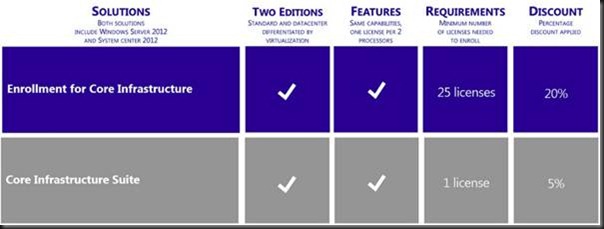
    clip_image009

    Buying Windows Server and a Standard System Center SML? Then buy a Standard edition of a CIS or ECI suite. Buying the Datacenter editions? Then buy the Datacenter edition of the ECI or CIS suites instead … and save even more money.

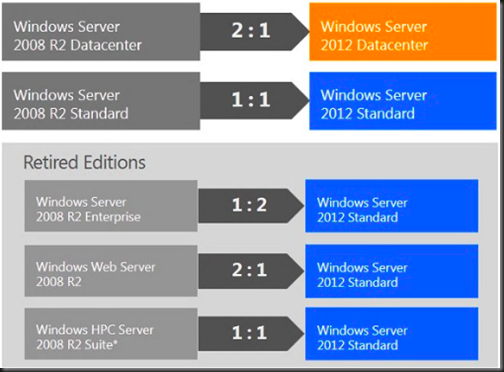
    What happens if you have Software Assurance such as Open + SA, OVS, or ESA? Well there are migrations from the old SKUs to the new SKUs:
    clip_image010

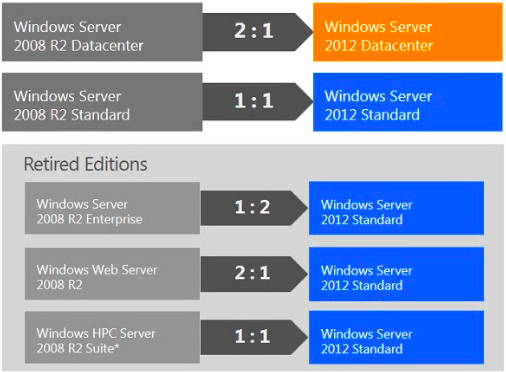
    The 2:1 Datacenter edition makes sense because you’re going from 2 * 1 CPU licenses per host to 1 * 2 CPU license with no price change.

    Remember that HPC is replaced by Windows Server 2012 Standard/Datacenter plus the free HPC download. And Enterprise folks don’t lose out because they get the equivalent (features + virtualisation rights) of 2 copies of Standard (4 licensed VMs + 4 CPUs in the server).

    Anyone running physical installations of Windows Web Server 2008 R2: this is your prompt to join the rest of us in the 21st century and virtualize those web servers … NOW! If you put 2 web servers on to a host, your new Windows Server 2012 Standard edition covers you for your virtual web server licensing.

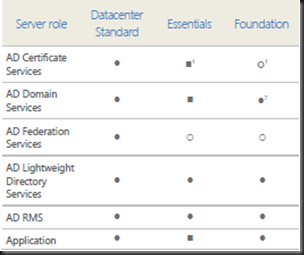
    Editions Comparison

    Here are how the Windows Server 2012 editions compare against each other:

    image

    image

    Here is a feature comparison:

    image

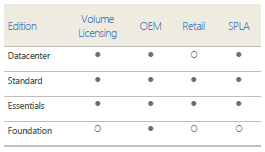
    And here is how you can buy the different WS2012 editions:

    image

    Step-Up

    For those of you running one edition and would like to upgrade to another (Standard -> Datacenter) then you can do that if you have Software Assurance. The cost is the price difference between the editions. Note that you can step up from 1 Enterprise 2008 R2 to 2 copies of Datacenter 2008 R2 now and then you get WS2012 Datacenter edition.

    For Those Without Software Assurance

    What if you don’t have Software Assurance on your servers?

    • Attend my presentations more often and/or add my site to your RSS feeds because … I told you so! [Heh! I was right; I am one to say “I told you so”]
    • If you bought your software in the past 90 days then still can attach it; contact your reseller/LAR for details.

    You will continue to use the version and SKU that you bought, and you’ll miss all that lovely WS2012 goodness that the rest of us are salivating over. [Have I mentioned that I am a nerd?]

    Client Access Licenses (CALs)

    None of the rules change. You continue to license clients for the highest version of Windows Server that they use. For example, you could run 10 W2008 R2 VMs on a WS2012 host. You then use W2008 R2 CALs. If you upgrade a single one of those VMs to WS2012 then you need WS2012. Seriously, Software Assurance on CALs makes sense.

    RDS CAL licensing is not changing.  Anyone running either Web (only) or HPC workloads (only) on their servers do not require CALs.

    Neither Window Server 2012 Essentials or Windows Server 2012 Foundation require CALs.

    License Mobility

    No changes to report here either. OEM is tied to the machine – that’s why it’s cheaper. And a volume license can be moved once every 90 days. And that applies to you folks who think they are able to under-license their hosts (even VMware and Xen) for VMs; you have to license for the maximum number of Windows VMs on that host, even for 1 second. You can’t license 20 VMs with Standard Edition and VMotion/DRS them about every 5 minutes – mobility rules say you can move them once every 90 days because legally you license the host and use the virtualisation rights of that Standard SKU to license the VMs. The correct way to license is to stack your Standard editions on each of the hosts (allowing for the highest possible number of VMs, even for 1 second) or buy Datacenter (which makes sense once you need more than 10 VMs per host based on this retail pricing).

    EDIT#1: Windows Home Server

    Mary Jo Foley confirmed that there will be no more editions of Windows Home Server.  I guess I’ll be rebuilding my Microserver with Windows 8 and setting up a Storage Space.

    EDIT#2: Windows Storage Server

    I’ve just had it confirmed by Microsoft that there will be a Windows Storage Server 2012, giving us 5 SKUs going forward.

    Summary

    Watch out for the FUD that is sure to appear in blogs and forums, and the occasional “journalist” (like the ones I love to crucify on this blog from time to time). I’m sure the cynics and competitors will spin things and misquote pieces of Microsoft’s text on the changes. Before you make any decisions, read Microsoft’s original text (URL to be added) and then check with LAR or reseller … and check with another reseller if yours is a VMware fanboy because I’m sure they might have eaten the FUD.

    I think the only genuine confusion will be that these changes and savings will sound too good to be true. Seriously – Windows Server licensing is changing, simplifying, and you’re saving money.  I’m bringing my ice skates with me when I go to hell.  It’s a win/win – with some concerns for SBS folks maybe.

    The licensing couldn’t be simpler in the data centre. It comes in Standard or Datacenter. They both come with all the scalability and all the features, including Hyper-V. And the free Hyper-V Server 2012 comes with all the features and scalability of Hyper-V on Windows Server 2012 Hyper-V. I bet the competition’s licensing isn’t this simple, offer as good value, and include all the features in all the editions. [Stop it!]

    Make sure you follow this post by reading my post on licensing for virtualisation of Windows Server 2012.

    Application Compatibility and API Support for SMB 3.0, CSVFS, and ReFS

    Microsoft just published this document with details on compatibility for SMB 3.0, CSVFS (cluster shared volume for Hyper-V and SOFS), and the new server file system ReFS.

    The Application Compatibility with Resilient File System document provides an introduction to Resilient File System (ReFS) and an overview of changes that are relevant to developers interested in ensuring application compatibility with ReFS. The File Directory Volume Support spreadsheet provides documentation for APIs support for SMB 3.0, CSVFS, and ReFS that fall into the following categories: file management functions, directory management functions, volume management functions, security functions, file and directory support codes, volume control code, and memory mapped files.

    It is very much aimed towards developers.  There is a little bit of decipherable text in there to describe what ReFS is, something MSFT is not talking about much, not even at TechEd.  My take so far: it’s a file system for the future that will eventually supplant NTFS.

    Sections 1.1-1.3 are interesting to us IT Pros, then jump ahead to section 1.11.

    Technorati Tags: ,

    Windows Server 2012 Continuous Availability Documentation

    Microsoft has released some documents to accompany their TechEd 2012 sessions on Continuous Availability.

    Windows Server 2012 contains a set of continuously available storage solutions that provide a cost effective alternative to an expensive storage area network (SAN) without sacrificing availability and performance. These solutions are targeted towards traditional information worker workloads and application workloads, and they span the scalability and price point needs for different market segments. Systems go from entry-level solutions to scale-out solutions with up to 400 drives. These solutions are based on software that is developed by several teams at Microsoft, hardware that is already in the market, and hardware that is being developed in cooperation with industry partners. These documents supplement the Microsoft TechEd 2012 sessions related to continuous availability. They introduce the new and enhanced features of Windows Server 2012 and cover topics such as Scale-Out File Server, Cluster-Aware Updating, SMB 3.0, and NIC Teaming.