Microsoft Azure Started Patching Reboots Yesterday

Contrary to a previous email that I received, Microsoft started rebooting Azure VMs yesterday, instead of the 9th. Microsoft also confirmed that this is because of the Intel CPU security flaw. The following email was sent out to customers:

Dear Azure customer,

An industry-wide, hardware-based security vulnerability was disclosed today. Keeping customers secure is always our top priority and we are taking active steps to ensure that no Azure customer is exposed to these vulnerabilities.

The majority of Azure infrastructure has already been updated to address this vulnerability. Some aspects of Azure are still being updated and require a reboot of some customer VMs for the security update to take effect.

You previously received a notification about Azure planned maintenance. With the public disclosure of the security vulnerability today, we have accelerated the planned maintenance timing and began automatically rebooting the remaining impacted VMs starting at PST on January 3, 2018. The self-service maintenance window that was available for some customers has now ended, in order to begin this accelerated update.

You can see the status of your VMs, and if the update completed, within the Azure Service Health Planned Maintenance Section in the Azure Portal.

During this update, we will maintain our SLA commitments of Availability Sets, VM Scale Sets, and Cloud Services. This reduces impact availability and only reboots a subset of your VMs at any given time. This ensures that any solution that follows Azure’s high availability guidance remains available to your customers and users. Operating system and data disks on your VM will be retained during this maintenance.

You should not experience noticeable performance impact with this update. We’ve worked to optimize the CPU and disk I/O path and are not seeing noticeable performance impact after the fix has been applied. A small set of customers may experience some networking performance impact. This can be addressed by turning on Azure Accelerated Networking (Windows, Linux), which is a free capability available to all Azure customers.

This Azure infrastructure update addresses the disclosed vulnerability at the hypervisor level and does not require an update to your Windows or Linux VM images. However, as always, you should continue to apply security best practices for your VM images.

For more information, please see the Azure blog post.

That email reads like Microsoft has done quite a bit of research on the bug, the fix, and the effects of bypassing the flawed CPU performance feature. It also sounds like the only customers that might notice a problem are those with large machines with very heavy network usage.

Accelerated networking is Azure’s implementation of Hyper-V’s SR-IOV. The virtual switch (in user mode in the host parent partition) is bypassed, and the NIC of the VM (in kernel mode) connects directly to a physical function (PF) on the host’s NIC via a virtual function (VF) or physical NIC driver in the VM’s guest OS. There are fewer context switches because there is no loop from the the NIC, via the VM bus, to the virtual switch, and then back to the host’s NIC drivers. Instead, with SR-IOV/Accelerated Networking, everything stays in kernel mode.
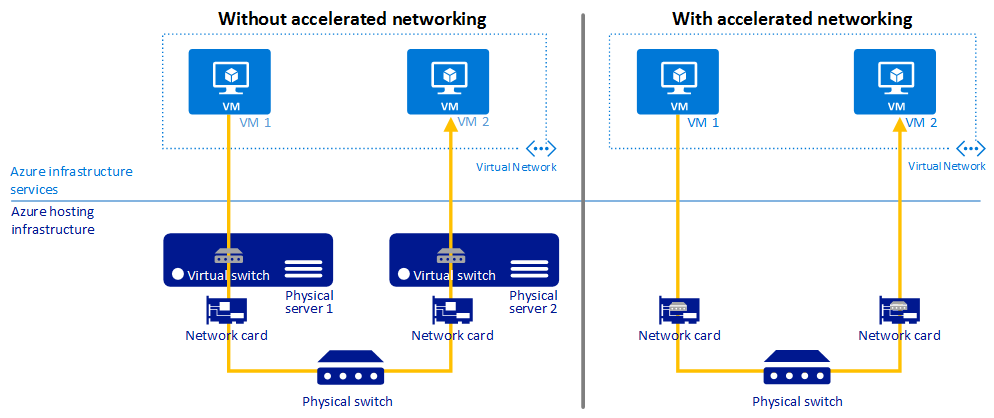
Image result for azure accelerated networking

If you find that your networking performance is impacted, and you want to enable Accelerated Networking, then there are a few things to note:

Thanks to Neil Bailie of P2V for spotting that I’d forgotten something in the below, stricken out, points:

Was This Post Useful?

If you found this information useful, then imagine what 2 days of training might mean to you. I’m delivering a 2-day course in Amsterdam on April 19-20, teaching newbies and experienced Azure admins about Azure Infrastructure. There’ll be lots of in-depth information, covering the foundations, best practices, troubleshooting, and advanced configurations. You can learn more here.


Intel CPU Security Bug

Gossip started to twirl in the last few days about what was driving both Azure and AWS to push out updates at relatively short notice. And news leaked over the last day that Intel has discovered a significant security flaw in the code of nearly all (or all) Intel processors manufactured in the last decade.

Intel has issued an embargo to partners on sharing the news while fixes are being produced, but the news has leaked, and it affects everything using Intel’s processors: Windows, MacOS, Linux, AWS, Azure, and probably VMware too. It sounds like the error is a hardware error that cannot be fixed using a microcode update by Intel. This means that the hypervisors and operating systems on top of the processors must bypass the flaw in the processor. And here’s where the bad news is.

We can expect Microsoft to issue a security fix very quickly. According to Gizmodo, a redacted form of the fix appeared in the Linux kernel recently. But the fix will bypass the flaw which resides in a performance feature of the processor. My limited understanding is that the feature helps make the switch between user mode and kernel mode less disruptive by tweaking the handling of secure kernel memory. The flaw makes it possible for processes in user mode to scan kernel memory. To bypass this feature, the performance enhancement has to be bypassed, and this could cause anywhere between a “5 and 30 percent” performance hit, according to several news sites, but I don’t know how reliable that number is.

Typical end users won’t notice this. But heavily loaded systems will notice. So if your CPU is heavily used, you can expect that the security fix will cause you problems.

The timing of this flaw/fix and the timing of Azure’s and AWS’s updates cannot be a coincidence.

Azure Schedules Maintenance & Downtime For January 9th

Microsoft are currently distributing the following email template:

Performance, security, and quality are always top priorities for us. I am reaching out to give you an advanced notice about an upcoming planned maintenance of the Azure host OS. The vast majority of updates are performed without impacting VMs running on Azure, but for this specific update, a clean reboot of your VMs may be necessary. The VMs associated with your Azure subscription may be scheduled to be rebooted as part of the next Azure host maintenance event starting January 9th, 2018. The best way to receive notifications of the time your VM will undergo maintenance is to setup Scheduled Events <https://docs.microsoft.com/en-us/azure/virtual-machines/windows/scheduled-events> .

If your VMs are maintained, they will experience a clean reboot and will be unavailable while the updates are applied to the underlying host. This is usually completed within a few minutes. For any VM in an availability set or a VM scale set, Azure will update the VMs one update domain at a time to limit the impact to your environments. Additionally, operating system and data disks as well as the temporary disk on your VM will be retained (Aidan: the VM stays on the host) during this maintenance.

Between January 2nd and 9th 2018, you will be able to proactively initiate the maintenance to control the exact time of impact on some of your VMs. Choosing this option will result in the loss of your temporary disk (Aidan: The VM redeploys to another host and gets a new temporary disk). You may not be able to proactively initiate maintenance on some VMs, but they could still be subject to scheduled maintenance from January 9th 2018. The best way to receive notifications of the time your VM will undergo maintenance is to setup Scheduled Events <https://docs.microsoft.com/en-us/azure/virtual-machines/windows/scheduled-events> .

I have put together a list of resources that should be useful to you.

* Planned maintenance how-to guide and FAQs for Windows <https://docs.microsoft.com/en-us/azure/virtual-machines/windows/maintenance-notifications> or Linux <https://docs.microsoft.com/en-us/azure/virtual-machines/linux/maintenance-notifications> VMs.

* Information about types of maintenance <https://docs.microsoft.com/en-us/azure/virtual-machines/windows/maintenance-and-updates> performed on VMs.

* Discussion topics for maintenance on the Azure Virtual Machines forums.

I am committed to helping you through this process, please do reach out if I can be of any assistance.

Regards

<Insert signature>

In short, a deployment will start on Jan 9th that will introduce some downtime to services that are not in valid availability sets. If you are running VMs that might be affected, you can use the new Planned Maintenance feature between Jan 2-9 to move your VMs to previously updated hosts at a time of your choosing. There will be downtime for the Redploy action, but it happens at a time of your choosing, and not Microsoft’s.

For you cloud noobs that want to know “what time on Jan 9th the updates will happen?”, imagine this. You have a server farm that has north of 1,000,000 physical hosts. Do you think you’ll patch them all at 3am? Instead, Microsoft will be starting the deployment, one update domain (group of hosts in a compute cluster) at a time, from Jan 9th.

And what about the promise that In-Place Migration would keep downtime to approx 30 seconds. Back when the “warm reboot” feature was announced, Microsoft said that some updates would require more downtime. I guess the Jan 9th update is one of the exceptions.

My advice: follow the advice in the mail template, and do planned maintenance when you can.

Want to Learn About In-Place Migration, Availability Sets, Update & Fault Domains?

If you found this information useful, then imagine what 2 days of training might offer you. I’m delivering a 2-day course in Amsterdam on April 19-20, teaching newbies and experienced Azure admins about Azure Infrastructure. There’ll be lots of in-depth information, covering the foundations, best practices, troubleshooting, and advanced configurations. You can learn more here.

Why Use Azure DNS?

There are lots of reasons to use Azure DNS. But I’ll explain my fave in a few moments.

What is Azure DNS?

You cannot buy DNS domains from Azure, but you can host your domains (delegation) there. For example, you can buy your domain on GoDaddy (or whatever), and then change the Name Server (NS) records of the domain from the registrar’s name servers to Azure’s name servers (4 of them). Once you set up the zone, (PowerShell or Azure Portal), your zone/records are stored in in the global network of Azure DNS servers.

When a DNS client does a lookup of your zone, DNS will use Anycast to find the closest available DNS server to resolve the name.

Availability

I’ve seen first-hand and remotely how local name servers having an outage can cause much bigger damage to Internet services than you might imagine. Having your DNS servers in one small area creates a possibility where DNS goes offline and your services, which are still online, cannot be found by clients.

By having your DNS records hosted around the world, you can avoid this issue.

Management

Once you’ve changed the Name Servers for your zone at the registrar, all of your DNS management is done in the Azure Portal or via PowerShell. DNS management in the Azure Portal is super-easy. The benefit is that Azure customers can reduce the number of tools that they need to use.

Automation

Imagine you need to automate changing or creating DNS records. Can you do that with your registrar? Azure DNS can be managed using PowerShell, which opens up some very interesting possibilities via Azure Automation.

Speed

By having your DNS records hosted all around the world (36 GA regions at the moment), your customers are going to be closer to your DNS servers, and therefore they can resolve your DNS names faster … and thus get to your service/content more quickly.

BTW, when you combine delegating the DNS for your Azure-hosted service to Azure DNS with a CDN such as Azure CDN then you should see massive improvements in the performance of your online services.

Was This Post Useful?

If you found this information useful, then imagine what 2 days of training might mean to you. I’m delivering a 2-day course in Amsterdam on April 19-20, teaching newbies and experienced Azure admins about Azure Infrastructure. There’ll be lots of in-depth information, covering the foundations, best practices, troubleshooting, and advanced configurations. You can learn more here.

Speaking at NIC Future Edition 2018

I will be speaking at the NICCONF in Olso, Norway, running 21 Jan to 2 Feb. It’s a big and very well run event, which I was happy to present at last year.

image

I have two sessions:

Forget Virtual Machines – Use Azure Service Fabric For New LOB Apps

This is on Thursday 1st at 10:00 am and puts me right outside my usual comfort zone of IaaS. The subject is PaaS, but hold on IT pros, it’s all based on IaaS which has to be deployed, configured, secured, and monitored. I’ve found Service Fabric to be very interesting because it brings together so many IaaS pieces to create a cool platform for application deployment.

This session, aimed at IT pros (not developers) is an introduction to Service Fabric. I’ll explain what each of the features does, how they can be practically used, and why IT pros should strongly consider using the developer side of Azure for future deployments.

EDIT (Jan 29, 2018): I have built a cool demo environment with Visual Studio (!) and Azure Service Fabric, showing off a “Ticketmaster” that can scale when the likes of Ed Sheeran starts selling tickets, instead of hanging for two hours.

Monitoring Azure IaaS

On Thursday at 13:20, I return to my comfort zone and discuss monitoring your Azure deployment.

In this session I will explain how you can use the various management features of Azure to monitor and alert on the performance & health of your infrastructure deployment in Microsoft Azure.

EDIT (Jan 29, 2018): I have lots of things to show in a demo environment.

Hopefully I’ll see some of you in Oslo in the new year!


Would You Like To Learn More About Azure?

If you found this information useful, then imagine what 2 days of training might mean to you. I’m delivering a 2-day course in Amsterdam on April 19-20, teaching newbies and experienced Azure admins about Azure Infrastructure. There’ll be lots of in-depth information, covering the foundations, best practices, troubleshooting, and advanced configurations. You can learn more here.

Microsoft Killing Off The Classic Azure Management Portal

Microsoft has announced that they are killing off the classic Azure management portal (https://manage.windowsazure.com) on January 8th.

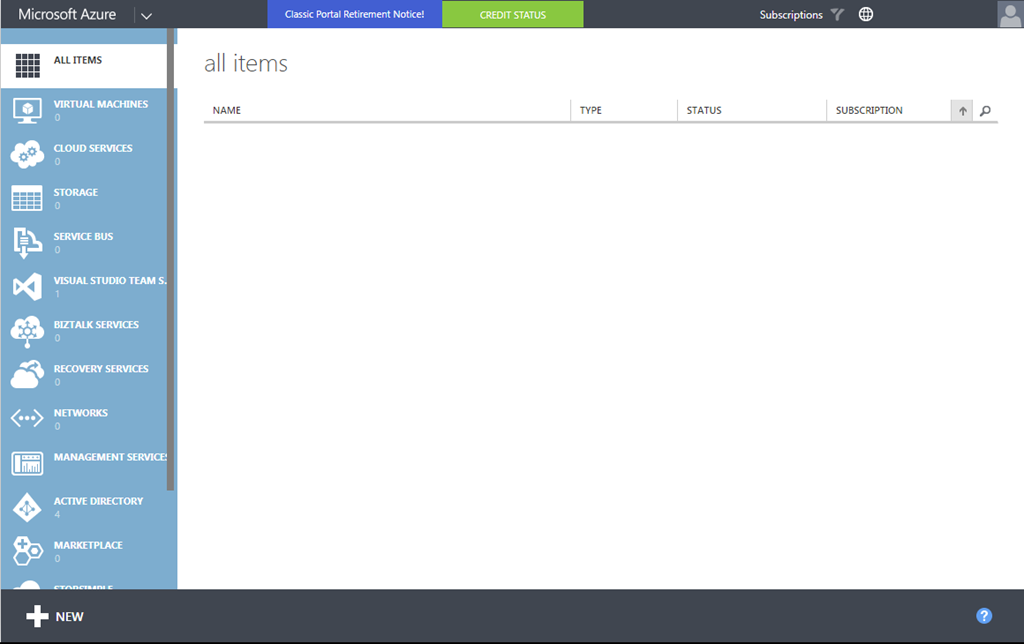
If you are using this portal, the old/classic Azure Management Portal …

image

… then it’s time to switch to this portal, the Azure Portal (https://portal.azure.com) …

image

This change should not come as a surprise. The Azure Portal has been around for several years (without checking, I think the preview started at the last TechEd North America, 4 years ago), and has been fully GA and functional for quite a while now. Also, it’s been years since new features were added to the classic Management Portal, whereas the Azure Portal is not only where new features are added, it’s also the admin interface for Azure, Azure AD, Azure Information Protection, Intune, and more. It’s also a lot easier to use and the only place where you can deploy & manage Resource Manager (ARM) resources.

In addition, Microsoft has been turning off parts of the old Management Portal over time. Storage accounts and Azure AD have been wound down (also at short notice), so the clock has been ticking for a while.

People who don’t read blogs, ignore tech news, and social media (most techies, to be frank) will see a notification, “Classic Portal Retirement Notice!” in the top of the classic portal, that they can expand:

image

So stop clinging to the past – join us where things are easier, there is more functionality, and there’s actually a future.

EDIT: Just to be clear, you do not need to do a classic-to-ARM migration to use the Azure Portal. The Azure Portal supports both classic and ARM resources. But I’d still recommend migrating from classic to ARM (MS already did this for you in PaaS) so you can avail of the features that Azure IaaS in ARM can offer.

Was This Post Useful?

If you found this information useful, then imagine what 2 days of training might mean to you. I’m delivering a 2-day course in Amsterdam on April 19-20, teaching newbies and experienced Azure admins about Azure Infrastructure. There’ll be lots of in-depth information, covering the foundations, best practices, troubleshooting, and advanced configurations. You can learn more here.

There Are 732 Hours In An Azure Month

Did you know that the average month in Azure is 732 hours long? And that when you ask an Azure pricing tool for a monthly cost, it takes the hourly cost and multiplies it by 732 … and that used to be 744!

Since I started working with Microsoft Azure, I’ve been using 744 hours as the average month in the Azure universe. That was because that’s what Microsoft used.

Only this week my colleague saw that Microsoft had switched to using 732 hours. I was puzzled so we checked, confirmed, and opened Excel to do some maths.

Let’s analyse 744 hours first:

744 (hours per month) * 12 months = 8928 hours per year.

8928 hours per year / 365 days = 24.46 hours.

Hmm. Let’s allow for a leap year:

8928 hours per year / 366 days = 24.39 hours.

OK. Let’s forget 744 hours and go with 732.

732 (hours per month) * 12 months = 8784 hours per year.

8784 hours per year / 365 days = 24.066 hours.

Not quite even. Let’s go with a leap year:

8784 hours per year / 365 days = 24 hours exactly.

Sooo ….

732 hours is the average length of a month in a leap year.

Azure’s monthly pricing is based on the average month in a leap year.

Was This Post Useful?

If you found this information useful, then imagine what 2 days of training might mean to you. I’m delivering a 2-day course in Amsterdam on April 19-20, teaching newbies and experienced Azure admins about Azure Infrastructure. There’ll be lots of in-depth information, covering the foundations, best practices, troubleshooting, and advanced configurations. You can learn more here.

Video – Understanding the Azure VM Series

This short video will show you how to quickly understand the Azure virtual machine (VM) series, how to pick one for a deployment, and how to select the right size. I show my technique for remembering what each SKU name means, so when you read it, you know exactly what that machine can do, and what the host offers.

Was This Video Useful?

If you found this information useful, then imagine what 2 days of training might mean to you. I’m delivering a 2-day course in Amsterdam on April 19-20, teaching newbies and experienced Azure admins about Azure Infrastructure. There’ll be lots of in-depth information, covering the foundations, best practices, troubleshooting, and advanced configurations. You can learn more here.