Hyper-V Recovery Manager Is Generally Available – The Pros & The Cons

Microsoft announced the general availability of Hyper-V Recovery Manager (HRM) overnight. HRM is an Azure-based subscription service that allows you manage and orchestrate your Hyper-V Replica disaster recovery between sites.

As you can see in the below diagram, HRM resides in Azure. You have an SCVMM-managed cloud in the primary site.  You have another SCVMM-managed cloud in a secondary site; yes, there is a second SCVMM installation – this probably keeps things simple to be honest. Agents are downloaded from HRM to each SCVMM install to allow both SCVMM installations to integrate with HRM in the cloud. Then you manage everything through a portal. Replication remains direct from the primary site to the secondary site; replication traffic never passes through Azure. Azure/HRM are only used to manage and orchestrate the process.

There is a big focus on failover orchestration in HRM, including the ability to tier and build dependencies, just as real-world applications require.

I’ve not played with the service yet. I’ve sat through multiple demos and read quite a bit. There are nice features but there is one architectural problem that concerns me, and an economic issue that Microsoft can and must fix or else this product will go the way of Google Reader.

Pros

  • Simple: It’s a simple product. There is little to set up (agents) and the orchestration process has a pretty nice GUI. Simple is good in these days of increasing infrastructure & service complexity.
  • Orchestration: You can configure nice and complex orchestration. The nature of this interface appears to lend itself to being quite scalable.
  • Failover: The different kinds of failover, including test, can be performed.

Cons

  • Price: HRM is stupid expensive. I’ve talked to a good few people who knew about the pricing and they all agreed that they wouldn’t pay €11.92/month per virtual machine for an replication orchestration tool. That’s €143.04 per year per VM – just for orchestration!!! Remember that the replication mechanism (Hyper-V Replica) is built-in for free into Hyper-V (a free hypervisor).
  • Reliance on System Center: Microsoft touts the possibility of hosting companies using HRM in multi-tenant DR services. Let’s be clear here; the majority of customers that will want a service like this will be small-to-medium enterprises (SMEs). Larger enterprises will either already have their own service or have already shifted everything into public cloud or co-location hosting (where DR should already exist). Those SMEs mostly have been priced out of the System Center market. That means that service providers would be silly to think that they can rely on HRM to orchestrate DR for the majority of their customers – the many small ones that need the most automation because of the high engineering time versus profit ratio.
  • Location! Location! Location!: I need more than a bullet point for this most critical of problems. See below.

I would never rely on a DR failover/orchestration system that resides in a location that is outside of my DR site. I can’t trust that I will have access to that tool. Those of us who were working during 9/11 remember what the Internet was like – yes, even 3000 miles away in western Europe; The Internet ground to a halt. Imagine a disaster on the scale of 9/11 that drew the same level of immediate media and social interest. Now imagine trying to invoke your business continuity plan (BCP) and logging into the HRM portal. If the Net was stuffed like it was on 9/11 then you would not be able to access the portal and would not be able to start your carefully crafted and tested failover plan. And don’t limit this to just 9/11; consider other scenarios where you just don’t have remote access because ISPs have issues or even the Microsoft data centre has issues.

In my opinion, and I’m not alone here, the failover management tool must reside in the DR site as an on-premise appliance where it can be accessed locally during a disaster. Do not depend on any remote connections during a disaster. Oh; and at least halve the price of HRM.

KB2901237–Hyper-V Replica Is Created Unexpectedly After Restarting VMMS On Replica WS2012 Host

The Virtual Machine Management Service (VMMS) runs in user mode in the management OS of every Hyper-V host. It has nothing to do with SCVMM; that’s just an unfortunate similarity in names. The VMMS provides the WMI or management interface to Hyper-V for all management tools, such as PowerShell, Hyper-V Manager, or Failover Cluster Manager.

Microsoft published a KB article for when a standard Hyper-V replica is created unexpectedly after you restart the VMMS service in Windows Server 2012.

Symptoms

Consider the following scenario:

  • You have Windows Server 2012-based Hyper-V servers that are running in an environment that has Hyper Replica deployed.
  • You set more than two recovery points. 
  • You restart the VMMS service on a replica server, or you restart the replica server.
  • You wait about 5 minutes until the first time delta is arrived from the primary site.

In this scenario, a standard replica (recovery point) is created unexpectedly. 
Note If the time interval between the latest recovery point and the arrival of the delta is less than 60 minutes, a standard replica should not be created.

Cause

This issue occurs because the VMMS service incorrectly compares the time stamp of the earliest recovery point to the latest delta time stamp. Therefore, the system takes a new snapshot every time the VMMS service is restarted

A hotfix has been published to resolve this issue. It’s not an issue I’d expect to see too often but the fix is there.

My Most Popular Articles In 2013

I like to have a look at what people are reading on my blog from time to time.  It gives me an idea of what is working, and sometimes, what is not – for example, I still get lots of hits on out-dated articles.  Here are the 5 most viewed articles of the last year, from 5 to 1.

5) Windows Server 2012 Hyper-V Replica … In Detail

An oldie kicks off the charts … this trend continues throughout the top 5.  At least this one is a good subject that is based on WS2012 and is still somewhat relevant to WS2012 R2.  Replica is one, if not the, most popular features in WS2012 (and later) Hyper-V.

4) Rough Guide To Setting Up A Hyper-V Cluster

I wrote this article in 2010 for Windows Server 2008 R2 and it’s still one of my top draws.  I really doubt you folks still are deploying W2008 R2 Hyper-V; I really hope you folks are not still deploying W2008R2 Hyper-V!!!!  Join us in this decade with a much better product version.

Please note that the networking has change significantly (see converged networks/fabrics).  The quorum stuff has changed a bit too (much simpler).

3) Windows Server 2012 Licensing In Detail

Licensing!!! Gah!

2) Comparison of Windows Server 2012 Hyper-V Versus vSphere 5.1

There’s nothing like kicking a hornets nest to generate some web hits Smile  We saw VMware’s market share slide in 2013 (IDC) while Hyper-V continued the march forward.  More and more people want to see how these products compare.

And at number one we have … drumroll please …

1) Windows Server 2012 Virtualisation Licensing Scenarios

Wow! I still cannot believe that people don’t understand how easy the licensing of Windows Server on VMware, Xen, Hyper-V, etc, actually is.  Everyone wants to overthink this subject.  It’s really simple: It’s 2 or unlimited created Window Server VMs per assigned license to a host people!!!  This page accounted for 2.8% of all views in the last 12 months.

Sadly, not a single post from the last year makes it into the top 10.  I guess that folks aren’t reading about WS2012 R2.  Does this indicate that there is upgrade fatigue?

Windows Azure Backup Is Generally Available & Other Azure News

The following message came in an email overnight:

Windows Azure Backup is now generally available, Windows Azure AD directory is created automatically for every subscription, and Hyper-V Recovery Manager is in preview.

What does that mean?  Some backup plans charge you based on the amount of data that you are protecting.  Personally, I prefer that approach because it is easy to predict – I have 5 TB of data and it’s going to cost me 5 * Y to protect it.  Azure Online Backup has gone with the more commonly used approach of charging you based on how many GB/month of storage that you consume on Microsoft’s cloud.  This is easy for a service provider to create bills, but it’s hard for the consumer to estimate their cost … because you have elements like deduplication and compression to account for.

The pricing of Azure Online Backup looks very competitive to me. 

Windows Azure Backup is billed in units based on your average daily amount of compressed data stored during a monthly billing period.

Some plans get the first 5GB free and then it’s €00.3724 per GB per month.  In the USA, it will be $00.50 per GB per month.  Back when I worked in backup, €1/GB per month was considered economic.

In other Azure news:

A Windows Azure AD directory is created automatically for every subscription:

Starting today, every Windows Azure subscription is associated with an autocreated directory in Windows Azure Active Directory (AD). By using this enterprise-level identity management service, you can control access to Windows Azure resources.

To accommodate this advancement, every Windows Azure subscription can now host multiple directories. Additionally, Windows Azure SDK will no longer rely on static management certificates but rather on user accounts in Active Directory. Existing Active Directory tenants related to the same user account will be automatically mapped to a single Windows Azure subscription. You can alter these mappings from the Windows Azure Management Portal.

Take advantage of the new Windows Azure Hyper-V Recovery Manager preview.

Windows Azure Hyper-V Recovery Manager helps protect important applications by coordinating the replication of Microsoft System Center clouds to a secondary location, monitoring availability, and orchestrating recovery as needed.

The service helps automate the orderly recovery of applications and workloads in the event of a site outage at the primary data center. Virtual machines are started in an orchestrated fashion to help restore service quickly.

The Euro GA pricing for Hyper-V Recovery Manager was included in the email.  It will cost 11,9152€ per virtual machine per month to use this service.  The website is not updated with GA pricing.

Best Practices for Virtualizing & Managing SQL Server On Hyper-V

This Microsoft-written guide provides high-level best practices and considerations for deploying and managing SQL Server 2012 on a Microsoft virtualization infrastructure. The recommendations and guidance in this document aim to:

  • Complement the architectural design of an organization’s specific environment.
  • Help organizations take advantage of the key platform features in SQL Server 2012 to deliver the highest levels of performance and availability.

There are lots of tips, requirements, and recommendations, such as this one for SQL Server VMs that are replicated using Hyper-V Replica.  Yes, Hyper-V Replica is supported by SQL Server – ya hear that Exchange!?!?!

image

The setting in question can be found here and can be enabled when modifying the replication of a VM using PowerShell.  It:

Determines whether all virtual hard disks selected for replication are replicated to the same point in time. This is useful if the virtual machine runs an application that saves data across virtual hard disks (for example, one virtual hard disk dedicated for application data, and another virtual hard disk dedicated for application log files).

Long story short: it maintains consistency of an application across disks.

Windows Server 2012 R2 Hyper-V – Hyper-V Replica

Hyper-V Replica was added in WS2012 Hyper-V to give us built-in, no special licensing required, asynchronous, per-VM/virtual hard disk, replication from one host/cluster to another, with compression and historical copy retention.

Note: That boils down about 1700 words of explanation into 1 sentence Smile I should have just left it at that in TechEd Speaker Idol!
There were always a few questions when I explained HVR to people:

  • Can I change the replication interval from every 5 minutes?
  • Can I replicate from Site A to Site B, and then on to Site C?

The answers were no.  That changes in WS2012 R2 Hyper-V.

Finer Grained Control of Replication

The default interval for replication of the Hyper-V Replica logs (the change log of each replicated virtual ahrd disk) is every 5 minutes.  You can change this to every 30 seconds, assuming you have the bandwidth/latency to push through the changes in this short window.  You can also increase it to every 15 minutes if you need more time to push through spikes in activity over latent/lower bandwidth links.

Before you ask: the options are restricted to 30 seconds, 5 minutes, and 15 minutes.

Extended Replication

You now can, if you want to, do the following:

  • Replicate VM1 from Site A to Site B
  • Then replicate the offline replica of VM1 from Site B to Site C

You cannot replicate as follows:

  • Replicate VM1 from Site A to Site B
  • Replicate VM1 from Site A to Site C

This is purely an A->B-> scenario.

Combining Extended Replication With Finer Grained Control

Here’s an example that might be useful:

  • A company replicates from their computer room in Office A to another computer room across a campus network in Office B.  This is all contained in Site 1.  There is a nice campus network so replication is performed every 30 seconds.  The RPO of a local BCP invocation (a fire damages Office A) is maybe 30 seconds.
  • The company replicates from Office B in Site 1 to Site 2 over a WAN link.  This is a slower link so replication is performed every 15 minutes.  The RPO of a long-distance BCP invocation (a disaster hits the city where Site 1 is located) is maybe under 16 minutes.

One variation on this scenario is that Site 2 is a hosting company that is selling a virtual DR site service (DR-as-a-Service aka DRaaS).

BTW, it would be pretty pointless to replicate from Site B to Site C more frequently (every 30 seconds) than from Site A to Site B (every 15 minutes).  That’s because there will only be changes to replicate to Site C every 15 minutes.

Event Notes – What’s New In Windows Server 2012 R2?

Speaker Jeff Woolsey

The Cloud OS Vision

The Private Cloud is Windows Server & System Center.  Virtualisation is not cloud.  P2V didn’t’ change management.  Look at the traits of a cloud in the NIST definition.  Cloud-centric management layers change virtualisation into a cloud.  That’s what SysCtr 2012 and later do to virtualization layers: create clouds.

Microsoft’s public cloud is Azure, powered by Hyper-V, a huge stress (performance and scalability) on a hypervisor.

Hosting companies can also use Windows Azure Pack on Windows Server & System Center to create a cloud.  That closes the loop … creating 1 consistent platform across public and private, on premise, in Microsoft, and in hosting partners.  The customer can run their workload everywhere.

Performance

The absolute best way to deploy MSFT biz apps is on Hyper-V: test, support, validation, optimization, test, test, test.  They test everything on Hyper-V and Azure, every single day.  25,000 VMs are created every day to do automated unit tests of Windows Server.

In stress tests, Exchange (beyond recommended scale) tested well within Exchange requirements on Hyper-V.  Over 1,000,000 IOPS from a Hyper-V VM in a stress test.

Storage

If you own a SAN, running WS2012 or newer is a no brainer: TRIM, UNMAP, ODX. 

Datacenter without Boundaries

Goal number 1.

They wanted integrated high performance virtualization platform.  Reduce complexity, cost, and downtime.  Ease deployment.  Flexible.

Automatic VM activation.  Live VM export/cloning.  Remote Access via VMBus.  Online VHDX resize.  Live Migration compression.  Live Migration over RDMA.  More robust Linux support.

Ben Armstrong on demo patrol:

Storage QoS.  You can cap the storage IOPS of a VM, on a per hard disk basis.

Linux has full dynamic memory support on WS2012 R2.  Now we can do file system consistent backup of Linux VMs without pausing them.  Don’t confuse it with VSS – Linux does not have VSS.  It’s done using a file system freeze. 

You can do shared VHDX to create 100% virtual production ready guest clusters.  The shared VHDX appears as a SAS connected disk in the guest OSs.  Great for cloud service providers to enable 100% self service.  Store the VHDX on shared storage, e.g. CSV or SMB 3.0 to support Live Migration … best practice is that the guest cluster nodes be on different hosts Smile

End of Ben in this session.

Demystifying Storage Spaces and SOFS

I‘ll recommend you watch the session.  Jeff uses a storage appliance to explain a file server with Storage Spaces.  He’ll probably do the same with classic SAN and scale-out file server. 

Matt McSpirit comes up.

He’s using VMM to deploy a new file server cluster.  He’s not using Failover Clustering or Server Manager.  He can provision bare metal cluster members.  Like the process of deploying bare metal hosts.  The shares can be provisioned and managed through VMM, as in 2012 SP1.  You can add new bare-metal hosts.  There is a configurable thin provisioning alert in the GUI – OpsMgr with the MP for VMM will alert on this too.

Back to Jeff.

Changes of Guest Clustering

It’s a problem for service providers because you have previously needed to provide a LUN to the customer.  Hoster’s just can’t do it because of customisation.  Hoster can’t pierce the hosting boundary, and customer is unhappy.  With shared VHDX, the shared storage resides outside the hoster boundary is the tenant domain.  It’s completely virtualised and perfect for self-service.

SDN

The real question should be: Why deploy software defined networking (Hyper-V Network Virtualization).  The primary answer is “you’re a hosting company that wants multi-tenancy with abstracted networking for seamless network convergence for hybrid clouds”.  Should be a rare deployment in the private cloud – unless you’re friggin huge or in the acquisition business.

WS2012 R2 will feature a built-in multi-tenant NVGRE (Hyper-V Network Virtualisation or Software Defined Newtorking) gateway.  Now you don’t need F5’s vapourware or the Iron Networks appliance to route between VM Networks and physical networks.  You choose the gateway when creating your VM Network (create VM Network Wizard, Connectivity).  VPN, BGP and NAT are supported.

You can deploy the gateway using a VMM Service Template. 

You can use OMI based rack switches, eg. Arista, to allow VMM to configure your Top Of Rack (TOR) switches.

Hyper-V Replica

HVR broadens your replication … maybe you keep your synchronous replication for some stuff if you made the investment.  But you can use HVR for everything else – hardware agnostic (both ends).  Customers love it.  Service providers should offer it as a service.  But service providers also want to replicate.

Hyper-V Recovery Manager gives you automation and orchestration of VMM-managed HVR.  You install a provider in the VMM servers in site A and site B.  Then enable replication in VMM console.  Replication goes direct from site A to B.  Hyper-V Recovery Manager gives you the tools to create, implement, and monitor the failover plans.

You can now choose your replica interval which defaults to every 5 minutes. Alternatives as 30 seconds and 15 minutes.

Scenario 1: customer replicates from primary hosts (a) to hosts (b) across the campus.  Lots of pipe in the campus so  do 30 seconds replica intervals.  Then replicates from primary DR (b) site to secondary and remote DR site (c).  Lots of latency and bandwidth issues, so go for every 15 minutes.

Scenario 2: SME replicates to hosting company every 5 minutes.  Then the hosting company replicates to another location that is far away.

Michael Leworthy comes up to demo HRM. We get a demo of the new HVR wizards.  Then HRM is shown.  HRM workflows allow you to add manual tasks, e.g. turn on the generator. 

Capacity Planner for Hyper-V Replica

How much WAN bandwidth will I need for Hyper-V Replica?  How much disk space will I need?  What will be the IOPS impact on the secondary host if I keep historical copies/snapshots of my VMs?  Are there any CPU or memory requirements for the hosts?  Microsoft has released a Hyper-V Replica (HVR) capacity planning guide and tool/utility to answer those questions.  The Virtualization Blog states:

The answer to the above and many other capacity planning questions is “It depends” – it depends on the workload, it depends on the IOPS headroom, it depends on the available storage etc. While one can monitor every single perfmon counter to make an informed decision, it is sometimes easier to have a readymade tool.

The Capacity Planner for Hyper-V Replica which was released on 5/22, allows you to plan your Hyper-V Replica deployment based on the workload, storage, network and server characteristics. The guidance is based on results gathered through our internal testing across different workloads.

What you should do:

  1. Download the document and tool
  2. Read the documentation
  3. Use the tool

image

The way it works is:

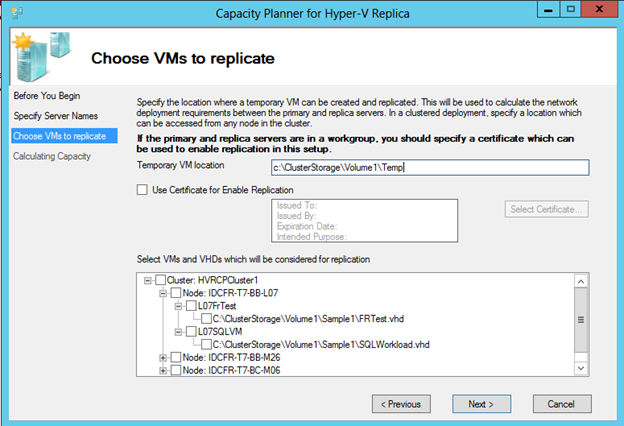
  1. You configure a secondary site to receive replication (SSL replication is supported, as you can see in the above screenshot)
  2. You run and configure the tool to run some tests
  3. You select the virtual machines to consider in the tests
  4. The planner sends a test VHD to the secondary site to test the connection and metrics are gathered (this lasts a few minutes longer than the configured test duration)
  5. A report is stored in "%systemdrive%UsersPublicDocumentsCapacityPlanner with information on the VMs and primary/secondary host impact (CPU, RAM, IOPS, Storage) and Network.

image

Notes:

  • The tool is free.  USE IT
  • No data is collected from the guest OS.  This tool, like Hyper-V Replica replication, works at the host level.
  • The tool does not do physical server replication forecasting.  It works with HVR.
  • You should not use the tool with VMs that are already replicating.
  • The tool does not configure HVR – it’s a metrics gathering and forecasting tool.


IP Assignment Strategies For Hyper-V Replica

What I love about Hyper-V Replica is that (a) it is free (b) it just works and (c) it works for a wide variety of customers/partners (large and small).  It’s great that you can get your VMs from site A operational in site B with a maximum RPO of 5 minutes and an RTO of however long it takes to orchestrate the start of your VMs (from seconds, depending on how many VMs you have to order).  But one question remains – how do I address those VMs in the DR site?

Stretched Subnets

I am not a networking guy.  The term I know is stretched VLANs, but network folks have other mechanisms for this.  Basically, concept is that you enable your subnets to reside and route in the primary and secondary site.  That means a VM with the address of 192.168.1.20 can operate, route, and be accessible to clients (from anywhere) in either site.  That’s great for networks of a certain size.  Small businesses probably can’t do this, and larger enterprises look at the complexity and laugh.

IP Address Injection

With this approach, the Hyper-V administrator pre-configures DR site IP addresses for the VM.  The address is injected into the VM during failover using Key Value Pairs (KVP).  This allows site A and site B to have different IP ranges.  This solution will work pretty well for smaller customers where they own both the primary and the secondary sites.

DHCP

I hate using DHCP addresses for static resources like servers (including VMs).  But you can do it.  With this approach, you have DHCP in the primary site to assign reserved IPs to the VMs in the primary site.  You have something similar in the secondary site, but with a scope that is suitable for there.  Note, you must use static MAC addresses for reservations to work – so be sure to use export/import to move VMs out of band.  This is the one solution that I have the least faith in.  You might want to look at WS2012 DHCP failover to ensure your DHCP is highly available because it has become a very important factor in your business continuing to operate.

Hyper-V Network Virtualization (HNV)

HNV, or software defined networking (SDN), is a very scalable solution.  It also allows VMs to operate with their normal IP addresses (consumer addresses) while really communicating with the physical network via provider addresses.  The VM simply moves/starts on a predefined VM Network(s) in the DR site and continues to communicate.  For this to work in production, you need VMM 2012 SP1 and a network virtualization gateway (see Iron Networks.  F5 also have something coming).

This solution is a nice one for large enterprises that want to use SDN to abstract networks from a central console).  It also allows service providers to support many tenants with overlapping subnets (192.168.1.0/24 or 10.0.0.0).

OK, great, so we get VMs operational in the DR site.  Some of these solutions require the VM to change IP address while some don’t.  If the IP changes, how do clients find the servers?  DNS will be out of date!

DNS TTL

You can reduce the TTL for the A records of your VMs to something small.  If there’s a disaster, is it a big deal if VMs can’t resolve the names of servers for 5 minutes?  Keep in mind DNS replication to local sites – so this might become 15, 20, 60 minutes, depending on TTLs and replication windows.  You can force replication to happen and DNS server caches to flush, but those are manual tasks (and prone to not happening in a disaster).

IP Address Abstraction

Imagine this scenario: a large corporate has an offsite data centre.  The business operates across a WAN.  A DR data centre is deployed, also offsite.  A network appliance(s) are deployed and configured to abstract the actual IP addresses of the servers.  This allows servers to use IP-A in site A and IP-B in site B.  However, the servers are known to the network via IP-C, the abstracted IP managed by the device(s).  This solution is for the very largest of businesses.  For clients on the WAN, DNS is simple: there is only one A record and it’s for IP-C, the abstracted IP.

Personally, I find SDN to be the most elegant solution but there are requirements of scale to make it work.  For the smaller biz, maybe DHCP or IP address injection are the way forward.  There are options – it is up to you to choose the right one.  And I am certainly not going to claim that I have presented all options.

You can learn more about Hyper-V DR and Hyper-V Replica from two chapters on those subjects in Windows Server 2012 Hyper-V from the book, Windows Server 2012 Hyper-V Installation And Configuration Guide:


Hyper-V Recovery Manager – Orchestration of Hyper-V Replica Failover

Currently in limited preview, Hyper-V Recovery Manager (a part of Windows Azure Recovery Services) provides orchestration of Hyper-V Replica replicated System Center managed clouds.  The concept is:

  • You have a System Center managed cloud in site A.
  • You use Hyper-V Recovery Manager to orchestrate replication via Hyper-V Replica to site B
  • Hyper-V Recovery Manager is used to coordinate failover.

To participate in the limited preview, you must have a Windows Azure account.  Candidates from the program must be from a small set of countries: United States, Canada, United Kingdom, Germany, France, Belgium, Switzerland, Denmark, Netherlands, Finland, Australia, Japan, India, or New Zealand.  Well that rules me out then!