Internet Explorer 11 Freezes With “Your Last Browsing Session Closed Unexpectedly” (Workaround)

I’m in an IE hating kind of mood this week. For no reason, IE11 decided to die on my new laptop on Thursday. That’s forced me back into the hands of Google (I find Firefox to be the worst to use of the 3 big browsers).

What’s happening? When I open IE11 it comes up with “Your last browsing session closed unexpectedly”. And then it locks up. I’ve reset IE and I’ve deleted all items. I’ve disabled all plugins and no joy.

One thing I found was interesting: I reset the home page to the default. IE opens just fine then. But try to browse to a page and it freezes before the page can load. It’s as if the rendering of the page is causing the issue.

A nice suggestion I got via twitter from Tero Alhonen was to:

  1. Disable Browser sync via PC Settings > SkyDrive > Sync Settings
  2. Uninstall IE from Programs & Features > Windows Features
  3. Reboot
  4. Reinstall IE
  5. Reboot
  6. Re-test

Why try this? Because a new test user on the same machine has no issues.

No joy.

I have also tried removing and recreating my user. That, in my opinion, is going too far to fix this issue, and although I could go to some extremes down this path, I am not willing to do so. Why the frak should I? A browser should just damned well work.

BTW, I have found plenty of people on forums having the same issue for months. A few seem to have resolved their issue by installing a new NVIDIA graphics driver. My Yoga’s devices are up to date and it has a Intel HD graphics.

So IE11 is now dead (literally) to me. And MSFT wonders why Win8x isn’t doing well ….

EDIT:

A quick update. Most sites will not load, e.g. Bing or Google. Some (a very few) load slowly, e.g. independent.ie. This leads me to think that there is a rendering issue in IE11 that is specific to my user profile, and was synced in via Skydrive.

EDIT 2:

Tero came back to me with another idea. Disable GPU rendering in the advanced IE settings. I opened up Internet Options in Control Panel and checked Use Software Rendering Instead Of GPU Rendering. I started up IE and pages are opening as expected. Thanks Tero!

image

Right-Click On Start And Windows+X Fail To Open Power User Menu On Windows 8.X

This one has been bugging me for a couple of weeks and I just managed to find a fix. Right-clicking on the start button and pressing Windows+X failed to do anything.

The fix?

1) Open up command prompt and run:

xcopy %SystemDrive%UsersDefaultAppDataLocalMicrosoftWindowsWinX %userprofile%AppDataLocalMicrosoftWindowsWinX /e /y

2) Log out and log in again. Everything should work as expected.

Technorati Tags: ,

Event – Windows Server & System Center 2012 R2 Briefing For Partner Sales

MicroWarehouse are running a breakfast briefing for Microsoft partners in Dublin in a couple of weeks. I’ll be presenting on Windows Server 2012 R2, System Center 2012 R2, and some of the business features of Windows 8.1.  The intended audience is MICROSOFT PARTNERS ONLY:

  • Sales
  • Account managers
  • Technical pre-sales

We’re running the event twice, once in north Dublin and once in south Dublin, to accommodate scheduling conflicts.

Additional events in Belfast, Galway, and Cork will be announced soon, with probably with some additional content.

image

Memory Page Combining

My reading of the Windows Server 2012 R2 (WS2012 R2) Performance and Tuning Guide continues and I’ve just read about a feature that I didn’t know about. Memory combining is a feature that was added in Windows 8 and Window Server 2012 (WS2012) to reduce memory consumption. There isn’t too much text on it, but I think memory combining stores a single instance of pages if:

  • The memory is pageable
  • The memory is private

Enabling page combining may reduce memory usage on servers which have a lot of private, pageable pages with identical contents. For example, servers running multiple instances of the same memory-intensive app, or a single app that works with highly repetitive data, might be good candidates to try page combining.

Bill Karagounis talked briefly about memory combining in the old Sinofsky Building Windows 8 blog (where it was easy to be lost in the frequent 10,000 word posts):

Memory combining is a technique in which Windows efficiently assesses the content of system RAM during normal activity and locates duplicate content across all system memory. Windows will then free up duplicates and keep a single copy. If the application tries to write to the memory in future, Windows will give it a private copy. All of this happens under the covers in the memory manager, with no impact on applications. This approach can liberate 10s to 100s of MBs of memory (depending on how many applications are running concurrently).

The feature therefore does not improve things for every server:

Here are some examples of server roles where page combining is unlikely to give much benefit:

  • File servers (most of the memory is consumed by file pages which are not private and therefore not combinable)
  • Microsoft SQL Servers that are configured to use AWE or large pages (most of the memory is private but non-pageable)

You can enable (memory) page combining using Enable-MMAgent and query the status using Get-MMAgent.

You’ll find that memory combining is enabled by default on Windows 8 and Windows 8.1.  That makes these OSs even more efficient for VDI workloads. It is disabled by default on servers – analyse your services to see if it will be appropriate.

There is a processor penalty for using memory combining. The feature is also not suitable for all workloads (see above).  So be careful with it.

First Impressions: Lenovo ThinkPad Yoga S1

I ordered this Ultrabook from Lenovo to replace my 2-year-old (how time flies!) Asus UX31E.  The machine arrived in the office yesterday and I got my mitts on it this morning.

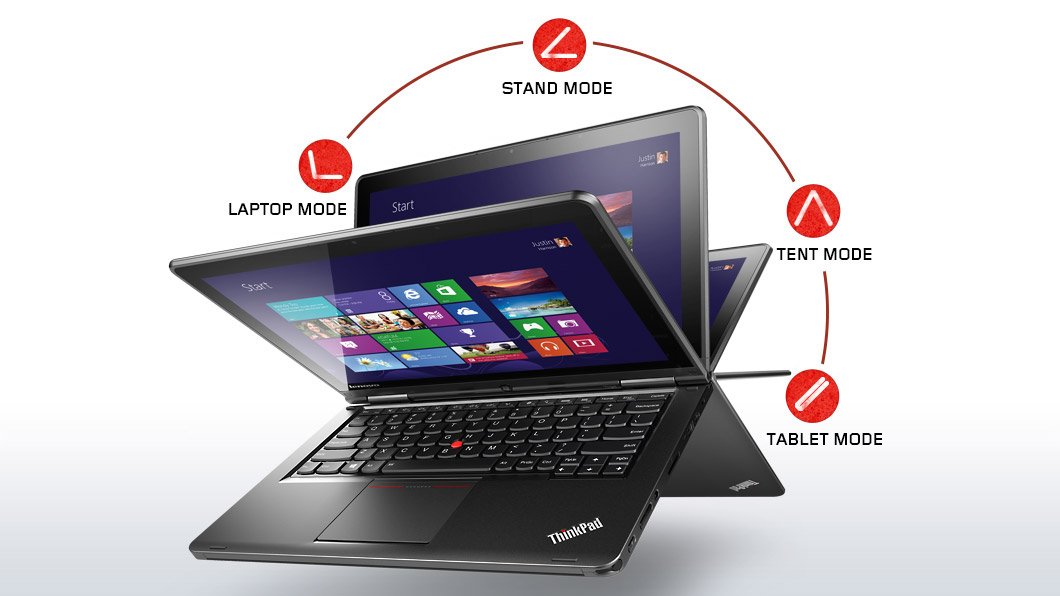
The major trick of the Yoga is that it is a touch-enabled Ultrabook first, with the normally great ThinkPad keyboard.  But push that screen back and the stiff double hinges allow it to go back into “stand mode” for drawing/touching on a table, “tent mode” for watching video, or “tablet mode” where you can hand hold the device.  The keyboard rises up to avoid accidental touch when the screen reaches a certain point.  I will probably use this machine as a laptop 99.99% of the time.  The Yoga just so happened to offer the best mix of features that I required in my next Ultrabook.

No, this device is not a tablet.  Anyone who reviews the Yoga Ultrabook as a tablet is a moron.  It’s a laptop that happens to offer some use options.  My Windows laptop is a Toshiba Encore and my Android machine for long distance entertainment is a Lenovo Yoga 8.  They are tablets and only a moron would review them as laptops.

The custom spec I went with is:

  • Intel Core i5-4200U Processor (3MB Cache, up to 2.60GHz)
  • Windows 8.1 64
  • Touch & Pen, FHD (1920 x 1080)
  • Intel HD Graphics 4400
  • 8GB PC3-12800 DDR3L on MB
  • ClickPad without NFC antenna & module
  • 720p HD Camera
  • 1TB Hard Disk Drive, 5400rpm
  • 16GB M.2 Solid State Drive Double
  • Battery (LiPolymer 47Wh)
  • Intel Dual Band Wireless 7260AC with Bluetooth 4.0

I wanted a digitizer pen.  In early tests, it works well with the Shared Whiteboard app.  That’s my alternative to using whiteboards or flipcharts, and it’s handy in OneNote for grabbing diagrams where a photo just won’t do.  The pen is one of the thin ones, allowing it to dock in the front-right corner of the Ultrabook’s base.  You hear that Surface, Sony, Toshiba, and a hell of a lot of others?

I upgraded the RAM to 8 GB so I could run Photoshop reliably.  That’s also why I switched from SSD to a 1 TB HDD with 16 GB SSD cache.  Now I have room to store photos while on a vacation, meaning that a USB 3.0 drive is there only as backup.

Port-wise, there is an SD card reader (nice for photography), Mini-HDMI (more reliable than micro-HDMI), and a pair of USB 3.0 ports.  There is also a Lenovo OneLink port for the OneLink dock.  There is no VGA port.  I have a USB – VGA adapter so that will continue to be used when connecting to projectors.

The power and volume buttons are on the side, cleverly placed if you go into “tablet mode”.  You’ll also find a Windows button on the base of the screen.

Touch works and works smoothly.  The build quality is solid.  I deliberately went with ThinkPad to get build quality to last for years.  The screen is nice and stuff, something that other touch Ultrabooks have gotten badly wrong by having too much wobble after being touched.

There’s not too much crapware onboard.  Some Lenovo stuff and Norton 30-day trial.  I was sad to see that the system update tool requires Adobe Air.  That is a mortal sin in my books.  I guess the Chinese military still wants easy access to everyone’s computers.

No review yet – I’ll need some time with the machine, and I’ll probably post something on the Petri IT Knowledgebase in the new year.

Technorati Tags: ,

Toshiba Encore Windows 8.1 8” Tablet – Initial Impression

After the Dell Venue 8 Pro tablet debacle, I was hesitant about getting another Windows 8.1 mini tablet.  But I do need something for work (I’d be murderfied if I used the Android-powered Lenovo Yoga 8 at a MSFT event – not kidding!), so I decided to get the Toshiba Encore 32 GB 8” tablet, running Windows 8.1 (the consumer product, not RT).  Note: I work for a Toshiba distributor, and I was lucky enough to get one of the very limited stock.

Encore Series Tablets

Available from:

Appearance

The tablet is just over 10mm thick.  That’s thinker than an iPad mini, but not unreasonable.  The portrait mode works and feels natural, but more on that later.  The back is a tough plastic of some kind, not the Samsung shiny/bendy/slippery kind, but a pleasant & textured kind.

Screen

It’s a 1280 * 800 IPS display.  It seems to do the trick.  Don’t get overly caught up on pixel counts.  The original iPad mini has a lower screen resolution.  It’s all about pixels per inch (PPI).  You don’t see those pixels with the normal human eye on a screen this size.  It would be very different on a 10” device.  Multitouch support is there as you would expect.  Note that Windows 8.1 defaults to portrait mode.

Controls

You get a capacitive Windows button at the front of base of the tablet.  It has a reassuring buzz response like you get on most Windows phones.  The power button and volume rocker are on the top right edge, slightly protruding.  I’d like them flush to avoid accidental pushes, but it’s not a big deal.

Performance

You get the new Intel “Bay Trail” quad core Atom CPU, with 8 logical processors.  This is noticeably better than the previous generation “Clover Trail” CPU.  The tablet is responsive and plays games like Hills Of Glory very well.  Browsing was good.  Video play is good.

Battery

I’ve not done any formal test but I think I’d get 7 hours from the battery.  I’d like more, but this is a consumption device.  You pick it up and use it lightly for short periods of time.

Expansion

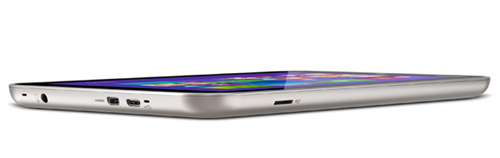
You get the expected Micro-SD slot, found uncovered on the top-left edge.  This allows up to 64 GB of expansion.  You’ll need this slot if you go with the 32 GB, which has just 10 GB free out of the box.  I think most people should go for the 64 GB model once it appears.  The price point of the 32 GB 8” tablets (all brands) will draw consumers to that size.
image

The device is powered via Micro-USB at the top.  There is the usual audio jack on the top.

This tablet has something that I have not seen in others, and is definitely not in the Dell Venue 8 Pro.  There is a Micro-HDMI port for connecting another display.  That will be useful for PowerPoint.  However, I have not found it useful for video.  When you play a video it plays on the main display (the tablet).  Without a Bluetooth mouse, there is no way to project the video to another display.  This is a flaw in the Windows 8.1 video app rather than in the tablet itself.   A way around will be Miracast, but that has challenges all of it’s own.

There is no support for a digitizer.  You can use one of those tablet pens – not as good, but this is primarily a consumer device where stylus support is not required.  Yes, the Dell Venue 8 Pro has a stylus option, but it sucks the big one.

Software

You get some of the usual Toshiba bits, including manuals (uninstalled), Toshiba Today (or something), McAfee 30 day trial (uninstalled), and a third-party cra-app store (uninstalled).

Part of the cost of the tablet is a full OEM edition of Office 2013 Home & Student.  Who really wants to work on Office on an 8” device?  Maybe you want to view some stuff or make a quick edit?  It’ll do that.  But maybe you want to try use a Bluetooth keyboard and mouse and connect a monitor via Micro-HDMI?  Then you have a lightweight productivity solution.  I haven’t tried it, but I used my Clover Trail tablet for a lot of Office stuff, so with the right peripherals, the Toshiba Encore might do a good job.

On the App side, Windows is still lagging way behind.  I have maybe 3-4 times more apps installed on my Lenovo Yoga 8 (Android 4.2).

Experience

I used the tablet quite a bit over the weekend after getting it on Thursday.  Social media was the main thing, and a little browsing and surfing.  In other words, just as it is meant to be used.  It worked very well, especially when I was using it to keep up with other games while watching the NFL action last night.

Satellite S50 Series

Summary

This is a very nice device, and it’s working out much better than the questionable quality Dell Venue 8 Pro.  The Lenovo Yoga 8 will continue to be my entertainment device, but the Toshiba Encore will be my work tablet.  I’ll post more when I have a chance to push the tablet a bit.

Technorati Tags: ,

TechCamp 2013 Wrap Up

Yesterday we ran TechCamp 2013, the Irish community launch of Windows 8.1, Windows Server 2012 R2, System Center 2012 R2, and Windows Intune.  All the feedback I have heard has been positive – thankfully!  🙂

We kicked off with Dave Northey (Microsoft CAT Program Manager).  Dave was the IT Pro DPE in Ireland for quite some time and has spoken at every launch event since Windows NT.  It would have been wrong not to have Dave in to do the keynote.

 WP_20131128_09_55_43_Pro

After that we broke into two tracks.  I did the WS2012 R2 session and next door, Damian Flynn (MVP) did the Windows 8.1 in the enterprise session.  I wanted to attend Damian’s session – I hear it was excellent, covering the BYOD and mobile worker scenarios.

WP_20131128_13_57_10_Pro

In the desktop track, some speakers from Microsoft introduced the new generation of devices that the various OEMs are bringing to market for Windows 8.1 and Windows RT 8.1, and what Windows Intune now offers for distributed end users, mobile workers, and BYOD device/app management.

Back in the server & cloud track, Paul Keely (MVP) did a session on service automation.

 WP_20131128_12_11_47_Pro

Damian was back on stage in the server & cloud track talking about using SCVMM 2012 R2 and Windows Azure Pack to build a hybrid cloud on Azure and Windows Server 2012 R2.  Kevin Greene (MVP) wrapped up the track explaining how System Center can be used to manage service availability and quality.

WP_20131128_15_29_55_Pro

Niall Brady (MVP), an Irish man living and working in Sweden, wrapped up the desktop & devices track by talking about System Center Configuration Manager 2012 R2.

WP_20131128_15_27_17_Pro

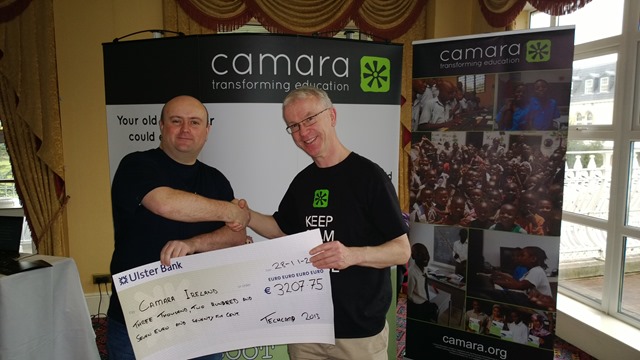
We asked for a small registration fee to encourage legitimate registrations and to get a higher turn-up rate.  That fee went to a good cause, an NGO called Camara.  We had Mark Fox in from Camara.  This gave Mark a chance to tell the audience (after the keynote) about the good work that Camara does.  They take unwanted PCs from businesses, securely wipe the PCs, track them, and reuse those machines to provide a digital education to needy kids.  Education is the best weapon against poverty and war, and Camara is on the frontline. Mark also staffed a stand in the exhibition room, and hopefully businesses found a way to get rid of machines in their drive to rid themselves of Windows XP, and make a difference in the world while doing it.

 WP_20131128_09_42_44_Pro

We have a whole bunch of sponsors to thank:

  • MicroWarehouse: My employers were the primary sponsor.  This event would not have happened without the huge effort by John Moran.  I would have been happy with a projector in a shed (with VPN access to my lab) but John made this a professional event.
  • Microsoft: Thanks for the support from Ciaran Keohane, the help from Michael Meagher.
  • Ergo: One of the leading Microsoft partners in Ireland, regularly winning Server partner of the year.
  • DataOn Storage: One of the manufacturers of certified Storage Spaces hardware
  • Savision: Creating dashboards for System Center that aid IT operations.
  • Toshiba: who had some devices on hand (including their new 8” Windows 8.1 tablet), most of which aren’t even on sale yet!

A big thank you goes out to each speaker who prepared 75 minute sessions (two of them in the case of Damian).  In case you don’t know, that’s probably a couple of days work in preparing slides, demos, and rehearsing, sometimes into the wee hours of the morning.

And finally, thanks to everyone who helped us communicate the event, and of course, came to the event to hear about these new solutions.  I hope the day proved valuable.

We had a number of people ask if we’ll run more events like this next year.  I believe that this is something that we will strongly consider.  There won’t be any launch stuff for us to cover for a while, so maybe we’d look at doing more “here’s how” content.  We’ll have to review and consider our options before we make any decisions.

Launch Event – Learn From The Best; Not From The Rest

There are only hours now between now and the start of TechCamp 2013 in City West in Dublin, where Irish MVPs (and a couple of Microsoft folks) will be presenting on:

  • Windows Server 2012 R2
  • Service automation using System Center 2012 R2
  • Hybrid cloud using Hyper-V Network Virtualization, NVGRE, SCVMM 2012 R2 and Windows Azure Pack
  • Service level management using System Center 2012 R2
  • Windows 8.1 in the business
  • New Windows devices
  • BYOD, consumerisation of IT, and mobile device management
  • Enterprise desktop management using System Center 2012 R2

You could wait for a sales person come to town and tell you stuff that they’ve read about.

Or, you could make a little effort to come to TechCamp 2013 where some of the worlds leading experts independent experts (all with international followings and tech book credits to their names) on these technologies (who are Irish BTW) will be there to present an honest appraisal of this technology that they have worked with every day since the 2012 R2/8.1 previews were launched.

And My Next Ultrabook Is …

I recently posted what I wanted in a new ultrabook to replace my nearly 2 year old, non-touch, Asus UX31E.  I’ve waited, watched the market, and even considered buying in the USA when I was over there.  But even a month after Windows 8.1 GA, the same disappointing spec and overpriced machines are all that are on the market.  If you want a non-touch Ultrabook, it appears that the MacBook Air is the most economical option, even if you upgrade the RAM and SSD.

The family of devices that has caught my attention is the Lenovo Yoga series.  In fact, it was when researching them that I found out about the (Android) Yoga Tablet 8.  I was going to hold out for the Lenovo Yoga 2 Pro but two things happened:

  • There is no supply anywhere of this convertible ultrabook.
  • I discovered the ThinkPad S1 Yoga

ThinkPad are more business oriented machines, built to last.  Sounds ideal for lugging around in a camera bag through airports.  The Yoga is also available in this family.  I customized the spec, meaning it will take an additional 1-2 weeks to build and ship:

  • Intel Core i5-4200U Processor (3MB Cache, up to 2.60GHz)
  • Intel HD Graphics 4400
  • 8GB PC3-12800 DDR3L on MB
  • Windows 8.1 64
  • Touch & Pen, FHD (1920 x 1080)
  • Backlit keyboard
  • ClickPad without NFC antenna & module
  • 1TB Hard Disk Drive, 5400rpm with 16GB M.2 Solid State Drive Double

I thought about going with the 256 GB SSD.  But then I considered that I’m tired of lugging around USB 3.0 caddies when I go on photo trips.  The capacity of a 1 TB drive is going to be useful to me, and that little bit of cache will boost performance a bit.

I went with the touch/pen option because I really do use a stylus.  I use a whiteboard app quite a bit when I’m teaching.  It’s a hell of a lot easier to explain Hyper-V Replica or SOFS data flow via a “white board” on the projector than on a “small” flipchart or animated PowerPoint slide.

I ordered this ultrabook on Friday night and should have it sometime before Christmas.  It’s not a perfect machine and I’ve had to make compromises.  I’ll not get the battery life promised by Haswell.  I’ll still have to carry a USB-VGA dongle.  But it does have Miracast (I hope to blog my experience soon).

FYI, I did consider:

  • A customized MacBook Air because of the battery but there’s no touch
  • An Asus or Samsung but they focus too much on uselessly high screen resolutions that increase price with undersized disks
  • Toshiba ultrabook but they don’t do touch on the new 13/14 inch models

I’ll let you know how the Lenovo goes once I have it and have had the chance to spend some time on it.

Technorati Tags: ,

Dell Venue 8 Pro – First and LAST Impressions

While in the USA, I picked up this Windows 8.1 8” tablet at Fry’s in Renton, just south of Bellevue/Redmond in Washington State.  My intention is to use a Windows 8.1 tablet as a presentation device for the next few years.  It would connect via Miracast to a Viewsonic WPG-370, which then outputs via VHA or HDMI to a display device such as a projector.

I got the tablet.  It’s a little thicker than a mid-level Android tablet, such as the Lenovo Yoga Tablet 8, or an iPad Mini, but I forgive that because it is a Bay Trail device running Windows 8.1 (not RT).  The texture of the back is nice for holding.  Performance seemed much better than Clover Trail devices of the previous generation.  The display seemed fine.  Battery is on the weaker side, promising up to 10 hours, but offering less than that if you turn off the ever annoying auto screen brightness.

And so that leads me to the problem.  You need to charge this device.  I tried to charge it on Wednesday morning.  Nothing.  No indications in Windows.  No lights.  In fact … the centre receiver in the micro/mini-USB port in the tablet felt a little loose.  I double checked everything by using another power socket, lead, and charger.  Nothing.  I had enough just left to run hardware tests and update the firmware.  Nothing.  This tablet already had an issue.

In the end, I had to sit in traffic for 2 hours to return the device on the Thursday night after my final meetings.  Luckily (I’ll get to that) Fry’s didn’t have any more of this model in stock and I got the credit returned to my card.

Why luckily?  In my experience, the hardware problem that I had indicates a manufacturing or design flaw.  I have seen this sort of thing before in disk caddies.  The central receiver in the port is not soldered sufficiently enough to the board to sustain normal wear and tear.  It becomes lose and then won’t pass power to the board.  This makes me think that the Dell Venue 8 Pro has a serious design/manufacturing flaw that will lead to lots of returned devices in the coming months.  This is bad for Windows because this was only the second device of this type to become generally available after the widely disliked Acer W3 tablet (awful screen).  This gives a false impression that Windows 8.1 mini tablets cannot be good hardware.  Fortunately for Microsoft, Dell are not yet shipping the Venue 8 Pro worldwide.  It was restricted to the USA (and in limited numbers) this time last week when I last checked.

As I said, I will be switching to a Toshiba Encore.  That device will be shipping very soon and is of a much higher spec.  Note the “up to 14 hours” battery life, meaning with non-adjusted screen brightness you might get 10-12 hours which is the sweet spot.  I know that Toshiba see this as a very important device and they have not rushed it out.  I look forward to spending some time on it.

Technorati Tags: ,