Failed to load ClusterAwareUpdating module on "<Node Name>"

I did a rebuild of the Hyper-V hosts in the lab at work last week. I pushed out a bare metal install of the new ISO for WS2012 R2 with “The Update” (April 2014). I used SCVMM 2012 R2 UR1 to push out the image to the iDRAC cards on the Dell R420 hosts. Afterwards I used SCVMM to cluster the two hosts.

I don’t like SCVMM’s patching system – it’s very SMS 2003 R2, requiring waaaay too much clicking every month. I much rather use Failover Clustering Cluster Aware Updating (CAU). I fired up Failover Cluster Manager (FCM) on my central administration machine, and tried to configure CAU self-updating. And I couldn’t because I kept getting this error:

Failed to load ClusterAwareUpdating module on "<Node Name>"

Hmm. It took me a moment or two, and then I knew what was wrong. SCVMM enable Hyper-V OK. And it enables Failover Clustering. But SCVMM does not install the Remote Administration Tools … and that means the PowerShell module for Failover Clustering was missing from both of the hosts. There was no way to configure CAU on the hosts because the requierd PowerShell cmdlets were missing.

Into Server Manager and I enabled the following feature: Remote Server Administration Tools > Feature Administration Tools > Failover Clustering Tools. Now the cmdlets were there and CAU was fine.

Dear SCVMM, please enable the administration bits (or give us an option to do it) when you enable roles/features. Your patching sucks and FCM is much better at it.

Unable To Delete Logical Switch From SCVMM 2012 R2

This post is about a situation where I was not able to remove a logical switch from System Center Virtual Machine Manager 2012 R2 (with Update Rollup 1). This scenario might affect other versions. And the fix might not work for everyone.

I was removing a bunch of logical network stuff from VMM, just mucking around with different types of builds to find one that suited my needs in the lab. I came to delete the virtual switch (logical switch) from Fabric in the SCVMM console but it failed to go. The reason given was that there was a remaining dependency. I checked the dependencies but none were listed.

Very strange!

I tried everything I could think of. Then I gave my MVP friend Damian Flynn a shout to see if he’d seen it. He had (if Damian hasn’t seen it, then it doesn’t exist in VMM), but wasn’t able to remember exactly what the fix was. I suspected I’d be using PowerShell. Damian confirmed it. So we went “wandering” in SCVMM. I found a remaining VM Network. There is no inter-dependency with it and the logical switch, but I decided to delete it. And it wouldn’t delete because a physical computer network adapter was depending on it.

That was strange – I had no hosts or physical computer hardware profiles left ,,, apparently. Time for PowerShell. Finding the verb-noun combination was easy. Damian filled in the –all for me. The following cmdlet corrected me.

Get-SCPhysicalComputerNetworkAdapterProfile -all

Interesting.

I tried but it failed.

Get-SCPhysicalComputerNetworkAdapterProfile -all |Remove-SCPhysicalComputerNetworkAdapterProfile

Apparently a virtual network adapter depended on these physical NICs. Ah… now I knew what was wrong. More on that later.

The next cmdlet confirmed my theory:

Get-SCVirtualNetworkAdapter –all

I removed that virtual network adapter with:

Get-SCVirtualNetworkAdapter -all | Remove-SCVirtualNetworkAdapter

Now I was able to run the following:

Get-SCPhysicalComputerNetworkAdapterProfile -all |Remove-SCPhysicalComputerNetworkAdapterProfile

Then I was able to remove both the virtual network and the logical switch.

So what happened? My previously deleted physical computer hardware profile featured two physical NICs (with CDN defined – don’t know if that’s important for this situation). Those two NICs were teamed using a logical switch and uplink port profile, and a virtual management adapter was connected to the logical switch. That’s what my queries revealed: a virtual network adapter (the virtual management NIC) and physical network adapters. Both the VM Network and the logical switch were dependent on these resources.

It appears that the process to delete the physical computer hardware profile left behind the physical NICs and the virtual management adapter, and the GUI didn’t have a way to present those stragglers.

Thanks to Damian for his help … it proved to be a fine opportunity to run through my design with him. Doing Hyper-V networking via SCVMM is quite different to the much more flexible native WS2012 R2 PowerShell option.

Enabling Data Deduplication For SCVMM Library

Deduplication was added in WS2012. Microsoft says that you might achieve 80-95% optimization by using dedupe on volumes that are used for virtualization libraries. The benefits could be huge in a real world deployment. Consider a cloud where you’ll have WS2008 R2, WS2012, and WS2012 VHDX images. Each might have the last 1-3 builds with varying patch levels. For each version you might have one that includes specializations for different purposes. That’s a lot of wasted space when you consider that it’s empty blocks (fixed VHDX) and redundant storage of the same core OS over and over and over and over.  Deduplication of the file system could save you a lot of money.

Dedupe is easy to install in Server Manager:

image

I always place the VMM library on a non-OS drive such as the D: drive. I will enable deduplication on that volume in Server Manager:

image

Then during setup of SCVMM I will configure VMM to use that drive to store the library share:

image

Simples!

EDIT:

MVP Stanislav Zhelyazkov (@StanZhelyazkov) reported that the above optimization will prevent you from leveraging ODX to speed up the copy of VHDX files from the library to hosts if they are on the same ODX enabled storage.

image

Another System Center MVP, Flemming Riis (@FlemmingRiis) also knows of other issues that VMM will have.

Technorati Tags: ,,,

SCVMM – Setting Up Remote SQL Database Is Hanging Or Failing

If you are deploying lots of System Center products, then it’s not uncommon to use a single SQL server/cluster for one instance per component (Service Manager is a whole other ball of wax but I stay away from that game). This means setting up a remote SQL database for VMM. It’s no big deal, and it increases scalability for the truly large deployments. It also makes clustering VMM a realistic possibility – and that’s a must-do if you’re creating a cloud.

image

When at the above screen, the connection to the remote server to allow you to select an instance can freeze or fail if you have not configured the Windows Firewall of the remote SQL server. Configure the firewall, and away you go.

Note: the lazy and less secure method is to open the firewall completely. Don’t do that if you can help it.

Technorati Tags: ,,,

SCVMM – Setup Says The Domain Account Specified For The Service Account Could Not Be Verified

The setup routine for SCVMM asks you to enter the domain name (domainusername) and password of a service account for the SCVMM service to log in with. If you get the below error then you have missed a step:

image

Add the service account to the local Administrators group of the VMM management server. The wizard should complete once that is done. If you’re doing this via Group Policy Restricted groups then don’t forget to run GPUPDATE /FORCE to force the policy to run immediately.

Technorati Tags: ,,

Mapping The Microsoft Hybrid Cloud – Work In Progress

I am attempting to map out the infrastructure elements (not the app/dev elements) of the Microsoft hybrid cloud. This is a work in progress. If you spot any missing pieces then please comment and I will update.

You’ve heard terms like Cloud OS and hybrid cloud. What do they mean? I will attempt to map out the Microsoft hybrid cloud’s infrastructure-as-a-service (IaaS) ans software-as-a-service (SaaS) elements in this post.

The Hybrid Cloud

A private cloud is a single-tenant (but many users) service that is typically run on-premise. Note that there is a concept of a hosted private cloud; this is where a hosting company runs your single tenant infrastructure. An example of a private cloud is Hyper-V with elements of System Center (VMM, App Controller, Windows Azure Pack, etc) running in your data centre.

A public cloud is a hosted multi-tenant service that you do not own, but you consume services from. The perfect examples of this are Amazon Web Services (AWS) and Microsoft Windows Azure. The hosting company runs and hides the infrastructure from you. You subscribe to services from this shared infrastructure and have no visibility of other tenants. Those offerings are IaaS. There is platform-as-a-service (PaaS) which Windows Azure also offers for developers to run their applications without worrying about VM guest operating systems. And there is software-as-a-service (SaaS) such as Office 365 and Windows Intune where you use some software that the hosting company runs and sells to you from the cloud.

A hybrid cloud is where you mix elements of private cloud with public cloud. Microsoft is in a very unique position because they operate/sell IaaS, PaaS, and SaaS in public and private cloud. This allows you to integrate the best elements (for you) of on-premise with the public cloud offerings of Microsoft to create a hybrid offering.

The Map
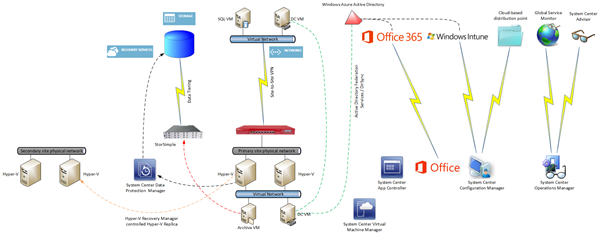
image View the image to see full size

Windows Azure Site-Site VPN

You can deploy virtual machines in Windows Azure. They are very similar to Hyper-V VMs, because at this point, Windows Azure is running WS2012 Hyper-V (not WS2012 R2, as you can tell by digging around). You can deploy Software-Defined-Networking (SDN) within Windows Azure in the form of Virtual Networks; you define a network and then you define automatically routed subnets. You can configure a remote gateway to enable site-to-site VPN connectivity between your on-premise infrastructure and the network within Windows Azure. That creates intriguing possibilities where you run some services within Windows Azure to take advantage of elasticity and instant resource availability, and take advantage of on-premise where you can customise and specialise to your heart’s content.

An MPLS alternative has gone into beta with AT&T in the USA. Basically the Windows Azure network becomes another branch office on your WAN. That would be a much nicer and more fault tolerant option than single site-to-site VPN.

Note:

You will use SCVMM to manage your on-premise cloud(s) and use System Center App Controller to enable easy deployment of VMs/services in your hybrid cloud.

Active Directory

One of the biggest historical pains in IT for users is having multiple usernames and passwords. You can have single-sign-on (SSO) across your on-premise and Microsoft public cloud services by synchronising Active Directory with Windows Azure Active Directory (WAAD). WAAD is used in a couple of ways:

  • PaaS: Developers can use synchronised IDs for their custom applications.
  • SaaS: Office 365 (Midsize [M] plan and up) and Windows Intune can use the same user names for Exchange Online, SharePoint Online, Lync Online, etc, as are entered when users sign into their PC every day.

There are two ways to synchronise AD with WAAD:

  • DirSync: Is a simple-to-install and manage solution for smaller businesses.
  • ADFS: Active Directory Federation Services is used for larger installs. It requires HA because ADFS becomes a point of dependency to sign into services.

Another interesting option is to deploy VMs into Windows Azure, promote one or more to be domain controllers, and treat that as another site in your Active Directory forest. Your on-premise DCs will replicate with the DCs running in Windows Azure. This is used to enable traditional user & computer join/login to your AD forest.

Note: You must follow specific guidelines for creating DCs in Windows Azure. For example, all domain databases must be placed on an additional data drive that you attach to the VM. This is required to avoid corruption.

Office 365

I’ve already mentioned how users can sign into Office 365 (M plan and higher) using the same username and password as they use on their PC. You can also run hybrid Office services. For example, an Exchange organisation can span on-premise Exchange servers and the cloud.

Windows Intune & System Center Configuration Manager

System Center Configuration Manager (SCCM) is Microsoft’s corporate device deployment & management solution. I believe it is best used when limited to direct management of domain-joined Windows computers. Note that SCCM does allow you to deploy a distribution point (a content library that users/computers install from) in the cloud (hosted by Windows Azure).

You can also get Windows Intune, Microsoft’s cloud-based device management solution. Being cloud based makes it easy to deploy, and better for managing remote or widely distributed devices. Intune is less AD-centric, and that also makes it a great product for dealing with bring-your-own-device (BYOD). And Intune is also designed from the ground up to manage non-Windows OSs such as Android, iOS, and Windows Phone.

You can integrate Windows Intune into SCCM so admins have a single console to manage. I see Intune as the mechanism for dealing with widely distributed devices, roaming devices, mobile devices, and BYOD. SCCM is the solution for dealing with domain-joined corporate computers.

System Center Operations Manager

SCOM is Microsoft’s service-focused monitoring solution. You can get lots of Microsoft developed (free) management packs for monitoring on-premise stuff such as Windows Server, AD, SQL Server, and much more. There are also free third-party management packs (HP, Dell, Citrix, and more), and paid-for products from the likes of Veeam (which happens to have a limited free package for vSphere monitoring).

SCOM can also be used with the cloud in a few ways:

  • Global Service Monitor: GSM allows you to monitor the availability and quality of web services from Microsoft’s data centres around the world. This accounts for the fact that the Internet is complex and localised failures can affect international service availability in unpredictable ways. You configure GSM to monitor site(s) and the results appear in SCOM.
  • System Center Advisor: Think of this as a best practices analyzer from the cloud. SCOM can monitor the results of Advisor scans.
  • Windows Azure: You can monitor the services that you deploy in Azure in two ways. You can monitor the Azure service itself for failures. You can also install SCOM agents into the guest OS of your VMs to monitor the OS and services from within the VMs.

StorSimple

Many businesses struggle with retaining archive data. Microsoft acquired StorSimple to deal with that issue. This is a on-premise installed 1 GbE iSCSI storage appliance that offers local SSD and HDD tiers with a third colder tier residing within the storage services of Windows Azure.

The appliance is not suitable for all workloads. A key requirement is that your data must have a concept of a “working set”. In other words, there is hot data that you use frequently, and cold data that your do not look at very often. VM VHD/VHDX files are not examples of this. Think of a corporate file server, an CAD library, etc. Those are good examples.

StorSimple also has a built-in backup system that uses snapshot mechanisms to backup your hot/cold data.

Windows Azure Online Backup

There are many ways to use the storage mechanisms in Azure. Another one is to use Online Backup to automate the off-site storage of your backup data. A basic system for a single server would be to let Windows Server Backup send its data directly to the cloud. Larger customers might use something like System Center Data Protection Manager or Commvault Sympana to send their backup data to Windows Azure.

The data is encrypted using your private key. Microsoft never sees this key, and therefore you must keep the key safe; they cannot rescue you if you lose it.

I’ve been told that there is a beta in the USA to assist with getting that first big backup into the data center using secure out of band couriers. This will be a much more complex service to export due to the nature of international cross-border complexities.

Hyper-V Recovery Manager

HRM is not a solution that I am convinced about, due to pricing and the fact that it lives in Azure. I prefer micro-payment and placement in the secondary site.

However, HRM is an orchestration solution that lives in Windows Azure for coordinating Hyper-V Replica between two VMM-managed Hyper-V sites. Asynchronous replication data flows directly between the two sites, never to Azure. HRM purely manages replication and failover.

SQL Server 2014

SQL  Server AlwaysOn availability groups can span on-premise and in-Azure VMs, enabling hybrid cloud HA of your relational data services.

UR1 For System Center 2012 R2 Is Available – Be Careful

Microsoft has released Update Rollup 1 for System Center 2012 R2, covering everything except Endpoint Protection and Configuration Manager (they’re almost a separate group).

As usual with update rollups, I would caution you to let others download, install, and test this rollup. Don’t approve it for deployment for another month. And even then, make sure you read each product’s documentation before doing an installation.

Those who lived through URs over the last 12-18 months will remember that System Center had as bad, if not worse, time than Windows Server 2012 with these Update Rollups.

EDIT:

Update Rollup 5 for System Center 2012 Service Pack 1 was also released. The same advice applies; don’t deploy for 1 month and let others be the guinea pigs.

Please Welcome 5nine!

I’m pleased to announce that 5nine have become a sponsor of my blog.  5nine is a key player in the Hyper-V partner ecosystem, making of security, networking, and management tools & extensions.

Manager Banner 235x235 (Free)

You’ll find an alternative to SCVMM for small/medium businesses, extensibility to SCVMM and the Hyper-V virtual switch for the medium to large enterprise, and a number of very useful free tools.

Please take the time to evaluate 5nine’s tools and see what they could add to your network.

TechCamp 2013 Wrap Up

Yesterday we ran TechCamp 2013, the Irish community launch of Windows 8.1, Windows Server 2012 R2, System Center 2012 R2, and Windows Intune.  All the feedback I have heard has been positive – thankfully!  🙂

We kicked off with Dave Northey (Microsoft CAT Program Manager).  Dave was the IT Pro DPE in Ireland for quite some time and has spoken at every launch event since Windows NT.  It would have been wrong not to have Dave in to do the keynote.

 WP_20131128_09_55_43_Pro

After that we broke into two tracks.  I did the WS2012 R2 session and next door, Damian Flynn (MVP) did the Windows 8.1 in the enterprise session.  I wanted to attend Damian’s session – I hear it was excellent, covering the BYOD and mobile worker scenarios.

WP_20131128_13_57_10_Pro

In the desktop track, some speakers from Microsoft introduced the new generation of devices that the various OEMs are bringing to market for Windows 8.1 and Windows RT 8.1, and what Windows Intune now offers for distributed end users, mobile workers, and BYOD device/app management.

Back in the server & cloud track, Paul Keely (MVP) did a session on service automation.

 WP_20131128_12_11_47_Pro

Damian was back on stage in the server & cloud track talking about using SCVMM 2012 R2 and Windows Azure Pack to build a hybrid cloud on Azure and Windows Server 2012 R2.  Kevin Greene (MVP) wrapped up the track explaining how System Center can be used to manage service availability and quality.

WP_20131128_15_29_55_Pro

Niall Brady (MVP), an Irish man living and working in Sweden, wrapped up the desktop & devices track by talking about System Center Configuration Manager 2012 R2.

WP_20131128_15_27_17_Pro

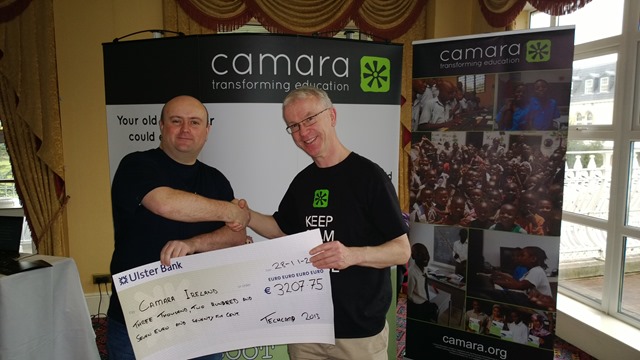
We asked for a small registration fee to encourage legitimate registrations and to get a higher turn-up rate.  That fee went to a good cause, an NGO called Camara.  We had Mark Fox in from Camara.  This gave Mark a chance to tell the audience (after the keynote) about the good work that Camara does.  They take unwanted PCs from businesses, securely wipe the PCs, track them, and reuse those machines to provide a digital education to needy kids.  Education is the best weapon against poverty and war, and Camara is on the frontline. Mark also staffed a stand in the exhibition room, and hopefully businesses found a way to get rid of machines in their drive to rid themselves of Windows XP, and make a difference in the world while doing it.

 WP_20131128_09_42_44_Pro

We have a whole bunch of sponsors to thank:

  • MicroWarehouse: My employers were the primary sponsor.  This event would not have happened without the huge effort by John Moran.  I would have been happy with a projector in a shed (with VPN access to my lab) but John made this a professional event.
  • Microsoft: Thanks for the support from Ciaran Keohane, the help from Michael Meagher.
  • Ergo: One of the leading Microsoft partners in Ireland, regularly winning Server partner of the year.
  • DataOn Storage: One of the manufacturers of certified Storage Spaces hardware
  • Savision: Creating dashboards for System Center that aid IT operations.
  • Toshiba: who had some devices on hand (including their new 8” Windows 8.1 tablet), most of which aren’t even on sale yet!

A big thank you goes out to each speaker who prepared 75 minute sessions (two of them in the case of Damian).  In case you don’t know, that’s probably a couple of days work in preparing slides, demos, and rehearsing, sometimes into the wee hours of the morning.

And finally, thanks to everyone who helped us communicate the event, and of course, came to the event to hear about these new solutions.  I hope the day proved valuable.

We had a number of people ask if we’ll run more events like this next year.  I believe that this is something that we will strongly consider.  There won’t be any launch stuff for us to cover for a while, so maybe we’d look at doing more “here’s how” content.  We’ll have to review and consider our options before we make any decisions.

Launch Event – Learn From The Best; Not From The Rest

There are only hours now between now and the start of TechCamp 2013 in City West in Dublin, where Irish MVPs (and a couple of Microsoft folks) will be presenting on:

  • Windows Server 2012 R2
  • Service automation using System Center 2012 R2
  • Hybrid cloud using Hyper-V Network Virtualization, NVGRE, SCVMM 2012 R2 and Windows Azure Pack
  • Service level management using System Center 2012 R2
  • Windows 8.1 in the business
  • New Windows devices
  • BYOD, consumerisation of IT, and mobile device management
  • Enterprise desktop management using System Center 2012 R2

You could wait for a sales person come to town and tell you stuff that they’ve read about.

Or, you could make a little effort to come to TechCamp 2013 where some of the worlds leading experts independent experts (all with international followings and tech book credits to their names) on these technologies (who are Irish BTW) will be there to present an honest appraisal of this technology that they have worked with every day since the 2012 R2/8.1 previews were launched.