Hyper-V Replica DR Strategy Musings VS What We Can Do Now

See my more recent post which talks in great detail about how Hyper-V Replica works and how to use it.

At WPC11, Microsoft introduced (at a very high level) a new feature of Windows 8 (2012?) Server called Hyper-V Replica.  This came up in conversation in meetings yesterday and I immediately thought that customers in the SMB space, and even those in the corporate branch/regional office would want to jump all over this – and need the upgrade rights.

Let’s look at the DR options that you can use right now.

Backup Replication

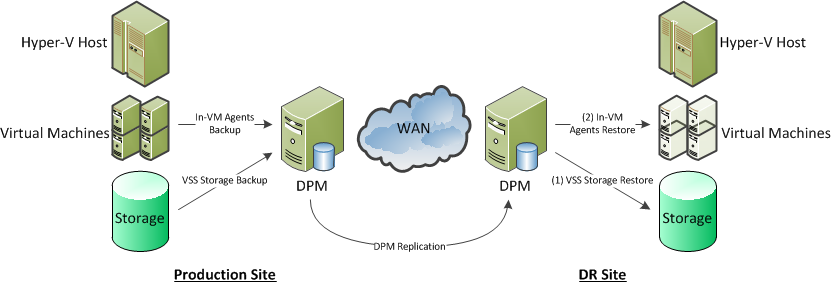
One of the cheapest around and great for the SMB is replication by System Center Data Protection Manager 2010.  With this solution you are leveraging the disk-disk functionality of your backup solution.  The primary site DPM server backs up your virtual machines.  The DR site DPM server replicates the backed up data and it’s metadata to the DR site.  During the invocation of the DR plan, virtual machines can be restored to an alternative (and completely different) Hyper-V host or cluster.
image

Using DPM is cost effective, and thanks to throttling, is light on the bandwidth and has none of the latency (distance) concerns of higher-end replication solutions.  It is a bit more time consuming for the invocation.

This is a nice economic way for an SMB or a branch/regional office to do DR.  It does require some work during invocation: that’s the price you pay for a budget friendly solution that kills two marketing people with one stone – Hey; I like birds but I don’t like marke …Moving on …

Third-Party Software Based Replication

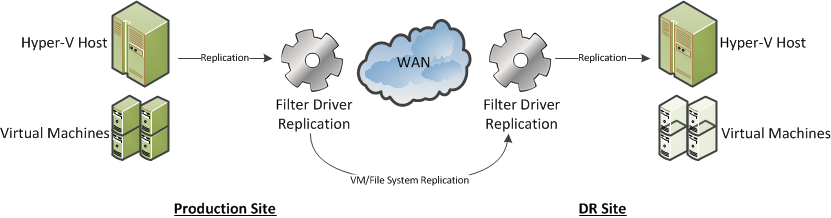
The next solution up the ladder is a 3rd party software replication solution.  At a high level there are two types:

  • Host based solution: 1 host replicates to another host.  These are often non-clustered hosts.  This works out being quite expensive.
  • Simulated cluster solution: This is where 1 host replicates to another.  It can integrate with Windows Failover Clustering, or it may use it’s own high availability solution.  Again, this can be expensive, and solutions that feature their own high availability solution can possibly be flaky, maybe even being subject to split-brain active-active failures when the WAN link fails.
  • Software based iSCSI storage: Some companies produce an iSCSI storage solution that you can install on a storage server.  This gives you a budget SAN for clustering.  Some of these solutions can include synchronous or asynchronous replication to a DR site.  This can be much cheaper than a (hardware) SAN with the same features.  Beware of using storage level backup with these … you need to know if VSS will create the volume snapshot within the volume that’s being replicated.  If it does, then you’ll have your WAN link flooded with unnecessary snapshot replication to the DR site every time you run that backup job.
image

This solution gives you live replication from the production to the DR site.  In theory, all you need to do to recover from a site failure is to power up the VMs in the DR site.  Some solutions may do this automatically (beware of split brain active-active if the WAN link and heartbeat fails).  You only need to touch backup during this invocation if the disaster introduced some corruption.

Your WAN requirements can also be quite flexible with these solutions:

  • Bandwidth: You will need at least 1 Gbps for Live Migration between sites.  100 Mbps will suffice for Quick Migration (it still has a use!).  Beyond that, you need enough bandwidth to handle data throughput for replication and that depends on change to your VMs/replicated storage.  Your backup logs may help with that analysis.
  • Latency: Synchronous replication will require very low latency, e.g. <2 MS.  Check with the vendor.  Asynchronous replication is much better at handling long distance and high latency connections.  You may lose a few seconds of data during the disaster, but it’ll cost you a lot less to maintain.

I am not a fan of this type of solution.  I’ve been burned by this type of software with file/SQL server replication in the past.  I’ve also seen it used with Hyper-V where compromises on backup had to be made.

SAN Replication

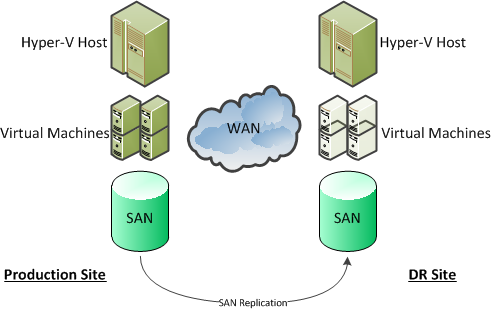
This is the most expensive solution, and is where the SAN does the replication at the physical storage layer.  It is probably the simplest to invoke in an emergency, and depending on the solution, can allow you to create multi-site clusters, sometimes with CSVs that span the sites (and you need to plan very carefully if doing that).  For this type of solutions you need:

  • Quite an expensive SAN.  That expense varies wildly.  Some SANs include replication, and some really high end SANs require an additional replication license(s) to be purchased.
  • Lots of high quality, and probably ultra low latency, WAN pipe.  Synchronous replication will need a lot of bandwidth and very low latency connections.  The benefit is (in theory) zero data loss during an invocation.  When a write happens in site A on the SAN, then it happens in site B.  Check with the manufacturer and/or an expert in this technology (not honest Bob, the PC salesman, or even honest Janet, the person you buy your servers from).
image

This is the Maybach of DR solutions for virtualisation, and is priced as such.  It is therefore well outside the reach of the SMB.  The latency limitations with some solutions can eliminate some of the benefits.  And it does require identical storage in both sites.  That can be an issue with branch/regional office to head office replication strategies, or using hosting company rental solutions.

Now let’s consider what 2012 may bring us, based purely on the couple of minutes presentation of Hyper-V replica that was at WPC11.

Hyper-V Replica Solution

I previously blogged about the little bit of technology that was on show at WPC 2011, with a couple of screenshots that revealed functionality.

Hyper-V Replica appears (in the demonstrated pre-beta build and things are subject to change) to offer:

  • Scheduled replication, which can be based on VSS to maintain application/database consistency (SQL, Exchange, etc).  You can schedule the replication for outside core hours, minimizing the impact on your Internet link on normal business operations.
  • Asynchronous replication.  This is perfect for the SMB or the distant/small regional/branch office because it allows the use of lower priced connections, and allows replication over longer distances, e.g. cross-continent.
  • You appear to be able to maintain several snapshots at the destination site.  This could possibly cover you in the corruption scenario.
  • The choice of authentication between replicating hosts appeared to allow Kerberos (in the same forest) and X.509 certificates.  Maybe this would allow replication to a different forest: in other words a service provider where equipment or space would be rented?

What Hyper-V Replica will give us is the ability to replicate VMs (and all their contents) from one site to another in a reliable and economic manner.  It is asynchronous and that won’t suit everyone … but those few who really need synchronous replication (NASDAQ and the like) don’t have an issue buying two or three Hitachi SANs, or similar, at a time.

image

I reckon DPM and DPM replication still have a role in the Hyper-V Replica (or any replication) scenario.  If we do have the ability to keep snapshots, we’ll only have a few of them.  What do you do if you invoke your DR after losing the primary site (flood, fire, etc) and someone needs to restore a production database, or a file with important decision/contract data?  Are you going to call in your tapes from last week?  Hah!  I bet that courier is getting themselves and their family to safety, stuck in traffic (see post-9/11 bridge closures or state of the roads in New Orleans floods), busy handling lots of similar requests, or worse (it was a disaster).  Replicating your back to the secondary site will allow you restore data (that is still on the disk store) where required without relying on external services.

Some people actually send their tapes to be stored at their DR site as their offsite archival.  That would also help.  However, remember you are invoking a DR plan because of an unexpected emergency or disaster.  Things will not be going smoothly.  Expect it to be the worst day of your career.  I bet you’ve had a few bad ones where things don’t go well.  Are you going to rely entirely on tape during this time frame?  Your day will only get worse if you do: tapes are notoriously unreliable, especially when you need them most.  Tapes are slow, and you may find a director impatiently mouth-breathing behind you as the tape catalogues on the backup server.  And how often do you use that tape library in the DR site?

To me, it seems like the best backup solution, in addition to Hyper-V Replica (a normal feature of the new version of Hyper-V that I cannot wait to start selling), is to combine quick/reliable disk-disk-disk backup/replication for short term backup along with tape for archival.

That’s my thinking now, after seeing just a few minutes of a pre-beta demo on a webcast.  As I said, it’s subject to change.  We’ll learn more at/after Build in September and as we progress from beta-RC-RTM.  Until then, these are musings, and not something to start strategising on.

Slide deck – Private Cloud Academy: Backup and DPM 2010

Here’s the slide deck I presented at the Microsoft Ireland/System Dynamics Private Cloud Academy event on how to design Hyper-V cluster shared volumes (CSV) for backup and use System Center Data Protection Manager (DPM) 2010 to backup virtualised workloads.  Like the previous sessions, it was a very demo-centric 3 hour event.

Recent KB Articles Affecting Hyper-V, Etc

Here’s a few KB articles I found that were released by Microsoft recently that affect Hyper-V farms.

KB2004712: Unable to backup Live Virtual Machines in Server 2008 R2 Hyper-V

“When backing up online Virtual Machines (VMs) using Windows Server Backup or Data Protection Manager 2007 SP1, the backup of the individual Virtual Machine may fail with the following error in the hyperv_vmms Event Log:

No snapshots to revert were found for virtual machine ‘VMName’. (Virtual machine ID 1CA5637E-6922-44F7-B17A-B8772D87B4CF)”.

VM with GPT pass through disk on a Hyper-V cluster with SAS based storage array will cause VM to report “Unsupported Cluster Configuration.”

“When you attach a GPT pass-through disk provided from SAS storage (Serial attached SCSI) array to a highly available virtual machine by using the Hyper-V Manager or Failover Cluster Management Microsoft Management Console (MMC) snap-in, the System Center Virtual Machine Manager 2008 Admin Console lists the status of the virtual machine as "Unsupported Cluster Configuration."

Details on the High Availability section of the VMs Properties in SCVMM are:

Highly available virtual machine <Machinename> is not supported by VMM because the VM uses non-clustered storage. Ensure that all of the files and pass-through disks belonging to the VM reside on highly available storage”.

On a computer with more than 64 Logical processors, you may experience random crashes or hangs

“On a computer which has more than 64 logical processors, you may experience random memory corruption during boot processing. This may result in system instability such as random crashes or hangs.

This problem occurs due to a code defect in the NDIS driver (ndis.sys).

Microsoft is currently investigating this problem, and will post more details when a fix is available.

To work around this issue, reduce the number of processors so that the system has no more than 64 logical processors. For example, disable hyper-threading on the processors”.

The network connection of a running Hyper-V virtual machine may be lost under heavy outgoing network traffic on a computer that is running Windows Server 2008 R2 SP1

“Consider the following scenario:

  • You install the Hyper-V role on a computer that is running Windows Server 2008 R2 Service Pack 1 (SP1).
  • You run a virtual machine on the computer.
  • You use a network adapter on the virtual machine to access a network.
  • You establish many concurrent network connections. Or, there is heavy outgoing network traffic.

In this scenario, the network connection on the virtual machine may be lost. Additionally, the network adapter may be disabled”.

A hotfix is available to let you configure a cluster node that does not have quorum votes in Windows Server 2008 and in Windows Server 2008 R2

“Windows Server Failover Clustering (WSFC) uses a majority of votes to establish a quorum for determining cluster membership. Votes are assigned to nodes in the cluster or to a witness that is either a disk or a file share witness. You can use the Configure Cluster Quorum Wizard to configure the clusters quorum model. When you configure a Node Majority, Node and Disk Majority, or Node and File Share Majority quorum model, all nodes in the cluster are each assigned one vote. WSFC does not let you select the cluster nodes that vote for determining quorum.

After you apply the following hotfix, you can select which nodes vote. This functionality improves multi-site clusters.  For example, you may want one site to have more votes than other sites in a disaster recovery. Without the following hotfix, you have to plan the numbers physical servers that are deployed to distribute the number of votes that you want for each site.”

More on Private Cloud Academy

I presented session 2 in the Private Cloud Academy series last Friday in Microsoft Ireland.  That event focused on SCVMM 2008 R2 with SP1, Virtual Machine Servicing Tool 3.0, and Operations Manager 2007 R2 with PRO integration (with SCVMM).  It was a very demo driven session.  I had 25 slides but I probably only used half of them.  And as usual, there were lots of questions.

The next event was originally scheduled for March 18th but it has been rescheduled to March 25th.  Session 3 will focus on System Center Data Protection Manager 2010 and how you can use it in a virtualised environment.

I’ll start off with a high level view of backup and virtualisation.  For example, VM’s are usually “just” files making them easier to backup, restore, and replicate.  One of the biggest things people need to understand when backing up a Hyper-V cluster is how redirected I/O affects operations when using CSV.  And that means spending quite a bit of time on how a cluster should be designed.  That leads to backup strategy.

Once the theory is done we’ll get into the usual end-to-end demos.  I’ll be backing up VM’s on a CSV, backing up SQL workloads, and so on.  Then we move onto site-site replication of DPM, and maybe even automated restoration of VM’s in a secondary site.

If time permits, I’ll go on to talk about DR design possibilities, seeing as it is a related subject.

Sound interesting?  If so, go ahead and register if you can make it to Dublin (Ireland) on the day.

HP P4000 LeftHand SAN/iQ 9.0 Adds CSV Hardware VSS Provider Support

You may know that HP and Microsoft have formed a virtualisation alliance around Hyper-V.  One of HP’s key pieces in the puzzle the the iSCSI SAN formerly known as LeftHand, the P4000 series.

Cluster Shared Volume (CSV) can be backed up using a software VSS provider (i.e. Windows VSS) but this is slow.  When using DPM 2010, it’s recommended to use serialised backups.  If your hardware vendor support it, you can use their hardware VSS provider to take a snapshot in the SAN and then DPM (or whatever backup product) will use that feature for the backup.

Now back to the P4000.  Up until recently, the HP supplied DSM for MPIO was version 8.5.  The SAN/iQ software on the P4000 was also at 8.5.  Lots of people were using the 8.5 hardware VSS provider in the SAN to backup CSVs.  It seems that this was unsupported. by HP (nothing to do with MS).  In fact, it can even cause disk deadlock in a Hyper-V cluster, and lead to 0x0000009E blue screens of death (BSOD) on cluster hosts.  And that’s just the start of it!

HP did release DSM 9.0 and SAN/iQ 9.0 recently for the P4000.  These add support for using the hardware VSS provider for backing up a CSV.

EDIT #1

So the SAN/iQ 9.0 release docs say that previous versions of SAN/iQ supported CSVs.  However, the Application Snashot Feature (hardware VSS provider/backup application) of the 8.5 release could not support quiecsed snapshots of CSVs.  In other words, it wasn’t supported to use DPM (or anything else) to perform a storage/host level backup of LeftHand with SAN/iQ 8.5 using the HP hardware VSS provider.  It is supported with v9.0.

Holistic Virtualisation Design

One of the biggest challenges I had when writing Mastering Hyper-V Deployment was choosing the ordering of the chapters. Some stuff needs to be understood before moving on. In the end I ordered it like a typical deployment. But I did make it clear that certain things needed to be considered.

One of the things I stressed was the storage. The choice of product, design, and implementation will affect what you can do, the performance, and stability. It must be considered as a central component of the entire implementation. Failure to do so will lead to project failure, maybe not today, but maybe 6-12 months down the road.

Bound to this, because of CSV and Redirected I/O, is backup. Host level backup will affect network performance. Huge CSVs being backed up will stress the CSV network and the CSV coordinator’s storage link. This means you need to consider sizing of CSVs and design backup protection groups accordingly. Hardware based VSS snapshots relieve this substantially.

Virtualisation is a foundation. We don’t build the roof of a house without doing the work on what is underneath. Identify your overall server objectives, such as DR or private cloud, and then do a holistic design.  Guess what – you’re going to have to talk to non-techies (the business) to figure out how to steer your design and to define those objects.  Have fun!

CIO’s Delaying Virtualisation Because They Don’t Trust Backup

With some incredulity, I just read a story on TechCentral.ie  where Veeam says that:

“44% of IT directors say they avoid using virtualisation for mission-critical workloads because of concerns about backup and recovery. At the same time, only 68% of virtual servers are, on average, backed up, according to the study of 500 IT directors across Europe and the US”.

That’s pretty damned amazing.  Why do I say that?  Because I know one MS partner here in Ireland sells Hyper-V because it makes backups easier and more reliable.

Hyper-V features a volume shadow snapshot service (VSS) provider.  This allows compatible backup solutions (there’s plenty out there) to safely backup VM’s at the host level.  This means that backing up a VM, its system state, its applications, and its data is a simple backup of a few files (it’s a bit more complicated than that under the hood).  From the admins perspective, it’s just like backing up a few Word documents on a file server. 

Here’s the cool bit.  When a Hyper-V VM is quiesced, the VSS providers within the VM also start up.  Any file services, Exchange services, SQL, and so on, are all put into a safe state to allow a backup to take place with no service interruption.  Everything is backed up in a safe, consistent, and reliable manner.  The result is that the organisation has a backup of the entire VM that can be restored very quickly.

Now compare being able to backup a VM by restoring a few files comapred to doing a complete restoration of a physical server when some 2-5 year old piece of tin dies.  You won’t get identical hardware and will have lots of fun restoring it.

BTW, if a physical piece of tin suddenly dies in a Hyper-V cluster then the VM just fails over to another host and starts working there.  There’s no comparison in the physical world.  Sure you can cluster there but it’ll cost you a whole lot more than a virtualisation cluster and be a lot more complicated.

Sounds good?  It gets better.  Backing up a Hyper-V cluster at the host level is actually not a good idea (sounds odd that something good starts with something bad, eh?).  This is because a CSV will go into redirected more during the backup to allow the CSV owner complete access to the file system.  You get a drop in performance as host I/O is redirected over the CSV network via the CSV owner to the SAN storage.  We can eliminate all of that and simplify backup by using VSS enabled storage.  That means choosing storage with VSS providers.  Now you backup LUNs on the SAN instead of disks on a host.  The result is quicker and more reliable backups, with less configuration.  Who wouldn’t like that?

Mastering Hyper-V Deployment Book is Available Now

Amazon has started shipping the book that I wrote, with the help of Patrick Lownds MVP, Mastering Hyper-V Deployment.

Contrary to belief, an author of a technical book is not given a truckload of copies of the book when it is done.  The contract actually says we get one copy.  And here is my copy of Mastering Hyper-V Deployment which UPS just delivered to me from Sybex:

BookDelivered

Amazon are now shipping the book.  I have been told by a few of you that deliveries in the USA should start happening on Tuesday.  It’s been a long road to get to here.  Thanks to all who were involved.

CA Report on Downtime

I’ve just read a news story on Silicon Republic that discusses a CA press release.  CA are saying that European businesses are losing €17 billion (over $22 billion) a year in IT down time.  I guess their solution is to use CA software to prevent this.  But my previous experience working for a CA reseller, being certified in their software, and knowing what their pre-release testing/patching is like, I would suspect that using their software will simply swap “downtime” for “maintenance windows” *ducks flying camera tripods*.

What causes downtime?

Data Loss

The best way to avoid this is to back up your data.  Let’s start with file servers.  Few administrators know about or decided not to turn on VSS to snapshot the volumes containing their file shares.  If a user (or power user) or helpdesk admin can easily right-click to recover a file then why the hell wouldn’t you use this feature?  You can quickly recover a file without even launching a backup product console or recalling tapes.

Backup is still being done direct to tape with the full/incremental model.  I still see admins collecting those full/incremental tapes in the morning and sending them offsite.  How do you recover a file?  Well VSS is turned off so you have to recall the tapes.  The file might not be in last night’s incremental so you have to call in many more tapes.  Tapes need to be mounted, catalogued, etc, and then you hope the backup job ran correctly because the “job engine” in the backup software keeps crashing.

Many backup solutions now use VSS to allow backups to disk, to the cloud, to disk->tape, to disk->cloud, or even to disk->DR site disk->tape.  That means you can recover a file with a maximum of 15 minutes loss (depending on the setup) and not have to recall tapes from offsite storage.

High Availability

Clusting.  That word sends shivers down many spines.  I starting doing clustering on Windows back in 1997 or thereabouts using third party solutions and then with Microsoft Wolfpack (NT 4.0 Advanced Server or something).  I was a junior consultant and used to set up demo labs for making SQL and the like highly available.  It was messy and complex.  Implementing a cluster took days and specialist skills.  Our senior consultant would set up clusters in the UK and Ireland, taking a week or more, and charging the highest rates.  Things pretty much stayed like that until Windows 2008 came along.  With that OS, you can set up a single-site cluster in 30 minutes once the hardware is set up.  Installing the SQL service pack takes longer than setting up a cluster now!

You can cluster applications that are running on physical servers.  That might be failover clustering (SQL), network load balancing (web servers) or us in-built application high availability (SQL replication, Lotus Domino clustering, or Exchange DAG).

The vast majority of applications should now be installed in virtual machines.  For production systems, you really should be clustering the hosts.  That gives you host hardware fault tolerance, allowing virtual machines to move between hosts for scheduled maintenance or in response to faults (move after failure or in response to performance/minor fault issues).

You can implement things like NLB or clustering within virtual machines.  They still have an internal single point of failure: the guest OS and services.  NLB can be done using the OS or using devices (use static MAC addresses).  Using iSCSI, you can present LUNs from a SAN to your virtual machines that will run failover clustering.  That allows the services that they run to become highly available.  So now, if a host fails, the virtualization clustering allows the virtual machines to move around.  If a virtual machine fails then the service can failover to another virtual machine.

Monitoring

It is critical that you know an issue is occurring or about to occur.  That’s only possible with complete monitoring.  Ping is not enterprise monitoring.  Looking at a few SNMP things is not enterprise monitoring.  You need to be able to know how healthy the hardware is.  Virtualisation is the new hardware so you need to know how it is doing.  How is it performing?  Is the hardware detecting a performance issue?  Is the storage (most critical of all) seeing a problem?  Applications are accessed via the network so is it OK?  Are the operating systems and services OK?  What is the end user experience like?

I’ve said it before and I’ll say it again.  Knowing that there is a problem, knowing what it is, and telling the users this will win you some kudos from the business.  Immediately identifying a root cause will minimize downtime.  Ping won’t allow you to do that.  Pulling some CPU temperature from SNMP won’t get you there.  You need application, infrastructure and user intelligence and only an enterprise monitoring solution can give you this.

Core Infrastructure

We’re getting outside my space but this is the network and power systems.  Critical systems should have A+B power and networking.  Put in dual firewalls, dual paths from them to the servers.  Put in a diesel generator (with fuel!), a UPS, etc.  Don’t forget your Aircon.  You need fault tolerance there too.  And it’s no good just leaving it there.  They need to be tested.  I’ve seen a major service provider have issues when these things have not kicked in as expected due to some freak simple circumstances.

Disaster Recovery Site

That’s a whole other story.  But virtualisation makes this much easier.  Don’t forget to test!

How to Backup Hyper-V with DPM 2010

There is a chapter in my book (by my co-author) on it so I won’t dwell too much time on this subject.  Microsoft released a brochure for Data Protection Manager 2010 and how to use it to backup Hyper-V.  Here’s the readers digest version:

  • You can install an agent in the VM, like you would with a physical box.  That’s a good idea for selective backup of things like SharePoint, SQL, Exchange, etc, where you want to do granular backup/recovery of applications.
  • You should backup at the storage level.  Don’t think of it as the host level.
  • For non-clustered hosts, you install an agent on the host and it backs up at the storage level using VSS.
  • For a cluster, you use a storage VSS provider (choose your storage wisely) and it backs up the CSV(s) using VSS … that triggers VSS in the VM’s and the VSS writers in the VM’s guest operating system for a nice clean backup.
  • It’s best to install DPM 2010 on a physical box.  This means you can enable the Hyper-V role.  This reveals DLLs that allow DPM to access the contents of a protected VHD and perform item level recovery from it.
  • Only use passthrough disks for DPM storage if you install it on a VM.