Please Welcome CSVFS

If you’re using Windows Server 2012 Failover Clustering for Scale Out File Server or for HA Hyper-V then you’ve created one or more Cluster Shared Volumes (CSV).  This active-active clustered file system (where orchestration is performed by the cluster nodes rather than the file system to achieve greater scalability) is NTFS based.  But wander into Disk Management and you’ll see a different file system label:

image

This label has two purposes:

  1. You can tell from admin tools that this is a CSV volume and is shared across the nodes in the cluster
  2. It allows applications to know that they are working with a CSV rather than a simple single-server volume.  This is probably important for applications that can use the filter extensibility of Windows Server 2012 Hyper-V, e.g. replication or AV.

BTW, this screenshot is taken from the virtualised scale-out file server that I’m building with a HP VSA as the background storage.

Mark Your Calendar: Windows 8/Server 2012 RC In The First Week of June

Jeffrey Snover of Microsoft has confirmed yesterday’s news (which was heavily retweeted) that Windows 8 Release Preview and Windows Server 2012 Release Candidate will be released to the public in the first week of June 2012.

I’ve been saying for a while that the Windows 8 schedule looks very like the one for Windows 7.  It’s a little  different (one month behind) but not that different.  My gut is saying it’s an August RTM (on MSVL, MSDN, and TechNet soon after) and an October launch/GA (LAR/distributor pricelist for new volume license purchases, OEM machines, on the shelves).

It won’t be long after that when we have SP1 for System Center with support for Windows Server 2012 and Windows 8.

Download RunAs Radio Podcast – I’m Talking About Windows Server 2012 Hyper-V

If you wander over to RunAs Radio (also on iTunes) you’ll be able to download their latest episode where I was a guest and talked about Windows Server 2012 Hyper-V.  In it myself and the host, Richard Campbell, take a quick tour around some of the highlight features of Microsoft’s newest version of their virtualisation hypervisor.

We recorded the podcast a few weeks ago when we still referred to Windows Server 2012 by it’s beta codename of Windows Server “8”.

Thanks to the folks at RunAs Radio for asking me on as a guest!

Elias Khnaser, Honorary vmLimited Ambassador, Talks About Shared Nothing Live Migration

Back in 2009, Elias Khnaser posted a very badly informed article on InformationWeek with on why you shouldn’t deploy Hyper-V.  I gave it a good bashing, tearing down his points one by one with actual facts.  Well, just in time to be hired by Tad, Elias is back and at it again!

First off, let’s look at the title of the article:

Shared-Nothing Live Migration: Cool, But Not a Game-Changer

Hmm, I have to disagree.  No one else does this right now and it’s a real problem for some.  Think of a large data centre going through a hardware or network refresh.  They can’t afford down time while the export, carry, and import VMs.  They want to be able to move those VMs with the minimum of downtime, and maybe even eliminate downtime.  Shared Nothing Live Migration achieves this.

… entertain this scenario for me: a VM with 1 TB virtual disk … wait, Eli, you are not realistic, you might be thinking … fair enough — what about a VM with 500GB virtual disks? Moving that amount of data over a 1 GB Ethernet or even a 10 GB Ethernet is not quick or feasible in most environments …

Firstly, the vast majority of VMs are small.  And while Windows Server 2012 Hyper-V can support 64 TB VHDX, they will the tiny minority.  And to be honest, not only will these size VMs be few and far between, but I’d expect them to run on clustered hosts with shared storage so Share Nothing Live Migration wouldn’t be needed … except for well planned and scheduled migrations to another part of the data centre.

If you do have lots of 1 TB VMs to move around, then you’re a very large data centre and you’ll have lots of budget for big networking such as Infiniband with RDMA to speed things along.  For the rest of us:

  • DCB and converged fabrics
  • Everything from 1 GbE to Infiniband
  • RDMA
  • QoS
  • Many ways to architect our networking based on our needs

In my opinion, the market that will make most use of Shared Nothing Live Migration are the public clouds or hosting companies.  To keep costs down, many of them are using non-clustered hosts.  And from time to time, they want to replace hardware … a planned operation.  They can do this with this new Hyper-V feature.  And I can speak from experience: most hosted VMs are very small and would cause no issue to move, even over a 1 GbE network.

… this would only be used as a maintenance technique which is what it was slated for anyway.

Of course!  As a virtualisation expert, Elias, I’d trust that you know the difference between high availability (HA – normally reactive) and LIve Migration (LM – normally proactive and planned).  But if one is stuck with working with vSphere standard, then one probably never gets to implement these features because of their high vTax.

To think that you will constantly be copying large virtual disks between hosts is not practical and is not scalable.

Really?  Elias have you even looked at why Shared Nothing Live Migration exists?  It’s not there for load balancing or as an alternative to Failover Clustering HA.  It is there to allow us to do strategic moves of virtual workloads from one cluster to another (or a standalone host), one standalone host to another (or a cluster), from one part of the data centre to another, or even from a private cloud to a public one.  If you’re doing this all of the time with all of your VMs then you need to take a long look at yourself and your planning.

… you cannot use high availability with this feature, and that makes sense since you need a point of reference for HA to work. How can you recover a VM when its files are on the host that failed?

You’re confused and you’re wrong:

  1. You don’t need Shared Nothing Live Migration within a cluster because, strangely enough, there is shared storage in a cluster. With the VMs storage on a CSV, you don’t need to move the VHD(X) from one host to another, or from one storage device to another, to LM a VM from one host to another.
  2. You can use Shared Nothing Live Migration to move a workload from/to a cluster.

Live Migration (proactive VM move) is not HA (reactive failover).  Yes, LM has been separated from Failover Clustering, but they are certainly not mutually exclusive.  And anyone who sees Shared Nothing Live Migration as an alternative to HA needs to reconsider their career path.

I expect that when VMware does feature catch up with Windows Server 2012 Hyper-V, Elias might have a change of heart regarding Shared Nothing vMotion Winking smile  But until then, I expect we need to beware of bogus nastiness and stay vmLimited.

Technorati Tags: ,

It’s Official: Windows Server 2012

I am one to say I told you so.  Microsoft released a press release:

Anderson provided a preview of how Microsoft’s private cloud will become even more powerful with Windows Server “8” and announced that the operating system will officially be named Windows Server 2012. The new “cloud-optimized OS” is due out later this year.

Strangely the release was issued before he actually announced this at the keynote; I’m about 10 rows from Anderson now.

Technorati Tags:

Windows Server 2012 Hyper-V & NUMA

NUMA has been one of those things that’s been with us for some time and gone unmentioned by most of us who didn’t work in the “super computing” high end of the market.  But for us Hyper-V folks, it came to the fore when we got Dynamic Memory and needed to understand the penalties of a VM expanding it’s RAM across NUMA boundaries.  It wasn’t a common possibility thanks to the limit of 4 vCPUs and 64 GB vRAM per VM, but it was a risk nonetheless.

Windows Server 2012 supports 1 TB RAM and 64 vCPUS per VM.  On that host, we’ll definitely span NUMA nodes with that spec of VM.  How does Windows Server 2012 Hyper-V react?  Jeffrey Snover has the answer on the Windows Server 8 blog.  Long story short: Hyper-V does the work for you, and hides the complexity unless you want to go looking for it.

The cleverness is that Hyper-V makes the guest OS aware of NUMA in the host.  Windows VMs can then schedule their internal processes and memory according to the NUMA boundaries of that VM, just like a physical installation would have.

And so can Linux:

Using the ACPI SRAT for presenting NUMA topology is an industry standard, which means Linux and other operating systems that are NUMA aware can take advantage of Hyper-V virtual NUMA

While Hyper-V will figure out NUMA node sizes on the host automatically, what happens when you Live Migrate a VM to a different spec host?  Well, the settings presented to the VM obviously cannot be changed while the VM is running.  It’ll take the original NUMA node sizes to the new host and use them there.  Tucked away in the advanced vCPU settings, you can customize a VM’s NUMA nodes to suit the host with the smallest NUMA nodes.  That means the VM won’t span NUMA boundaries (aka Remote Run where it a process on a CPU is allocated RAM in a remote NUMA node) when it Live Migrates between hosts of different specs.

In a second post, Jeffrey Snover talks about these advanced settings, how to reset them back to the defaults, and how to monitor NUMA using Performance Monitor.  In my opinion, these two posts are essential reading if you intend to do scale out computing on a virtualisation platform.

Now that big SQL, IIS 8.0, or MySQL workload (assuming MySQL is NUMA aware like SQL is since 2005) can be moved onto Hyper-V and take full advantage of the benefits of virtualisation and private cloud, without compromising on scale up performance demands.


Windows Server 2012 Hyper-V Dynamic Memory Changes

The memory optimization mechanism that was added in Windows Server 2008 R2 Service Pack 1 Hyper-V, Dynamic Memory (DM), improves with WS2012.

Minimum Memory

Windows 8/WS2012 are doing some really clever things; you might have heard of MinWin. That was an effort by Microsoft to reduce the footprint of Windows 8. The primary beneficiary was Windows On ARM (WOA) where tablets may have lesser resources than a normal PC. A second beneficiary is virtualisation; memory is a bottleneck in dense virtualisation, such as VDI or VM hosting, and being able to squeeze down the run-size of Windows 8 so we can squeeze even more running Windows 8 VMs onto a host. That means that Windows 8 can actually use less than 512 MB RAM that is listed as a system requirement. In fact, when idle, it can drop well below 512 MB RAM. In the lab at work, I’ve observed Windows Server 2012 VMs with requiring as little as 312 MB RAM without being manually squeezed.

But there’s a catch: Windows boot requires 512 MB RAM. If we set Startup Memory to 512 MB then how could we get those savings if we couldn’t balloon down?

A “new” feature of DM is Minimum Memory. I say “new” because it actually existed under the covers in W2008 R2 SP1 but Microsoft really didn’t want us to use it. And that’s why the majority of us never knew it was there. Minimum Memory allows you to specify an amount of memory, which is smaller than Startup Memory, and allows an idle VM to balloon down to at least the Minimum Memory amount if there is unused memory in the VM. For example, a VM would start with 512 MB RAM. Once it is booted, and the integration components are started, if the VM is idle, it might balloon down from 512 MB to whatever it requires plus the buffer (20% by default).

Using Minimum Memory, we can allow idle VMs to throttle back their memory consumption to below their Startup Memory requirement. In a small farm, this might never happen. But in a large farm, such as VDI, hosting, or in a large private cloud, there very well may be many VMs that do little 90% of the time. Their freed up RAM can be used to service the needs of other VMs that do need the memory or to increase VM density on a host.

Smart Paging

Let’s get this clear before the FUD starts and the VMware fanboys wet themselves: Hyper-V does not do second level paging (like VMware does because it overcommits memory) for VMs. Second level paging is considered inefficient because no hypervisor can have no vision into a VMs memory use and prioritise/page it effectively.

But … there is a situation where Hyper-V could do with a little bit more memory. Let’s consider those idle VMs that have ballooned down to their minimum memory. What if we had a host with a LOT of RAM, and we patched/rebooted a large percentage of VDI VMs, maybe even all of them. We’d go from a situation where we had lots of VMs using their Minimum Memory to a lot of VMs using their Startup Memory. What if we had to reset a lot of those VMs? Or what if we rebooted a host and the VMs set to auto-start required their Startup Memory and it wasn’t available?

There are very rare occasions where Hyper-V will need to provide more memory than is available. How rare will these occasions be? Very: if a host is running happily along with VMs idled down to their Minimum Memory, and they only reason they need more than that is to start up, then you actually have a pretty healthy host with a very brief requirement for more memory. In the real world, things like Failover Clustering, VMM Dynamic Optimization, VMM/OpsMgr PRO, and Live Migration will mitigate this squeeze on memory by moving running VMs. But Hyper-V must do something for those rare occasions where a normally non-contended host temporarily requires memory to service boot up for those otherwise idle VMs.

That’s where Smart Paging comes in. Smart Paging is engaged in one of these, and only one of these scenarios if there is not enough host memory for a VM to meet its Startup Memory requirement:

  • A host reboot
  • A VM reboot
  • A VM reset

A Smart Paging file is created (by default) in each VMs’ storage location. This paging file will temporarily provide additional memory to the VMs. I stress “temporarily” because you will get alert if a VM is still using the Smart Paging file after 30 minutes. Eventually each previously idle VM will balloon back down below their Startup Memory and alleviate the temporary pressure.

Disk Requirements

If you’ve read my Dynamic Memory paper or heard me speak on the topic then you know that I’ve advised you to consider the amount of available physical memory when sizing VM storage because of the need for varying sized BIN files. This could be complicated by having many CSVs in a cluster and require some conservative estimates.

We are seeing some changes with the BIN file. You will only need to reserve disk space now if your VMs are set to automatically save their state during a clean host shutdown. This save state action is exactly why the BIN file was required. No auto-save state, no need for BIN file.

MemoryReserve

Another thing you should know about after hearing me speak or reading my guide is MemoryReserve. This is the automatically calculated setting that conserves memory for the parent partition so it has enough resources for its own operations, e.g. doing a backup of VMs, monitoring, AV scans, servicing administrator logons, etc. In Windows Server 2012, Microsoft has changed this automatic calculation so that more memory is reserved for the parent partition, thus better enabling management components to work more effectively with less memory pressure caused by expanding VMs. I don’t know the details of the algorithm, and I’m still in favour of manually configuring this setting to something that I know, control, and can change if required (registry or custom GPO).

Windows Server 2012 Hyper-V Concurrent Live Migration & NIC Teaming Speed Comparisons

I have the lab at work set up.  The clustered hosts are actually quite modest, with just 16 GB RAM at the moment.  That’s because my standalone System Center host has more grunt.  This WS2012 Beta Hyper-V cluster is purely for testing/demo/training.

I was curious to see how fast Live Migration would be.  In other words, how long would it take me to vacate a host of it’s VM workload so I could perform maintenance on it.  I used my PowerShell script to create a bunch of VMs with 512 MB RAM each.

clip_image002

Once I had that done, I would reconfigure the cluster with various different speeds and configuration fro the Live Migration network:

  • 1 * 1 GbE
  • 1 * 10 GbE
  • 2 * 10 GbE NIC team
  • 4 * 10 GbE NIC team

For each of these configurations, I would time and capture network utilisation data for migrating:

  • 1 VM
  • 10 VMs
  • 20 VMs

I had configured the 2 hosts to allow 20 simultaneous live migrations across the Live Migration network.  This would allow me to see what sort of impact congestion would have on scale out.

Remember, there is effectively zero downtime in Live Migration.  The time I’m concerned with includes the memory synchronisation over the network and the switch over of the VMs from one host to another.

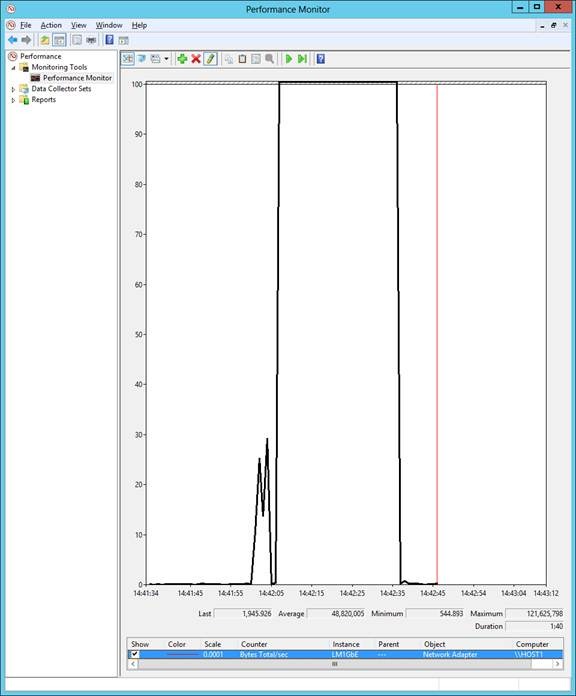
1GbE

clip_image004

  • 1 VM LM
  • 7 seconds to LM
  • Maximum transfer: 119,509,089 bytes/sec


    • clip_image006
  • clip_image008


  • 10 VMs
  • 40 seconds
  • Maximum transfer: 121,625,798 bytes/sec

clip_image010

clip_image012

  • 20 VMs
  • 80 Seconds
  • Maximum transfer: 122,842,926 bytes/sec

Note: Notice how the utilisation isn’t increasing through the 3 tests?  The bandwidth is fully utilised from test 1 onwards.  1 GbE isn’t scalable.

1 * 10 GbE

clip_image014

  • 1 VM
  • 5 seconds
  • Maximum transfer: 338,530,495 bytes/sec

clip_image016

  • 10 VMs
  • 13 seconds
  • Maximum transfer: 1,761,871,871 bytes/sec

clip_image018

  • 20 VMs
  • 21 seconds
  • Maximum transfer: 1,302,843,196 bytes/sec

Note: See how we can push through much more data at once?  The host was emptied in 1/4 of the time.

2 * 10 GbE

clip_image020

  • 1 VM
  • 5 seconds
  • Maximum transfer: 338,338,532 bytes/sec

clip_image022

  • 10 VMs
  • 14 Seconds
  • Maximum transfer: 961,527,428 bytes/sec

clip_image024

  • 20 VMs
  • 21 seconds
  • Maximum transfer: 1,032,138,805 bytes/sec

4 * 10 GbE


clip_image026

  • 1 VM
  • 5 seconds
  • Maximum transfer: 284,852,698 bytes/sec

clip_image028

  • 10 VMs
  • 12 seconds
  • Maximum transfer: 1,090,935,398 bytes/sec

clip_image030

  • 20 VMs
  • 21 seconds
  • Maximum transfer: 1,025,444,980 bytes/sec

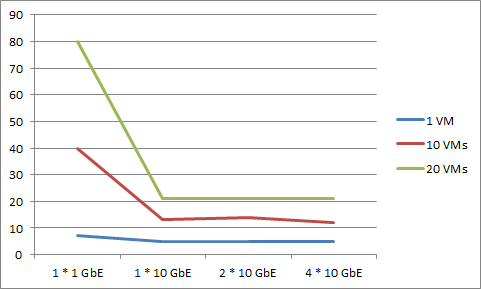
Comparison of Time Taken for Live Migration

image


What this says to me is that I hit my sweet spot when I deployed 10 GbE for the Live Migration network.  Adding more bandwidth did nothing because my virtual workload was “too small”.  If I had more memory I could get more interesting figures.

While 1 * 10 GbE NIC would be the sweet spot, I would use Windows Server 2012 NIC teaming for fault tolerance, and I’d get 20 GbE aggregate bandwidth with 10 GbE fault tolerant bandwidth.

Comparison of Bandwidth Utilisation

image

I have no frickin’ idea how to interpret this data.  Maybe I need more tests.  I only did 1 run of each test.  Really I should have done 10 of each test and averaged/standard deviation or something.  But somehow, across all three the 10 GbE combination tests, data throughput dropped once we had 20 GbE.  Very curious!

Summary

The days of 1 GbE are numbered.  Hosts are getting more dense, and you should be implementing these hosts with 10 GbE networking for their Live Migration networks.  This data shows how in my simple environment with 16 GB RAM hosts, I can do host maintenance in no time.  With VMM Dynamic Optimization, I can move workloads in seconds.  Imagine accidentally deploying 192 GB RAM hosts with 1 GbE Live Migration networks.

PowerShell Script to Create Lots of Windows Server 2012 Hyper-V Virtual Machines at Once

If you like this solution then you might like a newer script that creates lots of VMs based on specs that are stored in a CSV file.

Here you will find a PowerShell script I just wrote to deploy a lot of Windows Server 8 Hyper-V VMs with the minimum of effort.  I created it because I wanted more load to stress my 20 GbE Live Migration network and creating the VMs by hand was too slow.  Yes, it took me time to figure out and write the script in ISE, but I have it for the future and can lash out a lab in no time now.

Note that this script is using the new cmdlets for Hyper-V (and one cmdlet for clustering) that are in Windows Server 8, and not the VMM cmdlets.

What the script will do:

  1. Create a new folder for each VM on an SMB 2.2 file server shared folder
  2. Create a differencing disk pointing to a parent VHD.  This is for lab purposes only.  You’d do something different like create a new VHDX or copy an existing sysprepped VHDX in production.
  3. Create a new VM (e.g. VM1) using the VHDX
  4. Configure Dynamic Memory
  5. Start the VM
  6. Add the VM to a cluster
  7. It’ll do this 20 times (configurable in the foreach loop).

Requirements:

  • Windows Server 8 SMB file share that is correctly configured
  • A Windows Server 8 Hyper-V cluster
  • A parent VHDX that has been sysprepped.  That will automate the configuration of the VM when it powers up for the first time.

Here’s the script.  My old programmer instinct (which refuses to go away) tells me that it could be a lot cleaner, but this rough and ready script works.  There is also zero error checking which the old programmer instinct hates but this is just for deploying a lab workload.

$parentpath = “\fileserverVirtual Machine 1WinSvr8Beta.vhdx”

$path = “\fileserverVirtual Machine 1”

foreach ($i in 1..20)

{

#Create the necessary folders

$vmpath = “$pathVM$i”

New-Item -Path $vmpath -ItemType “Directory”

New-Item -Path “$vmpathVirtual Hard Disks” -ItemType “Directory”

#create a VHDX – differencing format

$vhdpath = “$vmpathVitual Hard DisksDisk0.vhdx”

New-VHD -ParentPath $parentpath -Differencing -Path $vhdpath

#Create the VM

New-VM -VHDPath “$vhdpath” -Name “VM$i” -Path “$vmpathVirtual Machine” -SwitchName “External1”

#Configure Dynamic Memory

Set-VMMemory -VMName “VM$i” -DynamicMemoryEnabled $True -MaximumBytes 8GB -MinimumBytes 512MB -StartupBytes 1GB

#Start the VM

Start-VM “VM$i”

#Add the VM to the cluster

Add-ClusterVirtualMachineRole -Cluster “hvc1” -VMName “VM$i”

}