Windows Server 2012 Hyper-V & Network Card (NIC) Teaming

Every time Microsoft gave us a new version of Hyper-V (including W2008 R2 SP1) we got more features to get the solution closer in functionality to the competition.  With the current W2008 R2 SP release, I reckon that we have a solution that is superior to most vSphere deployments (think of licensed or employed features).  Every objection, one after the next, was knocked down: Live Migration, CSV, Dynamic Memory, and so on.  The last objection was NIC teaming … VMware had it but Microsoft didn’t have a supported solution.

True, MSFT hasn’t had NIC teaming and there’s a KB article which says they don’t support it.  NIC teaming is something that the likes of HP, Dell, Intel and Broadcom provided using their software.  If you had a problem, MSFT might ask you to remove it.  And guess what, just about every networking issue I’ve heard on on Hyper-V was driver or NIC teaming related.

As a result, I’ve always recommended against NIC teaming using OEM software.

We want NIC teaming!  That was the cry … every time, every event, every month.  And the usual response from Microsoft is “we heard you but we don’t talk about futures”.  Then Build came along in 2011, and they announced that NIC teaming would be included in W2012 and fully supported for Hyper-V and Failover Clustering.

image

NIC teaming gives us LBFO.  In other words, we can aggregate the bandwidth of NICs and have automatic failover between NICs.  If I had 2 * 10 GbE NICs then I could team them to have a single pipe with 20 Gbps if both NICs are working and connected.  With failover we typically connect both NICs to ports on different access switches.  The result is that if one switch, it’s NIC becomes disconnected, but the other one stays connected and the team stays up and running, leaving the dependent services available to the network and their clients.

Here’s a few facts about W2012 NIC teaming:

  • We can connect up to 32 NICs in a single team.  That’s a lot of bandwidth!
  • NICs in a single team can be different models from the same manufacturer or even NICs from different manufacturers.  Seeing as drivers can be troublesome, maybe you want to mix Intel and Broadcom NICs in a team for extreme uptime.  Then a dodgy driver has a lesser chance of bringing down your services.
  • There are multiple teaming modes for a team: Generic/Static Teaming requires the switches to be configured for the team and isn’t dynamic.  LACP is self-discovering and enables dynamic expansion and reduction of the NICs in the team.  Switch independent works with just a single switch – switches have no knowledge of the team.
  • There are two hashing algorithms for traffic distribution in the NIC team.  With Hyper-V switch mode, a VM’s traffic is limited to a single NIC.  In lightly loaded hosts, this might no distribute the network load across the team.  Apparently it can work well on heavily loaded hosts with VMQ enabled.  Address hashing uses a hashing algorithm to spread the load across NICs.  There is 4-tuple hashing (great distribution) but it doesn’t work with “hidden” protocols such as IPsec and fails back to 2-tuple hashing.
  •  

    NIC teaming is easy to set up.  You can use Server Manager (under Local Server) to create a team.  This GUI is similar to what I’ve seen from OEMs in the past. 

    image

    You can also use PowerShell cmdlets such as New-NetLbfoTeam and Set-VMNetworkAdapter.

    One of the cool things about a NIC team is that, just like with OEM versions, you can create virtual networks/connections on a team.  Each of those connections have have an IP stack, it’s own policies, and VLAN binding.

    image

    In the Hyper-V world, we can use NIC teams to do LBFO for important connections.  We can also use it for creating converged fabrics.  For example, I can take a 2U server with 2 * 10 GbE connections and use that team for all traffic.  I will need some more control … but that’s another blog post.
    Windows Server 2012 Hyper-V & Data Centre Bridging (DCB)

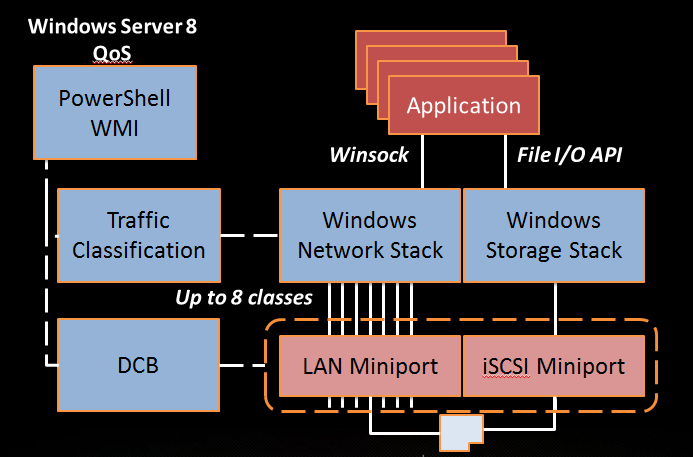
    DCB is a feature that is new to Windows Server 2012 networking and we can take advantage of this in creating converged fabrics in Hyper-V, private and public clouds.  According to Microsoft:

    IEEE 802.1 Data Center Bridging (DCB) is a collection of standards that defines a unified 802.3 Ethernet media interface, or fabric, for local area network (LAN) and storage area network (SAN) technologies. DCB extends the current 802.1 bridging specification to support the coexistence of LAN-based and SAN-based applications over the same networking fabric within a data center. DCB also supports technologies, such as Fibre Channel over Ethernet (FCoE) and iSCSI, by defining link-level policies that prevent packet loss.

    According to Wikipedia:

    Specifically, DCB goals are, for selected traffic, to eliminate loss due to queue overflow and to be able to allocate bandwidth on links. Essentially, DCB enables, to some extent, the treatment of different priorities as if they were different pipes. The primary motivation was the sensitivity of Fibre Channel over Ethernet to frame loss. The higher level goal is to use a single set of Ethernet physical devices or adapters for computers to talk to a Storage Area Network, Local Area network and InfiniBand fabric.

    Long story short: DCB is a set of Ethernet standards that leverage special functionality in a NIC to allow us to converge mixed classes of traffic onto that NIC such as SAN and LAN, which we would normally keep isolated.  If your host’s NIC has DCB functionality then W2012 can take advantage of it to converge your fabrics.

    image

    Windows Server 2012 Hyper-V Making Converged Fabrics Possible

    If you wanted to build a clustered Windows Server 2008 R2 host, how many NICs would you need?  With iSCSI, the answer would be 6 – and that’s without any NIC teaming for the parent, cluster, or VM comms.  That’s a lot of NICs.  Adding 4 ports into a host is going to cost hundreds of euros/dollars/pounds/etc.  But the real cost is in the physical network.  All those switch ports add up: you double the number of switches for NIC teaming, those things aren’t free, and the suck up power too.  We’re all about consolidation when we do virtualisation.

    Why do we have all those NICs in a W2008 R2 Hyper-V cluster?  The primary driver isn’t bandwidth.  The primary reason is to guarantee a level of service. 

    What if we had servers that came with 2 * 10 GbE NICs?  What if they could support not only 256 GB RAM, but 768 GB RAM?  That’s the kind of spec that Dell and HP are shipping now with their R720 and HP DL380 Gen8.  What if we had VM loads to justify these servers, then we needed 10 GbE for the Live Migration and backup loads?  What if there was a way to implement these servers with fewer network ports, that could take advantage of the cumulative 20 Gbps of bandwidth but with a guaranteed level of service?  Windows Server 2012 can do that!

    My goal with the next few posts is to describe the technologies that allow us to converge fabrics and use fewer network interfaces and switch ports.  Fabrics, what are they?  Fabric is a cloud term … you have a compute cluster (the hosts), a storage fabric (the storage area network, e.g. iSCSI or SMB 3.0), and fabrics for management, backup, VM networking and so on.  By converging fabrics, we use fewer NICs and fewer switch ports.

    There is no one right design.  In fact, at Build, the presenters showed lots of designs.  In recent weeks and months, MSFT bloggers have even shown a number of designs.  Where there was a “single” right way to do things in W2008 R2/SP1, there are a number of ways in W2012.  W2012 gives us options, and options are good.  It’s all a matter of trading off on tech requirements, business requirements, complexity, and budget.

    Watch out for the posts in the coming days.

    My Hyper-V Replica Guest Post On ZDNet

    If you were to wander down to ZDNet today, you were in for a surprise.  There, on Mary Jo Foley’s All About Microsoft blog, you’ll find a guest article by me, talking about Windows Server 2012 Hyper-V Replica (HVR).

    Mary Jo is on vacation and when planning for it, she asked a few people to write guest articles for her absence.  You may have noticed that I’m a HVR fan, so I suggested this topic.  I wrote the post, Ben Armstrong (aka The Virtual PC Guy) was kind enough to check my work, and submitted it to Mary Jo.

    Two other posts that I’ve written on the subject might interest you:

    • One from last year from when we didn’t have the techie details where I look at different scenarios.
    • And a post I wrote after the release of the beta when we MVPs were cleared to talk about the techie details.
    • And of course, don’t forget the guest post I did for Mary Jo.

    Thanks to Ben for checking my article, and thanks to Mary Jo for the chance to post on her blog!

    I’ve Got A Cool Demo Ready For Next Week

    On Monday I’ll be in Belfast and on Tuesday I’ll be in Dublin presenting at the Windows Server 2012 Rocks community events.  My topics for next week are Hyper-V and Networking.  Assuming the Internet connectivity works, I’ve got a very cool demo to show of some of the capabilities of Windows Server 2012 featuring:

    • Some of the great open source work by Microsoft
    • PowerShell scripting
    • New networking features
    • Virtualisation mobility

    Not to mention a bunch of other demos all pushing the HP ProLiant lab that I have at work.  The other demos are canned … experience has taught me that I can’t rely on hotel Internet … but this special demo is not recorded just so I can have something special for a live “will it break?” demo.

    If you’ve registered (click on the event to register), then don’t miss out.  And if you haven’t registered yet, then what are you waiting for?

    EDIT:

    The demo won’t break Smile

    FYI – The Windows Server 2012 Events Are Also Coming to London & Edinburgh in June

    I mentioned a little while ago that there was going to be a community event in Belfast and Dublin next week (still some places left so register now if you are interested in learning about Windows Server 2012 and want to attend).   I want to be sure that you also know that the show is coming to London (June 14th) and Edinburgh (June 15th).

    The following topics will be presented by MVPs (including me):

    Manageability

    • Simplifies configuration processes
    • Improved management of multi-server environments
    • Role-centric dashboard and integrated console
    • Simplifies administration process of multi-server environments with Windows PowerShell 3.0

    Virtualization – I’m doing this one Smile  I’m trying to put the final pieces together for a very cool PowerShell demo. Even without this, I have some cool demos ready.

    • More secure multi-tenancy
    • Flexible infrastructure, when and where you need it
    • Scale, performance, and density
    • High availability

    Storage and Availability

    • Reduces planned maintenance downtime
    • Addresses the causes of unplanned downtime
    • Increases availability for services and applications
    • Increases operational efficiency and lower costs

    Networking

    • Manage private clouds more efficiently
    • Link private clouds with public cloud services
    • Connect users more easily to IT resources

    I think my demos are done.  The slides are nearly there.  Final polish and rehearsals tomorrow and this weekend.  This is a big brain dump that we’ll be dropping on people.  I’d certainly attend if I wanted to get my career ahead of the pack and be ready for the most important Server release since Windows 2000.

    Technorati Tags: ,

    Planning Your Windows Server 2012 Hyper-V Deployment

    If you’re considering installation Windows Server 2012 Hyper-V, or if you’re considering moving from vSphere to Windows Server 2012 Hyper-V, then I have one very important question to ask you:

    Do you want the project to succeed?

    If the answer is yes, then go get your hands on the free Microsoft Assessment and Planning Toolkit (MAP) 7.0, which just went into beta and will probably RTM when Windows Server 2012 does.

    I’ve come to the conclusion that there is a direct correlation between success of a virtualisation project and a pre-design assessment.  Why?  Because every time I’m asked in, and this only happens when things go bad, I ask for the assessment reports and I’m told that there are no reports.  I dig a little further and I find that there were mistakes with design that some due process may have eliminated.

    Key features and benefits of MAP 7.0 Beta help you:

    • Determine your readiness for Windows Server 2012 Beta and Windows 8
    • Virtualize your Linux servers on Hyper-V
    • Migrate your VMware-based virtual machines to Hyper-V
    • Size your server environment for desktop virtualization
    • Simplify migration to SQL Server 2012
    • Evaluate your licensing needs for Lync 2010
    • Determine active users and devices

    It’s free folks, so cop on!  Spend half a day installing it, doing the discovery, and starting the measurement, and 1 week later come back and run some sizings against different infrastructure specs.  Run some reports and you have a scientifically sized infrastructure.  Surely that’s better than the guesswork that you would have done instead?  Oh you must be the exception because you know your customer’s requirements.  If I had a Euro for every time I’ve heard that one …

    If you can’t guess, this stuff makes me angry.  But never mind me; you probably know better than me, Microsoft, real VMware experts, etc.  If I had another Euro for every time I’ve heard that one …

    Choosing A Windows Server 2012 Hyper-V DR Architecture

    I must be nuts; we’re a nearly month from the release candidate and I’m attempting to blog on this stuff Smile

    I’ve been thinking a lot about DR and how to approach it with Windows Server 2012 Hyper-V.  There is no one right solution.  In fact, we have lots and lots of options thanks to VMs just being files.  Yup, thanks to VHDX scaling out to 64 TB, the last reasonable reason to use passthrough disk (other than to get that last 2 or so percentage points of performance) are dead.  That makes even the biggest of VMs “easy” to replicate.

    Let’s look at 2 approaches from a very high altitude level.  An approach I’m seeing quite a bit for cross-campus or short range DR plans is to build a stretch cluster.  The usual approach is to use something like a HP P4000 SAN and stretch it between two sites.  A single Hyper-V cluster is built, stretching across the WAN link.

    image

    SAN-SAN replication

    It’s not a cheap solution and it comes with complexities – and that’s true no matter what virtualisation you use:

    • You have to choose a storage solution that stretches across sites and can do active/active.  You are locked into a single spec across both sites, making the hardware sales people very happy.
    • You probably need a witness for the storage and the virtualisation cluster in a 3rd site, with site A and site B having independent network access to the witness site to avoid split brain when the link between A and B fails (and it will fail).
    • Some high end storage solutions won’t like CSV for this and you might need to so 1 VM per LUN
    • The networking (IP redirect, stretched VLANs, routers, switches, and all that jazz) is messy.
    • The WAN for this is mega pricey.
    • Honestly, a stretch Hyper-V cluster doesn’t play well with System Center Virtual Machine Manager – VMM just sees a single cluster and doesn’t care about the WAN link or the impact on backup, client/server app interaction, and so on.
    • If you want to replicate to a hosting company then you need colo hosting and to place hardware in rented rackspace.
    • Once a VM is created in a replicate LUN, it’s replicated to site B.  That’s pretty nice in a cloud.
    • When everything works it’s a pretty fine solution, capable of having 0 data loss.  But corruption in site A will replicate to site B because this SAN likely has synchronous replication.

    The above solution is something I see more and more, even in medium sized sites.  It’s complex, it’s pricey, and very often they are struggling with getting it to work even in testing, let alone in the worst day of their professional careers.

    I recently listed to a RunAs Radio podcast where the guest spoke about his preference for VMware SRM for DR replication.  I can understand why.  Software replication can stretch much greater distances.  You aren’t as beholden to the storage vendor as before.  Hyper-V Replica is surely going to have the same impact … and more … without costing you hundreds of dollars/euros/pounds/etc on a per VM basis like SRM does:

    image

    Hyper-V Replica

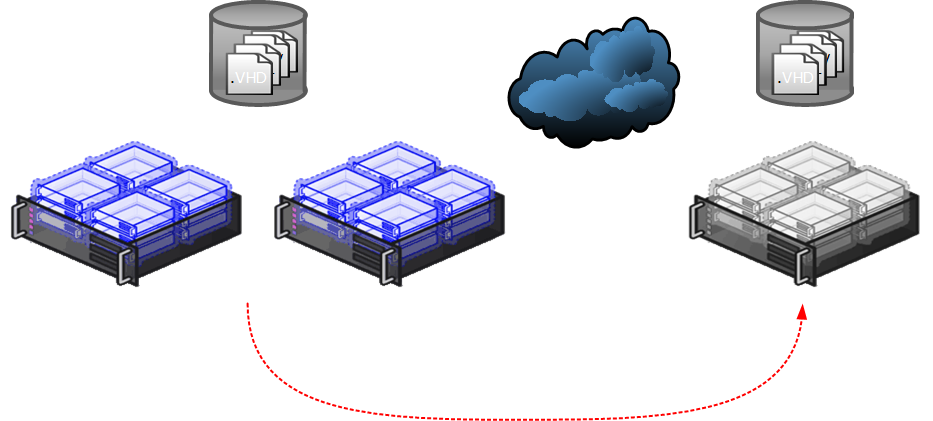
    • Hyper-V is hardware independent.  You can replicate from a host to a host, from a cluster to a host, or from a host to a cluster.  You can replicate from a HP cluster with a P4000 to a bunch of Dell hosts with a Compellent.
    • Hyper-V Replica is built for unstable WAN connections.  It cannot automatically failover … in fact, many of us prefer a manual decision on failover.  We can reduce the RTO by automating VM start up using PowerShell and/or Orchestrator in the DR site.  The storage ni both sites is independent.  No need for 3rd party witnesses and their networking.
    • VMs are replicated instead of LUNs, therefore CSV is fully supported.  You can replicate VMs from a CSV in site A to a CSV or a normal LUN in site B.
    • Networking is easy!  And you have options!  The pipe for the replica probably either should be dedicated or have QoS to allow replication without impacting normal Internet connectivity.  Because the replication is asynchronous, the WAN doesn’t need massive bandwidth and low latency.  You can choose to stretch VLANs, or you might not.  You might use Network Virtualisation in site B or you might use IP address injection to change the VMs’ IP addresses for the destination network.  By the way, you can also dedicate a virtual switch(es) for firing up test copies of your VMs for DR testing.
    • Hyper-V Replica is built for commercial broadband.  Remember that your upload speed is the important factor.  Sizing is tricky … I’ve been saying that you could take your incremental backup and divide it by the number of 5 minute windows there are in your workday to figure out how much bandwidth Hyper-V Replica will require to replicate every 5 minutes … but that’s worst case because there is pre-transmit compression going on.
    • Hyper-V Replica is not a stretch cluster … therefore systems management solutions such as VMM will play nice by keeping it’s placement of VMs local in site A.
    • Your hardware options are very flexible.  You could replicate to hardware you own in a branch/head office or datacenter, you could rent rackspace and put hardware in colo hosting, or you could replicate to a hosting partner that hosts Hyper-V Replica.
    • There just aren’t as many delicate moving parts in this architecture.  You pretty much have 2 simple independent infrastructures where 1 copies compressed differential data to another.
    • Hyper-V Replica is configured on a per-VM basis.  PowerShell can do this – I’ve already seen examples posted online.  You could probably make this a part of the Orchestrator runbook in a cloud implementation.  So a little more work is requires but you can fire it and forget.
    • Best of all, Hyper-V Replica is a tick box away in Hyper-V.  Yup, zero dollars, nada, keine kosten, gratuito, free.  Of course, you are free to continue wearing a tinfoil hat and paying vTax …. Smile with tongue out

    Clinging to his overpriced DR with his cold dead hands because he thinks Stevie B. wants to steal his brainwaves

    Technorati Tags: ,,

    Windows Server 2012 Community Events

    Microsoft is organising a series of community events globally to spread the word about Windows Server 2012.  I say community because the speakers will be MVPs.  The event site will be updated over the coming months with news of more events, and watch out communications from your local sources

    Here, we have events in Belfast (May 21st, Wellington Park Hotel) and Dublin (May 22nd, Microsoft Building 2, Leopardstown).  The agenda of the events is:

    • 13:00     Registration opens
    • 13:30     Introduction                              Dave Northey
    • 13:50     Manageability                           Alex Juschin
    • 14:35     Storage and Availability            Aidan Finn
    • 15:20     Coffee
    • 15:40     Virtualisation (Hyper-V)             Aidan Finn
    • 16:25     Remote Desktop Services          Alex Juschin
    • 17:10     End

    It’s a long time since we had a release like Windows Server 2012.  It would be considered a huge release with the Hyper-V changes.  If you’re serious about server, then don’t get left behind.

    EDIT1:

    Details have just been announced for the London (June 14th) and Edinburgh (June 15th) events in GB.  I’ll be taking time off to present so hopefully I’ll see you there Smile

    Patching A Windows Server 2012 Failover Cluster, Including Hyper-V

    Cluster Aware Updating (CAU) is a new feature that makes running Windows or Automatic Updates on a Hyper-V cluster easier than ever, as well as any other WS2012 cluster.

    If you currently have a Windows Server 2008/R2 Hyper-V cluster, then you have a few options for patching it with no VM downtime:

    • Manually Live Migrate VM workloads (Maintenance Mode in VMM 2008 R2makes this easier), patch, and reboot each host in turn, which is a time consuming manual task.
    • Use System Center Opalis/Orchestrator to perform a runbook against each cluster node in turn that drains the cluster node of it’s roles (VMs), patches it and reboots it.
    • Use the patching feature of System Center 2012 Virtual Machine Manager – which is limited to Hyper-V clusters and adds more management to your patching process.

    CAU is actually pretty simple:

    1. Have some patching mechanism configured: e.g. enable Automatic Updates on the cluster nodes (e.g. Hyper-V hosts), approve updates in WSUS/ConfigMgr/etc.  Make sure that you exempt your cluster nodes from automatic installation/rebooting in your patching policy; CAU will do this work.
    2. Log into Failover Clustering from a machine that is not a cluster node (Hyper-V host) member.  Run the CAU wizard.
    3. Here, you can either manually kick off a patching job for the cluster nodes or schedule it to run automatically.  The scheduled automatic option requires that you have deployed a CAU role on the cluster in question to orchestrate the patching.

    When a patching job runs the following will happen:

    1. Determine the patches to install per node.
    2. Put node 1 in a paused state (maintenance mode).  This drains it of clustered roles – in other words your Hyper-V VMs will Live Migrate to the “best possible” hosts.  Failover Clustering uses amount of RAM to determine the best possible host.  VMM’s advantage is that it uses more information to perform Intelligent Placement.
    3. Node 1 is removed from a paused state, enabling it to host roles (VMs) once again.
    4. CAU will wait then patch and reboot Node 1.
    5. When Node 1 is safely back online, CAU will move onto Node 2 to repeat the operation.

    VMs are Live Migrated throughout the cluster as the CAU job runs and each host is put into a paused state (automatically Live Migrating VMs off), patching, rebooting, and un-pausing.  It’s a nice simple operation.

    The process is actually quite configurable, enabling you to definite variables for decisions, execute scripts at different points, and define a reboot timeout (for those monster hosts).

    Something to think of is how long it will take to drain a host of VMs.  A 1 GbE Live Migration network will take an eternity to LM (or vMotion for that matter) 192 GB RAM of VMs, even with concurrent LMs (as we have in Windows Server 2012).

    Sounds nice, eh?  How about you see it in action:


    I have edited the video to clip out lots of waiting:

    • These were physical nodes (Hyper-V hosts) and a server’s POST takes forever
    • CAU is pretty careful, and seems to deliberately wait for a while when a server changes state before CAU continues with the task sequence.