And Max Running vCPUs Per Host Is Going Up Too

Hold on tight folks!

Max running vCPUs per host in Windows Server 2008 R2 was 512. In the Windows Server “8” Beta it was increased to 1024.  In the Windows Server 2012 RC, it’s doubled to 2048.

So …. big masive VMs with 64 vCPUs and 1 TB RAM.  Hosts with up to 320 logical processors and 4 TB RAM.  And 2048 running vCPUs in a host.

You gotta know that Tad prefers smaller hosts, ones with 32 GB of RAM that are just perfect for VMLimitedSphere Standard Edition and it’s memory vTax.  Meanwhile anyone with the effectively free Hyper-V can grow to these limits all they want without being penalised.

VMware – I Hope You Have Your Depends On – Hyper-V Hosts Scale Out … Again

I just posted the new maximum specs for Windows Server 2012 Release Candidate VMs.  Now for the host:

  • 320 physical Logical Processors
  • 4 TB RAM

That’s 320 cores with no Hyperthreading or 160 Cores with hyperthreading turned on.  That’s 10 * 16 core processors with hyperthreading.  Feck!

And that’s 128 * 32 GB DIMMs!!! Damn, I bet there’s a lot of skidmarks in VMware marketing right now.

Wish I was there.

Also read:

Windows Server 2012 Hyper-V VM Max Specs Upgraded … Again

In Windows Server 2008 R2 it was:

  • 4 vCPUs
  • 64 GB RAM

In the Windows Server “8” Developer Preview it was:

  • 32 vCPUs
  • 512 GB RAM

In Windows Server “8” Beta people gasped when it jumped to:

  • 32 vCPUs
  • 1 TB RAM

And now I can finally say that VMware will shit their pants when they read that Windows Server 2012 Release Preview VMs will support:

VMware vSphere 5.0 supports a max of 32 vCPUs and 1TB RAM.  Throw in the 64 TB VHDX (compared to 2 TB VMDK) and MSFT has VMware beat on scalability.

Hyper-V Replica for free, Network Virtualisation, SR-IOV, SMB 3.0 transparent failover storage, Shared Nothing Live Migration, PowerShell, Storage Migration, …… How does VMware compete in a few months time when vSphere 5.0 becomes the product that is feature chasing and is way more expensive?

Anyone remember Novell?

Credit to Hans Vredevoort for finding the announcement.

Also read:

PowerShell Script To Create A Converged Fabric For Clustered Windows Server 2012 Hyper-V Host

Note: This post was originally written using the Windows Server “8” (aka 2012) Beta.  The PowerShell cmdlets have changed in the Release Candidate and this code has been corrected to suit it.

After the posts of the last few weeks, I thought I’d share a script that I am using to build a converged fabric hosts in the lab.  Some notes:

  1. You have installed Windows Server 2012 on the machine.
  2. You are either on the console or using something like iLO/DRAC to get KVM access.
  3. All NICs on the host will be used for the converged fabric.  You can tweak this.
  4. This will not create a virtual NIC in the management OS (parent partition or host OS).
  5. You will make a different copy of the script for each host in the cluster to change the IPs.
  6. You could strip out all but the Host-Parent NIC to create converged fabric for standalone host with 2 or 4 * 1 GbE NICs

And finally …. MSFT has not published best practices yet.  This is still a beta release.  Please verify that you are following best practices before you use this script.

OK…. here we go.  Watch out for the line breaks if you copy & paste:

write-host “Creating virtual switch with QoS enabled”
New-VMSwitch “ConvergedNetSwitch” -MinimumBandwidthMode weight -NetAdapterName “ConvergedNetTeam” -AllowManagementOS 0

write-host “Setting default QoS policy”
Set-VMSwitch “ConvergedNetSwitch” -DefaultFlowMinimumBandwidthWeight 10

write-host “Creating virtual NICs for the management OS”
Add-VMNetworkAdapter -ManagementOS -Name “Host-Parent” -SwitchName “ConvergedNetSwitch”
Set-VMNetworkAdapter -ManagementOS -Name “Host-Parent” -MinimumBandwidthWeight 10

Add-VMNetworkAdapter -ManagementOS -Name “Host-Cluster” -SwitchName “ConvergedNetSwitch”
Set-VMNetworkAdapter -ManagementOS -Name “Host-Cluster” -MinimumBandwidthWeight 10

Add-VMNetworkAdapter -ManagementOS -Name “Host-LiveMigration” -SwitchName “ConvergedNetSwitch”
Set-VMNetworkAdapter -ManagementOS -Name “Host-LiveMigration” -MinimumBandwidthWeight 10

Add-VMNetworkAdapter -ManagementOS -Name “Host-iSCSI1” -SwitchName “ConvergedNetSwitch”
Set-VMNetworkAdapter -ManagementOS -Name “Host-iSCSI1” -MinimumBandwidthWeight 10

#Add-VMNetworkAdapter -ManagementOS -Name “Host-iSCSI2” -SwitchName “ConvergedNetSwitch”
#Set-VMNetworkAdapter -ManagementOS -Name “Host-iSCSI2” -MinimumBandwidthWeight 15

write-host “Waiting 30 seconds for virtual devices to initialise”
Start-Sleep -s 30

write-host “Configuring IPv4 addresses for the management OS virtual NICs”
New-NetIPAddress -InterfaceAlias “vEthernet (Host-Parent)” -IPAddress 192.168.1.51 -PrefixLength 24 -DefaultGateway 192.168.1.1
Set-DnsClientServerAddress -InterfaceAlias “vEthernet (Host-Parent)” -ServerAddresses “192.168.1.40”

New-NetIPAddress -InterfaceAlias “vEthernet (Host-Cluster)” -IPAddress 172.16.1.1 -PrefixLength “24”

New-NetIPAddress -InterfaceAlias “vEthernet (Host-LiveMigration)” -IPAddress 172.16.2.1 -PrefixLength “24”

New-NetIPAddress -InterfaceAlias “vEthernet (Host-iSCSI1)” -IPAddress 10.0.1.55 -PrefixLength “24”

#New-NetIPAddress -InterfaceAlias “vEthernet (Host-iSCSI2)” -IPAddress 10.0.1.56 -PrefixLength “24”

That will set up the following architecture:

image

QoS is set up as follows:

  • The default (unspecified links) is 10% minimum
  • Parent: 10%
  • Cluster: 10%
  • Live Migration: 20%

My lab has a single VLAN network.  In production, you should have VLANs and trunk the physical switch ports.  Then (I believe), you’ll need to add a line for each virtual NIC in the management OS (host) to specify the right VLAN (I’ve not tested this line yet on the RC release of WS2012 – watch out for teh VMNetowrkAdaptername parameter):

Set-VMNetworkAdapterVLAN –ManagementOS –VMNetworkAdapterName “vEthernet (Host-Parent)” –Trunk –AllowedVLANList 101

Now you have all the cluster connections you need, with NIC teaming, using maybe 2 * 10 GbE, 4 * 1 GbE, or maybe even 4 * 10 GbE if you’re lucky.

Another Reason To Use Converged Fabrics – Abstract The Host Configuration

Assuming that you converge all fabrics (including iSCSI and that may require DCB for NICs and physical switches) then my recent work in the lab has found me another reason to like converged fabrics, beyond using fewer NICs.

If I am binding roles (parent, live migration, etc) to physical NICs then any host networking configuration scripts that I write must determine what NIC is correct.  That would not be easy and would be subject to human cabling error, especially if hardware configurations change.

If however, I bind all my NICs into a team, and then build a converged fabric on that team, I have completely abstracted the physical networks from the logical connections.  Virtual management OS NICs and trunking/VLAN bindings mean I don’t care any more … I just need 2 or 4 NICs in my team and connected to my switch.

Now that physical bindings don’t matter, I have simplified my configuration and I can script my depoyments and configuration to my heart’s content!

The only question that remains … do I really converge my iSCSI connections?  More to come …

Windows Server 2012 Hyper-V Converged Fabrics & Remote Host Engineering

My lesson from the lab is this …  If you are implementing WS2012 Hyper-V hosts with converged fabrics then you need to realise that all of your NICs for RDP access will be committed to the NIC team and Hyper-V switch.  That means that while implementing or troubleshooting the switch and converged fabrics you will need some alternative to RDP/Remote Desktop.  And I’m not talking VNC/TeamViewer/etc.

In my lab, I have LOTS of spare NICs.  That won’t be true of field implementation.  I temporarily fired up an “RDP” NIC, configure my team, switch, and a virtual NIC for the Parent.  Then I RDPd into the Parent virtual NIC and disabled the “RDP” NIC.

In the field, I strongly advise using the baseboard management controller (BMC) to remotely log into the host while implementing, re-configuring or troubleshooting the converged fabrics setup.  Why?  Because you’ll be constantly interrupted if relying on RDP into one of the converged or virtual NICs.  You may even find NICs switching from static to DHCP addressing and it’ll take time to figure out what their new IPs are.

You’ll be saving money by converging fabrics.  Go ahead and cough up the few extra quid to get a BMC such as Dell DRAC or HP iLO fully configured and onto the network so you can reliably log into the server.  Plus it gives you other features like power control, remote OS installation, and so on.

Create A Windows Server 2012 Hyper-V Cluster Using PowerShell

I’ve since posted a more complete script for a Hyper-V cluster that’s using SMB 3.0 storage.

I am creating and destroying Hyper-V clusters like crazy in the lab at the moment.  And that means I need to script; I don’t want to waste time repeating the same thing over and over in the GUI, wasting valuable time.  Assuming your networking is completed (more to come on scripting that!) and your disk is provisioned/formatted, then the following script will build a cluster for you:

New-Cluster –Name demo-hvc1 –StaticAddress 192.168.1.61 –Node demo-host1, demo-host2

Get-ClusterResource | Where-Object {$_.OwnerGroup –eq “Available Storage”}  | Add-ClusterSharedVolume

(Get-Cluster).SharedVolumeBlockCacheSizeInMB = 512

Get-ClusterSharedVolume *  |  Set-ClusterParameter CSVEnabledBlockCache 1

Get-ClusterSharedVolume  | Stop-ClusterResource

Get-ClusterSharedVolume | Start-ClusterResource

What does the script do?

  1. It creates a new cluster called demo-hvc1 with an IP address of 192.168.1.61 using demo-host1 and demo-host2 as the nodes.
  2. It finds all available disk and converts it to CSV volumes.
  3. Then it configures CSV cache to use 512 MB RAM
  4. Every CSV is configured to use CSV cache
  5. The CSVs are stopped
  6. The CSVs are restarted so they can avail of CSV cache

The script doesn’t do a validation.  My setup is pretty static so no validation is required.  BTW, for the VMLimited fanboys out there who moan about time to deploy Hyper-V, my process (networking included) builds the cluster in probably around 30-40 seconds.

Windows Server 2012 Hyper-V & Management OS Virtual NICs

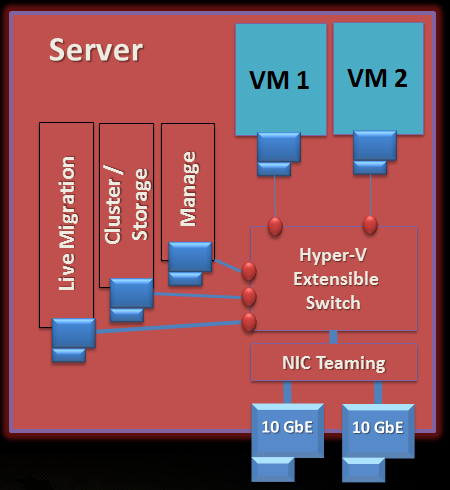
We continue further down the road of understanding converged fabrics in WS2012 Hyper-V.  The following diagram illustrates a possible design goal:

image

Go through the diagram of this clustered Windows Server 2012 Hyper-V host:

  • In case you’re wondering, this example is using SAS or FC attached storage so it doesn’t require Ethernet NICs for iSCSI.  Don’t worry iSCSI fans – I’ll come to that topic in another post.
  • There are two 10 GbE NICs in a NIC team.  We covered that already.
  • There is a Hyper-V Extensible Switch that is connected to the NIC team.  OK.
  • Two VMs are connected to the virtual switch.  Nothing unexpected there!
  • Huh!  The host, or the parent partition, has 3 NICs for cluster communications/CSV, management, and live migration.  But … they’re connected to the Hyper-V Extensible Switch?!?!?  That’s new!  They used to require physical NICs.

In Windows Server 2008 a host with this storage would require the following NICs as a minimum:

  • Parent (Management)
  • VM (for the Virtual Network, prior to the Virtual Switch)
  • Cluster Communications/CSV
  • Live Migration

All that accumulation of NICs wasn’t a matter of bandwidth. What we really care about in clustering is quality of service: bandwidth when we need it and low latency. Converged fabrics assume we can guarantee those things. If we have those SLA features available to us (more in later posts) then 2 * 10 GbE physical NICs in each clustered hosts might be enough, depending on business and technology requirements of the site.  4 NICs per host … and that’s without NIC teaming.  Double the NICs!

The amount of NICs go up.  The number of switch ports goes up.  The wasted rack space cost goes up.  The power bill for all that goes up.  The support cost for your network goes up.  In truth, the complexity goes up.

NICs aren’t important.  Quality communications channels are important.

In this WS2012 converged fabrics design, we can create virtual NICs that attach to the Virtual Switch.  That’s done by using the Add-VMNetworkAdapter PowerShell cmdlet, for example:

Add-VMNetworkAdapter -ManagementOS -Name “Manage” -SwitchName External1

… where Manage will be the name of the new NIC and the name of the Virtual Switch is External1.  The –ManagementOS tells the cmdlet that the new vNIC is for the parent partition or the host OS.

You can then:

I think configuring the VLAN binding of these NICs with port trunking (or whatever) would be the right way to go with this.  That will further isolate the traffic on the physical network.  Please bear in mind that we’re still in the beta days and I haven’t had a chance to try this architecture yet.

Armed with this knowledge and these cmdlets, we can now create all the NICs we need that connect to our converged physical fabrics.  Next we need to look at securing and guaranteeing quality levels of communications.

Windows Server 2012 Hyper-V & The Hyper-V Extensible Switch

Before we looks at this new networking feature of W2012 Hyper-V, lets look at what we have been using in Windows Server 2008/R2.  Right now, if you create a VM, you give it one or more virtual network cards (vNICs).  Each vNIC is connected to a virtual network (basically a virtual unmanaged switch) and each switch is connected to one physical NIC (pNIC) or NIC team in the host.  Time for a visual:

image

Think about a typical physical rack server for a moment.  When you connect it to a switch the port is a property of the switch, right?  You can configure properties for that switch port like QoS, VLANs, etc.  But if you move that server to another location, you need to configure a new switch port.  That’s messy and time consuming.

In the above example, there is a switch port.  But Microsoft anticipated the VM mobility issue and port configuration.  Instead of the port being a property of the virtual network, it’s actually a property of the VM.  Move the VM, you move the port, and you move the port settings.  That’s clever; configure the switch port once and now it’s a matter of “where do you want your workload to run today?” with no configuration issues.

OK, now let’s do a few things:

  • Stop calling it a virtual network and now call it a virtual switch.
  • Now you have a manageable layer 2 network device.
  • Introduce lots of new features for configuring ports and doing troubleshooting.
  • Add certified 3rd-party extensibility.

We have different kinds of Virtual Switch like we did before:

  • External – connected to a pNIC or NIC team in the host to allow VM comms on the physical network.
  • Internal – Allows VMs to talk to each other on the virtual switch and with the host parent partition.
  • Private – An isolated network where VMs can talk to each other on the same virtual switch.

Although I’m focusing on the converged fabric side of things at the moment, the extensibility is significant.  Companies like Cisco, NEC, Five9, and others have announced how they are adding functionality.  NEC are adding their switch technology, Five9 are adding a virtual firewall, and Cisco have SR-IOV functionality and a Cisco Nexus 1000v that pretty much turns the Hyper-V Switch into a Cisco switch with all the manageability from their console.  The subject of extensibility is a whole other set of posts.

With a virtual switch I can do something as basic as this:

image

It should look kind of familiar Smile  I’ve already posted about NIC teaming in Windows Server 2012.  Let’s add a team!

image

With the above configuration, the VMs are now connected to both the NICs in the host.  If one NIC dies, the team fails over and the VMs talk through the other NIC.  Depending on you load distribution setting, your VMs may even use the aggregation of the bandwidth, e.g. 2 * 10 GbE to get 20 Gbps of bandwidth. 

With NIC teaming, we have converged two NICs and used a single pipe for VM communications.  We haven’t converged any fabrics just yet.  There’s a lot more stuff with policies and connections that we can do with the Virtual Switch.  There will be more posts on those topics soon, helping us get to the point where we can look at converging fabrics.