How To Set Up Email Alerts In Azure Backup (Preview)

Microsoft announced, in a cryptic way, that Azure Backup has “additional monitoring and alerting capabilities”. Let’s focus on alerting because that’s been a huge request for Azure Backup. Every single meeting I’ve had on the subject included the question “does it do alerts?” and the answer for the last 2.5 years was “no, but it’s coming”.  Finally, it’s here! For some customers.

If you are using the recovery services vault – Azure Backup in the Azure Portal – then you’re in luck. Open your vault and browse to Settings. Click Alerts & Events.

image


Click Backup Alerts – note that Site Recovery Events (alerting for ASR DR) has been available for quite a while.

image

The Backup Alerts dialog opens. This is where all alerts will be displayed. You can filter the information in this blade based on severity, status, time and date. We’ll continue with setting up email notifications.

Click Configure Notifications

image

Enable notifications.

image

Enter the email addresses (preferably of mail groups and systems, not people) that you want the alerts to go to. Use a semi-colon ( ; ) to separate multiple addresses.

Choose if you want to get 1 email per alert or if you want an hourly digest.

And select what kinds of alerts you want to be notified about. Maybe Warning and Critical would be best, but some of you like to know about successful backups (you tape-loving lugs).

image

Click Save. And you are done.

But what if you are one of the customers that has been using Azure Backup, maybe for years, via the backup vault in the classic Management Portal? Sorry – no alerting for you. I hope that Azure Backup creates a way to migrate customers from the backup vault to the recovery services vault, including the ability to migrate to a different subscription (e.g. Open/direct/EA to CSP).

Technorati Tags: ,

Installing Azure Backup Server (DPM) Agent Leads To 0x80990a2b Error

This post explains how to solve an issue where installing the Azure Backup Server or DPM agent to a machine fails with a 0x80990a2b error.

I was asked to deploy Azure Backup to backup content on PCs in the office (organized admins –> that’s another story). I decided to test with my Windows 10 PC. I logged onto our Azure Backup server, and used the GUI to deploy the agent and it failed:

Install protection agent on <Machine Name> failed:

Error 347: An error occurred when the agent operation attempted to create the DPM Agent Coordinator service on <Machine Name>.

Error details: Unknown error (0x80990a2b)

Recommended action: Verify that the Agent Coordinator service on <Machine Name> is responding, if it is present. Review the error details, take the appropriate action, and then retry the agent operation.

I searched my services for something called DPM Agent Coordinator and found nothing. The DPM community is full of stories about Windows Firewall causing issues – I tried to disable it but it made no difference. And the 0x80990a2b error wasn’t appearing in my search results.

Next I decided to try a manual installation on my PC. That failed with the same error, but this time there was a clue:

image

There is a log file for the installation. I opened the log and started reading. There was the error about not being able to initialize something called an AC (Agent Coordinator). I was getting frustrated but kept reading.

image

Ah!

WARNING    Failed: Hr: = [0x80990a2b] : MARS agent found. Cannot install Microsoft Azure Backup Agent

Now was exactly when I remembered that I had been backing up my OneDrive using the Azure Backup MARS agent. I remove the agent, cleaned up the backup, and re-ran the original agent deployment from the Azure Backup Server GUI. The agent installed perfectly and was added to the protection group.

Technorati Tags: ,,,

Webinar – What’s New In Windows Server 2016 Hyper-V

I’ll be joining fellow Cloud and Datacenter Management (Hyper-V) MVP Andy Syrewicze for a webcast by Altaro on June 14th at 3PM UK/Irish time, 4PM CET, and 10AM Eastern. The topic: What’s new in Windows Server 2016 Hyper-V (and related technologies). There’s quite a bit to cover in this new OS that we expect to be release during Microsoft Ignite 2015. I hope to see you there!

image

Cloud & Datacenter Management 2016 Videos

I recently spoke at the excellent Cloud and Datacenter Management conference in Dusseldorf, Germany. There was 5 tracks full of expert speakers from around Europe, and a few Microsoft US people, talking Windows Server 2016, Azure, System Center, Office 365 and more. Most of the sessions were in German, but many of the speakers (like me, Ben Armstrong, Matt McSpirit, Damian Flynn, Didier Van Hoye and more) were international and presented in English.

image

You can find my session, Azure Backup – Microsoft’s Best Kept Secret, and all of the other videos on Channel 9.

Note: Azure Backup Server does have a cost for local backup that is not sent to Azure. You are charged for the instance being protected, but there is no storage charge if you don’t send anything to Azure.

How Do I Connect Disks To Import Data/Backups To Azure?

How do you connect your disks if USB is out of the question? I recently had some experience on a customer site and learned a few things.

The first thing to note is that you always use a naked 3.5” SATA II/III disk, and never a NAS or USB disk.

You use a disk dock/duplicator. You connect this device to the machine running the import drive prep tool, and then you plug the SATA disk(s) into the dock. Microsoft lists (under “Hard Disk Drives”) 4 supported models from 3 vendors:

  • Anker 68UPSATAA-02BU
  • Anker 68UPSHHDS-BU
  • Startech SATADOCK22UE
  • Sharkoon QuickPort XT HC

The Anker and Startech models (these precise models) are:

  • Old USB 2.0 devices
  • Not distributed outside of the USA

I got my Startech SATADOCK22UE via Ebay from the USA, which cost around $100 after purchase, shipping, and import duties. The USB 3.0 Sharkoon appears to be available outside the USA via the likes of Amazon. I wouldn’t describe it as widely distributed, but it might be the best of the 4 options.

My advice: don’t take chances and get 1 of the above. I worked with a customer that bought a newer USB 3.0 European Startech dock model and the Azure drive prep tool refused to work with it:

[Error] Command failed with exception: AzImportDll.AzImportException: Could not read serial number or signature for the drive. This is a critical error an the command cannot run. This may be due to certain USB adapter or disk drivers that are not fully compatible with the operating system.

image

This was despite the fact that Device Manager has no issues with the disk which we were able to initialize and format. So keep it predictable, and make the effort to get one of the supported disk docks.

My Early Experience With Azure Backup Server

In this post I want to share with you my early experience with using Microsoft Azure Backup Server (MABS) in production. I rolled it out a few weeks ago, and it’s been backing up our new Hyper-V cluster for 8 days. Lots of people are curious, so I figured I’d share information about the quality of the experience, and the amount of storage that is being used in the Azure backup vault.

What is Azure Backup Server?

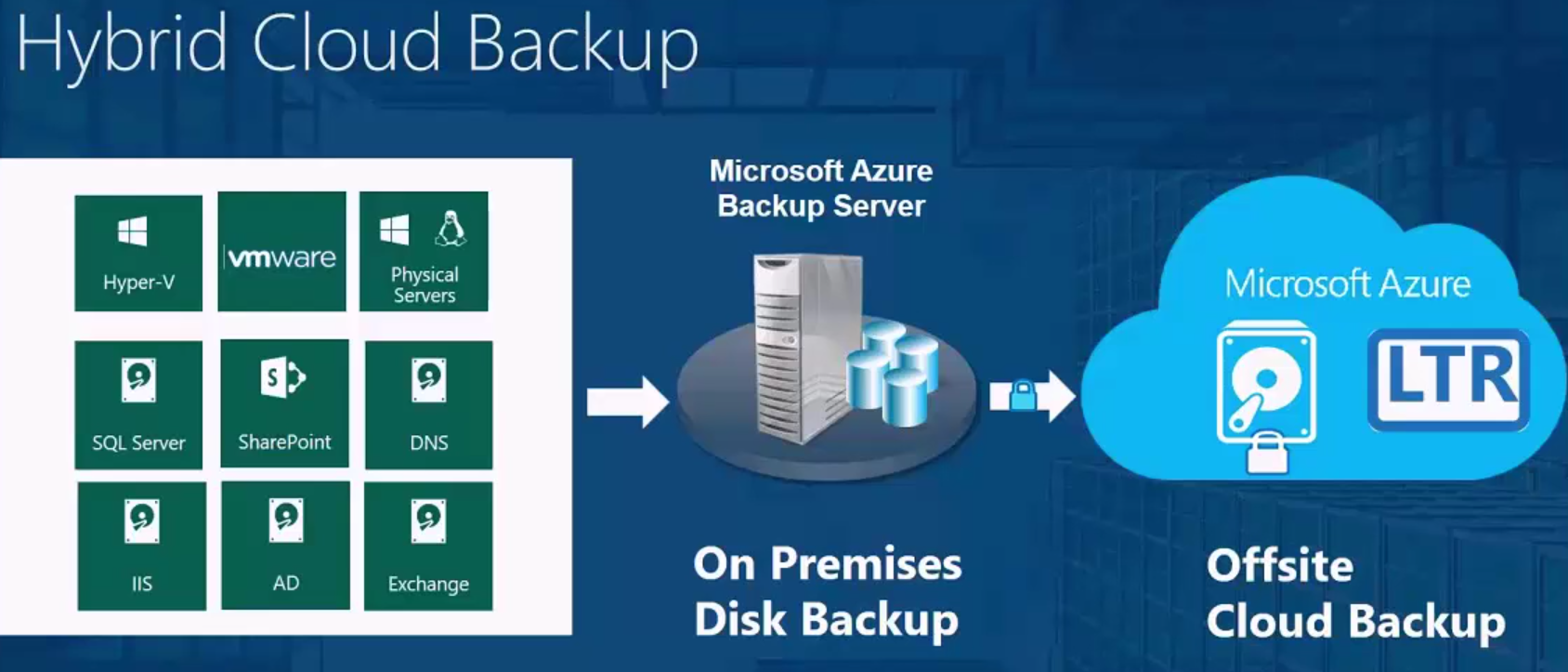
Microsoft released the free (did I say free?) Microsoft Azure Backup Server last year to zero acclaim. The reason why is for another day, but the real story here is that MABS is:


  • The latest version of DPM that does not require any licensing to be purchased.
  • With the only differences being that it doesn’t do tape drives and it requires an Azure backup vault.
  • It is designed for disk-disk-cloud backup.
  • It supports Hyper-V, servers and PCs, SQL Server, SharePoint, and Exchange.
  • It is free – no; you don’t have to give yellow-box-backup vendors from the 1990s any more money for their software that was always out of date, or those blue-box companies where the job engine rarely worked once you left the building.

The key here is disk-disk-cloud. You install MABS on an on-premises machine instead of the usual server backup product. It can be a VM or a physical machine, running Windows Server (Ideally WS2012 or later to get the bandwidth management stuff).

MABS uses agents to backup your workloads to the MABS server. The backup data is kept for a short time (5 days by default) locally on disk. That disk that is used for backup must be 1.5 x the size of the data being protected … don’t be scared because RAID5 SATA or Storage Spaces parity is cheap. The disk system must appear in Disk Management on the MABS machine.

As I said, backup data is kept for a short while locally on premises. The protection policy is configured to forward data to Azure for long-term protection. By default it’ll keep 180 daily backups, a bunch of weeklies and monthlies, and 10 yearly backups – that’s all easily customized.

All management (right now) is done on the MABS server. So you do have centralized management and reporting, and you can configure an SMTP server for email alerts.

And did I mention that MABS is free? All you’re paying for here is for Azure Backup:

Please note that you do not need to buy OMS or System Center to use Azure Backup (in any of it’s forms), as some wing of Microsoft marketing is trying to incorrectly state.

The Installation

Microsoft has documented the entire setup of MABS. It’s not in depth, but it’s enough to get going. The setup is easy:

  • Create a backup vault in Azure
  • Download the backup vault credentials
  • Download MABS
  • Install MABS and supply the backup vault credentials

The setup is super easy. It’s easy to configure the local backup storage and re-configure the Azure connection. And agents are easy to deploy. There’s not much more that I can say to be honest.

Create your protection groups:

  • What you want to backup
  • When you want recovery points created
  • How long to keep stuff on-premises
  • What to send to Azure
  • How long to keep stuff in Azure
  • How to do that first backup to Azure (network or disk/courier)

My Experience

Other than one silly human error on my part on day 1, the setup of the machine was error-free. At work, we currently have 8 VMs on the new Hyper-V cluster (including 2 DCs) – more will be added.

All 8 VMs are backed up to the local disk. We create recovery points at 13:00 and 18:30, and retain 7 days of local backup. This means that I can quickly restore a lost VM across the LAN from either 13:00 or 18:30 over a span of 7 days.

The protection group forwards backup of 6 of the VMs to Azure – I excluded the DCs because we have 2 DCs running permanently in Azure via a site-site VPN (for Azure AD Connect and for future DR rollout plans).

Other than that day 1 error, everything has been easy – there’s that word again. Admittedly, we have way more bandwidth than most SMEs because we’re in the same general area as the Azure North Europe region, SunGard, and the new Google data centre.

Disk Utilization

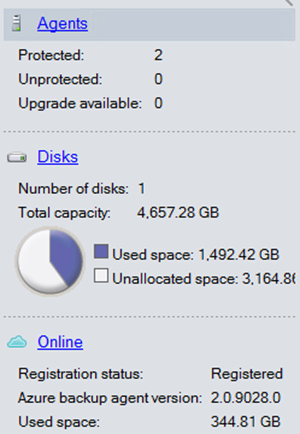
The 8 VMs that are being protected by MABS are made up of 839 GB of VHDX files. We have 7 days of short term (local disk) retention and we’ve had 8 days of protection. Our MABS server is using 1,492.42 GB of storage. Yes, that is more than 1.5x but that is because we modified the default short-term retention policy (from 5 to 7 days) and we are creating 2 recovery points per day instead of the default of 1.

We use long-term retention (Azure backup vault) for 6 of those VMs. Those VMs are made up of 716.5 GB of VHDX files. Our Azure backup vault (GRS) currently is sitting at 344.81 GB after 8 days of retention. It’s growing at around 8 GB per day. I estimate that we’ll have 521 GB of used storage in Azure after 30 days.
image

How Much Is This Costing?

I can push the sales & marketing line by saying MABS is free (I did say this already?). But obviously I’m doing disk-disk-cloud backup and there’s a cost to the cloud element.

I’ve averaged out the instance sizes and here are the instance charges per month:

image

GRS Block Block costs $0.048 per GB per month for the first terabyte. We will have an estimate 521 GB at the end of the month so that will cost us (worst case, because you’re billed on a daily basis and we only have 344 GB today) $25.

So this month, our backup software , which includes both traditional disk-disk on-premises backup and online backup for long-term retention, will cost us $25 + $60, for a relatively small $85.

The math is easy, just like setting up and using MABS.

What About Other Backup Products?

There are some awesome backup solutions out there – I am talking about born-in-virtualization products … and not the ones designed for tape backup 20 years ago that some of you buy because that’s what you’ve always bought. Some of the great products even advertise on this site 🙂 They have their own approaches and unique selling points, which I have to applaud, and I encourage you to give their sites a visit and test their free trials. So you have choices – and that is a very good thing.

Technorati Tags: ,,

Microsoft News – 19 October 2015

It turns out that Microsoft has been doing some things that are not Surface-related. Here’s a summary of what’s been happening in the last while …

Hyper-V

image

Windows Server

Windows Client

Azure

Office 356

Miscellaneous

Understanding & Pricing Azure Virtual Machine Backup

In this article I want to explain how you can backup Azure virtual machines using Azure Backup. I’ll also describe how to price up this solution.

Backing up VMs

Believe it or not, up until a few weeks ago, there was no supported way to backup production virtual machines in Azure. That meant you had no way to protect data/services that were running in Azure. There were work-arounds, some that were unsupported and some that were ineffective (both solution and cost-wise). Azure Backup for IaaS VMs was launched in preview, and even if it was slow, it worked (I relied on it once to restore the VM that hosts this site).

The service is pretty simple:

  1. You create a backup vault in the same region as the virtual machines you want to protect.
  2. Set the storage vault to be LRS or GRS. Note that Azure Backup uses the Block Blob service in storage accounts.
  3. Create a backup policy (there is a default one there already)
  4. Discover VMs in the region
  5. Register VMs and associate them with the backup policy

Like with on-premises Azure Backup, you can retain up to 366 recovery points, and using an algorithm, retain X dailies, weeklies, monthlies and yearly backups up to 99 years. A policy will backup a VM to a selected storage account once per day.

This solution creates consistent backups of your VMs, supporting Linux and Windows, without interrupting their execution:

  • Application consistency if VSS is available: Windows, if VSS is functioning.
  • File system consistency: Linux, and Windows if VSS is not functioning.

The speed of the backup is approximately:

image

The above should give you an indication of how long a backup will take.

Pricing

There are two charges, a front-end charge and a back-end charge. Here is the North Europe pricing of the front-end charge in Euros:

image

The front-end charge is based on the total disk size of the VM. If a VM has a 127 GB C:, a 40 GB D: and a 100 GB E: then there are 267 GB. If we look at the above table we find that this VM falls into the 50-500 GB rate, so the privilege of backing up this VM will cost me €8.44 per month. If I deployed and backed up 10 of these VMs then the price would be €84.33 per month.

Backup will consume storage. There’s three aspects to this, and quite honestly, it’s hard to price:

  • Initial backup: The files of the VM are compressed and stored in the backup vault.
  • Incremental backup: Each subsequent backup will retain differences.
  • Retention: How long will you keep data? This impacts pricing.

Your storage costs are based on:

  • How much spaces is consumed in the storage account.
  • Whether you use LRS or GRS.

Example

If have 5 VMs in North Europe, each with 127 GB C:, 70 GB D:, and 200 GB E:. I  want to protect these VMs using Azure Backup, and I need to ensure that my backup has facility fault tolerance.

Let’s start with that last bit, the storage. Facility fault tolerance drives me to GRS. Each VM has 397 GB. There are 5 VMs so I will require at most €1985 for the initial backup. Let’s assume that I’ll require 5 TB including retention. If I search for storage pricing, and look up Block Blob GRS, I’ll see that I’ll pay:

  • €0.0405 per GB per month for 1 TB = 1024 * €0.0405 = €41.48
  • €0.0399 per GB per month for the next 49 TB = 4096 * €0.0399 = €163.44

For a total of €204.92 for 5 TB of geo-redundant backup storage.

The VMs are between 50-500 GB each, so they fall into the €8.433 per protected instance bracket. That means the front-end cost will be €8.433 * 5 = €42.17.

So my total cost, per month, to backup these VMs is estimated to be €42.17 + €204.92 = €247.09.


Azure Backup Project Venus Has Gone Live

Woohoo! Azure Backup has started the evolution from a very basic online backup service to something very interesting – the price is already super competitive versus MozyPro and the gazillions of Ahsay-based vendors but functionality has been a challenge.

If you’re not aware of Venus, then read this article I wrote for Petri.com. In short, Azure Backup customers can get a customized version of DPM (being referred to as a new Azure Backup server) to perform on-premises backups of files & folders as before, but now it adds Hyper-V, VMs, SQL Server, SharePoint Server, Exchange, and Windows clients. You then configure a policy to send an encrypted copy of all/subset of your data to Azure. The Azure Backup server keeps short-term retention and the Azure Backup vault keeps long term retention.

I found a download URL last week. At the time, it only shared a file saying “come back next week”. Well, it’s next week now. I checked it last night – no change. Mark Taylor (@ChorusMark) pinged me on Twitter late last night (I saw it this morning) and sure enough, the download went live:

image

The description goes as follows:

With Microsoft Azure Backup, you can protect application workloads such as Hyper-V VMs, Microsoft SQL Server, SharePoint Server, Microsoft Exchange and Windows clients to:

  • Disk (D2D), giving high RTOs for tier 1 workloads
  • Azure (D2D2C) for long term retention.
  • And, you can manage the protection of various protected entities (servers and clients) from a single on-premises user interface.

You can deploy Microsoft Azure Backup server as:

  • A physical standalone server.
  • A Hyper-V virtual machine – You can run DPM as a virtual machine hosted on an on-premises Hyper-V host server, to back up on-premises data.
  • A Windows virtual machine in VMWare – You can deploy DPM to provide protection for Microsoft workloads running on Windows virtual machines in VMWare. In this scenario DPM can be deployed as a physical standalone server, as a Hyper-V virtual machine, or as a Windows virtual machine in VMWare.
  • An Azure virtual machine – You can run DPM as a virtual machine in Azure to back up cloud workloads running as Azure virtual machines.

If you log into your Azure subscription, you’ll see that Azure Backup vaults show the new feature too:

image

The system requirements are as follows:

Operating system – you must supply a license, either via virtualization rights or normal physical licensing:

  • Windows Server 2008 R2 SP1, Windows Server 2012, Windows Server 2012 R2
  • Windows Server 2012 R2, Windows Server 2012 and Windows Server 2008 R2 SP1

Processor:

  • Minimum: 1 GHz, dual-core CPU
  • Recommended: 2.33 GHz quad-core CPU

RAM:

  • Minimum: 4GB
  • Recommended: 8GB

Hard Drive Space:

  • Minimum: 3GB
  • Recommended: 3GB
  • Disks for backup storage pool: 1.5 times size of data to be protected

SQL 2014 is included in the setup. This license is free and can only be used for Azure Backup server. FYI, I’ve been pre-warned that a pre-requisite is .NET 3.5.1 and this can take about 1 hour to install. Plan your time around this!

I haven’t found a launch announcement from Microsoft and the AB site doesn’t have any documentation yet. But this will be very similar to a DPM setup for Azure Backup.

[EDIT]

I forgot to address the localisation of the above Microsoft Azure Backup Server (MABS). The Azure Backup team wanted to get MABS out as quickly as possible, so English was released first. More localisations will be released over time – the team really is customizing DPM to Azure Backup to make MABS, which you’ll see when you’re required to supply backup vault credentials to complete the setup, and they want to get more functionality into people’s hands as rapidly as they can.

Technorati Tags: ,,,

Microsoft News – 30 September 2015

Microsoft announced a lot of stuff at AzureCon last night so there’s lots of “launch” posts to describe the features. I also found a glut of 2012 R2 Hyper-V related KB articles & hotfixes from the last month or so.

Hyper-V

Windows Server

Azure

Office 365

EMS