Webcast Recording: Deploying Windows 7 & Windows Server 2008 R2

This morning I spoke at my first Microsoft Springboard STEP event.  The subject was “Deploying Windows 7 and Windows Server 2008 R2” and featured WAIK/WSIM, Windows Deployment Services (WDS) and Microsoft Deployment Toolkit (MDT) 2010.  We had a nice turn out and apart from my XP VM acting a bit funny at the end, all went well.  It was very much a demo, demo, demo session.

I recorded the webcast.  You can see the entire thing, unedited, right here.  It will be available for 365 days from now.

Thanks again to the folks at Microsoft Ireland for organising the venue and for helping to spread the word and thanks too to all who came along or tuned in live.

Performance Tuning Guidelines for Windows Server 2008 R2

Microsoft has updated the Performance Tuning Guidelines document to include W2008 R2.  It covers all aspects of the server operating system but I’m going go focus on Hyper-V here.

The guidance for memory sizing for the host has not changed.  The first 1GB in a VM has a potential host overhead of 32MB.  Each additional 1GB has a potential host overhead of 8MB.  That means a 1GB VM potentially consumes 1056MB on the host, not 1024MB.  A 2GB VM potentially costs 2088MB on the host, not 2048MB.  And a 4GB VM potentially costs 4152MB, not 4096MB.

The memory savings for a Server Core installation are listed as 80MB.  That’s seriously not worth it in my opinion given the difficulty in managing it (3rd party software and hardware management) and troubleshooting it when things go wrong. “Using Server Core in the root partition leaves additional memory for the VMs to use (approximately 80 MB for commit charge on 64-bit Windows)”.

RAM is first allocated to VM’s.  “The physical server requires sufficient memory for the root and child partitions. Hyper-V first allocates the memory for child partitions, which should be sized based on the needs of the expected load for each VM. Having additional memory available allows the root to efficiently perform I/Os on behalf of the VMs and operations such as a VM snapshot”.

There is lots more on storage, I/O and network tuning in the virtualization section of the document.  Give it a read.

Can You Install Hyper-V in a VM?

The answer is sort of.  Strictly speaking it is possible.  You can indeed enable the Hyper-V role in a Server Core installation of Windows Server 2008 and Windows Server 2008 R2.  I’ve done it on both OS’s on both VMware Workstation 6.5 and on Hyper-V.  Logically this means you can deploy Hyper-V Server 2008 and Hyper-V Server 2008 R2 in a VM.

You can even create VM’s on the hosts.  However, the hardware requirements are not passed through to the VM’s and therefore the hypervisor never starts up.  That means you cannot start up those VM’s.

Why would you care?  You certainly cannot do it in a production scenario.  But you might find it handy when doing some demos, lab work or testing of clustering or VMM.

EDIT:

I have been told (but I have not tried this so I cannot say it will work) that you can get Hyper-V to install and run in an ESXi 3.X virtual machine.  The performance is said to be awful, but might be useful for a lab with limited hardware.

Core Configurator 2.0 Is Relased

The tool that makes Windows Server Core Installation more palatable to people has been upgraded to support Windows Server 2008 R2 Core Installation.  This tool allows you do do common tasks via a limited GUI instead of searching the Net for the command line alternatives.

Pics.jpg

The tasks you can do with it include:

  • Product Licencing
  • Networking Features
  • DCPromo Tool
  • ISCSI Settings
  • Server Roles and Features
  • User and Group Permissions
  • Share Creation and Deletion
  • Dynamic Firewall settings
  • Display | Screensaver Settings
  • Add & Remove Drivers
  • Proxy settings
  • Windows Updates (Including WSUS)
  • Multipath I/O
  • Hyper-V including virtual machine thumbnails
  • Join Domain and Computer rename
  • Add/remove programs
  • Services
  • WinRM
  • Complete logging of all commands executed

You can download it now.  It’s interesting to see that it is written in PowerShell and is totally open source, i.e. you can amend it.

Sizing Virtualisation CPU Requirements

I’ve been analysing our CPU utilisation figures and I’m impressed by how well Hyper-V is running and upset at how much hardware we’ve used.

We’re a hosting company.  We have no idea what our physical requirements will be for our private cloud.  A customer might come in wanting a low end virtual web server.  Or they might come in and want some highly available a working floating point number crunching VM.  I don’t have crystal ball or a Ouija board so how am I to know?

I looked at the figures this week and what I’m seeing is that we are barely touching the CPU resources in our hosts.  We started off guessing what our future requirements would be.  We put in dual quad core CPU’s and hoped for the best.  What I’m seeing today is full hosts (RAM-wise) that barely touch their available CPU resources.  I have a recently purchased and filled single CPU host that averages around 25% CPU utilisation.

Our unpredictability makes us different to most who are implementing virtualisation for the first time.  Most people already have existing physical servers that they plan to migrate to their new virtualisation platform.  They can run some monitoring (either done by a consultant for the specific task) or use something like Operations Manager with the additional VMM reports.  In this scenario if a server uses 50% of it’s existing single quad core CPU then it’s going to use 25% or thereabouts of the resources on a dual quad core CPU host (assuming similar generation of CPU).

What about low end requirements?  How many of those sorts of VM’s can you get on Hyper-V?  Windows Server 2008 R2 Hyper-V is very scalable.  You can have up to 64 logical processors (physical CPU cores) in a host (Enterprise and Datacenter editions).  Each logical processor can support up to a maximum of 8 virtual processors (that’s the CPU assigned to a VM).  A standalone host can have up to 384 virtual processors.  A clustered node can have up to 64 running virtual processors.  Make sure your storage and RAM can handle the associated loads on their resources first.

Now I have some empirical data that I can make semi-informed decisions on (no crystal ball, remember!).  Our next purchases will feature the Nehalem processors which increase the load capacity over our current hosts.  We will increase the RAM capacity per host, thus increasing the amount of VM’s per host.  I think I’ll be going single CPU.  That will reduce power, purchase and SPLA licensing costs.  Between VMM and OpsMgr, I’ll know if that needs to increase.

Cannot Delete Cluster Object From Operations Manager 2007

I recently decommissioned a Windows Server 2008 Hyper-V cluster.  It was monitored by OpsMgr 2007 R2.  When we shutdown the last cluster node I tried to remove both its agent object and the agentless managed cluster object from OpsMgr administration.  I couldn’t.  The cluster just refused to disappear.  The server agent would delete because there was a remaining dependency – the cluster object which relied on it as a proxy.

It had a red state (ruining my otherwise all green status view) and, more annoyingly, many of the migrated resources (VM’s) still seemed to be linked to the old cluster despite being moved to the new cluster.

I searched and found lots of similar queries.  The official line from MS is that there is no supported way to do this deletion.  There is a hack but the instructions didn’t work for me – I couldn’t find the key piece of info – plus it is unsupported.

So I uninstalled the agent manually.  No joy.  I waited.  No joy.  I rebuilt the server and added it to our Windows Server 2008 R2 Hyper-V cluster.  No joy.  I installed the OpsMgr agent and enabled the proxy setting.

That was yesterday.  This morning I logged in and the old cluster object is gone.  Vamoose!  I guess OpsMgr figured out that the server was now in a new cluster and everything was good.

How Hyper-V SCSI is Really IDE And It Doesn’t Matter

Ben Armstrong has done a good job at explaining how it doesn’t matter if you use IDE or SCSI disks in your VM.

It turns out that under the hood there’s no real difference between them.  And as you probably already know, the real decision is if you are using SAS or SATA disks underneath the virtualisation layer.

Hyper-V and VLAN’s

How do you run multiple virtual machines on different subnets?  Forget for for just a moment that these are virtual machines.  How would you do it if they were physical machines?  The network administrators would set up a Virtual Local Area Network or VLAN.  A VLAN is a broadcast domain, i.e. it is a single subnet and broadcasts cannot be transmitted beyond its boundaries without some sort of forwarder to convert the broadcast into a unicast.  Network administrators use VLAN’s for a bunch of reasons:

  • Control broadcasts because they can become noisy.
  • They need to be creative with IP address ranges.
  • The want to separate network devices using firewalls.

That last one is why we have multiple VLAN’s at work.  Each VLAN is firewalled from every other VLAN.  We open up what ports we need to between VLAN’s and to/from the Internet. 

Each VLAN has an ID.  That is used by administrators for configuring firewall rules, switches and servers.

How do you tell a physical server that it is on a VLAN?

There’s two ways I can think of:

  • The network administrators would assign the switch ports that will connect the server to a specific VLAN
  • The network administrators can create a “trunk” on a switch port.  That’s when all VLAN’s are available on that port.  Then on the server you need to use the network card driver or management software to specify which VLAN to bind the NIC to.  Some software (HP NCU) allows you to create multiple virtual network cards to bind the server to multiple VLAN’s using one physical NIC.

How about a virtual machine; how do you bind the virtual NIC of a virtual machine to a specific VLAN?  It’s a similar process.  I must warn anyone reading this that I’ve worked with a Cisco CCIE while working on Hyper-V and previously with another senior Cisco guy while working on VMware ESX and neither of them could really get their heads around this stuff.  Is it too complicated for them?  Hardly.  I think the problem was that it was too simple!  Seriously!

Let’s have a look at the simplest virtual networking scenario:

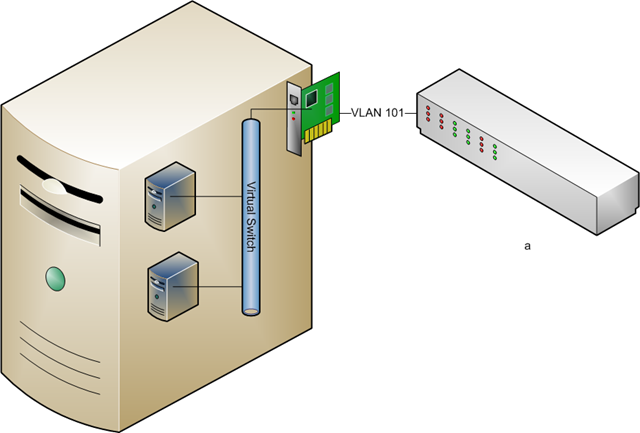
imageThe host server has a single physical NIC to connect virtual machines.  A virtual switch is created in Hyper-V to pass the physical network that is attached to that NIC to any VM that is bound to that virtual switch.

You can see above that the switch only operates with VLAN 101.  Every server on the network operates on VLAN 101.  The physical servers are on it, the parent partition of the host is on it, etc.  The physical switch port is connected to the virtual machine NIC in the host using a physical network cable.  In Hyper-V, the host administrator creates a virtual switch.

Network admins: Here’s where you pull what hair you have left out.  This is not a switch like you think of a switch.  There is no console, no MIB, no SNMP, no ports, no spanning tree loops, nada!  It is a software connection and network pass through mechanism that exists only in the memory of the host.  It interacts in no way with the physical network.  You don’t need to architect around them.

The virtual switch is a linking mechanism.  It connects the physical network card to the virtual network card in the virtual machine.  It’s as simple as that.  In this case both of the VM’s are connected to the single virtual switch (configured as an External type).  That means they too are connected to VLAN 101.

How do we get multiple Hyper-V virtual machines to connect to multiple VLAN’s?  There’s a few ways we can attack this problem.

Multiple Physical NIC’s

In this scenario the physical host server is configured with multiple NIC’s. 

*Rant Alert* Right, there’s a certain small number of journalists/consultants who are saying “you should always try to have 1 NIC for every VM on the host”.  Duh!  Let’s get real.  Most machines don’t use their GB connections in a well designed and configured network.  That nightly tape backup over the network design is a dinosaur.  Look at differential, block level continuous incremental backups instead, e.g. Microsoft System Center Data Protection Manager or Iron Mountain Live Vault.  Next, who has money to throw at installing multiple quad NIC’s with physical switch ports all over the place.  The idea here is to consolidate!  Finally, if you are dealing with blade servers you only have so many mezzanine card slots and enclosure/chassis device slots.  If a blade can have 144GB of RAM, giving maybe 40+ VM’s, that’s an awful lot of NIC’s you’re going to need :)  Sure there are scenarios where a VM might need a dedicated NIC but there are extremely rare. *Rant Over*

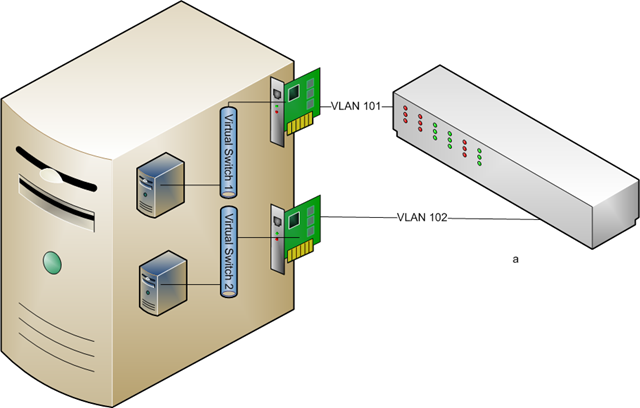
imageIn this situation the network administrator has set up two ports on the switches, one for each VLAN to connect to the Hyper-V host.  VLAN 101 has a physical port on the switch that is cabled to NIC 1 on the host.   VLAN 102 has a physical port on the switch that is cabled to NIC 2 on the host.  The parent partition has it’s own NIC, not shown.  Virtual Switch 1 is created and connected to NIC 1 and Virtual Switch 2 is created and connected to NIC 2.  Every VM that needs to talk on VLAN 101 will be connected to Virtual Switch 1 by the host administrator.  Every VM that needs to talk on VLAN 102 should be connected to Virtual Switch 2 by the host administrator.

Virtual Switch Binding

You can only bind one External type virtual switch to a NIC.  So in the above example we could not have matched up two virtual switches to the first NIC and changed the physical switch port to be a network trunk.  We can do something similar but different.

imageWhen we create an external virtual switch we can tell it to only communicate on a specific VLAN.  You can see in the above screenshot that I’ve built a new virtual switch and instructed it to use the VLAN ID (or tag) of 102.  That means that every VM virtual NIC that connects to this virtual switch will expect to be on VLAN 102 with no exceptions.

Taking our previous example, here’s how this would look:

imageThe network administrator has done things slightly different this time.  Instead of configuring the two physical switch ports to be bound to specific VLAN’s they’re simple configured trunks.  That means many VLAN’s are available on that port.  The device communicating on the trunk must specify what VLAN it is on to communicate successfully.  Worried about security?  As long as you trust the host administrator to get things right you are OK.  Users of the virtual machines cannot change their VLAN affiliation.

You can see that virtual switch 1 is now bound to VLAN 101.  Every VM that connects to virtual switch 1 will be only able to communicate on VLAN 101 via the trunk on NIC 1.  It’s similar on NIC 2.  It’s set up with a virtual switch on VLAN 102 and all bound VM’s can only communicate on that VLAN.

We’ve changed where the VLAN responsibility lies but we haven’t solved the hardware costs and consolidation issue.

VLAN ID on the VM

Here’s the solution you are most likely to employ.  For the sake of simplicity let’s forget about NIC teaming for a moment.

imageInstead of setting the VLAN on the virtual switch we can do it in the properties of the VM.  To be more precise we can do it in the properties of the virtual network adapter of the VM.  You can see that I’ve done this above by configuring the network adapter to only communicate on VLAN (ID or tag) 102.

This is how it looks in our example:
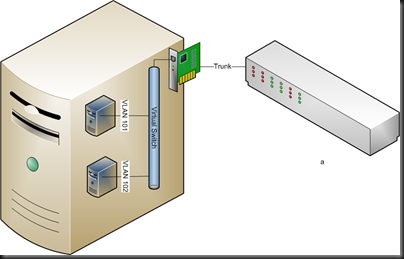
imageAgain, the network administrator has set up a trunk on the physical switch port.  A single external virtual switch is configured and no VLAN ID is specified.  The two VM’s are set up and connected to the virtual switch.  It is here that the VLAN specification is done.  VM 1 has it’s network adapter configured to talk on VLAN 101.  VM 2 is configured to operate on VLAN 102.  And it works, just like that!

Waiver: I’m seeing a problem where VMM created NIC’s do not bind to a VLAN.  Instead I have to create the virtual network adapter in the Hyper-V console.

Here’s one to watch out for if you use the self servicing console.  If you cannot trust delegated administrators/users to get VLAN ID configuration right or don’t trust them security-wise then do not allow them to alter VM configurations.  If you do then they can alter the VLAN ID and put their VM into a VLAN that it might not belong to.

Firewall Rules

Unless network administrators allow it, virtual machines on VLAN 101 cannot see virtual machines on VLAN 102.  A break out is theoretically impossible due to the architecture of Hyper-V leveraging the No eXecute Bit (AKA DEP or Data Execution Prevention).

Summary

You can see that you can set up a Hyper-V host to run VM’s on different VLAN’s.  You’ve got different ways to do it.  You can even see that you can use your VLAN’s to firewall VM’s from each other.  Hopefully I’ve explained this in a way that you can understand.
VMM 2008 R2 Quick Storage Migration

Without System Center Virtual Machine Manager 2008 R2 (and pre-Windows Server 2008 R2 Hyper-V) there is only one way to move a virtual machine between un-clustered hosts or between Hyper-V clusters.  That is to perform what is referred to as a network migration.  Think of this as an offline migration.  The VM must be powered down, exported, the files moved, the VM imported again and powered up, maybe with the integration components being manually added.  The whole process means a production VM can be offline for a significant amount of time.  Moving a 100GB VHD takes time, even over 10GB-E.

However, if you have Windows Server 2008 R2 (on both source and destination) and VMM 2008 R2 then you can avail of Quick Storage Migration:

image

This is a clever process where a VM can remain up and running for the bulk of the file move.  Microsoft claims that the VM only needs to be offline for maybe two minutes.  That really does depend, as you’ll see.

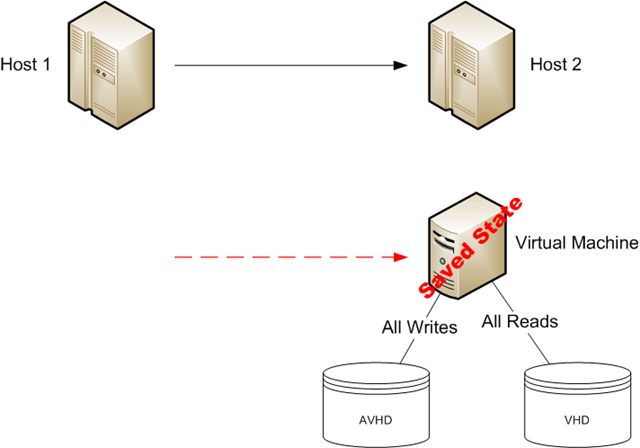
We need to discuss something first.  Hyper-V has lots of several different types of virtualised storage.  One of them is a virtual hard disk (VHD) called a differencing disk.  It is specially an AVHD (advanced virtual hard disk).  It is used during a snapshot.  That’s a Hyper-V term.  VMM refers to it as a checkpoint.  The AVHD is created and the VM switches all write activity from it’s normal VHD to the AVHD.  All new data goes into the AVHD.  All reads for old data come from the original VHD.  That means the VHD is no longer locked, preventing copies.  See where we’re going here?

Here we have two un-clustered host machines, 1 and 2.  Host 1 is running a VM which has a single VHD for all of its storage.  We want to move it from Host 1 to Host 2 with the minimum amount of downtime.  We have W2008 R2 Hyper-V on both hosts and manage them with VMM 2008 R2.

image

We open up the VMM 2008 R2 console, right-click on the VM and select Migrate.  In the wizard we select Host 2 as the destination and select the storage destination and the Virtual Network connection(s).  Once we finish the wizard you’ll see the original screenshot above.

image

The VMM job creates a checkpoint (AKA snapshot) of the VM to be migrated.  This means the VM will put all writes in the AVHD file.  All reads of non-changed data will be from the VHD file.  Now the VHD file is no-longer prevented from being copied.

imageThe VMM job uses BITS to copy the no-longer write-locked VHD from Host 1 to the destination storage location on Host 2.  During this time the VM is still running on Host 1.

Here’s where you have to watch out.  That AVHD file will grow substantially if the VM is writing like crazy.  Make sure you have sufficient disk space.  Anyone still doing 1-VM-per-LUN cluster deployments will need to be really careful, maybe pick a specific storage location for snapshots that has space.  Once the physical disk fills the VM will be paused by Hyper-V to save its continuity.  If your VM is write-happy then pick a quiet time for this migration.

image 

Start your stop watch.  Now the VM is put into a saved state (not paused) on Host 1.  We have to move that AVHD which is otherwise write locked.  If we don’t move it then we lose all the written data since the job started.  Again, BITS is used by VMM to move the file from Host 1 to Host 2.

imageWhen the files are moved VMM will export the configuration of the VM from Host 1 and import it onto Host 2.

imageThe checkpoint (AKA snapshot) is deleted.  The VM needs to be offline here.  Otherwise the AVHD would not be merged into the VHD.  That would eventually kill the performance of the VM.  But, the machine is offline and the AVHD can be merged into the VHD.  All those writes are stored away safely.

imageStop your stop watch.  The virtual network connection(s) are restored and then the very last step is to change the virtual machine’s running state, bringing it back to where it was before it went offline. 

The entire process is automated from when you finish the wizard and up to when you check on the machine after the job has ended.  It’s storage is moved and the VM continues running on the new host.

Note that a VM with multiple VHD’s will have multiple AVHD’s; it’s a 1-to-1 relationship.

How long does this take?

  • The offline time depends on how much data is written to the AVHD, ho fast your network can transmit that AVHD from Host 1 to Host 2 and how fast the disk is on Host 2 to merge the AVHD back into the VHD.
  • The entire process takes as long as it takes to copy the VHD and then complete the AVHD process and do the tidy up work at the end of the job.

In my tests with an idle VM, the offline time (not timed scientifically) felt to be under a minute.

I moved a VM from a cluster to an un-clustered lab machine and back again.  Both times, the highly available setting was appropriately changed.  I was able to modify the virtual network connections appropriately in the migrate wizard.