I’ve Got A Cool Demo Ready For Next Week

On Monday I’ll be in Belfast and on Tuesday I’ll be in Dublin presenting at the Windows Server 2012 Rocks community events.  My topics for next week are Hyper-V and Networking.  Assuming the Internet connectivity works, I’ve got a very cool demo to show of some of the capabilities of Windows Server 2012 featuring:

  • Some of the great open source work by Microsoft
  • PowerShell scripting
  • New networking features
  • Virtualisation mobility

Not to mention a bunch of other demos all pushing the HP ProLiant lab that I have at work.  The other demos are canned … experience has taught me that I can’t rely on hotel Internet … but this special demo is not recorded just so I can have something special for a live “will it break?” demo.

If you’ve registered (click on the event to register), then don’t miss out.  And if you haven’t registered yet, then what are you waiting for?

EDIT:

The demo won’t break Smile

Operations Manager 2012: Network Monitoring

Speaker: Vishnu Nath, PM for Network Monitoring feature in OpsMgr 2012.

Discovery, monitoring, visualisation and reporting.  Key takeaway; OpsMgr will help IT Operations gain visibility into the network layer of service to reduce meantime to resolution.  All the required MPs, dashboards, and reports are built in-box.  Server to network dependency discovery with support for over 80 vendors and 2000+ devices certified.  It supports SNMP V1, v2c and V3.  There is support for IPv4 and IPv6 endpoints. 

Supported devices:

  • Bridges
  • Firewalls
  • Load balancers
  • Switches
  • Routers

Discovery

Process of identifying network devices to be monitored.  Designed to be simple, without the need to call in network admins.

Demo

You can run the normal discovery wizard to discover network devices.  There is also a Discovery Rule that you can configure n Administration/Network Management.  This can run on a regular schedule.  You can pick a management or gateway server to run the rule, and you set the server resource pool for the monitoring.  Note that the design guide prefers that you have a dedicated network monitoring resource pool (min 2 Mgmt servers) if doing this at scale.

There are two discovery types, which are like the types of customer MSFT has encountered.  You list the IPs of devices and do explicit discovery.  Alternately, you can do a recursive discovery which crawls the network via router ARP and IP tables.  That’s useful if you don’t know the network architecture.

You’ll need runas accounts for he community strings … read only passwords to MIBS and SNMP tables in the network devices.  It does not need read-write private strings.  Using a runas account secures the password/community string.  You can have a number of them for complex environments. 

You can import a text file of device IP addresses for an explicit discovery.  You can use ICMP and/or SNMP access mode to monitor the device.  ICMP gives you ping up/down probe monitoring.  SNMP gives you more depth.  An ISP won’t give you SNMP access.  A secure environment might not allow ICMP into a DMZ.  You can set the SNMP version, and the runas account for each device.  During discovery, OpsMgr will try each community string you’ve entered.  It will remember which one works.  In some environments, devices can send trap alerts if they have failed logins and that can create a storm of alerts … SO BEWARE.  You can avoid this by selecting the right runas account per device.

There are retry attempts, ICMP timeout, SNMP timeout.  You also can set a max device number discovery cap.  This is to avoid discovering more than you need to in a corporate environment.

You can limit the discovery to Name, OID, or IP range.  And you can exclude devices.

You can also do the discovery on a regular basis using a schedule.  Not important in static environment.  Maybe do it once a week in larger or more fluid environments.  You can run the discovery rule manually.  When you save the rule, you have the choice to run the rule right then.

What’s Discovered

  • Connectivity of devices and dependencies, servers to network and network to network
  • VLAN membership
  • HSRP for Cisco
  • Stitching of switch ports to server NICs
  • Key components of devices: ports/interfaces/processor/ and memory I think

The process:

Probing (if not supported, it’s popped in pending management for you to look at. If OpsMgr knows it then they have built in MIBS to deal with it) –> Processing –> Post Processing (what VLANs, what devices are connected, NIC stitching mapping).

  • Works only on Gateway/management server
  • Single rule per gateway/management server
  • Discovery runs on a scheduled basis or on demand
  • Limited discoveries can be triggered by device traps – enabled on some devices. Some devices detect a NIC swap, and the device traps, and OpsMgr knows that it needs to rediscover this device.  Seamless and clever.

Port/Interface Monitoring

  • Up/down
  • Volumes of inbound/outbound traffic
  • % utilization
  • Discards, drops, Errors

Processor % utilization

Memory counters (Cisco) and free memory

Connection Health  on both ends of the connection

VLAN health based on state of switches (rollup) in the VLAN

HSRP Group Health is a rollup as well

Network Monitoring

  • Supports resource pools for HA monitoring
  • Only certain ports monitored by default: ports connecting two network devices together or ports that the management server is connected to
  • User can override and monitor other ports if required

Visualisation

4 dashboards:

  • Network summary: This is the high level view, i.e. top 10 nodes list
  • Network node: Take any device and drill down into it.
  • Network interface: Drill into a specific interface to see traffic activity
  • Vicinity: neighbours view and connection health.

Reporting

5 reports:

  • Memory utilisation
  • CPU utilisation
  • Port traffic volume
  • Port error analysis
  • Port packet analysis

Demo

Behind the scenes they normalise data, e.g. memory free from vendor A and memory used from vendor B, so you have one consistent view.  You can run a task to enable port monitoring for (by default) un-monitored discovered ports (see above).  

End

You can author custom management packs with your own SNMP rules.  They used 2 industry standard MIBS and it’s worked on 90-95% of devices that they’ve encountered so far.  Means there’s a good chance it will work on future devices.

Change Windows Server 8 Hyper-V VM Virtual Switch Connection Using PowerShell

I’m building a demo lab on my “beast” laptop and want to make it as mobile as possible, independent of IP addresses, while retaining Internet access.  I do that by placing the VMs on an internal virtual switch and running a proxy on the parent partition or in a VM (dual homed on external virtual switch).  I accidentally built my VMs on an external virtual switch and wanted to switch them to an internal virtual switch called Internal 1.  I could spend a couple of minutes going through every VM and making the change.  Or I could just run this in an elevated PowerShell window, as I just did on my Windows 8 (client OS) machine:

Connect-VMNetworkAdapter –VMName * –SwitchName Internal1

Every VM on my PC was connected to the Internal1 virtual switch.

Windows Server 2012 Hyper-V Concurrent Live Migration & NIC Teaming Speed Comparisons

I have the lab at work set up.  The clustered hosts are actually quite modest, with just 16 GB RAM at the moment.  That’s because my standalone System Center host has more grunt.  This WS2012 Beta Hyper-V cluster is purely for testing/demo/training.

I was curious to see how fast Live Migration would be.  In other words, how long would it take me to vacate a host of it’s VM workload so I could perform maintenance on it.  I used my PowerShell script to create a bunch of VMs with 512 MB RAM each.

clip_image002

Once I had that done, I would reconfigure the cluster with various different speeds and configuration fro the Live Migration network:

  • 1 * 1 GbE
  • 1 * 10 GbE
  • 2 * 10 GbE NIC team
  • 4 * 10 GbE NIC team

For each of these configurations, I would time and capture network utilisation data for migrating:

  • 1 VM
  • 10 VMs
  • 20 VMs

I had configured the 2 hosts to allow 20 simultaneous live migrations across the Live Migration network.  This would allow me to see what sort of impact congestion would have on scale out.

Remember, there is effectively zero downtime in Live Migration.  The time I’m concerned with includes the memory synchronisation over the network and the switch over of the VMs from one host to another.

1GbE

clip_image004

  • 1 VM LM
  • 7 seconds to LM
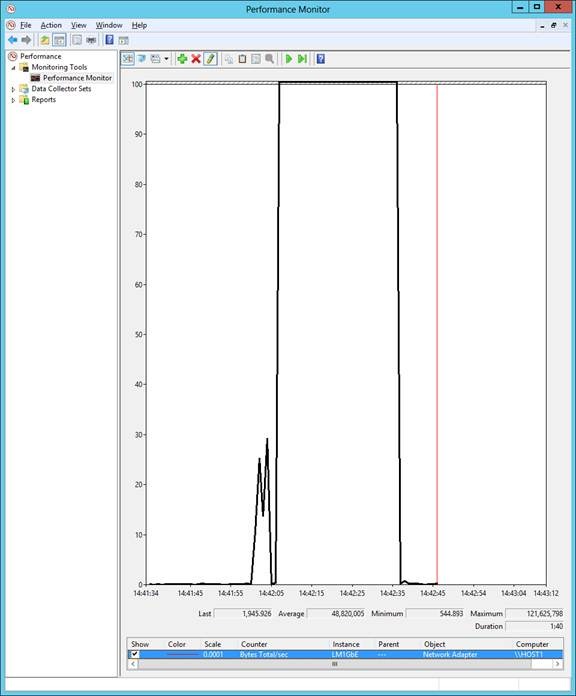
  • Maximum transfer: 119,509,089 bytes/sec


    • clip_image006
  • clip_image008


  • 10 VMs
  • 40 seconds
  • Maximum transfer: 121,625,798 bytes/sec

clip_image010

clip_image012

  • 20 VMs
  • 80 Seconds
  • Maximum transfer: 122,842,926 bytes/sec

Note: Notice how the utilisation isn’t increasing through the 3 tests?  The bandwidth is fully utilised from test 1 onwards.  1 GbE isn’t scalable.

1 * 10 GbE

clip_image014

  • 1 VM
  • 5 seconds
  • Maximum transfer: 338,530,495 bytes/sec

clip_image016

  • 10 VMs
  • 13 seconds
  • Maximum transfer: 1,761,871,871 bytes/sec

clip_image018

  • 20 VMs
  • 21 seconds
  • Maximum transfer: 1,302,843,196 bytes/sec

Note: See how we can push through much more data at once?  The host was emptied in 1/4 of the time.

2 * 10 GbE

clip_image020

  • 1 VM
  • 5 seconds
  • Maximum transfer: 338,338,532 bytes/sec

clip_image022

  • 10 VMs
  • 14 Seconds
  • Maximum transfer: 961,527,428 bytes/sec

clip_image024

  • 20 VMs
  • 21 seconds
  • Maximum transfer: 1,032,138,805 bytes/sec

4 * 10 GbE


clip_image026

  • 1 VM
  • 5 seconds
  • Maximum transfer: 284,852,698 bytes/sec

clip_image028

  • 10 VMs
  • 12 seconds
  • Maximum transfer: 1,090,935,398 bytes/sec

clip_image030

  • 20 VMs
  • 21 seconds
  • Maximum transfer: 1,025,444,980 bytes/sec

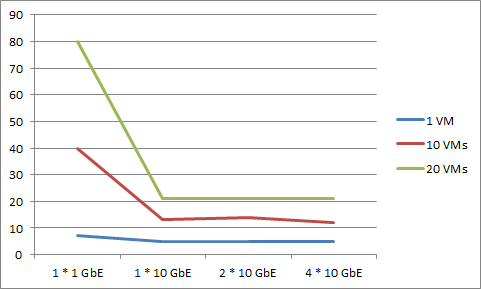
Comparison of Time Taken for Live Migration

image


What this says to me is that I hit my sweet spot when I deployed 10 GbE for the Live Migration network.  Adding more bandwidth did nothing because my virtual workload was “too small”.  If I had more memory I could get more interesting figures.

While 1 * 10 GbE NIC would be the sweet spot, I would use Windows Server 2012 NIC teaming for fault tolerance, and I’d get 20 GbE aggregate bandwidth with 10 GbE fault tolerant bandwidth.

Comparison of Bandwidth Utilisation

image

I have no frickin’ idea how to interpret this data.  Maybe I need more tests.  I only did 1 run of each test.  Really I should have done 10 of each test and averaged/standard deviation or something.  But somehow, across all three the 10 GbE combination tests, data throughput dropped once we had 20 GbE.  Very curious!

Summary

The days of 1 GbE are numbered.  Hosts are getting more dense, and you should be implementing these hosts with 10 GbE networking for their Live Migration networks.  This data shows how in my simple environment with 16 GB RAM hosts, I can do host maintenance in no time.  With VMM Dynamic Optimization, I can move workloads in seconds.  Imagine accidentally deploying 192 GB RAM hosts with 1 GbE Live Migration networks.

Windows Server 2012 Hyper-V Storage Strategies

This article was written just after the beta of WS2012 was launched.  We now now that the performance of SMB 3.0 is -really- good, e.g. 1 million IOPS from a VM good.

WS2012 is bringing a lot of changes in how we design storage for our Hyper-V hosts.  There’s no one right way, just lots of options, which give you the ability to choose the right one for your business.

There were two basic deployments in Windows Server 2008 R2 Hyper-V, and they’re both sill valid with Windows Server 2012 Hyper-V:

  • Standalone: The host had internal disk or DAS and the VMs that ran on the host were stored on this disk.
  • Clustered: You required a SAN that was either SAS, iSCSI, or FIbre Channel (FC) attached (as below).

image

And there’s the rub.  Everyone wants VM mobility and fault tolerance.  I’ve talked about some of this in recent posts.  Windows Server 2012 Hyper-V has Live Migration that is independent of Failover Clustering.  Guest clustering is limited to iSCSI in Windows Server 2012 Hyper-V but Windows Server 2012 Hyper-V is adding support for Virtual Fibre Channel.

Failover Clustering is still the ideal.  Whereas Live Migration gives proactive migration (move workloads before a problem, e,g, to patch a host), Failover Clustering provides high availability via reactive migration (move workloads automatically in advance of a problem, e.g. host failure).  The problem here is that a cluster requires shared storage.  And that has always been expensive iSCSI, SAS, or FC attached storage.

Expensive?  To whom?  Well, to everyone.  For most SMEs that buy a cluster, the SAN is probably the biggest IT investment that that company will ever make.  Wouldn’t it suck if they got it wrong, or if they had to upgrade/replace it in 3 years?  What about the enterprise?  They can afford a SAN.  Sure, but their storage requirements keep growing and growing.  Storage is not cheap (don’t dare talk to me about $100 1 TB drives).  Enterprises are sick and tired of being held captive by the SAN companies for 100% of their storage needs.

We’re getting new alternatives from Microsoft in Windows Server 2012.  This is all made possible by a new version of the SMB protocol.

SMB 3.0 (Formerly SMB 2.2)

Windows Server 2012 is bringing us a new version of the SMB protocol.  With the additional ability to do multichannel, where file share data transfer automatically spans multiple NICs with fault tolerance, we are now getting support to store virtual machines on a file server, as long as both client (Hyper-V host) and server (file server) are running Windows Server 2012 or above.

If you’re thinking ahead then you’ve already started to wonder about how you will backup these virtual machines using an agent on the host.  The host no longer has “direct” access to the VMs as it would with internal disk, DAS, or a SAN.  Windows Server 2012 VSS appears to be quite clever, intercepting a backup agents request to VSS snapshot a file server stored VM, and redirecting that to VSS on the file server.  We’re told that this should all be transparent to the backup agent.

Now we get some new storage and host design opportunities.

Shared File Server – No Hyper-V Clustering

In this example a single Windows Server 2012 file server is used to store the Hyper-V virtual machines.  The Hyper-V hosts can use the same file server, and they are not clustered.  With this architecture, you can do Live Migration between the two hosts, even without a cluster.

image

What about performance?  SMB is going to suck, right?  Not so fast, my friend!  Even with a pair of basic 1 Gbps NICs for SMB 3.0 traffic (instead of a pair of NICs for iSCSI), I’ve been told that you can expect iSCSI-like speeds, and maybe even better.  At 10 Gbps … well Smile The end result is cheaper and easier to configure storage.

With the lack of fault tolerance, this deployment type is probably suitable only for small businesses and lab environments.

Scale Out File Server (SOFS) – No Hyper-V Clustering

Normally we want our storage to be fault tolerant. That’s because all of our VMs are probably on that single SAN (yes, some have the scale and budget for spanning SANs but that’s a whole different breed of organisation).  Normally we would need a SAN made up fault tolerant disk tray$, switche$, controller$, hot $pare disk$, and $o on.   I think you get the point.

Thanks to the innovations of Windows Server 2012, we’re going to get a whole new type of fault tolerant storage called a SOFS.

image

What we have in a SOFS is an active/active file server cluster.  The hosts that store VMs on the cluster use UNC paths instead of traditional local paths (even for CSV).  The file servers in the SOFS cluster work as a team.  A role in SMB 3.0 called the witness runs on the Hyper-V host (SMB witness client) and file server (SMB witness server).  With some clever redirection the SOFS can handle:

  • Failure of a file server with just a blip in VM I/O (no outage).  The cluster will allow the new host of the VMs to access the files without a 60 second delay you might see in today’s technology.
  • Live Migration of a VM from one host to another with a smooth transition of file handles/locks.

And VSS works through the above redirection process too.

One gotcha: you might look at this and this this is a great way to replace current file servers.  The SOFS is intended only for large files with little metadata access (few permissions checks, etc).  The currently envisioned scenarios are SQL Server file storage and Hyper-V VM file storage.  End user file shares, on the other hand, feature many small files with lots of metadata access and are not suitable for SOFS.

Why is this?  To make the file servers active/active with smooth VM file handle/lock transition, the storage that the file servers are using consists of 1 or more Cluster Shared Volumes (CSVs).  This uses CSV v2.0, not the version we have in Windows Server 2008 R2.  The big improvements in CSV 2.0 are:

  • Direct I/O for VSS backup
  • Concurrent backup across all nodes using the CSV

Some activity in a CSV does still cause redirected I/O, and an example of that is metadata lookup.  Now you get why this isn’t good for end user data.

When I’ve talked about SOFS many have jumped immediately to think that it was only for small businesses.  Oh you fools!  Never assume!  Yes, SOFS can be for the small business (more later).  But where this really adds value is that larger business that feels like they are held hostage by their SAN vendors.  Organisations are facing a real storage challenge today.  SANs are not getting cheaper, and the storage scale requirements are rocketing.  SOFS offers a new alternative.  For a company that requires certain hardware functions of a SAN (such as replication) then SOFS offers an alternative tier of storage.  For a hosting company where every penny spent is a penny that makes them more expensive in the yes of their customers, SOFS is a fantastic way to provide economic, highly performing, scalable, fault tolerant storage for virtual machine hosting.

The SOFS cluster does require shared storage of some kind.  It can be made up of the traditional SAN technologies such as SAS, iSCSI, or Fibre Channel with the usual RAID suspects.  Another new technology, called PCI RAID, is on the way.  It will allow you to use just a bunch of disks (JBOD) and you can have fault tolerance in the form of mirroring or parity (Windows Server 2012 Storage Spaces and Storage Pools).  It should be noted that if you want to create a CSV on a Storage Space then it must use mirroring, and not parity.

Update: I had previously blogged in this article that I was worried that SOFS was suitable only for smaller deployments.  I was seriously wrong.

Good news for those small deployment: Microsoft is working with hardware partners to create a cluster-in-a-box (CiB) architecture with 2 file servers, JBOD and PCI RAID.  Hopefully it will be economic to acquire/deploy.

Update: And for the big biz that needs big IOPS for LOB apps, there are CiB solutions for you too, based on Infiniband networking, RDMA (SMB Direct), and SSD, e.g. a 5U appliance having the same IOPS are 4 racks of fibre channel disk.

Back to the above architecture, I see this one being useful in a few ways:

  • Hosting companies will like it because every penny of each Hyper-V host is utilised.  Having N+1 or N+2 Hyper-V hosts means you have to add cost to your customer packages and this makes you less competitive.
  • Larger enterprises will want to reduce their every-5 year storage costs and this offers them a different tier of storage for VMs that don’t require those expensive SAN features such as LUN replication.

SOFS – Hyper-V Cluster

This is the next step up from the previous solution.  It is a fully redundant virtualisation and storage infrastructure without the installation of a SAN.  A SOFS (active-active file server cluster) provides the storage.  A Hyper-V cluster provides the virtualisation for HA VMs.

image

The Hyper-V hosts are clustered.  If they were direct attached to a SAN then they would place their VMs directly on CSVs.  But in this case they store their VMs on a UNC path, just as with the previous SMB 3.0 examples.  VMs are mobile thanks to Live Migration (as before without Hyper-V clusters) and thanks to Failover.  Windows Server 2012 Clustering has had a lot of work done to it; my favourite change being Cluster Aware Updating (easy automated patching of a cluster via Automatic Updates).

The next architectures “up” from this one are Hyper-V clusters that use SAS, iSCSI, or FC.  Certainly SOFS is going to be more scalable than a SAS cluster.  I’d also argue that it could be more scalable than iSCSI or FC purely based on cost.  Quality iSCSI or FC SANs can do things at the hardware layer that a file server cluster cannot, but you can get way more fault tolerant storage per Euro/Dollar/Pound/etc with SOFS.

So those are your options … in a single site Smile

What About Hyper-V Cluster Networking? Has It Changed?

In a word: no.

The basic essentials of what you need are still the same:

  1. Parent/management networking
  2. VM connectivity
  3. Live Migration network (this should usually be your first 10 GbE network)
  4. Cluster communications network (heartbeat and redirected IO which does still have a place, even if not for backup)
  5. Storage 1 (iSCSI or SMB 3.0)
  6. Storage 2 (iSCSI or SMB 3.0)

Update: We now have two types of redirected IO that both support SMB Multichannel and SMB Direct.  SMB redirection (high level) is for those short metadata operations, an block level redirect (2x faster) is for sustained redirection IO operations such as a storage path failure.

Maybe you add a dedicated backup network, and maybe you add a 2nd Live Migration network.

How you get these connections is another story.  Thanks to native NIC teaming, DCB, QoS, and a lot of other networking changes/additions, there’s lots of ways to get these 6+ communication paths in Windows Server 2012.  For that, you need to read about converged fabrics.

Hyper-V NU January 2012 Slide Decks, Including My One on Windows Server 8 Hyper-V Networking

The crew at hyper-v.nu have posted the decks from last week’s presentations.  My own deck, on the networking features of Windows Server 8 Hyper-V as announced at Build, is available to view on slide share:

Windows Server 2008 R2 and 10 GbE

If you’re taking full advantage of some of the great new hardware that is out there, then you’ll need to invest in 10 Gigabit networking.  192+ GB of RAM is a lot of VMs to live migrate, backup, etc.  In fact, 1 GbE is not enough to Live Migrate (or VMotion for that matter) that much RAM from one host to another in a realistic time frame.

I wish I could say that I’ve got a lot of material for you on this topic – but I haven’t the equipment.  But Didier van Hoye has done the work and shared his findings on his blog.  Out of the box, he found he couldn’t use the full capacity of the network.  With some tuning, he got much more throughput.  With the tweaks that Didier has documented, you can get the same results on Windows Server 2008 R2.

Cisco & The Windows 8 Hyper-V Extensible Switch

In Windows 2008/R2 Hyper-V, a virtual network was the term that was used to describe the switch that connected a physical network card to the port of a VM’s virtual network adapter.  That has changed in Windows Server 8; it is now referred to as a virtual switch, or to be more precise, the extensible virtual switch.

Why extensible?  Microsoft has made it possible for 3rd party software developers to plug into the switch and add more functionality.  One such example is Cisco, who have developed a solution.  To put it simply, using extensions, you can extend your Cisco network into  Hyper-V networking.  I heard about it on Twitter, and then I heard that Cisco had a booth at Build Windows so I went to talk to them, and got a demo.

Wait a moment: I have had the next question twice when working with senior Cisco network engineers.  I asked Cisco the question, and their eyes rolled; they’d heard this question non-stop since opening the booth Smile  How will virtual switches, to be precise, Cisco virtual switches deal with spanning tree?  The answer was that “they will break the loop” so there should be no problem.

The core advantage for customers that do this is that they can use a single management solution and skill set to manage all of networking.  In the demo, I was shown how everything about the virtual switch in the Cisco command line console was very similar, if not identical, to managing a physical switch. 

Additionally you get the power and configurability of Cisco networking.  For example, in a GUI, you could create Port policies to dictate:

  • What a port could talk to
  • What protocol it could use
  • Etc

You assigned a policy to the port and suddenly it was filtering – but this was all done using Cisco tools that network admins already know.  Another integration was VLAN support for ports.

Pretty powerful stuff!

How Many NICs for Clustered Windows Server 8 Hyper-V?

If you asked me, any Hyper-V expert, or Microsoft that question about Windows Server 2008 R2 then it was easy: either 4 or 6 (or 8 or 10 with NIC teaming) depending if you used iSCSI (2 NICs with MPIO) or not.  Ask that question with Windows Server 8 and the answer is … it depends.

You do have several roles that need to be serviced with network connections:

  • Parent
  • Cluster/Storage
  • Live Migration
  • Hyper-V Extensible Switch (note that what we called virtual network is now virtual switch – a virtual network is an abstraction or virtualisation now.  This is probably serviced by 2 NICs with NIC teaming (by Windows)

How this connections are physically presented to the network really does depend on the hardware in your server, whether you need physical fabric isolation or not (trend is to fabric convergence to reduce physical fabrics complexity and cost), and whether you want to enable NIC teaming or not.

Here’s a converged example from yesterday’s Build Windows sessions that uses fault tolerant 10 GbE NICs (teamed by Windows Server 8). 

image

All of the networking functions all have port connections into the Hyper-V Extensible Switch.  The switch is bound to two 10 GbE network adapters in the host server.  NIC teaming provides network path fault tolerance (in my experience a switch is more likely to die than a NIC now).  QoS ensures that each connection gets the necessary bandwidth – I reckon the minimum bandwidth option is probably best here because it provides a service guarantee and allows burst when capacity is available.  Port ACLs can be used to control what a connection can connect to – to provide network isolation.

The reason that MSFT highlighted this example is because it is a common hardware configuration now.  If you buy HP blades, you can do some of this now with their Flex10 solution.  Microsoft are recommending 10 GbE for future proofing, and you can use 2 NICs and physical switch ports with NIC teaming and network fault tolerance, instead of using 10 NICs and 10 switch ports for the 1 GbE alternative!

A lot of examples were shown.  This one goes down a more traditional route with physical isolation:

image

Most servers come with 4 * 1 GbE NICs by default.  You could take the above example, and use just 1 * 1 GbE NIC for the Hyper-V Extensible switch if budget was an issue, but you’d lose NIC teaming.  You could add NIC teaming to that example by adding another 1 GbE NIC (now giving a total of 5 * 1 GBe NICs).

The answer to the “how many NICs” question is, fortunately and unfortunately, a consultants answer: it depends.

Enabling Multi-Tenancy and Converged Fabric for the Cloud Using QoS

Speakers: Charley Wen and Richard Wurdock

Pretty demo intensive session.  We start off with a demo of “fair sharing of bandwidth” where PSH is used with minimum bandwidth setting to provide equal weight to a set of VMs.  One VM is needs to get more bandwidth but can’t get it.  A new policy is deployed by script and it get’s a higher weight. It then can access more of the pipe.  Maximum bandwidth would have capped the VM so it couldn’t access idle b/w.

Minimum Bandwidth Policy

  • Enforce bandwidth allocation –> get performance predictability
  • Redistribute unused bandwidth –> get high link utilisation

The effect is that VMs get an SLA.  They always get the minimum if the require it.  They consume nothing if they don’t use it, and that b/w is available to others to exceed their minimum.

Min BW % = Weight / Sum of Weights

Example of 1 Gbps pipe:

  • VM 1 = 1 = 100 Mbps
  • VM 2 = 2 = 200 Mbps
  • VM 3 = 5 = 500 Mbps

If you have NIC teaming, there is no way to guarantee minimum b/w of total potential pipe. 

Maximum Bandwidth

Example, you have an expensive WAN link.  You can cap a customer’s ability to use the pipe based on what they pay.

How it Works Under the Covers

Bunch of VMs trying to use a pNIC.  The pNIC reports it’s speed.  It reports when it sends a packet.  This is recorded in a capacity meter.    It feeds into the traffic meter and it determines classification of packet.  Using that it figures out if exceeds capacity of the NIC.  The peak bandwidth meter is fed by latter and it stops traffic (draining process). 

Reserved bandwidth meter guarantees bandwidth. 

All of this is software, and it is h/w vendor independent. 

With all this you can do multi-tenancy without over-provisioning.

Converged Fabric

Simple image: two fabrics: network I/O and storage I/O across iSCSI, SMB, NFS, and Fiber Channel.

Expensive, so we’re trying to converge onto one fabric.  QoS can be used to guarantee service of various functions of the converged fabric, e.g. run all network connections through a single hyper-v extensible switch, via 10 Gbps NIC team.

Windows Server 8 takes advantage of hardware where available to offload QoS.

We get a demo where a Live Migration cannot complete because a converged fabric is saturated (no QoS).  In the demo a traffic class QoS policy is created and deployed.  Now the LM works as expected … the required b/w is allocated to the LM job.  The NIC in the demo supports h/w QoS so it does the work.

Business benefit: reduced capital costs by using fewer switches, etc.

Traffic Classification:

  • You can have up to 8 traffic classes – 1 of them is storage, by default by the sound of it.
  • Appears that DCB is involved with the LAN miniport and iSCSI miniport is traffic QoS with traffic classification.  My head hurts.

Hmm, they finished after using only half of their time allocation.