Changes and improvements in Windows Hyper-V Server 2012 no longer support pass-through disks if Live Migration is to be used.
Tag: Storage
KB2796995 – Offloaded Data (ODX) Transfers Fail On A Windows 8 or Windows Server 2012 Computer
This is another recent KB article relevant to Hyper-V (and other scenarios) that I missed. This one is for when file transfers via ODX fail on Win8 or WS2012 computers/hosts.
Symptoms
Consider the following scenario:
- You create two Logic Unit Numbers (LUNs) on a third-party storage device.
- You connect a computer that is running Windows 8 or Windows Server 2012 to the third-party storage device.
- You assign the LUNs to the computer.
- You copy a large amount of data by using the third-party storage device.
- Then you use the Offloaded Data Transfers (ODX) feature to copy files from one LUN to another LUN.
In this scenario, the copy operation freezes at 99 percent.
Cause
This issue occurs because the copy engine incorrectly initializes regular copy chunks. Therefore, the copy engine restarts the entire copy process for the file when nonzero bytes are copied through the ODX. When the copy engine restarts, the destination file size is incorrectly set if all the following conditions are true:
- The copy type is non-cached.
- Nonzero bytes are copied through the ODX.
- The file size is not aligned to a sector boundary.
Note The expected behaviour is that when nonzero bytes are copied through an ODX copy, the copy engine restarts a regular copy from where the ODX copy failed.
A supported hotfix is available from Microsoft
KB2786376 – EventID 412 and EventID 257 Logged After install Of W2008 R2 In A WS2012 Hyper-V VM With VHDX
I was sure I had blogged this article; I know I read it and noted it, but I can’t find it in my blog. I’m getting old!
Anyway, this one deals with a scenario where Application log entries EventID 412 and EventID 257 are logged following install of Windows Server 2008 R2 as guest OS on a VHDx Hard Disk.
Symptoms
Consider the following scenario:
Using Windows Server 2012 Hyper-V Manager, you create a Virtual Machine with a VHDx hard disk using the New Virtual Machine wizard.
You install Windows Server 2008 R2 as guest OS on the newly created Virtual Machine. Following the install, EventID 412 and EventID 257 are logged in the Application Event Log of the guest OS.
Cause
Like physical disks, virtual disks have the same concepts of physical and logical sector sizes.
Certain applications and components, especially database and catalog, are aware of the physical sector size of the disk that they reside on. When these are moved to or installed on a physical disk that doesn’t have the same sector size as the one that they were initialized on, they will choose to do the appropriate action which may include logging an event to communicate the impact. Windows Server 2008 R2 has internal database and catalog components that will generate an error installing on an Advanced Format drive because Windows Server 2008 R2 RTM install media was prepared using a system that had a physical sector size of 512 bytes.
The VHDx hard disk created by the New Virtual Machine Wizard on Windows Server 2012 will be Advanced Format and will have a 4 KB physical sector size and a 512 byte logical sector size.
Resolution
In order for Windows Server 2008 R2 to be supported as a guest OS installed on a physical or VHDx based Advanced Format drive, the install media must contain the hotfix from KB982018 or the install media must contain SP1 or later. For more information regarding the compatibility of Windows Server 2008 R2 with Advanced Format Disks see the following KB982018.
If Windows Server 2008 R2 install media with the hotfix from KB982018 or with SP1 is not available, use the New Virtual Hard Disk Wizard to create a VHD and manually attach it to the virtual machine. It is also possible to use the use the New-VHD Hyper-V Cmdlet in Windows PowerShell to create a VHDx with a virtual hard disk with a physical sector size of 512 bytes as shown in the following example:
new-vhd -path D:VHDvhdx512.vhdx -sizeBytes 100GB -PhysicalsectorSize 512 -dynamic
If a VHDx was created with a physical sector size of 512, it would not be considered Advanced Format and installing Windows Server 2008 R2 without the hotfix from KB982018 or SP1 would be supported. When creating a VHDx with a physical sector size of 512 bytes that is greater than 2TB, the same NTFS file system limitations that apply to a similar physical hard disk would apply to the VHDx virtual hard disk.
In other words, if you get this alert then deploy either SP1 for W2008 R2 or install the update (here’s the reason why). If you cannot do either of those, then install the OS and app into a custom VHDX as with the above cmdlet (that example creates a 100 GB Dynamic VHDX).
KB2814923 – “0x0000009E” Stop Error & Volumes Can’t Be Brought Online On W2008 R2 Cluster
This KB article affects W2008 R2 only.
Assume that you try to bring a disk online on a Windows Server 2008 R2-based failover cluster. Additionally, the Update Sequence Number (USN) journal is increased to a large size (such as 4 gigabytes) on the disk volumes. In this situation, it takes a long time to mount the volumes. Additionally, you receive a Stop error message that resembles the following:
Stop 0x0000009E (Parameter1, Parameter2, Parameter3, Parameter4)
Notes
- This Stop error describes a USER_MODE_HEALTH_MONITOR issue.
- The parameters in this Stop error message vary, depending on the configuration of the computer.
- Not all "Stop 0x0000009E" errors are caused by this issue.
This issue occurs because of the large size of the disk volumes. The USN journal file is read in 4-kilobyte chunks when you mount the volumes. When the file is very large, it takes a very long time to mount the volumes.
A supported hotfix is available from Microsoft.
KB2776366 – “0x0000000A” Stop Error On W2008 R2 Or WS2012 Hyper-V Host That Has Many Passthrough Disks
This KB article originally only mentioned Windows Server 2008 R2 Hyper-V. It was updated in June 2013 to include Windows Server 2012 Hyper-V.
Two points:
- Consider kicking the person responsible for the use of passthrough disks that are smaller than 2040 GB (I’ll allow that 1 qualifier for W2008 R2) in the family jewels. Once for every found passthrough disk. With this apparent genetic disposition, they shouldn’t be allowed to breed anyway … in my opinion.
- There is a KB article on this scenario.
Consider the following scenario:
- You have the Hyper-V role installed on a computer that is running Windows Server 2008 R2 or Windows Server 2012.
- You have a virtual machine stored on the computer.
- There are many pass-through disks assigned to the virtual machine.
- Heavy I/O operations occur over the pass-through disks.
In this scenario, the system may crash. Additionally, you receive a stop error message that resembles the following:
Stop 0x0000000A (Parameter1, Parameter2, Parameter3, Parameter4)
Notes
- This Stop error describes an IRQL_NOT_LESS_OR_EQUAL issue.
- The parameters in this Stop error message vary, depending on the configuration of the computer.
- Not all “0x0000000A” Stop errors are caused by this issue.
This issue occurs because a stale thread object is dereferenced in memory.
A supported hotfix is available from Microsoft.
New “More Affordable” WS2012 CiB From Fujitsu
Thanks to a blog comment from “GP Paul” for this one. Fujitsu has launched the PRIMERGY CX420 S1, a new “more affordable” cluster-in-a-box for Windows Server 2012.
Fujitsu describes the CS420 S1 as:
… an out-of-the-box Dual Node cluster server for Microsoft® Windows Server® 2012, enabling small and medium enterprises or multi-site organizations to provide continuous uptime for their business applications and data.
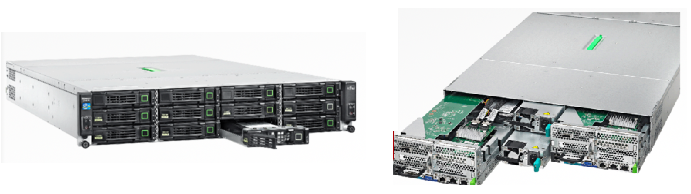
EDIT: In the pictures you can see that the dozen JBOD drives (Storage Spaces) are in the front. At the back you have 2 blade servers and 2 PSUs (in the middle).
They say that:
Highest data and application availability at decreased investment costs are achievable by leveraging the diverse roles and features of Microsoft® Windows Server® 2012, e. g. Storage Spaces and Failover Clustering, altogether avoiding purchase of expensive storage infrastructure.
Features:
- 2U chassis
- 12 * 3.5” shared disks (HDD or SSD)
- 2 hot-plug PSUs
- 2 blade servers
According to a data sheet:
CX420 and all its components fully comply to the Microsoft® Windows Server® 2012 certifications, making sure that cluster operations such as failover or recovery of applications and data are working reliably.
The chassis docs don’t seem to mention networking – a minor concern for a cluster!
The servers are PRIMERGY CX272 S1:
- 2U half-wide server
- Intel Xeon E5-2600 family (dual socket, 4, 6 or 8 cores each
- 16 high bandwidth memory modules expanding up to 256 GB RAM
- 1 free PCIe Gen3 slot
- SAS HBA
We can just the “more affordable” because Fujitsu did not share pricing at CeBIT earlier this week. It is going on sale in central Europe, the Middle East, and Africa this month apparently.
EDIT#1:
I have some updates on packaging and pricing – Thanks to you-know-who!
The CX420-S is specified as follows:
- 2 cluster nodes each with: 2 * Xeon 4 core (E5-2609) and 24 GB RAM
- 4 * 1 TB NL-SAS
- Windows Server Standard
- Price to be aimed at €15K
The CX420-M is specified as follows:
- 2 cluster nodes each with: 2 * Xeon 6 core (E5-2630) and 48 GB RAM
- 8 * 1 TB NL-SAS
- Windows Server Datacenter
- Price to be aimed at €25K
I personally would prefer an option without the OS: If I was in this market I’d buy WinServ Datacenter under OVS (with SA to ensure upgrades for the Management and guest OSs plus the other benefits). I’d buy the lowest spec model and upgrade the RAM from the grey market. And I’d be interested in hearing from Fujitsu customers if you can buy disks from the grey market (yes – I know they wouldn’t be supported by Fujitsu) because I bet you’d spec up this CiB more economically with 3rd party parts if it was possible.
EDIT#2:
The Register reports that:
The two-node "cluster-in-a-box" starts at under $12,000 in its base configuration; the chassis and its two nodes will ship in North America in June.
Enabled ODX In Hosts With Non-Supporting SAN Can Cause CSV Stability Issues
There is an interesting tip in the KB article KB2813630 for Windows Server 2012 clusters with CSV:
To avoid CSV failovers, you may have to make additional changes to the computer after you install the hotfix. For example, you may be experiencing the issue described in the "Symptoms" section because of the lack of hardware support for Offloaded Data Transfer (ODX). This causes delays when the operating system queries for hardware support during I/O requests.
In this situation, disable ODX by changing the FilterSupportedFeaturesMode value for the storage device that does not support ODX to 1.
In other words:
- Your CSVs are stored on a SAN
- Your SAN does not support ODX
- ODX is enabled by default in Windows Server 2012
- This can (in other words, might but not definitely) cause stability issues during the period when the server queries the SAN for support
- Disable ODX in this case
Go here to learn more about deploying ODX. According to that site you can query for the status of ODX support in your server installation (nothing to do with the SAN – check your vendor for ODX support in your SAN) by running:
Get-ItemProperty hklm:systemcurrentcontrolsetcontrolfilesystem -Name "FilterSupportedFeaturesMode"
If it’s got a value of 0 then ODX is enabled in the server. Set the value to 1 to disable ODX in the current server:
Set-ItemProperty hklm:systemcurrentcontrolsetcontrolfilesystem -Name "FilterSupportedFeaturesMode" -Value 1
There’s no mention of a reboot of the re-configured host but I’m guessing we should take it for granted.
Troublesome KB2799728 (CSV Paused State/Offline Patch) Replaced By KB2813630
I previously blogged that memory leak issues were being reported with KB2799728. That hotfix repaired an issue where CSVs were going into a paused or offline state during backup due to a free space calculation error by ntfs.sys during a VSS backup.
Microsoft has since released a superseding update, KB2813630, which you can download here.
Creating A WS2012 Hyper-V CSV Using VMM 2012 SP1 Via SMI-S
In this post I’ll show you how to very easily create a Cluster Shared Volume on a Windows Server 2012 Hyper-V cluster using SMI-S in System Center 2012 Virtual Machine Manager Service Pack 1.
My storage is a WS2012 iSCSI target and I’m using the VMM SMI-S provider for the iSCSI target.
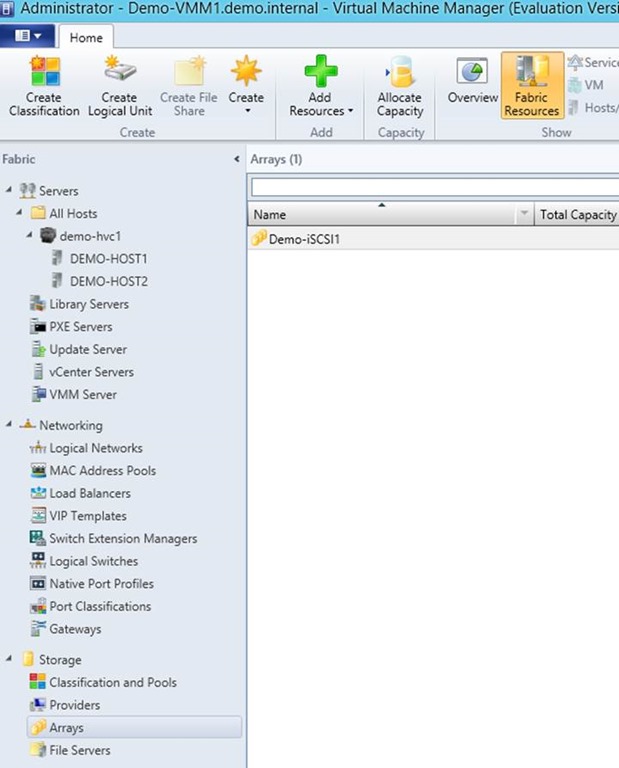
First step is to ensure that the array (the iSCSI target) is configured and it’s physical LUNs are managed and classified. Classification allows you to label the LUNS, e.g. silver for SATA, gold for SAS, platinum for SSD, or maybe RAID10, RAID5, or whatever suits your needs. I like bronze, silver, gold, etc, because users get it.
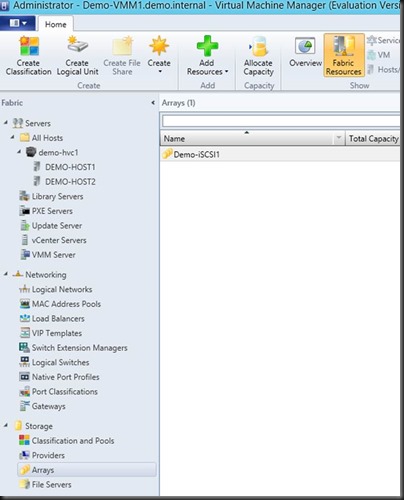
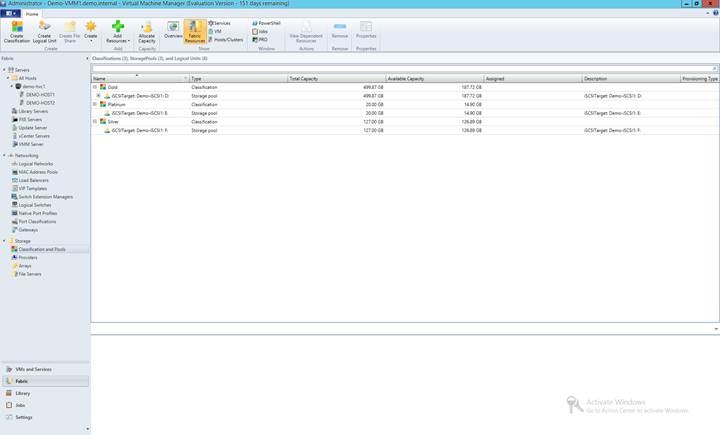
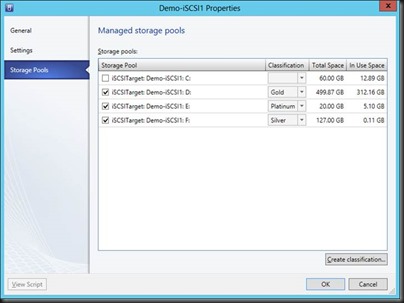
I’ll check each managed LUN on the iSCSI target and classify the LUNs accordingly. You can create your classifications here or reuse existing ones.
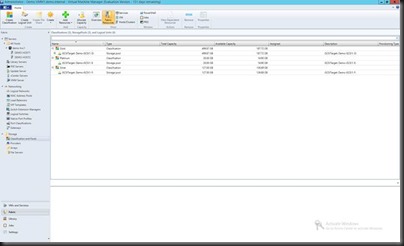
The final result will appear under Classifications and Pools (Fabric).
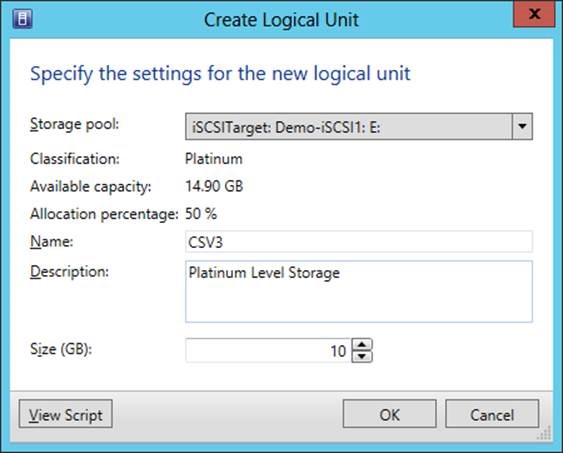
Now, to create a CSV. We are not going to use the SAN admin tool, Hyper-V Manager, Disk Manager, or Failover Cluster Manager. Edit the properties of a Hyper-V cluster. Go to Shared Volumes and click Add.
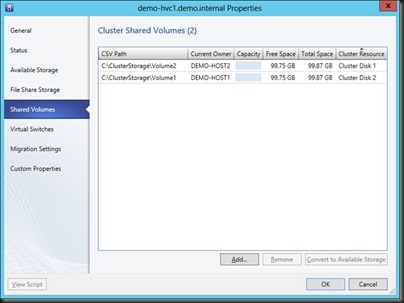
Clicking Add steps you through creating a new LUN in a storage pool (a physical disk on the iSCSI target). This would be like creating a virtual disk in a disk group on your SAN. Note how if I change the Storage Pool, the classification is shown, as is free space and allocated space. I can select how big my new CSV will be.
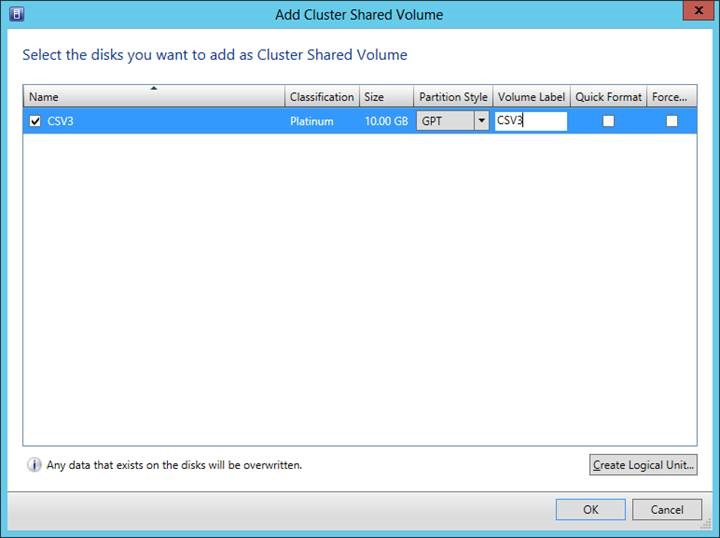
Now to prep the disk volume. I’ll pick a partition style (MBR or GPT), a volume label, and select how it’ll be formatted.
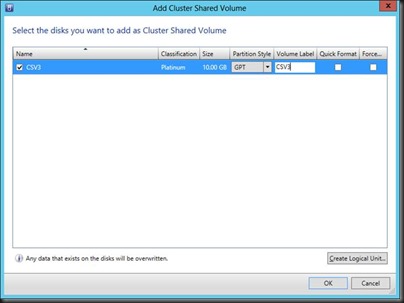
Click OK and go check out what happens in Jobs in VMM.
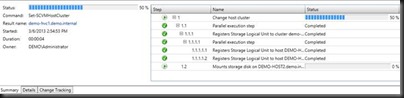
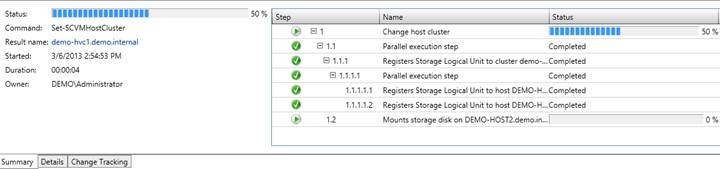
After a few moments a new LUN is created, it is mounted by the cluster, formatted/labelled, and converted into a CSV. Easy peasy.
And before you ask, yes, you can unmount the volume from the properties of the cluster, you can create/mount/manage non-CSV volumes, and you can delete the LUNs from the SAN.
In fact, I have come to the conclusion that if you have storage that supports SMI-S, using VMM for (not only bare-metal host/network provisioning) storage creation/allocation/management might be the preferred method.
Scale-Out File Server Role Fails To Start With Event IDs 1205, 1069, and 1194
You have created a Windows Server 2012 Scale-Out File Server. The cluster, including the network and storage, pass the cluster validation test. Everything looks and is good. You create a File Server role for application data (SOFS) but it fails to start:
When you look in Cluster Events the errors include:
- 1205
- 1069
- 1194
Event ID 1194 has the clue to the problem and solution:
Cluster network name resource ‘Demo-SOFS1’ failed to create its associated computer object in domain ‘demo.internal’ during: Resource online.
The text for the associated error code is: A constraint violation occurred.
Please work with your domain administrator to ensure that:
– The cluster identity ‘DEMO-FSC1$’ has Create Computer Objects permissions. By default all computer objects are created in the same container as the cluster identity ‘DEMO-FSC1$’.
– The quota for computer objects has not been reached.
– If there is an existing computer object, verify the Cluster Identity ‘DEMO-FSC1$’ has ‘Full Control’ permission to that computer object using the Active Directory Users and Computers tool.
Basically, the cluster (in my case Demo-FSC1) needs permissions to create a computer object (for the SOFS) in the same Active Directory OU that the cluster object (Demo-FSC1) is stored in.
The fix is in:
1) Open Active Directory Users And Computers.
2) Enable Advanced view if not enabled.
3) Edit the properties of the OU containing the cluster computer object
4) Open the Security tab and click Advanced
5) Click Add (opens Permission Entry dialog), click Select A Principal, Click Object Types and select Computers. Enter the name of the cluster computer object.
6) Back in the Permission Entry dialog, scroll down, and select Create Computer Objects.
7) OK everything, (you might need to wait for your DCs to replicate if you have site links to deal with) return to Failover Cluster Manager, right-click on the SOFS role, and click Start Role. It should now start up.
These are screenshots that I took when rebuilding the lab at work. I can’t remember seeing someone document the fix before so I thought I’d re-create the scenario and grab some screens.