Testing SMB Live Migration on WS2012 R2 Hyper-V

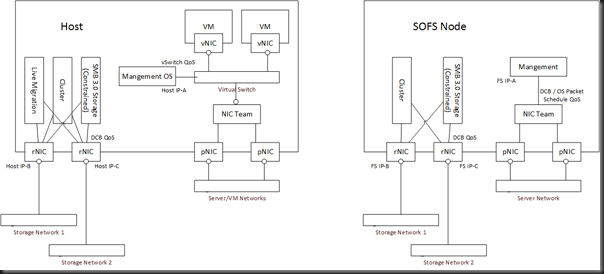
Today I got “generation 2” of the lab functioning the way I want it to today.  The hosts are two Dell R420 12th generation servers, with 2 * 6 Core CPUs (24 logical processors each), 64 GB RAM and an extra Chelsio T440 CR quad port iWARP SFP+ NICs (for RDMA/SMB Direct).  The HP DL360 G7’s are now the nodes in my Scale-Out File Server.

2 of the iWARP NICs are used for the vSwitch NIC team.  The other two are not teamed (prevents RDMA) and are on different subnets to support Multichannel to the SOFS.

I have a script that tests the migration of a VM using the different WS2012 R2 options and times the movements.  I just compared TCP/IP Live Migration (over 1 * 10 GbE with some CPU impact) and compared it with SMB Live Migration which used 2 * 10 GbE.  This was done with a single VM with 56 GB of statically assigned RAM.  The results are in:

  • TCP Live Migration: using around 9.8 Gbps took 58 seconds (which is excellent)
  • SMB Live Migration: using nearly all of the available 20 Gbps took 35 seconds

Think about that … a Linux (did I mention that?) VM with 56 GM RAM moved between two hosts in 35 seconds … with no noticeable CPU impact on the hosts caused by Live Migration!

I actually moved 50 VMs concurrently yesterday and there was no noticeable CPU impact!

There was a little engineering required:

  • Jumbo Frames was configured on the NICs and (thanks to Didier Van Hoye, aka @workinghardinit) I verified it end-to-end using ping <IP> –l 8400 –f.  This gave me 10 Gbps on a single NIC.
  • The final piece was to update the driver … the out of box driver refused to use more than 5 Gbps on each NIC via SMB Multichannel, usually sitting at 2.4 Gbps most of the time.  Now I had 20 Gbps.
  • I verified that RDMA was kicking in almost immediately via PerfMon.  Multichannel is kicking in almost immediately too.

Microsoft Releases Windows Server 2012 R2 Licensing Information

You can now read about the changes and non-changes to Windows Server 2012 R2 licensing.  Microsoft has released three PDFs on the WS2012 R2 site:

I’ll follow up with a deeper dive in a day or two.

Here is my follow up on licensing the core editions of Windows Server 2012 R2.

Event: Sept 10th, London –Transform The Data Centre

A number of MVPs will be talking about Windows Server and System Center 2012 R2, and how these technologies really can transform designing, deploying, configuring, and managing the cloud in the data centre.

Respond to changing business needs with the power of a hybrid cloud from Microsoft.

Today’s business runs on IT. Every department, every function, needs technology to stay productive and help your business compete. And that means a wave of new demands for applications and resources.

The datacenter is the hub for everything you offer the business, all the storage, networking and computing capacity. To ride the wave of demand, you need a datacenter that isn’t limited by the restrictions of the past. You need to be able to take everything you know and own today and transform those resources into a datacenter that is capable of handling changing needs and unexpected opportunities.

With Microsoft, you can transform the datacenter. You can take the big, complicated, heterogeneous infrastructure you have today and bring it forward into the new world of cloud. You can take advantage of the boundless capacity the cloud offers, while still meeting requirements for security and compliance. You can reduce cost and complexity with technology innovation in areas like storage and networking. And you can deliver services to the business faster with a platform that makes you more agile and more productive.

This free event (registration required) is on Tuesday 10th September at Microsoft Cardinal Place, SW1E 5JL London, United Kingdom.

  • 8:45am: Key Note.
  • 9:00am: Savision
  • 9:45am: Licensing and what is supported when virtualized with Windows 2012 and System Center? MVP David Allen explains licensing of Windows Server & System Center as well as what is supported when virtualized. This will be a great way to start the day and information that is often sort after by many customers.
  • 10:15am: Virtualization is the key element to your success and it starts with Networking. MVP Aidan Finn makes sense around Hyper-V networking including the new features in Windows 2012 R2 Hyper-V. Aidan will also clarify best practices for hardware that hosts your Virtual Machines and why Windows 2012 R2 Hyper-V will be the best Hyper Visor platform yet.
  • 11:15am: Break
  • 11:30am: How to manage your Virtual Environments effectively with System Center Virtual Machine Manager. MVP Damian Flynn will demonstrate the improved SCVMM 2012 R2 and how with the growing demand on Virtual servers SCVMM is a must in any data center or private cloud. Bring your level 400 tech guys for this one.
  • 12:45: Lunch
  • 1:45pm: Managing any size data centers is by no means an easy task. MVP Gordon McKenna will take us through will take us through SCOM 2012 R2. And how we can monitor any part of our environment effectively, including how System Center is with Microsoft Gold Partner Veeam the best tool for monitoring VMware.
  • 14:45pm: Break
  • 15:00pm: Let’s not forget the applications! MVP Simon Skinner will demonstrate how using System Center 2012 with service templates can get our clients to deploy complex solutions like SharePoint or SQL Server. Here we will see where automation becomes the norm.
  • 16:10pm: Where next? The future is already here today! MVP Gordon McKenna and MVP David Allen presents Windows Azure Pack which delivers Windows Azure technologies for you to run inside your datacenter, enabling you to offer rich, self-service, multi-tenant services that are consistent with Windows Azure. The Microsoft Cloud OS: One Consistent Platform. The Cloud OS is Microsoft’s vision of a consistent, modern platform for the world’s apps running across multiple clouds; enterprise datacenters, hosting service provider datacenters and Windows Azure. The Windows Azure Pack helps to deliver on this vision by bringing consistent Windows Azure experiences and services to enterprise and hosting service provider datacenters with existing investments in System Center and Windows Server.
  • 17:10: Question time with the UK/IE MVPs.

Don’t be one of those IT Pros that deserves to have their job outsourced or who shames the rest of us; keep up to date and learn what you could be doing for your employers … and your career.

Setting SMB 3.0 Bandwidth Limits In WS2012 R2

Windows Server 2012 R2 features SMB 3.0, not just for storage, but also for Live Migration.  In a converged network/fabric scenario we need to be able to distinguish between the different kinds of SMB 3.0 traffic to ensure that, for example, Live Migration does not choke off storage on a host.

This is possible thanks to a new feature called SMB Bandwidth Limit.  You can add this feature in Server Manager.

image

You can also add this feature via PowerShell:

Install-WindowsFeature FS-SMBBW

From there, we can use Set-SMBBandwidthLimit to set a Bytes Per Second limitation on three different kinds of SMB traffic:

  • Default
  • VirtualMachine
  • LiveMigration

For example, I could run the following to limit the bandwidth of Live Migration.  The minimum speed limit is used in this example, which is roughly 0.8 Gbps:

Set-SMBBandwidthLimit -Category LiveMigration -BytesPerSecond 1048576

Get-SMBBandwidthLimit will return the results and Remove-SMBBandwidthLimit will remove the limiter. 

The updated PowerShell help in the preview release of WS2012 R2 has not got much information on these cmdlets yet.

A Bunch Of WS2012 R2 Storage Posts By Microsoft That You Need To Read

I’m viewing WS2012 R2 as a storage release by Microsoft (WS2012 was a Hyper-V/cloud release).  There’s a lot happening in the storage side of WS2012 R2, and Microsoft has published a bunch of posts to keep you informed.

Comparing The Costs Of WS2012 Storage Spaces With FC/iSCSI SAN

Microsoft has released a report to help you “understand the cost and performance difference between SANs and a storage solution built using Windows Server 2012 and commodity hardware”.  In WS2012, they are referring to Storage Spaces and Scale-Out File Server.

From my own perspective, we’ve found the JBOD + Storage Spaces solution to be much cheaper than SAN storage, both on the upfront side (initial acquisition) and long term.  Adding disks and trays is cheaper – you get any manufacturer’s disk on the JBOD’s HCL rather than the 60% more expensive Dell/HP/etc disk from the same factory but with a “special” (lockdown) firmware.

ESG Lab tested the performance readiness and cost-effectiveness of Microsoft’s new storage solution and compared the results with two common storage solutions: an ISCSI and FC SAN. For performance testing, ESG Lab tested a tier-1 virtualized Microsoft SQL Server 2012 application workload and witnessed a negligible performance difference between all the tested storage configurations. In fact, when testing with as close to the exact same storage configuration as possible across each of the tested configurations, ESG Lab witnessed a slight performance benefit with Microsoft’s storage solution over iSCSI and FC SAN solutions.

ESG Lab also calculated what organizations could expect to spend when initially purchasing each storage configuration. The price difference was impressive. ESG Lab found that Microsoft’s storage solution can save organizations as much as 50% when compared with traditional iSCSI and FC SAN solutions. Another eye-opener for ESG Lab was around a features comparison between the storage configurations. With the upcoming release of Windows Server 2012 R2, Microsoft’s storage configuration is beginning to match traditional storage offerings feature for feature.

With similar performance, a matching feature set, less management complexity, and 50% cost-savings over a SAN, Microsoft’s Windows Server 2012 file server cluster with Storage Spaces over SMB 3.0 introduces a potentially disruptive storage solution to address any customer’s needs.

image

Yes, You Can Run A Hyper-V Cluster On Your JBOD Storage Spaces

What is the requirement of a cluster?  Shared storage.  What’s supported in WS2012/R2?

  • SAS SAN
  • iSCSI SAN
  • Fiber Channel SAN
  • FCoE
  • PCI RAID (like Dell VRTX)
  • Storage Spaces

What’s the difference between a cluster and a Hyper-V cluster?  You’ve enabled Hyper-V on the nodes.  Here are 2 nodes, each connected to a JBOD.  Storage Spaces is configured on the JBOD to create cluster shared volumes.  All that remains now is to enable Hyper-V on node 1 and node 2, and now you have a valid Hyper-V cluster that stores VMs on the CSVs

It’s completely supported, and a perfect Hyper-V cluster solution for the small/medium business, with the JBOD costing a fraction (search engine here and here) of the equivalent capacity SAN.

Stupid questions that you should not ask:

  • What file shares do I use to store my VMs on?  Where do you see “file shares” in the above text?  You store the VMs directly on the CSVs like in a Hyper-V cluster with a SAN, instead of storing file shares on the CSVs like in a SOFS cluster.
  • Can I run other roles on the hosts?  No.  You never should do that … and I include Exchange Server and SQL Server for the 2 people that I now hope have resigned from working in IT who asked that recently.
  • The required networks if you use 10 GbE are shown above.  Go look at converged networks for all possible designs; it’s the same clustered 2012/R2 Hyper-V networking as always.

Build WS2012 R2 Storage Pools, Virtual Disks, And CSVs Using PowerShell

I’ve been building, tearing down, and rebuilding Storage Spaces in the lab over and over, and that will continue for the next few years Smile Rather than spend a significant percentage of my life clicking on wizards, I decided to script what I want done.

The below script will:

  • Build a storage pool from all available disks
  • Prep 2 storage tiers from SSD and HDD
  • Create 3 different virtual disks with different configs (customize to your heat’s content!)
  • Then run the PrepCSV function to turn those virtual disks into CSVs just the way I like them

How do I like a CSV?  I like them formatted Smile and the names consistent all the way: virtual disk, cluster resource name, volume label, and CSV mount point in C:ClusterStorage.  None of that “Cluster Disk (X)” or “Volume 1” BS for me, thank you.

It might be possible to clean up the stuff in the function.  This is what I have working – it works and that’s the main thing.  There’s a lot of steps to get disk ID so I can create and format a volume, and then bring the disk back so I can turn it into a CSV.

What’s missing?  I have not added code for adding the SOFS role or adding/configuring shares.  I’m not at that point yet in the lab.

Function PrepCSV ($CSVName)
{
#Rename the disk resource in FCM
(Get-ClusterResource | where {$_.name -like “*$CSVName)”}).Name = $CSVName

#Get the disk ID
Stop-ClusterResource $CSVName
$DiskID = (Get-VirtualDisk -FriendlyName $CSVName).UniqueId
Start-ClusterResource $CSVName

#Format the disk
Suspend-ClusterResource $CSVName
Get-disk -UniqueId $DiskID | New-Partition -UseMaximumSize | Format-Volume -FileSystem NTFS -NewFileSystemLabel “$CSVName” -Confirm:$false
Resume-ClusterResource $CSVName

#Bring the CSV online
Add-ClusterSharedVolume -Name $CSVName
$OldCSVName = ((Get-ClusterSharedVolume $CSVName).SharedVOlumeInfo).FriendlyVolumeName
Rename-Item $OldCSVName -NewName “C:ClusterStorage$CSVName”
}

# The following Storage Pool and Virtual Disk cmdlets taken from Bryan Matthew’s TechEd  …
# … Session at http://channel9.msdn.com/Events/TechEd/Europe/2013/MDC-B217#fbid=TFEWNjeU9XP

# Find all eligible disks
$disks = Get-PhysicalDisk |? {$_.CanPool -eq $true}

# Create a new Storage Pool
New-StoragePool -StorageSubSystemFriendlyName “Clustered Storage Spaces on Demo-FSC1” -FriendlyName “Demo-FSC1 Pool1” -PhysicalDisks $disks

# Define the Pool Storage Tiers
$ssd_tier = New-StorageTier -StoragePoolFriendlyName “Demo-FSC1 Pool1” -FriendlyName SSD_Tier -MediaType SSD
$hdd_tier = New-StorageTier -StoragePoolFriendlyName “Demo-FSC1 Pool1” -FriendlyName HDD_Tier -MediaType HDD


#Transfer ownership of Available Storage to current node to enable disk formatting

Move-ClusterGroup “Available Storage” -Node $env:COMPUTERNAME


# Creation of a 200 GB tiered virtual disk with 5 GB cache
New-VirtualDisk -StoragePoolFriendlyName “Demo-FSC1 Pool1” -FriendlyName CSV1 –StorageTiers @($ssd_tier, $hdd_tier) -StorageTierSizes @(50GB,150GB) -ResiliencySettingName Mirror -WriteCacheSize 5GB
PrepCSV CSV1


# Creation of a 200 GB non-tiered virtual disk with no cache

New-VirtualDisk -StoragePoolFriendlyName “Demo-FSC1 Pool1” -FriendlyName CSV2 -Size 200GB -ResiliencySettingName Mirror -WriteCacheSize 0
PrepCSV CSV2


# Creation of a 50 GB virtual disk on SSD only with 5 GB cache

New-VirtualDisk -StoragePoolFriendlyName “Demo-FSC1 Pool1” -FriendlyName CSV3 –StorageTiers @($ssd_tier) -StorageTierSizes @(50GB) -ResiliencySettingName Mirror -WriteCacheSize 5GB
PrepCSV CSV3


EDIT1:

This script broke if the cluster group, Available Storage, was active on another node.  This prevented formatting, which in turn prevented adding the virtual disks as CSVs.  Easy fix: move the Available Storage cluster group to the current machine (a node in the cluster).


Getting Started With DataOn JBOD In WS2012 R2 Scale-Out File Server

Yesterday we took delivery of a DataOn DNS-1640D JBOD tray with 8 * 600 GB 10K disks and 2 * 400 GB dual channel SSDs.  This is going to be the heart of V2 of the lab at work, providing me with physical scalable and continuously available storage.

The JBOD

Below you can see the architecture of the setup.  Let’s start with the DataOn JBOD.  It has dual controllers and dual PSUs.  Each controller has some management ports for factory usage (not shown).  In a simple non-stacked solution such as below, you’ll use SAS ports 1 and 2 to connect your servers.  A SAS daisy chaining port is included to allow you to expand this JBOD to multiple trays.  Note that if scaling out the JBOD is on the cards then look at the much bigger models – this one takes 24 2.5” disks.

I don’t know why people still think that SOFS disks go into the servers – THEY GO INTO A SHARED JBOD!!!  Storage inside a server cannot be HA; there is no replication or striping of internal disks between servers.  In this case we have inserted 8 * 600 GB 10K HDDs (capacity at a budget) and 2 STEC 400 GB SSDs (speed).  This will allow us to implement WS2012 R2 Storage Spaces tiered storage and write-back cache.

image

The Servers

I’m recycling the 2 servers that I’ve been using as Hyper-V hosts for the last year and a half.  They’re HP DL360 servers.  Sadly, HP Proliants are stuck in the year 2009 and I can’t use them to demonstrate and teach new things like SR-IOV.  We’re getting in 2 Dell rack servers to take over the role as Hyper-V hosts and the HP servers will become our SOFS nodes.

Both servers had 2 * dual port 10 GbE cards, giving me 4 * 10 GbE ports.  One card was full height and the other modified to half height – occupying both ports in the servers.  We got LSI controllers to connect the 2 servers to the JBOD.  Each LSI adapter is full height and has 2 ports.  Thus we needed 4 SAS cables.  SOFS Node 1 connects to port 1 on each controller on the back of the JBOD, and SOFS Node 2 connects to port 2 on each controller.  The DataOn manual shows you how to attach further JBODs and cable the solution if you need more disk capacity in this SOFS module.

Note that I have added these features:

  • Multipath I/O: To provide MPIO for the SAS controllers.  There are rumblings of performance issues with this enabled.
  • Windows Standards-Based Storage Management: This provides us with with integration into the storage, e.g. SES

The Cluster

The network design is what I’ve talked about before.  The on-board 1 GbE NICs are teamed for management.  The servers now have a single dual port 10 GbE card.  These 10 GbE NICs ARE NOT TEAMED – I’ve put them on different subnets for SMB Multichannel (a cluster requirement).  That means they are simple traditional NICs, each with a different IP address.  I’ve used NetQOSPolicy to do QoS for those 2 networks on a per-protocol basis.  That means that SMB 3.0 and backup and cluster communications go across these two networks.

Hans Vredevoort (Hyper-V MVP colleague) went with a different approach: teaming the 10 GbE NICs and presenting team interfaces that are bound to different VLANs/subnets.  In WS2012, the dynamic teaming mode will use flowlets to truly aggregate data and spread even a single data stream across the team members (physical interfaces).

Storage Spaces

The storage pool is created in Failover Clustering.  While TechEd demos focused on PowerShell, you can create a tiered pool and tiered virtual disks in the GUI.  PowerShell is obviously the best approach for standardization and repetitive work (such as consulting).  I’ve fired up a single virtual disk so far with a nice chunk of SSD tiering and it’s performing pretty well.

image

First Impressions

I wanted to test quickly before the new Dell hosts come so Hyper-V is enabled on the SOFS cluster.  This is a valid deployment scenario, especially for a small/medium enterprise (SME).  What I have built is the equivalent (more actually) of a 2-node Hyper-V cluster with a SAS attached SAN … albeit with tiered storage … and that storage was less than half the cost of a SAN from Dell/HP.  In fact, the retail price of the HDDs is around 1/3 the list price of the HP equivalent.  There is no comparison.

I deployed a bunch of VMs with differential disks last night.  Nice and quick.  Then I pinned the parent VHD to the SSD tier and created a boot storm.  Once again, nice and quick.  Nothing scientific has been done and I haven’t done comparison tests yet.

But it was all simple to set up and way cheaper than traditional SAN.  You can’t beat that!

Deploy Roles Or Features To Lots Of Servers At Once

I’m deploying a large cluster at the moment and I wanted to install the Failover Clustering feature to all the machines without logging, doing stuff, logging out, and repeating.  This snippet of PowerShell took me 45 seconds to put together.  The feature is installing on 8 machines (Demo-FS1 to Demo-FS8) while I’m writing this blog post Smile

For ($i = 1; $i -lt 9; $i++)
{
    Install-WindowsFeature -ComputerName Demo-FS$i Failover-Clustering, RSAT-Clustering
}

The variable $i starts at 1, is used as part of the computer name that is remotely being updated, and then incremented in the next loop iteration.  The loop ends after the 8th iteration, i.e. the 8th server is updated.

Aint automation be-yoot-eeful?