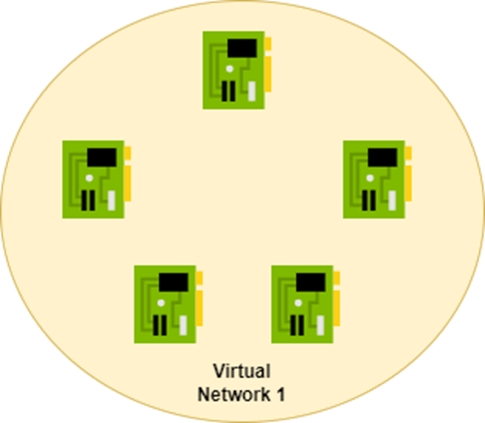
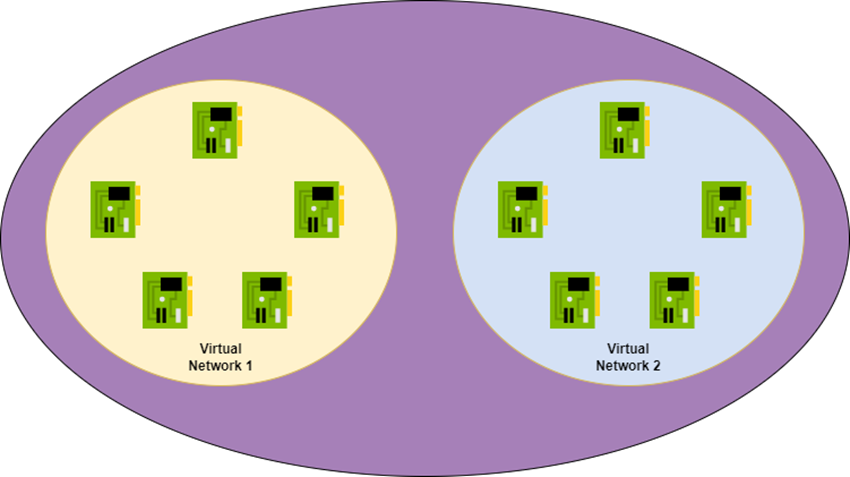
I see many bad designs where people bring cable-oriented designs from physical locations into Azure. I hear lots of incorrect assumptions when people are discussing network designs. For example: “I put shared services in the hub because they will be closer to their clients”. Or my all-time favourite: people assuming that ingress traffic from site-to-site connections will go through a hub firewall because it’s in the middle of their diagram. All this is because of one common mistake – people don’t realise that Azure Virtual Networks do not exist.
Some Background
Azure was designed to be a multi-tenant cloud capable of hosting an “unlimited” number of customers.
I realise that “unlimited” easily leads us to jokes about endless capacity issues 🙂
Traditional hosting (and I’ve worked there) is based on good old fashioned networking. There’s a data centre. At the heart of the data centre network there is a network core. The entire facility has a prefix/prefixes of address space. Every time that a customer is added, the network administrators carve out a prefix for the new customer. It’s hardly self-service and definitely not elastic.
Azure settled on VXLAN to enable software-defined networking – a process where customer networking could be layered upon the physical networks of Microsoft’s physical data centres/global network.
Falling Into The Myth
Virtual Networks make life easy. Do you want a network? There’s no need to open a ticket? You don’t need to hear from a snarky CCIE who snarls when you ask for a /16 address prefix as if you’ve just asked for Flash “RAID10” from a SAN admin. No; you just open up the Portal/PowerShell/VS Code and you deploy a network of whatever size you want. A few seconds later, it’s there and you can start connecting resources to the new network.
You fire up a VM and you get an address from “DHCP”. It’s not really DHCP. How can it be when Azure virtual networks do not support broadcasts or multicasts? You log into that VM and have networking issues so you troubleshoot like you learn how to:
Ping the local host
Ping the default gateway – oh! That doesn’t work.
Traceroute to a remote address – oh! That doesn’t work either.
And then you start to implement stuff just like you would in your own data centre.
How “It Works”
Let me start by stating that I do not know how the Azure fabric works under the covers. Microsoft aren’t keen on telling us how the sausage is made. But I know enough to explain the observable results.
When you click the Create button at the end of the Create Virtual Machine wizard, an operator is given a ticket, they get clearance from data center security, they grab some patch leads, hop on a bike, and they cycle as fast as they can to the patch panel that you have been assigned in Azure.
Wait … no … that was a bad stress dream. But really, from what I see/hear from many people, they think that something like that happens. Even if that was “virtual”, the who thing just would not be scaleable.
Instead, I want you to think of an Azure virtual network as a Venn diagram. The process of creating a virtual network instructs the Azure fabric that any NIC that connects to the virtual network can route to any other NIC in the virtual network.
Two things here:
You should take “route” as meaning a packet can go from the source NIC to the destination NIC. It doesn’t mean that it will make it through either NIC – we’ll cover that topic in another post soon.
Almost everything in Azure is a virtual machine at some level in Azure. For example, “serverless” Functions run in Microsoft-managed VMs in a Microsoft tenant. Microsoft surfaces the Function functionality to you in your tenant. If you connect those PaaS services (like ASE or SQL Manage Instance) to your virtual network then there will be NICs that connect to a subnet.
Connecting a NIC to a virtual network adds the new NIC to the Venn Diagram. The Azure fabric now knows that this new NIC should be able to route to other NICs in the same virtual network and all the previous NICs can route to it.
Adding Virtual Network Peering
Now we create a second virtual network. We peer those virtual networks and then … what happens now? Does a magic/virtual pipe get created? Nope – it’s fault tolerant so two magic/virtual lines connect the virtual networks? Nope. It’s Venn diagram time again.
The Azure fabric learns that the NICs in Virtual Network 1 can now route to the NICs in Virtual Network 2 and vice versa. That’s all. There is no magic connection. From a routing/security perspective, the NICs in Virtual Network 1 are no different to the NICs in Virtual Network 2. You’ve just created a bigger mesh from (at least) two address prefixes.
Repeat after me:
Virtual networks do not exist
How Do Packets Travel?
OK Aidan (or “Joe” if you arrived here from Twitter), how the heck do packets get from one NIC to another?
Let’s melt some VMware fanboy brains – that sends me to my happy place. Aure is built using Windows Server Hyper-V; the same Hyper-V that you get with commercially available Windows Server. Sure, Azure layers a lot of stuff on top of the hypervisor, but if you dig down deep enough, you will find Hyper-V.
Virtual machines, your or those run by Microsoft, are connected to a virtual switch on the host. The virtual switch is connected to a physical ethernet port on the host. The host is addressable on the Microsoft physical network.
You come along and create a virtual network. The fabric knows to track NICs that are being connected. You create a virtual machine and connect it to the virtual network. Azure will place that virtual machine on one host. As far as you are concerned, that virtual machine has an address from your network.
You then create a second VM and connect it to your virtual network. Azure places that machine on a different host – maybe even in a different data centre. The fabric knows that both virtual machines are in the same virtual network so they should be able to reach each other.
You’ve probably use a 10.something address, like most other customers, so how will your packets stay in your virtual network and reach the other virtual machine? We can thank software-defined networking for this.
Let’s use the addresses of my above diagram for this explanation. The source VM has a customer IP address of 10.0.1.4. It is sending a packet to the destination VM with a customer address of 10.0.1.5. The packet will leave the source NIC, 10.0.1.4 and reaches the host’s virtual switch. This is where the magic happens.
The packet is encapsulated, changing the destination address to that of the destination virtual machine’s host. Imagine you are sending a letter (remember those?) to an apartment number. It’s not enough to say “Apartment 1”; you have to include other information to encapsulate it. That’s what the fabric enables by tracking where your NICs are hosted. Encapsulation wraps the customer packet up in an Azure packet that is addressed to the host’s address, capable of travelling over the Microsoft Global Network – supporting single virtual networks and peered (even globally) virtual networks.
The packet routes over the Microsoft physical network unbeknownst to us. It reaches the destination host, and the encapsulation is removed at the virtual switch. The customer packet is dropped into the memory of the destination virtual machine and Bingo! the transmission is complete.
From our perspective, the packet routes directly from source to destination. This is why you can’t ping a default gateway – it’s not there because it plays no role in routing because: the virtual network does not exist.
I want you to repeat this:
Packets go directly from source to destination
Two Most Powerful Pieces Of Knowledge
If you remember …
Virtual networks do not exist and
Packets go directly from source to destination
… then you are a huge way along the road of mastering Azure networking. You’ve broken free from string theory (cable-oriented networking) and into quantum physics (software-defined networking). You’ll understand that segmenting networks into subnets for security reasons makes no sense. You will appreciate that placing “shared services” in the hub offered no performance gain (and either broke your security model or made it way more complicated).
I’m using Azure Image Builder to prepare a reusable image for Azure Virtual Desktop with some legacy software packages from external vendors. Things like re-packaging (MSIX) will be a total support no-no, so the software must be pre-installed into the image.
I need a secure solution:
The virtual machine should not be reachable on the Internet.
Software packages will be shared from a storage account with a private endpoint for the blob service.
This scenario requires that I prepare a virtual network and customise the Image Template to use an existing subnet ID. That’s all good. I even looked at the PowerShell example from Microsoft which told me to allow TCP 60000-60001 from Azure Load Balancer to Virtual Network:
I also added my customary DenyAll rule at priority 4000 – the built in Deny rule doesn’t deny all that much!
I did that … and the job failed, initially with the first of the errors above, related to TCP 60000. Weird!
Troubleshooting Time
Having migrated countless legacy applications with missing networking documentation into micro-segmented Azure networks, I knew what my next steps were:
Deploy Log Analytics and a Storage Account for logs
Enable VNet Flow Logs with Traffic Analytics on the staging subnet (where the build is happening) NSG
Recreate the problem (do a new build)
Check the NTANetAnalytics table in Log Analytics
And that’s what I did. Immediately I found that there were comms problems between the Private Endpoint (Azure Container Instance) and the proxy VM. TCP 60000 was attempted and denied because the source was not the Azure Load Balancer.
I added a rule to solve the first issue:
I re-ran the test (yes, this is painfully slow) and the job failed.
This time the logs showed failures from the proxy VM to the staging (build) VM on TCP 5986. If you’re building a Linux VM then this will be TCP 22.
I added a third rule:
Now when I test I see the status switch from Running, to Distributing, to Success.
Root Cause?
Adding my DenyAll rule caused the scenario to vary from the Microsoft docs. The built-in AllowVnetInBound rule is too open because it allows all sources in a routed “network”, including other networks in a hub & spoke. So I micro-segment using a low priority DenyAll rule.
The default AllowVnetInBound rule would have allowed the container>proxy and proxy>VM traffic, but I had overridden it. So I need to create rules to allow that traffic.
This post about Azure Virtual Network Manager is a part of the online community event, Azure Back To School 2024. In this post, I will discuss how you can use Azure Virtual Network Manager (AVNM) to centrally manage large numbers of Azure virtual networks in a rapidly changing/agile and/or static environment.
Challenges
Organisations around the globe have a common experience: dealing with a large number of networks that rapidly appear/disappear is very hard. If those networks are centrally managed then there is a lot of re-work. If the networks are managed by developers/operators then there is a lot of governance/verification work.
You need to ensure that networks are connected and are routed according to organisation requirements. Mandatory security rules must be put in place to either allow required traffic or to block undesired flows.
That wasn’t a big deal in the old days when there were maybe 3-4 huge overly trusting subnets in the data centre. Network designs change when we take advantage of the ability to transform when deploying to the cloud; we break those networks down into much smaller Azure virtual networks and implement micro-segmentation. This approach introduces simplified governance and a superior security model that can reliably build barriers to advanced persistent threats. Things sound better until you realise that there are no many more networks and subnets that there ever were in the on-premises data centre, and each one requires management.
This is what Azure Virtual Network Manager was created to help with.
Introducing Azure Virtual Network Manager
AVNM is not a new product but it has not gained a lot of traction yet – I’ll get into that a little later. Spoiler alert: things might be changing!
The purpose of AVNM is to centralise configuration of Azure virtual networks and to introduce some level of governance. Don’t get me wrong, AVNM does not replace Azure Policy. In fact, AVNM uses Azure Policy to do some of the leg work. The concept is to bring a network-specialist toolset to the centralised control of networks instead of using a generic toolset (Azure Policy) that can be … how do I say this politely … hmm … mysterious and a complete pain in the you-know-what to troubleshoot.
AVNM has a growing set of features to assist us:
Network groups: A way to identify virtual networks or subnets that we want to manage.
Connectivity configurations: Manage how multiple virtual networks are connected.
Security admin rules: Enforce security rules at the point of subnet connection (the NIC).
Routing configurations: Deploy user-defined routes by policy.
Verifier: Verify the networks can allow required flows.
Deployment Methodology
The approach is pretty simple:
Identify a collection of networks/subnets you want to configure by creating a Network Group.
Build a configuration, such as connectivity, security admin rules, or routing.
Deploy the configuration targeting a Network Group and one or more Azure regions.
The configuration you build will be deployed to the network group members in the selected region(s).
Network Groups
Part of a scalable configuration feature of AVNM is network groups. You will probably build several or many network groups, each collecting a set of subnets or networks that have some common configuration requirement. This means that you can have ea large collection of targets for one configuration deployment.
Network Groups can be:
Static: You manually add specific networks to the group. This is ideal for a limited and (normally) unchanging set of targets to receive a configuration.
Dynamic: You will define a query based on one or more parameters to automatically discover current and future networks. The underlying mechanism that is used for this discovery is Azure Policy – the query is created as a policy and assigned to the scope of the query.
Dynamic groups are what you should end up using most of the time. For example, in a governed environment, Azure resources are often tagged. One can query virtual networks with specific tags and in specific Azure regions and have them automatically appear in a network group. If a developer/operator creates a new network, governance will kick in and tag those networks. Azure Policy will discover the networks and instantly inform AVNM that a new group member was discovered – any configurations applied to the group will be immediately deployed to the new network. That sounds pretty nice, right?
Connectivity Configurations
Before we continue, I want you to understand that virtual network peering is not some magical line or pipe. It’s simply an instruction to the Azure network fabric to say “A collection of NICs A can now talk with a collection of NICs B”.
We often want to either simplify the connectivity of networks or to automate desired connectivity. Doing this at scale can be done using code, but doing it in an agile environment requires trust. Failure usually happens between the chair and the keyboard, so we want to automate desired connectivity, especially when that connectivity enables integration or plays a role in security/compliance.
Connectivity Configurations enable three types of network architecture:
Hub-and-spoke: This is the most common design I see being required and the only one I’ve ever implemented for mid-large clients. A central regional hub is deployed for security/transit. Workloads/data are placed in spokes and are peered only with the hub (the network core). A router/firewall is normally (not always) the next hop to leave a spoke.
Full mesh: Every virtual network is connected directly to every other virtual network.
Hub-and-spoke with mesh: All spokes are connected to the hub. All spokes are connected to each other. Traffic to/from the outside world must go through the hub. Traffic to other spokes goes directly to the destination.
Mesh is interesting. Why would one use it? Normally one would not – a firewall in the hub is a desirable thing to implement micro-segmentation and advanced security features such as Intrusion Detection and Prevention System (IDPS). But there are business requirements that can override security for limited scenarios. Imagine you have a collection of systems that must integrate with minimised latency. If you force a hop through a firewall then latency will potentially be doubled. If that firewall is deemed an unnecessary security barrier for these limited integrations by the business, then this is a scenario where a full mesh can play a role.
This is why I started off discussing peering. Whether a system is in the same subnet/network or not, it doesn’t matter. The physical distance matters, not the virtual distance. Peering is not a cable or a connection – it’s just an instruction.
However, Virtual Network Peering is not even used in mesh! It’s something different that can handle the scale of many virtual networks being interconnected called a Connected Group. One configuration inter-connects all the virtual networks without having to create 1-1 peerings between many virtual networks.
A very nice option with this configuration is the ability to automatically remove pre-existing peering connections to clean up unwanted previous designs.
Security Admin Rules
What is a Network Security Group (NSG) rule? It’s a Hyper-V port ACL that is implemented at the NIC of the virtual machine (yours or in the platform hosting your PaaS service). The subnet or NIC association is simply a scaling/targeting system; the rules are always implemented at the NIC where the virtual switch port is located.
NSGs do not scale well. Imagine you need to deploy a rule to all subnets/NICs to allow/block a flow. How many edits will you need to do? And how much time will you waste on prioritising rules to ensure that your rule is processed first?
Security Admin Rules are also implemented using Port ACLs but they are always processed first. You can create a rule or a set or rules and deploy it to a Network Group. All NICs will be updated and your rules will always be processed first.
Tip: Consider using VNet Flow Logs to troubleshoot Security Admin Rules.
Routing Configurations
This is one of the newer features in AVNM and was a technical blocker for me until it was introduced. Routing plays a huge role in a security design, forcing traffic from the spoke through a firewall in the hub. Typically, in VNet-based hub deployments, we place one user-defined route (UDR) in each subnet to make that flow happen. That doesn’t scale well and relies on trust. Some have considered using BGP routing to accomplish this but that can be easily overridden after quite a bit of effort/cost to get the route propagated in the first place.
AVNM introduced a preview to centrally configure UDRs and deploy them to Network Groups with just a few clicks. There are a few variations on this concept to decide how granular you want the resulting Route Tables to be:
One is shared with virtual networks.
One is shared with all subnets in a virtual network.
One per subnet.
Verification
This is a feature that I’m a little puzzled about and I am left wondering if it will play a role in some other future feature. The idea is that you can test your configurations to ensure that they are working. There is a LOT of cross-over with Network Watcher and there is a common limitation: it only works with virtual machines.
What’s The Bad News?
Once routing configurations go generally available, I would want to use AVNM in every deployment that I do in the future. But there is a major blocker: pricing. AVNM is priced per subscription at $73/month. For those of you with a handful of subscriptions, that’s not much at all. But for those of us who saw that the subscription is a natural governance boundary and use LOTS of subscriptions (like in Microsoft Cloud Adoption Framework), this is a huge deal – it can make AVNM the most expensive thing we do in Azure!
The good news is that the message has gotten through to Microsoft and some folks in Azure networking have publicly commented that they are considering changes to the way that the pricing of AVNM is calculated.
The other bit bad news is an oldie: Azure Policy. Dynamic network group membership is built by Azure Policy. If a new virtual network is created by a developer, it can be hours before policy detects it and informs AVNM. In my testing, I’ve verified that once AVNM sees the new member, it triggers the deployment immediately, but the use of Azure Policy does create latency, enabling some bad practices to be implemented in the meantime.
Summary
I was a downer on AVNM early on. But recent developments and some of the ideas that the team is working on have won me over. The only real blocker is pricing, but I think that the team is serious about fixing that. I stated earlier that AVNM hasn’t gotten a lot of traction. I think that this should change once pricing is fixed and routing configurations are GA.
I recently demonstrated using AVNM to build out the connectivity and routing of a hub-and-spoke with micro-segmentation at a conference. Using Azure Portal, the entire configuration probably took less than 10 minutes. Imagine that: 10 minutes to build out your security and compliance model for now and for the future.
In this post, I will explain why Azure’s software-defined networking (virtual networks) differs from the cable-defined networking of on-premises networks.
Background
Why am I writing this post? I guess that this one has been a long time coming. I noticed a trend early in my working days with Azure. Most of the people who work with Azure from the infrastructure/platform point of view are server admins. Their work includes doing all of the resource stuff you’d expect, such as Azure SQL, VMs, App Services, … virtual networks, Network Security Groups, Azure Firewall, routing, … wait … isn’t that networking stuff? Why isn’t the network admin doing that?
I think the answer to that question is complicated. A few years ago I added a question to the audience to some of my presentations on Azure networking. I asked who was a ON-PREMISES networking admin versus an ON-PREMISES something-else. And then I said “the ‘server admins’ are going to understand what I will tech more easily than the network admins will”. I could see many heads nodding in agreement. Network admins typically struggle with Azure networking because it is very different.
Cable-Defined Networking
Normally, on-premises networking is “cable-defined”. That phrase means that packets go from source to destination based on physical connections. Those connections might be indirect:
Appliances such as routers decide what turn to take at a junction point
Firewalls either block or allow packets
Other appliances might convert signals from electrons to photons or radio waves.
A connection is always there and, more often than not, it’s a cable. Cables make packet flow predictable.
Look at the diagram of your typical on-premises firewall. It will have ethernet ports for different types of networks:
External
Management
Site-to-site connectivity
DMZ
Internal
Secure zone
Each port connects to a subnet that is a certain network. Each subnet has one or more switches that only connect to servers in that subnet. The switches have uplinks to the appropriate port in the firewall, thus defining the security context of that subnet. It also means that a server in the DMZ network must pass through the firewall, via the cable to the firewall, to get to another subnet.
In short, if a cable does not make the connection, then the connection is not possible. That makes things very predictable – you control the security and performance model by connecting or not connecting cables.
Software-Defined Networking
Azure is a cloud, and as a cloud, it must enable self-service. Imagine being a cloud subscriber, and having to open a support call to create a network or a subnet. Maybe they need to wait 3 days while some operators plug in cables and run Cisco commands. Or they need to order more switches because they’ve run out of capacity and you might need to wait weeks. Is this the hosting of the 2000’s or is it The Cloud?
Azure’s software-defined networking enables the customer to run a command themselves (via the Portal, script, infrastructure-as-code, or API) to create and configure networks without any involvement from Microsoft staff. If I need a new network, a subnet, a firewall, a WAF, or almost anything networking in Azure (with the exception of a working ExpressRoute circuit) then I don’t need any human interaction from a support staff member – I do it and have the resource anywhere from a few seconds to 45 minutes later, depending on the resource type.
This is because the physical network of Azure is overlayed with a software-defined network based on VXLAN. In simple terms, you have no visibility of the physical network. You use simulated networks that hide the underlying complexities, scale, and addressing. You create networks of your own address/prefix choice and use them. Your choice of addresses affects only your networks because they actually have nothing to do with how packets route at the physical layer – that’s handled by traditional networking at the physical layer – but that’s a matter only for the operators of the Microsoft global network/Azure.
A diagram helps … and here’s one that I use in my Azure networking presentations.
In this diagram, we see a source and a destination running in Azure. In case you were not aware:
Just about everything in Azure runs in a virtual machine, even so-called serverless computing. That virtual machine might be hidden in the platform but it is there. Exceptions might include some very expensive SKUs for SAP services and Azure VMware hosts.
The hosts for those virtual machines are running (drumroll please) Hyper-V, which as one may now be forced to agree, is scalable 😀
The source wants to send a packet to a destination. The source is connected to a Virtual Network and has the address of 10.0.1.4. The destination is connected to another virtual network (the virtual networks are peered) and has an address of 10.10.1.4. The virtual machine guest OS sends the packet to the NIC where the Azure fabric takes over. The fabric knows what hosts the source and destination are running on. The packet is encapsulated by the fabric – the letter is put into a second envelope. The envelope has a new source address, that of the source host, and a new destination, the address of the destination host. This enables the packet to traverse the physical network of Microsoft’s data centres even if 1000s of tenants are using the 10.x.x.x prefixes. The packet reaches the destination host where it is decapsulated, unpacking the original packet and enabling the destination host to inject the packet into the NIC of the destination.
This is why you cannot implement GRE networking in Azure.
Virtual Networks Aren’t What You Think
The software-defined networking in Azure maintains a mapping. When you create a virtual network, a new map is created. It tells Azure that NICs (your explicitly created NICs or those of platform resources that are connected to your network) that connect to the virtual network are able to talk to each other. The map also tracks what Hyper-V hosts the NICs are running on. The purpose of the virtual network is to define what NICs are allowed to talk to each other – to enforce the isolation that is required in a multi-tenant cloud.
What happens when you peer two virtual networks? Does a cable monkey run out with some CAT6 and create a connection? Is the cable monkey creating a virtual connection? Does that connection create a bottleneck?
The answer to the second question is a hint as to what happens when you implement virtual network peering. The speed of connections between a source and destination in different virtual networks is the potential speed of their NICs – the slowest NIC (actually the slowest VM, based on things like RSS/VMQ/SR-IOV) in any source/destination flow is the bottleneck.
VNet peering does not create a “connection”. Instead, the mapping that is maintained by the fabric is altered. Think of it being like a Venn Diagram. Once you implement peering, the loops that define what can talk to what has a new circle. VNet1 has a circle encompassing its NICs. VNet2 has a circle encompassing its NICs. Now a new circle is created that encompasses VNet1 and VNet2 – any source in VNet1 can talk directly, using encapsulation/decapsulation) to any destination in VNet2 and vice versa without going through some resource in the virtual networks.
You might have noticed before now that you cannot ping the default gateway in an Azure virtual network. It doesn’t exist because there is no cable to a subnet appliance to reach other subnets.
You also might have noticed that tools like traceroute are pretty useless in Azure. That’s because the expected physical hops are not there. This is why using tools like test-netconnection (Windows PowerShell) or Network Watcher Connection Troubleshoot/Connection Monitor are very important.
Direct Connections
Now you know what’s happening under the covers. What does that mean? When a packet goes from source to destination, there is no hop. Have a look at the diagram below.
It’s not an unusual diagram. There’s an on-prem network on the left that connects to Azure virtual networks using a VPN tunnel that is terminated in Azure by a VPN Gateway. The VPN Gateway is deployed into a hub VNet. There’s some stuff in the hub, including a firewall. Services/data are deployed into spoke VNets – the spoke VNets are peered with the hub.
One can immediately see that the firewall, in the middle, is intended to protect the Azure VNets from the on-premises network(s). That’s all good. But this is where the problems begin. Many will look at that diagram and think that this protection will just work.
If we take what I’ve explained above we’ll understand really what will happen. The VPN Gateway is implemented in the platform as two Azure virtual machines. Packets will come in over the tunnel to one of those VMs. Then the packets will hit the NIC of the VM to route to a spoke VNet. What path will those packets take? There’s a firewall in the pretty diagram. The firewall is placed right in the middle! And that firewall is ignored. That’s because packets leaving the VPN Gateway VM will be encapsulated and go straight to the NIC of the destination NIC in one of the spokes as if it were teleported.
To get the flow that you require for security purposes you need to understand Azure routing and either implement the flow via BGP or User-Defined Routing.
Now have a look at this diagram of a virtual appliance firewall running in Azure from Palo Alto.
Look at all those pretty subnets. What is the purpose of them? Oh I know that there’s public, management, VPN, etc. But why are they all connecting to different NICs? Are there physical cables to restrict/control the flow of packets between some spoke virtual network and a DMZ virtual network? Nope. What forces packets to the firewall? Azure routing does. So those NICs in the firewall do what? They don’t isolate, they complicate! They aren’t for performance, because the VM size controls overall NIC throughput and speed. They don’t add performance, they complicate!
The real reason for all those NICs is to simulate eth0, eth1, etc that are referenced by the Palo Alto software. It enables Palo Alto to keep the software consistent between on-prem appliances and their Azure Marketplace appliance. That’s it – it saves Palo Alto some money. Meanwhile, Azure Firewall using a single IP address on the virtual network (via the Standard tier load balancer, but you might notice each compute instance IP as a source) and there is no sacrifice in security.
Wrapping Up
There have been countless times over the years when having some level of understanding of what is happening under the covers has helped me. If you grasp the fundamentals of how packets rally get from A to B then you are better prepared to design, deploy, operate, or troubleshoot Azure networking.
This post is about using either Network Rules or Application Rules in Azure Firewall for internal traffic. I’m going to discuss a common scenario, a “problem” that can occur, and how you can deal with that problem.
The Rules Types
There are three kinds of rules in Azure Firewall:
DNAT Rules: Control traffic originating from the Internet, directed to a public IP address attached to Azure Firewall, and translated to a private IP Address/port in an Azure virtual network. This is implicitly applied as a Network Rule. I rarely use DNAT Rules – most modern applications are HTTP/S and enter the virtual network(s) via an Application Gateway/WAF.
Application Rules: Control traffic going to HTTP, HTTPS, or MSSQL (including Azure database services).
Network Rules: Control anything going anywhere.
The Scenario
We have an internal client, which could be:
On-premises over private networking
Connecting via point-to-site VPN
Connected to a virtual network, either the same as the Azure Firewall or to a peered virtual network.
The client needs to connect to a server, with SSL authentication, to a server. The server is connected to another virtual network/subnet. The route to the server goes through the Azure Firewall. I’ll complicate things by saying that the server is a PaaS resource with a Private Endpoint – this doesn’t affect the core problem but it makes troubleshooting more difficult 🙂
NSG rules and firewall rules have been accounted for and created. The essential connection is either HTTPS or MSSQL and is implemented as an Application Rule.
The Problem
The client attempts a connection to the server. You end up with some type of application error stating that there was either a timeout or a problem with SSL/TLS authentication.
You begin to troubleshoot:
Azure Firewall shows the traffic is allowed.
NSG Flow Logs show nothing – you panic until you remember/read that Private Endpoints do not generate flow logs – I told you that I’d complicate things 🙂 You can consider VNet Flow Logs to try to capture this data and then you might discover the cause.
You try and discover two things:
If you disconnect the NSG from the subnet then the connection is allowed. Hmm – the rules are correct so the traffic should be allowed: traffic from the client prefix(es) is permitted to the server IP address/port. The rules match the firewall rules.
You change the Application Rule to a Network Rule (with the NSG still associated and unchanged) and the connection is allowed.
So, something is going on with the Application Rules.
The Root Cause
In this case, the Application Rule is SNATing the connection. In other words, when the connection is relayed from the Azure Firewall instance to the server, the source IP is no longer that of the client; the source IP address is a compute instance in the AzureFirewallSubnet.
That is why:
The connection works when you remove the NSG
The connection works when you use a Network Rule with the NSG – the Network Rule does not SNAT the connection.
Solutions
There are two solutions to the problem:
Using Application Rules
If you want to continue to use Application Rules then the fix is to modify the NSG rule. Change the source IP prefix(es) to be the AzureFirewallSubnet.
The downsides to this are:
The NSG rules are inconsistent with the Azure Firewall rules.
The NSG rules are no longer restricting traffic to documented approved clients.
Using Network Rules
My preference is to use Network Rules for all inbound and east-west traffic. Yes, we lose some of the “Layer-7” features but we still have core features, including IDPS in the Premium SKU.
Contrary to using Application Rules:
The NSG rules are consistent with the Azure Firewall rules.
The NSG rules restrict traffic to the documented approved clients.
When To Use Application Rules?
In my sessions/classes, I teach:
Use DNAT rules for the rare occasion where Internet clients will connect to Azure resources via the public IP address of Azure Firewall.
Use Application Rules for outbound connections to Internet, including Azure resources via public endpoints, through the Azure Firewall.
Use Network Rules for everything else.
This approach limits “weird sh*t” errors like what is described above and means that NSG rules are effectively clones of the Azure Firewall rules, with some additional stuff to control stuff inside of the Virtual Network/subnet.
Microsoft recently announced a public preview of User-Defined Route (UDR) management using Azure Virtual Network Manager. I’ve taken some time to play with it, and here are my thoughts.
Azure Virtual Network Manager (AVNM)
AVNM has been around for a while but I have mostly ignored it up to now because:
The connectivity configuration feature (centrally manage VNet connections) was pointless to me without route management – what’s the point of a hub & spoke in a business setting without a firewall?
I liked the Security Admin Rule configuration (same tech as NSG rules in the Hyper-V switch port, but processed before NSG rules) but pricing of AVNM was too much – more on this later.
Connectivity was missing something – the ability to deploy UDRs or BGP routes from a central policy that would force a next hop to a routing/firewall appliance.
AVNM is deployed centrally but can operate potentially across all virtual networks in your tenant (defined by a scope at the time of deployment) and even across other tenants via mutually agreed guest access – the latter would be useful in acquisition or managed services scenarios.
Routing Configuration Preview
Routing Configuration was introduced as a preview on May 2nd. Immediately I was drawn to it. But I needed to spend some time with it – to dig a little deeper and not just start spouting off without really understanding what was happening. I spent quite a bit of time reading and playing last week and now I feel happier about it.
Network Groups
Network Groups power everything in AVNM. A Network Group is a listing of either subnets or virtual networks. It can be a static list that you define or it can be a dynamic query.
At first, dynamic query looks cool. You can build up a dynamic query using one or a number of parameters:
Name
Id
Tags
Location
Subscription Name
Subscription ID
Subscription Tags
Resource Group Name
Resource Group Id
When you add members via a query, an Azure Policy is created.
When that policy (re)evaluates a notification is sent to AVNM and any policies that target the updated network group are applied to the group members. That creates a possible negative scenario:
You build a workload in code from VNet all the way through to resource/code
You deploy the workload IaC
The VNet is deployed, without any peering/routing configurations because that’s the job of AVNM
The workload components that rely on routing/peering fail and the deployment fails
Azure Policy runs some time later and then you can run your code.
Ick! You don’t want to code peering/routing if it’s being deployed by AVNM – you could end up with a mess when code runs and then AVNM runs and so on.
What do you do? AVNM has a very nice code structure under the covers. The AVNM resource is simple – all the configurations, the rules collections, and rules, and groups are defined as sub-resources. One could build the group membership using static membership and place the sub-resource with the workload code. That will mean that the app registration used by the pipeline will require rights in the central AVNM – that could be an issue because AVNM is supposed to be a governance tool.
Ideally, Azure Policy would trigger much faster than it does (not scientific, but it was taking 15-ish minutes in my tests) and update the group membership with less latency. Once the membership is updated, configurations are deployed nearly instantly – faster than I could measure it.
Routing Configuration
I like how AVNM has structured the configurations for Security Admin Rules and Routing Configurations. It reminds me of how Azure Firewall has handled things.
Rule Collection
A Routing Configuration is deployed to a scope. The configuration is like a bucket – it has little in the way of features – all that happens in the Routing Rule Collections. The configuration contains one or more Rule Collections. Each collection targets a specific group. So I could have three groups defined:
Production
Dev
Secure
Each would have a different set of routes, the rules, defined. I have only one deployment (the configuration) which automatically applies to the correct VNets/subnets based on the group memberships. If I am using dynamic group membership, I can use governance features like tags (which can be controlled from management groups, subscriptions, resource groups or at the resource level) for large-scale automation and control.
There are 3 kinds of Local Route Setting – this configures:
How many Route Tables are deployed per VNet and how they are associated
Whether or not a route to the prefix of the target resource is created
None Specified
Direct Routing Within Virtual Network
Direct Routing Within Subnet
How Many Route Tables?
One per VNet
One per VNet
One per subnet
Association
All subnets in the VNet
All subnets in the VNet
With the subnet
Local_0 Route
N/A
Yes > VNet Prefix
Yes > Subnet Prefix
Local Route Setting in a Rule Collection
The Route Tables are created an AVNM-managed resource group in the target subscription. If you choose one of the “Direct …” Local Route Setting options then a UDR is created for the target prefix:
Direct Routing Within Virtual Network
Direct Routing Within Subnet
Address Prefix
The VNet Prefix
The subnet prefix
Next Hop Type
Virtual Network
Virtual Network
Using the Direct Routing options
The concept is that you can force routing to stay within the target VNet/Subnet if the destination is local, while routing via a different next hop when leaving the target. For example, force traffic to the local VNet via the firewall while staying in the subnet (Direct Routing Withing Subnet). Note that the Default rules for VNet via Virtual Network are not deactivated by default, which you can see below – localRoute_0 is created by AVNM to implement the “Direct …” option.
You have the option to control BGP propagation – which is important when using a firewall to isolate site-to-site connections from your Azure services.
Some Notes
AVNM isn’t meant to be the “I’ll manage all the routes centrally” solution. It manages what is important to the organisation – the governance of the network security model. You have the ability to edit routes in the resulting Route Table. So if I need to create custom routes for PaaS services or for a special network design then I can do that. The resulting Route Tables are just regular Azure Route Tables so I can add/edit/remove routes as I desire.
If you manually create a route in the Route Table and AVNM then tries to create a route to the same destination then AVNM will ignore the new rule – it’s a “what’s the point?” situation.
If someone updates an AVNM-managed rule then AVNM will not correct it until there is a change to the Rule Collection. I do not like this. I deem this to be a failure in the application of governance.
Pricing
This is the graveyard of AVNM. If you run Azure like a small business then you lump lots of workloads into a few subscriptions. If you, like I started doing years ago, have a “1 workload per subscription” model (just like in the Azure Cloud Adoption Framework) then AVNM is going to be pricey!
AVNM costs $0.10/subscription/hour. At 730 hours per average month, AVNM for a single subscription will cost $73/month. Let’s say that I have 100 workloads. That will cost me $7300/month! Azure Firewall Premium (compute only) costs $1277.50/month so how could some policy tool cost nearly 6 times more!?!?!
Quite honestly, I would have started to use AVNM last year for a customer when we wanted to roll out “NSG rules” to every subnet in Azure. I didn’t want to do an IaC edit and a DevOps pull request for every workload. That would have taken days/hours (and it did take days). I could have rolled out the change using AVNM in minutes. But the cost/benefit wasn’t worth it – so I spent days doing code and pull requests.
I hear it again and again. AVNM is not perfect, but its usable (feature improvements will come). But the pricing kills it before customer evaluation can even happen.
Conclusion
If a better triggering system for dynamic member Network Groups can be created then I think the routing solution is awesome. But with the pricing structure that is there today, the product is dead to me, which makes me sad. Come on Microsoft, don’t make me sad!
Have you wondered why an Azure subnet with no route table has so many default routes? What the heck is 25.176.0.0/13? Or What is 198.18.0.0/15? And why are they routing to None?
The Scenario
You have deployed a virtual machine. The virtual machine is connected to a subnet with no Route Table. You open the NIC of the VM and view Effective Routes. You expect to see a few routes for the non-RFC1918 ranges (10.0.0.0/8, 172.16.0.0/12, etc) and “quad zero” (0.0.0.0/0) but instead you find this:
What in the nelly is all that? I know I was pretty freaked out when I first saw it some time ago. Here are the weird addresses in text, excluding quad zero and the virtual network prefix:
The first thing that you might notice is the next hop which is sent to None.
Remember that there is no “router” by default in Azure. The network is software-defined so routing is enacted by the Azure NIC/the fabric. When a packet is leaving the VM (and everything, including “serverless”, is a VM in the end unless it is physical) the Azure NIC figures out the next hop/route.
When traffic hits a NIC, the best route is selected. If that route has a next hop set to None then the traffic is dropped like it disappeared into a black hole. We can use this feature as a form of “firewall – we don’t want the traffic so “Abracadabra – make it go away”.
A Microsoft page (and some googling) gives us some more clues.
RFC-1918 Private Addresses
We know these well-known addresses, even if we don’t necessarily know the RFC number:
10.0.0.0/8
172.16.0.0/12
192.168.0.0/16
These addresses are intended to be used privately. But why is traffic to them dropped? If your network doesn’t have a deliberate route to other address spaces then there is no reason to enable routing to them. So Azure takes a “secure by default” stance and drops the traffic.
Remember that if you do use a subset of one of those spaces in your VNet or peered VNets, then the default routes for those prefixes will be selected ahead of the more general routes that dropping the traffic.
RFC-6598 Carrier Grade NAT
The subnet, 100.64.0.0/10, is defined as being used for carrier-grade NAT. This block of addresses is specifically meant to be used by Internet service providers (or ISPs) that implement carrier-grade NAT, to connect their customer-premises equipment (CPE) to their core routers. Therefore we want nothing to do with it – so drop traffic to there.
Microsoft Prefixes
20.35.252.0/22 is registered in Redmond, Washington, the location of Microsoft HQ. Other prefixes in 20.235 are used by Exchange Online for the US Government. That might give us a clue … maybe Microsoft is firewalling sensitive online prefixes from Azure? It’s possible someone could hack a tenant, fire up lots of machines to act as bots and then attack sensitive online services that Microsoft operates. This kind of “route to None” approach would protect those prefixes unless someone took the time to override the routes.
104.146.0.0/17 is a block that is owned by Microsoft with a location registered as Boydton, Virginia, the home of the East US region. I do not know why it is dropped by default. The zone that resolves names is hosted on Azure Public DNS. It appears to be used by Office 365, maybe with sharepoint.com.
104.147.0.0/16 is also owned by Microsoft which is also in Boydton, Virginia. This prefix is even more mysterious.
Doing a google search for 157.59.0.0/16 on the Microsoft.com domain results in the fabled “google whack”: a single result with no adverts. That links to a whitepaper on Microsoft.com which is written in Russian. The single mention translates to “Redirecting MPI messages of the MyApp.exe application to the cluster subnet with addresses 157.59.x.x/255.255.0.0.” . This address is also in Redmond.
23.103.0.0/18 has more clues in the public domain. This prefix appears to be split and used by different parts of Exchange Online, both public and US Government.
The following block is odd:
25.148.0.0/15
25.150.0.0/16
25.152.0.0/14
25.156.0.0/16
25.159.0.0/16
25.176.0.0/13
25.184.0.0/14
25.4.0.0/14
They are all registered to Microsoft in London and I can find nothing about them. But … I have a sneaky tin (aluminum) foil suspicion that I know what they are for.
40.108.0.0/17 and 40.109.0.0/16 both appear to be used by SharePoint Online and OneDrive.
Other Special Purpose Subnets
RFC-5735 specifies some prefixes so they are pretty well documented.
127.0.0.0/8 is the loopback address. The RFC says “addresses within the entire 127.0.0.0/8 block do not legitimately appear on any network anywhere” so it makes sense to drop this traffic.
198.18.0.0/15 “has been allocated for use in benchmark tests of network interconnect devices … Packets with source addresses from this range are not meant to be forwarded across the Internet”.
Adding User-Defined Routes (UDRs)
Something interesting happens if you start to play with User-Defined Routes. Add a table to the subnet. Now add a UDR:
Prefix: 0.0.0.0/0
Next Hop: Internet
When you check Effective Routes, the default route to 0.0.0.0/0 is deactivated (as expected) and the UDR takes over. All the other routes are still in place.
If you modify that UDR just a little, something different happens:
Prefix: 0.0.0.0/0
Next Hop: Virtual Appliance
Next Hop IP Address: {Firewall private IP address}
All the mysterious default routes are dropped. My guess is that the Microsoft logic is “This is a managed network – the customer put in a firewall and that will block the bad stuff”.
The magic appears only to happen if you use the prefix 0.0.0.0/0 – try a different prefix and all the default routes re-appear.
This post contains a script that will find all Azure Private DNS Zones in a tenant and export information on screen and as markdown in a file.
I found myself in a situation where I needed to document a lot of Azure Private DNS Zones. I needed the following information:
Name of the zone
Subscription name
Resource group name
Name of associated virtual networks
The list was long so a copy and paste from the Azure Portal was going to take too long. Instead, I put a few minutes into a script to do the job – it even writes the content as a Markdown table in a .md file, making it super simple to copy/paste the entire piece of text into my documentation in VS Code.
In this post, I want to discuss how one should design network security in Microsoft Azure, dispensing with past patterns and combatting threats that are crippling businesses today.
The Past
Network security did not change much for a very long time. The classic network design is focused on an edge firewall.”All the bad guys are trying to penetrate our network from the Internet” so we’ll put up a very strong wall at the edge. With that approach, you’ll commonly find the “DMZ” network; a place where things like web proxies and DNS proxies isolate interior users and services from the Internet.
The internal network might be made up of two/more VLANs. For example, one or more client device VLANs and a server VLAN. While the route between those VLANs might pass through the firewall, it probably didn’t; they really “routed” through a smart core switch stack and there was limited to no firewall isolation between those VLANs.
This network design is fertile soil for malware. Ports usually are not let open to attack on the edge firewall. Hackers aren’t normally going to brute force their way through a firewall. There are easier ways in such as:
Send an “invoice” PDF to the accounting department that delivers a trojan horse.
Impersonate someone, ideally someone that travels and shouts a lot, to convince a helpful IT person to reset a password.
Target users via phishing or spear phishing.
Cimpromise some upstream include that developers use and use it to attack from the servers.
Use a SQL injection attack to open a command prompt on an internal server.
And on and on and …
In each of those cases, the attack comes from within. The spread of the blast (the attack) is unfettered. The blast area (a term used to describe the spread of an attack) is the entire network.
Secure Zones To The Rescue!
Government agencies love a nice secure zone architecture. This is a design where sensitive systems, such as GDRP data or secrets are stored on an isolated network.
Some agencies will even create a whol duplicate network that is isolated, forcing users to have two PCs – one “regular” one on the Internet-connected network and a “secure” PC that is wired onto an isolated network with limited secret services.
Realistically, that isolated network is of little value to most, but if you have that extreme a need – then good luck. By the way, that won’t work in The Cloud 🙂 Back to the more regular secure zone …
A special VLAN will be deployed and firewall rules will block all traffic into and out of that secure zone. The user experience might be to use Citrix desktops, hosted in the secure zone, to access services and data in that secure zone. But then reality starts cracking holes in the firewall’s deny all rules. No line of business app lives alone. They all require data from somewhere. Or there are integrations. Printers must be used. Scanners need to scan and share data. And legacy apps often use:
Domain (ADDS) credentials (how many ports do you need for that!!!)
SMB (TCP 445) for data transfer and integration
Over time, “deny all” becomes a long list of allow * from X to *, and so on, with absolutely no help from the app vendors.
The theory is that if an attack is commenced, then the blast area will be limited to the client network and, if it reaches the servers, it will be limtied to the Internal network. But this design fails to understand that:
An attack can come from within. Consider the scneario where compromised runtimes are used or a SQL injection attack breaks out from a database server.
All the required integrations open up holes between the secure zone and the other networks, including those legacy protocols that things like ransomware live on.
If one workload in the secure zone is compromised, they all are because there is no network segmentation inside of the VLAN.
And eventually, the “secure zone” is no more secure than the Internal network.
Don’t Block The Internet!!!
I’m amazed how many organisations do not block outbound access to the Internet. It’s just such hard work to open up firewall rules for all these applications that have Internet dependencies. I can understand that for a client VLAN. But the server VLAN such be a controlled space – if it’s not known & controlled (i.e. governed) then it should not be permitted.
A modern attack, an advanced persistent threat (APT), isn’t just some dumb blast, grab, and run. It is a sneaky process of:
Penetration
Discovery, often manually controlled
Spread, often manually controlled
Steal
Destroy/encrypt/etc
Once an APT gets in, it usually wants to call home to pull instructions down from a rogue IP address or compromised bot. When the APT wants to steal data, to be used as blackmail and/or to be sold on the Darknet, the malware will seek to upload data to the Internet. Both of these actions are taking advantage of the all-too-common open access to the Internet.
Azure is Different
Years of working with clients has taught me that there are three kinds of people when it comes to Azure networking:
Those who managed on-premises networks: These folks struggle with Azure networking.
Those who didn’t do on-premises networking, but knew what to ask for: These folks take to Azure networking quite quickly.
Everyone else: Irrelevant to this topic
What makes Azure networking so difficult for the network admins? There is no cabling in the fabric – obviously there is cabling in the data centres but it’s all abstracted by the VXLAN software-defined networks. Packets are encapsulated on the source virtual machine’s host, transmitted over the physical network, decapstulated on the destination virtual machine host, and presented to the destination virtual machine’s NIC. In short, packets leave the source NIC and magically arrive on the destination NIC with no hops in between – this is why traceroute is pointless in Azure and why the default gateway doesn’t really exist.
I’m not going to use virtual machines, Aidan. I’m doing PaaS and serverless computing. In Azure, everything is based on virtual machines, unless they are explcitly hosted on physical hosts (Azure VMware Services and some SAP stuff, for example). Even Functions run on a VM somewhere hidden in the platform. Serverless means that you don’t need to manage it.
The software-defined thing is why:
Partitioned subnets for a firewall appliance (front, back, VPN, and management) offer nothing from a security perspective in Azure.
ICMP isn’t as useful as you’d imagine in Azure.
The concept of partitioning workloads for security using subnets is not as useful as you might think – it’s actually counter-productive over time.
Transformation
I like to remind people during a presentation or a project kickoff that going on a cloud journey is supposed to result in transformation. You now re-evaluate everything and find better ways to do old things using cloud-native concepts. And that applies to network security designs too.
Micro-Segmentation Is The Word
Forget “Greece”, get on board with what you need to counter today’s threats: micro-segmentation. This is a concept where:
We protect the edge, inbound and outbound, permitting only required traffic.
We apply network isolation within the workload, permitting only required traffic.
We route traffic between workloads through the edge firewall, , permitting only required traffic.
Yes, more work will be required when you migrate existing workloads to Azure. I’d suggest using Azure Migrate to map network flows. I never get to do that – I always get the “messy migration projects” and I never get to use Azure Migrate – so testing and accessing and understanding NSG Traffic Analytics and the Azure Firewall/firewall logs via KQL is a necessary skill.
Security Classification
Every workload should go through a security classification process. You need to weigh risk verus complexity. If you max the security, you will increase costs and difficulty for otherwise simple operations. For example, a dev won’t be able to connect Visual Studio straight to an App Service if you deploy that App Service on a private or isolated App Service Plan. You also will have to host your own DevOps agents/GitHub runners because the Microsoft-hosted containers won’t be able to reach your SCM endpoints.
Every piece of compute is a potential attack vector: a VM, an App Service, a Function, a Container, a Logic App. The question is, if it is compromised, will the attacker be able to jump to something else? Will the data that is accessible be secret, subject to regulation, or reputational damage?
This measurement process will determine if a workload should use resources that:
Have public endpoints (cheapest and easiest).
Use private endpoints (medium levels of cost, complexity, and security).
Use full VNet integration, such as an App Service Environment or a virtual machine (highest cost/complexity but most secure).
The Virtual Network & Subnet
Imagine you are building a 3-tier workload that will be isolated from the Internet using Azure virtual networking:
Web servers on the Internet
Middle tier
Databases
Not that long ago, we would have deployed that workload on 3 subnets, one for each tier. Then we would have built isolation using Network Security Groups (NSGs), one for each subnet. But you just learned that a SD-network routes packets directly from NIC to NIC. An NSG is a Hyper-V Port ACL that is implemented at the NIC, even if applied at the subnet level. We can create all the isolation we want using an NSG within the subnet. That means we can flatten the network design for the workload to one subnet. A subnet-associated subnet will restrict communications between the tiers – and ideally between nodes within the same tier. That level of isolation should block everything … should 🙂
Tips for virtual networks and subnets:
Deploy 1 virtual network per workload: Not only will this follow Azure Cloud Adoption Framework concepts, but it will help your overall security and governance design. Each workload is placed into a spoke virtual network and peered with a hub. The hub is used only for external connectivity, the firewall, and Azure Bastion (assuming this is not a vWAN hub).
Assign a single prefix to your hub & spoke: Firewall and NSG rules will be easier.
Keep the virtual newtorks small: Don’t waste your address space.
Flatten your subnets: Only deploy subnets when there is a technical need, for example VMs and private endpoints are in one subnet, VNet integration for an App Services plan is in another, a SQL managed instance, is in a third.
Resource Firewalls
It’s sad to see how many people disable operating system firewalls. For example, Group Policy is used to diable Windows Firewall. Don’t you know that Microsoft and Linux added those firewalls to protect machines from internal attacks? Those firewalls should remain operational and only permit required traffic.
Many Azure resources also offer firewalls. App Services have firewalls. Azure SQL has a firewall. Use them! The one messy resource is the storage account. The location of the endpoints for storage clusters is in a weird place – and this causes interesting situations. For example, a Logic App’s storage account with a configured firewall will prevent workflows from being created/working correctly.
Network Security Groups
Take a look at the default inbound rules in an NSG. You’ll find there is a Deny All rule which is the lowest possible priority. Just up from that rule, is a built in rule to allow traffic from VirtualNetwork. VirtualNetwork includes the subnet, the virtual network, and all routed networks, including peers and site-to-site connections. So all traffic from internal networks is … permitted! This is why every NSG that I create has a custom DenyAll rule with a priority of 4000. Higher priority rules are created to permit required traffic and only that required traffic.
Tips with your NSGs:
Use 1 NSG per subnet: Where the subnet resources will support an NSG. You will reduce your overall complexity and make troubleshooting easier. Remember, all NSG rules are actually applied at the source (outbound rules) or target (inbound rules) NIC.
Limit the use of “any”: Rules should be as accurate as possible. For example: Allow TCP 445 from source A to destination B.
Consider the use of Application Security Groups: You can abstract IP addresses with an Application Security Group (ASG) in an NSG rule. ASGs can be used with NICs – virtual machines and private endpoints.
Enable NSG Flow Logs & Traffic Analytics: Great for troubleshooting networking (not just firewall stuff) and for feeding data to a SIEM. VNet Flow Logs will be a superior replacement when it is ready for GA.
Makes connections using site-to-site networking using SD-WAN, VPN, and/or ExpressRoute.
Hosts the firewall. The firewall blocks everything in every direction by default,
Hosts Azure Bastion, unless you are running Azure Virtual WAN – then deploy it to a spoke.
Is the “Public IP” for egress traffic for workloads trying to reach the Internet. All egress traffic is via the firewall. Azure Policy should be used to restrict Public IP Addresses to just those requires that require it – things like Azure Bastion require a public IP and you should create a policy override for each required resource ID.
My preference is to use Azure Firewall. That’s a long conversation so let’s move on to another topic; Azure Bastion.
Most folks will go into Azure thinking that they will RDP/SSH straight to their VMs. RDP and SSH are not perfect. This is something that the secure zone concept recognised. It was not unusual for admins/operators to use a bastion host to hop via RDP or SSH from their PC to the required server via another server. RDP/SSH were not open directly to the protected machines.
Azure Bastion should offer the same isolation. Your NSG rules should only permit RDP/SSH from:
The AzureBastionSubnet
Any other bastion hosts that might be employed, typically by developers who will deploy specialist tools.
Azure Bastion requires:
An Entra ID sign-in, ideally protected by features such as conditional access and MFA, to access the bastion service.
The destination machine’s credentials.
Routing
Now we get to one of my favourite topics in Azure. In the on-prem world we can control how packets get from A to B using cables. But as you’ve learned, we can run cables in Azure. But we can control the next hop of a packet.
We want to control flows:
Ingress from site-to-site networking to flow through the hub firewall: A route in the GatewaySubnet to use the hub firewall as the next hop.
All traffic leaving a spoke (workload virtual network) to flow through the hub firewall: A route to 0.0.0.0/0 using the firewall backend/private IP as the next hop.
All traffic between hub & spokes to flow through the remote hub firewall: A route to the remote hub & spoke IP prefix (see above tip) with a next hop of the remote hub firewall.
If you follow my tips, especially with the simple hub, then the routing is actually quite easy to implement and maintain.
Tips:
Keep the hub free of compute.
NSG Traffic Analytics helps to troubleshoot.
Web Application Firewall
The hub firewall shold not be used to present web applications to the Internet. If a web app is classified as requireing network security, then it should be reverse proxied using a Web Application Firewall (WAF). This specialised firewall inspects traffic at the application layer and can block threats.
The WAF will have a lot of false positives. Heavy traffic applications can produce a lot of false positives in your logs; in the case of Log Analytics, the ingestion charge can be huge so get to optimising those false positives as quickly as you can.
My preference is to route the WAF through the hub firewall to the backend applications. The WAF is a form of compte, even the Azure WAF. If you do not need end-to-end TLS, then the firewall could be used to inspect the HTTP traffic from the WAF to the backend using Intrusion Detection Prevention System (IDPS), offering another layer of protection.
Azure offers a couple of WAF options. Front Door with WAF is architecturally interesting, but the default design is that the backend has a public endpoint that limits access to your Front Door instance at the application layer. What if the backend is network connected for max protection? Then you get into complexities with Private Link/Private Endpoint.
A regional WAF is network connected and offers simpler networking, but it sacrifices the performance boosts from Front Door. You can combine Front Door with a regional WAF, but there are more costs with this.
Third party solutions are posisble Services such as Cloud Flare offer performance and security features. One could argue that Cloud Flare offers more features. From the performance perspective, keep in mind that Cloud Flare has only a few peering locations with the Microsoft WAN, so a remote user might have to take a detour to get to your Azure resources, increasing latency.
You can seek out WAF solutions from the likes of F5 and Citrix in the Azure Marketplace. Keep in mind that NVAs can continue skills challenges by siloing the skill – native cloud skills are easier to develop and contract/hire.
Summary
I was going to type something like “this post gives you a quick tour of the micro-segmentation approach/features that you can use in Azure” but then I reaslised that I’ve had keyboard diarrhea and this post is quite Sinofskian. What I’ve tried to explain is that the ways of the past:
Don’t do much for security anymore
Are actually more complex in architecture than Azure-native patterns and solutions that will work.
If you implement security at three layers, assuming that a breach will happen and could happen anywhere then you limit the blast area of a threat:
The edge, using the firewall and a WAF
The NIC, using a Network Security Group
The resource, using a guest OS/resource firewall
This trust-no-one approach that denies all but the minimum required traffic will make life much harder for an attacker. Including logging and the use of a well configured SIEM will create trip wires that an attacker must trip over to attempt an expansion. You will make their expansion harder & slower, and make it easier to detect them. You will also limit how much they can spread and how much the damage that the attack can create. Furthermore, you will be following the guidance the likes of the FBI are recommending.
There is so much more to consider when it comes to security, but I’ve focused on micro-segmentation in a network context. People do think about Entra ID and management solutions (such as Defender for Cloud and/or SIEM) but they rarely think through the network design by assuming that what they did on-prem will still be fine. It won’t because on-prem isn’t fine right now! So take my advice, transform your network, and protect your assets, shareholders, and your career.
Something new appeared in recent times: the “Managed Private Endpoint”. What the heck is it? Why would I use it? How is it different from a “Private Endpoint”?
Some Background
As you are probably aware, most PaaS services in Azure have a public endpoint by default. So if I use a Storage Account or Azure SQL, they have a public interface. If I have some security or compliance concerns, I can either:
Switch to a different resource type to solve the problem
Use a Private Endpoint
Private Endpoint is a way to interface with a PaaS resource from a subnet in a virtual network. The resource uses the Private Link service to receive connections and respond – this stateful service does not allow outbound connections providing a form of protection against some data leakage vectors.
Say I want to make a Storage Account only accessible on a VNet. I can set up a Private Endpoint for the particular API that I care about, such as Blob. A Private Endpoint resource is created and a NIC is created. The NIC connects to my designated subnet and uses an IP configuration for that subnet. Name resolution (DNS) is updated and now connections from my VNet(s) will go to the private IP address instead of the public endpoint. To enforce this, I can close down the public endpoint.
The normal process is that this is done from the “target resource”. In the above case, I created the Private Endpoint from the storage account.
Managed Private Endpoint
This is a term I discovered a couple of months ago and, to be honest, it threw me. I had no idea what it was.
So far, Managed Private Endpoints are features of:
The basic concept of a Managed Private Endpoint has not changed. It is used to connect to a PaaS resource, also referred to as the target resource (ah, there’s a clue!) over a private connection.
Microsoft: Azure Data Factory Integration Runtime connecting privately to other PaaS targets
What is different is that you create the Managed Private Endpoint from a client resource. Say, for example, I want Azure Synapse Analytics to connect privately to an Azure Cosmos DB resource. The Synapse Analytics resource doesn’t do normal networking so it needs something different. I can go to the Synapse Analytics resource and create a Managed Private Endpoint to the target Cosmos DB resource. This is a request – because the operator of the Cosmos DB resource must accept the Private Endpoint from their target resource.
Once done, Synapse Analytics will use the private Azure backbone instead of the public network to connect to the Cosmos DB resource.
Managed Virtual Network
Is your head wrecked yet? A Managed Private Endpoint uses a Managed Virtual Network. As I said above, a resource like Synapse Analytics doesn’t do normal networking. But a Managed Private Endpoint is going to require a Virtual Network and a subnet to connect the Managed Private Endpoint and NIC.
These are PaaS resources so the goal is to push IaaS things like networking into the platform to be managed by Microsoft. That’s what happens here. When you want to use a Managed Private Endpoint, a Managed Virtual Network is created for you in the same region as the client resource (Synapse Analytics in my example). That means that data engineers don’t need to worry about VNets, subnets, route tables, peering, and all the stuff when creating integrations.