Flow Of Storage Traffic In Hyper-V Over SMB 3.0 to WS2012 R2 SOFS

I thought I’d write a post on how traffic connects and flows in a Windows Server 2012 R2 implementation of Hyper-V with the storage being Hyper-V over SMB 3.0 on a WS2012 R2 Scale-Out File Server (SOFS).  There are a number of pieces involved.  Understanding what is going on will help you in your design, implementation, and potential troubleshooting.

The Architecture

I’ve illustrated a high-level implementation below.  Mirrored Storage Spaces are being used as the back-end storage.  Two LUNs are created on this storage.  A cluster is built from FS1 and FS2, and connected to the shared storage and the 2 LUNs.  Each LUN is added to the cluster and converted to Cluster Shared Volume (CSV).  Thanks to a new feature in WS2012 R2, CSV ownership (the CSV coordinator automatically created and managed role) is automatically load balanced across FS1 and FS2.  Let’s assume, for simplicity, that CSV1 is owned by FS1 and CSV2 is owned by FS2.

The File Server for Application Data role (SOFS) is added to the cluster and named as SOFS1.  A share is added to CSV1 called CSV1-Share, and a share called CSV2-Share is added to CSV2.

image

Any number of Hyper-V hosts/clusters can be permitted to use both or either share.  For simplicity, I have illustrated just Host1.

Name Resolution

Host1 wants to start up a VM called VM1.  The metadata of VM1 says that it is stored on \SOFS1CSV1-Share.  Host1 will do a DNS lookup for SOFS1 when it performs an initial connection.  This query will return back all of the IP addresses of the nodes FS1 and FS2.

Tip: Make sure that the storage/cluster networks of the SOFS nodes are enabled for client connectivity in Failover Cluster Manager.  You’ll know that this is done because the NICs’ IP addresses will be registered in DNS with additional A records for the SOFS CAP/name.

Typically in this scenario, Host1 will have been given 4-6 addresses for the SOFS role.  It will perform a kind of client based round robin, randomly picking one of the IP addresses for the initial connection.  If that fails, another one will be picked.  This process continues until a connection is made or the process times out.

Now SMB 3.0 kicks in.  The SMB client (host) and the SMB server (SOFS node) will negotiate capabilities such as SMB Multichannel and SMB Direct.

Tip: Configure SMB Multichannel Constraints to control which networks will be used for storage connectivity.

Initial Connection

There are two scenarios now.  Host1 wants to use CSV1-Share so the best possible path is to connect to FS1, the owner of the CSV that the share is stored on.  However, the random name resolution process could connect Host1 to FS2.

Let’s assume that Host1 connects to FS2.  They negotiate SMB Direct and SMB Mulitchannel and Host1 connects to the storage of the VM and starts to work.  The data flow will be as illustrated below.

Mirrored Storage Spaces offer the best performance.  Parity Storage Spaces should not be used for Hyper-V.  Repeat: Parity Storage Spaces SHOULD NOT BE USED for Hyper-V.  However, Mirrored Storage Spaces in a cluster, such as a SOFS, are in permanent redirected IO mode.

What does this mean?  Host1 has connected to SOFS1 to access CSV1-Share via FS2.  CSV1-Share is on CSV1.  CSV1 is owned by FS1.  This means that Host1 will connect to FS2, and FS2 will redirect the IO destined to CSV1 (where the share lives) via FS1 (the owner of CSV1).

image

Don’t worry; this is just the initial connection to the share.  This redirected IO will be dealt with in the next step.  And it won’t happen again to Host1 for this share once the next step is done.

Note: if Host1 had randomly connected to FS1 then we would have direct IO and nothing more would need to be done.

You can see why the cluster networks between the SOFS nodes needs to be at least as fast as the storage networks that connect the hosts to the SOFS nodes.  In reality, we’re probably using the same networks, converged to perform both roles, making the most of the investment in 10 GbE, or faster and possibly RDMA.

SMB Client Redirection

There is another WS2012 R2 feature that works along-side CSV balancing.  The SMB server, running on each SOFS node, will redirect SMB client (Host1) connections to the owner of the CSV being accessed.  This is only done if the SMB client has connected to a non-owner of a CSV.

After a few moments, the SMB server on FS2 will instruct Host1 that for all traffic to CSV1, Host1 should connect to FS1.  Host1 seamlessly redirects and now the traffic will be direct, ending the redirected IO mode.

image

TIP: Have 1 CSV per node in the SOFS.

What About CSV2-Share?

What if Host1 wants to start up VM2 stored on \SOFS1CSV2-Share?  This share is stored on CSV2 and that CSV is owned by Host1.  Host1 will again connect to the SOFS for this share, and will be redirected to FS2 for all traffic related to that share.  Now Host1 is talking to FS1 for CSV1-Share and to FS2 for CSV2-Share.

TIP: Balance the placement of VMs across your CSVs in the SOFS.  VMM should be doing this for you anyway if you use it.  This will roughly balance connectivity across your SOFS nodes.

And that is how SOFS, SMB 3.0, CSV balancing, and SMB redirection give you the best performance with clustered mirrored Storage Spaces.
Videos From TechNet Conference (Berlin) 2013

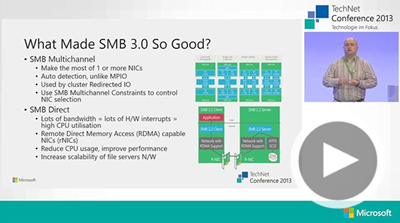
I was recently a part of a group of 20+ MVPs that presented at the excellently run TechNet Conference 2013 in Berlin, spanning Windows Server 2012 R2, System Center 2012 R2, Cloud OS, hybrid cloud, Office 365, and more.  It was a pleasure to participate in the event.

All of the sessions were recorded and professionally produced (better than TechEd IMO!!!) and have just been shared.  Most of the sessions are in German, but you’ll find some by myself (from day 1) and Damian Flynn (day 2) that are in English.

Cool New Hyper-V Features in Windows Server 2012 R2

image

Windows Server 2012 R2 – What’s New in Networking

image

Every time I watch myself back, all I can think is “My God, I am a nerd!” 🙂

How WS2012 R2 Hyper-V Backup Works

You might have heard that WS2012 R2 Hyper-V changed how it performs backups of virtual machines but not heard how.  I’ll give you a glimpse of what that change was in this post.

First some terminology:

  • Volume Shadow Copy Service (VSS) Snapshot: VSS performs a snapshot of a volume to get a consistent backup of a file or files/folders.
  • Checkpoint: Formerly known as a (Hyper-V) snapshot, a checkpoint (matching the SCVMM term) creates a crash consistent copy of a VM at a point in time, using AVHD or AVHDX files that are linked to a parent VHD or VHDX file – or linked to a parent AVHD or AVHDX files in the case of nested checkpoints.

In the past, VSS is used to create a VSS snapshot of the volume(s) containing the files of a VM that is to be backed up.  The snapshot was mounted and the required files (identified by the Hyper-V Writer) were backed up.  The process was pretty complex and could lead to problems for some customers.  The quality of storage hardware VSS writers had too much impact on the process.  Once you have a pretty clean environment (network/storage design, patching, drivers and firmware), backup was the one problem that could hurt.  CSV 2.0 sorted out most of that, but Microsoft wanted to simplify the backup process.

Thanks to live merging of checkpoints (snapshots) that was added in WS2012, and the experience Microsoft has gained by using checkpoints (snapshots) for other features (such as Hyper-V Replica), WS2012 R2 Hyper-V has switched to using checkpoints instead of VSS snapshots.

Now a checkpoint is created of every virtual machine that is to be backed up.  Writes are temporarily redirected to the checkpoint’s AVHDX/AHVD file(s).  This gives the backup requestor a clean & crash consistent copy of the virtual machine’s VHD or VHDX files that are safe to read.    After the backup, the checkpoint is merged and the job is done.

Note: You might notice that a VSS snapshot is still taken of the relevant volume(s).

We’ve moved from application consistent backup to the next (small) step down with a crash consistent backup.  This isn’t a big deal – not for backup experts anyway.  For products like SQL Server or Exchange, restoring this VM is like someone reset the VM.  The restored database starts up, does a quick cleanup, and carries on operating as it did before the backup operation.  In return, we get a much simpler backup process that should prove to be more resilient and selective.

My TechCamp 2013 Presentation – Windows Server 2012 R2

Below you will find the slides from my presentation on “what’s new in WS2012 R2” that I did at the TechCamp 2013 community launch last week.  I focused on the OS rather than the big picture; Dave Northey (Microsoft) did the “cloud OS, etc” keynote before my session, and Damian Flynn (System Center MVP) did the “hybrid cloud & System Center” presentation later in the day.

Topics I covered:

  • Highlights of the Server perspective of the Microsoft BYOD solution
  • Networking
  • Storage
  • Virtualization
  • Cloud

Whitepaper: NVGRE, Hyper-V Network Virtualization and Software-Defined Networking

MVPs Kristian Nese and Flemming Riis have published a whitepaper on how to deploy Hyper-V Network Virtualization, Microsoft’s software-defined network (SDN), using Windows Server & System Center 2012 R2.

You won’t find an end-to-end guide anywhere else, and this is a guide written by and reviewed by MVPs.  What more could you ask for!?!

Please Welcome 5nine!

I’m pleased to announce that 5nine have become a sponsor of my blog.  5nine is a key player in the Hyper-V partner ecosystem, making of security, networking, and management tools & extensions.

Manager Banner 235x235 (Free)

You’ll find an alternative to SCVMM for small/medium businesses, extensibility to SCVMM and the Hyper-V virtual switch for the medium to large enterprise, and a number of very useful free tools.

Please take the time to evaluate 5nine’s tools and see what they could add to your network.

TechCamp 2013 Wrap Up

Yesterday we ran TechCamp 2013, the Irish community launch of Windows 8.1, Windows Server 2012 R2, System Center 2012 R2, and Windows Intune.  All the feedback I have heard has been positive – thankfully!  🙂

We kicked off with Dave Northey (Microsoft CAT Program Manager).  Dave was the IT Pro DPE in Ireland for quite some time and has spoken at every launch event since Windows NT.  It would have been wrong not to have Dave in to do the keynote.

 WP_20131128_09_55_43_Pro

After that we broke into two tracks.  I did the WS2012 R2 session and next door, Damian Flynn (MVP) did the Windows 8.1 in the enterprise session.  I wanted to attend Damian’s session – I hear it was excellent, covering the BYOD and mobile worker scenarios.

WP_20131128_13_57_10_Pro

In the desktop track, some speakers from Microsoft introduced the new generation of devices that the various OEMs are bringing to market for Windows 8.1 and Windows RT 8.1, and what Windows Intune now offers for distributed end users, mobile workers, and BYOD device/app management.

Back in the server & cloud track, Paul Keely (MVP) did a session on service automation.

 WP_20131128_12_11_47_Pro

Damian was back on stage in the server & cloud track talking about using SCVMM 2012 R2 and Windows Azure Pack to build a hybrid cloud on Azure and Windows Server 2012 R2.  Kevin Greene (MVP) wrapped up the track explaining how System Center can be used to manage service availability and quality.

WP_20131128_15_29_55_Pro

Niall Brady (MVP), an Irish man living and working in Sweden, wrapped up the desktop & devices track by talking about System Center Configuration Manager 2012 R2.

WP_20131128_15_27_17_Pro

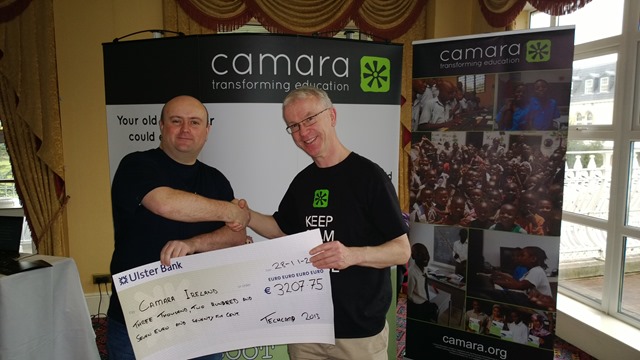
We asked for a small registration fee to encourage legitimate registrations and to get a higher turn-up rate.  That fee went to a good cause, an NGO called Camara.  We had Mark Fox in from Camara.  This gave Mark a chance to tell the audience (after the keynote) about the good work that Camara does.  They take unwanted PCs from businesses, securely wipe the PCs, track them, and reuse those machines to provide a digital education to needy kids.  Education is the best weapon against poverty and war, and Camara is on the frontline. Mark also staffed a stand in the exhibition room, and hopefully businesses found a way to get rid of machines in their drive to rid themselves of Windows XP, and make a difference in the world while doing it.

 WP_20131128_09_42_44_Pro

We have a whole bunch of sponsors to thank:

  • MicroWarehouse: My employers were the primary sponsor.  This event would not have happened without the huge effort by John Moran.  I would have been happy with a projector in a shed (with VPN access to my lab) but John made this a professional event.
  • Microsoft: Thanks for the support from Ciaran Keohane, the help from Michael Meagher.
  • Ergo: One of the leading Microsoft partners in Ireland, regularly winning Server partner of the year.
  • DataOn Storage: One of the manufacturers of certified Storage Spaces hardware
  • Savision: Creating dashboards for System Center that aid IT operations.
  • Toshiba: who had some devices on hand (including their new 8” Windows 8.1 tablet), most of which aren’t even on sale yet!

A big thank you goes out to each speaker who prepared 75 minute sessions (two of them in the case of Damian).  In case you don’t know, that’s probably a couple of days work in preparing slides, demos, and rehearsing, sometimes into the wee hours of the morning.

And finally, thanks to everyone who helped us communicate the event, and of course, came to the event to hear about these new solutions.  I hope the day proved valuable.

We had a number of people ask if we’ll run more events like this next year.  I believe that this is something that we will strongly consider.  There won’t be any launch stuff for us to cover for a while, so maybe we’d look at doing more “here’s how” content.  We’ll have to review and consider our options before we make any decisions.

Launch Event – Learn From The Best; Not From The Rest

There are only hours now between now and the start of TechCamp 2013 in City West in Dublin, where Irish MVPs (and a couple of Microsoft folks) will be presenting on:

  • Windows Server 2012 R2
  • Service automation using System Center 2012 R2
  • Hybrid cloud using Hyper-V Network Virtualization, NVGRE, SCVMM 2012 R2 and Windows Azure Pack
  • Service level management using System Center 2012 R2
  • Windows 8.1 in the business
  • New Windows devices
  • BYOD, consumerisation of IT, and mobile device management
  • Enterprise desktop management using System Center 2012 R2

You could wait for a sales person come to town and tell you stuff that they’ve read about.

Or, you could make a little effort to come to TechCamp 2013 where some of the worlds leading experts independent experts (all with international followings and tech book credits to their names) on these technologies (who are Irish BTW) will be there to present an honest appraisal of this technology that they have worked with every day since the 2012 R2/8.1 previews were launched.

WS2012 R2 Hyper-V Manager Can Be Used With WS2012 Hyper-V

Most everything we get told at MVP Summit is under NDA, but this is an exception.  In fact, Ben Armstrong asked a few of us to blog about this last night at the Summit party.

The new generation of Hyper-V Manager (Windows Server 2012 R2 and Windows 8.1) can be used to manage Hyper-V of the most recent generation (Windows Server 2012 and Windows 8). 

This is a first for Hyper-V.  We’ve always needed to use a matching version of Hyper-V Manager on our PC.  For example, you needed RSAT for Windows 7 to manage W2008 R2 Hyper-V from your PC.  Windows Server 2012 R2 and Windows 8.1 introduced an anomaly; Windows 8.1 is a free upgrade from Windows 8 so it was expected that many administrators would upgrade their PCs.  However, Windows server is not a free upgrade and businesses are often slower to upgrade servers OSs, even on hosts.  This could lead to a situation where an IT department upgrades their PCs but could no longer use their shiny new 8.1 Hyper-V Manager to manage their recently new WS2012 hosts.

The new Hyper-V Manager won’t do anything noticeably different (with one tiny exception for the eagle-eyed) when you use it normally.  The GUI calls either the 2012 or the 2012 R2 binaries depending on the generation of the host you are configuring.  That teeny exception?  Hyper-V snapshots will appear as “snapshots” in the UI for 2012 hosts, and they’ll appear as “checkpoints” (the new term to cause less confusion) for 2012 R2 hosts.

There is one thing to be careful of and this will affect very few people.  A few people launch the connect tool by running the executable directly.  I’ve only ever done this by accident when searching for “Hyper-V” on Windows 8/8.1.  I normally launch connect from Hyper-V Manager or Failover Cluster Manager.  If you do run this tool directly, then you need to run VMCONNECT.EXE for the older host versions and run VMCONNECT.6.2.EXE for VMs running on Windows 8.1 or Windows Server 2012 R2 hosts.

Note that everything I have said here for Hyper-V Manager also applies to Failover Cluster Manager.  The clustering team used the same approach as the Hyper-V team.

And no, you cannot manage legacy versions such as W2008 R2.  This is because of significant changes to the underlying WMI; WS2012 introduced WMIv2.

And before you ask: you need VMM 2012 R2 to manage WS2012 R2 Hyper-V from System Center.

Learn About Generation 2 VMs – And How To Convert From Generation 1

Microsoft Hyper-V Program Manager, John Howard, has published a series of in-depth level 400 articles on the Generation 2 virtual machine hardware type that was added in WS2012 R2.  If you’ve read John’s geat series on SR-IOV then you know what to expect.

One of John’s very useful contributions in the past has been HVRemote, providing an easy way to configure remote administration of workgroup Hyper-V hosts.  He didn’t stop there.

After describing the lengthy process of how one could (and it is unsupported) convert a Generation 1 virtual machine into a Generation 2 virtual machine, John wrote and shared a PowerShell utility called Convert-VMGeneration to do the conversion process for you.  It is a free tool.  It is also unsupported.  But considering who wrote it, it should do the job very nicely.