It’s easy to blame Azure when something goes wrong. But sometimes, Azure isn’t at fault. Sometimes, the problem is old-school. The trick in solving the problem is knowing how to diagnose and fix it.
Background
I helped an Irish Microsoft partner with some Azure VM-based work about a month ago. The partner needed some Azure experience and extra capacity. It was a small job – I’m happy doing everything from an hour for a small-medium business partner to a full-blown Cloud Adoption Framework for a large enterprise (both are on the Cloud Mechanix books).
The partner pinged me last Friday to say that he couldn’t log into the new VM anymore. I had some free time on Friday afternoon, so I had a quick look.
Diagnostics Progress in Azure
I verified the problem:
- The partner could not RDP directly.
- The partner could not RDP via Bastion.
An Azure deployment for a smaller business is a different beast. You do not get the privilege of firewalls, Flow Logs, etc. Those resources provide logs that allow me to trace packets from A to B inside the Azure network. I had to visualise and test. You also find the use of Public IP addresses with NSG inbound rules controlling RDP. I have suggested the switch to Bastion, which the partner is considering.
My first port of call was to double-check NSGs. The NIC has an NSG. I made sure that the subnet did not have an NSG as well – I’ve seen people create a rule in a NIC NSG and not in a subnet NSG. The subnet NSG is processed first for inbound traffic, so it could deny traffic that the NSG NIC allows. This was not the case here – no subnet NSG.
The inbound rules on the NIC NSG allowed RDP from the partner and the customer. I started with a Connection Troubleshoot using the IP address for the developer SKU of Bastion (168.63.129.16). That appeared OK.
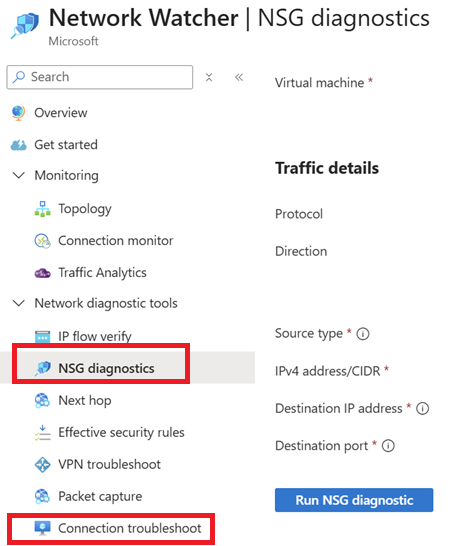
I then double-checked with NSG Diagnostics – Bastion is a supported source. That failed – looking back on it, this should have triggered a different resolution path.
I got the partner to run a password reset in the guest OS using Help > Reset Password. Note that this process also does some RDP reset work inside the guest OS. The process succeeded but did not fix the issue.
I’ve seen RDP issues with VMs where the problem is within the platform. Azure provides us with a poorly-named feature called Redeploy. The name implies that in a deployment/developer-centric environment, a new VM will be deployed. In fact, the action re-hosts the VM, doing something similar to a quick migration from the Hyper-V world:
- Shutdown the VM
- Move the VM to another host
- Reinitiate Azure management of the VM – this is the key piece
- Restart the VM
Downtime is required. I’ve used this feature a handful of times over the years to solve similar issues: Everything seems fine networking-wise with the VM but you cannot log in. Running the action resets Azure’s RDP connection to the VM. The partner ran this action over the weekend but the issue was not fixed.
Diagnostics Process in The VM
Monday came along and the partner updated me with the bad news. Now I suspected something was wrong inside the guest OS. How was I going to fix the guest OS if I couldn’t log in.
There are two secure back doors into a guest OS in Azure. If you need an interactive prompt then you have serial console access.
I wanted to run a couple of PowerShell commands, one at a time. So I opted for Run Command, which allows you to run scripts or single commands in the guest OS via a VM extension (an secure channel, based on your Azure rights).
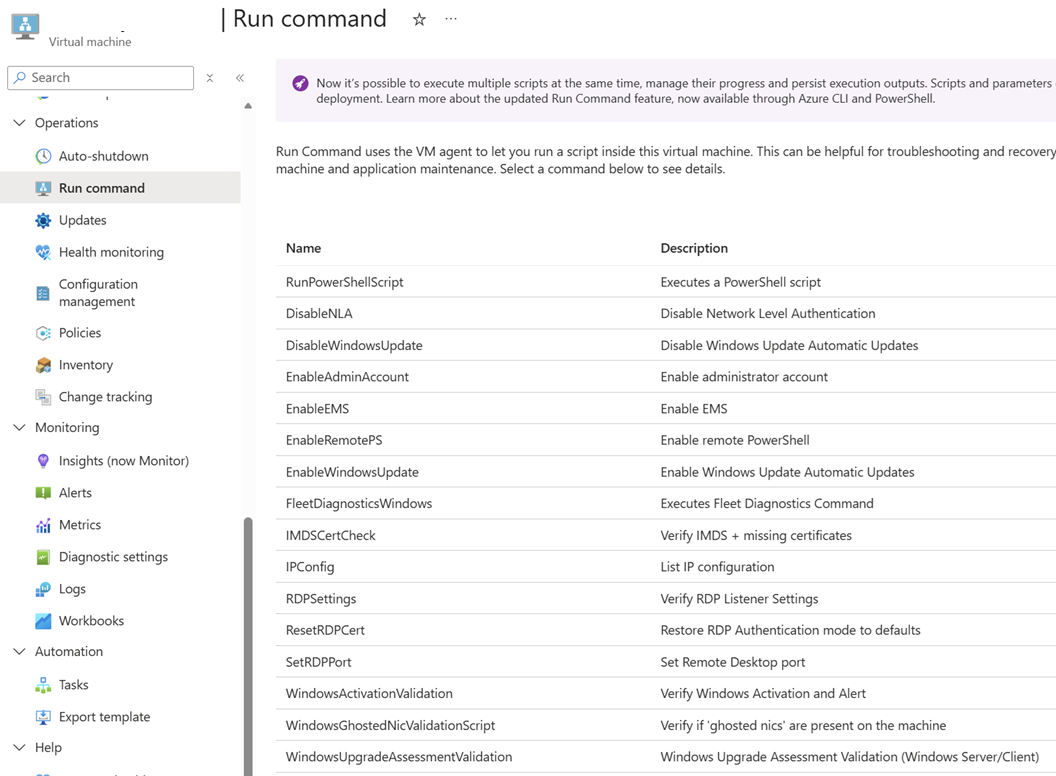
The first command I ran was ResetRDPCert. The partner mentioned something about RDP certs and I was worried that some PKI damage was done. That command didn’t fix the issue.
RDP was working. No NSG rules were blocking the traffic. Networking was fine. BUt I could not RDP into the VM. The connections were IP-based and I was using a local administrator account so DNS (“it’s always …”) was not the culprit (this time!). There as no custom routing or firewall (small business scenario) so they were not the cause. I knew it was the guest OS, so that left …
Next I used Run Command to disable the Windows Firewall with a single PowerShell command. I ran the command, waited for the success result, and tried to log in … and it worked!
I informed the partner who was delighted.
Later That Day …
The partner messaged me to let me know that he could not log in. I knew Windows Firewall was at fault, so I reckoned that the firewall was back online. There is a Windows domain, so a GPO might have re-enabled the firewall; that’s a good thing, not a bad thing. The long-term fix was to accept that a guest OS firewall should be on and add rules to allow the UDP & TCP 3389 traffic.
I added 2 custom rules with pretty obvious names in Windows Firewall. I wanted to be sure that the firewall would not break things after a GPO refresh so I ran gpupdate /force a few times (veteran domain admins know that run 1 is based on cache, 2 runs the latest version from a DC, and 3 deals with edge cases where 2 downloads but doesn’t deploy). I checked the firewall … and it was still not running!?!?! Group Policy was not managing the firewall.
What the heck was updating the firewall? What has changed in the last few weeks?
Windows admins are used to another thing (other than DNS) breaking our networks: security software. I quickly checked the system tray and saw a product name that screamed security. I messaged the partner on Teams and got a quick response “yes, it’s a security product and it recently got an update”. A quick check online and I found that this product does activate Windows Firewall. Ah – finally we found the root cause, not just the effect.
Lesson
Azure gives us tools. Copilot can be super cool at debugging confusing errors. But what do you do when 1 + 1 = 4096? There is nothing like a techie that learned how the fundamentals work, including the old fundamentals, has been burned in the past, and has learned how to troubelshoot, even when the assumed basics (monitoring and guest OS access) are not there.
One thought on “It’s Not Always Azure”