KB2673129 – Slow Shutdown Time For A Cluster Node In A Windows 2008R2-based cluster

And the final patch (there’s more so you should check out the Failover Clustering patching wiki) for clustering.  I’m only listing the Hyper-V related ones. 

“Consider the following scenario:

  • You set a preferred node in a Windows Server 2008 R2-based failover cluster.
  • You set the failback policy of this node to Allow Failback, select the Failback between option, and then set a failback time interval.
  • You move a cluster resource group from the preferred node to another node.
  • You try to shut down the preferred node.

In this scenario, the shutdown operation stops responding at the Shutting down Cluster Service phase. It takes about 30 minutes for the node to shut down.

This issue occurs because the Cluster service tries to fail back the resource group every 15 minutes when the following conditions are true:

  • A failback time interval is set.
  • The time that is used to shut down the node is longer than the failback time interval.

When the failback process fails, the thread that performs the operation sleeps for 15 minutes. If you try to shut down the Cluster service on this node, the operation waits until the cluster shutdown times out”.

A supported hotfix is available from Microsoft.

KB2639032 – “0x0000003B” Stop Error When Connection To CSV Is Lost On W2008R2-based Failover Cluster

It’s a busy patch download and test day for you Hyper-V admins!  Another (there’s more to come) patch for CSV.  This Hotfix refers to a "0x0000003B" stop error when a connection to a CSV is lost on a Windows Server 2008 R2-based failover cluster.

“Consider the following scenario:

  • You enable the cluster shared volume (CSV) feature on a Windows Server 2008 R2-based failover cluster.
  • You add some disks to the list of cluster shared volumes.
  • The connection to a disk is lost unexpectedly.

In this scenario, you receive a Stop error message that resembles the following:

STOP: 0x0000003B (parameter1, parameter2, parameter3, parameter4)

Notes

  • This Stop error describes a SYSTEM_SERVICE_EXCEPTION issue.
  • The parameters in this Stop error message vary, depending on the configuration of the computer.
  • Not all "0x0000003B" Stop errors are caused by this issue.

This issue occurs because of a race condition in Partition Manager (Partmgr.sys). Partition Manager does not use a removal lock for the read/write I/O request packet (IRP). This behavior causes Partition Manager to access a nonexistent device object. Therefore, you receive the Stop error message that is mentioned in the "Symptoms" section”.

A supported hotfix is available from Microsoft.

KB2674551 – Redirected Mode Enabled Unexpectedly In CSV When Running 3rd-Party Application In W2008R2-Based Cluster

Another Hyper-V related (clustering this time) hotfix was just released by Microsoft.  The situation is when redirected mode is enabled unexpectedly in a Cluster Shared Volume when you are running a third-party application in a Windows Server 2008 R2-based cluster.

“Consider the following scenario:

  • You are running a third-party application in a Windows Server 2008 R2-based cluster that has the Cluster Shared Volumes (CSV) feature enabled.
  • The third-party application has a mini-filter driver that uses an altitude value to determine the load order of the mini-filter driver.
  • The altitude value contains a decimal point.
  • You set a Cluster Shared Volume to online mode.

In this scenario, the Cluster Shared Volume is set to redirected mode.  This issue occurs because the cluster service assumes that the altitude value is an integer when the cluster service parses the altitude value”.

A supported hotfix is available from Microsoft.

KB2666703 – Cannot Restore A VM That Has A Semicolon In Name Or Directory Path On A Windows Server 2008 R2 SP1

Microsoft has just released a hotfix for people running W2008 R2 Hyper-V where they cannot restore a VM that has a ; in it’s name or folder path.

“If the name or the directory path of a virtual machine contains a semicolon (;) on a server that is running Windows Server 2008 R2 Service Pack 1 (SP1), you cannot restore the virtual machine.

This issue occurs because the Hyper-V Volume Shadow Copy Service (VSS) writer incorrectly parses the configuration information in the backup metadata document of the virtual machine if the configuration information contains a semicolon”.

A supported hotfix is available from Microsoft.

Deploy The MS12-020 Security Fix Or Face The Consequences

Security experts are urging people to deploy MS12-020, a security hotfix that was released this week. 

This security update resolves two privately reported vulnerabilities in the Remote Desktop Protocol. The more severe of these vulnerabilities could allow remote code execution if an attacker sends a sequence of specially crafted RDP packets to an affected system.

This is the sort of vulnerability that will be seized upon very quickly by hackers because RDP is typically enabled on high value assets – servers.  Deploy or be shamed like those who are still being hammered by Conficker.  In my opinion, it is professional negligence not to get patched for something like this.  BTW, I’ve read that people expect scripted attacks for this vulnerability within 30 days.  You have been warned!

Technorati Tags: ,

Change Windows Server 8 Hyper-V VM Virtual Switch Connection Using PowerShell

I’m building a demo lab on my “beast” laptop and want to make it as mobile as possible, independent of IP addresses, while retaining Internet access.  I do that by placing the VMs on an internal virtual switch and running a proxy on the parent partition or in a VM (dual homed on external virtual switch).  I accidentally built my VMs on an external virtual switch and wanted to switch them to an internal virtual switch called Internal 1.  I could spend a couple of minutes going through every VM and making the change.  Or I could just run this in an elevated PowerShell window, as I just did on my Windows 8 (client OS) machine:

Connect-VMNetworkAdapter –VMName * –SwitchName Internal1

Every VM on my PC was connected to the Internal1 virtual switch.

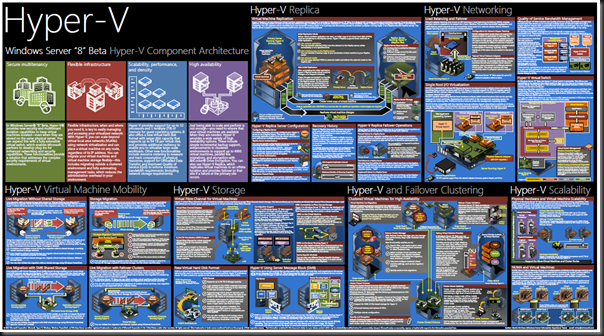
Windows Server 8 Hyper-V Poster

Fancy a nice new wallpaper for your big monitor?  Or do you want to print this sucker out, and hang it up to help you learn the new version of Hyper-V?  Microsoft has released an updated poster that digs into the new features of Windows Server 8 Hyper-V.

image

Windows Server 2012 Hyper-V Concurrent Live Migration & NIC Teaming Speed Comparisons

I have the lab at work set up.  The clustered hosts are actually quite modest, with just 16 GB RAM at the moment.  That’s because my standalone System Center host has more grunt.  This WS2012 Beta Hyper-V cluster is purely for testing/demo/training.

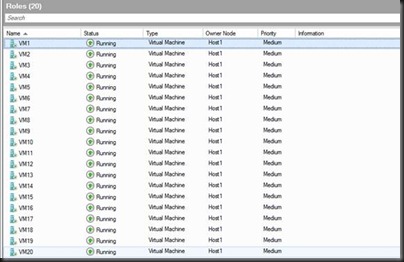
I was curious to see how fast Live Migration would be.  In other words, how long would it take me to vacate a host of it’s VM workload so I could perform maintenance on it.  I used my PowerShell script to create a bunch of VMs with 512 MB RAM each.
clip_image002

Once I had that done, I would reconfigure the cluster with various different speeds and configuration fro the Live Migration network:

  • 1 * 1 GbE
  • 1 * 10 GbE
  • 2 * 10 GbE NIC team
  • 4 * 10 GbE NIC team

For each of these configurations, I would time and capture network utilisation data for migrating:

  • 1 VM
  • 10 VMs
  • 20 VMs

I had configured the 2 hosts to allow 20 simultaneous live migrations across the Live Migration network.  This would allow me to see what sort of impact congestion would have on scale out.

Remember, there is effectively zero downtime in Live Migration.  The time I’m concerned with includes the memory synchronisation over the network and the switch over of the VMs from one host to another.

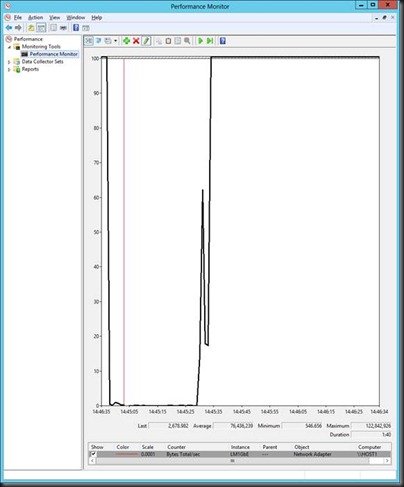
1GbE

clip_image004

  • 1 VM LM
  • 7 seconds to LM
  • Maximum transfer: 119,509,089 bytes/sec


    • clip_image006
  • clip_image008


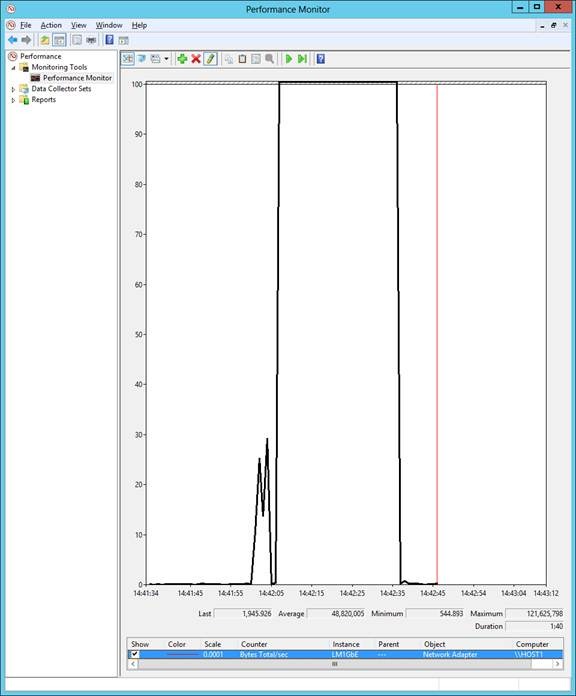
  • 10 VMs
  • 40 seconds
  • Maximum transfer: 121,625,798 bytes/sec

clip_image010

clip_image012

  • 20 VMs
  • 80 Seconds
  • Maximum transfer: 122,842,926 bytes/sec

Note: Notice how the utilisation isn’t increasing through the 3 tests?  The bandwidth is fully utilised from test 1 onwards.  1 GbE isn’t scalable.

1 * 10 GbE

clip_image014

  • 1 VM
  • 5 seconds
  • Maximum transfer: 338,530,495 bytes/sec

clip_image016

  • 10 VMs
  • 13 seconds
  • Maximum transfer: 1,761,871,871 bytes/sec

clip_image018

  • 20 VMs
  • 21 seconds
  • Maximum transfer: 1,302,843,196 bytes/sec

Note: See how we can push through much more data at once?  The host was emptied in 1/4 of the time.

2 * 10 GbE

clip_image020

  • 1 VM
  • 5 seconds
  • Maximum transfer: 338,338,532 bytes/sec

clip_image022

  • 10 VMs
  • 14 Seconds
  • Maximum transfer: 961,527,428 bytes/sec

clip_image024

  • 20 VMs
  • 21 seconds
  • Maximum transfer: 1,032,138,805 bytes/sec

4 * 10 GbE


clip_image026

  • 1 VM
  • 5 seconds
  • Maximum transfer: 284,852,698 bytes/sec

clip_image028

  • 10 VMs
  • 12 seconds
  • Maximum transfer: 1,090,935,398 bytes/sec
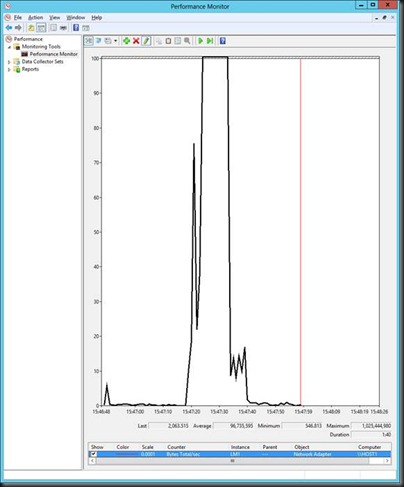
clip_image030

  • 20 VMs
  • 21 seconds
  • Maximum transfer: 1,025,444,980 bytes/sec

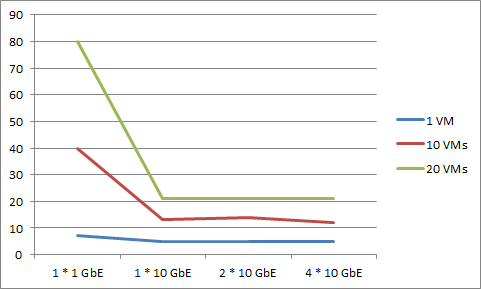
Comparison of Time Taken for Live Migration

image


What this says to me is that I hit my sweet spot when I deployed 10 GbE for the Live Migration network.  Adding more bandwidth did nothing because my virtual workload was “too small”.  If I had more memory I could get more interesting figures.

While 1 * 10 GbE NIC would be the sweet spot, I would use Windows Server 2012 NIC teaming for fault tolerance, and I’d get 20 GbE aggregate bandwidth with 10 GbE fault tolerant bandwidth.

Comparison of Bandwidth Utilisation

image

I have no frickin’ idea how to interpret this data.  Maybe I need more tests.  I only did 1 run of each test.  Really I should have done 10 of each test and averaged/standard deviation or something.  But somehow, across all three the 10 GbE combination tests, data throughput dropped once we had 20 GbE.  Very curious!

Summary

The days of 1 GbE are numbered.  Hosts are getting more dense, and you should be implementing these hosts with 10 GbE networking for their Live Migration networks.  This data shows how in my simple environment with 16 GB RAM hosts, I can do host maintenance in no time.  With VMM Dynamic Optimization, I can move workloads in seconds.  Imagine accidentally deploying 192 GB RAM hosts with 1 GbE Live Migration networks.
Use PowerShell To Reconfigure Dynamic Memory in All Hyper-V VMs

I wanted to get more VMs onto my Windows Server 8 Hyper-V lab, so I wanted to change my Dynamic Memory settings in my virtual machines.  I don’t have the patience to edit every VM.  PowerShell to the rescue:

Get-VM * | Set-VMMemory -DynamicMemoryEnabled $True -MaximumBytes 8GB -MinimumBytes 256MB -StartupBytes 512MB

This script gets every VM on this host, passes through the VM via the pipe into the Set-VMMeory cmdlet, and then reconfigures the Dynamic Memory settings that I care about.  Time required by editing & running this in ISE: 1 minute.

PowerShell Script to Create Lots of Windows Server 2012 Hyper-V Virtual Machines at Once

If you like this solution then you might like a newer script that creates lots of VMs based on specs that are stored in a CSV file.

Here you will find a PowerShell script I just wrote to deploy a lot of Windows Server 8 Hyper-V VMs with the minimum of effort.  I created it because I wanted more load to stress my 20 GbE Live Migration network and creating the VMs by hand was too slow.  Yes, it took me time to figure out and write the script in ISE, but I have it for the future and can lash out a lab in no time now.

Note that this script is using the new cmdlets for Hyper-V (and one cmdlet for clustering) that are in Windows Server 8, and not the VMM cmdlets.

What the script will do:

  1. Create a new folder for each VM on an SMB 2.2 file server shared folder
  2. Create a differencing disk pointing to a parent VHD.  This is for lab purposes only.  You’d do something different like create a new VHDX or copy an existing sysprepped VHDX in production.
  3. Create a new VM (e.g. VM1) using the VHDX
  4. Configure Dynamic Memory
  5. Start the VM
  6. Add the VM to a cluster
  7. It’ll do this 20 times (configurable in the foreach loop).

Requirements:

  • Windows Server 8 SMB file share that is correctly configured
  • A Windows Server 8 Hyper-V cluster
  • A parent VHDX that has been sysprepped.  That will automate the configuration of the VM when it powers up for the first time.

Here’s the script.  My old programmer instinct (which refuses to go away) tells me that it could be a lot cleaner, but this rough and ready script works.  There is also zero error checking which the old programmer instinct hates but this is just for deploying a lab workload.

$parentpath = “\fileserverVirtual Machine 1WinSvr8Beta.vhdx”

$path = “\fileserverVirtual Machine 1”

foreach ($i in 1..20)

{

#Create the necessary folders

$vmpath = “$pathVM$i”

New-Item -Path $vmpath -ItemType “Directory”

New-Item -Path “$vmpathVirtual Hard Disks” -ItemType “Directory”

#create a VHDX – differencing format

$vhdpath = “$vmpathVitual Hard DisksDisk0.vhdx”

New-VHD -ParentPath $parentpath -Differencing -Path $vhdpath

#Create the VM

New-VM -VHDPath “$vhdpath” -Name “VM$i” -Path “$vmpathVirtual Machine” -SwitchName “External1”

#Configure Dynamic Memory

Set-VMMemory -VMName “VM$i” -DynamicMemoryEnabled $True -MaximumBytes 8GB -MinimumBytes 512MB -StartupBytes 1GB

#Start the VM

Start-VM “VM$i”

#Add the VM to the cluster

Add-ClusterVirtualMachineRole -Cluster “hvc1” -VMName “VM$i”

}