Using VMM To Convert VHD Types

One of the most common queries I used to get on my old blog was “how do I convert Hyper-V disks?”.  Converting a VHD is easy enough.  In the Hyper-V console you shut down the VM, edit the disk, select a location for the new VHD.  Once that’s done you can rename the old disk and grant it’s old name to the new disk.  Start up the VM and it’s using the new disk.  Remember to remove the old disk to save disk space.

Before you even think about this you need to be sure you have enough space for the new disk of the desired type to be created.  How much space will it need?  Check how much data is on that disk (in the VM’s OS) and allow for another GB or two to be safe.  This applies to both the Hyper-V console and VMM.

VMM is a bit more elegant.  You shut down your VM, hopefully from the OS itself or via the IC’s, rather than just turn it off.  Then you edit the properties of the VM and navigate to the disk in question.

clip_image001

Here I have opened up the VM that I wanted to work on and I’ve navigated to the disk in question.  It’s a fixed VHD and I want to replace it with a dynamic VHD without losing my data.  You can see in the right-hand side that there is a tick box to convert the disk.  I ticked this and clicked on OK.

Notice that there is also a tick box for expand the VHD?  That’s how we can grant more space to a VM.  Remember to follow that up by running DISKPART in the VM to expand the volume.  That’s nothing to do with the convert task but I thought I’d mention it.
clip_image003

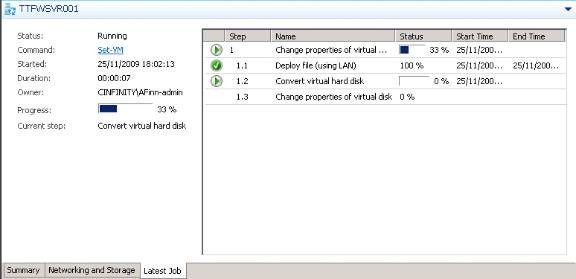
Once I clicked on OK the job runs.  How long this will take depends on the amount of data we’re dealing with.

VMM is pretty clever here.  It will convert the disk and then swap out the old disk with the new disk.  The old disk is removed.  This is a much less manual task than using the Hyper-V console.

clip_image004

Once the job is done you should check out your VM.  You can see above that the disk is now a dynamic disk.  And notice how much space I’ve saved?  I’ve gone from 20GB down to 12.5GB.  I’ve just saved my employer 40% of the cost to store that VM with a couple of mouse clicks while waiting for my dinner.  That goes to back up my recent blog post about simpler and more cost effective storage.  And like I said then, I’ve lost nothing in performance because I am running Windows Server 2008 R2.

KB975354: W2008 R2 Hyper-V Rollup for CSV and VSS

Cluster Shared Volume (CSV) is the shared storage system that can be used by multiple cluster members at once for storing and running virtual machines in a Hyper-V cluster.  CSV is specifically customised for Hyper-V and should not be used for anything else – you even have to agree to than to enable it.  That customisation means that things would change a bit.

VSS is the Volume Shadow Copy Service.  Using Hyper-V certified backup solutions like DPM you can backup the state of a virtual machine running in Hyper-V in a supported manner.  This is done at the host level.  That’s different to a file level backup that you would do with an agent installed in the VM.  That would be able to recover individual files.  The host level backup would be able to recover the entire VM back to the point of time that you did the backup.

There have been reports of issues.  For example, DPM 2007 R2 is not live migration aware.  You’ll have to wait until around April for DPM 2010 for a solution to that.  That only affects the snapshot backups.

A rollup package has been released by Microsoft for Windows Server 2008 R2 Hyper-V to resolve some issues with CSV and VSS.  Thanks to Hans Vredevoort (clustering MVP) for making me aware of this.  Article KB975354 fixes the following situations.

“This update rollup package resolves some issues that occur when you backup or restore Hyper-V virtual machines

Issue 1

Consider the following scenario:

  • Some Internet SCSI (iSCSI) connections are created in a virtual machine that is running Windows Server 2003.
  • You back up this virtual machine on the virtual machine host server.

In this scenario, the error code 0x800423f4 occurs when you back up the virtual machine. Additionally, the following event is logged into the Hyper-V Virtual Machine Management Service event log:

The number of reverted volumes does not match the number of volumes in the snapshot set for virtual machine "’virtual machine name’ (Virtual machine ID <GUID>)".

Issue 2

Consider the following scenario:

  • Cluster shared volumes are enabled on a failover cluster for Hyper-V.
  • Some virtual machines are saved on the same volume. But they are running on different nodes.
  • These virtual machines are backed up in parallel.

In this scenario, the virtual machine backup operation fails.

Issue 3

Consider the following scenario:

  • A virtual machine is being backed up on a server that is running Hyper-V.
  • At the same time, an application backup operation is being performed in the same virtual machine.

In this scenario, some data is truncated from the application backup in the virtual machine. Therefore, this behaviour causes data loss.

Issue 4

Consider the following scenario:

  • A virtual machine that has some snapshots is backed up on a server that is running Hyper-V.
  • Then, this virtual machine is restored to another location.

In this scenario, the restore operation fails and the virtual machine may be corrupted”.

If you’re running a Windows Server 2008 R2 Hyper-V cluster and are still getting used to it then there’s some good news.  Here’s how I’ll approach this:

  • Put the OpsMgr 2007 agent for host 1 into maintenance mode.
  • Put the host 1 in maintenance mode in VMM 2008 R2.  That kicks off live migration and moves VM’s from that host to another host.  You can do this manually in the failover cluster management console if you don’t have VMM 2008 R2.
  • Apply the update to host 1 and reboot.
  • Test host 1 with a test VM.
  • Repeat with all other hosts in the cluster.

That should work.  And it’ll probably be your first opportunity to use Live Migration and VMM 2008 R2 Maintenance Mode in anger.  Think about it, when do you normally get to do server patching during the work day?  Now you can!

Microsoft Appliance Test Drive

We know that VMware has a huge ecosystem of virtual appliances that run on their VMDK platform.  Microsoft has the VHD platform and thanks to the publication of integration components for Linux under GPLv2, we can expect something similar for Hyper-V.

Virtualboy posted about the launch of the Appliance Test Drive.  Microsoft has an existing library of trail products available.  Partners have joined in with trial and/or free products based on VHD:

Citrix EVA for XenApp
The Citrix EVA for XenApp enables customers and partners to evaluate both online and offline application virtualization with XenApp 5 for Windows Server 2008.

DataCore Virtual SAN Appliance
Free, Ready to Run, DataCore Virtual SAN Appliance. This Virtual SAN Appliance software places shared storage for virtual machines and physical servers at your fingertips.

Athena for System Center Configuration Manager 2007
Athena-enabled device management functions extend and complement the native capabilities of Configuration Manager 2007 for Windows Mobile and Windows CE Embedded devices.

EventTracker VHD
The VHD is a pre-configured, fully functional trial of EventTracker. This image comes with EventTracker including change monitoring and the EventTracker Event Portal, Event Log Central.

ThinPrint .print Server Engine 7.6
ThinPrint .print Server Engine 7.6 is installed on Windows 2003 R2 and allows for evaluation of V-Layer, universal printer driver, bandwidth control and compression.

Check it out if you’re looking to evaluate some technology.  If you’re an ISV then you should consider this as a way to provide pre-configured evaluations to customers.  Part of the complexity for potential customers getting a trial working is figuring out those configurations.  If you are an ISV then you can remove that pain from introducing your product to a new customer.

Hotfixes for VMM 2008 R2

Microsoft released a hotfix rollup package (KB976244) for System Center Virtual Machine Manager 2008 R2 (not VMM 2008).  It fixes three issues:

  1. If a virtual machine that was created from a template fails during the customization phase, the owner of the virtual machine cannot use the self-service portal to connect to the virtual machine.
  2. The Enable spoofing of MAC addresses option in the virtual machine properties is cleared when you configure the network adapter to connect to a different virtual network.
  3. The "Refresh host cluster" job can take more than 10 minutes to finish.
This update is available via Microsoft Update.  Make sure you approve this update if you’re using WSUS, ConfigMgr or something else to control your updates.


There is also another update (KB976246) available for VMM 2008 R2 (only).  It deals with this issue: “When you remove a virtual hard disk from a virtual machine in System Center Virtual Machine Manager 2008 R2, the .vhd file on the Hyper-V server is deleted without warning”.

Again, the update is available via Microsoft Update.  After you install the hotfix you will get this warning every time you attempt to delete a VHD in VMM 2008 R2:

“You have chosen to remove virtual hard disks from virtual machine VMName. This action will delete the .vhd files.

Do you want to continue?”

I’m approving the updates now on our WSUS server to deal with these issues.

Planning W2008 R2 Hyper-V on HP ProLiant Blade Servers

I’ve not been keeping up with my reading as of late.  I missed that this document from HP came out – I was distracted with actually deploying a Windows Server 2008 R2 Hyper-V cluster on HP ProLiant Blade Servers and HP EVA SAN storage instead of reading about it 🙂

This document appears to be essential reading for any engineer or consultant who is sizing, planning or deploying Windows Server 2008 R2 Hyper-V onto HP Blade servers and HP EVA, MSA or LeftHand storage.

It starts off with a sizing tool.  That’s probably the trickiest bit of the whole process.  Disk used to be easy because we normally would have used Fixed VHDs in production.  But now we can use Dynamic VHDs knowing that the performance is almost indistinguishable. The best process for disk sizing now is base it on data, not the traditional approach of how many disks do you need.  Allow some budget for purchasing more disk.  You can quickly expand a LUN, then the CSV and then the VHD/file system.  Next comes the memory.  Basically each GB of VM ram costs a few MB in overhead charges.  You need to also allow 2GB for the host or parent partition.  What that means is that a host with 32GB of RAM realistically has about 29GB available for VM’s. The HP tool is pretty cool because it will pull in information from Microsoft’s MAP.  The free Microsoft Assessment and Planning Toolkit for Hyper-V will scan your servers and identify potential virtualisation candidates.  This gives you a very structured approach to planning.

The document talks about the blade components and blade servers.  There’s 3 types of blade from HP.

  • Full height: These are expensive but powerful.  You can get 8 of them in an enclosure.  Their size means you can get more into them.
  • Half height: You can get 16 of these into an enclosure, the same kind used by the full heights.  16 is coincidentally the maximum number of nodes you can put in a Windows cluster.  These are the ones we use at work.  Using Mezzanine cards you can add enough HBA’s and NIC’s to build a best practice W2008 R2 Hyper-V cluster.
  • Quarter height or Shorties: These machines are smaller and thus can have less components.  Using some of the clever 10Gig Ethernet stuff you can oversubscribe their NIC’s to create virtual NIC’s for iSCSI and Virtual Switches.  I’d say these are OK for limited requirements deployments.  Their custom enclosure can be a nice all-in-one featuring storage and tape drives (note you can also do this with the other blades but you’ll never get the capacities to match the server numbers).

What is really cool is that HP then gives you reference architectures:

  • Small: A single C3000 enclosure with internalised storage.  MSA or JBOD (un-clustered hosts) storage is something I would also consider
  • Medium: A single C7000 enclosure with LeftHand storage.  I’d also consider MSA or EVA storage here.  LeftHand is incredibly flexible and scalable but it is expensive.
  • Large: I’m drooling while looking at this.  Multiple (you can get 4 in a 42U rack, with 64 half height blades) C7000 enclosures and 2 racks of EVA 8400 storage.  Oooh Mama!

There’s even a bill of materials for all this!  It’s a great starting point.  Every environment is going to be different so make sure you don’t just order from the menu.

It’s not too long of a document.  The only thing really missing is a setup guide.  But hey, that’s all the more reason to read my blog 😉

My Very First WordPress Blog Post

This is my very first blog post on my new WordPress site.  I’ve been thinking about doing this for quite some time.  I’ve set up a few very basic sites in the past (and this one continues the theme) and the site we have at work is based on WordPress (though not quite so basic).

What pushed me from Live Spaces to WordPress?  As you might notice, I am a big Microsoft fan.  I try to keep things simple and use their integrated products as much as I can.  However, I got more and more frustrated with Live Spaces as a blog service as time went by.  It hasn’t developed at all since I started using it back in 2006.  During the summer they changed the all-too-basic stat counter so it wouldn’t record RSS statistics.  All the while the amount of spam comment postings was mad.  Lately it’s gotten to be unbearable.  Microsoft’s support wouldn’t respond either via Live or via other avenues so I decided to make a change.  Finally, I wanted a search engine for my blog.  Live doesn’t have that and WordPress does.  I use my blog as my personal notebook and I got tired of using Google to search my Live blog.

So here I am!

All this was made possible by many people:

  • Gavin Duncan helped a good bit by answering my questions and trying to figure out things for me.
  • The folks on Twitter helped out.
  • I wanted to make sure I brought my content over from my old blog.  Given that there are thousands of blog posts I can’t really update all of the URL’s.  Getting the content over was a nightmare.  I used the Live Space Mover to get the content out of Spaces.  MS does their best  to lock you in on Live.  The Python script was installed into a VM along with the prerequisites.  It took a while to get the Live blog configured correctly (mainly the time and date formats) but eventually the export job ran.  Then I had problems importing the content.  The problem appeared to be that my 4.9MB upload was timing out.  So I opened up Wordpad and chopped up the file.  I made sure to keep the header section (not sure if it was required after the first import) in the start of each XML file.  Then I broke up the doc in 5 pieces before an <item> tag and after a </item> tag.

This will be an ongoing learning experience for me.  I’ve got to learn things like SEO, tagging (why the heck is it different to categories!), etc.  I’ve put in a bunch of SEO and associated plug-ins and I’m hoping they do the work for me!  We’ll see.

For now, the Live blog is dead.  I’m going to be bringing the whitepapers over as time goes by.  All live content will be on this blog.

Update: VMM Warning 13926 Host Cluster Was Not Fully Refreshed

Here’s an update on a previous blog post that I wrote last week.

The issue was that I had built a new one node Hyper-V cluster and VMM could not manage it.  The error was:

“Warning (13926)
Host cluster <cluster FQDN> was not fully refreshed because not all of the nodes could be contacted. Highly available storage and virtual network information reported for this cluster might be inaccurate.

Recommended Action
Ensure that all the nodes are online and do not have Not Responding status in Virtual Machine Manager. Then refresh the host cluster again”.

I logged a call with Microsoft through IT Pro Momentum and here was the response:

“After confirmed this design with our product team, they told me that this feedback has already been reported to them, it’s really a problem, and they are considering to improve it in the future release of VMM, They are aware of this issue and are actively looking into it further. I’m sorry for the inconvenience brought to you now.

In the current release of VMM, There are also some workarounds you can take to “solve” this issue. One possible workaround that has been identified is to temporarily add a second node to the cluster at which point you are then able to bring it under management by VMM.  While this is neither an ideal or long term solution, it has allowed other customers who have ran into this issue to move forward with their projects. Another workaround that I’ve found that will allow the ‘single node cluster’ scenario to complete is … once the Add Host process completes w/info and has the 13926 warning, change the cluster reserve value from 1 to 0, and then re-cycle the vmmservice.  This should allow the host cluster to be added successfully in the console”.

There you go.  It’s a bit late for me to test but the real world work around appears to be to change the cluster reserve value (cluster properties in VMM) from 1 to 0, and then recycle the VMM Service on the Hyper-V node.  I’d tried the value change without the service restart which didn’t work.  Hopefully this will help someone in the future.

Not Got That DR Plan Ready? Bit Late Now, Isn’t It?

The south west and west of Ireland got pummelled last week and it has been continuing.  We woke up on Friday to stories of how half of Cork was under water.  It wasn’t helped by the ESB who had to open the gates at some of their water reservoirs which sent even more water down to the already at risk Cork city.  We saw photos of submerged streets, cars and businesses.

This was a time when a plan was needed.  Most businesses will have insurance.  That covers the cost of lost stock, buildings and assets.  But what about lost customers and revenue?  No insurance will even come close to that.  Even the smallest of businesses rely on computers now.  They don’t do too well with high levels of water.  I wonder what all those small, medium and large businesses were doing for that situation?

At work, one of the services we provide is secure online backup for operational and DR backup/recovery purposes.  That covers desktops, laptops and servers.  I’m not involved in that side of the business on a day-to-day basis but one of the engineers told me that we’ve already helped out a number of businesses who were hit by the floods.  All they needed were alternative places to restore their data and away they went, keeping their business operational, even if at some limited capacity.  They could maintain relationships with their customers instead of just going completely off the air.

What about those businesses that did the usual, “safe”, “trusted” backup?  No backup is useful for DR if it isn’t stored in a secure and remote location.  Tapes or disk arrays in your computer room that is neck deep in water won’t really do too much for saving the business. 

Ah – but you’ve got a DR plan with live replication?  Superb.  Can I ask a quick question.  Where is it?  Is it on the same flood plain?  Is it in the same power supply region?  Two examples of organisations I’ve dealt with in the last 2 years come to mind.  One was a organisation in Dublin.  They wanted a DR solution where they could replicated all servers from their offices to a DR site or Site B.  We went in as a hosting company offering a solution.  (a) They were unwilling to share technical information, e.g. required specifications, so we couldn’t price anything and (b) they decided they wanted to use their second office as a DR site.  Where was the second office?  It was around the corner on the same flat area and probably in the same power supply region.

Then there was the organisation I met with in Limerick a few months ago.  Their campus is split across the Shannon, the largest river in Ireland.  On the good news front, one side is in the Limerick grid and the other is in the Clare grid.  The bad news?  The river Shannon is reportedly about to burst its banks with the forecasted rain coming into Ireland.  That isn’t going to do this organisation much good considering the campus is literally on the river bank and the region is as flat as a pancake. 

If you are doing DR then take the same approach as you should with tapes.  Place the location as remote as you can afford with a different geographic area/profile.  Make sure it’s on a different power grid and preferably with dedicated substation, diesel generators, etc.

You can do DR on the cheap.  There are service like what our company offers for online backup.  Alternatively, have a look at Microsoft’s Data Protection Manager solution: DPM2DPM4DR.  Here you place DPM in your production site and it backs up to disk.  You then either get dedicated/colo hosting, another thing our company does, and place an identical DPM installation there, maybe also with a tape library.  That hosted DPM installation can backup the data store from the production DPM site, maintaining knowledge of its internals.  Then it can optionally stream to tape for archive.  There’s a cheap DR!

Alternatively, you can spend a fortune on host based replication (DoubleTake, etc), implement cross-site SAN’s (HP LeftHand or Compellent – requiring at least 100MB dedicated links) or do SAN controller based replication (HP EVA, XPS, EMC Clarion – all requiring dark fibre). 

I’ve Disabled Comments On My Blog

Due to the amount of spam coming from China, I’ve had to disable comments on my blog.  Live Spaces does not require anything more than you are logged into Live to be allowed to comment on a blog.  This leaves it open to bots to post like crazy.  The result has been an ever increasing number of spam comments to sites in Asia, advertising and selling all sorts of crap.  I’ve been spending more and more time trying to clean up this rubbish but now I’ve had enough of it.  I’ve complained to Live, Microsoft, anyone, and nothing has been done.  The solution would be simple: place a “captcha” on the comment site to prevent bots from submitting a comment.  Instead, MS Live is forcing its users to either leave Live or disable the 2-way communication of a blog.

I am researching the possibility of leaving Live Spaces completely.  My main requirement is being able to take my content with me.  Until there’s a solution or I’ve migrated I won’t be able to re-enable 2-way communications on this blog.

W2008 R2 Pass Through VS Fixed VS Dynamic Disks

Trying to make a decision on which type of disk to use in your Windows Server 2008 R2 Hyper-V deployment?  Have a look at this independent performance study.  The author set up his own lab and did a comparison of the performance of the three types of disk you could use in a production Hyper-V deployment.  He concludes with saying that if you need the very most from the disk then go with a pass through disk.  However, you lose very, very little by going with dynamic VHD’s.