Windows Server 2012 R2 Has RTMd

Brad Anderson has announced that Windows Server 2012 R2 has been released to manufacturing.  He also stated:

Also of note: The next update to Windows Intune will be available at the time of GA, and we are also on track to deliver System Center 2012 R2.

The release of Windows Server 2012 R2 is set to happen on October 18th.

I’ve documented quite a few of the features related to Hyper-V in this new release.  There are some things I’ve not had time to add yet:

  • SMB 3.0/SOFS/Storage Spaces
  • Clustering
  • And a few other things where I’m unsure about the NDA

There is quite a bit of change in this release and plenty for you to digest.

ODX–Not All SANs Are Created Equally

I recently got to play with a very expensive fiber channel SAN for the first time in a while (I normally only see iSCSI or SAS in the real world).  This was a chance to play with WS2012 Hyper-V on this SAN, and this SAN supported Offloaded Data Transfer (ODX).

Put simply, ODX is a SAN feature that allows Windows to offload certain file operations to the SAN, such as:

  • Server to server file transfer/copy
  • Creating a VHD file

That latter was of interest to me, because this should accelerate the creation of a fixed VHD/X file, making (self-service) clouds more responsive.

The hosts were fully patched, both hotfixes and update rollups.  Yes, that includes the ODX hotfix that is bundled into the May clustering bundle.  We created a 60 GB fixed size VHDX file … and it took as long as it would without ODX.  I was afraid of this.  The manufacturer of this particular SAN has … a certain reputation for being stuck in the time dilation of an IT black hole since 2009.

If you’re planning on making use of ODX then you need to understand that this isn’t like making a jump from 1 Gbps to 10 Gbps where there’s a predictable 10x improvement.  Far from it; the performance of ODX on one vendors top end SAN can be very different to that of another manufacturer.  Two of my fellow Hyper-V MVPs have done a good bit of work looking into this stuff.

Hans Vredevoort (@hvredevoort) tested the HP 3PAR P10000 V400 with HP 3PAR OS v3.1.2.  With ODX enabled (it is by default on the SAN and WS2012) when creating a pretty regular 50 GB VHDX Hans saw the time go from an unenhanced 6.5 minutes to 2.5 minutes.  On the other hand, a 1 TB VHDX would take 33 minutes with ODX enabled.

Didier Van Hoye (@workinghardinit) decided to experiment with his Dell Compellent.  Didier created 10 * 50 GB VHDX files and 10 * 475 GB fixed VHDX files in 42 seconds.  That was 5.12 TB of files created nearly 2 minutes faster than the 3PAR could create a single 50 GB VHDX file.  Didier has understandably gone on a video recording craze showing off how this stuff works.  Here is his latest.  Clearly, the Compellent rocks where others waltz.

These comparisons reaffirm what you should probably know: don’t trust the whitepapers, brochures, or sales-speak from a manufacturer.  Evidently not all features are created equally.

Windows Server 2012 R2, System Center 2012 R2, Windows 8.1, and Windows Intune Release Dates

I was on vacation for a few days, but as was predicted by some in the media, the release date of WS2012R2, SysCtr2012R2, Win8.1, and Intune “Wave E” was announced during the week in two announcements, one for the desktop and one for the server & cloud products.

Windows 8.1 will be available online through the Windows Store to Windows 8 customers starting at 00:00 New Zealand time on October 18th – I think that is midday UK/Irish time on October 17th.  October 18th is the GA date, so that’s when you should be able to walk into stores and buy devices with Windows 8.1 already on them.  Ideally those will be designed-for-Windows 8.1 devices.  However, the Windows 8 release was underwhelming in retail stores around the world so I’m not holding my breath this time around – screw the political correctness, the manufacturers (including Microsoft Surface) did a shite job for the release of Windows 8.  The new devices listed in the Windows 8 announcement are already on the market (some less-so than others).

There is no news of TechNet & MSDN release dates for Windows 8.1 but I suspect Windows 8.1 will be made available universally on Oct 18th.  That’s because that is also the release plan for WS & SC 2012 R2 and Windows Intune “Wave E”.  Everything is happening all at once on Oct 18th.

Note that new VL purchases will be possible on November 1st when the price list is updated.

A Bunch Of WS2012 R2 Storage Posts By Microsoft That You Need To Read

I’m viewing WS2012 R2 as a storage release by Microsoft (WS2012 was a Hyper-V/cloud release).  There’s a lot happening in the storage side of WS2012 R2, and Microsoft has published a bunch of posts to keep you informed.

Comparing The Costs Of WS2012 Storage Spaces With FC/iSCSI SAN

Microsoft has released a report to help you “understand the cost and performance difference between SANs and a storage solution built using Windows Server 2012 and commodity hardware”.  In WS2012, they are referring to Storage Spaces and Scale-Out File Server.

From my own perspective, we’ve found the JBOD + Storage Spaces solution to be much cheaper than SAN storage, both on the upfront side (initial acquisition) and long term.  Adding disks and trays is cheaper – you get any manufacturer’s disk on the JBOD’s HCL rather than the 60% more expensive Dell/HP/etc disk from the same factory but with a “special” (lockdown) firmware.

ESG Lab tested the performance readiness and cost-effectiveness of Microsoft’s new storage solution and compared the results with two common storage solutions: an ISCSI and FC SAN. For performance testing, ESG Lab tested a tier-1 virtualized Microsoft SQL Server 2012 application workload and witnessed a negligible performance difference between all the tested storage configurations. In fact, when testing with as close to the exact same storage configuration as possible across each of the tested configurations, ESG Lab witnessed a slight performance benefit with Microsoft’s storage solution over iSCSI and FC SAN solutions.

ESG Lab also calculated what organizations could expect to spend when initially purchasing each storage configuration. The price difference was impressive. ESG Lab found that Microsoft’s storage solution can save organizations as much as 50% when compared with traditional iSCSI and FC SAN solutions. Another eye-opener for ESG Lab was around a features comparison between the storage configurations. With the upcoming release of Windows Server 2012 R2, Microsoft’s storage configuration is beginning to match traditional storage offerings feature for feature.

With similar performance, a matching feature set, less management complexity, and 50% cost-savings over a SAN, Microsoft’s Windows Server 2012 file server cluster with Storage Spaces over SMB 3.0 introduces a potentially disruptive storage solution to address any customer’s needs.

image

Build WS2012 R2 Storage Pools, Virtual Disks, And CSVs Using PowerShell

I’ve been building, tearing down, and rebuilding Storage Spaces in the lab over and over, and that will continue for the next few years Smile Rather than spend a significant percentage of my life clicking on wizards, I decided to script what I want done.

The below script will:

  • Build a storage pool from all available disks
  • Prep 2 storage tiers from SSD and HDD
  • Create 3 different virtual disks with different configs (customize to your heat’s content!)
  • Then run the PrepCSV function to turn those virtual disks into CSVs just the way I like them

How do I like a CSV?  I like them formatted Smile and the names consistent all the way: virtual disk, cluster resource name, volume label, and CSV mount point in C:ClusterStorage.  None of that “Cluster Disk (X)” or “Volume 1” BS for me, thank you.

It might be possible to clean up the stuff in the function.  This is what I have working – it works and that’s the main thing.  There’s a lot of steps to get disk ID so I can create and format a volume, and then bring the disk back so I can turn it into a CSV.

What’s missing?  I have not added code for adding the SOFS role or adding/configuring shares.  I’m not at that point yet in the lab.

Function PrepCSV ($CSVName)
{
#Rename the disk resource in FCM
(Get-ClusterResource | where {$_.name -like “*$CSVName)”}).Name = $CSVName

#Get the disk ID
Stop-ClusterResource $CSVName
$DiskID = (Get-VirtualDisk -FriendlyName $CSVName).UniqueId
Start-ClusterResource $CSVName

#Format the disk
Suspend-ClusterResource $CSVName
Get-disk -UniqueId $DiskID | New-Partition -UseMaximumSize | Format-Volume -FileSystem NTFS -NewFileSystemLabel “$CSVName” -Confirm:$false
Resume-ClusterResource $CSVName

#Bring the CSV online
Add-ClusterSharedVolume -Name $CSVName
$OldCSVName = ((Get-ClusterSharedVolume $CSVName).SharedVOlumeInfo).FriendlyVolumeName
Rename-Item $OldCSVName -NewName “C:ClusterStorage$CSVName”
}

# The following Storage Pool and Virtual Disk cmdlets taken from Bryan Matthew’s TechEd  …
# … Session at http://channel9.msdn.com/Events/TechEd/Europe/2013/MDC-B217#fbid=TFEWNjeU9XP

# Find all eligible disks
$disks = Get-PhysicalDisk |? {$_.CanPool -eq $true}

# Create a new Storage Pool
New-StoragePool -StorageSubSystemFriendlyName “Clustered Storage Spaces on Demo-FSC1” -FriendlyName “Demo-FSC1 Pool1” -PhysicalDisks $disks

# Define the Pool Storage Tiers
$ssd_tier = New-StorageTier -StoragePoolFriendlyName “Demo-FSC1 Pool1” -FriendlyName SSD_Tier -MediaType SSD
$hdd_tier = New-StorageTier -StoragePoolFriendlyName “Demo-FSC1 Pool1” -FriendlyName HDD_Tier -MediaType HDD


#Transfer ownership of Available Storage to current node to enable disk formatting

Move-ClusterGroup “Available Storage” -Node $env:COMPUTERNAME


# Creation of a 200 GB tiered virtual disk with 5 GB cache
New-VirtualDisk -StoragePoolFriendlyName “Demo-FSC1 Pool1” -FriendlyName CSV1 –StorageTiers @($ssd_tier, $hdd_tier) -StorageTierSizes @(50GB,150GB) -ResiliencySettingName Mirror -WriteCacheSize 5GB
PrepCSV CSV1


# Creation of a 200 GB non-tiered virtual disk with no cache

New-VirtualDisk -StoragePoolFriendlyName “Demo-FSC1 Pool1” -FriendlyName CSV2 -Size 200GB -ResiliencySettingName Mirror -WriteCacheSize 0
PrepCSV CSV2


# Creation of a 50 GB virtual disk on SSD only with 5 GB cache

New-VirtualDisk -StoragePoolFriendlyName “Demo-FSC1 Pool1” -FriendlyName CSV3 –StorageTiers @($ssd_tier) -StorageTierSizes @(50GB) -ResiliencySettingName Mirror -WriteCacheSize 5GB
PrepCSV CSV3


EDIT1:

This script broke if the cluster group, Available Storage, was active on another node.  This prevented formatting, which in turn prevented adding the virtual disks as CSVs.  Easy fix: move the Available Storage cluster group to the current machine (a node in the cluster).


Getting Started With DataOn JBOD In WS2012 R2 Scale-Out File Server

Yesterday we took delivery of a DataOn DNS-1640D JBOD tray with 8 * 600 GB 10K disks and 2 * 400 GB dual channel SSDs.  This is going to be the heart of V2 of the lab at work, providing me with physical scalable and continuously available storage.

The JBOD

Below you can see the architecture of the setup.  Let’s start with the DataOn JBOD.  It has dual controllers and dual PSUs.  Each controller has some management ports for factory usage (not shown).  In a simple non-stacked solution such as below, you’ll use SAS ports 1 and 2 to connect your servers.  A SAS daisy chaining port is included to allow you to expand this JBOD to multiple trays.  Note that if scaling out the JBOD is on the cards then look at the much bigger models – this one takes 24 2.5” disks.

I don’t know why people still think that SOFS disks go into the servers – THEY GO INTO A SHARED JBOD!!!  Storage inside a server cannot be HA; there is no replication or striping of internal disks between servers.  In this case we have inserted 8 * 600 GB 10K HDDs (capacity at a budget) and 2 STEC 400 GB SSDs (speed).  This will allow us to implement WS2012 R2 Storage Spaces tiered storage and write-back cache.

image

The Servers

I’m recycling the 2 servers that I’ve been using as Hyper-V hosts for the last year and a half.  They’re HP DL360 servers.  Sadly, HP Proliants are stuck in the year 2009 and I can’t use them to demonstrate and teach new things like SR-IOV.  We’re getting in 2 Dell rack servers to take over the role as Hyper-V hosts and the HP servers will become our SOFS nodes.

Both servers had 2 * dual port 10 GbE cards, giving me 4 * 10 GbE ports.  One card was full height and the other modified to half height – occupying both ports in the servers.  We got LSI controllers to connect the 2 servers to the JBOD.  Each LSI adapter is full height and has 2 ports.  Thus we needed 4 SAS cables.  SOFS Node 1 connects to port 1 on each controller on the back of the JBOD, and SOFS Node 2 connects to port 2 on each controller.  The DataOn manual shows you how to attach further JBODs and cable the solution if you need more disk capacity in this SOFS module.

Note that I have added these features:

  • Multipath I/O: To provide MPIO for the SAS controllers.  There are rumblings of performance issues with this enabled.
  • Windows Standards-Based Storage Management: This provides us with with integration into the storage, e.g. SES

The Cluster

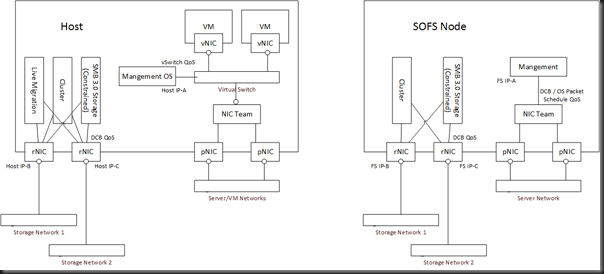
The network design is what I’ve talked about before.  The on-board 1 GbE NICs are teamed for management.  The servers now have a single dual port 10 GbE card.  These 10 GbE NICs ARE NOT TEAMED – I’ve put them on different subnets for SMB Multichannel (a cluster requirement).  That means they are simple traditional NICs, each with a different IP address.  I’ve used NetQOSPolicy to do QoS for those 2 networks on a per-protocol basis.  That means that SMB 3.0 and backup and cluster communications go across these two networks.

Hans Vredevoort (Hyper-V MVP colleague) went with a different approach: teaming the 10 GbE NICs and presenting team interfaces that are bound to different VLANs/subnets.  In WS2012, the dynamic teaming mode will use flowlets to truly aggregate data and spread even a single data stream across the team members (physical interfaces).

Storage Spaces

The storage pool is created in Failover Clustering.  While TechEd demos focused on PowerShell, you can create a tiered pool and tiered virtual disks in the GUI.  PowerShell is obviously the best approach for standardization and repetitive work (such as consulting).  I’ve fired up a single virtual disk so far with a nice chunk of SSD tiering and it’s performing pretty well.

image

First Impressions

I wanted to test quickly before the new Dell hosts come so Hyper-V is enabled on the SOFS cluster.  This is a valid deployment scenario, especially for a small/medium enterprise (SME).  What I have built is the equivalent (more actually) of a 2-node Hyper-V cluster with a SAS attached SAN … albeit with tiered storage … and that storage was less than half the cost of a SAN from Dell/HP.  In fact, the retail price of the HDDs is around 1/3 the list price of the HP equivalent.  There is no comparison.

I deployed a bunch of VMs with differential disks last night.  Nice and quick.  Then I pinned the parent VHD to the SSD tier and created a boot storm.  Once again, nice and quick.  Nothing scientific has been done and I haven’t done comparison tests yet.

But it was all simple to set up and way cheaper than traditional SAN.  You can’t beat that!

Still No News On Windows Server & System Center 2012 R2 Licensing

Microsoft since released the information and you can find my summary on the core editions here.

As you may know, customers with Windows 8 will be getting a free update to Windows 8.1 via the Windows Store.  That’s a nice deal.  There is no news on what will happen with Windows Server 2012 R2 or System Center 2012 R2 (WSSC 2012 R2).  Note that WS2012 news came out very late in the day.  I heard nothing was presented at WPC on the topic.  So we don’t know:

  • Will WS2012 R2 be a new server OS license, where upgrade rights are only granted to Software Assurance (SA) customers?
  • Will WS2012 CALs be good for WS2012 R2, as I am told W2008 CALs were for W2008 R2?
  • Will WS2012 customers get a free upgrade?
  • Anything about the licensing of WSSC 2012 R2.

Microsoft has to be careful here.  There has been a certain amount of customer/partner alienation over the past year or two.  If they said “no upgrade rights” then Microsoft would piss off a lot of customers.  It would also fragment the install base significantly.  This isn’t just an accounting issue; how many of you working on current OSs feel as comfortable with an OS that’s 2-3 generations old?  I know I lose touch very quickly.

On another point, their field staff are probably fretting right now.  Pretty much everyone in Microsoft field has a sales target of some kind.  How many customers have read about the wonders of WSSC 2012 R2, and are deciding to hold off on buying for 6 months because a purchase now might not give them upgrade rights.  While that doesn’t impact the EA customer (who has upgrade rights through SA), not all large enterprises have SA, and a huge number of businesses are too small to qualify for SA.  All sales are measured!

Microsoft could score big by providing free upgrade rights to all WS2012 customers.  It would be a PR coup and prospective customers could be talked into buying now (the important thing for MSFT), start deploying the core pieces, and upgrade where/when appropriate.

If I could make a recommendation I would say:

  • Allow customers free upgrades to Server/CAL within a major release boundary.  For example, any customer who buys within the 2012 generation (2012, 2012 R2, 2012 R3 if there is one) should get free upgrades within that generation.  If we are getting annual or near annual releases then it makes no financial difference to MSFT, and they’re still getting the same amount of revenue for the same amount of development (note that pre- and release costs have probably increased by a factor of 2 or 3).
  • Do the same for CALs.  A 2012 CAL should be good for 2012 R2 and 2012 R3 – likewise a 2012 R2 CAL should be good for 2012 R2 (if there will be one).
  • In summary, treat R2, R3, etc as if they were service packs, license-wise.  Nice and simple.
  • Keep it simple: Any effort to implement “Dungeons and Dragons” rules (like with Office 365) creates chaos, discontent, ill-will, and accidental software pirates (those who think they are legit but are not – only because of Microsoft-created complexity).

FYI, W2008 R2 customers without SA will have to buy new licenses/CALs, no matter what.  Those with current SA at the time of WSSC 2012 R2 release will be entitled to upgrades, just as they are now to WS2012 2012 and SysCtr 2012.

And before you ask, no, I don’t expect any changes with System Center licensing, and yes, System Center Essentials is a dead-end product.

EDIT:

I was told via Twitter by Ryan Boud (@HmmConfused) that an announcement was made on the Microsoft Virtualization Academy Jump Start regarding CALs.  Microsoft will follow the W2008 R2 precedent and enable WS2012 CALs to be used with WS2012 R2.

KB2846837–Incorrect RSS Core Assignment On Win8 or WS2012 Computer That Has Multi-Core processors

One for you SMB Multichannel freaks out there.  This KB article and hotfix from Microsoft is for when incorrect Receive Side Scaling (RSS) processor assignment on a Windows 8 or Windows Server 2012-based computer that has multi-core processors.

Symptoms

Consider the following scenario:

  • You have a Windows 8-based or Windows Server 2012-based computer that has multi-core processors.
  • You have three or more network adapters installed on the computer. 
  • You enable Receive Side Scaling (RSS) and set a RSS profile to use the "Closest" parameter for the network adapters.
  • You run the following PowerShell command to retrieve RSS properties of the network adapters:

Get-NetAdapterRss

In this scenario, the first two network adapters are assigned processors correctly. However, other network adapters are not assigned correctly.

Cause

This issue occurs because RSS incorrectly uses the maximum processor count that is supported by the computer to assign processors. The expected action is that RSS uses the active processor count during the processor assignment.

A supported hotfix is available from Microsoft.

There’s no mention of this applying if using DVMQ, the cousin of RSS.

KB2867302–Clustered File Share Resource Fails With “Status 5. Tolerating …” Cluster Log Error

Microsoft posted a KB article for when you have a situation on W2008, W2008 R2 or WS2012 where a cluster fileshare resource fails on a failover cluster node and the cluster log contains "status 5. Tolerating…".

Symptoms

Consider the following scenario:

  • In Windows Server 2008, 2008 R2 or 2012 you set up a Windows failover cluster with a highly available file server.
  • The cluster nodes are configured with a disjointed namespace in which the computer’s primary DNS suffice does not match the DNS domain of which it is a member.

In this scenario, you may notice that the highly available file server works fine on some of the cluster nodes but consistently fails on others. In examining the cluster log, you see something similar to the following entries with the first entry referring to "status 5. Tolerating…":
00001b6c.000008c8::2013/01/23-04:00:13.797 WARN [RES] File Server <FileServer-(yoel-cluster)(Cluster Disk 6)>: Failed in NetShareGetInfo(yoel-cluster, share2), status 5. Tolerating…
00001b6c.000008c8::2013/01/23-04:00:13.797 ERR   [RES] File Server <FileServer-(yoel-cluster)(Cluster Disk 6)>: Not a single share among 1 configured shares is online
00001b6c.000008c8::2013/01/23-04:00:13.797 ERR   [RES] File Server <FileServer-(yoel-cluster)(Cluster Disk 6)>: File system check failed, number of shares verified: 1, last share status: 5.
00001b6c.000008c8::2013/01/23-04:00:13.797 ERR   [RES] File Server <FileServer-(yoel-cluster)(Cluster Disk 6)>: Fileshares failed health check during online, status 5.

Cause

One or more nodes of the failover cluster may contain mismatched entries in the DNS suffix search list.

Resolution

To resolve the issue, verify all cluster nodes are configured with the same DNS suffix search list and the entries are listed in the same order. The DNS suffix search list can be modified using the following steps:

  1. Open the properties page for the network adapter.
  2. Open the properties page for Internet Protocol Version 4 (TCP/IPv4).
  3. Select the Advanced button under the General tab.
  4. Select the DNS tab.

This is a configuration issue and there is no hotfix.