Ignite 2015–Windows 10 Management Scenarios For Every Budget

Speakers: Mark Minasi

“Windows 10 that ships in July will not be complete”. There will be a later release in October/November that will be more complete.

Option One

Windows 7 is supported until 2020. Windows 8 is supported until 2023. Mark jokes that NASA might have evidence of life on other planets before we deploy Windows 10. We don’t have to rush from Windows 7 to 10, because there is a free upgrade for 1 year after the release. Those with SA don’t have any rush.

Option Two

Use Windows 10. All your current management solutions will work just fine on enterprise and pro editions.

Identity in Windows 10

Option 1: Local accounts, e.g. hotmail etc.

Offers ID used by computer and many online locations. Let’s you sync settings between machines via MSFT.  Let’s store apps roam with your account. Minimal MDM. Works on Windows 8+ devices. It’s free – but management cost is high. Fine for homes and small organisations.

Option 2: AD joined.

GPO rich management. App roaming via GPO. Roaming profiles and folder redirection. Wide s/w library. Must have AD infrastructure and CALs. Little-no value for phones/tablets. Can only join one domain.

Option 3: Cloud join.

Includes Azure AD, Office 365, Windows 10 devices. Enable device join in AAD, create AAD accounts.  Enables conditional access for files. DMD via Intune. ID for Store apps. Requires AAD or O365. On-prem AD required. Can only join one AAD. Can’t be joined to legacy AD. No trust mechanisms between domains.

The reasons to join to the cloud right now are few. The list will get much longer. This might be the future.

Demo: Azure AD device registration.

Deploying Apps to Devices

Option 1: Use the Windows Store

Need a MSFT account and credit card. You can get any app from the store onto Windows 8+ device. Apps can roam with your account. LOB apps can be put in the store but everyone sees them. You can sideload apps that you don’t want in the store but it requires licensing and management systems. Limited governance and requiring everyone to deploy via credit card is a nightmare.

Option 2: Business Store Portal

New. businessstore.microsoft.com. Web based – no cost. Needs AAD or MSFT account. Lot into MSFT account and get personal apps. Log in with AAD account and get organisational apps. Admins can block categories of apps. Can create a category for the organisation. Can acquire X copies of a particular app for the organisation.

Option 3: System Center Configuration Manager

System Center licensing. On-premises AD required. Total control over corporate machines. Limited management over mobile devices. You can get apps from the Business Store in offline mode and deploy them via SCCM. When you leave the company or cannot sign into AD/AAD then you lose access to the org apps.

Controlling Apps in Windows 10

Session hosts in Azure:

You can deploy apps using this. RDS in the cloud, where MSFT manages load balancing and the SSL gateway, and users get published applications.

Windows 10 has some kind of Remote Desktop Caching which boosts the performance of Remote Desktop. One attendee, when asked, said it felt 3 times faster than Windows 8.x.

Device Guard:

A way to control which apps are able to run. Don’t think of it as a permanent road block. It’s more of a slowdown mechanism. You can allow some selected apps, apps with signed code, or code signed by some party. Apparently there’s a MSFT tool for easy program signing.

Hyper-V uses Virtual Secure Mode where it hosts a mini-Windows where the LSA runs in 1 GB RAM. < I think this will only be in the Enterprise edition > This is using TPM on the machine and uses virtual TPM in the VM. Doesn’t work in current builds yet.

Ignite 2015–Exploring Storage Replica in Windows Server 2016

Speaker: Net Pyle.

What is a Disaster?

Answer: McDonalds running out of food at Ignite. But I digress … you lose your entire server room or data centre.

Hurricane Sandy wiped out Manhattan. Lots of big hosting facilities went offline. Some stayed partially online. And a handful stayed online.

Storage Replica Overview

Synchronous replication between cities. Asynchronous replication between countries. Not just about disaster recovery but also disaster avoidance.

It is volume based. Uses SMB 3.1.1. Works with any Windows data volume. Any fixed disk storage: iSCSI, Spaces, local disk or any storage fabric (iSCSI, FCoE, SAS, etc). You manage it using FCM (does not require a cluster), PowerShell, WMI, and in the future: Azure Site Recovery (ASR).

This is a feature of WS2016 and there is no additional licensing cost.

Demo

A demo that was done before, using a 2 node cluster, file changes in a VM in site A, replicates, and change shows up after failover.

Scenarios in the new Technical Preview

  • Stretch Cluster
  • Server to Server
  • Cluster to Cluster, e.g. S2D to S2D
  • Server to self

Stretch Cluster

  • Single cluster
  • Automatic failover
  • Synchronous

Cluster to Cluster

  • Two separate cluster
  • Manual failover
  • Sync or async replication

Server to Server

  • Two separate servers, even with local storage
  • Manual failover
  • Sync or asynch replication

Server to Self

Replicate one volume to another on the same server. Then move these disks to another server and use them as a seed for replication.

Blocks, not Files

Block based replication. It is not DFS-R. Replication is done way down low. It is unaware of the concept of files so doesn’t know that they are used. It only cares about write IO. Works with CSVFS, NTFS and ReFS.

2 years of work by 10 people to create a disk filter driver that sits between the Volume Manager and the Partition Manager.

Synch Workflow

A log is kept of each write on primary server. The log is written through to the disk  The same log  is kept on the secondary site. The write is sent to the log in parallel on both sites. Only when the secondary site has written to the log in both sites is the write acknowledged

Asynch Workflow

The write goes to the log on site A and acknowledged. Continuous replication sends the write to the log in the secondary site. Not interval based.

SMB 3.1.1.

RDMA/SMB Direct can be used long range with Mellanox InfiBand Metro-X and Chelsio iWarp can do long distance. MSFT have tested 10KM, 25 KM, and 40KM networks to test this. Round trip latencies are hundreds of microseconds for 40 KM one-way (very low latency). SMB 3.1.1 has optimized built-in encryption. They are still working on this and you should get to the point where you want encryption on all the time.

Questions

  • How Many Nodes? 1 cluster with 64 nodes or 2 clusters with 64 nodes each.
  • Is the log based on Jet? No; The log is based on CLFS

Requirements

  • Windows Server Datacenter edition only – yes I know.
  • AD is required … no schema updates, etc. They need access to Kerberos.
  • Disks must be GPT. MBR is no supported.
  • Same disk geometry (between logs, between data) and partition fo rdata.
  • No removable drives.
  • Free space for logs on a Windows NTFS/ReFS volume (logs are fixed size and manually resized)
  • No %Systemroot%, page filem hibernation file or DMP file replication.

Firewall: SMB and WS-MAN

Synch Replication Recommendations

  • <5 MS round trip latency. Typically 30-50 KM in the real world.
  • > 1 Gbps bandwidth end-end between the servers is a starting point. Depends on a lot.
  • Log volume: Flash (SSD, NVME, etc). Larger logs allow faster recovery from larger outages and less rollover, but cost space.

Asynchronous Replication

Latency not an issue. Log volume recommendations are the same as above.

Can we make this Easy?

Test-SRTopology cmdlet. Checks requirements and recommendations for bandwidth, log sizes, IPS, etc. Runs for specified duration to analyse a potential source server for sizing replication. Run it before configuration replication against a proposed source volume and proposed destination.

Philosophy

Async crash consistency versus application consistency. Guarantee mountable volume. App must guarantee a usable file

Can replicate VSS snapshots.

Management Rules in SR V1

You cannot use the replica volume. In this release they only do 1:1 replication, e.g. 1 node to 1 node, 1 cluster to 1 cluster, and 1 half cluster to another half cluster. You cannot do legs of replication.

You can do Hyper-V Replica from A to B and SR from B to C.

Resizing replicated volumes interrupts replication. This might change – feedback.

Management Notes

Latest drivers. Most problems are related to drivers, not SR. Filter drivers can be dodgy too.

Understand your performance requirements. Understand storage latency impact on your services. Understand network capacity and latency. PerfMon and DiskSpd are your friends. Test workloads before and after SR.

Where can I run SR?

In a VM. Requires  WS2016 DC edition. Work on any hypervisor. It works in Azure, but no support statement yet.

Hyper-V Replica

HVR understands your Hyper-V workload. It works with HTTPS and certificates. Also in Std edition.

SR offers synchronous replication. Can create stretched guest clusters. Can work in VMs that are not in Hyper-V.

SQL Availability Groups

Lots of reasons to use SQL AGs. SR doesn’t require SQL Ent. Can replicate VMs at host volume level. SR might be easier than SQL AGs. You must use write ordering/consistency if you use any external replication of SQL VMs – includes HVR/ASR.

Questions

  • Is there a test failover: No
  • Is 5MS a hard rule for sync replication. Not in the code. But over 5 MS will be too slow and degrade performance.
  • Overhead? Initial sync can be heavy due to check-summing. There is a built-in throttle to prevent using too much RAM. You cannot control that throttle in TP2 but you will later.

What SR is Not

  • It is not shared-nothing clustering. That is Storage Spaces Direct (S2D).
  • However, you can use it to create a shared-nothing 2 node cluster.
  • It is not a backup – it will replicate deletions of data very very well.
  • It is not DFS-R, multi-endpoint, not low bandwidth (built to hammer networks),
  • Not a great branch office solution

It is a DR solution with lots of bandwidth between them.

Stretch Clusters

  • Synchronous only
  • Asymmetric storage,e.g. JBOD in one site and SAN in another site.
  • Manage with FCM
  • Increase cluster DR capabilities.
  • Main use cases are Hyper-V and general use file server.

Not for stretch-cluster SOFS – you’d do cluster-to-cluster replication for that.

Cluster-Cluster or Server-Server

  • Synch or asynch
  • Supports S2D

PowerShell

  • New-SrPartnership
  • Set-SRPartnership
  • Test-SrTopology

DiskSpd Demo on Synch Replication

Runs DiskSpd on volume on source machine.

  • Before replication: 63,000 IOPS on source volume
  • After replication: In TPv2 it takes around 15% hit. In latest builds, it’s under 10%.

In this demo, the 2 machines were 25 KM apart with an iWarp link. Replaced this with fibre and did 60,000 IOPS.

Azure Site Recovery

Requires SCVMM. You get end-end orchestration. Groups VMs to replicate together. Supports for Azure Automation runbooks. Support for planned/unplanned failover. Preview in July/August.

Questions:

  • Tiered storage spaces: It supports tiering, but the geometry must be identical in both sides.
  • Does IO size affect performance? Yes.

The Replication Log

Hidden volume.

Known Issues in TP2

  • PowerShell remoting for server-server does not work
  • Performance is not there yet
  • There are bugs

A guide was published on Monday on TechNet.

Questions to srfeed <at> microsoft.com

Ignite 2015–Stretching Failover Clusters and Using Storage Replica in Windows Server 2016

Speakers: Elden Christensen & Ned Pyle, Microsoft

A pretty full room to talk fundamentals.

Stretching clusters has been possible since Windows 2000, making use of partners. WS2016 makes it possible to do this without those partners, and it’s more than just HA, but also a DR solution. There is built-in volume replication so you don’t need to use SAN or 3rd-party replication technologies, and you can use different storage systems between sites.

Assuming: You know about clusters already – not enough time to cover this.

Goal: To use clusters for DR, not just HA.

RTO & RPO

  • RTO: Accepted amount of time that services are offline
  • RPO: Accepted amount of data loss, measured in time.
  • Automated failover: manual invocation, but automated process
  • Automatic failover: a heartbeat failure automatically triggers a failure
  • Stretch clusters can achieve low RPO and RTO
  • Can offer disaster avoidance (new term) ahead of a predicted disaster. Use clustering and Hyper-V features to move workloads.

Terminology

  • Stretch cluster. What used to be aclled a multi-site cluster, metro cluster or geo cluster.

Stretch Cluster Network Considerations

Clusters are very aggressive out of the box: once per second heartbeat and 5 missed heartbeats = failover. PowerShell = (Get-Cluster).SameSubnetThreshold = 10 and (Get-Cluster).CrossSubnetThreshold = 20

Different data centers = different subnets. They are using Network Name Resources  for things like file shares which are registered in DNS depending on which site the resource is active in. The NNR has IP address A and IP Address B. Note that DNS registrations need to be replicated and the TTL has to expire. If you failover something like a file share then there will be some time of RTO depending on DNS stuff.

If you are stretching Hyper-V clusters then you can use HNV to abstract the IPs of the VMs after failover.

Another strategy is that you prefer local failover. HA scenario is to failover locally. DR scenario is to failover remotely.

You can stretch VLANs across sites – you network admins will stop sending you XMas cards.

There are network abstraction devices from the likes of Cisco, which offer the same kind of IP abstraction that HNV offers.

(Get-Cluster).SecurityLevel =2 will encrypt cluster traffic on untrusted networks.

Quorum Considerations

When nodes cannot talk to each other then they need a way to reconcile who stays up and who “shuts down” (cluster activities). Votes are assigned to each node and a witness. When a site fails then a large block of votes disappears simultaneously. Plan for this to ensure that quorum is still possible.

In a stretch cluster you ideally want a witness in site C via independent network connection from Site A – Site B comms. The witness is available even if one site goes offline or site A-B link goes down. This witness is a file share witness. Objections: “we don’t have a 3rd site”.

In WS2016, you can use a cloud witness in Azure. It’s a blob over HTTP in Azure.

Demo: Created a storage account in Azure. Got the key. A container contains a sequence number, just like a file share witness. Configures a cluster quorum as usual. Chooses Select a Witness, and slect Configure a Cloud Witness. Enters the storage account name and pastes in the key. Now the cluster starts using Azure as the 3rd site witness. Very affordable solution using a teeny bit of Azure storage. The cluster manages the permissions of the blob file. The blob stores only a sequence number – there is no sensitive private information. For an SME: a single Azure credit ($100) might last a VERY long time. In testing, they haven’t been able to get a charge of even $0.01 per cluster!!!!

Controlling Failover

Clustering in WS2012 R2 can survive a 50% loss of votes at onces. One site is automatically elected to win. It’s random by default but you can configure it. You can configure manual failover between sites. You do this by manually toggling the votes in the DR site – remove the votes from DR site nodes. You can set preferred owners for resources too.

Storage Considerations

Elden hands over to Ned. Ned will cover Storage Replica. I have to leave at this point … but Ned is covering this topic in full length later on today.

Ignite 2015 – Spaces-Based, Software-Defined Storage–Design and Configuration Best Practices

Speakers: Joshua Adams and Jason Gerend, Microsoft.

Designing a Storage Spaces Solution

  1. Size your disks for capacity and performance
  2. size your storage enclosures
  3. Choose how to handlw disk failures
  4. Pick the number of cluster nodes
  5. Select a hardware solution
  6. Design your storage pools
  7. Design your virtual disks

Size your disks – for capacity (HDDs)

  1. Identify your workloads and resiliency type: Parity for backups and mirror for everything else.
  2. Estimate how much raw capacity you need. Currently capcity x% data grown X data copies (if your using mirrors). Add 12% initially for automatic virtual disk repairs and meta data overhead. Example: 135 TB x 1. x 3 data copies + 12 % = 499 TB raw capacity
  3. Size your HDDs: Pick big 7200 RPM NL SAS HDDs. Fast HDD not required is using SSD tier.

Software Defined Storage Calculator allows you to size and design a deployment and it generates the PowerShell. Works with WS2012 R2 and WS2016, disaggregated and hyperconverged deployments.

Size your disks – for performance (SSDs)

  1. How many SSDs to use. Sweet spot is 1 SSD for every 2-4 HDDs. Typically 4-5 SSDs per enclosure per pool. More SSDs = more absolute performance
  2. Determine the SD size. 800 GB SSDs are typical. Larger SSD capacity = can handle larger amounts of active data. Anticipate around 10% of SSD capacity for automatically repairing after an SSD failure.

Example 36 x 800 GB SSDs.

Size you Enclosures

  1. Pick the enclosure size (12, 24, 60, etc  disks)
  2. Pick the number of enclosures. If you have 3 or 4 then you have enclosure awareness/fault tolerance, depending on type of mirroring.
  3. Each enclosure should have an identical number of disks.

Example, 3 x 60 bay JBODs each with 48 HDDs and 12 SSDs

The column count is fixed between 2 tiers. The smaller tier (SSD) limits the column count. 3-4 columns is a sweet spot.

Expanding pools has an overhead. Not trivial but it works. Recommend that you fill JBODs.

Choose how to Handle Disk Failures

  1. Simultaneous disk failures to tolerate. Use 2 data copies for small deployments and disks, and/or less important data. use 3 data copies for larger deployments and disks, and for more important data.
  2. Plan to automatically repair disks. Instead of hot spares, set aside pool capacity to automatically replace failed disks. Also effects column count … more later.

Example: 3-way mirrors.

Pick the number of Cluster Nodes

Start with 1 node per enclosure and scale up/down depending on the amount of compute required. This isn’t about performance; it’s about how much compute you can afford to lose and still retain HA.

Example: 3 x 3 = 3 SOFS nodes + 3 JBODs.

Select a hardware vendor

  1. DataON
  2. Dell
  3. HP
  4. RAID Inc
  5. Microsoft/Dell CPS

Design your Storage Pools

  1. Management domains: put your raw disks in the pool and manage them as a group. Some disk settings are applied at the pool level.
  2. More pools = more to manage. Pools = fault domains. More pools = less risk – increased resiliency and resiliency overhead..

Start with 84 disks per pool.

Divide disks evenly between pools.

Design your Virtual Disks

  • Where storage tiers, write-back cache and enclosure awareness are set.
  • More VDs = more uniform load balancing, but more to manage.
  • This is where column count come in. More columns = more throughput, but more latency. 3-4 columns is best.
  • Load balancing is dependent on identical virtual disks.
  • To automatically repair after a disk failure, need at least one more disk per tier than columns for the smallest tier, which is usually the SSD tier.
  1. Set aside 10% of SSD and HDD capacity for repairs.
  2. Start with 2 virtual disks per node.
  3. Add more to keep virtual disk size to 10 TB or less. Divide SSD and HDD capacity evenly between virtual disks. Use 3-4 columns if possible.

Best Practices for WS2012 R2

  • Scale by adding fully populated clusters. Get used to the concept of storage/compute/networking stamps.
  • Monitor your existing workloads for performance. The more you know about the traits of your unique workloads, the better future deployments will be.
  • Do a PoC deployment. Use DiskSpd and fault injection to stress the solution. Monitor the storage tiers performance to determine how much SSD capacity you need to fit a given scale of your workloads into SSD tiers.

WORK WITH A TRUSTED SOLUTION VENDOR. Not all hardware is good, even if it is on the HCL. Some are better than others, and some suck. In my opinion Intel and Quanta suck. DataON is excellent. Dell appears to have gone through hell during CPS development to be OK. And some disks, e.g. SanDISK, are  the spawn of Satan, in my experience – Note that Dell use SanDISK and Toshiba so demand Toshiba only SSDs from Dell. HGST SSDs are excellent.

Deployment Best Practices

  • Disable TRIM on SSDs. Some drives degrade performance with TRIM enabled.
  • Disable all disk based caches – if enabled if degrades performance when write-through is used (Hyper-V).
  • Use LB (least blocks) for MPIO policy. For max performance, set individual SSDs to Round Robin. This must be done on each SOFS node.
  • Optimize Storage Spaces repair settings on SOFS. Use Fast Rebuild. Change it from Auto to Always on the pool. This means that 5 minutes after a write failure, a rebuild will automatically start. Pulling a disk does not trigger an automatic rebuild – an expensive process.
  • Install the latest updates. Example: repair process got huge improvement in November 2014 update.

Deployment & Management Best Practices

  • Deploy using VMM or PowerShell. FCM is OK for small deployments.
  • VMM is great for some stuff, but in 2012 R2 it doesn’t do tiering etc. It can create the cluster well and manage shares, but for disk creation, use PowerShell.
  • Monitor it using SCOM with the new Storage Spaces management pack.
  • Also use Test-StorageHealth.PS1 to do some checks occasionally. It needs tweaking to size it for your configuration.

Design Closing Thoughts

  • Storage Spaces solutions offer: 2-4 cluster nodes and 1-4 JBODs. Store 100 to as many as 2000 VMs.
  • Storage Pool Design; HDDs  provide most of the capacity. SSDs offer performance. Up to 84 disks per pool.
  • Virtual Disk design: Set aside 10% of SSD and HDD capacity for repairs. Start with 2 VDs per node. Max 0 TB/virtual disk. 3-4 volums for balanced performance.

Coming in May

  • Storage Spaces Design Considerations Guide (basis of this presentation)
  • Storage Spaces Design Calculator (spreadsheet used in this presentation)

Ignite 2015–What’s New in Windows Server Hyper-V

Speakers: Ben Armstrong & Sarah Cooley

This is a detailed view of everything you can do with Hyper-V in Windows Server 2016 TPv2 build. 14 demos. This is not a complete overview of everything in the release. This is what you can realistically do in labs with the build at the moment. A lot of the features are also in Windows 10.

Nano Server

Cloud-first refactoring. Hyper-V and storage are the two key IaaS scenarios for Nano Server.

Containers

Hyper-V can be used to deploy containers. Not talking about in this session – there was another session by Taylor Brown on this. Not in this build – coming in the future.

Making Cloud Great

This is how the Hyper-V team thinks: everything from Azure, public, private and small “clouds”.

Virtual Machine Protection:

Trust in the cloud is biggest blocker to adoption. Want customers to know that their data is safe.

A virtual TPM can be injected into a VM. Now we can enable BiLocker in the VM and protect data from anyone outside of the VM. I can run a VM on someone else’s infrastructure and they cannot see or use my data.

Secure boot is enabled for Linux. The hardware can verify that the kernel mode code is uncompromised. Secure boot is already in Windows guest OSs in WS2012 R2.

Shielded VMs

Virtual TPM is a part of this story. This is a System Center & Hyper-V orchestrated solution for highly secure VMs. Shielded VMs can only run in fabrics that are designated as owners of that VM.

Distributed Storage QoS

See my previous post.

Host Resource Protection

Dynamically detect VMs that are not “playing well” and reduce their resource allocation. Comes from Azure. Lots of people deploy VMs and do everything they can to break out and attack Azure. No one has ever broken out, but their attempts eat up a lot of resources. HRP detects “patterns of access”, e.g. loading kernel code that attacks the system, to reduce their resource usage. A status will appear to say that HRP has been enabled on this VM.

Storage and Cluster Resiliency

What happens when the network has a brief glitch between cluster nodes? This can cause more harm than good by failing over and booting up the VMs again – can take longer than waiting out the issue.

Virtual Machine Cluster Resiliency:

  • Cluster doesn’t jump to failover after immediate time out.
  • The node goes into isolated state and VM goes unmonitored.
  • If the node returns in under 4 minutes (default) then the node returns and VM goes back to running state.
  • If a host is flapping, the host is put into a quarantine. All VMs will be live migrated off of the node to prevent issues.

Storage Resiliency:

  • If the storage disappears: the VM is paused ahead of a timeout to prevent a crash.
  • Once the storage system resumes, the VM un-pauses and IOPS continues.

Shared VHDX

Makes it easy to do guest clustering. But WS2012 R2 is v1.0 tech. Can’t do any virtualization features with it, e.g. backup, online resize.

In TPv2, starting to return features:

  • Host-based, no agent in the guest, backup of guest clusters with shared VHDX.
  • You will also be able to do online resizing of the shared VHDX.
  • Shared drive has it’s own h/w category when you Add Hardware in VM settings. Underlying mechanism is the exact same, just making the feature more obvious.

VHDS is the extension of shared VHDX files.

Hyper-V Replica & Hot-Add

By default, a newly added disk won’t replicated. Set-VMReplication –ReplicatedDisks (Get-VMHardDiskDrive VM01) will add a disk to the replica set.

Behind the scenes there is an initial copy happening for the new disk while replication continues for the original disks.

Runtime Memory Resize

You can:

  • Resize the memory of a VM with static RAM while it running.
  • You can see the memory demand of static RAM VMs – useful to resize.

Hot Add/Remove Network Adapters

This can be done with Generation 2 VMs.

Rolling Cluster Upgrade

No need to build a new cluster to deploy a new OS. You actually rebuild 1 host at a time inside the cluster. VMs can failover and live migrate. You need WS2012 R2 to start off. Once done, you upgrade the version of the cluster to use new features. You can also rollback a cluster from WS2016 to WS2012 R2.

New VM Upgrade Process

Previous versions of Hyper-V automatically upgraded a VM automatically once it was running on a new version of Hyper-V. This has changed.

There is now a concept of a VM configuration version. It is not upgraded automatically – done manually. This is necessary to allow rollback from Cluster Rolling Upgrade.

Version 5.0 is the configuration version of WS2012 R2. Version 2.1a was WS2012 R2 SP1. The configuration version was always there for internal usage, and was not displayed to users. In TPv2 they are 6.2.

A VM with v5.0 works with that host’s features. A v5.0 VM on WS2016 runs with compatibility for WS2012 R2 Hyper-V. No new features are supplied to that VM. Process for manually upgrading:

  1. Shutdown the VM
  2. Upgrade the VM config version via UI or PoSH
  3. Boot up again – now you get the v6.2 features.

Production Checkpoints

Uses VSS in the guest OS instead of saved state to create checkpoint. Restoring a production checkpoint is just like restoring a system backup. S/W inside of the guest OS, like Exchange or SQL Server, understand what to do when they are “restored from backup”, e.g. replay logs, etc.

Now this is a “supported in production” way to checkpoint production VMs that should reduce support calls.

PowerShell Direct

You can run cmdlets against the guest OS via the VMBus. Easier administration – no need for network access.

ReFS Accelerated VHDX Operations

Instant disk creation and checkpoint merging. Ben created a 5TB fixed VHDX w/o ODX and it took 22 hours.

Creating 1GB disk. Does a demo of 1 GB disk on non-accelerated volume on same physical disks takes 71 seconds on ReFS and it takes: 4.77 seconds. 50 GB takes 3.9 seconds.

DOes a merge on non-accelerated volume and it takes 68 seconds. Same files on ReFS and it takes 6.9 seconds. This has a huge impact on backup of large volumes – file-based backup uses checkpoints and merge. There is zero data copy involved.

Hyper-V Manager and PoSh Improvements

  • Support for alternate credentials
  • Connecting via IP address
  • Connecting via WinRM

There’s a demo to completely configure IIS and deploy/start a website from an admin machine without logging into the VM, using PowerShell Direct with no n/w access.

Cross-Version Management

You can manage WS2012 and WS2012 R2 hosts with Hyper-V Manager. There are two versions of PowerShell 1.1 and 2.0.

Integration Services

Insert Integration Components is gone from the UI. It did not scale out. VM Drivers re updated via Windows Update (critical update). Updates go to VMs on correct version of Hyper-V.

Hyper-V Backup

File-based backup and built-in change tracking. No longer dependent on h/w snapshots, but able to use them if they are there.

VM Configuration Changes

New configuration file format. Moving to binary format away from XML for performance efficiency when you have thousands of VMs. New file extensions:

  • VMCX:
  • VMRS:

This one was done for Azure, and trickles down to us. Also solves the problem of people editing the XML which was unsupported. Everything can be done via PowerShell anyway.

Hyper-V Cluster Management

A new under-the-covers administration model that abstracts the cluster. You can manage a cluster like a single host. You don’t need to worry about cluster resource and groups to configure VMs anymore.

Updated Power Management

Conencted Standby Works

RemoteFX

OpenGL 4.4 and OpenCL 1.1 API supported.

Ignite 2015–Hyper-V Storage Performance with Storage Quality of Service

I am live blogging this session so hit refresh to see more.

Speakers: Senthil Rajaram and Jose Barreto.

This session is based on what’s in TPv2. There is a year of development and FEEDBACK left, so things can change. If you don’t like something … tell Microsoft.

Storage Performance

  1. You need to measure to shape
  2. Storage control allows shaping
  3. Monitoring allows you to see the results – do you need to make changes?

Rules

  • Maximum Allowed: Easy – apply a cap.
  • Minimum Guaranteed: Not easy. It’s a comparative value to other flows. How do you do fair sharing? A centralized policy controller avoids the need for complex distributed solutions.

The Features in WS2012 R2

There are two views of performance:

  • From the VM: what the customer sees – using perfmon in the guest OS
  • From the host: What the admin sees – using the Hyper-V metrics

VM Metrics allow performance data to move with a VM. (get-vm –name VM01)  | Measure-VM).HardDiskMetrics …. it’s Hyper-V Resource Metering – Enable-VMResourceMetering.

Normalized IOPS

  • Counted in 8K blocks – everything is a multiple of 8K.
  • Smaller than 8K counts as 1
  • More than 8K counted in multiples, e.g 9K = 2.

This is just an accounting trick. Microsoft is not splitting/aggregating IOs.

Used by:

  • Hyper-V Storage Performance Counters
  • Hyper-V VM Metrics (HardDiskMetrics)
  • Hyper-V Storage QoS

Storage QoS in WS2012 R2

Features:

  • Metrics – per VM and VHD
  • Maximum IOPS per VHD
  • Minimum IOPS per VHD – alerts only

Benefits:

  • Mitigate impact of noisy neighbours
  • Alerts when minimum IOPS are not achieved

Long and complicated process to diagnose storage performance issues.

Windows Server 2016 QoS Instroduction.

Moving from managing IOPS on the host/VM to managing IOPS on the storage system.

Simple storage QoS system that is installed in the base bits. You should be able to observe performance for the entire set of VMs. Metrics are automatically collected, and you can use them even if you ar enot using QoS. No need to log into every node using the storage subsystem to see performance metrics. Can create policies per VM, VHD, service or tenant. You can use PoSH or VMM to manage it.

This is a SOFS solution. One of the SOFS nodes is elected as the policy manager – a HA role. All of the nodes in the cluster share performance data, and the PM is the “thinker”.

  1. Measure current capacity at the compute layer.
  2. Measure current capacity at the storage layer
  3. use algorithm to meet policies at the policy manager
  4. Adjust limits and enforce them at the compute layer

In TP2, this cycle is done every 4 seconds. Why? Storage and workloads are constantly changing. Disks are added and removed. Caching makes “total IOPS” impossible to calculate. The workloads change … a SQL DB gets a new index, or someone starts a backup. Continuous adjustment is required.

Monitoring

On by default You can query the PM to get a summary of what’s going on right now.

Available data returned by a PoSH object:

  • VHD path
  • VM Name
  • VM Host name
  • VM IPOS
  • VM latency
  • Storage node name
  • Storage node IOPS
  • Storage node latency

Get-StorageQoSFlow – performance of all VMs using this file server/SOFS

Get0StorageQoSVolume – performance of each volume on this file server/SOFS

There are initiator (the VM’s perspective) metric and storage metrics. Things like caching can cause differences in initiator and storage metrics.

Get-StorageQoSFlow | Sort InitiatorIPOS | FT InitiarorName, InitiatorIIOPS, InitiatorLatency

Working not with peaks/troughs but with averages over 5 minutes. The Storage QoS metrics, averaged over the last 5 minutes, are rarely going to match the live metrics in perfmon.

You can use this data: export to CSV, open in Excel pivot tables

Deploying Policies

Three elements in a policy:

  • Max: hard cap
  • Min: Guaranteed allocation if required
  • Type: Single or Multi-instance

You create policies in one place and deploy the policies.

Single instance: An allocation of IOPS that are shared by a group of VMs. Multi-instance: a performance tier. Every VM get’s the same allocation, e.g. max IOPS=100 and each VM gets that.

Storage QoS works with Shared VHDX

Active/Active: Allocation split based on load. Active/Passive: Single VM can use full allocation.

This solution works with Live Migration.

Deployment with VMM

You can create and apply policies in VMM 2016. Creaate in Fabric > Storage > QoS Policies. Deploy in VM Properties > Hardware Configuration > <disk> > Advanced. You can deploy via a template.

PowerShell

New-StorageQoSPolicy –CimSession FS1 –Name sdjfdjsf –PolicyType MultiInstance – MaximumIOPS 200

Get-VM –Name VM01 | Get-VMHardDiskDrive | Set-VMHardDiskDrive –QosPolicy $Policy

Get-StorageQoSPolicy –Name sdfsdfds | Get-StorageQoSFlow … see data on those flows affected by this policy. Pulls data from the PM.

Demo

The way they enforce max IOPS is to inject latency in that VM’s storage. This reduces IOPS.

Designing Policies

  • No policy: no shaping. You’re just going to observe uncontrolled performance. Each VM gets at least 1 IOPS
  • Minimum Only: A machine will get at least 200 IOPS, IF it needs it. VM can burst. Not for hosters!!! Don’t set false expectations of maximum performance.
  • Maximum only: Price banding by hosters or limiting a noisy neighbour.
  • Minimum < Maximum, e.g. between 100-200: Minimum SLA and limited max.
  • Min = Max: VM has a set level of performance, as in Azure.

Note that VMs do not use min IOPS if they don’t have the workload for it. It’s a min SLA.

Storage Health Monitoring

If total Min of all disks/VMs exceeds the storage system then:

  • QoS does it’s best to do fair share based on proportion.
  • Raises an alert.

In WS2016 there is 1 place to get alerts for SOFS called Storage health Monitoring. It’s a new service on the SOFS cluster. You’ll get alerts on JBOD fans, disk issues, QoS, etc. The alerts are only there while the issue is there, i.e. if the problem goes away then the alert goes away. There is no history.

Get-StorageSubSystem *clsuter* | Debug-StorageSubSystem.

You can register triggers to automate certain actions.

Right now – we spend 10x more than we need to to ensure VM performance. Storage QoS reduces spend by using a needle to fix issues instead of a sledge hammer. We can use intelligence to solve performance issues instead of a bank account.

In Hyper-V converged solution, the PM and rate limiters live on the same tier. Apparently there will be support for a SAN – I’m unclear on this design.

Ignite 2015–Nano Server: The Future of Windows Server

Speaker: Jeffrey Snover

Reasons for Nano Server, the GUI-less installation of Windows Server


  • It’s a cloud play. For example, minimize patching. Note that Azure does not have Live Migration so patching is a big deal.
  • CPS can have up to 16 TB of RAM moving around when you patch hosts – no service interruption but there is an impact on performance.
  • They need a server optimized for the cloud. MISFT needs one, and they think cloud operators need one too.

Details:

  • Headless, there is no local interface and no RDP. You cannot do anything locally on it.
  • It is a deep ra-factoring of Windows Server. You cannot switch from Nano to/from Core/Full UI
  • The roles they are focused on are Hyper-V, SOFS and clustering.
  • They also are focusing on born-in-the-cloud applications.
  • There is a zero-footprint model. No roles or features are installed by default. It’s a functionless server by default.
  • 64-bit only
  • No special hardware or drivers required.
  • Anti-malware is built in (Defender) and on by default.
  • They are working on moving over the System Center and app insights agents
  • They are talking to partners to get agent support for 3rd party management.
  • The Nano installer is on the TP2 preview ISO in a special folder. Instructions here.

Demo

  • They are using 3 *  NUC-style PCs as their Nano server cluster demo lab.  The switch is bigger than the cluster, and takes longer to boot than Nano Server. One machine is a GUI management machine and 2 nodes are a cluster. They use remote management only – because that’s all Nano Server supports.
  • They just do some demos, like Live Migration and PowerShell
  • When you connect to a VM, there is a black window.
  • They take out a 4th NUC that has Nano Server installed already, connect it up, boot it, and add it to the cluster.

Notes: this demo goes wrong. Might have been easier to troubleshoot with a GUI on the machine Smile

Management

  • “removing the need” to sit in front of a server
  • Configuration via “Core PoSH” and DSC
  • Remote management/automation via Core PowerShell and WMI: Limited set of cmdlets initially. 628 cmdlets so far (since January).
  • Integrate it into DevOps tool chains

They want to “remove the drama and heroism from IT”. Server dies, you kill it and start over. Oh, such a dream. To be honest, I hardly ever have this issue with hosts, and I could never recommend this for actual application/data VMs.

They do a query for processes with memory more than 10 MB. There are 5.

Management Tools

Some things didn’t work well remotely: Device Manager and remove event logging. Microsoft is improving in these tools to improve them and make remote management 1st class.

There will be a set of web-based tools:

  • Task manager
  • Registry editor
  • Event viewer
  • Device manager
  • sconfig
  • Control panel
  • File Explorer
  • Performance monitor
  • Disk management
  • Users/groups Manager

Also can be used with Core, MinShell, and Full UI installations.

We see a demo of web-based management, which appears to be the Azure Stack portal. This includes registry editor and task manager in a browser. And yes, they run PoSH console on the Nano server running in the browser too. Azure Stack could be a big deal.

Cloud Application Platform:

  • Hyper-V hosts
  • SOFS noes
  • In VMs for cloud apps
  • Hyper-V containers

Stuff like PoSH management coming in later releases.

Terminology

  • At the base there is Nano Server
  • Then there is Server …. what used to be Server Core
  • Anything with a GUI is now called Client, what used to be called Full UI

Client is what MSFT reckons should only be used for RDS and Windows Server Essentials. As has happened since W2008, customers and partners will completely ignore this 70% of the time, if not more.

The Client experience will never be available in containers.

The presentation goes on to talk about development and Chef automation. I leave here.

Platform Vision & Strategy–Storage Overview

Speakers: Siddhartha Roy and Jose Barreto

This will be a very interesting session for people Smile

What is Software Defined Storage?

Customers asking for cost and scales of Azure for their own data center. And this is what Microsoft has done. Most stuff came down from Azure, and some bits went from Server into Azure.

Traits:

  • Cloud-inspired infrastructure and design. Using industry standard h/w, integrating cloud design points in s/w. Driving cloud cost efficiencies.
  • Evolving technologies: Flash is transforming storage. Network delivering extreme performance. Maturity in s/w based solutions. VMs and containers. Expect 100 Gbps to make an impact, according to MSFT. According to Mellanox, they think the sweet sport will be 25 Gbps.
  • Data explosion: device proliferation, modern apps, unstructured data analytics
  • Scale out with simplicity: integrated solutions, rapid time to solution, policy-based management

Customer Choice

The usual 3 clouds story. Then some new terms:

  • Private cloud with traditional storage: SAN/NAS
  • Microsoft Azure Stack Storage is private cloud with Microsoft SDS.
  • Hybrid Cloud Storage: StorSimple
  • Azure storage: public cloud

The WS2012 R2 Story

The model of shared JBOD + Windows Server = Scale-Out File Server is discussed. Microsoft has proven that it scales and performs quite cost effectively.

Storage Spaces is the storage system that replaces RAID to aggregate disks into resilient pools in the Microsoft on-premises cloud.

In terms of management, SCVMM allows bare metal deployment of an SOFS, and then do the storage provisioning, sharing and permissions from the console. There is high performance with tiered storage with SSD and HDD.

Microsoft talks about CPS – ick! – I’ll never see one of these overpriced and old h/w solutions, but the benefit of Microsoft investing in this old Dell h/w is that the software solution has been HAMMERED by Microsoft and we get the fixes via Windows Update.

Windows Server 2016

Goals:

  • Reliability: Cross-site replication, improved tolerance to transient failures.
  • Scalability: Manage noisy neighours and demand surges of VMs
  • Manageability: Easier migration to the new OS version. Improved monitoring and incident costs.
  • Reduced cost: again. More cost-effective by using volume h/w. Use SATA and NVMe in addition to SAS.

Distributed Storage QoS

Define min and max policies on the SOFS. A rate limiter (hosts) and IO scheduler communicate and coordinate to enforce your rules to apply fair distribution and price banding of IOPS.

SCVMM and OpsMgr management with PowerShell support. Do rules per VHD, VM, service or tenant.

Rolling Upgrades

Check my vNext features list for more. The goal is much easier “upgrades” of a cluster so you can adopt a newer OS more rapidly and easily. Avoid disruption of service.

VM Storage Resiliency

When you lose all paths to VM’s physical storage, even redirected IO, then there needs to be a smooth process to deal with this, especially if we’re using more affordable standardized hardware. In WS2016:

  • The VM stack is notified.
  • The VM moves into a PausedCritical state and will wait for storage to recover
  • The VM can smoothly resume when storage recovers

Storage Replica

Built-in synchronous and asynchronous replication. Can be used to replicate different storage systems, e.g. SAN to SAN. It is volume replication. Can be used to create synch (stretch) or asynch (different) clusters across 2 sites.

Ned Pyle does a live demo of a synchronously replicated CSV that stores a VM. He makes a change in the VM. He then fails the cluster node in site 1, and the CSV/VM fail over to site 2.

Storage Spaces Direct (S2D)

No shared JBODs or SAS network. The cluster uses disks like SAS, SATA (SSD and/or HDD) or NVMe and stretches Storage Spaces across the physical nodes. NVMe offers massive performance. SATA offers really low pricing. The system is simple: 4+ servers in a cluster, with Storage Spaces aggregating all the disks. If a node fails, high-speed networking will recover the data to fault tolerant nodes.

Use cases:

  • Hyper-V IaaS
  • Storage for backup
  • Hyper-converged
  • Converged

There are two deployment models:

  • Converged (storage cluster + Hyper-V cluster) with SMB 3.0 networking between the tiers.
  • Hyper-Converged: Hyper-V + storage on 1 tier of servers

Customers have the choice:

  • Storage Spaces with shared JBOD
  • CiB
  • S2D hyper-converged
  • S2D converged

There is a reference profile for hardware vendors to comply with for this solution. E.g. Dell PowerEdge R730XD. HP appollo 2000. C3160 UCS, Lenovo x3650 M5, and a couple more.

In the demo:

4 NVMe + bunch of SATA disks in each of 5 nodes. S2D aggregates the disks into a single pool. A number of virtual disks are created from the pool. They have a share per vDisk, and VMs storage in the shares.

There’s a demo of stress test of IOPS. He’s added a node (5th added to 4 node cluster). IOPS on just the old nodes. Starts a live rebalancing of Storage Spaces (where the high speed RDMA networking is required). Now we see IOPS spike as blocks are rebalanced to consume an equal amount of space across all 5 nodes. This mechanism is how you expand a S2D cluster. It takes a few minutes to complete. Compare that to your SAN!!!

In summary: great networking + ordinary servers + cheap SATA disk gives you great volume at low cost, combined with SATA SSD or NVMe for peak performance for hot blocks.

Storage Health Monitoring

Finally! A consolidated subsystem for monitoring health events of all storage components (spindle up). Simplified: problem identication and alerting.

Azure-Consistent Storage

This is coming in a future release. Coming to SDS. Delivers Azure blobs, tables and account management services for private and hosted clouds. Deployed on SOFS and Storage Spaces. Deployed as Microsoft Azure Stack cloud services. Uses Azure cmdlets with no changes. Can be used for PaaS and IaaS.

More stuff:

  • SMB Security
  • Deduplication scalability
  • ReFS performance: Create/extend fixed VHDX and merge checkpoints with ODX-like (promised) speed without any hardware dependencies.

Jose runs a test: S2D running diskspp against local disk: 8.3 GigaBYTES ps  with 0.003 seconds latency. He does the same from a Hyper-V VM and gets the same performance (over 100 Gbps Connectx-4 card from Mellanox).

Now he adds 3 NVMe cards from Micron. Latency is down to 0.001 MS with throuput of 11 GigaBYTES per second. Can they do it remotely – yup, over a single ConnectX-4 NIC they get the same rate of throughput. Incredible!

Less than 15% CPU utilization.

Ignite 2015 – Platform Vision & Strategy Network Overview

Speakers: Yousef Khaladi, Rajeev nagar, Bala Rajagopalan

I could not get into the full session on server virtualization strategy – meanwhile larger rooms were 20% occupied. I guess having the largest business in Microsoft doesn’t get you a decent room. There are lots of complaints about room organization here. We could also do with a few signs and some food.

Yousef Khaladi – Azure Networking

He’s going to talk about the backbone. Features:

  • Hyper-scale
  • Enterprise grade
  • Hybrid

There are 19 regions which are bigger than AWS and Google combined. There are 85 iXP points, 4400+ connections to 1695 networks. There are 1.4 million miles of fiber in Azure. The NA fiber can wrap around the world 4 times. Microsoft has 15 billion dollars in cloud investment. Note: in Ireland, the Azure connection comes in through Derry.

Azure has automated provisioning with integrated process with L3 at all layers. It has automated monitoring and remediation with low human involvement.

They have moved intelligence from locked in switch vendors to the SDN stack. They use software load balancers in the fabric.

Layered support:

  1. DDOS
  2. ACLs
  3. Viftual network isolation
  4. NSG
  5. VM firewall

Network security groups (NSGs):

  • Network ACLs that can be assigned to subnets or VMs
  • 5-tuple rules
  • Enables DMZ subnets
  • Updated independent of VMs

Build an n-tier application in a single virtual network and isolate the public front end using NSGs.

ExpressRoute:

  • Now supports Office 365 and Skype for Business
  • The Premium Add-on adds virtual network global connectivity, up to 10,000 routes (instead of 4000) and up to 100 connected virtual networks

Cloud Inspired Infrastructure

It takes time to deploy a service on your own infrastructure. The processes are there as a caution against breaking already complicated infrastructure. You can change this with SDN.

Today’s solution first: Lots of concepts and pretty pictures. Not much to report.

New Stuff

VXLAN is coming to Microsoft SDN. They are taking convergence a step further. RDMA storage NICs can be converged and also used for tenant traffic. There will be a software load balancer. There will be a control layer in WS2016 called a network controller. This is taken from Azure. There is a distributed load balancer and software load balancer in the fabric.

IPAM can handle multiple AD forests. IPAM adds DNS management across multiple forests.

Back to RDMA – if you’re using RDMA then you cannot converge it on WS2012 R2. That means you have to deploy extra NICs for VMs, In WS2016, you can enable RDMA on management OS vNICs. This means you can converge those NICs for VM and host traffic.

TrafficDirect moves interrupt handing from the parent partition to the virtual switch where it can be handled more efficiently. In a stress test, he doubles traffic into a VM via a stress test, over 3+ million packets per second.

Summary

The networking of Azure is coming to on-premises in WS2016 and the Azure Stack. This SDN frees you from the inflexibility of legacy systems. We get additional functionality that will increase security and HA, while reducing costs.

Build 2015 Notes

Mobility of the experience is what is paramount, not the mobility of the device.

That’s the big quote from Satya Nadella from Build 2015. Various Microsoft developer people spoke for the previous 90 minutes, sending me to sleep. The cheer of the audience in response to “Windows 10” woke me up.

It’s built with everyone in mind

That’s consumers and business: keyboard, mouse, touch, and hologram. Yes, Satya, said hologram.

Terry Myerson, Executive VP of Operating Systems, came out to talk Windows 10. It’s build, so he’s speaking to developers, trying to get them to create apps on Windows. They’re targeting more types of devices than ever: PCs, TVs, laptops, IoT, and Hololens. Universal apps will enable devs to code for all of these at once, via one Windows Store. I’m guessing the Windows Store was burned down and rebuilt overnight – I wasn’t able to find the app for Ignite for my phone on it last night – the store promises that apps are “easy to find”.

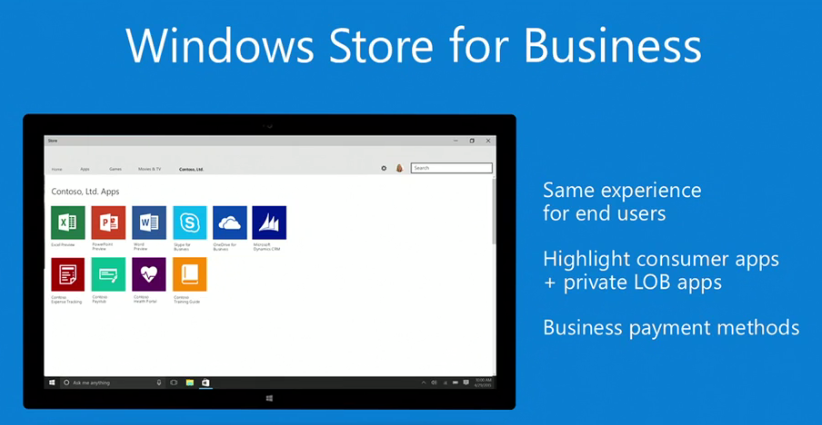
Windows Store for business was announced. Developers can sell apps via purchase orders (PO).

image

They want Windows 10 to be easy to adopt, not just free. Within 2-3 years they want 1 billion devices to run Windows 10. No other platform has gotten close – Android KitKat is on 500 million devices. Breadth like this will make Windows more attractive to developers, and more apps makes Windows 10 more attractive to customers: chicken and egg.

He demo’s a news app – USA Today. He opens an article. The app uses cloud-based shared state. He opens the same app on a phone – and the article is right there where he left it. USA Today spent 1 hour porting the app to Xbox One, tuning it to just present video instead of text + video. That’s universal apps for you.

Interesting: webdevs can take their existing code and package it via Windows Store. Users can “install” the website as an app. The website can detect if it’s running as an app or as a website. One scenario is that the app version can offer embedded sales via Windows Store.

Win32 apps will be available via App-V through the Windows Store. This allows users to get apps that don’t mess up their system – the sw never installs on the PC. Adobe are putting PhotoShop Elements and Premier Elements in the store in this way.

Java and C++ code from Android apps will be able to run on Windows 10. Windows 10 will include an Android subsystem.

And iOS code (Objective C) support are coming to Windows too. Wo-fucking-ow! He demonstrated an iPad app running on Windows! And the game was extended to offer Xbox Live achievements!

The freebie for Build attendees are getting a brand new HP Spectre 2-in-1. Thinner, lighter and more battery life than a Macbook Pro, and has touch. And there’s a joke about conference Wi-Fi.

Mr. Hair comes on stage to do some demos of the Start Menu. Live tiles are animated. The menu is translucent. Jump lists are there. Hmm – the Windows Store is suggesting apps in the menu. The lock screen is updated with “Spotlight” that you can choose to add. You can get a stream of personal information on the screen. If you like the image, there’s a hotspot to train the service which lock screen images you like.

Lots of Cortana talk – which is irrelevant if you’re not living in the privileged small number of countries that it supports.

And Project Spartan will be called: …. …. ….

image

Other stuff was said about the Continuum adaptive UI.

HoloLens. There is a live demo. There’s a Holographic start menu and he opens Skype. He pins the app to a wall!!!!! There are various other screens and pictures on the wall. THere’s a robot on the table and a virtual puppy on the floor. A weather app on the table is presented in the form of a beach/sea and weather info. He launches a video app to start watching a movie on the wall – instant 200” TV me thinks! He says “follow me” and the video player stays in front of him, he re-pins it to the wall, and scales it to FILL the wall. Every Windows app has these abilities.

And my Twitter feed just went WILD.

Here’s a cadaver anatomy app that they showed live:

image

Microsoft have started to learn more ways to use holograms through this device and can’t wait to get the device out in the real world. Note: all the apps shown were universal apps.

The device looks quite nice.

image

They show a holographic robot overlaid on a physical one that I think was powered by Windows 10 IoT running on Raspberry Pi. The presenter airtaps a path on the floor and the robot follows it. There’s room understanding from the sensors of HoloLens – the robot can be sent around an obstacle.

And back comes Satya to wrap up. That’s all folks!