Azure WAF and False Positives

This post will explain how to override false positives in the (network) Azure Web Application Firewall (WAF), without compromising security, using one of four methods in combination with a tiered WAF Policy architecture:

  1. Managed Rulesets
  2. Custom Rules
  3. Exclusions
  4. Disabled rules

False Positives

A WAF is a rather simple solution, attempting to inspect L7 (application layer) traffic and intercept attacks such as protocol misuse, SQL injection, or cross-site scripting. Unfortunately, false positives can occur.

For example, let’s assume that an API app is securely shared using a WAF. Messages sent to the API might be formatted in JSON, with lots of special characters to format the message. SQL Inspection defenses count special characters, trying to find where an attacker is trying to escape out of a web request to create a database command that will execute. If the defense counts too many special characters (it will!) then an alert will be created and the message will be blocked if Prevention mode is enabled.

One must allow that traffic through because it is expected traffic that the application (and the business) requires. But one must do this without opening up too many holes in the WAF, making the WAF a costly, pointless existence.

Log Analytics Ingestion Charge

There is a side effect to false positives. False positives will vastly outnumber actual attack/probing attempts. Busy workloads can generate huge amounts of logs for false positives. If you use Log Analytics, that data has a cost:

  • Storage: Not too bad
  • Ingestion: This one is painful

The way to reduce the cost is to reduce the noise by overriding the detections that create false positives. Organizations that have a lot of web traffic could save a significant amount of money here.

WAF Policies

The WAF functionality of the Azure Application Gateway (AppGw) is managed by a resource called an Application Gateway WAF Policy (WAF Policy). The typical approach is to associate 1 WAF Policy with a WAF resource. The WAF policy will create customizations. For reasons that should become apparent later, I am going to urge you to take a slightly more granular approach to manage your WAF if your WAF is used to securely share more than one workload or listener:

  • WAF parent policy: A WAF policy will be associated with the WAF. This policy will apply to the WAF and all listeners unless another WAF Policy overrides specific settings.
  • Per-Listener/Per-Workload policy: This is a policy that is created specifically for a listener or a workload (a set of listeners). Any customisations that apply only to a listener or a workload will be applied here, without affecting any other listener or workload.

Methodology

You will never know what false positives you will encounter. If your WAF goes straight into Prevention mode then you will create a world of pain and be the recipient of a lot of hate-messages/emails.

Here’s the approach that I recommend:

  1. Protect your WAF with an NSG that has Traffic Analytics enabled. The NSG should only allow the necessary HTTP, HTTPS, WAF monitoring (from Azure), and load balancing traffic. Use a custom deny-all rule to block everything else.
  2. Enable monitoring for the Application Gateway, sending all logs to a queryable destination such as Log Analytics.
  3. Monitor traffic for a period of time – enough to allow expected normal usage of the full systems. Your monitoring should detect the false positives.
  4. Verify that Traffic Analytics did not record malicious IP addresses hitting your WAF.
  5. Query your monitoring data to find the false positives for each listener. Identify the hostname, request URI, ruleset, rule group, and rule ID that is causing the issue on a per-listener/workload basis.
  6. Ideally, developers fix any issues that create false positives but this is unlikely – so we’ll move on.
  7. Determine your override strategy (see below).
  8. Deploy your overrides with the policies still in Detection mode.
  9. Monitor traffic for another period of time to ensure that there are no more false positives.
  10. Switch the parent policy to Prevention Mode.
  11. Swith each per-listener/per-workload policy to Prevention Mode
  12. Monitor

Managed Rule Sets

The WAF today has two rulesets that you can use:

  • OWASP: Used to detect attacks such as SQL Injection, Cross-site scripting, and so on.
  • Microsoft Bot Manager Rule Set: Used to prevent malicious bots from browsing/attacking your workloads.

You need the OWASP ruleset – but we will need to manage it (later). The bot ruleset, in my experience, creates a huge amount of noise will no way of creating granular overrides. One can override the bot ruleset using custom rules, but as you’ll see later, that’s a big stick that is not granular at all!

My approach to this is to disable the Microsoft Bot Manager Rule Set (or leave it disabled) in the parent and child rulesets. If I have a need to enable it somewhere, I can do it in a per-listener or per-workload ruleset.

Custom Rules

A custom rule is created in a WAF Policy to force traffic that matches certain criteria to be:

  • Always allowed
  • Always denied
  • Logged only without denying it

You can create a sequence of filters based on:

  • IP Address
  • Number
  • String
  • Geo Location

If the set of filters matches a request then your desired action will apply. For example, if I want to force traffic to be allowed to my API, I can enter the API URI as one of the filters (as above) and all traffic will be allowed.

Yes, all traffic will be allowed, including traffic that is not a false positive. If I only had a few OWASP rules that were blocking the traffic, the custom rule would disable all OWASP rules.

If you must use this approach, then implement it in the child policy so it is limited to the associated listener/workload.

Exclusions

This is the newest of the override types in WAF Policy – and I’ve found it to be the least useful.

The theory is that you can create an exclusion for one or more OWASP rules based on the values of request headers. For example, if a header called RequestHeaderKeys contains a value of X-Scanner you can instruct the affected OWASP rules to be disabled. This sounds really powerful and quite granular. But this starts to fall apart with other scenarios, such as the aforementioned SQL Injection.

Another common rule that alerts on or blocks traffic is Missing User Agent Header. Exclusions work on the value of a header, so if the header is missing, Exclusions cannot evaluate it.

Another gotcha is that you cannot combine header filters to create an exclusion. The Azure Portal experience for creating an Exclusion makes it look like you can. However, the result is two or more Exclusions that work independently.

If Exclusions will work for you, implement them in the per-listener/per-workload policy and specify only the rules that must be overridden. This approach will limit the effect of the exclusion:

  1. The scope is just the listener/workload that is associated with the WAF Policy.
  2. The scope is further limited to just requests where the header matches, allowing all other requests and all OWASP rules to be applied.

Disabled Rules

The final approach that you can use is to disable rules that are creating false positive alerts. A simple workload might only require one or two rules to be disabled. An older & larger workload might require many OWASP rules to be disabled!

If you are going to disable OWASP rules, then do it in the per-listener/per-workload policy. This will limit the effect of the changes to that listener/workload.

This is a fairly each approach and it is pretty granular – not as much as Exclusions. The downside is that you are completely disabling certain protections for an entire listener/workload, leaving the workload vulnerable to attacks of those previously protected types.

Combinations

If you have the time and the data, you can combine different approaches. For example:

  • A webhook that comes from the same IP address all of the time can be allowed via a Custom Rule based on an IP Address filter. Any other traffic will be subject to the fill defenses of the WAF.
  • If you have certain headers that must be allowed and you want to enable all other protections for all other traffic then use Exclusions.
  • If traffic can come from anywhere and you need to override OWASP rules, then disable those rules.

No Great Solution

In summary, there is no perfect solution. The best you can do is find the correct override solution for the specific false positive and deploy it to a specific listener or workload. This will limit the holes that you create in the WAF to the absolute minimum while enabling your workloads to function.


Checking If Client Has Access To KeyVault With Private Endpoint

How to detect connections to a PaaS resource using Private Endpoint.

In this post, I’ll explain how to check if a client service, such as an App Service, has access to an Azure Key Vault with Private Endpoint.

Private Endpoint

In case you do not know, Private Endpoint gives us a mechanism where we can attach a PaaS service, such as a Key Vault, to a subnet with a NIC and a private IP address. Public connections to the PaaS resources are disabled, and an (Azure) Private DNS Zone is used to alter the name resolution of the PaaS resource to point to the private IP address.

Note that communications to the private endpoint are inbound (and response only). The PaaS resource cannot make outbound connections over a Private Endpoint.

My Scenario

The customer has an App Service Plan that has VNet Integration enabled – this allows the App Services to make outbound connections from “random” IPs on this subnet – NSG/Firewall rules should permit access from the subnet prefix.

The App Services on the plan have Private Endpoints on a second subnet in the VNet. There is also a Key Vault, which also has a Private Endpoint. The “Private Endpoint subnet” has an NSG to deny everything except desired traffic, including allowing HTTPS from the VNet Integration subnet prefix to the Key Vault Private Endpoint.

A developer was wondering if connections from an App Service were working and asked if we could see this in the logs.

Problem

The dev in this case wanted to verify network connectivity. So the obvious place to check was … the network! The way to do that is usually to verify that packets arrived at the destination NIC. You can do that (normally) using NSG Flow Logs. There is sometimes up to 25 minutes (or longer during pandemic compute shortages) of a wait before a flow appears in Log Analytics (data export from the host, 10 minutes collection interval [in our case], data processing [15 minutes]). We checked the logs but nothing was there.

And that is because (at this time) NSG Flow Logs cannot produce data destined to Private Endpoints.

We need a different way to trace connections.

Solution

The solution is to check the logs of the target resource. We enable a lot of logging by standard, including the logs for Key Vault. A little bit of Kql-Fu produced this query:

AzureDiagnostics
| where ResourceProvider =="MICROSOFT.KEYVAULT"
| where ResourceId contains "nameOfVault"
| project CallerIPAddress, OperationName, requestUri_s, ResultType, identity_claim_xms_mirid_s

The resulting columns were:

  • CallerIPAddress: The IP address of the client (the IP address used by the App Service Plan VNet integration, in our case)
  • OperationName: Things like SecretGet, Authentication, VaultGet, and SecretList
  • requestUri_s: The URI of the secret being requested
  • ResultType: Was it a success or not?
  • identity_claim_xms_mirid_s: The resource ID of the requesting client (the resource ID of the App Service, in our case)

Armed with the resulting info, the dev got what they needed to prove that the App Service was connecting to the Key Vault.

PowerShell – Check VMSS Instance Image/Model Versions

Here is a PowerShell script to check the Image or Model versions of each instance in an Azure Virtual Machine Scale Set (VMSS):

$ResourceGroup = "p-we1dep"
$Vmss = "p-we1dep-windows-vmss"

// Find all the instances in the VMSS
$Instances = Get-AzVmssVM -ResourceGroupName $ResourceGroup -Name $Vmss

Write-Host "Instance image versions of VMMS: $Vmss"

// For each instance in the VMSS
foreach ($Instance in $Instances) {

    // Get the exact version of the instance
    $InstanceInfo = (Get-AzVmssVM -ResourceGroupName $ResourceGroup -Name $Vmss -InstanceId $Instance.instanceId).StorageProfile.ImageReference.ExactVersion
    $Id = $Instance.instanceId

    // Echo the instance ID and Exact Version
    Write-Host "Instance $Id - $InstanceExactVersion"
}

E: Could Not Open File /var/lib/apt/lists

In this post, I’ll show how I solved a failure, that occurred during an Azure Image Builder (Packer) build with a Ubuntu 20.04 image, which resulted in a bunch of errors that contained E: Could not open file /var/lib/apt/lists/ with a bunch of different file names.

Disclaimer

I am Linux-disabled. I started my career programming on UNIX but switched to being a Microsoft infrastructure person a year later – and that was a long time ago. I am not a frequent Linux user but I do acknowledge its existence and usefulness. In other words, I figured out a fix for me, but it might not be a fix for you.

The Problem

I was using Azure Image Builder, which is based on Packer, to allow the regular creation of a Ubuntu 20.04 image with the latest updates and bits for acting as the foundation of a self-hosted DevOps agent VM Scale Set in a secure Azure network.

I had simple needs:

  1. Install Unzip
  2. Install Terraform

What makes it different is that I need the installations to be non-interactive. Windows has a great community with that kind of challenge. After a lot of searching, I realise that Linux does not.

I set up the tasks in the image template and for a month, everything was fine. Images built and rebuilt. A few days ago, a weird issue started where the first version of a template build was fine, but subsequent builds failed. When I looked at the build log, I saw a series of errors when apt (the package installed) ran that started with:

E: Could not open file /var/lib/apt/lists/

The Solution

I tried a lot of things, including:

apt-get update
apt-get upgrade -y

But guess, what – the errors just moved.

I was at the end of my tether when I decided to try something else. The apt package installation for WinZip worked some of the time. What was wrong the rest of the time? Time – that was the key word.

Something needed more time before I ran any apt commands. I decided to embed a bunch of sleep commands to let things in Ubuntu catchup with my build process.

I have two tasks that run before I install Terraform. The first prepares Linux:

            {
                "type": "Shell",
                "name": "Prepare APT",
                "inline": [
                    "echo ABCDEFG",
                    "echo sleep for 90 seconds",
                    "sleep 1m 30s",
                    "echo apt-get update",
                    "apt-get update",
                    "echo apt-get upgrade",
                    "apt-get upgrade -y",
                    "echo sleep for 90 seconds",
                    "sleep 1m 30s"
                ]
            },

The second task installs WinZip and some other tools that assist with downloading the latest Terraform zip file:

            {
                "type": "Shell",
                "name": "InstallPrereqs",
                "inline": [
                    "echo ABCDEFG",
                    "echo sleep for 90 seconds",
                    "sleep 1m 30s",
                    "echo installing unzip",
                    "sudo apt install --yes unzip",
                    "echo installing jq",
                    "sudo snap install jq"
                ]
            },

I’ve ran this code countless times yesterday and it worked perfectly. Sure, the sleeps slow things down, but this is a batch task that (outside of testing) I won’t be waiting on so I am not worried.

Referencing Private Endpoint IP Addresses In Terraform

It is possible to dynamically retrieve the resulting IP address of an Azure Private Endpoint and use it in other resources in Terraform. This post will show you how.

Scenario

You are building some PaaS resources using Private Endpoints. You have no idea what the IP addresses are going to be. But you need to use those IP addresses elsewhere in your Terraform code, for example in an NSG rule. How do you get the IP addresses?

Find The Properties

The trick for this is to use the terraform state command. In my case, I deployed a Cosmos DB resource using azurerm_private_endpoint.cosmosdb-account1. To view the state of the resource, I can run:

terraform state show azurerm_private_endpoint.cosmosdb-account1

That outputs a bunch of code:

Terraform state of a Cosmos DB resource

You can think of the exposed state as a description of the resource the moment after it was deployed. Everything in that state is addressable. A common use might be to refer to the resource ID (azurerm_private_endpoint.cosmosdb-account1.id) or resource name (azurerm_private_endpoint.cosmosdb-account1.name) properties. But you can also get other properties that you don’t know in advance.

The Solution

Take another look at the above diagram. There is an array property called private_dns_zone_configs that has one item. We can address this property as azurerm_private_endpoint.cosmosdb-account1.private_dns_zone_configs[0].

In there there is another array property, with two items, called record_sets. There is one record set per IP address created for this private endpoint. We can address these properties as azurerm_private_endpoint.cosmosdb-account1.private_dns_zone_configs[0].record_sets[0] and azurerm_private_endpoint.cosmosdb-account1.private_dns_zone_configs[0].record_sets[1].

Cosmos DB creates a private endpoint with multiple different IP addresses. I deliberately chose Cosmos DB for this example because it shows a more complex probelm and solution, demonstrating a little bit more of the method.

Dig into record_sets and you’ll find an array property called ip_addresses with 1 item. If I want the two IP addresses of this private endpoint then I will use: azurerm_private_endpoint.cosmosdb-account1.private_dns_zone_configs[0].record_sets[0].ip_addresses[0] and azurerm_private_endpoint.cosmosdb-account1.private_dns_zone_configs[0].record_sets[1].ip_addresses[0].

Using the Addresses

destination_address_prefixes = [
 azurerm_private_endpoint.cosmosdb-account1.private_dns_zone_configs[0].record_sets[0].ip_addresses[0], // Cosmos DB Private Endpoint IP 1
 azurerm_private_endpoint.cosmosdb-account1.private_dns_zone_configs[0].record_sets[1].ip_addresses[0] // Cosmos DB Private Endpoint IP 2
 ]                       
}

And now I have code that will deploy an NSG rule with the correct destination IP address(es) of my private endpoint without knowing them. And even better, if something causes the IP address(es) to change, I can rerun my code without changing it, and the rules will automatically update.

Avoiding Sticker Shock in Azure

In this post, I’m going to discuss the shock that switching from traditional CapEx spending to cloud/OpEx spending causes. I will discuss how to prepare yourself for what is to come, how to govern spending, and how to enforce restrictions.

The Switch

Most of you who will read this article have been working in IT for a while, that is, you are not a “cloud baby” (born in the cloud). You’ve likely been involved with the entire lifecycle of systems in organisations. You’ve specified some hardware, gone through a pricing/purchase process, owned that hardware, and replaced it 3-10 years later in a cyclical process. It’s really only during the pricing/purchase process which happens only every 3-10 years in the life of a system, that you have cared about pricing. The accountants cared – they cared a lot about saving money and doing tax write-offs. But once that capital expenditure (CapEx) was done, you forgot all about the money. And you’re in IT so you don’t care about the cost of electricity, water, floorspace, or all the other things that are taken care of by some other department such as Facilities.

Things are very different in The Cloud. Here, we get a reminder every month about the cost of doing business. Azure sends out an invoice and someone has gotta pay the piper. Cloud systems run on a “use it and pay for it” model, just like utilities such as electricity. The more you use, the more you pay. Conversely, the less you use, the less you pay.

Sticker Shock

Have you ever wandered around a shop, seen something you liked, had a look at the price tag and felt a shocked at the high price? That’s how the person who signs the checks in your organisation starts to feel every month after your first build in or migration into Azure. Before an organisation starts up in The Cloud, their fears are about security, compliance, migration deadlines, and so on. But after the first system goes live, the attention of the business is on the cost of The Cloud.

There is a myth that The Cloud is cheaper. Sometimes, yes, but not always – large virtual machines and wasteful resource sizing stand out. In CapEx-based IT, you paid for hardware and software. Someone else in the business paid for all the other stuff that made the data centre or computer room possible. In The Cloud, the cost includes all those aspects, and you get the bill every month. This is why cost management becomes a number 1 concern for Cloud customers.

I have seen the effect of sticker shock on an organisation. In one project that I was a lead on, the CTO questioned every cost soon after the bills started to arrive. The organisation was a non-profit and cash flow was intended for their needy clients. Every time something was needed to enable one of their workloads, the justification for the deployment was questioned.

In other scenarios, the necessary (for agility) self-service capability of The Cloud provides developers and operators with a spigot through which cash can leave the organisation. I heard a story when I started working with Azure about a developer that wrote a bad Azure SQL query and left it to run over a long weekend. The IT department came in the following week to find three years of Azure budget spent in a few days.

Dec, Ops, And … Fin?

You’ve probably heard of DevOps, the mythical bringing together of eternal enemies, Developers and IT Operations. DevOps hopes to break down barriers and enable aligned agility that provides services to the business.

Now that we’ve all been successful at implementing DevOps (right?!?!) it’s time to forge those polar IT opposites with the folks in finance.

Finance needs to play a role:

  • Early in your cloud journey
  • During the lifecycle of each workload

The Cloud Journey

The process that an organisation goes through while adopting The Cloud is often called a cloud journey. Mid-large organisations should look at the Cloud Adoption Framework (a CAF exists for Azure, AWS, and Google Cloud) because of the structure that it provides to the cloud journey. Smaller organisations should take some inspiration from CAF – a lot of the concepts will be irrelevant.

A critical early step in a CAF is to work with the people that will be signing the cheques. The accountants need to learn:

  • Developers and operators will be free to deploy anything they want, within the constraints of organisation-implemented governance.
  • How the billing process is going to change to a monthly schedule based on past usage.
  • About the possibilities of monitoring and alerting on consumption.

The Lifecycle of Each Workload

In DevOps, Developers and Operators work together to design & operate the code and resources together, instead of the historical approach where square code is written and Ops try to squeeze it into round resources.

When we bring Finance into the equation, the prediction of cost and the management of cost should be designed with the workload and not be something that is tacked on later.

Architects must be aware that resource selection impacts costs. Picking a vCore Azure SQL database instead of a lower-cost DTU SKU “just to be safe” is safe from a technical perspective but can cost 1000% more. Designing an elastic army of ants, based on small compute instances that auto-scale while maintaining state, provides a system where the cost is a predictable percentage of revenue. Reserved instances and licensing to use hybrid use benefit can reduce costs of several resource types (not just virtual machines) over one-to-three years.

A method of associating resources with workloads/projects/billing codes must be created. The typical method that is discussed is to use tagging – which, despite all the talk of Azure Policy – requires a human to apply values to the tags which may be deployed automatically. I prefer a different approach, using one subscription per workload and using that natural billing boundary to do the work for me.

The tool for managing cost is perfectly named: Azure Cost Management. Cost Management is not perfect – I seriously dislike how some features do not work with CSP offers – but the core features are essential. You can select any scope (tag, subscription, or resource group) and get an analysis of costs for that scope in many different dimensions, including a prediction for the final cost at the end of the billing period. A feature that I think is essential for each workload is a budget. You can use cost analysis to determine what the spend of a workload will be, and then create alerts that will trigger based on current spending and forecasted spending. Those alerts should be sent to the folks that own the workload and pay the bill – enabling them to crack some fingers should the agreed budget be broken.

Source: Microsoft

Wrap Up

Once the decision to go to The Cloud is made, there is a rush to get things moving. Afterward, there’s a panic when the bills start to come in. Sticker shock is not a necessity. Take the time to put cost management into the process. Bring the finance people and the workload owners into the process and educate them. Learn how resources are billed for and make careful resource and SKU selections. Use Azure Cost Management to track costs and generate alerts when budgets will be exceeded. You can take control, but control must be created.

Connecting To A Third-Party Network From Azure Using NAT

An unfortunately common scenario is where you must create a site-to-site network connection with a third-party network from your Azure network using NAT. This post will explain a few solutions.

The Scenario

There are those out there who think that every implementation in The Cloud is 100% under your control and is cloud-ready. But sometimes, you must fit in with other people’s designs and you can’t use cool integrations such as Private Link or API. Sometimes you need to connect your network to a third party and they dictate the terms of the connection.

The connection is typically a site-to-site connection, usually VPN but I have seen ExpressRoute used. VPN means there are messy bits – you can control that with your own on-premises firewalls but you have no control over the VPN configuration of an externally owned firewall.

Site-to-site connections with a service provider means that there could be IP address overlap. The only way to handle that is to use NAT – and that is not always possible natively in the platform or it’s really badly documented.

Solution 1: On-Premises Relay

In this scenario, the third-party will make a connection to your on-premises network. NAT is implemented on the on-premises network to translate your private Azure address to some “public address” (it is routed only over the private connections).

The connection between on-premises and Azure could be VPN or ExpressRoute.

This design is useful in two situations:

  1. You are using ExpressRoute – the ExpressRoute Gateway does not offer NAT functionality.
  2. The third-party insists that you use some kind of VPN configuration that is not supported in Azure, for example, GRE.

The downside with this design is that might be additional latency between the third-party and your Azure network.

Solution 2: AWS Relay

Oh – did this post by an Azure MVP just mention AWS? Sure – there is a time and a place for everything.

This solution is similar to the on-premises relay solution but it replaces on-premises with AWS. This can be useful where:

  1. You want to minimise on-premises resources. AWS does support GRE so a VPN connection to a third-party that requires GRE can be handled in this way.
  2. You can use an AWS region that is close to either the third-party and/or your Azure region and minimise latency.

Note that the connection from AWS or Azure could be either VPN or ExpressRoute (with an ISP that supports Azure ExpressRoute and AWS Direct Connect).

The downside is that there is still “more stuff” and a requirement for skills that you might not have. On the plus side, it offers compatibility with reduced latency.

Solution 3: Azure Relay

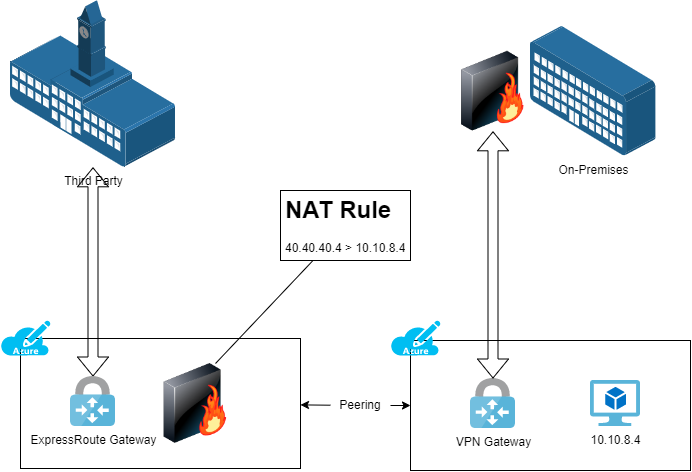
In this design, the third-party makes a connection to your Azure network(s) using ExpressRoute. But as usual, you must implement a NAT rule. The ExpressRoute Gateway cannot natively implement NAT. That requires that you must deploy “an appliance” (NVA or Linux VM with NAT tables).

In the above design, there is a route table associated with the GatewaySubnet of the ExpressRoute Gateway. An user-defined route with a prefix of 40.40.40.4 will forward to the appliance as the next hop. A user-defined route on the VM’s subnet with a prefix of the third-party network(s) will use the appliance as the next hop.

This design allows you to use ExpressRoute to connect to the third-party but it also allow you to implement NAT.

Solution 4: VPN Gateway & NAT

Other than using some modern solution, such as authenticated API over HTTPS, this is probably “the best” scenario in terms of Azure resource simplicity.

The third-party connects to your Azure network using a site-to-site VPN. The connection is terminated in Azure using a VPN Gateway. The Azure VPN Gateway is capable of supporting NAT rules. Unfortunately, that’s where things begin to fall apart because of the documentation (quality and completeness).

This is a simple scenario where the third-party needs access to an IP address (VM other otherwise) hosted in your Azure network. That internal address of your Azure resource must be translated to a different External IP Address.

As long as your VPN Gateway is VpnGw2/VpnGw2Az or higher, then you can create NAT rules in the Gateway. The scenario that I have described requires a confusingly-named egress NAT rule – you are translating an internal IP address(es) to an external IP address(es) to abstract the internal address(es) for ingress traffic. An ingress NAT rule translates an external IP address(es) to an internal address(es) to abstract the external address(es) for ingress traffic.

The Terraform code for my scenario is shown below: I want to make my Azure resource with 10.10.8.4 available externally as 40.40.40.4 on TCP 443:

Once you have the NAT rule, you will associate it with the Connection resource for the VPN.

And that’s it – 10.10.8.4 will be available as 40.40.40.4 on TCP 443 to the third-party – no other connection can use this NAT rule unless it is associated with it.

Solution 5 – NVA & NAT

This is alm ost the same as the previous example, but an NVA is used instead of the Azure VPN Gateway, maybe because you like their P2S VPN solution or you are using SD-WAN. The NAT rules are implemented in the NVA.

Get The Diagnostics Logs Names For An Azure Resource

This post will show you how to get the ARM (also for Bicep, Terraform, etc) names of the diagnostics logs for an Azure resource.

Problem

When you are deploying Azure resources as code, you might need to enable diagnostics logs. This might require you to know the name of each log. Here’s the issue: the names of the logs in the Azure Portal are usually different from the names that are used in the code. Sure, they’ll remove the spaces and use camel-case, but that’s predictable. Often, the logs have completely different names.

Sometimes the names are documented – thank you App Services! Sometimes you cannot find the log names – boo Azure SQL!

Solution

The tip that I’m going to share is useful – this is the second time in a few weeks that I’ve used this approach.

If you know what you are looking for, diagnostics logs in this case, then do a search online for something like “Azure Diagnostics Settings REST API”. This will bring you to a Microsoft page that shares different methods for the API.

I wanted to see what the log names are for an Azure SQL Database. So I manually created the diagnostic setting. After that, grab the resource ID of the Azure SQL Database.

Then I did the above search. I clicked the Get method and then clicked the Try It button. Put the name of the diagnostic setting (that you created) in name. Put the resource ID of the Azure SQL Database in resourceID. And then click Run. A second later, the ARM for the diagnostic setting is presented on a screen below, including all the diagnostics log names.

Importing Azure Resource To Terraform State After Timed Out Pipeline

This article will explain how to simply import a resource that was successfully deployed by Terraform from a GitHub action or DevOps pipeline that timed out into your state file.

Background

I’m working a lot with Terraform these days. ARM doesn’t scale, and while I’d prefer to use a native toolset such as Bicep, it is just a prettier ARM and has most of the same issues – scale (big architectures) and support (Azure AD = helloooo!).

The Scenario

You are writing Terraform to deploy resources in Microsoft Azure. That code is run by a DevOps pipeline or a GitHub action. You add a resource such as App Service Environment v3 or Azure SQL Managed Instance that can take hours to deploy. A DevOps pipeline will timeout after 1 hour.

As expected, the pipeline times out but the resource deploys. You try to run the pipeline again but pipeline will fail because you have resources that don’t exist in the state file. Ouch! You do your due diligence and search, and you find nothing but noise, and that does not help you. That was my experience, anyway!

State File Lock

I use blob storage in secured Azure Storage Accounts to store state files. The timed-out pipeline locked the state file using a blob lease. Browse to the container, select the blob and release the lock.

The Fix

The fix is actually pretty simple. You’ve already done most of the work – defining the resource.

In my example, I have a file called ase.tf. I have a resource definition that goes something like this:

resource "azurerm_app_service_environment_v3" "ase" {

...

}

I made a copy of my pipeline file. Then I modified my pipeline yaml file so it would run a terraform import command instead of a terraform apply.

terraform import azurerm_app_service_environment_v3.ase /subscriptions/<subscription id>/resourceGroups/<resource group name>/providers/Microsoft.Web/hostingEnvironments<resource name>

I used the  GetAzAppServiceEnvironment cmdlet in Cloud Shell to retrieve the resource ID of the ASE because it wasn’t shared in the Azure Portal.

I re-ran the pipeline and the state file was updated with the resource. Reset the pipeline file back to the way it was (back to terraform apply) and your pipeline should run clean.

Cannot Remove Subnet Because of App Service VNet Integration

This post explains how to unlock a subnet when you have deleted an App Service/Function App with Regional VNet Integration.

Here I will describe how you can deal with an issue where you cannot delete a subnet from a VNet after deleting an Azure App Service or Function App with Regional VNet Integration.

Scenario

You have an Azure App Service or Function App that has Regional VNet Integration enabled to connect the PaaS resource to a subnet. You are doing some cleanup or redeployment work and want to remove the PaaS resources and the subnet. You delete the PaaS resources and then find that you cannot:

  • Delete the subnet
  • Disable subnet integration for Microsoft.Web/serverFarms

The error looks something like this:

Failed to delete resource group workload-network: Deletion of resource group ‘workload-network’ failed as resources with identifiers ‘Microsoft.Network/virtualNetworks/workload-network-vnet’ could not be deleted. The provisioning state of the resource group will be rolled back. The tracking Id is ‘iusyfiusdyfs’. Please check audit logs for more details. (Code: ResourceGroupDeletionBlocked) Subnet IntegrationSubnet is in use by /subscriptions/sdfsdf-sdfsdfsd-sdfsdfsdfsd-sdfs/resourceGroups/workload-network/providers/Microsoft.Network/virtualNetworks/workload-network-vnet/subnets/IntegrationSubnet/serviceAssociationLinks/AppServiceLink and cannot be deleted. In order to delete the subnet, delete all the resources within the subnet. See aka.ms/deletesubnet. (Code: InUseSubnetCannotBeDeleted, Target: /subscriptions/sdfsdf-sdfsdfsd-sdfsdfsdfsd-sdfs/resourceGroups/workload-network/providers/Microsoft.Network/virtualNetworks/workload-network-vnet)

It turns out that deleting the PaaS resource leaves you in a situation where you cannot disable the integration. You have lost permission to access the platform mechanism.

In my situation, Regional VNet integration was not cleanly disabling so I did the next logical thing (in a non-production environment): started to delete resources, which I could quickly redeploy using IaC … but I couldn’t because the subnet was effectively locked.

Solutions

There are 2 solutions:

  1. Call support.
  2. Recreate the PaaS resources

Option 1 is a last resort because that’s days of pain – being frankly honest. That leaves you with Option 2. Recreate the PaaS resources exactly as they were before with Regional VNet Integration Enabled. Then disable the integration (go into the PaaS resource, go into Networking, and disconnect the integration).

That process cleans things up and now you can disable the Microsoft.Web/serverFarms delegation and/or delete the subnet.