In this post, I will explain how I upgraded the Azure virtual machine, that this site is hosted on, from ASM (Azure Service Management, Classic or Azure v1) to ARM (Azure Resource Manager, Resource Manager or Azure v2).
FYI, although I had no plans for changing subscriptions, this migration is also the first step for moving resources from one subscription to another, e.g. Credit Card/Direct to CSP, Open to CSP, or EA to CSP.
Background
I’ve been running aidanfinn.com on Azure for a few years now. It game me a vested interest in Azure, other than my day job where I teach and sell Azure services to MS partners. Over the years, I’ve applied some of the things that I’ve learned, including one time where MySQL blew up so bad that I had to use Azure Backup (then in preview) to restore the entire VM – this is why you’ll see the phrase “aidanfinn02” later in the example.
The VM was running in ASM. ASM is effectively deprecated, but I never had a chance to migrate it to ARM. That changed, and I decided to make the switch. In the process, I decided that I wanted to clean up resource groups, migrate to managed disks, and maybe change a few other things.
I had two options available to me:
- MigAz: Great community tool that allows a complete change, including renaming. There is downtime to move the disks.
- The “Platform Supported” method: Using official cmdlets to do an ASM-ARM migration with no downtime during the ASM-ARM migration.
I went with the platform supported method. Long-term, it means I have more work to do to do some renaming, etc, but I’ve never had “my own” stuff to move using this method, so I wanted to do it and document it with a real example.
Note that the platform support method has a few approaches. My virtual machine was in a virtual network, so I opted to move the entire virtual network and associated contents. This is cool because, all VMs (I have one only) are moved, and endpoints are converted into NAT rules in a load balancer. Any reserved cloud service IPs are converted into static public IPs.
Note, you’ll need to download the latest Azure PowerShell modules (and reboot if it’s your first install) to do either method.
FYI, the below includes copy/pastes of the actual cmdlets that I used. The only thing I have modified, for obvious reasons, is the subscription ID.
Register the Migration Provider
You’ll need to register the provider that allows you to do ASM-ARM migrations. This is done on a per subscription basis. You’ll log into your subscription using ARM:
Login-AzureRmAccount
If your tenant has more than one subscription, like mine does, then you need to query the subscriptions:
Get-AzureRmSubscription
This allows you to get the ID of the subscription that you will sign into, so you can select it as the current subscription to work on:
Select-AzureRmSubscription -SubscriptionId 1234567f-a1b2-1234-1a2b-1234ab123456
Next you register the migration proivder:
Register-AzureRmResourceProvider -ProviderNamespace Microsoft.ClassicInfrastructureMigrate
This migration can take up to five minutes. You can query the status of the migration:
Get-AzureRmResourceProvider -ProviderNamespace Microsoft.ClassicInfrastructureMigrate
You can continue once you get a registered status:
ProviderNamespace : Microsoft.ClassicInfrastructureMigrate
RegistrationState : Registered
ResourceTypes : {classicInfrastructureResources}
Locations : {East Asia, Southeast Asia, East US, East US 2…}
Validation
The migration has three phases. The first allows you to validate that you can migrate your machines cleanly. Common issues include unsupported extensions, extension versions, classic backup vault registrations, endpoint ACLs, etc.
To do the validation, you need to sign in using ASM:
Add-AzureAccount
Once again you need to make sure you’re working with the right subscription:
Get-AzureSubscription
And then make that subscription current:
Select-AzureSubscription -SubscriptionId 1234567a-a1b2-1234-1a2b-1234ab123456
I migrated my virtual network, so I queried for the Azure name of the virtual network.
Get-AzureVnetSite | Select -Property Name
My virtual network was called aidanfinn02 so I saved that as a variable – it’ll be used a few times.
$vnetName = “aidanfinn02”
Then I ran the validation against the virtual network, saving the results in a variable called $validate:
$validate = Move-AzureVirtualNetwork -Validate -VirtualNetworkName $vnetName
I could then see the results:
$validate.ValidationMessages
There were two issues:
- A faulty monitoring (Log Analytics) extension (guest OS agent)
- The VM was being backed up by a classic Azure Backup backup vault.
ResourceType : VirtualNetwork
ResourceName : aidanfinn02
Category : Error
Message : Virtual Network aidanfinn02 has encountered validation failures, and hence it is not supported for migration.
VirtualMachineName :
ResourceType : Deployment
ResourceName : aidanfinn02
Category : Error
Message : Deployment aidanfinn02 in Cloud Service aidanfinn02 has encountered validation failures, and hence it is not supported for migration.
VirtualMachineName :
ResourceType : Deployment
ResourceName : aidanfinn02
Category : Error
Message : VM aidanfinn02 in HostedService aidanfinn02 contains Extension MicrosoftMonitoringAgent reporting Status : Error. Hence, the VM cannot be migrated. Please ensure that
the Extension status being reported is Success or uninstall it from the VM and retry migration.,Additional Details: Message=This machine is already connected to another
Log Analytics workspace, please set stopOnMultipleConnections to false in public settings or remove this property, so this machine can connect to new workspaces, also
it means this machine will get billed multiple times for each workspace it report to. (MMAEXTENSION_ERROR_MULTIPLECONNECTIONS) Code=400
VirtualMachineName : aidanfinn02
ResourceType : Deployment
ResourceName : aidanfinn02
Category : Error
Message : VM aidanfinn02 in HostedService aidanfinn02 contains Extension MicrosoftMonitoringAgent reporting Handler Status : Unresponsive. Hence, the VM cannot be migrated.
Please ensure that the Extension handler status being reported is Ready or uninstall it from the VM and retry migration.,Additional Details: Message=Handler
Microsoft.EnterpriseCloud.Monitoring.MicrosoftMonitoringAgent of version 1.0.11049.5 is unresponsive Code=0
VirtualMachineName : aidanfinn02
ResourceType : Deployment
ResourceName : aidanfinn02
Category : Error
Message : VM aidanfinn02 in HostedService aidanfinn02 is currently configured with the Azure Backup service and therefore currently not supported for Migration. To migrate this
VM, please follow the procedure described athttps://aka.ms/vmbackupmigration.
VirtualMachineName : aidanfinn02
The solutions to these problems were easy:
- I signed into the classic Azure Management Portal and unregistered the virtual machine in the backup vault – DO NOT DELETE THE BACKUP DATA!
- Then I switched to the Azure Portal (and stayed here), and I removed the VMSnapshot (Azure Backup) extension from the VM.
- And then I removed the Microsoft.EnterpriseCloud.Monitoring (Log Analytics) extension
- The VM had an old version of the Diagnostics agent, so I removed that too, even though it didn’t effect validation.
I re-ran the validation:
$validate = Move-AzureVirtualNetwork -Validate -VirtualNetworkName $vnetName$validate.ValidationMessages
And the result was that the virtual network (and thus the VM) was ready for an ARM migration.
$validate.ValidationMessages
ResourceType : VirtualNetwork
ResourceName : aidanfinn02
Category : Information
Message : Virtual Network aidanfinn02 is eligible for migration.
VirtualMachineName :
ResourceType : Deployment
ResourceName : aidanfinn02
Category : Information
Message : Deployment aidanfinn02 in Cloud Service aidanfinn02 is eligible for migration.
VirtualMachineName :
ResourceType : Deployment
ResourceName : aidanfinn02
Category : Information
Message : VM aidanfinn02 in Deployment aidanfinn02 within Cloud Service aidanfinn02 is eligible for migration.
VirtualMachineName : aidanfinn02
Preparation
The preparation phase is next. This is an interim or trial period where you introduce the ARM API to your resources. For a time, the resources are visible to both ARM and ASM. There is no downtime, but you cannot make any configuration changes. The reasoning for this is that you can validate that everything is still working.
You run the command, as I did against the virtual network.
Move-AzureVirtualNetwork -Prepare -VirtualNetworkName $vnetName
And then you wait … try not to grind your teeth or chew your gums:
OperationDescription OperationId OperationStatus
——————– ———– —————
Move-AzureVirtualNetwork 2bcb56ce-2330-0824-a376-a3dcc4892e3d Succeeded
Commit
Once preparation is done, double-check everything. My website was still responding, and resources appeared in two different resource groups with -Migrated suffixes – I’ll show you how I tidied that up later in the post. I was ready to commit; this is when you tell Azure that all is good, and to please remove the ASM APIs from the resources.
Move-AzureVirtualNetwork -Commit -VirtualNetworkName $vnetName
More time passes when you forget to breath, and then it’s done! You’re in ARM, and your resources are manageable once again. Note that there is an alternative to Commit, which is to abort the process and roll back to ASM-only management.
Network Security Group
My ASM deployment was quite basic, and not best practice. I created a network security group for the subnet, allowing in:
- RDP to the subnet
- HTTP to the local static IP of the VM.
Resource Group Clean-up
As I mentioned, my ASM resources migrated into two resource groups as ARM resources. I wanted to:
- Move the resources into a single resource group.
- Get rid of the –Migrated suffix.
You can move resources, but you cannot rename resource groups. So I created a third resource group (aidanfinn):

Then I moved the resources from both of the migrated resource groups into the new aidanfinn resource group:

Migrate Storage to ARM
The official method for migrating storage is to migrate the storage account. That means that you move the storage account with the VHDs within it. Azure offers a new method for handling storage called managed disks:
- You dispense with the storage account for VHDs
- The disk becomes a manageable resource in the Portal
- You get cool new features like Snapshots and easier VM restores from disk
I decided to take a different route – I would convert my ARM VM from un-managed disks to managed disks. I needed a few values:
$rgName = "aidanfinn"
$vmName = "aidanfinn02"
I stopped the VM (my first piece of downtime in this entire process):
Stop-AzureRmVM -ResourceGroupName $rgName -Name $vmName -Force
Then I did the conversion:
ConvertTo-AzureRmVMManagedDisk -ResourceGroupName $rgName -VMName $vmName
And then I restarted the VM, after just a few minutes of downtime:
Start-AzureRmVM -ResourceGroupName $rgName -Name $vmName
Re-Introduce Management
I like the management features of Azure, so I re-introduced:
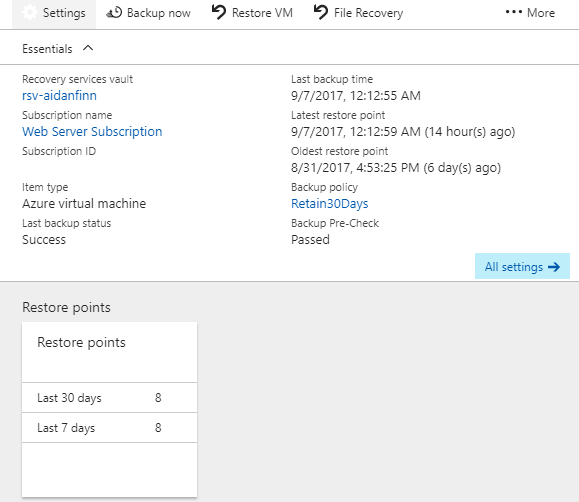
- Azure Backup of the VM using a recovery services vault using a custom policy – I created a manual backup immediately.
- Monitoring & diagnostics, to a new dedicated storage account – make sure you verify that the storage account is being used by the VM Agent and Boot Diagnostics.
Cleanup ASM
Lots of stuff can get left behind, especially if you’ve been trying things out. That all needs to be removed. One thing I kept around for a while was the classic backup vault, just in case. I only unregistered the old ASM VM – I did not delete the data. That means I have a way back if all goes wrong in ARM or I screw up in some way. I’ll give it a month, and then I’ll remove the old vault.
By the way, you can upgrade a backup vault to ARM (recovery services vault) if you want to keep your retention.
The End Result
I ended up with everything in ARM and in one resource group:
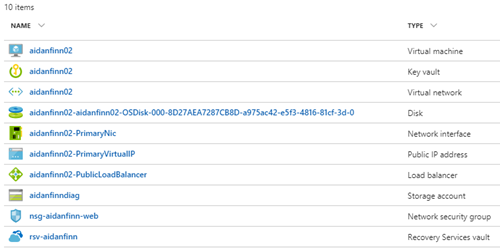
I don’t like the naming, so I will be cleaning things up. My next mini-project will be to:
- Power down the VM.
- Create a disk snapshot.
- Create a new disk from the snapshot.
- Create a new deployment, using the new disk, with names that I like.
I know – I could have done all that more quickly and easily using MigAz, but I wanted to do the platform supported migration on my stuff, and it was a chance to document it too! Hopefully this will be useful for you.