Can I Replicate Virtual Machines From iSCSI, Fibre Channel, SAS, Internal to … ?

I’m getting this question so much still.  I’m going to answer it here (as I did in the book) to make it final.

Hyper-V Replica (HVR) replicates virtual machines from one host/cluster to another/host cluster.  HVR is not physical storage replication.  It doesn’t care if you use iSCSI, SMB 3.0, Fibre Channel, Storage Pools, or SAS.  It doesn’t care if you use a JBOD, a SAN, internal disks or USB.  It doesn’t care if you’re using CSV or simple internal NTFS.  HVR is storage agnostic … it simply does not care what storage you use in the primary or the secondary sites.  The storage in the primary and secondary sites can be completely different.  You just need to be using storage that is supported by Windows Server 2012 Hyper-V (check the HCL).

That’s pretty definitive and there should be no remaining questions on this.

Technorati Tags: ,,

Put A Running Domain Controller In Your Hyper-V Replica DR Site?

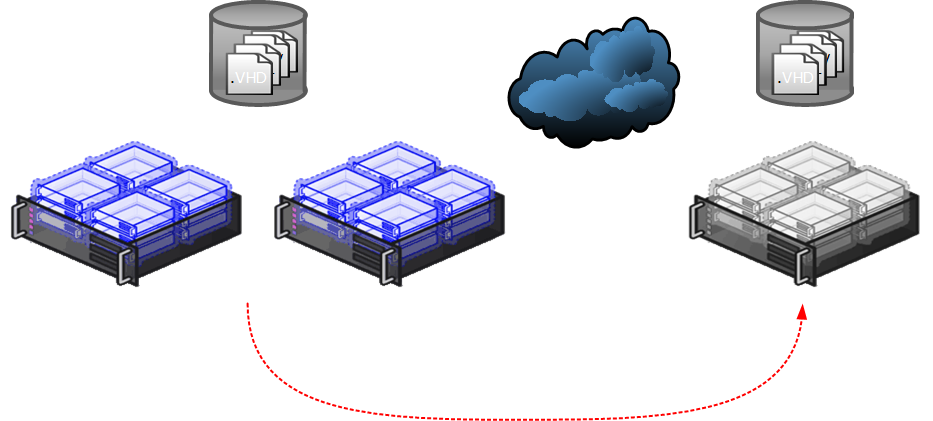
I was working on a customer design recently for Hyper-V Replica. The customer was going to have their own dedicated DR site, using Hyper-V Replica for DR replication.  It looks something like this:

image

All production VMs would run in the primary site on a WS2012 Hyper-V cluster.  Hyper-V Replica would replicate VMs to the DR site, and remain in the cold offline state until the business continuity plan (BCP) was invoked in response to a disaster.  Test failovers could be conducted (this uses copies of the replica VMs).  All good so far!

The DCs in the primary site would run WS2012.  Using VMGeneration-ID and cluster bootstrapping, those DCs can be virtualised.  This bootstrapping works for both the primary and secondary site clusters.  Excellent!  Less hardware is required.  That VMGeneration-ID feature also means we can consider replicating virtual WS2012 DCs using Hyper-V Replica to the secondary site.

What happens if we have a disaster and for some reason the primary site virtual DCs refuse to come online after being failed over to the DR site?  I know, it’s a longshot.  But so is the disaster that could shut down the primary site.  If this happens then there goes your business because all of your on-premises services are tied to that domain.

When it comes to AD, I am very cautious.  I like having it available and online.  And AD replication is pretty solid.

Options?

Run a virtual DC in the public cloud?  Sure, you could.  There’s a cost to that.  But, if there is a disaster, and like with 9/11, the Internet becomes swamped, good luck at authenticating and authorizing against a DC across a VPN link.  If that happens, your BCP fails.

What about running a DC in the DR site?  Yes, a virtual DC could be installed in the secondary site and left to replicate via normal means via a VPN across the DR link.  That will do the trick … if you’re ultra-cautious like myself.

The problem I’m countering with this design option is a very low risk.  I’m being very conservative and keeping my options open, e.g. if I ran a mid/large environment again, I’d run virtual DCs and back them up as VMs (VMGeneration-ID), use an agent in a single DC to get a system state backup, and use Windows Server Backup to also get a system state backup.  In my mind, you can’t have enough options for restoring an AD.  It’s like triple-insuring yourself, but at least I would have contingency plans when Murphy comes calling and the brown stuff hits the fan.

Backing Up Hyper-V Replica Virtual Machines In The DR Site

I’ve spent much of the last 6 weeks either thinking about or working on Hyper-V Replica. The topic of where to do backups came up in conversation. Normally it is advised to do a backup in the primary site and replicate the data offsite, ideally to the DR site where it will be readily accessible – storing it in an offsite warehouse that it under the same 3 metres of water as the production site is pretty useless!

Before you ask: Replication is not backup. Replication gives you current/recent copies of VMs/data.  Backup gives you an archive of days, weeks, months, or even years. And your need to retain archive data doesn’t disappear (practically or legally) just because you have invoked your DR plan.

So in the conversations, one of the guys wondered if maybe it would be more efficient to do the backup in the DR site.  That would mean running backups of the replica virtual machines that are created and maintained by Hyper-V Replica.  An interesting concept!

Patrick Lownds (Virtual Machine MVP, and co-author) quickly responded with a “no” thanks to a post that appeared on the TechNet blogs last night:

Backing up or restoring the Hyper-V replica is not supported.

Due to the inner workings of the Hyper-V replication architecture which may be in progress during the time of a DPM backup, there can be no guarantees of a successful backup or restore of virtual machines that reside on the Hyper-V Replica server.

My guess is that the HRL replay which is updating the replica VHDs every 5 minutes would prevent a reliable backup in the DR site.

That means that you should (and can) continue to backup the source virtual machines in the production site, and continue to replicate your backup offsite to the DR site.

For the wise-asses out there (you know who you are), let’s be clear:

  • Yes, you can still use Hyper-V Replica
  • Yes, you can continue to backup replicating VMs in the production site
  • Yes, your backup tool might be able to backup replica VMs in the DR site, but that doesn’t mean that this is supported. Don’t come crying to me (or anyone else) if you ignore this statement and your “engineering” bites you in the ass.
  • Non-replica VMs that are running on the DR site hosts can be backed up in a supported manner
Technorati Tags: ,,

Notes–Enabling Disaster Recovery for Hyper-V Workloads Using Hyper-V Replica

I’m taking notes from VIR302 in this post.  I won’t be repeating stuff I’ve blogged about previously.

image

Outage Information in SMEs

Data from Symantec SMB Disaster Preparedness Survey, 2011.  1288 SMBs with 5-1000 employees worldwide.

  • Average number of outages per year? 6
  • What does this outage cost per day? $12,500

That’s an average cost of $75,000 per year!  To an SME!  That could be 2 people’s salary for a year.

  • % That do not have a recovery plan: 50%.  I think more business in this space don’t have DR.
  • What is their plan? Scream help and ask for pity.

Hyper-V Replica IS NOT Clustering And IT IS NOT a Cluster Alternative

Hyper-V Replica IS ALSO NOT Backup Replacement

It is a replication solution for replicating VMs to another site.  I just know someone is going to post a comment asking if they can use it as a cluster alternative [if this is you – it will be moderated to protect you from yourself so don’t bother.  Just re-read this section … slowly].

  • Failover Clustering HA: Single copy, automated failover within a cluster.  Corruption loses the single copy.
  • Hyper-V Replica: Dual asynchronous copy with recent changes, manual failover designed for replication between sites.  Corruption will impact original immediately and DR copy within 10 minutes.
  • Backup: Historical copy of data, stored locally and/or remotely, with the ability to restore a completely corrupted VM.

Certificates

For machines that are non-domain joined or non-trusted domain members.  Hoster should issue certs to the customer in the hosted DR scenario. 

Compression

Can disable it for WAN optimizers that don’t work well with pre-optimised traffic.

Another Recovery History Scenario

The disaster brought down VMs at different points.  So VMA died at time A and VMB died at time C.  Using this feature, you can reset all VMs back to time A to work off of a similar set of data.

You can keep up to 15 recovery points per day.  Each recovery point is an hour’s worth of data. 

The VSS option (application consistent recovery) fires every two hours.  Every 2nd hour (or whatever depending on where you set the VSS slider) in the cycle it triggers VSS.  All the writes in the guest get flushed.  That replica is then sent over.

Note that the Hyper-V VSS action will not interfere with backup VSS actions.  Interoperability testing has been done.

So if you’re keeping recovery snapshots, you’ll have standard replicas and application consistent (VSS) replicas.  They’ll all be an hour apart, and alternating (if every 2nd hour).  Every 5 minutes the changes are sent over, and every 13th one is collapsed into a snapshot (that’s where the 1 hour comes from).

Every 4 hours appears to be the sweet spot because VSS does have a performance impact on the guests.

Clusters

You can replicate to/from clusters.  You cannot replicate from one node to another inside a cluster (can’t have duplicate VM GUIDs and you have shared storage).

Alerting

If 20% of cycles in the last hour are missed then you get a warning.  This will self-close when replication is healthy again. 

PowerShell

24 Hyper-V Replica cmdlets:

  • 19 of them via get-command –Module hyper-v | where {$_.Name –like “*replication*”}
  • 5 more via get-command –Module hyper-v | where {$_.Name –like “*failover*”}

Measure-VMReplication will return status/health of Hyper-V Replica on a per-VM basis.

Measure-VMReplication | where {$_.ReplicationHealth –eq “Critical”}

Could use that as a part of a scheduled script, and then send an email with details of the problem.

Replica Mechanism

Refers to the HRL (Hyper-V Replica Log) process as a write splitter.  They use HTTP(s) for WAN traffic robustness.  It’s also hosting company friendly.  The HRL is swapped out before sending for a new HRL.

There is a threshold where the HRL cannot exceed half the VHD size.  If WAN/storage goes down and this happens then HVR goes into a “resync state” (resynchronisation).  When the problem goes away HVR automatically re-establishes replication. 

VM Mobility

HVR policy follows the VM with any kind of migration scenario.  Remember that replication is host/host.  When the VM is moved from host A to host B, replication for the VM from host A is broken.  Replication for the VM starts on host B.  Host B must be already authorized on the replica host(s) – easier with cluster Hyper-V Replica broker. 

IP Addressing VMs In DR Site

  1. Inject static address – Simplest option IMO
  2. Auto-assignment via DHCP – Worst option IMO because DHCP on servers is messy
  3. Preserve IP address via Network Virtualisation – Most scalable option for DR clouds IMO with seamless failover for customers with VMs on a corporate WAN.  Only one for seamless name resolution, I think, unless you spend lots on IP virtualisation in the WAN.

Failover Types

Planned Failover (downtime during failover sequence):

  1. Shutdown primary VM
  2. Send last log – run planned failover action from primary site VM.  That’ll do the rest for us.
  3. Failover replica VM
  4. Reverse replication

Test Failover (no downtime):

Can test any recovery point without affecting replication on isolated test network.

  1. Start test failover, selecting which copy to test with (if enabled).  It does the rest for you.
  2. Copies VM (new copy called “<original VM name> – test”) using a snapshot
  3. Connects VM to test virtual switch
  4. Starts up test VM

Network Planning

  • Capacity planning is critical.  Designed for low bandwidth
  • Estimate rate of data change
  • Estimate for peak usage and effective network bandwidth

My idea is to analyse incremental backup size, and estimate how much data is created every 5 minutes.

Use WS2012 QoS to throttle replication traffic.

image

Replicating multiple VMs in parallel:

  • Higher concurrency leads to resource contention and latency
  • Lower concurrency leads to underutilizing and less protection for the business

Manage initial replication through scheduling.  Don’t start everything at once for online initial synchronisation.

What they have designed for:

image


Server Impact of HVR

On the source server:

  • Storage space: proportional to the writes in the VM
  • IOPS is approx 1.5 times write IOPS

On the replica server:

  • Storage space: proportional to the write churn.  Each additional recovery point approx 10% of the base VHD size.
  • Storage IOPS: 0.6 times write IOPS to receive and convert.  3-5 times write IOPS to receive, apply, merge, for additional recovery points.
  • There is a price to pay for recovery points.  RECOMMENDATION by MSFT: Do not use replica servers for normal workloads if using additional recovery points because of the IOPS price.

Memory: Approx 50 MB per replicating VM

CPU impact: <3%

Post-TechEd North America 2012 Additions To My WS2012 Hyper-V Features List

A number of new Windows Server 2012 Hyper-V and related features were made public last week at TechEd NA 2012.  I have updated my list to include those features.

My Hyper-V Replica Guest Post On ZDNet

If you were to wander down to ZDNet today, you were in for a surprise.  There, on Mary Jo Foley’s All About Microsoft blog, you’ll find a guest article by me, talking about Windows Server 2012 Hyper-V Replica (HVR).

Mary Jo is on vacation and when planning for it, she asked a few people to write guest articles for her absence.  You may have noticed that I’m a HVR fan, so I suggested this topic.  I wrote the post, Ben Armstrong (aka The Virtual PC Guy) was kind enough to check my work, and submitted it to Mary Jo.

Two other posts that I’ve written on the subject might interest you:

  • One from last year from when we didn’t have the techie details where I look at different scenarios.
  • And a post I wrote after the release of the beta when we MVPs were cleared to talk about the techie details.
  • And of course, don’t forget the guest post I did for Mary Jo.

Thanks to Ben for checking my article, and thanks to Mary Jo for the chance to post on her blog!

Choosing A Windows Server 2012 Hyper-V DR Architecture

I must be nuts; we’re a nearly month from the release candidate and I’m attempting to blog on this stuff Smile

I’ve been thinking a lot about DR and how to approach it with Windows Server 2012 Hyper-V.  There is no one right solution.  In fact, we have lots and lots of options thanks to VMs just being files.  Yup, thanks to VHDX scaling out to 64 TB, the last reasonable reason to use passthrough disk (other than to get that last 2 or so percentage points of performance) are dead.  That makes even the biggest of VMs “easy” to replicate.

Let’s look at 2 approaches from a very high altitude level.  An approach I’m seeing quite a bit for cross-campus or short range DR plans is to build a stretch cluster.  The usual approach is to use something like a HP P4000 SAN and stretch it between two sites.  A single Hyper-V cluster is built, stretching across the WAN link.

image

SAN-SAN replication

It’s not a cheap solution and it comes with complexities – and that’s true no matter what virtualisation you use:

  • You have to choose a storage solution that stretches across sites and can do active/active.  You are locked into a single spec across both sites, making the hardware sales people very happy.
  • You probably need a witness for the storage and the virtualisation cluster in a 3rd site, with site A and site B having independent network access to the witness site to avoid split brain when the link between A and B fails (and it will fail).
  • Some high end storage solutions won’t like CSV for this and you might need to so 1 VM per LUN
  • The networking (IP redirect, stretched VLANs, routers, switches, and all that jazz) is messy.
  • The WAN for this is mega pricey.
  • Honestly, a stretch Hyper-V cluster doesn’t play well with System Center Virtual Machine Manager – VMM just sees a single cluster and doesn’t care about the WAN link or the impact on backup, client/server app interaction, and so on.
  • If you want to replicate to a hosting company then you need colo hosting and to place hardware in rented rackspace.
  • Once a VM is created in a replicate LUN, it’s replicated to site B.  That’s pretty nice in a cloud.
  • When everything works it’s a pretty fine solution, capable of having 0 data loss.  But corruption in site A will replicate to site B because this SAN likely has synchronous replication.

The above solution is something I see more and more, even in medium sized sites.  It’s complex, it’s pricey, and very often they are struggling with getting it to work even in testing, let alone in the worst day of their professional careers.

I recently listed to a RunAs Radio podcast where the guest spoke about his preference for VMware SRM for DR replication.  I can understand why.  Software replication can stretch much greater distances.  You aren’t as beholden to the storage vendor as before.  Hyper-V Replica is surely going to have the same impact … and more … without costing you hundreds of dollars/euros/pounds/etc on a per VM basis like SRM does:

image

Hyper-V Replica

  • Hyper-V is hardware independent.  You can replicate from a host to a host, from a cluster to a host, or from a host to a cluster.  You can replicate from a HP cluster with a P4000 to a bunch of Dell hosts with a Compellent.
  • Hyper-V Replica is built for unstable WAN connections.  It cannot automatically failover … in fact, many of us prefer a manual decision on failover.  We can reduce the RTO by automating VM start up using PowerShell and/or Orchestrator in the DR site.  The storage ni both sites is independent.  No need for 3rd party witnesses and their networking.
  • VMs are replicated instead of LUNs, therefore CSV is fully supported.  You can replicate VMs from a CSV in site A to a CSV or a normal LUN in site B.
  • Networking is easy!  And you have options!  The pipe for the replica probably either should be dedicated or have QoS to allow replication without impacting normal Internet connectivity.  Because the replication is asynchronous, the WAN doesn’t need massive bandwidth and low latency.  You can choose to stretch VLANs, or you might not.  You might use Network Virtualisation in site B or you might use IP address injection to change the VMs’ IP addresses for the destination network.  By the way, you can also dedicate a virtual switch(es) for firing up test copies of your VMs for DR testing.
  • Hyper-V Replica is built for commercial broadband.  Remember that your upload speed is the important factor.  Sizing is tricky … I’ve been saying that you could take your incremental backup and divide it by the number of 5 minute windows there are in your workday to figure out how much bandwidth Hyper-V Replica will require to replicate every 5 minutes … but that’s worst case because there is pre-transmit compression going on.
  • Hyper-V Replica is not a stretch cluster … therefore systems management solutions such as VMM will play nice by keeping it’s placement of VMs local in site A.
  • Your hardware options are very flexible.  You could replicate to hardware you own in a branch/head office or datacenter, you could rent rackspace and put hardware in colo hosting, or you could replicate to a hosting partner that hosts Hyper-V Replica.
  • There just aren’t as many delicate moving parts in this architecture.  You pretty much have 2 simple independent infrastructures where 1 copies compressed differential data to another.
  • Hyper-V Replica is configured on a per-VM basis.  PowerShell can do this – I’ve already seen examples posted online.  You could probably make this a part of the Orchestrator runbook in a cloud implementation.  So a little more work is requires but you can fire it and forget.
  • Best of all, Hyper-V Replica is a tick box away in Hyper-V.  Yup, zero dollars, nada, keine kosten, gratuito, free.  Of course, you are free to continue wearing a tinfoil hat and paying vTax …. Smile with tongue out

Clinging to his overpriced DR with his cold dead hands because he thinks Stevie B. wants to steal his brainwaves

Technorati Tags: ,,

Hyper-V Replica (Demo Video) Proving To Be The Killer Feature I Expected

This week I clocked up a lot of miles doing another 4 corners tour of Ireland, with the MSFT partner team, speaking to MSFT partners in Belfast, Galway and Cork.  It covered a number of things with different speakers, cloud, Windows 8, Windows Server 8, and I spoke for around an hour on System Center 2012 and Windows Server 8 Hyper-V.  The audience was mostly a manager/sales audience so we kept more to the business side of things, but some tech just proves the argument, and I had a feeling that nothing would do that better than Hyper-V Replica.

If you’re presenting to this kind of audience, it’s one thing to show them a new product they can sell, and that will get some interest/traction.  But if you can show them a whole new service that they can develop and use to do develop yet another service, and be able to sell this to the breadth audience that hears way too much about Fortune1000 tech, then you really have a winner.  And that’s Hyper-V Replica:

  • A DR replication solution built into Hyper-V, at no extra cost, designed for small/medium businesses with commercial broadband
  • Replicate from host-host, host-cluster, cluster-host, or cluster-cluster.
  • Replicate office to office, data centre to data centre, branch office to HQ, or customer to hosting provider (which could be a managed IT services company with some colo hosted rack space) … and maybe use that as an entry point into a cloud/IaaS solution for SMEs.

And that’s the hook there.  Most MSFT partners have experience with s/w based replication in the past.  It’s troublesome, and often assumes lots of low latency bandwidth and a 3rd witness site.  Not so with Hyper-V Replica, as I demonstrated in this video:

Of all the stuff I’ve presented in the last 2 weeks, Hyper-V Replica was the one that caused the most buzz, and rightfully so in my opinion.  It’s an elegant design; the genius is the “simplicity” of it.  It should prove to be reliable, and perfect for the audience it’s being aimed at.

Hyper-V Replica Test Failover Is Like Jean-Claude Van Damme in Time Cop

That got your attention Smile In the movie Time Cop, the catch with time travel was that a person who went back in time could not be in the same place as their past self or the universe would implode or something.

Note: Movie nerds and Dr. Sheldon Cooper wannabes can save their efforts and keep the correction comments to themselves.

The same is true with a server or application.  It really can’t exist twice in the same network or your career might implode or something.  Think about it, you enable DR replication of virtual machines from one place to another.  You want to test your DR, so you bring the replica VMs online … on the same network.  Good things will happen, right, won’t they?!?!?!  Two machines with identical names, identical application interactions on the network, identical IP addresses, both active on the same network at the same time during the work day … nope; nothing good can come of that.

Hyper-V Replica has you covered.  You just need to remember to configure it after you enable VM replication and if testing failover is even a slight possibility (I”m sure you could automate this with POSH but I’m too lazy to look – it is after 9pm no a Sunday night when I’m right this post).

You’ll be auto asked after you enable Replica if you want to configure network settings.  If you do (you can revisit later by editing the settings of the VM and expanding Network Adapter) then you’ll see this:

image

In Network Adapter – Test Failover you’ll have the option to set a Virtual Switch.  See how it is not configured to connect to a network by default?  Phew!  When you do a test failover of a Replica VM, then the VM will power up on this virtual switch.  Obviously this should be an isolated virtual switch (e.g. Internal or Private), and it should exist on all possible replica hosts (if the DR site is clustered), to avoid the Time Cop rule.

Windows Server 2012 Hyper-V Replica … In Detail

If you asked me to pick the killer feature of WS2012 Hyper-V, then Replica would be high if not at the top of my list (64 TB VHDX is right up there in the competition).  In Ireland, and we’re probably not all that different from everywhere else, the majority of companies are in the small/medium enterprise (SME) space and the vast majority of my customers work exclusively in this space.  I’ve seen how DR is a challenge to enterprises and to the SMEs alike.  It is expensive and it is difficult.  Those are challenges an enterprise can overcome by spending, but that’s not the case for the SME.

Virtualisation should help.  Hardware consolidation reduces the cost, but the cost of replication is still there.  SAN’s often need licenses to replicate.  SAN’s are normally outside of the reach of the SME and even the corporate regional/branch office.  Software replication which is aimed at this space is not cheap either, and to be honest, some of them are more risky than the threat of disaster.  And let’s not forget the bandwidth that these two types of solution can require.

Isn’t DR Just An Enterprise Thing?

So if virtualisation mobility and the encapsulation of a machine as a bunch of files can help, what can be done to make DR replication a possibility for the SME?

Enter Replica (Hyper-V Replica), a built-in software based asynchronous replication mechanism that has been designed to solve these problems.  This is what Microsoft envisioned for Replica:

  • If you need to replicate dozens or hundreds of VMs then you should be using a SAN and SAN replication.  Replica is not for the medium/enterprise sites.
  • Smaller branch offices or regional offices that need to replicate to local or central (head office or HQ data centre) DR sites.
  • SME’s who want to replicate to another office.
  • Microsoft partners or hosting companies that want to offer a service where SME’s could configure important Windows Server 2012 Hyper-V host VMs to replicate to their data centre – basically a hosted DR service for SMEs.  Requirements of this is that it must have Internet friendly authentication (not Kerberos) and it must be hardware independent, i.e. the production site storage can be nothing like the replica storage.
  • Most crucially of all: limited bandwidth.  Replica is designed to be used on commercially available broadband without impacting normal email or browsing activity – Microsoft does also want to sell them Office 365, after all Smile How much bandwidth will you need?  How long is a piece of string?  Your best bet is to measure how much change there is to your customers VMs every 5 minutes and that’ll give you an idea of what bandwidth you’ll need.

Figure 1  Replicate virtual machines

In short, Replica is designed and aimed at the ordinary business that makes up 95% of the market, and it’s designed to be easy to set up and invoke.

What Hyper-V Replica Is Not Intended To Do

I know some people are thinking of this next scenario, and the Hyper-V product group anticipated this too.  Some people will look at Hyper-V Replica and see it as a way to provide an alternative to clustered Hyper-V hosts in a single site.  Although Hyper-V Replica could do this, it is not intended for for this purpose.

The replication is designed for low bandwidth, high latency networks that the SME is likely to use in inter-site replication.  As you’ll see later, there will be a delay between data being written on host/cluster A and being replicated to host/cluster B.

You can use Hyper-V Replica within a site for DR, but that’s all it is: DR.  It is not a cluster where you fail stuff back and forth for maintenance windows – although you probably could shut down VMs for an hour before flipping over – maybe – but then it would be quicker to put them in a saved state on the original host, do the work, and reboot without failing over to the replica.

How It Works

I describe Hyper-V Replica as being a storage log based asynchronous disaster recovery replication mechanism.  That’s all you need to know …

But let’s get deeper Smile

How Replication Works

Once Replica is enabled, the source host starts to maintain a HRL (Hyper-V Replica Log file) for the VHDs.  Every 1 write by the VM = 1 write to VHD and 1 write to the HRL.  Ideally, and this depends on bandwidth availability, this log file is replayed to the replica VHD on the replica host every 5 minutes.  This is not configurable.  Some people are going to see the VSS snapshot (more later) timings and get confused by this, but the HRL replay should happen every 5 minutes, no matter what.

The HRL replay mechanism is actually quite clever; it replays the log file in reverse order, and this allows it only to store the latest writes.  In other words, it is asynchronous (able to deal with long distances and high latency by write in site A and later write in site B) and it replicates just the changes.

Note: I love stuff like this.  Simple, but clever, techniques that simplify and improve otherwise complex tasks.  I guess that’s why Microsoft allegedly ask job candidates why manhole covers are circular Smile

As I said, replication or replay of the HRL will normally take place every 5 minutes.  That means if a source site goes offline then you’ll lose anywhere from 1 second to nearly 10 minutes of data.

I did say “normally take place every 5 minutes”.  Sometimes the bandwidth won’t be there.  Hyper-V Replica can tolerate this.  After 5 minutes, if the replay hasn’t happened then you get an alert.  The HRL replay will have another 25 minutes (up to 30 completely including the 5) to complete before going into a failed state where human intervention will be required.  This now means that with replication working, a business could lose between 1 second and nearly 1 hour of data.

Most organisations would actually be very happy with this. Novices to DR will proclaim that they want 0 data loss. OK; that is achievable with EUR100,000 SANs and dark fibre networks over short distances. Once the budget face smack has been dealt, Hyper-V Replica becomes very, very attractive.

That’s the Recovery Point Objective (RPO – amount of time/data lost) dealt with.  What about the Recovery Time Objective (RTO – how long it takes to recover)?  Hyper-V Replica does not have a heartbeat.  There is not automatic failover.  There’s a good reason for this.  Replica is designed for commercially available broadband that is used by SMEs.  This is often phone network based and these networks have brief outages.  The last thing an SME needs is for their VMs to automatically come online in the DR site during one of these 10 minute outages.  Enterprises avoid this split brain by using witness sites and an independent triangle of WAN connections.  Fantastic, but well out of the reach of the SME.  Therefore, Replica will require manual failover of VMs in the DR site, either by the SME’s employees or by a NOC engineer in the hosting company.  You could simplify/orchestrate this using PowerShell or System Center Orchestrator.  The RTO will be short but have implementation specific variables: how long does it take to start up your VMs and for their guest operating systems/applications to start?  How long will it take for you to get your VDI/RDS session hosts (for remote access to applications) up, running and accepting user connections?  I’d reckon this should be very quick, and much better with the 4-24 hours that many enterprises aim for.  I’m chuckling as I type this; the Hyper-V group is giving SMEs a better DR solution than most of the Fortune 1000’s can realistically achieve with oodles of money to spend on networks and storage replication, regardless of virtualisation products.

A common question I expect: there is no Hyper-V integration component for Replica.  This mechanism works at the storage level, where Hyper-V is intercepting and logging storage activity.

Replica and Hyper-V Clusters

Hyper-V Replica works with clusters.  In fact you can do the following replications:

  • Standalone host to cluster
  • Cluster to cluster
  • Cluster to standalone host

The tricky thing is the configuration replication and smooth delegation of replication (even with Live Migration and failover) of HA VMs on a cluster.  How can this be done?  You can enable a HA role called a Hyper-V Replica Broker on a cluster (once only).  This is where you can configure replication, authentication, etc, and the Broker replicates this data out to cluster nodes.  Replica settings for VMs will travel with them, and the broker ensures smooth replication from that point on.

Configuring Hyper-V Replica

I don’t have my lab up and running yet, but there are already many step-by-step posts out there.  I wanted to focus on the how it works and why to use it.  But here are the fundamentals:

On the replica host/cluster, you need to enable Hyper-V Replica.  Here you can control what hosts (or all) can replicate to this host/cluster.  You can do things like have one storage path for all replicas, or creating individual policies based on source FQDN such as storage paths or enabling/pausing/disabling replication.

You do not need to enable Hyper-V Replica on the source host.  Instead, you configure replication for each required VM.  This includes things like:

  • Authentication: HTTP (Kerberos) within the AD forest, or HTTPS (destination provided SSL certificate) for inter-forest (or hosted) replication.
  • Select VHDs to replicate
  • Destination
  • Compressing data transfer: with a CPU cost for the source host.
  • Enable VSS once per hour: for apps requiring consistency – not normally required because of the logging nature of Replica and it does cause additional load on the source host
  • Configure the number of replicas to retain on the destination host/cluster: Hyper-V Replica will automatically retain X historical copies of a VM on the destination site.  These are actually Hyper-V snapshots on the destination copy of the VM that are automatically created/merged (remember we have hot-merge of the AVHD in Windows 8) with the obvious cost of storage.  There is some question here regarding application support of Hyper-V snapshots and this feature.

Initial Replication Method

I’ve worked in the online backup business before and know how difficult the first copy over the wire is.  The SME may have small changes to replicate but might have TBs of data to copy on the first synchronisation.  How do you get that data over the wire?

  • Over-the-wire copy: fine for a LAN, if you have lots of bandwidth to burn, or if you like being screamed at by the boss/customer.  You can schedule this to start at a certain time.
  • Offline media: You can copy the source VMs to some offline media, and import it to the replica site.  Please remember to encrypt this media in case it is stolen/lost (BitLocker-To-Go), and then erase (not format) it afterwards (DBAN).  There might be scope for an R2/Windows 9 release to include this as part of a process wizard.  I see this being the primary method that will be used.  Be careful: there is no time out for this option.  The HRL on the source site will grow and grow until the process is completed (at the destination site by importing the offline copy).  You can delete the HRLs without losing data – it is not like a Hyper-V snapshot (checkpoint) AVHD.
  • Use a seed VM on the destination site: Be very very careful with this option.  I really see it as being a great one for causing calls to MSFT product support.  This is intended for when you can restore a copy of the VM in the DR site, and it will be used in a differencing mechanism where the differences will be merged to create the synch.  This is not to be used with a template or similar VMs.  It is meant to be used with a restored copy of the same VM with the same VM ID.  You have been warned.

And that’s it.  Check out the social media and you’ll see how easy people are saying Hyper-V Replica is to set up and use.  All you need to do now is check out the status of Hyper-V Replica in the Hyper-V Management Console, Event Viewer (Hyper-V Replica log data using the Microsoft-Windows-Hyper-V-VMMSAdmin log), and maybe even monitor it when there’s an updated management pack for System Center Operations Manager.

Failover

I said earlier that failover is manual.  There are two scenarios:

  • Planned: You are either testing the invocation process or the original site is running but unavailable.  In this case, the VMs start in the DR site, there is guaranteed zero data loss, and the replication policy is reversed so that changes in the DR site are replicated to the now offline VMs in the primary site.
  • Unplanned: The primary site is assumed offline.  The VMs start in the DR site and replication is not reversed. In fact, the policy is broken.  To get back to the primary site, you will have to reconfigure replication.Can I Dispense With Backup?No, and I’m not saying that as the employee of a distributor that sells two competing backup products for this market.  Replication is just that, replication.  Even with the historical copies (Hyper-V snapshots) that can be retained on the destination site, we do not have a backup with any replication mechanism.  You must still do a backup, as I previously blogged, and you should have offsite storage of the backup.Many will continue to do off-site storage of tapes or USB disks.  If your disaster affects the area, e.g. a flood, then how exactly will that tape or USB disk get to your DR site if you need to restore data?  I’d suggest you look at backup replication, such as what you can get from DPM:


    The Big Question: How Much Bandwidth Do I Need?

  • Ah, if I knew the answer to that question for every implementation then I’d know many answers to many such questions and be a very rich man, travelling the world in First Class.  But I am not.

    There’s a sizing process that you will have to do.  Remember that once the initial synchronisation is done, only changes are replayed across the wire.  In fact, it’s only the final resultant changes of the last 5 minutes that are replayed.  We can guestimate what this amount will be using approaches such as these:

    • Set up a proof of concept with a temporary Hyper-V host in the client site and monitor the link between the source and replica: There’s some cost to this but it will be very accurate if monitored over a typical week.
    • Do some work with incremental backups: Incremental backups, taken over a day, show how much change is done to a VM in a day.
    • Maybe use some differencing tool: but this could have negative impacts.

    Some traps to watch out for on the bandwidth side:

    • Asynchronous broadband (ADSL):  The customer claims to have an 8 Mbps line but in reality it is 7 Mbps down and 300kbps up.  It’s the uplink that is the bottleneck because you are sending data up the wire.  Most SME’s aren’t going to need all that much.  My experience with online backup verifies that, especially if compression is turned on (will consume source host CPU).
    • How much bandwidth is actually available: monitor the customer’s line to tell how much of the bandwidth is being consumed or not by existing services.  Just because they have a functional 500 kbps upload, it doesn’t mean that they aren’t already using it.

    Very Useful Suggestion

    Think about your servers for a moment.  What’s the one file that has the most write activity?  It is probably the paging file.  Do you really want to replicate it from site A to site B, needlessly hammering the wire?

    Hyper-V Replica works by intercepting writes to VHDs.  It has no idea of what’s inside the files.  You can’t just filter out the paging file.  So the excellent suggestion from the Hyper-V product group is to place the paging file of each VM onto a different VHD, e.g. a SCSI attached D drive.  Do not select this drive for replication.  When the VMs are failed over, they’ll still function without the paging file, just not as well.  You can always add one after if the disaster is sustained.  The benefit is that you won’t needlessly replicate paging file changes from the primary site to the DR.

    Summary

    I love this feature because it solves a real problem that the majority of businesses face.  It is further proof that Hyper-V is the best value virtualisation solution out there.  I really do think it could give many Microsoft Partners a way to offer a new multi-tenant business offering to further reduce the costs of DR.

    EDIT:

    I have since posted a demo video of Hyper-V Replica in action, and I have written a guest post on Mary Jo Foley’s blog.

    EDIT2:

    I have written around 45 pages of text (in Word format) on the subject of Hyper-V Replica for a chapter in the Windows Server 2012 Hyper-V Installation and Configuration Guide book. It goes into great depth and has lots of examples. The book should be out Feb/March of 2013 and you can pre-order it now: