KB2722461 – High Rate Of SMIs May Cause Hyper-V Host To Hang At Boot On W2008 R2

A new KB article related to Hyper-V was posted this morning.

You have a Windows Server 2008 R2 system with the Hyper-V role enabled. If the BIOS has been set to inject SMIs at a high rate, 11 SMI/sec for example. The system may hang during boot time.

As the rate of SMI injections increases, the likelihood of failure (system hanging) increases.

Cause

If an SMI occurs before all processors are ready to receive SMIs, Windows boot will hang.

Resolution

Reduce the rate of SMI injection in the BIOS to prevent a hang during Windows boot.

Hyper-V Is NOT Affected By VU#649219 VM “Break Out”

It was reported by the media earlier this week that an issue on Intel based servers could lead to a “break out” from a VM to the host in certain virtualisation products, including Microsoft.  Obviously this would be a huge concern, especially in environments where security and isolation are an issue, e.g. public cloud/hosting.

I asked the Hyper-V product group if Hyper-V was actually affected.  They group allowed us to share that:

  • The problem does affect the 64-bit OS’s on Intel hardware, but Hyper-V is not affected.
  • This problem will not lead to break outs from Hyper-V VMs.
  • Windows 8/Server 2012 are not affected.

So that’s put that one to bed.

SYSRET 64-bit OS Privilege Escalation Vulnerability On Intel CPU Hardware

CERT reported that:

Some 64-bit operating systems and virtualization software running on Intel CPU hardware are vulnerable to a local privilege escalation attack. The vulnerability may be exploited for local privilege escalation or a guest-to-host virtual machine escape.

That last bit is the piece that should concern you. Microsoft responded with one of this month’s Patch Tuesday updates (thanks to Patrick Lownds for the link).  MS12-042 fixes this issue and is distributed through the normal Windows Updates catalogue.

An elevation of privilege vulnerability exists in the way that the Windows User Mode Scheduler handles system requests. An attacker who successfully exploited this vulnerability could run arbitrary code in kernel mode. An attacker could then install programs; view, change, or delete data; or create new accounts with full administrative rights.

Mitigating factors for user mode scheduler memory corruption vulnerability:

  • An attacker must have valid logon credentials and be able to log on locally to exploit this vulnerability. The vulnerability could not be exploited remotely or by anonymous users.
  • This vulnerability only affects Intel x64-based versions of Windows 7 and Windows Server 2008 R2.
  • Systems with AMD or ARM-based CPUs are not affected by this vulnerability.

Update your servers, including Hyper-V hosts with this update.  System Center 2012 VMM will automate this for you if you have it and configured the updates feature.

KB2711774 – AltGr Key Does Not Work In Red Hat Linux virtual VM On A W2008R2 Hyper-V

Another hotfix for Linux VMs on Windows Server 2008 R2 Hyper-V.  This time it is for when the AltGr key does not work in a Red Hat Linux virtual machine on a Windows Server 2008 R2-based computer.

Consider the following scenario:

  • You install the Hyper-V role on a computer that is running Windows Server 2008 R2.
  • You install Red Hat Linux on a virtual machine.
  • You connect to the virtual machine from a computer that is connected to a non-US keyboard.

In this scenario, the AltGr key does not work in the Red Hat Linux virtual machine.

A supported hotfix is available from Microsoft.

KB2711771 – Incorrect Available Space Displayed In A Linux VM On W2008R2 Hyper-V

Microsoft has just released a KB article for when incorrect available space is displayed in a Linux Hyper-V virtual machine on a Windows Server 2008 R2-based computer.

Consider the following scenario:

  • You install the Hyper-V server role on a computer that is running Windows Server 2008 R2.
  • You install Linux on a Hyper-V virtual machine on the computer.
  • You attach a virtual hard disk (VHD) that is larger than 127 gigabytes (GB) to the Hyper-V virtual machine.

In this scenario, Linux displays only 127 GB of available space.

This issue occurs because Hyper-V cannot set bits in the LBA48 code.

A hotfix is available to fix this problem.

Linux Integration Services V3.3 For Hyper-V

Version 3.3 of the Linux integration components was just released with support for Windows 8 and Windows Server 2012.

It supports the following versions of Hyper-V:

  • Windows Server 2008 Standard, Windows Server 2008 Enterprise, and Windows Server
  • 2008 Datacenter
  • Microsoft® Hyper-V Server 2008
  • Windows Server 2008 R2 Standard, Windows Server 2008 R2 Enterprise, and Windows
  • Server 2008 R2 Datacenter
  • Microsoft Hyper-V Server 2008 R2
  • Windows 8 Release Preview
  • Windows Server 2012

See those last two?  Windows 8 and Windows Server 2012 are supported.

The supported guest OS’s are:

  • Red Hat Enterprise Linux 6.0-6.2 x86 and x64 (Up to 4 vCPU)
  • CentOS 6.0-6.2 x86 and x64 (Up to 4 vCPU)
  • Red Hat Enterprise Linux 6.0-6.2 x86 and x64 (Up to 32 vCPU when used on a Windows 8 Release Preview or Windows Server 2012 host)
  • CentOS 6.0-6.2 x86 and x64 (Up to 32 vCPU when used on a Windows 8 Release Preview or Windows Server 2012 host)

RHEL 6.2 and CentOS 6.2 were added to the list in v3.3. SLES and RHEL 5.x use version 2.1 of the Linux Integration Services.

Notice that RHEL and Centos support up to 32 virtual CPUs on Windows Server 2012 or Windows 8???  Nice scalable Linux workloads on Hyper-V Smile  OK let’s talk turkey.

Once you start adding lots of vCPUs to Linux, you have a few concerns:

  • Bear in mind that I’m a Linux noob and forgive me for lack of details, but Linux has issues where it needs some work to have more than 8 vCPUs in a VM.  One fix is to use Linux Kernel 3.4 or later.
  • With lots of vCPUs you need to handle NUMA nodes, and your Linux guest will be NUMA hardware aware on WS2012 with Linux Kernel 3.4 or later.

Thanks to the folks in MSFT for the quick updates!

FreeBSD Support Coming to Hyper-V

Microsoft, with development partners NetApp and Citrix, recently announced that support for FreeBSD 8.2 and 8.3 as a guest operating system (VOSE) will be coming to Hyper-V.  Apparently this is being accomplished with the help of NetApp, Citrix, and the FreeBSD community.

Soon the list of non-Microsoft operating systems that are supported (not only work, but have been tested and you can call for assistance with) will be:

  • FreeBSD 8.2
  • FreeBSD 8.3
  • CentOS 5.2
  • CentOS 5.3
  • CentOS 5.4
  • CentOS 5.5
  • CentOS 5.6
  • Red Hat Enterprise Linux 5.5
  • Red Hat Enterprise Linux 5.6
  • Red Hat Enterprise Linux 5.4
  • Red Hat Enterprise Linux 5.3
  • Red Hat Enterprise Linux 5.2
  • SUSE Linux Enterprise Server 11 with Service Pack 1
  • SUSE Linux Enterprise Server 10 with Service Pack 4

In addition to this, the Hyper-V integration components are included in Linux Kernel 3.3 and later, and Ubuntu 12.04 runs natively without any work from you on Hyper-V.  I’ve got it running in my lab and can use it just like other guest OSs, e.g. run a clean shutdown from the Hyper-V Manager console.

KB2668084 – VM Restored In Saved State Incorrectly On Windows Server 2008 R2 Hyper-V

Microsoft has released an elective hotfix (hotfixes are never in Windows Update/WSUS/etc) for when a virtual machine is restored in the Saved state incorrectly on a Hyper-V server that is running Windows Server 2008 R2:

Consider the following scenario:

  • You have two Hyper-V servers that are running Windows Server 2008 R2.
  • On one Hyper-V server, you perform a redirected restore operation to restore a Hyper-V virtual machine that is located on the other Hyper-V server.
  • The Hyper-V Integration component that is installed on the guest operating system is incompatible with the target Hyper-V server.

In this scenario, the virtual machine is restored in the Saved state. Additionally, you must delete the saved state file before you use this virtual machine.

This issue occurs because the Volume Shadow Copy Service backup requester copies corrupted .vsv file during the restore operation.

A supported hotfix is available from Microsoft.

Error 0x800705AA: Insufficient System Resources During SCCM OSD Task Sequence

I had an interesting week this past week, doing my first production installation of System Center 2012 Configuration Manager in a production environment, with the focus of the project being on operating system and software deployment.  On Friday I had an interesting issue start to flare up while testing on some VMs.  The task sequence was failing during the installation of the operating system image.

The key log to analyse during a task sequence execution is SMSTS.LOG which can be found in WindowsTempSMSTS on the X drive.  You can get access to this log by enabling the command prompt for diagnostics in your boot image (remember to redistribute to your distribution points) and pressing F8 while the boot image is running.  In here I found:

Error 0x800705AA: Insufficient system resources

Damn!  I had to think for a few moments about this one.  Then it hit me.  I develop my reference image using a VM (snapshot right before the sysprep so I can rollback [apply snapshot], tweak and recapture) and I test on VMs before moving onto driver testing on reference hardware.  How were the VMs configured?  Dynamic memory with 512 MB startup memory.  The boot image doesn’t appear to have integration components for DM so  the 512 MB never burst up to the potential maximum memory of 4096 MB.  The boot image requires a minimum of 512 MB.  I guess the boot image needed more RAM than the startup, couldn’t avail of the maximum amount, and failed the task sequence.

The quick fix: I bumped the startup memory to 1024 MB, tested, and everything’s sorted.

How I’m Building Our Demo Lab Environment

I’ve talked about our lab in the past and I’ve recorded/shown a few demos from it.  It’s one thing to build a demo, but it’s a whole other thing to build a lab environment, where I need to be able to build lots of different demos for W2008 R2 (current support for System Center 2012), Windows Server 8 Hyper-V, OS deployment, and maybe even other things.  Not only do I want to do demos, but I also want to learn for myself, and be able to use it to teach techies from our customer accounts.  So that means I need something that I can wipe and quickly rebuild.

WDS, MDT, or ConfigMgr were one option.  Yes, but this is a lab, and I want as few dependencies as possible.  And I want to isolate the physical lab environment from the demo environment.  Here’s how I’m doing it:
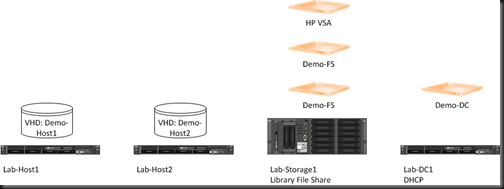
image

I’ve installed Windows Server 2008 R2 SP1 Datacenter as the standard OS on the lab hardware.  Why not Windows Server 8 beta?  I want an RTM supported environment as the basis of everything for reliability.  This doesn’t prevent Windows Server 8 Beta from being deployed, as you’ll see soon enough.

Lab-DC1 is a physical machine – it’s actually a HP 8200 Elite Microtower PC with some extra drives.  It is the AD DC (forest called lab.internal) for the lab environment and provides DHCP for the network.  I happen to use a remote control product so I can get to it easily – the ADSL we have in the lab doesn’t allow inbound HTTPS for RDS Gateway Sad smile  This DC role is intended only for the lab environment.  For demos, I’ve enabled Hyper-V on this machine (not supported), and I’ll run a virtual DC for the demos that I build with a forest called demo.internal (nothing to do with lab.internal).

Lab-Storage1 is a HP DL370 G7 with 2 * 300GB drives, 12 * 2TB drives, and 16 GB RAM.  This box serves a few purposes:

  • It hosts the library share with all the ISOs, tools, scripts, and so forth.
  • Hyper-V is enabled and this allows me to run a HP P4000 virtual SAN appliance (VSA) for an iSCSI SAN that I can use for clustering and backup stuff.
  • I have additional capacity to create storage VMs for demos, e.g. a scale out file server for SMB Direct (SMB 2.2) demos

The we get on to Lab-Host1 and Lab-Host2.  As the names suggest, these are intended to be Hyper-V hosts.  I’ve installed Windows Server 2008 R2 SP1 on these machines, but it’s not configured with Hyper-V.  It’s literally an OS with network access.  It’s enough for me to copy a VHD from the storage server.  Here’s what I’ve done:

  • There’s a folder called C:VHD on Lab-Host1 and Lab-Host2.
  • I’m enabling boot-from-VHD for the two hosts from C:VHDboot.vhd – pay attention to the bcdedit commands in this post by Hans Vredevoort.
  • I’m using Wim2VHD to create VHD files from the Windows Server ISO files.
  • I can copy any VHD to the C:VHD folder on the two hosts, and rename it to boot.vhd.
  • I can then reboot the physical host to the OS in boot.vhd and configure it as required.  Maybe I create a template from it, generalize it, and store it back on the library.
  • The OS in boot.vhd can be configure as a Hyper-V host, clustered if required, and connected to the VSA iSCSI SAN.

Building a new demo now is a matter of:

  • Replace virtual DC on Lab-DC1 and configure it as required.
  • Provision storage on the iSCSI SAN as required.
  • Deploy any virtual file servers if required, and configure them.
  • Replace the boot.vhd on the 2 hosts with one from the library.  Boot it up and configure as required.

Basically, I get whole new OS’s by just copying VHD files about the network, with hosts and storage primarily using 10 GbE.

If I was working with just a single VHD all of the time, then I’d check out Mark Minasi’s Steadier State.