Understand Azure’s New VM Naming Standards

This post will explain how you can quickly understand the new naming standards for Azure VM sizes. My role has given me the opportunity to see how people struggle with picking a series or size of a VM in Azure. Faced with so many options, many people freeze, and never get beyond talking about using Azure.

Starting with the F-Series, Microsoft has introduced a structure for naming the sizes of virtual machines. This is welcome, because the naming of the sizes within the A-Series, D-Series, etc, was … … random at best.

The name of a size in the F-Series, the H-Series and the soon-to-be-released Av2 series is quite structured. The key is the number in the size of the machine; this designated the number of vCPUs in the machine.

Let’s start with the new Av2 series. The name of a size tells you a lot about that machine spec. For example, the A4v2 (note this is an A4 version 2), paying attention to the “4”:

  • 4 vCPUs
  • 8 GB RAM (4 x 2)
  • Can support up to 8 data disks (4 x 2)
  • Can have up to 4 vNICs

Let’s look at an F2 VM, paying attention to the “2”:

  • 2 vCPUs
  • 4 GB RAM (2 x 2)
  • Can support up to 4 data disks (2 x 2)
  • Can have up to 2 vNICs

You can see from above that there is a “multiplier”, which was 2 in the above 2 examples. The H-Series, is a set of large RAM VMs for HPC workloads, 8 GB RAM is pretty useless for these tasks! So the H-Series multiples things differently, which you can see with a H8, the smallest machine in this series:

  • 8 vCPUs
  • 56 GB RAM (8 x 7)
  • Can support up to 16 data disks (8 x 2)
  • Can have up to 2 vNICs

The RAM multiplier changed, but as you can see, the name still tells us about the processor and disk configuration.

Some sizes of virtual machine are specialized. These specializations are designated by a letter. Here are some of that codes:

    • S (is for SSD) = The machine can support Premium Storage, as well as Standard Storage
    • R (is for RDMA) = The machine has an additional Infiniband (a form of RDMA that is not Ethernet-based) NIC for high bandwidth, low latency data transfer
    • M (is for memory) = The machine has a larger multiplier for RAM than is normal for this series.


Let’s look at the A4mv2, noting the 4 (CPUs) and the M code:

  • 4 CPUs, as expected
  • Can support up to 8 data disks (4 x 2), as expected
  • Can have up to 4 vNICs, as expected
  • But it has 32 GB RAM (4 x 8) instead of 8 GB RAM (4 x 2) – the memory multiplier was increased.

The F2s VM, we know has 2 vCPUs, 4 GB RAM, and can have up to 4 data disks and 2 NICs, but it differs slightly from the F2 VM. The S tells us that we can place the OS and data disks on a mixture of Standard Storage (HDD) and Premium Storage (SSD).

Let’s mix it up a little by returning to the HPC world. The H16mr VM does quite a bit:

  • It has 16 vCPU, as expected.
  • It has a lot of RAM: 224 GB RAM – the M designated that the expected x7 multiplier for 112 GB RAM was doubled to  x14 (16 x 14 = 224).
  • It can support 32 data disks, as expected (16 x 2)
  • It can support up to 4 vNICs.
  • And the VM will have an additional Infiniband/RDMA NIC for high bandwidth and low latency data transfers (the R code).
Technorati Tags: ,,

Azure VM Price Reductions And Changes

Microsoft released news overnight that they have reduced the cost of some Azure virtual machines, effective October 1st.

I help price up a lot of Azure IaaS solutions. Quite a few of the VM solutions never go anywhere, and I’m pretty sure that the per-minute/hour costs of the VMs play a big role in that (there’s a longer story here, but it’s a tangent). Microsoft has reduced the costs of their workhorse Azure virtual machines to combat this problem. I welcome this news – it might get me a little closer to my targets Smile

  • The costs of Basic A1 and Basic A2 (great for DCs and file servers!) VMs are reduced by up to 50%, A Basic A2 (will run Azure AD Connect for a small-mid biz) will now cost €70.90 per month in North Europe (Dublin).
  • The price of the Dv2 series VMs is being reduced by up to 15%.
  • The fairly new F-Series is seeing reductions of up to 11%.

The launch of the new UK regions made me wonder if Microsoft had deprecated the A-Series VMs – the UK regions cannot run the Basic A- or Standard A-Series VMs. These VMs are old, running on wimpy power consumption optimized Opteron processors. Microsoft went on to announce that a new Av2 series of virtual machines will be launched in November, with prices being up to 36% lower than the current A-Series. This is great news too. The D-, F-, G-, N-Series VMs get all of the headlines but it’s the A-Series machines that do the grunt work, and it would have been a shame if the most affordable series had been terminated.

Technorati Tags: ,

Ignite 2016 – Discover Shielded VMs And Learn About Real World Deployments

This post is my set of notes from the Azure Backup session recording (original here) from Microsoft Ignite 2016. The presenters were:

  • Dean Wells, Principal Program Manager, Microsoft
  • Terry Storey, Enterprise Technologist, Dell
  • Kenny Lowe, Head of Emerging Technologies, Brightsolid

This is a “how to” presentation, apparently. It actually turned out to be high level information, instead of a Level 300 session, with about 30 minutes of advertising in it. There was some good information (some nice insider stuff by Dean), but it wasn’t a Level 300 or “how to” session.

When The Heck Is A Shielded VM?

A new tech to protect VMs from the infrastructure and administrators. Maybe there’s a rogue admin, or maybe an admin has had their credentials compromised by malware. And a rogue admin can easily copy/mount VM disks.

Shielded VMs:

  • Virtual TPM & BitLocker: The customer/tenant can encrypt the disks of a VM, and the key is secured in a virtual TPM. The host admin has no access/control. This prevents non-customers from mounting a VHD/X. Optionally, we can secure the VM RAM while running or migrating.
  • Host Guardian Service: The HGS is a small dedicated cluster/domain that controls which hosts a VM can run on. A small subset of trusted admins run the HGS. This prevents anyone from trying to run a VM on a non-authorized host.
  • Trusted architecture: The host architecture is secure and trusted. UEFI is required for secure boot.

Shielded VM Requirements

image

Guarded Hosts

image

WS2016 Datacenter edition hosts only. A host must be trusted to get the OK from the HGS to start a shielded VM.

The Host Guardian Service (HGS)

image


A HA service that runs, ideally, in a 3-node cluster – this is not a solution for a small business! In production, this should use a HSM to store secrets. For PoC or demo/testing, you can run an “admin trusted” model without a HSM. The HGS gives keys to known/trusted/healthy hosts for starting shielded VMs.

Two Types of Shielding

image

  • Shielded: Fully protected. The VM is a complete black box to the admin unless the tenant gives the admin guest credentials for remote desktop/SSH.
  • Encryption Supported: Some level of protection – it does allow Hyper-V Console and PowerShell Direct.

Optionally

  • Deploy & manage the HGS and the solution using SCVMM 2016 – You can build/manage HGS using PowerShell. OpenStack supports shielded virtual machines.
  • Azure Pack can be used.
  • Active Directory is not required, but you can use it – required for some configurations.

Kenny (a customer) takes over. He talks for 10 minutes about his company. Terry (Dell) takes over – this is a 9 minute long Dell advert. Back to Kenny again.

Changes to Backup

The infrastructure admins cannot do guest-level backups – they can only backup VMs – and they cannot restore files from those backed up VMs. If you need file/application level backup, then the tenant/customer needs to deploy backup in the guest OS. IMO, a  secure cloud-based backup solution with cloud-based management would be ideal – this backup should be to another cloud because backing up to the local cloud makes no sense in this scenario where we don’t trust the local cloud admins.

The HGS

This is a critical piece infrastructure – Kenny runs it on a 4-node stretch cluster. If your hosting cloud grows, re-evaluate the scale of your HGS.

Dean kicks in here: There isn’t that much traffic going on, but that all depends on your host numbers:

  • A host goes through attestation when it starts to verify health. That health certificate lasts for 8 hours.
  • The host presents the health cert to the HGS when it needs a key to start a shielded VM.
  • Live Migration will require the destination host to present it’s health cert to the HGS to get a key for an incoming shielded VM.

MSFT doesn’t have at-scale production numbers for HGS (few have deployed HGS in production at this time) but he thinks a 3 node cluster (I guess 3 to still have HA during a maintenance cycle – this is a critical infrastructure) will struggle at scale.

Back to Kenny. You can deploy the HGS into an existing domain or a new one. It needs to be a highly trusted and secured domain, with very little admin access. Best practice: you deploy the HGS into it’s own tiny forest, with very few admins. I like that Kenny did this on a stretch cluster – it’s a critical resource.

Get-HGSTrace is a handy cmdlet to run during deployment to help you troubleshoot the deployment.

Disable SMB1 in the HGS infrastructure.

Customer Education

Very good points here. The customer won’t understand the implications of the security you are giving them.

  • BitLocker: They need to protect the key (cloud admin cannot) – consider MBAM.
  • Backup: The cloud admin cannot/should not backup files/databases/etc from the guest OS. The customer should back to elsewhere if they want this level of granularity.

Repair Garage

Concept here is that you don’t throw away a “broken” fully shielded VM. Instead, you move the VM into another shielded VM (owned by the customer) that is running nested Hyper-V, reduce the shielding to encryption supported, console into the VM and do your work.

image

Dean: There are a series of scripts. The owner key of the VM (which only the customer has) is the only thing that can be used to reduce the shielding level of the VM. Otherwise, you download the shielding policy, use the key (on premises) to reduce the shielding, and upload/apply it to the VM.

Dean: Microsoft is working on adding support for shielded VMs to Azure.

There’s a video to advertise Kenny’s company. Terry from Dell does another 10 minutes of advertising.

Back to Dean to summarize and wrap up.

Ignite 2016 – Microsoft Azure Networking: New Network Services, Features And Scenarios

This session (original here) from Microsoft Ignite 2016 is looking at new networking features in Azure such as Web Application Firewall, IPv6, DNS, accelerated networking, VNet Peering and more. This post is my collection of notes from the recording of this session.

The speakers are:

  • Yousef Khalidi, Corporate Vice President, Microsoft
  • Jason Carson, Enterprise Architect, Manulife
  • Art Chenobrov, Manager Identity, Access and Messaging, Hyatt Hotels
  • Gabriel Silva, Program Manager, Microsoft

A mix of Microsoft  and non-Microsoft speakers. There will be a breadth overview and some customer testimonials. A chunk of marketing consumes the first 7 minutes. Then on to the good stuff.

High Performance Networking

A number of improvements have been made at no cost to the customer. Honestly, I’ve seen some by accident, and they ruined (in a good way) some of my demos Smile

  • Improved performance of all VMs, seeing VNet performance improve by 33% to 50%
  • More IOPS to storage – I saw IOPS increase in some demo/tests
  • For Linux and Windows VMs
  • The global deployment will be completed in 2016 – phased deployments across the Azure regions.

You have to do nothing to get these benefits. I’m sure that Yousef said that’ll we’ll be able to get up to 21 Gbps down depending on the VM SKU/size. Some of this is made possible thanks to making better utilization of NIC capacity.

Accelerated Networking

Azure now has SR-IOV (single-root IO virtualization), where a VM can connect directly to a physical NIC without routing traffic via the virtual switch in the host partition. The results are:

image

  • 10 x latency improvement
  • Increased packets per second (PPS)
  • Reduced jitter – great for media/voice

Now Azure has the highest bandwidth VMs in the cloud: DS15v2 and D15v2 can hit 25 Gbps (in preview). The competition can get up to 20 Gbps “on a good day”.

Performance sensitive applications will benefit. There is a 1.5x improvement for Azure SQL DB in memory OLTP transactions.

Microsoft are rolling this out across Azure over this and the next calendar years. Gabe (Gabriel) does a demo, doing VM to VM latency and bandwidth test. You can enable SR-IOV in the Portal (Accelerated Network setting). The demo is done in West Central US region. You can verify that SR-IOV is enabled for the vNIC in the guest OS – Windows, look for a virtual function (VF) network adapter in Devices. Interestingly, in the demo, we can tell that the host uses Mellanox ConnectX-3 RDMA NICs. The first demo does 100,000 pings on VMs, and this is 10 times lower than current numbers. They run a network stress test between two VMs.

image


The get 25 Gbps of connectivity between the 2 VMs:

image

This functionality will be coming “soon” to us.

Next there’s a demo with connection latency tests to a database, from a VM with SRIOV and one without. We see that latency is significantly lower on the accelerated VM. They re-run the test to make the results more tangible. The un-accelerated machine can query 270 rows per second while the accelerated one is hitting 664. Same VMs – just SRIOV is enabled on one of them.

image

The subscription must be enabled for this feature first (still rolling it out) and then all of your VMs can leverage the feature. There is no cost to turning it on and using the feature.

Back to Yousef.

The Network Big Picture

The following is an old slide full of old features:

image

On to the new stuff.

VNet Peering (GA)

A customer can have lots of isolated features with duplicated effort.

image

Customers want to consolidate some of this. For example, can we:


  • Have one VNet that has load balancing and virtual appliance firewalls/proxies
  • Connect other VNets to this?

The answer is yes, you can now using VNet peering (limited to connections in a single region) which just went GA.

image

Note that VM connections across a VNet run at the speed of the VMs’ NICs.

Azure DNS (GA)

You can host your records in Azure DNS or elsewhere. The benefit of Azure is that it is global and fast.

image

IPv6 for Azure VMs

We can create IPv6 IP addresses on the load balancer, and use AAAA DNS records (which you can host in Azure DNS if you want) to access VM services in Azure. This is supported for Linux and Windows. This is a big deal for IoT devices.

image

Load Balancing (Review)

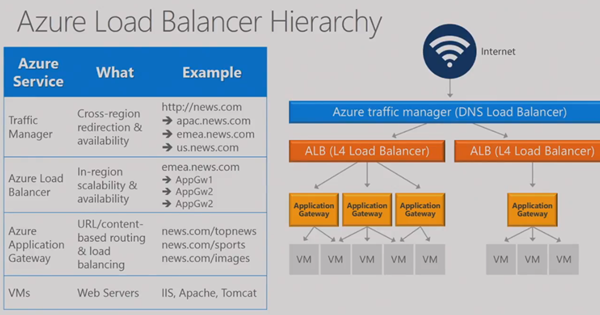
Yousef reviews how load balancing can be done toady in Azure. A traffic manager profile (based on DNS records and abstraction) does load balancing/fail over between 2+ Azure deployments (across 1+ regions). A single deployment has an Azure Load Balancer, which uses Layer 4 LB rules to pass traffic through to the VNet. Within the VNet, Azure application gateways (can) the proxy/direct/load balance Layer 7 traffic to web servers (VMs) on the VNet.
image

Web Application Firewall

The web application gateway is still relatively unknown, in my experience, even though it’s been around for 1 year. This is layer 7 handling of traffic to web farms/servers.

image


A preview for web application firewall (WAF) has been announced – an extension of the web application gateway.

image

WAF adds security to the WAG. In current preview, it uses a hard set of rules, but custom rules will be coming soon. MSFT hopes to GA it soon (must be ready first).

WAF is an add-on SKU to the gateway. It can run in detection mode (great to watch traffic without intervening – try it out). When you are happy, you switch over to prevention mode so it can intervene.

image

Multiple VIPS for Load Balancer

This is a cost reduction improvement. For example, you needed to run multiple databases behind internal load balancers, with each DB pair requiring a unique VIP. Now we can assign multiple VIPs to a LB, and consolidate the databases to a pair of VMs instead of multiple pairs of VMs.

image

Back end ports can also be reused to facilitate the above.

NIC Enhancements

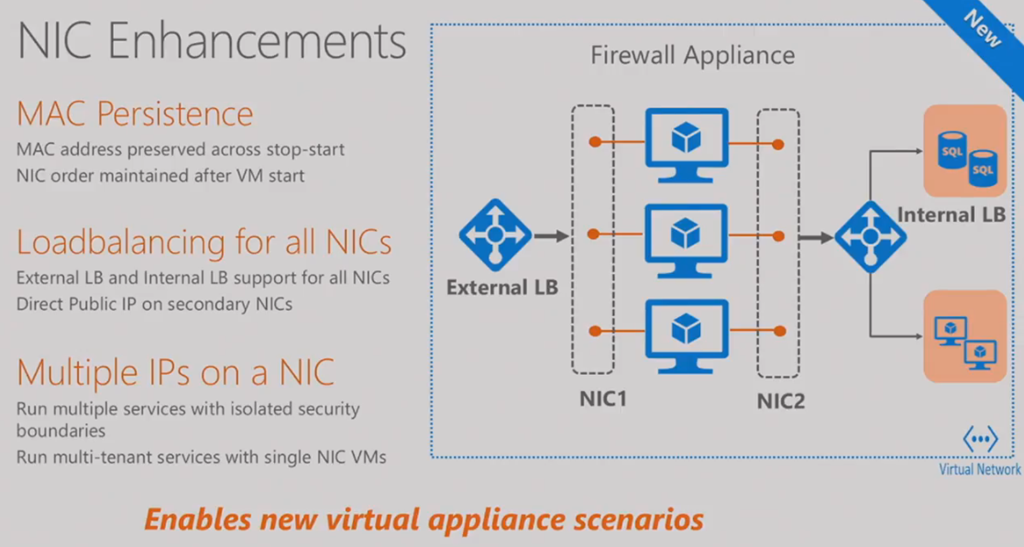
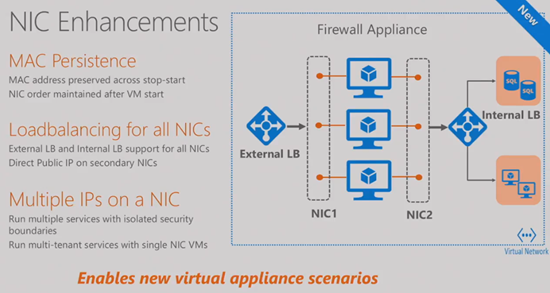
These improvements didn’t get mentioned in any posts I read or announcements I heard. MAC addresses were not persistent. They have been for a few months now. Also, VM ordering in a VM is retained after VM start (important for NVAs) – there was a bug were the NICs weren’t in persistent order.
image

New virtual appliance scenarios are supported by adding functionality to additional NICs in a VM:

  • Load balancing
  • Direct public IP assignment
  • Multiple IPs on a single NIC

A marketing-heavy video is played to discuss how Hyatt Hotels are using Azure networking. I think that the jist of the story is that Hyatt went from a single data center in the USA, to having multiple PoPs around the world thanks to Azure networking (probably ExpressRoute).  The speaker from Hyatt comes on stage.

Yousef is back on stage to talk about connecting to Azure. I was ready to skip this piece of the video but Yousef did present some interesting stuff. The first is using the Azure backbone to connect disparate offices. Each office connects over “the last mile” to Azure using secure VPN. Then Azure VNet-VNet VPNs provide the WAN. I’d never thought of this architecture – it’s actually pretty simple to set up with the new VPN UI in the Azure Portal. Azure provides low latency and high bandwidth connections – this is a very cheap way to network sites together with lots of speed and low latency.

image

Highly Available Connections to Azure

We can create more than 1 connection to Azure VPN gateways, solving a concern that people have over reliance on a single link/ISP.

image

Most people don’t know it, but the Azure gateway was an active/passive VM cluster behind the curtain. You can now run the gateway in an active/active configuration, giving you greater HA for your site-to-Azure connections. And additionally, you can aggregate the bandwidth of both VPN tunnels/links/ISPs.

image

If you are interested in the expensive ExpressRoute WAN option, then the PoP locations have increased to 35 around the world – more than any other cloud, with lots of partners offering WAN and connection relay options.

image

ExpressRoute has a new UltraPerfromance gateway option: 5x improvement over the 2 Gbps HighPerformance gateway– up to 10 Gbps through to VNets

The ExpressRoute gateway SLA is increased to 99.95%.

More insights into ExpressRoute are being added: troubleshooting, BGP/traffic/routing statistics, diagnostics, alerting, monitoring, etc.

There’s a stint by the Manulife speaker to talk about their usage of Azure, which I skipped.

Monitoring And Diagnostics

Customers want visibility into the virtual networks that they are using for production and mission critical applications/services. So Microsoft has given us this in Azure:

image

More stuff will appear in PoSH, log extractions (for 3rd parties), and in the Portal in the future. And the session moved on to a summary.

New Azure Resource Manager VM Deployment Wizard

Microsoft made a small change to the Basics blade of the ARM VM deployment wizard, which I noticed for the first time this morning.

Microsoft is constantly changing the Azure Portal. Feedback, new features, and probably metrics gathered from our usage, shape the solution. It’s gone from being a horrible tool to something I find to be, not only, useful, but also educational – the portal helps me find new things in Azure and understand how things fit together. For example, I tried reading about the Azure ARM load balancer but all of the materials were infinite loop gibberish. I open the portal, deployed a template, and traced how the pieces fit together.

Part of the feedback Microsoft gets is that the UI is “too big”. You have to click and scroll too much. A big improvement was the “all settings” blade which removed the “symantec” from the design and put all of a resource’s features into one flat and discoverable blade.

We got another such improvement in the last couple of days. When we are building a VM in the portal we have to select a spec and size of VM. That opens up a HUGE blade with dozens of options, each presented in a little frame with details of that VM spec/size. Only the other day, I though that this blade had become a pain in the a**. Microsoft has eased the pain (a little) by changing the Basics blade. As you can see below, a new list box asks if we want a VM with SSD or HDD storage – that’s a little over simplified but that’s a conversation for another time. Selecting one option filters what options the Size blade needs to show you.

image

Note that this change only affects the deployment of ARM virtual machines. The old experience is still there for Classic (ASM) virtual machines.

I do have another option for Microsoft … cull the numbers of specs of VM. Do we really need Basic A, Standard A, D, DS, Dv2, F, FS, G, GS, NC and NV, each with a number of sizes? I used to be able to explain the features/differences of the different series with a single PowerPoint slide … now it’s a presentation deck all of it’s own!

Technorati Tags: ,

Azure In-Place VM Migration Eliminates Reboots During Host Maintenance

Microsoft is finally making updates to Azure to reduce downtime to virtual machines when a host is rebooted.

Microsoft sent out the following announcement via the regular pricing and features update email to customers last night:

image

That sounds like Quick Migration. So Azure has caught up with Windows Server 2008 Hyper-V. Winking smile And it sounds like later in 2016, we’ll get Live Migration … yay … Windows Server 2008 R2 Hyper-V Smile with tongue out

Seriously, though, Azure was never designed for the kinds of high availability that we put into an on-premises Hyper-V cluster. Azure is cloud scale, with over 1 million physical hosts. A cluster has around 1000 hosts! When you build at that scale, HA is done in a different way. You encourage customers to design for an army of ants … lots of small deployments where HA is done using software design leveraging cloud fabric features, rather than by hardware. But, when you have customers (from small to huge) who have lots of legacy applications (e.g. file server) that cannot be clustered in Azure without redesign/re-deployment/expense, then you start losing customers.

So Microsoft needed to make changes that acknowledged that many customer workloads are not cloud ready … and to be honest, most of the prospects I’ve encountered where code was being written, the developers weren’t cloud ready either – they are sticking to the one DB server and one web server model that has plagued businesses since the 1990s.

These improvements are great news … and they’re just the tip of last night’s very big and busy iceberg.