Locking Down Network Access to the Azure Application Gateway/Firewall

In this post, I will explain how you can use a Network Security Group (NSG) to completely lock down network access to the subnet that contains an Azure Web Application Gateway (WAG)/Web Application Firewall (WAF).

The stops are as follows:

  1. Deploy a WAG/WAF to a dedicated subnet.
  2. Create a Network Security Group (NSG) for the subnet.
  3. Associate the NSG with the subnet.
  4. Create an inbound rule to allow TCP 65503-65534 from the Internet service tag to the CIDR address of the WAG/WAF subnet.
  5. Create rules to allow application traffic, such as TCP 443 or TCP 80, from your sources to the CIDR address of the WAG/WAF
  6. Create a low priority (4000) rule to allow any protocol/port from the AzureLoadBlanacer service tag to the CIDR address of the WAG/WAF
  7. Create a rule, with the lowest priority (4096) to Deny All from Any source.

The Scenario

It is easy to stand up a WAG/WAF in Azure and get it up and running. But in the real world, you should lock down network access. In the world of Azure, all network security begins with an NSG. When you deploy WAG/WAF in the real world, you should create an NSG for the WAG/WAF subnet and restrict the traffic to that subnet to what is just required for:

  • Health monitoring of the WAG/WAF
  • Application access from the authorised sources
  • Load balancing of the WAG/WAF instances

Everything else inbound will be blocked.

The NSG

Good NSG practice is as follows:

  1. Tiers of services are placed into their own subnet. Good news – the WAG/WAF requires a dedicated subnet.
  2. You should create an NSG just for the subnet – name the NSG after the VNet-Subnet, and maybe add a prefix or suffix of NSG to the name.

Health Monitoring

Azure will need to communicate with the WAG/WAF to determine the health of the backends – I know that this sounds weird, but it is what it is.

Note: You can view the health of your backend pool by opening the WAG/WAF and browsing to Monitoring > Backend Health. Each backend pool member will be listed here. If you have configured the NSG correctly then the pool member status should be “Healthy”, assuming that they are actually healthy. Otherwise, you will get a warning saying:

Unable to retrieve health status data. Check presence of NSG/UDR blocking access to ports 65503-65534 from Internet to Application Gateway.

OK – so you need to open those ports from “Internet”. Two questions arise:

  • Is this secure? Yes – Microsoft states here that these ports are “are protected (locked down) by Azure certificates. Without proper certificates, external entities, including the customers of those gateways, will not be able to initiate any changes on those endpoints”.
  • What if my WAG/WAF is internal and does not have a public IP address? You will still do this – remember that “Internet” is everything outside the virtual network and peered virtual networks. Azure will communicate with the WAG/WAF via the Azure fabric and you need to allow this communication that comes from an external source.

In my example, my WAF subnet CIDR is 10.0.2.4/24:

Application Traffic

Next, I need to allow application traffic. Remember that the NSG operates at the TCP/UDP level and has no idea of URLs – that’s the job of the WAG/WAF. I will use the NSG to define what TCP ports I am allowing into the WAG/WAF (such as TCP 443) and from what sources.

In my example, the WAF is for internal usage. Clients will connect to applications over a VPN/ExpressRoute connection. Here is a sample rule:

If this was an Internet-facing WAG or WAF, then the source service tag would be Internet. If other services in Azure need to connect to this WAG or WAF, then I would allow traffic from either Virtual Network or specific source CIDRs/addresses.

The Azure Load Balancer

To be honest, this one caught me out until I reasoned what the cause was. My next rule will deny all other traffic to the WAG/WAF subnet. Without this load balancer rule, the client could not connect to the WAG/WAF. That puzzled me, and searches led me nowhere useful. And then I realized:

  • A WAG/WAF is 1+ instances (2+ in v2), each consuming IP addresses in the subnet.
  • They are presented to clients as a single IP.
  • That single IP must be a load balancer
  • That load balancer needs to probe the load balancer’s own backend pool – which are the instance(s) of the WAG/WAF in this case

You might ask: isn’t there a default rule to allow a load balancer probe? Yes, it has priority 65001. But we will be putting in a rule at 4096 to prevent all connections, overriding the 65000 rule that allows everything from VirtualNetwork – which includes all subnets in the virtual network and all peered virtual networks.

The rule is simple enough:

Deny Everything Else

Now we will override the default NSG rules that allow all communications to the subnet from other subnets in the same VNet or peered VNets. This rule should have the lowest possible user-defined priority, which is 4096:

Why am I using the lowest possible priority? This is classic good firewall rule practice. General rules should be low priority, and specific rules should be high priority. The more general, the lower. The more specific, the higher. The most general rule we have in firewalls is “block everything we don’t allow”; in other words, we are creating a white list of exceptions with the previously mentioned rules.

The Results

You should end up with:

  • The health monitoring rule will allow Azure to check your WAG/WAF over a certificate-secured channel.
  • Your application rules will permit specified clients to connect to the WAG/WAF, via a hidden load balancer.
  • The load balancer can probe the WAG/WAF and forward client connections.
  • The low priority deny rule will block all other communications.

Job done!

 

Why Choose the Azure Firewall over a Virtual Firewall Appliance?

In this post, I will explain why you should choose Azure Firewall over third-party firewall network virtual appliances (NVAs) from the likes of Cisco, Palo Alto, Check Point, and so on.

Microsoft’s Opinion

Microsoft has a partner-friendly line on Azure Firewall versus third-parties. Microsoft says that third-party solutions offer more than Azure Firewall. If you want you can use them side-by-side.

Now that’s out of the way, let me be blunt … like I’d be anything else! 😊

The NVA Promise

At their base, a firewall blocks or allows TCP/UDP/etc and does NAT. Some firewalls offer a “security bundle” of extra features such as:

  • Malware scanning based on network patterns
  • Download scanning, including zero-days (detonation chamber)
  • Browser URL logging & filtering

But those cool things either make no sense in Azure or are just not available from the NVA vendors in their cloud appliances. So what you are left with is central logging and filtering.

Documentation

With the exception of Palo Alto (their whitepaper for Azure is very good – not perfect) and maybe Check Point, the vendors have pretty awful documentation. I’ve been reading a certain data centre mainstay’s documents this week and they are incomplete and rubbish.

Understanding of Azure

It’s quite clear that some of the vendors are clueless about The Cloud and/or Azure. Every single vendor has written docs about deploying everything into a single VNet – if you can afford NVAs then you are not putting all your VMs into a single VNet (see hub & spoke VNet peering). Some have never heard of availability zones – if you can afford NVAs then you want as high an SLA as you can get. Most do not offer scale-out (active/active clusters) – so a single VM becomes your bottleneck on VM performance (3000 Mbps in a D3_v2). Some don’t even support highly available firewall clusters – so a single VM becomes the single point of failure in your entire cloud network! And their lack of documentation or understanding of VNet peering or route tables in a large cloud deployment is laughable.

The Comparison

So, what I’m getting at is that the third-party NVAs suck. Azure Firewall isn’t perfect either, but it’s a true cloud platform service and it is improving fast – just last night Microsoft announced Threat Intelligence-Based Filtering and Service Tags Filtering (this appeared recently). I know more things are on the way too 😊

Here is my breakdown of how Azure Firewall stacks up against firewall NVAs:

Azure Firewall NVA
Deployment Platform Linux VM + Software
Licensing Consumption: instance + GB Linux VM + Software
Scaling Automatic Add VMs + Software
Ownership Set & monitor Manage VM / OS / Software
Layer -7 Logging & filtering Potentially* deep inspection
Networking 1 subnet & PIP 1+ subnets & 1 PIP
Complexity Simple Difficult

I know: you laugh when you hear “Microsoft” and “Firewall” in the same sentence. You think of ISA Server. Azure Firewall is different. This is baked into the fabric of Azure, the strategic future of Microsoft. It is already rapidly improving, and it does more than the third parties.

Heck, what does the third-party offer compared to NSGs? NSGs filter TCP/UDP, they can log to a storage account, you can centrally log using Event Hubs, and does advanced reporting/analysis using NSG Flo Logs with Azure Monitor Logs (Log Analytics). Azure Firewall takes that another step with a hub deployment, an understanding of HTTP/S, and is now using machine learning for dynamic threat prevention!

My Opinion

Some people will always prefer a non-Microsoft firewall. But my counter would be, what are you getting that is superior – really? With Azure Firewall, I create a firewall, set my rules, configure my logging, and I’m done. Azure Firewall scales and it is highly available. Logging can be done to storage accounts, event hubs (SIEM), and Azure Monitor Logs. And here’s the best bit … it is SIMPLE to deploy and there is almost no cost of ownership. Compare that to some of the HACK solutions from the NVA vendors and you’d laugh.

The Azure Firewall was designed for The Cloud. It was designed for the way that Azure works. And it was designed for how we should use The Cloud … at scale. And that scale isn’t just about Mbps, but in terms of backend services and networks. From what I have seen so far, the same cannot be said for firewall NVAs. For me, the decision is easy: Azure Firewall. Every time.

Planning Network Security For Your Mission-Critical Workloads With Virtual Networks

Speakers: Anitha Adusumilli and Mario Lopez

Networking ensure that data remains in your private space in the cloud. So it’s not just a VM thing.

Understanding Cloud Challenges

  • Dynamic, scalable workloads – no fixed network perimeter
  • Attack vectors based on application access patterns
  • Risk of data exposure to exploits, with a mix of IaaS, PaaS, and SaaS services

Cloud network security is evolving as the apps change!

Planning Network Security in Azure

  • Similar controls as on-premises.
  • Pick your network security offerings
  • Layer and scale
  • More flexible than on-premises – faster to deploy/tear down
  • Azure offers managed services

You can build a vNet and add subnets as security boundaries. You can add peered vNets locally and in other regions.  And you might have external connections via VPN/ExpressRoute.

There are a mixture of Azure-native and third-party security offerings.

Application access Patterns

Use these to decide what network security solution to pick. Probably will be a mixture of the below.

  • Service endpoints
  • NSGs
  • ASGs
  • User-defined routes
  • DDoS Protection
  • WAF
  • Azure Firewall
  • NVAs

Security with Azure Services

VMs don’t need public IPs. However, when you use Azure services, they have public IPs, e.g. Azure SQL. This might require you to allow outbound connections that you might not have done before. Anyone with rights for default deployments can access from anywhere. But if you add services to the VNet, via service endpoints, and apply services firewalls, e.g. Azure SQL, then you can restrict access to these platform services.

Two patterns:

  • Add services to a VNet where the VNet is all that can access the service
  • Add services to a VNet to allow private access, but public access is also possible.

Pattern 1: Deploy services into VNet

WIN_20180926_14_29_30_Pro

Example, App Services Environment (ASE) is deployed into a subnet.

Security:

  • NSGs
  • NVAs
  • User-defined routing can control direction of traffic, e.g.a private deployment can only route via a gateway (forced tunnelling)
  • Services in Azure might require outbound access from your VNet. Use Service Tags to limit outbound traffic to local service.

New service tags:

WIN_20180926_14_35_13_Pro

Azure Webapps will be getting preview support soon – an alternative to P2S VPN.

Pattern 2: Service Endpoints

  • Extend VNet identity to the service
  • Secure your critical Azure resources to only your VNet
  • Traffic remains on the Microsoft backbone

WIN_20180926_14_38_42_Pro

How to Secure Your Resources Using Service Endpoints

Normal flow in new setup:

  1. Set endpoint on your endpoint
  2. Lock your service resource to your subnet

One-Time Migration:

  1. Step 1: Add VNet rule without endpoint
  2. Set endpoint on subnet
  3. Remove the public IP setting

All scenarios: Remove “Allow All Azure Services” or “Allow All” settings.

Service Endpoint: Scaling Security

  • Resource locked to a VNet: No access to other VNets or Internet or on-premises.
  • Permit more VNets: Turn on service endpoints on VNets and add under “virtual Networks” on resource
  • Permit on-premises: Add the on-prem NAT IPs under “firewall” on resource.

Careful – locking network access down can prevent Azure services, such as backup. There are docs for these workarounds – ask Anitha Adusumilli.

Stitching Services Together

  • Secure Azure resources to managed service subnets with endpoints
  • More

Securing VNet traffic: Services Tags in NSGs

  • Restrict network access to just the azure services your use.
  • Maintenance of IP addresses for each tag provided by Azure (Service Tags)
  • Support for global and regional tags (varies by service)

Service endpoints: Data-Exfiltration Risk

  • NSG service tags not enough to prevent data exfiltration from VNet
  • Access to unauthorized accounts possible

Option 1: filtering with Azure Firewall or NVAs

  • Service endpoints bypass NVAs for service traffic, if set on originating subnet
  • Optionally, continue using NVAs for auditing/filtering service traffic
  • More

Service Endpoint Policies

  • Prevent unauthorized access to storage accounts
  • Restrict vnet access to specific azure storage accounts
  • Granular access control over service endpoints
  • West Central US and West US2 today

Demo: Service Endpoint Policies

She has a VNet with a subnet. Service endpoints is turned on for Storage (all) in the subnet. She only wants to allow access to a single storage account. Adds that storage account to the subnet’s service endpoint. Logs into VM in the subnet and runs Storage Explorer. Can access files in the configured storage account. Another storage account can also be accessed. Goes to Service Endpoint Policies – a top level resource like NSGs. Adds a new policy, adds it to resource group and names it. Sets a scope – all storage accounts, all accounts in resource group, or specific storage account – picks the allowed storage account. Associates the policy with the subnet – like NSG. Now in the VM, only the authorized storage account can be accessed in Storage Explorer.

Switch to Mario for part 2.

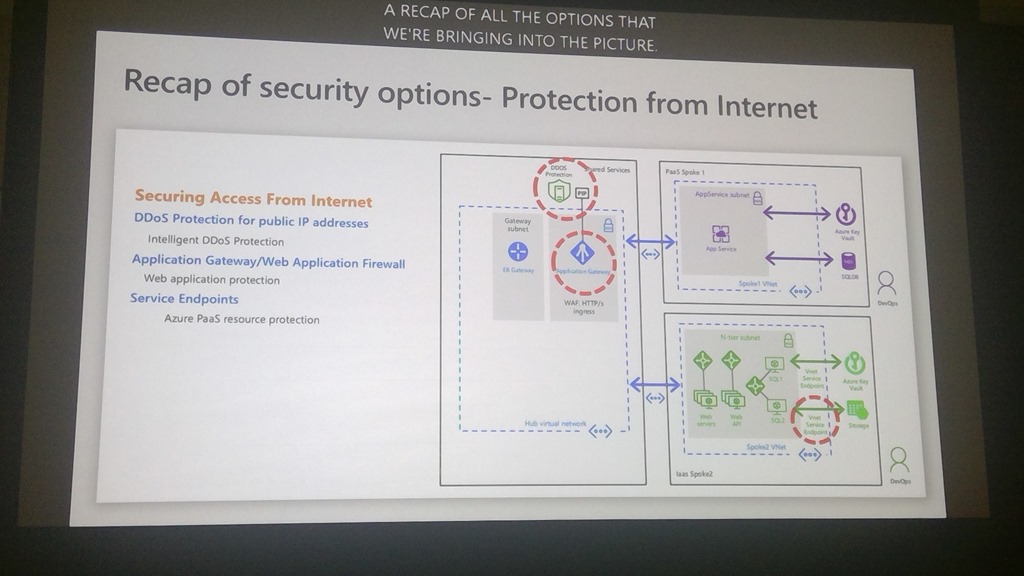
Securing Access From Internet

  • DDoS attacks
  • Web Application Vulnerabilities

New in DDoS Standard

  • Attack analysis
  • Rapid Response – Specialized rapid response team support during active attacks (via support ticket). Custom mitigation policy configuration.
  • Azure Security Center Integration – intelligent DDoS protection virtual network recommendation

New in WAF

WIN_20180926_15_07_06_Pro

WIN_20180926_15_08_26_Pro

WIN_20180926_15_08_26_Pro

WIN_20180926_15_15_40_Pro

WIN_20180926_15_17_22_Pro

WIN_20180926_15_19_01_Pro

They’re flattening the number of subnets using ASGs – tiers of app in one subnet but rules based on on ASGs instead of subnets. Subnets then deployed for Edge/DMZ and app. Using ASGs for micro-segmentation.

WIN_20180926_15_21_36_Pro

WIN_20180926_15_23_09_Pro

Putting it All Together

WIN_20180926_15_29_01_Pro

Cloud Mechanix – “Starting Azure Infrastructure” Training Coming To Frankfurt, Germany

I have great news. Today I got confirmation that our venue for the next Cloud Mechanix class has been confirmed. So on December 3-4, I will be teaching my Cloud Mechanix “Starting Azure Infrastructure” class in Frankfurt, Germany. Registration Link.

Buy Ticket

About The Event

This HANDS-ON theory + practical course is intended for IT professionals and developers that wish to start working with or improve their knowledge of Azure virtual machines. The course starts at the very beginning, explaining what Azure is (and isn’t), administrative concepts, and then works through the fundamentals of virtual machines before looking at more advanced topics such as security, high availability, storage engineering, backup, disaster recovery, management/alerting, and automation.

Aidan has been teaching and assisting Microsoft partners in Ireland about Microsoft Azure since 2014. Over this time he has learned what customers are doing in Azure, and how they best get results. Combined with his own learning, and membership of the Microsoft Valuable Professional (MVP) program for Microsoft Azure, Aidan has a great deal of knowledge to share.

We deliberately keep the class small (maximum of 20) to allow for a more intimate environment where attendees can feel free to interact and ask questions.

Agenda

This course spans two days, running on December 3-4, 2018. The agenda is below.

Day 1 (09:30 – 17:00):

  • Introducing Azure
  • Tenants & subscriptions
  • Azure administration
  • Admin tools
  • Intro to IaaS
  • Storage
  • Networking basics

Day 2 (09:30 – 17:00):

  • Virtual machines
  • Advanced networking
  • Backup
  • Disaster recovery
  • JSON
  • Diagnostics
  • Monitoring & alerting
  • Security Center

The Venue

The location is the Novotel Frankfurt City. This hotel:

  • Has very fast Wi-Fi – an essential requirement for hands-on cloud training!
  • Reasonably priced accommodation.
  • Has car parking – which we are paying for.
  • Is near the Messe (conference centre) and is beside the Kuhwaldstraße tram station and the Frankfurt Main West train station and S-Bahn.
  • Is just a 25 minute walk or 5 minutes taxi from the Hauptbahnhof (central train station).
  • It was only 15-20 minutes by taxi to/from Frankfurt Airport when we visited the hotel to scout the location.

image

Costs

The regular cost for this course is €999 per person. If you are registering more than one person, then the regular price will be €849 per person. A limited number of early bird ticks are on sale for €659 each.

You can pay for for the course by credit card (handled securely by Stripe) or PayPal on the official event site. You can also pay by invoice/bank transfer by emailing contact@cloudmechanix.com. Payment must be received within 21 days of registration – please allow 14 days for an international (to Ireland) bank transfer. We require the following information for invoice & bank transfer payment:

  • The name and contact details (email and phone) for the person attending the course.
  • Name & address of the company paying the course fee.
  • A purchase Order (PO) number, if your company require this for services & purchases.

The cost includes tea/coffee and lunch. Please inform us in advance if you have any dietary requirements.

Note: Cloud Mechanix is a registered education-only company in the Republic of Ireland and does not charge for or pay for VAT/sales tax.

See the event page for Terms and Conditions.

Buy Ticket

Adding Address Spaces To An Azure Virtual Network

Have you ever run out of addresses in an Azure virtual network? Have you ever needed to add a different scope or address space to an existing Azure virtual network? If so, this post is for you.

Quite honestly, I did not know that this was possible until recently – it’s a setting in an Azure virtual network that I have never used or even looked at:

image

When you create a virtual network, you give it an address space. Typically that will be a 10.x.x.x range because that’s what the Azure Portal steers you towards and if offers a lot of address space to carve up. In the above virtual network, I created a virtual network with an address space of 192.168.1.0/24, one that should be very familiar to you. And the blades for setting up the virtual network created a single subnet consuming all of that space. What if I wanted to add another subnet? I used to think that it wasn’t possible, but I was wrong.

You can click Address Space in the Settings of the virtual network and add extra address spaces. In the above, I’ve added 10.0.0.0/16 and 172.16.0.0/16 (extreme but vivid examples) to my subnet. If that was an on-premises network, based on VLANs and routing, then life would get complicated. But this is software defined networking. These addresses are more for our comfort than for the “machine” that runs the network. In the end, NVGRE which powers the Azure network, is copying packets from a source NIC to destination NIC and is abstracts the underlying physical complexity through encapsulation (dig up Damian Flynn’s old NVGRE presentations on VMM logical software defined networks). In short … you add these address spaces, then create subnets and the subnets will route automatically across those spaces.

image

If you go into subnets, you now can create subnets within the address spaces of the virtual network and they just route.

image

To prove this simplicity, I deployed a VM in 192.168.1.0/24 and another in 172.16.1.0/24. I modified Windows Firewall to allow ICMP in (ping) and then ran some ping and tracert tests between the two machines in different address spaces. In a normal VLAN world, the results would illustrate the underlying complexity. In Azure’s software defined network, these are just 2 subnets in the same virtual network.

Pretty cool, right?