KB3172614 To Replace/Fix Hyper-V Installations Broken By KB3161606

Microsoft released a new update rollup to replace the very broken and costly (our time = our money) June rollup, KB3161606. These issues affected Hyper-V on Windows 8.1 and Windows Server 2012 R2 (WS2012 R2).

It’s sad that I have to write this post, but, unfortunately, untested updates are still being released by Microsoft. This is why I advise that updates are delayed by 2 months.

In the case of the issues in the June 2016 update rollup, the fixes are going to require human effort … customers’ human effort … and that means customers are paying for issues caused by a supplier. I’ll let you judge what you think of that (feel free to comment below).

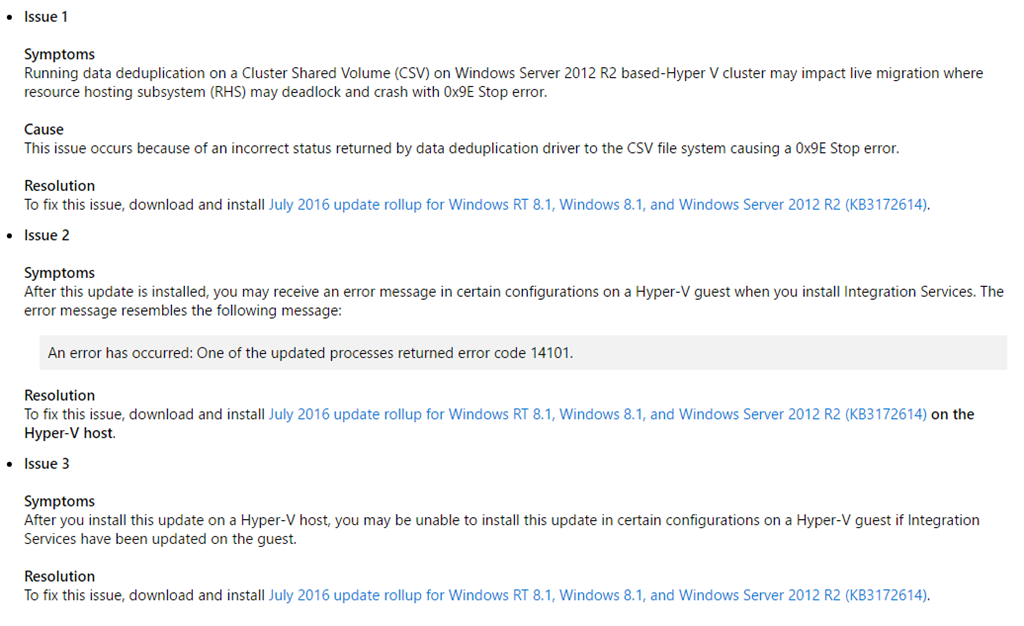
A month after news of the issues in the update became known (the update rollup was already in the wild for a week or two), Microsoft has issued a superseding update that will fix the issues. At the same time, they finally publicly acknowledge the issues in the June update:

image

So it took 1.5 months, from the initial release, for Microsoft to get this update right. That’s why I advise a 2 month delay on approving/deploying updates, and I continue to do so.

What Microsoft needs to fix?

  • Change the way updates are created/packaged. This problem has been going on for years. Support are not good at this stuff, and it needs to move into the product groups.
  • Microsoft has successfully reacted to market pressure by making a special emphasis to change, e.g. The Internet, secure coding, The Cloud. Satya Nadella needs to do the same for quality assurance (QA), something that I learned in software engineering classes was as important as the code. I get that edge scenarios are hard to test, but installing/upgrading ICs in a Hyper-V guest OS is hardly a rare situation.
  • Start communicating. Put your hands up publicly, and say “mea culpa”, show what went wrong and follow it up with progress reports on the fix.


Webinar – Affordable Hyper-V Clustering for the Small/Medium Enterprise & Branch Office

I will be presenting another MicroWarehouse webinar on August 4th at 2PM (UK/Ireland), 3 PM (central Europe) and 9AM (Eastern). The topic of the next webinar is how to make highly available Hyper-V clusters affordable for SMEs and large enterprise branch offices. I’ll talk about the benefits of the solution, and then delve into what you get from this hardware + software offering, which includes better up-time, more affordability, and better performance than the SAN that you might have priced from HPE or Dell.

image

Interested? Then make sure that you register for our webinar.

Optimize Hyper-V VM Placement To Match CSV Ownership

This post shares a PowerShell script to automatically live migrate clustered Hyper-V virtual machines to the host that owns the CSV that the VM is stored on. The example below should work nicely with a 2-node cluster, such as a cluster-in-a-box.

For lots of reasons, you get the best performance for VMs on a Hyper-V cluster if:

  • Host X owns CSV Y AND
  • The VMs that are stored on CSV Y are running on Host X.

This continues into WS2016, as we’ve seen by analysing the performance enhancements of ReFS for VHDX operations. In summary, the ODX-like enhancements work best when the CSV and VM placement are identical as above.

I wrote a script, with little bits taken from several places (scripting is the art of copy & paste), to analyse a cluster and then move virtual machines to the best location. The method of the script is:

  1. Move CSV ownership to what you have architected.
  2. Locate the VMs that need to move.
  3. Order that list of VMs based on RAM. I want to move the smallest VMs first in case there is memory contention.
  4. Live migrate VMs based on that ordered list.

What’s missing? Error handling 🙂

What do you need to do?

  • You need to add variables for your CSVs and hosts.
  • Modify/add lines to move CSV ownership to the required hosts.
  • Balance the deployment of your VMs across your CSVs.

Here’s the script. I doubt the code is optimal, but it works. Note that the Live Migration command (Move-ClusterVirtualMachineRole) has been commented out so you can see what the script will do without it actually doing anything to your VM placement. Feel free to use, modify, etc.

#List your CSVs 
$CSV1 = "CSV1" 
$CSV2 = "CSV2"

#List your hosts 
$CSV1Node = "Host01" 
$CSV2Node = "Host02"

function ListVMs () 
{ 
    Write-Host "`n`n`n`n`n`nAnalysing the cluster $Cluster ..."

    $Cluster = Get-Cluster 
    $AllCSV = Get-ClusterSharedVolume -Cluster $Cluster | Sort-Object Name

    $VMMigrationList = @()

    ForEach ($CSV in $AllCSV) 
    { 
        $CSVVolumeInfo = $CSV | Select -Expand SharedVolumeInfo 
        $CSVPath = ($CSVVolumeInfo).FriendlyVolumeName

        $FixedCSVPath = $CSVPath -replace '\\', '\\'

        #Get the VMs where VM placement doesn't match CSV ownership
        $VMsToMove = Get-ClusterGroup | ? {($_.GroupType –eq 'VirtualMachine') -and ( $_.OwnerNode -ne $CSV.OWnernode.Name)} | Get-VM | Where-object {($_.path -match $FixedCSVPath)} 

        #Build up a list of VMs including their memory size 
        ForEach ($VM in $VMsToMove) 
        { 
            $VMRAM = (Get-VM -ComputerName $VM.ComputerName -Name $VM.Name).MemoryAssigned

            $VMMigrationList += ,@($VM.Name, $CSV.OWnernode.Name, $VMRAM) 
        }

    }

    #Order the VMs based on memory size, ascending 
    $VMMigrationList = $VMMigrationList | sort-object @{Expression={$_[2]}; Ascending=$true}

    Return $VMMigrationList 
}

function MoveVM ($TheVMs) 
{

    foreach ($VM in $TheVMs) 
        { 
        $VMName = $VM[0] 
        $VMDestination = $VM[1] 
        Write-Host "`nMove $VMName to $VMDestination" 
        #Move-ClusterVirtualMachineRole -Name $VMName -Node $VMDestination -MigrationType Live 
        }

}

cls

#Configure which node will own wich CSV 
Move-ClusterSharedVolume -Name $CSV1 -Node $CSV1Node | Out-Null 
Move-ClusterSharedVolume -Name $CSV2 -Node $CSV2Node | Out-Null

$SortedVMs = @{}

#Get a sorted list of VMs, ordered by assign memory 
$SortedVMs = ListVMs

#Live Migrate the VMs, so that their host is also their CSV owner 
MoveVM $SortedVMs

Possible improvements:

  • My ListVMs algorithm probably can be improved.
  • The Live Migration piece also can be improved. It only does 1 VM at a time, but you could implement parallelism using jobs.
  • Quick Migration should be used for non-running VMs. I haven’t handles that situation.
  • You could opt to use Quick Migration for low priority VMs – if that’s your policy.
  • The script could be modified to start using parameters, e.g. Analyse (not move), QuickMigrateLow, QuickMigrate (instead of Live Migrate), etc.

Webinar – What’s New In Windows Server 2016 Hyper-V

I’ll be joining fellow Cloud and Datacenter Management (Hyper-V) MVP Andy Syrewicze for a webcast by Altaro on June 14th at 3PM UK/Irish time, 4PM CET, and 10AM Eastern. The topic: What’s new in Windows Server 2016 Hyper-V (and related technologies). There’s quite a bit to cover in this new OS that we expect to be release during Microsoft Ignite 2015. I hope to see you there!

image

How Do I Connect Disks To Import Data/Backups To Azure?

How do you connect your disks if USB is out of the question? I recently had some experience on a customer site and learned a few things.

The first thing to note is that you always use a naked 3.5” SATA II/III disk, and never a NAS or USB disk.

You use a disk dock/duplicator. You connect this device to the machine running the import drive prep tool, and then you plug the SATA disk(s) into the dock. Microsoft lists (under “Hard Disk Drives”) 4 supported models from 3 vendors:

  • Anker 68UPSATAA-02BU
  • Anker 68UPSHHDS-BU
  • Startech SATADOCK22UE
  • Sharkoon QuickPort XT HC

The Anker and Startech models (these precise models) are:

  • Old USB 2.0 devices
  • Not distributed outside of the USA

I got my Startech SATADOCK22UE via Ebay from the USA, which cost around $100 after purchase, shipping, and import duties. The USB 3.0 Sharkoon appears to be available outside the USA via the likes of Amazon. I wouldn’t describe it as widely distributed, but it might be the best of the 4 options.

My advice: don’t take chances and get 1 of the above. I worked with a customer that bought a newer USB 3.0 European Startech dock model and the Azure drive prep tool refused to work with it:

[Error] Command failed with exception: AzImportDll.AzImportException: Could not read serial number or signature for the drive. This is a critical error an the command cannot run. This may be due to certain USB adapter or disk drivers that are not fully compatible with the operating system.

image

This was despite the fact that Device Manager has no issues with the disk which we were able to initialize and format. So keep it predictable, and make the effort to get one of the supported disk docks.

New Features in Azure – 29 April 2016

Microsoft sent out an announcement about feature changes/additions in Azure last night. Some news there that was much quicker than I expected …

Azure Container Service Generally Available

Azure Container Service helps customers manage container-based applications in production, at scale. Azure Container Service is fully integrated with the Azure portal, Azure Resource Manager, and our compute, storage, and networking resources. This supports Docker images, using familiar tools and either open-source DCOS or Docker Swarm as the underlying orchestration technology. The only cost for Azure Container Service is what you pay to use the underlying resources.

New Azure Storage Cool Tier Generally Available

Azure storage was cheap already, but it just got cheaper. Now we have a lower tier for blob storage, that can be used for services like backup, disaster recovery, or data archival. As a result, the storage pricing page has been updated to reflect the new options. Here is the pricing for block blobs (backup) in North Europe:

image

LRS, what we typically see being used for on-prem backup, costs (in North Europe):

  • €0.0084 or $0.01 per GB in cool storage
  • €0.0202 or $0.024 per GB in hot storage

Seriously, that is cheap. Microsoft has detailed the transaction pricing too (this really only affects huge deployments):

image

As you can infer from the above, cool storage really is for infrequently accessed data. Hot storage is where frequently accessed data should reside.

The SLA on cold storage is lower – at 99% which is still pretty damned good, especially for the price. You can bump that up with the RA-GRS redundancy option, where Microsoft provides a higher read SLA of  99.9% for the Cool access tier.

image

Note that I don’t yet see a way to use cool storage with Azure Backup, in either the old or the new portals. But a number of 3rd party backup tools can use it. Note that you have to create a new storage account type called BlobStorage in ARM to gain access to hot/cold, and you can convert from cold to hot, and vice versa (the above transaction costs will be charged for conversions starting on June 1st).

Azure Site Recovery Portal General Availability

The DR solution, ASR, now has support in the new Azure Portal. This adds support for ARM (CSP). Improvements include:

  • Azure Resource Manager support for all scenarios
  • First-class support for Cloud Solution Provider (CSP) subscriptions
  • Streamlined Getting Started experience for all Site Recovery scenarios
  • New Policy construct for flexible association and management
  • Functionality of Backup and Azure Site Recovery in a single vault construct

Enhanced VMware to Azure:

  • New Exclude Disk functionality when replicating VMware VMs to Azure
  • Support for Premium Storage for high-churn workloads

I still don’t see ASR as being ready in ARM. Yes, I can replicate and failover VMs, but I see Azure AD and RemoteApp as essential pieces to the solution. What good are machines in the cloud if I cannot access them? Yes, I can use point-site VPN (don’t assume you’ll have site-site VPN option from your alternative office, e.g. a hotel meeting room) and the “fun” that will cause, but how will my legacy applications perform … after I’ve spent hours installing them on new laptops I just bought? Unfortunately, Service Manager (Azure V1) continues to be my recommendation for DR solutions in Azure, and the rumblings tell me that it’ll stay that way for another 6 or so months 🙁 It’s a pity because the new ASR UI is pretty nice.

Technorati Tags: ,,

DataOn CiB-9112 V12 Cluster-in-a-Box

In this post I’ll tell you about the cluster-in-a-box solution from DataOn Storage that allows you to deploy a Hyper-V cluster for a small-mid business or branch office in just 2U, at lower costs than you’ll pay to the likes of Dell/HP/EMC/etc, and with more performance.

Background

So you might have noticed on social media that my employers are distributing storage/compute solutions from both DataON and Gridstore. While some might see them as competitors, I see them as complimentary solutions in our portfolio that are for two different markets:

  • Gridstore: Their hyper-converged infrastructure (HCI) products remove fear and risk by giving you a pre-packaged solution that is easy and quick to scale out.
  • DataON: There are two offerings, in my opinion. SMEs want HA but at a budget they can afford – I’ll focus on that area in this article. And then there are the scaled-out Storage Spaces offerings, that with some engineering and knowledge, allow you to build out a huge storage system at a fraction of the cost of the competition – assuming you buy from distributors that aren’t more focused on selling EMC or NetApp 🙂

The Problem

There is a myth out there that the cloud has or will remove servers from SMEs. The category “SME” covers a huge variety of companies. Outside of the USA, it’s described as a business with 5-250 users. I know that some in Microsoft USA describe it as a company with up to 2,500 users. So, sure, a business with 5-50 users might go server-less pretty easily today (assuming broadband availability), but other organizations might continue to keep their Hyper-V (more likely in SME) or vSphere (less likely in SME) infrastructures for the foreseeable future.

These businesses have the same demands for applications, and HA is no less important to a 50 user business than it is for a giant corporation; in fact, SMEs are hurt more when systems go down because they probably have a single revenue operation that gets shut down when some system fails.

So why isn’t the Hyper-V (or vSphere) cluster the norm in an SME? It’s simple: cost. It’s one thing to go from one host to two, but throw in the cost of a modest SAS/iSCSI SAN and that solution just became unaffordable – in case you don’t know, the storage companies allegedly make 85% margin on the list price of storage. SMEs just cannot justify the cost of SAN storage.

Storage Spaces

I was at the first Build conference in LA when Microsoft announced Windows 8 and Windows Server 2012. WS2012 gave us Storage Spaces, and Microsoft implored the hardware vendors to invest in this new technology, mainly because Microsoft saw it as the future of cluster storage. A Storage Spaces-certified JBOD can be used instead of a SAN as shared cluster storage, and this could greatly bring down the cost of Hyper-V storage for customers of all sizes. Tiered storage (SSD and HDD) that combines the speed of SSD with the economy of large hard drives (now up to 10 TB) with transparent and automatic demand-based block based tiering meant that economy doesn’t mean a drop in performance – it actually increases performance!

Cluster-in-a-Box

One of the sessions, presented by Microsoft Clustering Principal PM Lead Elden Christensen, focused on a new type of hardware solution that MSFT wanted to see vendors develop. A Cluster-in-a-Box (CiB) would provide a small storage or Hyper-V cluster in a single pre-packaged and tested enclosure. That enclosure would contain:

  • Up to 2 or 4 independent blade servers
  • Shared storage in the form of a Storage Spaces “JBOD”
  • Built in cluster networking
  • Fault tolerant power supplies
  • The ability to expand via SAS connections (additional JBODs)

I loved this idea; here was a hardware solution that was perfect for a Hyper-V cluster in an SME or a remote office/branch office (ROBO), and the deployment could be really simple – there are few decisions to make about the spec, performance would be awesome via storage tiering, and deployment could be really quick.

DataON CiB-9112 V12

This is the second generation of CiBs that I have worked with from DataON, a company that specialises in building state-of-the-art and Mcirosoft-certified Storage Spaces hardware. My employers, MicroWarehouse Ltd. (an Irish company that has nothing to do with an identically named UK company) distributes DataON hardware to resellers around Europe – everywhere from Galway in west Ireland to Poland so far.

The CiB concept is simple. There are two blade servers in the 2U enclosure. Each has the following spec:

  • Dual Intel® Xeon® E5-2600v3 (Haswell-EP)
  • DDR4 Reg. ECC memory up to 512GB
  • Dual 1G SFP+ & IPMI management “KVM over IP” port
  • Two PCI-e 3.0 x8 expansion slots
  • One 12Gb/s SAS x4 HD expansion port
  • Two 2.5” 6Gb/s SATA OS drive bays

Networking wise, there are 4 NICs per blade:

  • 2 x LAN facing Intel 1 GbE NICs, which I team for a virtual switch with management OS sharing enabled (with QoS enabled).
  • 2 x internal Intel 10 GbE , which I use for cluster communications and SMB 3.0 Live Migration. These NICs are internal copper connections so you do not need an external 10 GbE switch. I do not team these NICs, and they should be on 2 different subnets for cluster compatibility.

You can use the PCI-e expandability to add more SAS or NIC interfaces, as required, e.g. DataON work closely with Mellanox for RDMA networking.

The enclosure also has:

  • 12-bay 3.5”/2.5“ shared drive slots (with caddies)
  • 1023W (1+1) redundant power

image

Typically, the 12 shared drive bays are used as a single storage pool with 4 x SSDs (performance) and 8 x 7200 RPM HDDs (capacity). Tiering in Storage Spaces works very well. Here’s an anecdote I heard while in a pre-sales meeting with one of our resellers:

They put a CiB (6 GB SAS, instead of 12 GB as on the CiB-9112)  into a customer site last year. That customer had the need to run a regular batch job that would normally takes hours, and they had gotten used to working around that dead time. Things changed when the VMs were moved onto the CiB. The batch job ran so quickly that the customer was sure that it hadn’t run correctly. The reseller double-checked everything, and found that Storage Spaces tiering and the power of the CiB blades had greatly improved the performance of the database in question, and everything was actually fine – great actually!

And here was the kicker – that customer got a 2 node Hyper-V cluster with shared storage in the form of a DataON CiB for less than the cost of a SAN, let alone the cost of the 2 Hyper-V nodes.

How well does this scale? I find that CPU/RAM are rarely the bottlenecks in the SME. There are plenty of cores/logical processors in the E5-2600v3, and 512 GB RAM is more than enough for any SME. Disk is usually the bottleneck. With a modest configuration (not the max) of 4 x 200 GB SSDs and 8 x 4 TB drives you’re looking at around 14 TB of usable 2-way mirrored (like RAID 10) storage. Or you could have 4 x 1.6 TB SSDs and 8 x 8 TB HDDs and have around 32 TB of usuable 2-way mirrored storage. That’s plenty!

And if that’s not enough, then you can expand the CiB using additional JBODs.

My Hands-On Experience

Lots of hardware goes through our warehouse that I never get to play with. But on occasion, a reseller will ask for my assistance. A couple of weeks ago, I got to do my first deployment of the 12 Gb SAS CiB-9112. We got it out of the box, and immediately I was impressed. This design indicates that engineers had designed the hardware for admins to manage. It really is a very clever and modular design.

image

The two side-bezels on the front of the 2U enclosure have a power switch and USB port for each blade server.

On the top, you can easily access the replaceable fans via a dedicated hinged panel. At the back, both fault-tolerant power supplies are in the middle, away from the clutter at the side of a rack. The blades can be removed separately from their SAS controllers. And each of the RAID1 disks for the blades’ OS (the management OS for a Hyper-C cluster) can be replaced without removing the blade.

Racking a CiB is a simple task – the entire Hyper-V cluster is a single 2U enclosure so there are no SAN controllers, SAN switches, SAN cables, and multiple servers. You slide a single 2U enclosure into it’s rail kit, plug in power, networking, and KVM, and you’re done.

Windows Server is pre-installed and you just need to modify the installation type (from eval) and enter your product key using DISM. Then you prep the cluster – DataON pre-installs MPIO, Hyper-V, and Failover Clustering to make your life easy.

My design is simple:

  • The 1 GbE NICs are teamed, connected to a weight-based QoS Hyper-V switch, and shared with the parent. A weight of 50 is assigned to the default bucket QoS rule, and 50 is assigned to the management OS virtual NIC.
  • The 10 GbE NICs are on 2 different subnets.
  • I enable SMB 3.0 Live Migration on both nodes in Hyper-V Manager.
  • MPIO is configured with the LB policy.
  • I ensure that VMQ is disabled on the 1 GbE NICs and enabled on the 10 GbE NICs.
  • I form the cluster with no disks, and configure the 10 GbE NICs for Live Migration.
  • A single clustered storage pool is created in Failover Cluster Manger.
  • A 1 GB (it’s always bigger) 2-way mirrored virtual disk is created and configured as the witness disk in the cluster.
  • I create 2 virtual disks to be used as CSVs in the cluster, with 64 KB interleaves and formatted with 64 KB allocation unit size. The CSVs are tiered with some SSD and some HDD … I always leave free space in the pool to allow expandability of one CSV over the other. HA VMs are balanced between the 2 CSVs.

What about DCs? If the customer is keeping external DCs then everything is done. If they want DCs running on the CiB then I always deploy them as non-HA DCs that are stored on the C: of each CiB blade. I know that since WS2012, we are supposed to be able to run DCs are HA VMs on the cluster, but I’ve experienced issues with that.

With some PowerShell, the above process is very quick, and to be honest, the slowest bit is always the logistics of racking the CiB. I’m usually done in the early afternoon, and that includes some show’n’tell.

Summary

If you want a tidy, quick & easy to deploy, and affordable HA solution for an SME or ROBO then the DataOn CiB-9112 V12 is an awesome option. If I was doing our IT from scratch, this is what I would use (we had existing servers and added a DataON JBOD, and recently replaced the servers while retaining the JBOD). I love how tidy the solution is, and how simple it is to set up, especially with some fairly basic PowerShell. So check it out, and see what it can do for you.

My WS2016 Hyper-V Session at Future Decoded

I had fun presenting at this Microsoft UK event in London. Here’s a recording of my session on Windows Server 2016 (WS2016) Hyper-V, featuring failover clustering, storage, and networking:


More sessions can be found here.

Microsoft News – 19 October 2015

It turns out that Microsoft has been doing some things that are not Surface-related. Here’s a summary of what’s been happening in the last while …

Hyper-V

image

Windows Server

Windows Client

Azure

Office 356

Miscellaneous

Understanding & Pricing Azure Virtual Machine Backup

In this article I want to explain how you can backup Azure virtual machines using Azure Backup. I’ll also describe how to price up this solution.

Backing up VMs

Believe it or not, up until a few weeks ago, there was no supported way to backup production virtual machines in Azure. That meant you had no way to protect data/services that were running in Azure. There were work-arounds, some that were unsupported and some that were ineffective (both solution and cost-wise). Azure Backup for IaaS VMs was launched in preview, and even if it was slow, it worked (I relied on it once to restore the VM that hosts this site).

The service is pretty simple:

  1. You create a backup vault in the same region as the virtual machines you want to protect.
  2. Set the storage vault to be LRS or GRS. Note that Azure Backup uses the Block Blob service in storage accounts.
  3. Create a backup policy (there is a default one there already)
  4. Discover VMs in the region
  5. Register VMs and associate them with the backup policy

Like with on-premises Azure Backup, you can retain up to 366 recovery points, and using an algorithm, retain X dailies, weeklies, monthlies and yearly backups up to 99 years. A policy will backup a VM to a selected storage account once per day.

This solution creates consistent backups of your VMs, supporting Linux and Windows, without interrupting their execution:

  • Application consistency if VSS is available: Windows, if VSS is functioning.
  • File system consistency: Linux, and Windows if VSS is not functioning.

The speed of the backup is approximately:

image

The above should give you an indication of how long a backup will take.

Pricing

There are two charges, a front-end charge and a back-end charge. Here is the North Europe pricing of the front-end charge in Euros:

image

The front-end charge is based on the total disk size of the VM. If a VM has a 127 GB C:, a 40 GB D: and a 100 GB E: then there are 267 GB. If we look at the above table we find that this VM falls into the 50-500 GB rate, so the privilege of backing up this VM will cost me €8.44 per month. If I deployed and backed up 10 of these VMs then the price would be €84.33 per month.

Backup will consume storage. There’s three aspects to this, and quite honestly, it’s hard to price:

  • Initial backup: The files of the VM are compressed and stored in the backup vault.
  • Incremental backup: Each subsequent backup will retain differences.
  • Retention: How long will you keep data? This impacts pricing.

Your storage costs are based on:

  • How much spaces is consumed in the storage account.
  • Whether you use LRS or GRS.

Example

If have 5 VMs in North Europe, each with 127 GB C:, 70 GB D:, and 200 GB E:. I  want to protect these VMs using Azure Backup, and I need to ensure that my backup has facility fault tolerance.

Let’s start with that last bit, the storage. Facility fault tolerance drives me to GRS. Each VM has 397 GB. There are 5 VMs so I will require at most €1985 for the initial backup. Let’s assume that I’ll require 5 TB including retention. If I search for storage pricing, and look up Block Blob GRS, I’ll see that I’ll pay:

  • €0.0405 per GB per month for 1 TB = 1024 * €0.0405 = €41.48
  • €0.0399 per GB per month for the next 49 TB = 4096 * €0.0399 = €163.44

For a total of €204.92 for 5 TB of geo-redundant backup storage.

The VMs are between 50-500 GB each, so they fall into the €8.433 per protected instance bracket. That means the front-end cost will be €8.433 * 5 = €42.17.

So my total cost, per month, to backup these VMs is estimated to be €42.17 + €204.92 = €247.09.