Live Migrations Are Serial, Not Concurrent

Normally when you move 2 VM’s from one host to another using Live Migration they move one at a time.  Yes, the VMM job pauses at 50% for the second machine for a while – that’s because it hasn’t started to replicate memory yet.  The live migrations are serial, not concurrent.  The memory of a running VM is being copied across a network so the network becomes a bottleneck.

I ran a little test across 3 Windows Server 2008 R2 Hyper-V cluster nodes to see what would happen.  I started moving a VM from Host A to Host C.  I also started moving a VM from Host B to host C.  The first one ran straight through.  The second one paused at 50% until the first one was moved – just like moving 2 VM’s from one host to another.

How Well Does Live Migration Perform?

Excellently.  But why believe me?  I’ve just added a node to our cluster and moved a VM throughout the infrastructure in every combination I could think of, from host A to B, from B to A, from A to C, from C to A, from B to C … you get the idea.

While I was going this I was RDP’d into that VM that was being moved using Live Migration.  I ran a continuous ping from that session to the physical default gateway, a Cisco firewall.  This is the result of the ping:

    Packets: Sent = 1174, Received = 1174, Lost = 0 (0% loss),
Approximate round trip times in milli-seconds:
    Minimum = 0ms, Maximum = 4ms, Average = 0ms

What was lost?  Zip!  Nada!  How many interruptions did I experience during my RDP session?  Zip!  Nada!

‘Nuff said.

How W2008 R2 Live Migration Works

Let’s recap the different types of migration that we can get with Windows Server Hyper-V and System Center Virtual Machine Manager:

  • Quick Migration: Leveraging Windows Failover Clustering, a VM is treated as a clustered resource.  To quick migrate, the running state is saved to disk (hibernating the VM), the disk failed over to another node in the cluster, and the saved state is loaded (waking up the VM).
  • Offline Migration: This is when we use VMM to move a powered down VM from one un-clustered Hyper-V server to another or from one cluster to another.
  • Quick Storage Migration: This is a replacement for Offline Migration for Windows Server 2008 R2 Hyper-V servers when using VMM 2008 R2. A running VM can be moved from one un-clustered host to another or from one cluster to another with only around 2 minutes.
  • Live Migration: This is the process of moving a virtual machine from one cluster node to another with no perceivable downtime to network applications or users.  VMware refer to this as VMotion.  It was added in Windows Server 2008 R2 Hyper-V and is supported by VMM 2008 R2.

Live Migration was the big stick that everyone beat up Windows Server 2008 Hyper-V.  A few seconds downtime for a quick migration was often good enough for 75%-90% of VM’s but not for 100%.  But you can relax now; we have Live Migration.  I’m using it in production and it is good!  I can do host maintenance and enable completely automated PRO tips in VMM without worrying of any downtime, no matter how brief, for VM’s.  How does Live Migration Work?  Let’s look at how it works.

imageAbove, we have a virtual machine running on host 1.  It has a configuration and a “state”.

imageWhen we initiate a live migration the configuration of the VM is copied from host 1 when the VM is running to host 2, the destination host.  This builds up a new VM.  The VM is still running on host 1.

imageWhile the VM remains running on host 1, the memory of the VM is broken down and tracked using a bitmap.  Each page is initially marked as clean.  The pages are copied from the running VM on host 1 to the new VM sitting paused on host 2.  Users and network applications continue to use the VM on host 1.  If a RAM page changes in the running VM on host 1 after it has been copied to host 2 then Windows changes the state from clean to dirty.  This means that Windows needs to copy that page again during another copy cycle.  After the first RAM page copy cycle, only dirty pages are copied. As memory is copied again it is marked as clean.  As it changes again, it is marked as dirty.  This continues …

So when does all this stop?

  1. The process will cease if all pages have been copied over from host 1 to host 2 and are clean.
  2. The process cease if there is only a tiny, tiny amount of memory left to copy, i.e. the state. This is tiny.
  3. The process will cease if it has done 10 iterations of the memory copy. In this scenario the VM is totally trashing it’s RAM and it might never have a clean bitmap or tiny state remaining.  It really is a worst case scenario.

Note: The memory is being copied over a GB network.  I talked about this recently when I discussed the network requirements for Live Migration and Windows Server 2008 R2 Hyper-V clusters.

Remember, the VM is still running on host 1 right now.  No users or network applications have seen any impact on uptime.

imageStart your stop watch.  This next piece is very, very quick.  The VM is paused on host 1.  The remaining state is copied over to the VM on host 2 and the files/disk are failed over from host 1 to host 2.

imageThat stop watch is still ticking.  Once the state is copied from the VM on host 1 to host 2 Windows will un-pause it on host 2.  Stop your stop watch.  The VM is removed from host 1 and it’s running away on host 2 as it had been on host 1.

Just how long was the VM offline between being paused on host 1 and un-paused on host 2?  Microsoft claims the time is around 2 milliseconds on a correctly configured cluster.  No network application will time out and no user will notice.  I’ve done quite a bit of testing on this.  I’ve pinged, I’ve done file copies, I’ve used RDP sessions, I’ve run web servers, I’ve got OpsMgr agents running on them and not one of those applications has missed a beat.  It’s really impressive.

Now you should understand why there’s this "long" running progress bar when you initiate a live migration.  There’s a lot of leg work going on while the VM is running on the original host and then suddenly it’s running on the destination host.

VMware cluster admins might recognise the above technique described above.  I think it’s pretty much how they accomplish VMotion.

Are there any support issues?  The two applications that come to mind for me are the two most memory intensive ones.  Microsoft has a support statement to say that SQL 2005 and SQL 2008 are supported on Live Migration clusters.  But what about Exchange?  I’ve asked and I’ve searched but I do not have a definitive answer on that one.  I’ll update this post if I find out anything either way.

Edit #1

Exchange MVP’s Nathan Winters and Jetze Mellema both came back to me with a definitive answer for Exchange.  Jetze had a link (check under hardware virtualization).  The basic rule is that a DAG (Data Availability Group) does not support hardware virtualisation if the hosts are clustered, i.e. migration of an Exchange 2010 DAG member is not supported.

My Demo Environment For Next Friday

Here’s the demonstration setup I’ll be using for the deployment session I’m presenting on Friday.  I’ll be talking about Windows 7 and Windows Server 2008 R2 deployment.  The technologies covered are WAIK, WDS and MDT 2010.

The demo machine is a Dell Latitude 6500.  It normally boots Windows 7 but I have attached an eSATA 7.2K 250GB hard drive.  That gives me decent speed on external storage; it’s also storage you can install Windows on to.  I boot the laptop up from that drive.  On there is Windows Server 2008 R2 with Hyper-V enabled.

On the parent partition is VMM 2008 R2 which I use to deploy new machines from templates stored in the library.  I’ve also installed Office 2007 so I can run PowerPoint and Office LiveMeeting 2007 so I can run the webcast.  I run LiveMeeting with the entire desktop shared and use a Polycom room microphone to pick up sound.  If I’m at a podium then I like to get up and walk a little bit.  I’ll also be using my laser pointer/clicker; it’s a decent sized thing – I don’t like little fiddly clickers.

There’s 5 demo VM’s configured.  I have a domain controller running W2008 R2 with AD, DNS and DHCP enabled and configured.  There is a deployment server running W2008 R2 with WDS enabled configured.  I’ve also installed WAIK and MDT 2010, both partially configured.  Some of the demos take too long for the session so I have some stuff pre-done.  There’s an XP SP3 VM, a blank VM and a Windows 7 VM.  The blank VM will be used to show the 3 types of deployment that I’ll be demonstrating, maybe even 4 given the time.  The Windows 7 VM is there in case I have time to demonstrate capturing an image.

All VM’s have a snapshot of their demo ready state.  I’ve defragged the disk to make the most of its speed.  When I run the session I’ll be sharing the entire desktop and expanding each VM to full screen (it appears like an RDP session).  This is because I’ll be plugged into a projector with a 1024*768 resolution and I need to be aware that viewers of the webcast will not be able to deal with huge resolutions.  I’m not RDP’ing into VM’s because a lot of the time I’m working with machines when there is no RDP available, e.g. BIOS, setup, etc.

And here’s a little something for Technorati: ZYRDJGJYCDG8

Irish Windows 7 and W2008 R2 Community Launch Videos

Microsoft Ireland has posted the video of the Dublin community launch of Windows 7, Windows Server 2008 R2 and Exchange 2010.  I was lucky enough to be a part of the presentations, talking about the Microsoft Assessment and Planning Toolkit for Windows 7, the Application Compatibility Toolkit and Microsoft Deployment Toolkit 2010.  This was a demo intensive session and well worth checking out if you couldn’t make it on the day.  I’m in the “Windows 7 & Windows Server 2008 R2 Story Part I” video.

Network Requirements for Live Migration

As more and more people start deploying Windows Server 2008 R2 Hyper-V, the most common question will be: “how many NIC’s or network cards do I need to implement Live Migration?”.  Here’s the answer for you.

Your minimum optimal configuration is:

  • NIC #1: Parent partition (normal network)
  • NIC #2: Cluster heartbeat (private network)
  • NIC #3: Live Migration (private network)
  • NIC #4: Virtual Switch (normal/trunked network)

You’ll need to add more NIC’s if you want NIC teaming or need to dedicate NIC’s to virtual switches or VM’s.  This does not account for iSCSI NIC’s which should obviously be dedicated to their role.

How does Windows know which NIC to use for Live Migration?  Failover Clustering picks a private network for the job.  You can see the results by launching the Failover Clustering MMC, opening up the properties of a VM, and going to the last tab.  Here you’ll see which network was chosen.  You can specify an alternative if you wish.

I’ve gone with a different layout.  We’re using HP Blade servers with virtual connects.  Adding NIC’s is a pricey operation because it means buying more pricey virtual connects.  I also need fault tolerance for the virtual machines so a balance had to be found.  Here’s the layout we have:

  • NIC #1: Parent partition (normal network)
  • NIC #2: Cluster heartbeat / Live Migration (private network)
  • NIC #3: Virtual Switch (trunked network)
  • NIC #4: Virtual Switch (trunked network)

I’ve tested this quite a bit and pairing live migration with the cluster heartbeat has had no ill effects.  But what happens if I need to live migrate all the VM’s on a host?  Won’t that flood the heartbeat network and cause failovers all over the place?

No.  Live Migration is serial.  That means only one VM is transferred at once.  It’s designed not to flood a network.  Say you initiate maintenance mode in VMM on a cluster node.  Each VM is moved one at a time across the Live Migration network.

You can also see I’ve trunked the virtual switch NIC’s.  That allows us to place VM’s onto different VLAN’s or subnets, each being firewalled from each other.  This barrier is controlled entirely by the firewalls.  I’ll blog about this later because it’s one that deserves some time and concentration.  It has totally wrecked the minds of very senior Cisco admins I’ve worked with in the past when doing Hyper-V and VMware deployments – eventually I just told them to treat virtualisation as a black box and to trust me 🙂

I just thought of another question.  “What if I had a configuration that was OK for Windows Server 2008 Hyper-V Quick Migration?”.  That’s exactly what I had and why I chose the last configuration.  Really, you could do that with 3 NIC’s instead of 4 (drop the last one for no virtual switch fault tolerance).

Recommended Reading:

W2008 R2 Hyper-V Hot-Add Storage

One of the features not being talked about too much in Windows Server 2008 R2 Hyper-V is the ability to add new storage.  What does this mean?  It means you can add new virtual hard disks (VHD’s) to a VM while it is running.   It does not mean you can resize a VHD while the VM is running.

Before we go forward, we need to cover some theory.  There are two types of controller in Hyper-V:

  • IDE: The VM must boot from an IDE controller.  You can have 2 virtual IDE controllers per VM and a total of 4 IDE devices attached per VM.
  • SCSI: You cannot boot from a SCSI controller.  You can have up to 4 SCSI controllers, each with 64 attached VHD’s for a total of 256 SCSI VHD’s per VM.

Now don’t panic!  Forget the VMware marketing often done by uninformed shills.  When you install your enlightenments or integration components (IC’s) you’ll get the same performance out of IDE as you will with SCSI.  The only time when SCSI is faster than IDE in Hyper-V is if you don’t or can’t install the enlightenments or IC’s.  That’s because IDE requires more context switches in that scenario.

I normally use a single IDE disk for the operating system and programs.  I then use at least 1 SCSI disk for data.  And here’s why.

image

With Windows Server 2008 R2 Hyper-V you can add additional SCSI VHD’s to a VM while it’s still running.  You can see the VM configuration above (from VMM 2008 R2).  Adding another disk is easy.  You can see on the top bar that the option to add all types of hardware is greyed out – except for disk.

imageI’ve clicked on disk to reveal the above panel on the right hand side.  I can configure the disk, e.g. select the next available channel, choose a disk type (use existing, pass through, dynamic or fixed), set the size and name the VHD file.  Once I click on OK the disk is created and then made available to the VM.

From then on in, all you have to do in the OS is what you normally would do if you added a hot-add disk.

W2008 R2 Hyper-V Memory More Efficient

I’m seeing the real world results of this.  We’re getting a little bit more out of the gigabytes of RAM that is in each of our hosts with Windows Server 2008 R2 Hyper-V instead of its predecessor, even with our hardware which does not have the very latest processor.

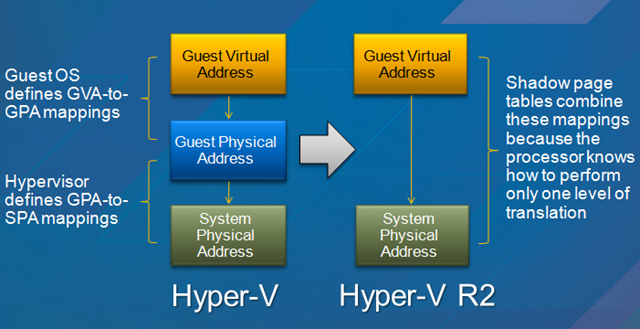
One of the main players in saving RAM on Hyper-V hosts with newer hardware will be SLAT or Second Level Address Translation.

image In Windows Server 2008 Hyper-V the parent partition (host operating system) is responsible for mapping the physical memory in the host with the memory that is running in the virtual machine.  Windows Server 2008 R2 Hyper-V removes that middle layer of management by offloading the responsibility to dedicated functions in the CPU.

CPU’s that have Intel’s Extended Page Tables (EPT) or AMD’s Nested Page Tables (NPT) or (Rapid Virtualization Indexing (RVI) have the ability to by delegated this responsibility.  This gets rid of the “shadow table” that the parent partition otherwise had to use … which was also consuming RAM.

It’s estimated that you will save 1MB of RAM per VM (there is an overhead of RAM for every VM and GB RAM in that VM) and there is also a small saving in CPU time required.

Extending a W2008 R2 Hyper-V Cluster Shared Volume

Unlike VMware’s VMFS, we can extend a Cluster Shared Volume (CSV) without doing trickery that compromises performance.  And has has been documented by Hans Vredevoort (clustering MVP) it is very scalable.

How do you resize or expand a CSV?  It’s a pretty simple process:

  1. Use your storage management solution (I’m using HP EVA Command View for the EVA SAN) to expand the size of the LUN or disk.
  2. Use the Failover Clustering MMC to identify who is the CSV coordinator, i.e. the owner of the disk.
  3. Log into the CSV coordinator.
  4. Use either Computer Management->Storage Management or DISKPART.
  5. Remember to rescan the disks.
  6. Extend the volume to use all available space.

The steps for using DISKPART are:

  • rescan
  • list volume get the ID number for the CSV from here
  • select volume <ID Number> using the ID number from the previous step>
  • extend
  • list volume to see the results

It’s a painless operation and has no impact on running VM’s.

Finished Our W2008 R2 Hyper-V Cluster Migration

Last night we finished migrating the last of the virtual machines from our Windows Server 2008 Hyper-V cluster to the new Windows Server 2008 R2 Hyper-V cluster.  As before, all the work was done using System Center Virtual Machine Manager (VMM) 2008 R2.  The remaining host has been rebuilt and is half way to being a new member of the R2 Hyper-V cluster.

I also learned something new today.  There’s no supported way to remove a cluster from OpsMgr 2007.  Yuk!