Free Online Training – Azure Network Security

On June 19th, I will be teaching a FREE online class called Securing Azure Services & Data Through Azure Networking.

I’ve run a number of Cloud Mechanix training classes and I’ve had several requests asking if I would ever consider doing something online because I wasn’t doing the classes outside of Europe. Well … here’s your opportunity. Thanks to the kind folks at European Cloud Conference, I will be doing a 1-day training course online and for free for 20 lucky attendees.

The class, relevant to PaaS and IaaS, takes the best practices from Microsoft for securing services and data in Microsoft Azure, and teaches them based on real-world experience. I’ve been designing and implementing this stuff for enterprises and have learned a lot. The class contains stuff that people who live only in labs will not know … and sadly, based on my googling/reading, a lot of bloggers & copy/pasters fall into that bucket. I’ve learned that the basics of Azure virtual networking must be thoroughly understood before you can even attempt security. So I teach that stuff – don’t assume that you know this stuff already because I know that few really do. Then I move into the fun stuff, like firewalls, WAFs, Private Link/Private Endpoint, and more. The delivery platform will allow an interactive class – this will not be a webinar – I’ve been talking to different people to get advice on choosing the best platform for delivering this class.  I’ve some testing to do, but I think I’m set.

Here’s the class description:

Security is always number 1 or 2 in any survey on the fears of cloud computing. Networking in The Cloud is very different from traditional physical networking … but in some ways, it is quite similar. The goal of this workshop is to teach you how to secure your services and data in Microsoft Azure using techniques and designs that are advocated by Microsoft Azure. Don’t fall into the trap of thinking that networking means just virtual machines; Azure networking plays a big (and getting bigger) role in offering security and compliance with platform and data services in The Cloud.

This online class takes you all the way back to the basics of Azure networking so you really understand the “wiring” of a secure network in the cloud. Only with that understanding do you understand that small is big. The topics covered in this class will secure small/mid businesses, platform deployments that require regulatory compliance, and large enterprises:

  • The Microsoft global network
  • Availability & SLA
  • Virtual network basics
  • Virtual network adapters
  • Peering
  • Service endpoints
  • Public IP Addresses
  • VNet gateways: VPN & ExpressRoute
  • Network Security Groups
  • Application Firewall
  • Route Tables
  • Platform services & data
  • Private Link & Private Endpoint
  • Third-Party Firewalls
  • Azure Firewall
  • Monitoring
  • Troubleshooting
  • Security management
  • Micro-Segmentation
  • Architectures

Level: 400

Topic: Security

Category: IT Professionals

Those of you who have seen the 1-hour (and I rarely stuck to that time limit) conference version of this class will know what to expect. An older version of the session scored 99% at NIC 2020 in Oslo in February with a room packed to capacity. Now imagine that class where I had enough time to barely mention things and give me a full day to share my experience … that’s what we’re talking about here!

This class is one of 4 classes being promoted by the European Cloud Conference:

If you’re serious about participating, register your interest and a lucky few will be selected to join the classes.

Verifying Propagated BGP Routes on Azure ExpressRoute

An important step of verifying or troubleshooting communications over ExpressRoute is checking that all the required routes to get to on-premises or WAN subnets have been propagated by BGP to your ExpressRoute Virtual Network Gateway (and the connected virtual networks) by the on-premises edge router.

The Problem

Routing to Azure is often easy; your network admins allocate you a block of private address space on the “WAN” and you use it for your virtual network(s). They add a route entry to that CIDR block on their VPN/ExpressRoute edge device and packets can now get to Azure. The other part of that story is that Azure needs to know how to send packets back to on-premises – this affects responses and requests. And I have found that this is often overlooked and people start saying things like “Azure networking is broken” when they haven’t sent a route to Azure so that the Azure resources connected to the virtual network(s) can respond.

The other big cause is that the on-premises edge firewall doesn’t allow the traffic – this is the #1 cause of RDP/SSH to Azure virtual machines not working, in my experience.

I had one such scenario where a system in Azure was “not-accessible”. We verified that everything in Azure was correct. When we looked at the propagated BGP routes (via ExpressRoute) then we saw the client subnets were not included in the Route Table. The on-prem network admins had not propagated those routes so the Azure ExpressRoute Gateway did not have a route to send clients responses to. Once the route was propagated, things worked as expected.

Finding the Routes

There are two ways you can do this. The first is to use PowerShell:

Get-AzExpressRouteCircuitRouteTable -DevicePath Primary -ExpressRouteCircuitName TheNameOfMyCircuitResourceInAzure -PeeringType AzurePrivatePeering -ResourceGroupName TheNameOfTheResourceGroupTheCircuitResourceIsIn

The command takes quite a while to run. Eventually, it will spit out the full route table. If there are lots of routes (there could be hundreds if not thousands) then they will scroll beyond the buffer of your console. So modify the command to send the output to a text file:

Get-AzExpressRouteCircuitRouteTable -DevicePath Primary -ExpressRouteCircuitName TheNameOfMyCircuitResourceInAzure -PeeringType AzurePrivatePeering -ResourceGroupName TheNameOfTheResourceGroupTheCircuitResourceIsIn > BgpRouteTable.txt

Unfortunately, it does not create a CSV format by default but one could format the output to get something that’s easier to filter and manipulate.

You can also use the Azure Portal where you can view routes from the Route Table and export a CSV file with the contents of the Route Table. Open the ExpressRoute Circuit and browse to Peerings.

Click Azure Private, which is the site-to-site ExpressRoute connection.

Now a pop-up blade appears in the Azure Portal called Private Peering. There are three interesting options here:

  • Get ARP records to see information on ARP.
  • Get Route Table – more on this in a second.
  • Get Route Table Summary to get a breakdown/summary of the records, including neighbor, version, status ASN, and a count of routes.

We want to see the Route Table so you click that option. Another pop-up blade appears and now you wait for several minutes. Eventually, the screen will load up to 200 of the entries from the Route Table. If you want to see the entire list of entries or you want an export, click Download. A CSV file will download via your browser, with one line per route from the Route Table, including every one of the routes.

Search the Route Table and look for a listing that either lists the on-premises/WAN subnet or includes it’s space, for example, a route to 10.10.0.0/16 includes a subnet called 10.10.10.0/24.

BGP with Microsoft Azure Virtual Networks & Firewalls

In this article, I want to explain how important BGP is in Azure networking, even if you do not actually use BGP for routing, and the major role it plays in hub-and-spoke architectures and deployments with a firewall.

What is BGP?

I was never the network guy in an on-premises deployment. Those 3 letters, BGP, were something someone else worried about. But in Azure, the server admin becomes a network admin. Most of my work in Azure is networking now. And that means that the Border Gateway Protocol (BGP) is important to me now.

BGP is a means of propagating routes around a network. It’s a form of advertising or propagation that spreads routes to one or more destinations one hop at a time. If you think about it, BGP is like word-of-mouth.

A network, Subnet A, is a destination. Subnet A advertises a route to itself to a neighbour network, Subnet B. Subnet B advertises to its neighbours, including Subnet C, that it knows how to get to the original subnet, Subnet A. And the propagation continues. A subnet at the far end of the LAN/WAN, Subnet D, knows that there is another subnet far away called Subnet A and that the path to Subnet A is back via the propagating neighbour, Subnet C. Subnet C will then forward the traffic to Subnet B, which in turn sends the traffic to the destination subnet, Subnet A.

Azure and BGP

Whether you use BGP in your on-premises network or not, there will be a pretty high percentage chance that you will use BGP in Azure virtual networking – we’ll get to that in a few moments.

If you create a site-to-site VPN connection, you have the option to integrate your on-premises BGP routing with your Azure virtual network(s). If you use ExpressRoute, you must use BGP. In both cases, BGP routes are propagated from on-premises, informing your Azure virtual network gateway of all the on-premises networks that it can route to over that connection.

But BGP Is Used Without BGP

Let’s say that you are deploying a site-to-site VPN connection to Azure and that you do not use BGP in your configuration. Instead, you create a Local Network Gateway in Azure to define your on-premises networks. The virtual network gateway will load those networks from the Local Network Gateway and know to route across the associated VPN tunnel to get to those destinations.

And here’s where things get interesting. Those routes must get advertised around the virtual network.

If a virtual machine in the virtual network needs to talk to on-premises, it needs to know that the route to that on-premises subnet is via the VNet Gateway in the gateway subnet. So, the route gets propagated out from the gateway subnet.

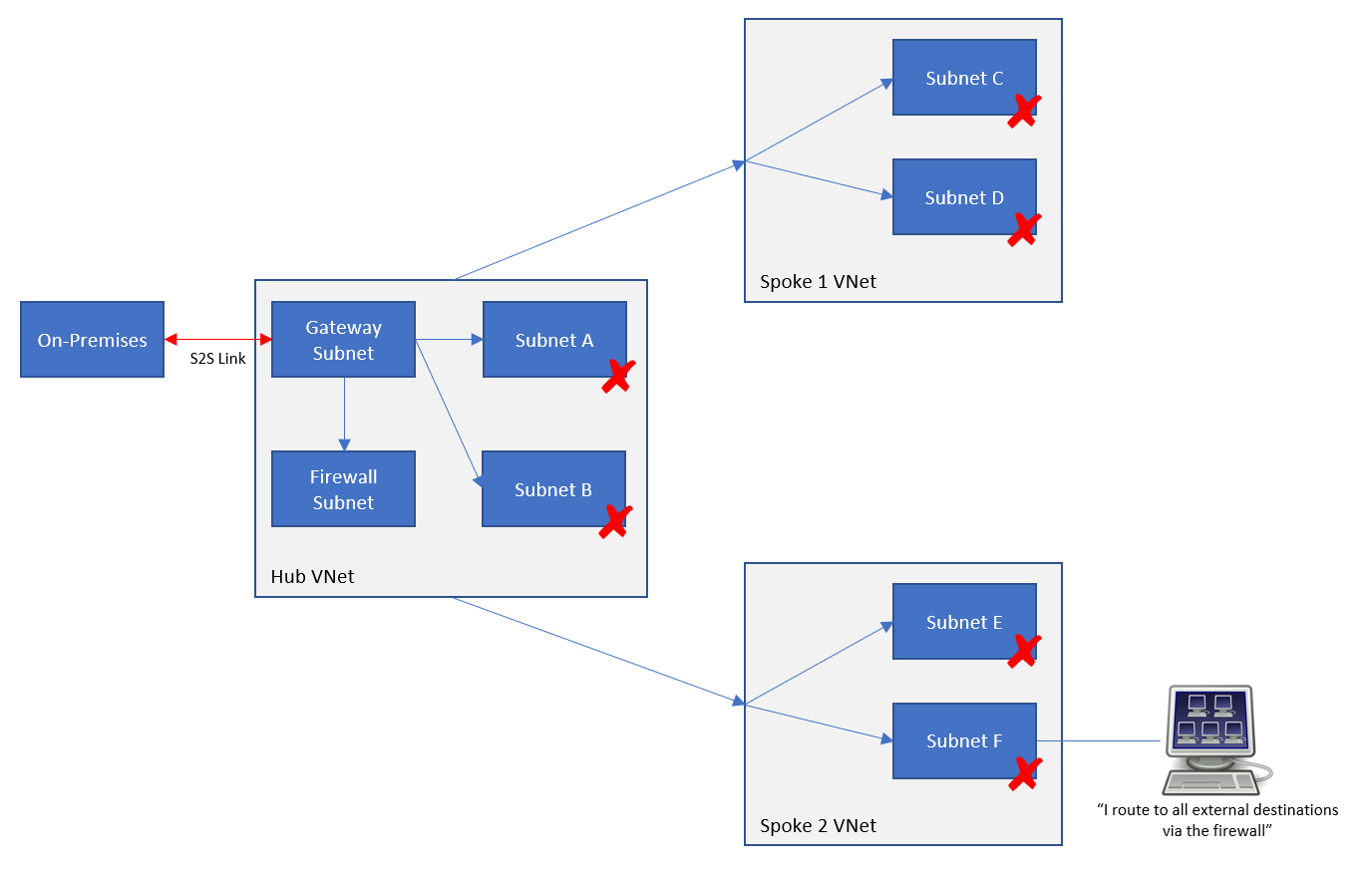
Let’s scale that situation out a bit to a hub & spoke architecture. We have a site-to-site connection with or without BGP being used. The routes to on-premises are in the VNet Gateway and are propagated out to the subnets in the hub VNet that contains the VNet Gateway. And in turn, the routes are advertised to peered virtual networks (spokes) and their subnets. Now a resource on a subnet in a spoke virtual network has a route to an on-premises virtual network – across the peering connection and to the virtual network gateway.

Note: in this scenario, the hub is sharing the VNet gateway via peering, and the spoke is configured in peering to use the remote VNet gateway.

Bi-Directional

Routing is always a 2-way street. If routes only went one way, then a client could talk to a server, but the server would not be able to talk to the client.

If we have BGP enabled VPN or ExpressRoute, then Azure will propagate routes for the spoke subnets back down through peering and to the VNet Gateway. The VNet Gateway will then propagate those routes back to on-premises.

If you do not have BGP VPN (you are statically setting up on-premises routes in the Local Network Gateway) then you will have to add the address space of each spoke subnet to the on-premises VPN appliance(s) so that they know to route via the tunnel to get to the spokes. The simple way to do that is to plan your Azure networking in advance and have a single supernet (a /16, for example) instead of a long list of smaller subnets (/24s, for example) to configure.

Control & Security

Let’s say that you want to add a firewall to your hub. You want to use this firewall to isolate everything outside of Azure from your hub and spoke architecture, including the on-premises networks. You’ve done some research and found that you need to add a route table and a user-defined route to your hub and spoke subnets, instructing them that the route to on-premises is through the VNet Gateway.

Now you need to do some reading – you need to learn (1) how Azure routing really works (not how you think it works) and (2) how to troubleshoot Azure routing. FYI, I’ve been living in this world non-stop for the last 10 months.

What you will probably have done is configured your spokes with a route to 0.0.0.0/0 via the internal/backend IP address of the firewall. You are assuming that will send all traffic to anywhere via the Firewall. Under the covers, though, routes to on-premises are still propagating from the VNet Gateway to all the subnets in your hub and spoke architecture. If on-premises was 192.168.1.0/24 and your spoke machine wanted to route to on-premises, then the Azure network fabric will compare the destination with the routes that it has in a hidden route table – the only place you can see this is in Effective Routes in a VM NIC Azure resource. You have a UDR for 0.0.0.0/0 via the firewall. That’s a 0-bit match for any destinations in 192.168.1.0/24. If that was the only route in the subnet, then that route would be taken. But we are sending a packet to 192.168.1.x and that is a 24-bit match with the propagated route to 192.1681.0/24. And that’s why the response from the spoke resource will bypass the firewall and go straight to the VNet Gateway (via peering) to get to on-premises. That is not what you expected or wanted!

Note: the eagle-eyed person that understands routing will know that there will be other routes in the subnet, but they are irrelevant in this case and will confuse the explanation.

The following works even if you do not use BGP with a site-to-site VPN!

To solve this problem, we can stop propagation – we can edit the route table resources in the internal Azure subnets (or pre-do this in JSON) and disable BGP route propagation. The result of this is that the routes that the VNet Gateway were pushing out to other subnets will stop being propagated. Now if we viewed the effective routes for a spoke subnet, we’d only see a route to the firewall and the firewall is now responsible for forwarding traffic to on-premises networks to the VNet Gateway.

It is important to understand that this disabling of propagation affects the propagation only in 1 direction. Routes from the VNet Gateway will not be propagated to subnets with propagation disabled. However, ALL subnets will still propagate routes to themselves back to the VNet Gateway – we need on-premises to know that the route to these Azure subnets is still via the Gateway.

More work will be required to get the Gateway Subnet to route via the firewall, but that’s a whole other topic! We’re sticking to BGP and propagation here.

The Firewall and BGP Propagation

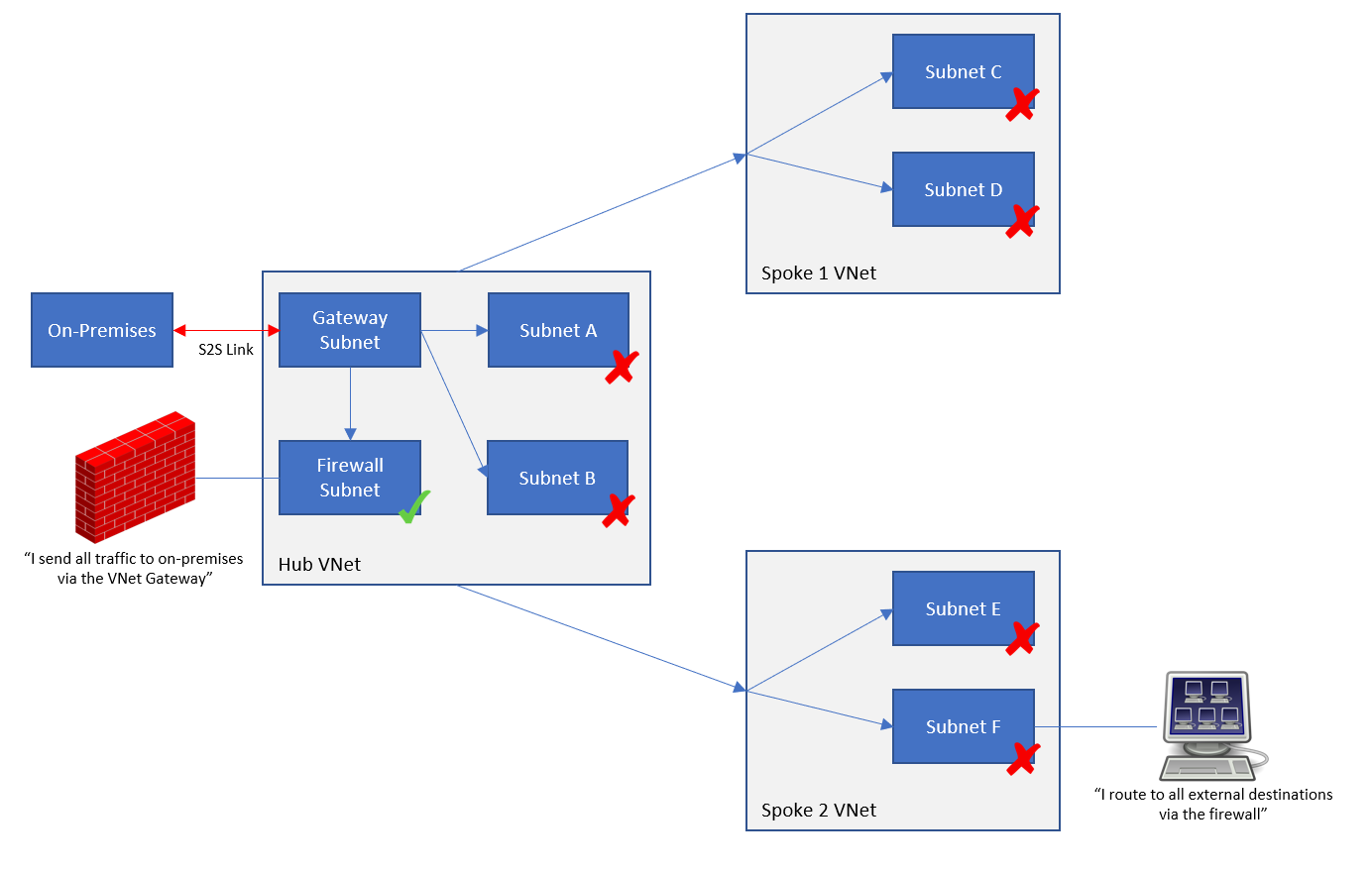
Let’s make a mistake, shall we? It will be useful to get a better understanding of the features. We shall add a route table to the firewall subnet and disable BGP route propagation. Now the resource in the spoke subnet wants to send something to an on-premises network. The local subnet route table instructs it to send all traffic to external destinations (0.0.0.0/0) via the firewall. The packets hit the firewall. The firewall tries to send that traffic out and … it has only one route (a simplification) which is to send 0.0.0.0/0 to Internet.

By disabling BGP propagation on the firewall subnet, the firewall no longer knows that the route to on-premises networks is via the virtual network gateway. This is one of those scenarios where people claim that their firewall isn’t logging traffic or flows – in reality, the traffic is bypassing the firewall because they haven’t managed their routing.

The firewall must know that the on-premises networks (a) exist and (b) are routes to via the VNet Gateway. Therefore, BGP propagation must be left enabled on the firewall subnet (the frontend one, if you have a split frontend/backend firewall subnet design).

Not Just Firewalls!

I’m not covering it here, but there are architectures where there might be other subnets that must bypass the firewall to get back to on-premises. In those cases, those subnets must also have BGP propagation left enabled – they must know that the on-premises networks exist and that they should route via the VNet Gateway.

How to Troubleshoot Azure Routing?

This post will explain how routing works in Microsoft Azure, and how to troubleshoot your routing issues with Route Tables, BGP, and User-Defined Routes in your virtual network (VNet) subnets and virtual (firewall) appliances/Azure Firewall.

Software-Defined Networking

Right now, you need to forget VLANs, and how routers, bridges, routing switches, and all that crap works in the physical network. Some theory is good, but the practice … that dies here.

Azure networking is software-defined (VXLAN). When a VM sends a packet out to the network, the Azure Fabric takes over as soon as the packet hits the virtual NIC. That same concept extends to any virtual network-capable Azure service. From your point of view, a memory copy happens from source NIC to destination NIC. Yes; under the covers there is an Azure backbone with a “more physical” implementation but that is irrelevant because you have no influence over it.

So always keep this in mind: network transport in Azure is basically a memory copy. We can, however, influence the routing of that memory copy by adding hops to it.

Understand the Basics

When you create a VNet, it will have 1 or more subnets. By default, each subnet will have system routes. The first ones are simple, and I’ll make it even more simple:

  • Route directly via the default gateway to the destination if it’s in the same supernet, e.g. 10.0.0.0/8
  • Route directly to Internet if it’s in 0.0.0.0/0

By the way, the only way to see system routes is to open a NIC in the subnet, and click Effective Routes under Support & Troubleshooting. I have asked that this is revealed in a subnet – not all VNet-connected services have NICs!

And also, by the way, you cannot ping the subnet default gateway because it is not an appliance; it is a software-defined function that is there to keep the guest OS sane … and probably for us too 😊

When you peer a VNet with another VNet, you do a few things, including:

  • Instructing VXLAN to extend the plumbing of between the peered VNets
  • Extending the “VirtualNetwork” NSG rule security tag to include the peered neighbour
  • Create a new system route for peering.

The result is that VMs in VNet1 will send packets directly to VMs in VNet2 as if they were in the same VNet.

When you create a VNet gateway (let’s leave BGP for later) and create a load network connection, you create another (set of) system routes for the virtual network gateway. The local address space(s) will be added as destinations that are tunnelled via the gateway. The result is that packets to/from the on-prem network will route directly through the gateway … even across a peered connection if you have set up the hub/spoke peering connections correctly.

Let’s add BGP to the mix. If I enable ExpressRoute or a BGP-VPN, then my on-prem network will advertise routes to my gateway. These routes will be added to my existing subnets in the gateway’s VNet. The result is that the VNet is told to route to those advertised destinations via the gateway (VPN or ExpressRoute).

If I have peered the gateway’s VNet with other VNets, the default behaviour is that the BGP routes will propagate out. That means that the peered VNets learn about the on-premises destinations that have been advertised to the gateway, and thus know to route to those destinations via the gateway.

And let’s stop there for a moment.

Route Priority

We now have 2 kinds of route in play – there will be a third. Let’s say there is a system route for 172.16.0.0/16 that routes to virtual network. In other words, just “find the destination in this VNet”. Now, let’s say BGP advertises a route from on-premises through the gateway that is also for 172.16.0.0/16.

We have two routes for the 172.16.0.0/16 destination:

  • System
  • BGP

Azure looks at routes that clash like above and deactivates one of them. Azure always ranks BGP above System. So, in our case, the System route for 172.16.0.0/16 will be deactivated and no longer used. The BGP route for 172.16.0.0/16 via the VNet gateway will remain active and will be used.

Specificity

Try saying that word 5 times in a row after 5 drinks!

The most specific route will be chosen. In other words, the route with the best match for your destination is selected by the Azure fabric. Let’s say that I have two active routes:

  1. 16.0.0/16 via X
  2. 16.1.0/24 via Y

Now, let’s say that I want to send a packet to 172.16.1.4. Which route will be chosen? Route A is a 16 bit match (172.16.*.*). Route B is a 24 bit match (172.16.1.*). Route B is a closer match so it is chosen.

Now add a scenario where you want to send a packet to 172.16.2.4. At this point, the only match is Route A. Route B is not a match at all.

This helps explain an interesting thing that can happen in Azure routing. If you create a generic rule for the 0.0.0.0/0 destination it will only impact routing to destinations outside of the virtual network – assuming you are using the private address spaces in your VNet. The subnets have system routes for the 3 private address spaces which will be more specific than 0.0.0.0:

  1. 168.0.0/16
  2. 16.0.0/12
  3. 0.0.0/8
  4. 0.0.0/0

If your VNet address space is 10.1.0.0/16 and you are trying to send a packet from subnet 1 (10.1.1.0/24) to subnet 2 (10.1.2.0/24), then the generic Route D will always be less specific than the system route, Route C.

Route Tables

A route table resource allows us to manage the routing of a subnet. Good practice is that if you need to manage routing then:

  • Create a route table for the subnet
  • Name the route table after the VNet/subnet
  • Only use a route table with 1 subnet

The first thing to know about route tables is that you can control BGP propagation with them. This is especially useful when:

  • You have peered virtual networks using a hub gateway
  • You want to control how packets get to that gateway and the destination.

The default is that BGP propagation is allowed over a peering connection to the spoke. In the route table (Settings > Configuration) you can disable this propagation so the BGP routes are never copied from the hub network (with the VNet gateway) to the peered spoke VNet’s subnets.

The second thing about route tables is that they allow us to create user-defined routes (UDRs).

User-Defined Routes

You can control the flow of packets using user-defined routes. Note that UDRs outrank BGP routes and System Routes:

  1. UDR
  2. BGP routes
  3. System routes

If I have a system or BGO route to get to 192.168.1.0/24 via some unwanted path, I can add a UDR to 192.168.1.0/24 via the desired path. If the two routes are identical destination matches, then my UDR will be active and the BGP/system route will be deactivated.

Troubleshooting Tools

The traditional tool you might have used is TRACERT. I’m sorry, it has some use, but it’s really not much more than PING. In the software defined world, the default gateway isn’t a device with a hop, the peering connection doesn’t have a hop, and TRACERT is not as useful as it would have been on-premises.

The first thing you need is the above knowledge. That really helps with everything else.

Next, make sure your NSGs aren’t the problem, not your routing!

Next is the NIC, if you are dealing with virtual machines. Go to Effective Routes and look at what is listed, what is active and what is not.

Network Watcher has a couple of tools you should also look at:

  • Next Hop: This is a pretty simple tool that tells you the next “appliance” that will process packets on the journey to your destination, based on the actual routing discovered.
  • Connection Troubleshoot: You can send a packet from a source (VM NIC or Application Gateway) to a certain destination. The results will map the path taken and the result.

The tools won’t tell you why a routing plan failed, but with the above information, you can troubleshoot a (desired) network path.