FreeBSD Support Coming to Hyper-V

Microsoft, with development partners NetApp and Citrix, recently announced that support for FreeBSD 8.2 and 8.3 as a guest operating system (VOSE) will be coming to Hyper-V.  Apparently this is being accomplished with the help of NetApp, Citrix, and the FreeBSD community.

Soon the list of non-Microsoft operating systems that are supported (not only work, but have been tested and you can call for assistance with) will be:

  • FreeBSD 8.2
  • FreeBSD 8.3
  • CentOS 5.2
  • CentOS 5.3
  • CentOS 5.4
  • CentOS 5.5
  • CentOS 5.6
  • Red Hat Enterprise Linux 5.5
  • Red Hat Enterprise Linux 5.6
  • Red Hat Enterprise Linux 5.4
  • Red Hat Enterprise Linux 5.3
  • Red Hat Enterprise Linux 5.2
  • SUSE Linux Enterprise Server 11 with Service Pack 1
  • SUSE Linux Enterprise Server 10 with Service Pack 4

In addition to this, the Hyper-V integration components are included in Linux Kernel 3.3 and later, and Ubuntu 12.04 runs natively without any work from you on Hyper-V.  I’ve got it running in my lab and can use it just like other guest OSs, e.g. run a clean shutdown from the Hyper-V Manager console.

KB2668084 – VM Restored In Saved State Incorrectly On Windows Server 2008 R2 Hyper-V

Microsoft has released an elective hotfix (hotfixes are never in Windows Update/WSUS/etc) for when a virtual machine is restored in the Saved state incorrectly on a Hyper-V server that is running Windows Server 2008 R2:

Consider the following scenario:

  • You have two Hyper-V servers that are running Windows Server 2008 R2.
  • On one Hyper-V server, you perform a redirected restore operation to restore a Hyper-V virtual machine that is located on the other Hyper-V server.
  • The Hyper-V Integration component that is installed on the guest operating system is incompatible with the target Hyper-V server.

In this scenario, the virtual machine is restored in the Saved state. Additionally, you must delete the saved state file before you use this virtual machine.

This issue occurs because the Volume Shadow Copy Service backup requester copies corrupted .vsv file during the restore operation.

A supported hotfix is available from Microsoft.

FYI – The Windows Server 2012 Events Are Also Coming to London & Edinburgh in June

I mentioned a little while ago that there was going to be a community event in Belfast and Dublin next week (still some places left so register now if you are interested in learning about Windows Server 2012 and want to attend).   I want to be sure that you also know that the show is coming to London (June 14th) and Edinburgh (June 15th).

The following topics will be presented by MVPs (including me):

Manageability

  • Simplifies configuration processes
  • Improved management of multi-server environments
  • Role-centric dashboard and integrated console
  • Simplifies administration process of multi-server environments with Windows PowerShell 3.0

Virtualization – I’m doing this one Smile  I’m trying to put the final pieces together for a very cool PowerShell demo. Even without this, I have some cool demos ready.

  • More secure multi-tenancy
  • Flexible infrastructure, when and where you need it
  • Scale, performance, and density
  • High availability

Storage and Availability

  • Reduces planned maintenance downtime
  • Addresses the causes of unplanned downtime
  • Increases availability for services and applications
  • Increases operational efficiency and lower costs

Networking

  • Manage private clouds more efficiently
  • Link private clouds with public cloud services
  • Connect users more easily to IT resources

I think my demos are done.  The slides are nearly there.  Final polish and rehearsals tomorrow and this weekend.  This is a big brain dump that we’ll be dropping on people.  I’d certainly attend if I wanted to get my career ahead of the pack and be ready for the most important Server release since Windows 2000.

Technorati Tags: ,

What Impresses Me Most About the Veeam nworks Management Pack for System Center …

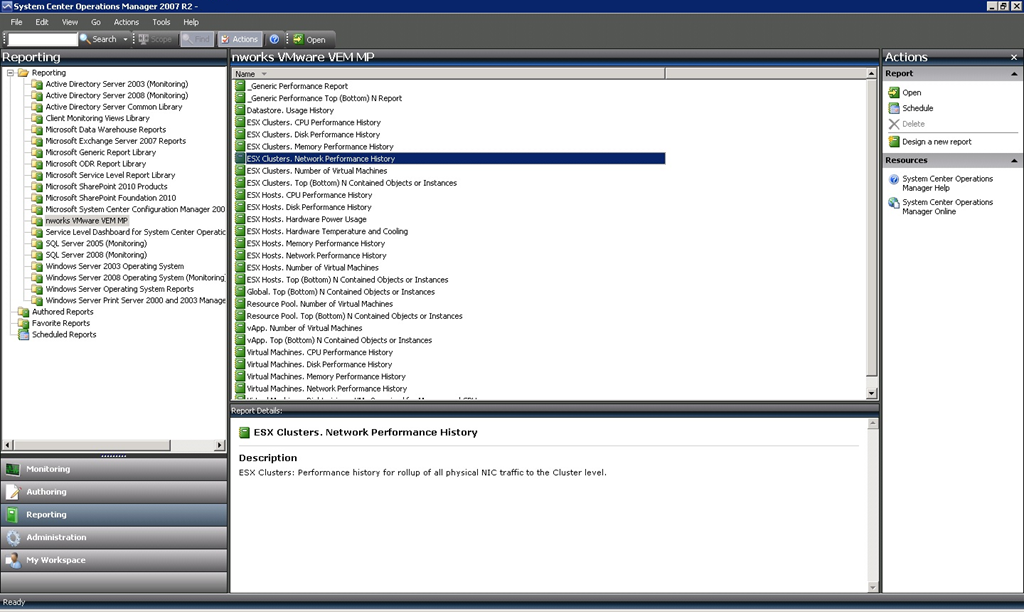
… is the sheer amount of information that it provides.  I previously talked about the monitoring.  That’s great for the reactive side of things.  When I managed infrastructures, I like to take some some to see who things were trending so I could plan.  That’s where reports come in handy, and there’s no shortage of those in this management pack:

image

On my client’s site, we had an alert about latency on a HBA in one of the hosts.  I wanted to give the client some useful information to plan VM placement using affinity rules to avoid this from happening again.  One of the cool reports allows you to create a top-bottom chart of VMs based on a specific performance metric.  The below report was created with with the VMGUEST IOPS metric and shows the top 25 disk activity VMs.

image

As usual with OpsMgr, the report could be scheduled for a time period, and/or saved as a web archive, PDF, word file, etc.  I like this management pack.  Sure, it is pricey (I was told over EUR400/host socket being monitored), but it’s good.  BTW, Veeam did release a 10 socket (enough for 5 hosts with 2 CPUs each) management pack for free, which is available to you under two conditions:

  1. Be a new customer to Veeam AND
    2. Be a SCOM 2012 customer (not SCOM 2007)

Planning Your Windows Server 2012 Hyper-V Deployment

If you’re considering installation Windows Server 2012 Hyper-V, or if you’re considering moving from vSphere to Windows Server 2012 Hyper-V, then I have one very important question to ask you:

Do you want the project to succeed?

If the answer is yes, then go get your hands on the free Microsoft Assessment and Planning Toolkit (MAP) 7.0, which just went into beta and will probably RTM when Windows Server 2012 does.

I’ve come to the conclusion that there is a direct correlation between success of a virtualisation project and a pre-design assessment.  Why?  Because every time I’m asked in, and this only happens when things go bad, I ask for the assessment reports and I’m told that there are no reports.  I dig a little further and I find that there were mistakes with design that some due process may have eliminated.

Key features and benefits of MAP 7.0 Beta help you:

  • Determine your readiness for Windows Server 2012 Beta and Windows 8
  • Virtualize your Linux servers on Hyper-V
  • Migrate your VMware-based virtual machines to Hyper-V
  • Size your server environment for desktop virtualization
  • Simplify migration to SQL Server 2012
  • Evaluate your licensing needs for Lync 2010
  • Determine active users and devices

It’s free folks, so cop on!  Spend half a day installing it, doing the discovery, and starting the measurement, and 1 week later come back and run some sizings against different infrastructure specs.  Run some reports and you have a scientifically sized infrastructure.  Surely that’s better than the guesswork that you would have done instead?  Oh you must be the exception because you know your customer’s requirements.  If I had a Euro for every time I’ve heard that one …

If you can’t guess, this stuff makes me angry.  But never mind me; you probably know better than me, Microsoft, real VMware experts, etc.  If I had another Euro for every time I’ve heard that one …

Yesterday’s Fun In OpsMgr: Failed to store data in the Data Warehouse

Actually, the full error in the alert in this System Center Operations Manager 2007 R2 install was:

Failed to store data in the Data Warehouse.Failed to store data in the Data Warehouse. Cannot resolve the collation conflict between "SQL_Latin1_General_CP1_CI_AS" and "Latin1_General_CI_AS" in the equal to operation.

A bit of quick checking and I found that the SQL server instance had the default and incorrect collation of Latin1_General_CI_AS while the OpsMgr databases had the correct collation of SQL_Latin1_General_CP1_CI_AS (check the properties of SQL Server and the databases in SQL Management Studio to verify).

And this pretty much explained why reports from new management packs weren’t appearing in OpsMgr.  The odd thing is that this problem went unnoticed for over 6 months and many management packs functioned perfectly well.

I knew what was ahead of me: a SQL rebuild.  So that’s what I did, with some guidance from a blog post by Marnix Wolf, MVP.  I veered a little from the guidance he gave.  I opted to start with a new SQL Reporting DB because it was easier to do this and I had no customisations to rescue.  So I didn’t restore it, I didn’t run ResetSRS, and I just needed to reinstall OpsMgr Reporting and supply the details.

Interestingly, the OpsMgr Reporting installed froze about half way through.  There were no visible issues, no performance bottlenecks, no clues, nothing to explain the setup hang … except for the Application Log in Event Viewer.  There McAfee reported that it was preventing lots of .Net stuff.  Uh oh!  I temporarily disabled the McAfee protection and the installer wrapped up almost immediately.

Once everything was back I verified that monitoring worked, that the datawarehouse was still OK, and that reports were repopulating and working.  But then a flood of alerts came in:

Microsoft.EnterpriseManagement.Common.UnknownServiceException: The service threw an unknown exception. See inner exception for details. —> System.ServiceModel.FaultException`1[System.ServiceModel.ExceptionDetail]: Execution of user code in the .NET Framework is disabled. Enable "clr enabled" configuration option. (Fault Detail is equal to An ExceptionDetail, likely created by IncludeExceptionDetailInFaults=true, whose value is: …

That looked nasty but the fix was easy enough.  As Alexy Zhuravlev said, run this on the SQL server against the OperationsManager database:

sp_configure @configname=clr_enabled, @configvalue=1
GO
RECONFIGURE
GO

After that, everything was okey dokely and the SQL 2008 R2 DB was updated to get it OpsMgr 2012 ready Smile

Deployed Veeam nworks Management Pack For vSphere

I deployed the Veeam management pack for System Center Operations Manager with a client on their site site yesterday to monitor VMware vSphere.  It was my first production deployment of the solution.  It was pretty simple:

  • Deploy collectors
  • Discover vCenter servers/hosts
  • Monitor
  • Run reports

Oh and the reports!  There’s so many of them with lots of information.  It’s a very nice management pack.  And it accomplishes what the client wanted: they have visibility into VMware from System Center.

Does it work?  Yeap; it detected read latency on a HBA, an oversubscribed VMFS volume (based on potential growth of thin VMDKs), and a full VMFS.

What’s The Maximum Number Of Hyper-V VMs You Can Put In Cluster Shared Volume?

“What’s the rule of thumb on the number of VMs you should put in a CSV?”  That’s a question I am asked on a regular basis.  We need to dig into this.

When you have a cluster of virtualisation hosts using shared storage systems, you need some sort of orchestration to say which host should access what folders and files.  That’s particularly important during Live Migration and failover.  Without orchestration you’d have chaos, locks, failed VMs, and corruption.

One virtualisation cluster file system out there does it’s orchestration in the file system itself.  That, in theory, places limits on how that file system can scale out.

Microsoft took a different option.  Instead, each cluster shared volume (CSV) has an orchestrator known as a CSV Coordinator that is automatically created and made fault tolerant.  The CSV coordinator is a highly available function that runs on one of the clustered hosts.  By not relying on the file system, Microsoft believes they have a more scalable and better performing option.

How scalable?  A few years ago, EMC (I believe it was EMC, the owner of VMware, but my memory could be failing me) stood on a stage at a Microsoft conference and proclaimed that they couldn’t find a limit on the scalability of CSV versus performance on their storage platform.  In other words, you could have a monstrous CSV and place lots and lots of 64 TB VHDX files on there (GPT volumes grow up to 16 EB).

OK; back to the question at hand: how many VMs should I place on a CSV.  I have to give you the consultant’s answer: that depends.  The fact is that there is no right answer.  This isn’t VMware where there are prescribed limits and you should create lots of lots of “little” VMFS volumes.

First, I’d say you should read my paper on CSV and backup.  Now keep in mind that the paper was written for Windows Server 2008 R2.  Windows Server 2012 doesn’t do redirected I/O (mode) when backing up VMs from CSV.  In that document I talk about a process I put together for CSV design and VM placement.

Next, have a look at Fast Track, Microsoft’s cloud architecture.  In there they have a CSV design where OS, page file, sequential files, and non-sequential files are split into VHDs on different CSVs.  To me, this complicates things greatly.  I prefer simplicity.  Plus I can’t imagine the complexity of the deployment automation for this design.

An alternative is to look at a rule of thumb that many are using: they have 1 CSV for every host in their cluster (or active site in a multi-site cluster).  Beware here: you don’t want to run out of SCSI-3 reservations (every SAN has an unadvertised limit) because you’ve added too many CSVs on your SAN (read the above paper to learn more).

My advice: keep it simple.  Don’t overthink things.  Remember, Hyper-V is not VMware and VMware is not Hyper-V.  They both might be enterprise virtualisation platforms but e do things differently on both platforms because they both work differently.

Choosing A Windows Server 2012 Hyper-V DR Architecture

I must be nuts; we’re a nearly month from the release candidate and I’m attempting to blog on this stuff Smile

I’ve been thinking a lot about DR and how to approach it with Windows Server 2012 Hyper-V.  There is no one right solution.  In fact, we have lots and lots of options thanks to VMs just being files.  Yup, thanks to VHDX scaling out to 64 TB, the last reasonable reason to use passthrough disk (other than to get that last 2 or so percentage points of performance) are dead.  That makes even the biggest of VMs “easy” to replicate.

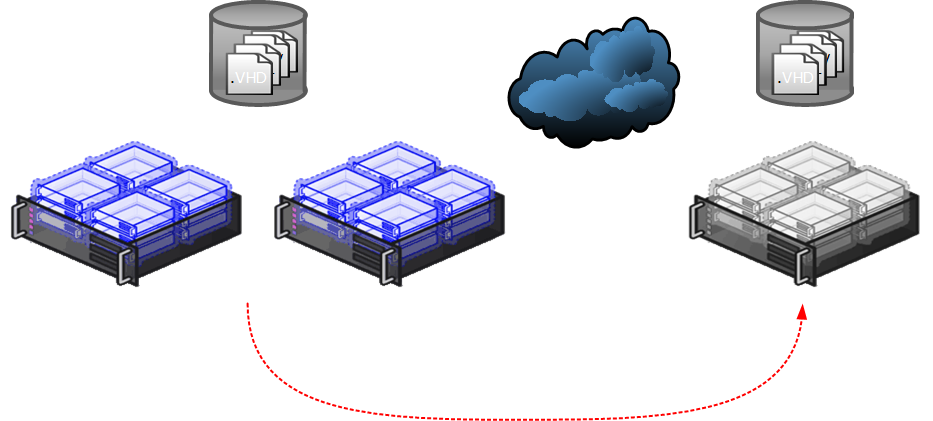
Let’s look at 2 approaches from a very high altitude level.  An approach I’m seeing quite a bit for cross-campus or short range DR plans is to build a stretch cluster.  The usual approach is to use something like a HP P4000 SAN and stretch it between two sites.  A single Hyper-V cluster is built, stretching across the WAN link.

image

SAN-SAN replication

It’s not a cheap solution and it comes with complexities – and that’s true no matter what virtualisation you use:

  • You have to choose a storage solution that stretches across sites and can do active/active.  You are locked into a single spec across both sites, making the hardware sales people very happy.
  • You probably need a witness for the storage and the virtualisation cluster in a 3rd site, with site A and site B having independent network access to the witness site to avoid split brain when the link between A and B fails (and it will fail).
  • Some high end storage solutions won’t like CSV for this and you might need to so 1 VM per LUN
  • The networking (IP redirect, stretched VLANs, routers, switches, and all that jazz) is messy.
  • The WAN for this is mega pricey.
  • Honestly, a stretch Hyper-V cluster doesn’t play well with System Center Virtual Machine Manager – VMM just sees a single cluster and doesn’t care about the WAN link or the impact on backup, client/server app interaction, and so on.
  • If you want to replicate to a hosting company then you need colo hosting and to place hardware in rented rackspace.
  • Once a VM is created in a replicate LUN, it’s replicated to site B.  That’s pretty nice in a cloud.
  • When everything works it’s a pretty fine solution, capable of having 0 data loss.  But corruption in site A will replicate to site B because this SAN likely has synchronous replication.

The above solution is something I see more and more, even in medium sized sites.  It’s complex, it’s pricey, and very often they are struggling with getting it to work even in testing, let alone in the worst day of their professional careers.

I recently listed to a RunAs Radio podcast where the guest spoke about his preference for VMware SRM for DR replication.  I can understand why.  Software replication can stretch much greater distances.  You aren’t as beholden to the storage vendor as before.  Hyper-V Replica is surely going to have the same impact … and more … without costing you hundreds of dollars/euros/pounds/etc on a per VM basis like SRM does:

image

Hyper-V Replica

  • Hyper-V is hardware independent.  You can replicate from a host to a host, from a cluster to a host, or from a host to a cluster.  You can replicate from a HP cluster with a P4000 to a bunch of Dell hosts with a Compellent.
  • Hyper-V Replica is built for unstable WAN connections.  It cannot automatically failover … in fact, many of us prefer a manual decision on failover.  We can reduce the RTO by automating VM start up using PowerShell and/or Orchestrator in the DR site.  The storage ni both sites is independent.  No need for 3rd party witnesses and their networking.
  • VMs are replicated instead of LUNs, therefore CSV is fully supported.  You can replicate VMs from a CSV in site A to a CSV or a normal LUN in site B.
  • Networking is easy!  And you have options!  The pipe for the replica probably either should be dedicated or have QoS to allow replication without impacting normal Internet connectivity.  Because the replication is asynchronous, the WAN doesn’t need massive bandwidth and low latency.  You can choose to stretch VLANs, or you might not.  You might use Network Virtualisation in site B or you might use IP address injection to change the VMs’ IP addresses for the destination network.  By the way, you can also dedicate a virtual switch(es) for firing up test copies of your VMs for DR testing.
  • Hyper-V Replica is built for commercial broadband.  Remember that your upload speed is the important factor.  Sizing is tricky … I’ve been saying that you could take your incremental backup and divide it by the number of 5 minute windows there are in your workday to figure out how much bandwidth Hyper-V Replica will require to replicate every 5 minutes … but that’s worst case because there is pre-transmit compression going on.
  • Hyper-V Replica is not a stretch cluster … therefore systems management solutions such as VMM will play nice by keeping it’s placement of VMs local in site A.
  • Your hardware options are very flexible.  You could replicate to hardware you own in a branch/head office or datacenter, you could rent rackspace and put hardware in colo hosting, or you could replicate to a hosting partner that hosts Hyper-V Replica.
  • There just aren’t as many delicate moving parts in this architecture.  You pretty much have 2 simple independent infrastructures where 1 copies compressed differential data to another.
  • Hyper-V Replica is configured on a per-VM basis.  PowerShell can do this – I’ve already seen examples posted online.  You could probably make this a part of the Orchestrator runbook in a cloud implementation.  So a little more work is requires but you can fire it and forget.
  • Best of all, Hyper-V Replica is a tick box away in Hyper-V.  Yup, zero dollars, nada, keine kosten, gratuito, free.  Of course, you are free to continue wearing a tinfoil hat and paying vTax …. Smile with tongue out

Clinging to his overpriced DR with his cold dead hands because he thinks Stevie B. wants to steal his brainwaves

Technorati Tags: ,,

Cloned Ubuntu VMs On Hyper-V Can’t Get DHCP Address

I’ve been doing some playing in the lab, trying to clone lots of Ubuntu VMs on Windows Server 2012 Hyper-V.  It’s just lab work so I want the VMs to have DHCP addresses.  I am a forum browsing noob to Penguin-eering so all I’m doing is copying the VHDX file and attaching to VMs.  The problem is that when the copied VM starts up, it indicates during boot up that acquiring an IP configuration is taking too long (thus delaying the boot up) and running ifconfig when I’m logged in shows no DHCP address was acquired.

Cause?  It’s Linux’s desire to have sticky MAC addresses (which also causes problems if you have the default dynamic MAC addresses and you move/Live Migrate a Linux VM).  I did some Penguin-eering and found that there’s a file called 70-persistent-net.rules which can be found at /etc/udev/rules.d.  If you run:

cat /etc/udev/rules.d/70-persistent-net.rules then you’ll see that it contains a rule that locks the network activity to your original VM’s MAC address.  Solution?  Delete that rule.

Ubuntu doesn’t have a default root (administrator) account enabled for direct login.  Instead you use a lesser account and elevate your privileges – it’s kind of like UAC but the concept has been in UNIX for a long time.  You’ll use sudo to accomplish this.  It’s relevant because 70-persistent-net.rules is a locked down system file.  On your reference VM you’ll need to do this before copying it.

sudo vi /etc/udev/rules.d/70-persistent-net.rules will edit the file using vi.  Navigate to the line in question.  Use dd (press dd twice) to delete the line.  Then press : and enter wq! to quit vi while writing the changes with no confirmation.  Did I mention that I started my career as a UNIX developer? Smile  Some old things are hard to forget.

Shutdown the VM (easiest way for us noobs is to use the shutdown command in Hyper-V Manager or POSH) which cleanly does this via the Hyper-V integration components that are built into the Linux kernel (featured in Ubuntu 12.04).

Now the VHDX can be copied and reused in new VMs.  Don’t worry if you’ve got already copied VMs.  Just do the above edit and reboot them and you’ll be sorted … or get their new MAC address from the VM properties, edit the rules file, and reboot.

EDIT: This will probably apply if using this cloning technique with any hypervisor.